

If you’ve been treating your laptop like a smartphone — wipe the screen with anything you have handy, run a scheduled “defrag” because you remember doing it in the 2000s, blast the case with a vacuum on full power, and call “backup” whatever happens to be in the cloud — you’re not alone. A recent Pocket‑lint primer highlighted four common PC maintenance routines many of us still get wrong, and it’s a useful wake‑up call: small changes to how you clean, optimize, dust, and back up can preserve performance, extend hardware life, and dramatically reduce the chance of catastrophic data loss. s on those four topics with technical verification, manufacturer guidance, and practical step‑by‑step fixes. I cross‑checked vendor recommendations and contemporary PC best practices so you can stop worrying about myths and start doing maintenance that actually helps.
PC maintenance has become simpler in many ways — operating systems now handle low‑level storage and background chores for you, and flash storage has removed many of the old spinning‑disk headaches. But complexity hasn’t disappeared: modern displays have fragile coatings, SSDs require a different kind of housekeeping than HDDs, dust remains a thermal and reliability enemy, and backups are only useful if designed properly.
This article focuses on four tasks everyone touches: screen cleaning, drive optimization, dust removal, and data backups. For each, I explain the common mistakes, what the evidence and vendors say, a safe step‑by‑step routine you can follow, and the practical trade‑offs to know. Where manufacturers disagree or a claim can’t be fully generalized, I flag it and tell you how to verify for your specific machine.
Other vendors and display‑care writeups suggest gentler mixes for matte or sensitive displays: distilled water or a 50/50 distilled‑water/white‑vinegar mixture for stubborn smudges on non‑glass panels. The practical takeaway is that isopropyl alcohol is widely accepted when used correctly, but you should confirm specifics for nano‑textured or specialized glass from Apple, Dell, HP, or the screen vendor.
If you want, make a one‑page maintenance checklist from the steps above and pin it near your workspace — you’ll be surprised how small, regular actions compound into a much more resilient PC life.
Source: Pocket-lint 4 PC maintenance tasks you’re probably doing wrong
 Background / Overview
PC maintenance has become simpler in many ways — operating systems now handle low‑level storage and background chores for you, and flash storage has removed many of the old spinning‑disk headaches. But complexity hasn’t disappeared: modern displays have fragile coatings, SSDs require a different kind of housekeeping than HDDs, dust remains a thermal and reliability enemy, and backups are only useful if designed properly.This article focuses on four tasks everyone touches: screen cleaning, drive optimization, dust removal, and data backups. For each, I explain the common mistakes, what the evidence and vendors say, a safe step‑by‑step routine you can follow, and the practical trade‑offs to know. Where manufacturers disagree or a claim can’t be fully generalized, I flag it and tell you how to verify for your specific machine.
Cleaning your screen: be extra gentle and follow the maker’s guidance
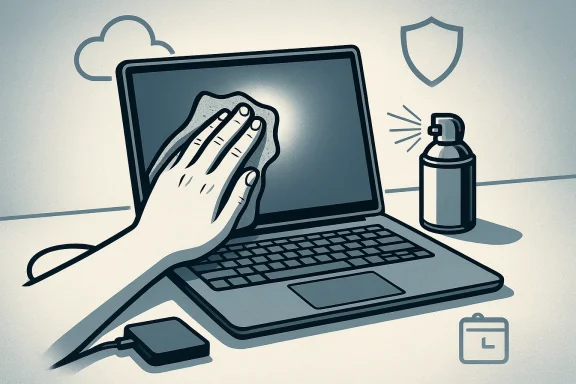
Modern laptop and monitor surfaces are not plain glass. They often include anti‑glare, anti‑reflective, or oleophobic coatings that can be permanently damaged by common household cleaners. That means the old “Windex + paper towel” approach is a guaranteed way to leave streaks, degrade coatings, or produce discolored patches you can’t fix.Why the old methods fail
- Many household glass cleaners contain ammonia or harsh solvents that strip coatings.
- Paper towels and non‑microfiber cloths leave microscopic scratches and lint.
- Spraying liquid directly onto a screen risks seepage into seams and electronics.
- Rubbing hard can physically stress pixels or surface films.
What manufacturers actually recommend
There is some variation between vendors, so the safest rule is follow the maker’s instructions for your exact model. For many major manufacturers, the recommended approach is simple: turn the device off and unplug it, use a clean microfiber cloth, and avoid spraying liquids directly on the display. Dell’s guidance, for example, explicitly recommends a microfiber cloth moistened with a 70% isopropyl alcohol / 30% water mix for cleaning surfaces — applied to the cloth, not directly to the screen — and warns against ammonia, peroxides, and solvents.Other vendors and display‑care writeups suggest gentler mixes for matte or sensitive displays: distilled water or a 50/50 distilled‑water/white‑vinegar mixture for stubborn smudges on non‑glass panels. The practical takeaway is that isopropyl alcohol is widely accepted when used correctly, but you should confirm specifics for nano‑textured or specialized glass from Apple, Dell, HP, or the screen vendor.
How to clean safely — a simple, vendor‑friendly routine
- Turn the device off and unplug or remove batteries if possible.
- Start with a dry, clean microfiber cloth to remove dust and loose particles.
- If smudges remain, lightly dampen the cloth (not the screen) with one of these:
- Manufacturer‑recommended solution (follow your manual).
- 70% isopropyl alcohol / 30% distilled water (common safe choice for many displays).
- Distilled water or a 50/50 distilled water/white vinegar mix for sensitive coatings.
- Wipe gently, using minimal pressure and smooth strokes from top to bottom.
- Air‑dry fully before powering the device back on.
Risks and tradeoffs
- Aggressive cleaning will shorten a screen’s cosmetic life. Excessive use of alcohol can, over time, alter coatings even if used carefully.
- If in doubt, consult the vendor manual. For some premium or proprietary coatings (e.g., Apple’s nano‑texture glass), only vendor‑approved cleaners should be used.
Optimizing drives: stop defragging SSDs — TRIM is the right move
A deeply persistent myth: “defrag regularly to keep my PC fast.” That was true for mechanical hard drives (HDDs), but not for solid‑state drives (SSDs). Defragmentation is a physically moving operation that causes many extra writes — and SSDs have finite write endurance. On an SSD, defragging not only provides no tangible performance benefit, it can accelerate wear.What SSDs need and why
SSDs rely on a command called TRIM (or the OS‑level equivalent) to tell the drive which blocks no longer contain valid data so the drive’s controller can erase and prepare them for future writes. Without TRIM, SSDs can slow over time because the controller must erase blocks at write time — a slower process that looks like a performance drop. Modern operating systems call TRIM automatically for drives detected as SSDs. Microsoft’s support materials and community answers confirm Windows runs TRIM/re‑TRIM optimizations by default (typically scheduled weekly).What Windows does automatically
- Windows detects SSDs and will not run a full HDD style defragmentation on them. Instead, the Optimize Drives utility issues TRIM or a retrim operation, which is the correct maintenance task for SSDs. Default schedules in Windows run on a weekly cadence and handle SSDs appropriately.
Practical checklist: SSD vs HDD
- If your drive is an HDD (platter):
- Defragment occasionally when fragmentation is high (the Windows optimizer/Defrag tool still helps).
- Use the built‑in scheduled optimization or run manual defragmentation when you notice slow file access.
- If your drive is an SSD:
- Do not defragment. Rely on TRIM and the OS’s Optimize Drives routine.
- If you suspect TRIM is disabled (rare), you can check and enable it via system utilities or PowerShell (fsutil and Optimize‑Volume). Advanced users can manually run a retrim if needed.
When exceptions happen
- Some third‑party defrag tools might try to treat SSDs like HDDs. Avoid third‑party defragmenters that don’t detect SSDs.
- If an SSD is being used as long‑term archival storage in an external enclosure, there are cases where occasional manual optimization makes sense — but for everyday system disks, trust the OS.t out of your case: frequency and method matter more than drama
Common mistakes people make
- Waiting until a PC is visibly filthy instead of cleaning on a schedule.
- Using household vacuums or motorized vacuums near circuitry (risk of static discharge, physical damage, or sucking components loose).
- Holding a compressed‑air can upside down (which sprays cold propellant) or using long, continuous blasts that spin fans at unsafe speeds.
Manufacturer and industry guidance
Major vendors and technicians recommend compressed air and anti‑static precautions while warning against household vacuums. Dell’s maintenance material explicitly suggests using canned air and avoiding vacuum cleaners, grounding yourself, and keeping fans from free‑spinning while you blow them. Industry how‑tos and repair guides echo the same fundamentals: power down and unplug, ground your body, hold the can upright, and use short bursts of air a few inches away.How often should you clean?
- Exterior vents / keyboard / ports: wipe monthly with a dry microfiber cloth.
- Internal tower cleaning: open and clean with compressed air every 3–6 months for typical homes, more often if you have pets, smokers, or heavy dust exposure.
- Laptops: a lot of modern laptops are sealed and designed to manage internal dust; rely on external cleaning and professional servicing unless the manufacturer provides an access panel.
A safe internal‑clean routine
- Power down and unplug everything; remove battery if removable.
- Touch the metal case to discharge static, or use an anti‑static wrist strap/mat.
- If using an air can, hold it upright and use short, controlled bursts from several inches away.
- Prevent fans from free‑spinning by gently holding fan blades (excessive spin can damage bearings).
- Avoid direct contact with circuit pins and connectors; don’t rub heatsinks with cloths that can leave fibers.
- Reassemble, plug in, and test temperatures with a monitoring tool.
The vacuum question
Shop vacuums built for workshops often include anti‑static grounding and HEPA filters and are used by professionals; household vacuums are not recommended. If you have an ESD‑safe vacuum and proper brushes, a professional cleaning is safe and effective; for most users, canned air or an electric blower designed for electronics is the simplest, lowest‑risk route.Backing up important data: the 3‑2‑1 rule still matters — but adapt it
Backups are the only maintenance task that saves you from catastrophic failure. Too many people conflate “sync” with “backup” or assume a single cloud service is enough. The enduring best practice is the 3‑2‑1 backup rule: keep at least three copies of your data, on two different media, with one copy stored off‑site. Backblaze — the company best known for cloud backups — explains the scheme and why it remains the foundation for both personal and business backups.What 3‑2‑1 means in practice
- 3 copies: your primary data + 2 backups.
- 2 media: e.g., a local external drive and cloud storage (or external drive + NAS).
- 1 off‑site: a geographically separate copy (the cloud is the easiest off‑site option).
Common backup mistakes
- Relying on sync (e.g., cloud drive sync) instead of true backups with history/versioning.
- Keeping all drives in the same physical location (a fire or theft wipes all copies).
- Failing to test restores — a backup you can’t restore is useless.
- Assuming a cloud provider will forever protect your data without proper retention settings or immutability options.
A practical backup plan for most users
- Local quick recovery: an external USB drive or local NAS with regular scheduled backups (e.g., daily or hourly for active work).
- Off‑site long‑term recovery: a cloud backup provider that stores version history and supports full restore (Backblaze, enterprise products, or equivalent).
- Periodic offline copy: for irreplaceable data, keep an encrypted external drive off‑site or in a safe deposit box.
- Test restore every 3–6 months to confirm integrity and process familiarity.
Tradeoffs and cost considerations
- Cloud backups add recurring cost but provide strong off‑site resilience and ease of recovery.
- Keeping more frequent local backups speeds recovery but requires management of local storage space and versioning.
- For businesses or creators whose livelihoods depend on data, invest in immutable cloud retention, air‑gapped copies, and automated disaster‑recovery tests.
Critical analysis: strengths, blind spots, and real risks
The guidance in the Pocket‑lint piece is directionally correct — these are the right four things to worry about — but the devil is in the details. I verified vendor guidance and common practices and identified where veteran users and manufacturers diverge.Strengths of modern maintenance practices
- OS automation reduces human error. Windows and macOS now handle SSD TRIM and many routine background tasks, which means less manual fiddling and fewer harmful missteps.
- Vendor advice is more consistent than it used to be. Dell, HP, and similar vendors provide explicit cleaning and maintenance steps tailored llowing maker guidance prevents most common mistakes.
- Backup frameworks are simple and proven. The 3‑2‑1 rule is straightforward and widely supported by cloud backup providers, making reliable backup less technically daunting than it used to be.
Blind spots and real risks
- Manufacturer variance on cleaning. While many vendors endorse 70% isopropyl or similar mixes, not every display is the same. Apple’s nano‑texture or specialty coatings may require unique materials; a generalized “use 70% alcohol” headline can mislead users with those screens. Always check your product’s manual.
- Third‑party tools can undo OS safeguards. Some third‑party defraggers and cleaning utilities ignore SSD detection and may perform harmful write‑heavy operations. Stick to built‑in optimization for storage unless you know what a tool is doing.
- Cleaning frequency is environment dependent. Pocket‑lint’s monthly exterior / a few times per year internal cadence is a sensible baseline, but homes with pets, smokers, or construction dust need more frequent attention. Undercleaning is a slow‑burn risk to hardware life.
- Backup complacency is dangerous. People trust “the cloud” too much. Even reputable cloud providers can misconfigure retention, or your own client can be set to sync rather than back up versioned copies. Test restores; don’t assume backups are working.
Quick reference: do’s and don’ts
- Do: use a microfiber cloth, vendor‑approved cleaner, and gentle pressure when cleaning screens.
- Don’t: spray liquid directly onto displays or use ammonia‑based glass cleaners.
- Do: trust your OS for SSD maintenance — TRIM and weekly optimize are normal. Manually TRIM only if you know why.
- Don’t: run full HDD‑style defragmentation on SSDs with third‑party tools that don’t detect SSDs.
- Do: clean external vents monthly and interior components 2–4 times a year depending on environment; use canned air properly.
- Don’t: use household vacuums on internals unless the device is explicitly designed for te an ESD‑safe system.
- Do: implement at least a 3‑2‑1 backup plan: three copies, two media, one off‑site; test restores.
Final verdict and practical next steps
PC maintenance today is about making smart, low‑risk choices rather than ritualized chores. The four tasks Pocket‑lint called out are exactly the right ones to keep on your radar — but do them with the modern rules in mind:- Clean screens gently and follow the vendor instructions for your model. If you don’t know those instructions, use a damp microfiber cloth or the widely‑accepted 70% isopropyl mix applied to the cloth, not the screen.
- Stop defragging SSDs. Let Windows or macOS manage TRIM and retrim operations; defrags are for spinning disks. If you’re running hybrid setups, ensure only HDDs are targeted for full defrags.
- Treat dust removal as scheduled maintenance, not a one‑off panic. Monthly exterior wipedowns and periodic internals cleaning keep temps down and parts alive. Use canned air correctly, ground yourself, and avoid household vacuums unless equipped with ESD‑safe features.
- If your data matters, design a real backup plan. Use the 3‑2‑1 rule or a stronger variant, keep an offline copy if you can, and exercise restores periodically so you know the process works when you need it.
If you want, make a one‑page maintenance checklist from the steps above and pin it near your workspace — you’ll be surprised how small, regular actions compound into a much more resilient PC life.
Source: Pocket-lint 4 PC maintenance tasks you’re probably doing wrong
