

If your Windows PC feels sluggish, you don't need to buy a new machine or install a paid "optimizer" — a handful of built‑in settings, a little housekeeping, and a methodical approach will usually reclaim most of the responsiveness you've lost, and you can do it for free.\\n
\\nWindows ships with defaults that prioritize compatibility and reliability across millions of hardware configurations, not raw snappiness. Over months and years, that policy leads to a quiet performance tax: autostarted apps, background services, accumulated temporary files, conservative power profiles, and visual effects that tax integrated GPUs. Most real‑world sluggishness is caused by software configuration and maintenance, not by an irrecoverable hardware failure.\\nThis feature turns the "no‑cost" advice you already hear into a practical, verifiable playbook. It summarizes the core, built‑in controls you should use, explains why they work, shows how to test results, and highlights the tradeoffs and risks so you can decide what to toggle and when.\\n
\\n
\\n
\\n
\\n
\\n
\\n
\\n
\\n
\\n
\\n
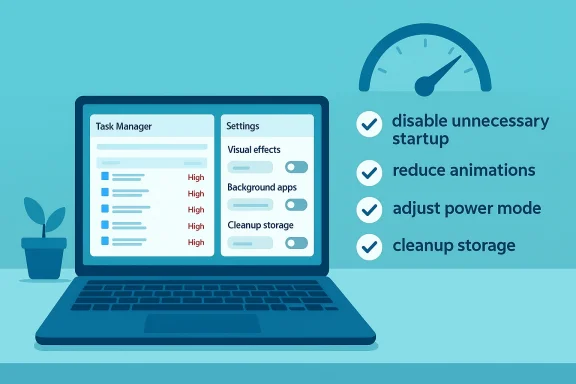
\\nBy stopping needless autostarts, limiting background permissions, dialing back demanding visual effects, selecting the right power mode, and keeping storage tidy — and by measuring changes rather than guessing — most Windows users can reclaim significant everyday responsiveness using only the tools that are already built into the OS.\\n
Source: MakeUseOf The ultimate guide for improving Windows performance while spending nothing\n
 Background
\\nWindows ships with defaults that prioritize compatibility and reliability across millions of hardware configurations, not raw snappiness. Over months and years, that policy leads to a quiet performance tax: autostarted apps, background services, accumulated temporary files, conservative power profiles, and visual effects that tax integrated GPUs. Most real‑world sluggishness is caused by software configuration and maintenance, not by an irrecoverable hardware failure.\\nThis feature turns the "no‑cost" advice you already hear into a practical, verifiable playbook. It summarizes the core, built‑in controls you should use, explains why they work, shows how to test results, and highlights the tradeoffs and risks so you can decide what to toggle and when.\\n\\n
Kill startup bloat and runaway background apps
\\nWhy this matters
\\nPrograms that insist on launching at sign‑in or running quietly in the background are the most common cause of slow boots, high idle CPU usage, and memory pressure. Trimming startup items and revoking background permissions often produces the largest immediate perceptual improvement. Community audits and Microsoft’s own UX expose the same two control points: Task Manager’s Startup tab and Settings → Apps → Startup.\\nWhat to look for (and how Task Manager helps)
\\nTask Manager's Startup tab surfaces entries and a measured Startup impact value you can use to prioritize changes. Recorded startup impact is based on actual CPU and disk work when the app launches — the label lets you focus on the items that steal the most boot time and resources. If you want a conservative rule of thumb, look first at entries marked High.\\nPractical steps:\\n- \\n
- Press Ctrl + Shift + Esc to open Task Manager.\\n
- Click the Startup tab, sort by Startup impact, and note any high‑impact items you can live without at boot.\\n
- Right‑click nonessential entries and choose Disable; keep security and essential vendor utilities enabled until you confirm behavior.\\n
Tame background apps for modern Store apps
\\nWindows differentiates between classic Win32 apps and Store (UWP) apps. For the latter you can explicitly control background execution:\\n- \\n
- Open Settings → Apps → Installed apps.\\n
- Click the three dots next to an app → Advanced options → Background app permissions.\\n
- Choose Never or Power optimized depending on whether you need occasional notifications.\\n
What not to touch
\\nDo not disable antivirus, disk‑encryption clients (BitLocker, corporate endpoint protections), or backup/sync agents you need. Those services protect data and system integrity; removing them can expose you to risk or break functionality. If you’re unsure about an entry, check the executable’s file location or temporarily disable it and test — then reenable if something stops working.\\n\\n
Dial back eye candy that slows everything down
\\nThe performance cost of animations and transparency
\\nWindows spends CPU/GPU cycles on animations, blur/translucency, shadows, and other effects that make the OS look modern. On low‑end hardware or integrated graphics these effects can produce input lag and slow window transitions. Disabling selected visual effects returns those cycles to foreground work and often makes the UI feel noticeably faster.\\nTwo safe ways to shrink the visual tax
\\n- \\n
- Quick toggles: Settings → Accessibility → Visual effects → switch off Animation effects and Transparency effects for minimal impact with max safety.\\n
- Deeper control (classic): Win + R → type sysdm.cpl → Enter → Advanced → Performance Settings → Visual Effects. Choose Adjust for best performance to disable all nonessential effects, or choose Custom and selectively reenable fonts and thumbnails for a balance.\\n
Tradeoffs and practical guidance
\\nTurning everything off will make Windows look utilitarian. For most users a middle ground gives the best outcome: disable animations and transparency, but keep Smooth edges of screen fonts and Show thumbnails if you rely on previews. The key is to be surgical rather than wholesale — revert any change if a particular workflow becomes harder.\\n\\n
Fix power settings that quietly throttle performance
\\nPower modes do real work
\\nWindows’ modern Power mode slider (Settings → System → Power & battery → Power mode) maps everyday scenarios to underlying power‑management behavior. Selecting Best performance (or a High performance plan from Control Panel) raises CPU/GPU minimum clocks and lets the system stay responsive rather than aggressively down‑clocking to save energy. On desktops this trades electricity for snappier responsiveness; on laptops pick Best performance while plugged in and switch back on battery to save juice.\\nManufacturer tools matter on laptops
\\nSome OEM utilities (Dell Power Manager, Lenovo Vantage, HP Command Center) add their own power modes or thermal profiles that override Windows defaults. If you need higher sustained performance on a laptop, check the OEM tool and choose a performance or thermal profile that keeps clocks higher when AC‑connected.\\nBe mindful of Modern Standby and battery tradeoffs
\\nOn systems using Modern Standby you might not see the classic High performance plan. In those cases use the Power mode slider in Settings, and remember the battery/heat tradeoff — prioritizing performance will increase power draw and surface temperatures.\\n\\n
Keep security lean and let Windows maintain itself
\\nBuilt‑in Windows Security is lean and effective
\\nModern Windows Security (Windows Defender) provides robust, low‑overhead protection for typical users. Many third‑party suites add background services and real‑time scanning components that increase CPU usage and file‑system contention. For most home users on Windows 11, sticking with the built‑in solution avoids that additional background tax without sacrificing baseline protection.\\nNever run two real‑time scanners together
\\nRunning multiple real‑time antivirus engines simultaneously creates conflict, duplicated scanning effort, and pronounced slowdowns. If you must use a third‑party suite, disable Windows Security realtime protection or, preferably, uninstall the overlapping tool and rely on one product. Avoid registry hacks that disable Windows Security; they can create instability and make the system harder to diagnose.\\nLet Windows handle updates and maintenance
\\nWindows Update and driver updates often include performance and stability fixes. Use Storage Sense and Disk Cleanup to reclaim space on the system drive (Settings → System → Storage → Temporary files and Storage Sense). Be cautious with automated cleanup settings so you do not lose files from Downloads unless you intend to.\\n\\n
Clean up storage — temporary files and Storage Sense
\\nWhy storage matters more than you think
\\nA near‑full system drive increases paging activity and IO latency; on HDDs, fragmentation can amplify the problem. Freeing space and removing long‑lived Windows update leftovers improves both boot time and app launches. Many guides agree: the single best hardware upgrade is moving from an HDD to an SSD, but software housekeeping comes first and is free.\\nPractical actions:\\n- \\n
- Settings → System → Storage → Temporary files: remove safely recommended items.\\n
- Enable Storage Sense to schedule automatic cleanup, but review what it removes (Downloads can be preserved).\\n
- Use Disk Cleanup → Clean up system files for Windows update leftovers if you need more space.\\n
\\n
When free tweaks aren’t enough — and what to upgrade first
\\nIf, after careful measurement, you still see resource saturation, hardware is the likely bottleneck. Prioritize upgrades in this order:\\n- \\n
- Replace an HDD with an SSD (SATA or NVMe) — the largest single practical gain in real‑world responsiveness. Benchmarks repeatedly show orders‑of‑magnitude IOPS and throughput improvements for NVMe drives versus platter disks.\\n
- Add RAM if you consistently see >80% physical memory usage under your normal workload; moving from 8 GB to 16 GB is a common, high‑value step.\\n
- CPU/GPU upgrades matter only when the Performance tab reports constant, sustained saturation under typical use — they are costlier and sometimes constrained by platform compatibility.\\n
\\n
How to measure improvement reliably
\\nEvery change should be verified with objective metrics rather than impressions. Use this simple testing routine:\\n- \\n
- Baseline: Record cold boot time to usable desktop with a stopwatch. Open Task Manager → Performance to note idle CPU, memory, disk, and GPU usage.\\n
- Change one variable (disable three high‑impact startup apps, turn off transparency, or switch power mode).\\n
- Reboot and retest the same metrics. Note time differences and any change in Resource Monitor top IO processes.\\n
\\n
A 20‑minute, zero‑cost checklist (do this now)
\\nFollow this compact sequence to reclaim responsiveness quickly. Each step is reversible.\\n- \\n
- Create a System Restore point and a quick backup. (2 minutes)\\n
- Ctrl + Shift + Esc → Startup tab: disable 3–6 nonessential high‑impact items; reboot. (5 minutes).\\n
- Settings → System → Storage → Temporary files: run a cleanup and enable Storage Sense cautiously. (5 minutes).\\n
- Settings → System → Power & battery → Power mode: set to Best performance while plugged in. (1 minute).\\n
- Win + R → sysdm.cpl → Advanced → Performance Settings: choose Custom and disable heavy effects or pick Adjust for best performance if you prefer max snappiness. (3 minutes).\\n
- Settings → Apps → Installed apps → Advanced options: set Background app permissions to Never for apps you rarely use. (3–4 minutes).\\n
\\n
Strengths, risks, and critical analysis
\\nStrengths (why this advice works)
\\n- \\n
- Low cost and low risk: All recommended changes use built‑in Windows tools and are reversible. They remove overhead rather than attempting magical speed boosts.\\n
- High perceived ROI: For older laptops, HDD systems, or machines with <8 GB RAM, trimming startup apps and cleaning storage often gives the most noticeable immediate gain.\\n
- Measurable: Simple metrics (boot time, Task Manager idle values) let you see real differences without advanced tooling.\\n
Risks and caveats
\\n- \\n
- Security and backup services: Disabling antivirus or backup agents to reduce startup load can expose you to risk. Keep protections enabled unless you have an alternative.\\n
- Fast Startup and hybrid boot: While Fast Startup speeds boots for many users, it can create hardware detection issues in dual‑boot setups and complicate firmware tasks; disable it if you see problems. Community and vendor docs confirm these tradeoffs.\\n
- One‑click optimizers and deep debloat scripts: Community experience warns that some debloaters remove required features or registry keys and can break updates. Prefer UI toggles and documented Microsoft tools unless you have tested rollback.\\n
Unverifiable or variable claims
\\nAny headline promising a fixed percentage speed improvement (for example, “30% faster”) is environment‑dependent and anecdotal. Gains vary by hardware, installed software, firmware versions, and what the user actually does with the machine. Treat those numbers as directional rather than guaranteed.\\n\\n
Final verdict: what to expect and a sensible routine
\\nThese zero‑cost changes will not make an old CPU suddenly bench as a new one, but they will reduce unnecessary background work, free RAM for foreground apps, shrink disk contention, and make the UI feel snappier. For most users the best path is:\\n- \\n
- Apply the free, reversible changes above.\\n
- Measure results and revert any changes that harm workflow.\\n
- If resource saturation persists (constant high disk I/O or memory pressure), prioritize an SSD and additional RAM before considering CPU upgrades.\\n
\\nBy stopping needless autostarts, limiting background permissions, dialing back demanding visual effects, selecting the right power mode, and keeping storage tidy — and by measuring changes rather than guessing — most Windows users can reclaim significant everyday responsiveness using only the tools that are already built into the OS.\\n
Source: MakeUseOf The ultimate guide for improving Windows performance while spending nothing\n
