

For many Windows refugees, the question isn’t whether to leave Microsoft’s ecosystem so much as where to land next — and one often-overlooked runway is FreeBSD. A recent first-person experiment that swapped Windows for a FreeBSD-based desktop (using the GhostBSD project) makes a persuasive, practical case: FreeBSD can be a coherent, lower‑chaos alternative to the endless “which Linux distro?” debate, but the trade-offs — hardware support, closed‑source game clients, and the occasional compatibility cliff — are real and require a measured migration plan.
FreeBSD is a single, unified operating system: kernel and userland are developed and released together, with a consistent project policy and licensing model that contrasts sharply with Linux’s ecosystem of dozens — sometimes hundreds — of distributions. That design produces a coherent baseline, which can be attractive to Windows users frustrated by fragmentation and distro‑hop fatigue. Community spins like GhostBSD package FreeBSD into a user-friendly installer and desktop image (MATE and XFCE flavors), bringing the FreeBSD core closer to a “just‑install and go” desktop experience. GhostBSD publishes official MATE images and community XFCE images maintained by contributors. The practical migration story is layered: FreeBSD brings stability, a robust networking stack, ZFS support and jails for isolation — strengths that have long made it a server favorite. But as soon as you target a modern desktop workflow — GPU drivers, Steam/GOG clients, proprietary creative tools like DaVinci Resolve — you start leaning on Linux or Windows binaries, compatibility layers, or Wine-based solutions. That reality is echoed across community migration writeups and forum discussions: FreeBSD is powerful and elegant for advanced users, but desktop polish and breadth of commercial app support lag behind mainstream Linux.
The pragmatic path for many is a hybrid approach: run FreeBSD/GhostBSD as a daily driver for general tasks, use Wine or linux compatibility for games and Windows apps when they work well, and retain a Windows VM or a secondary Windows partition for anti‑cheat titles or tightly vendor‑locked software. For users willing to invest time in troubleshooting and who prize system coherence over glossy app stores, FreeBSD is an elegant, low‑chaos destination. For everyone else, FreeBSD will remain an enticing hobbyist and server platform with growing but still limited desktop convenience.
Bold choices require trade‑offs: FreeBSD gives you control and sanity at the cost of some convenience. If your priority is a drop‑in replacement with the broadest commercial app support, modern GPU driver ease, and the least time spent debugging, mainstream Linux distributions remain the practical path. If you crave a single codebase, a mature Unix lineage, and the satisfaction of running a lean, well‑engineered OS — FreeBSD is worth the trip, and GhostBSD gives you a gentle bridge to get there.
Source: Hackaday Moving From Windows To FreeBSD As The Linux Chaos Alternative
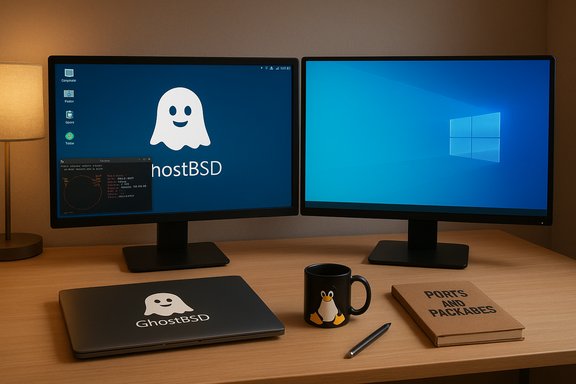 Background / Overview
FreeBSD is a single, unified operating system: kernel and userland are developed and released together, with a consistent project policy and licensing model that contrasts sharply with Linux’s ecosystem of dozens — sometimes hundreds — of distributions. That design produces a coherent baseline, which can be attractive to Windows users frustrated by fragmentation and distro‑hop fatigue. Community spins like GhostBSD package FreeBSD into a user-friendly installer and desktop image (MATE and XFCE flavors), bringing the FreeBSD core closer to a “just‑install and go” desktop experience. GhostBSD publishes official MATE images and community XFCE images maintained by contributors. The practical migration story is layered: FreeBSD brings stability, a robust networking stack, ZFS support and jails for isolation — strengths that have long made it a server favorite. But as soon as you target a modern desktop workflow — GPU drivers, Steam/GOG clients, proprietary creative tools like DaVinci Resolve — you start leaning on Linux or Windows binaries, compatibility layers, or Wine-based solutions. That reality is echoed across community migration writeups and forum discussions: FreeBSD is powerful and elegant for advanced users, but desktop polish and breadth of commercial app support lag behind mainstream Linux.Why FreeBSD? The selling points Windows users will recognize
- Coherence, not chaos — one base system, consistent release policy, and tightly coordinated userland mean fewer surprises when upgrading system components.
- Stability and performance — FreeBSD’s kernel and TCP/IP stack are battle-proven in high‑traffic server deployments; the benefits carry over to desktop and workstation workloads that value predictability.
- Licensing clarity — permissive BSD licensing can simplify redistribution and downstream product integration compared to some GPL scenarios.
- Jails and system-level control — FreeBSD jails offer a mature isolation primitive for test, sandboxing, and service hardening that is closer to lightweight virtualization than many desktop users expect.
- Ports and packages — a mature ports tree and binary package system provide access to a broad set of open‑source software; many Linux apps also have FreeBSD ports or can be run via the Linux compatibility layer.
Getting to bare metal: GhostBSD as the easy path
GhostBSD images and installer choices
GhostBSD offers an approachable route into FreeBSD with two main desktop-focused images: MATE (official) and XFCE (community). Both are delivered as installer ISOs intended for desktop use, and GhostBSD maintains release notes and checksums for the images. The project’s Graphical BSD Installer (GBI) simplifies partitioning and bootloader setup compared with raw FreeBSD’s text‑mode installer. For users who want a near‑Linux‑like installer experience, GhostBSD is the pragmatic compromise.Where the wheels can wobble: installer oddities and hardware quirks
The FreeBSD/GhostBSD installation path is usually smooth on mainstream x86 hardware, but a few recurring problems appear in practice:- USB boot media and USB 3.0 controllers can cause flaky behavior with certain installers or older BIOS/UEFI firmwares. Using a USB 2.0 port or recreating install media with a different tool (Rufus, balenaEtcher, dd) is a frequent workaround.
- Hybrid GPU setups (NVIDIA Optimus) and some laptop power/graphics firmware combinations can confuse the installer or prevent the graphical environment from starting. These issues are frequently anecdotal: they may arise from a hardware/firmware quirk rather than a general FreeBSD defect. Treat such reports as investigative leads, not universal blockers.
Gaming and the desktop: the compatibility battleground
For many Windows users, the ability to run Steam and GOG games is the decisive factor. FreeBSD’s options are pragmatic but decidedly non‑plug‑and‑play compared with mainstream Linux.The FreeBSD Linux compatibility layer (linuxulator)
FreeBSD offers a linux(4) binary compatibility layer (linuxulator) to run unmodified Linux binaries. It enables a surprising amount of Linux software to run on FreeBSD, but the compatibility surface is not identical to a Linux kernel — certain kernel-level features (cgroups, namespaces, some ioctl semantics) and DRM/anticheat interactions can break expectations for complex modern game clients. The FreeBSD Handbook documents enabling and using linuxulator, but it is not a guarantee for every Linux binary.Common approaches to Steam on FreeBSD
- linuxulator + linux-steam-utils — a project that assembles a chroot and runtime tweaks to run the Linux Steam client under FreeBSD. It’s widely used but brittle in places; compatibility varies by GPU stack and Steam client updates. FreshPorts maintains a linux‑steam‑utils port and it is actively updated. Expect fiddling with linux-c7/rl9 compatibility libraries and GPU vendor libs.
- Wine + Windows Steam client (with a frontend like Mizutamari / Mizuma) — installing the Windows Steam client under Wine via user-facing helpers (Mizutamari, packaged as mizuma in FreeBSD ports) is often the lower‑maintenance path for playing many Windows games. Mizutamari provides a semi‑graphical helper similar to winetricks and can simplify prefix management for game installs. The FreeBSD ports tree includes mizuma and the FreeBSD handbook documents Mizutamari usage.
- Steam‑BSD‑Runtime and other community projects — community scripts aim to package Proton and replicate a Linux runtime environment for Steam on FreeBSD without relying heavily on linuxulator. These projects vary in maturity and user experience, but they demonstrate the ecosystem’s creativity. Community threads and repos (e.g., Steam‑BSD‑Runtime) can be valuable if you’re prepared to debug and contribute patches.
GOG Galaxy: the platform gap
GOG’s Galaxy client historically targets Windows and macOS; GOG has repeatedly signalled that a native Linux client was not a priority. Because cloud saves and launcher integration often require the official Galaxy client, Linux/FreeBSD users rely on Wine or third‑party frontends (Heroic, Lutris, GameHub, MiniGalaxy), which offer varying levels of integration. That means if you rely on Galaxy‑specific features (cloud saves, overlays, DRM hooks), your experience on FreeBSD will likely be Wine‑based and may require extra troubleshooting.Real user experience: what works, what’s brittle
- Native Linux games that work with Proton are often accessible via linuxulator or via community run‑time scripts, but driver and DRM differences can cause random breakage.
- Many Windows-only games run under Wine (via Mizutamari), sometimes flawlessly and sometimes with glitches (mouse capture quirks, flicker in the Steam store, or settings crashes). These glitches can be attributable to the game, Wine, or the compatibility layer — isolating the cause can be time-consuming.
- Anti‑cheat systems that rely on kernel‑level hooks generally block non‑Windows systems; this remains a major blocker for many competitive online titles. Keep a Windows fallback if competitive titles matter. Community compatibility databases and GitHub projects are essential research tools before committing.
Software availability and professional workflows
FreeBSD’s ports and packages deliver a broad set of open‑source software. For many everyday tasks — web browsing, office productivity (LibreOffice, OnlyOffice), IDEs, multimedia playback — FreeBSD is perfectly adequate. For heavy creative suites, the story diverges:- DaVinci Resolve and other commercial suites typically ship Linux binaries; running them on FreeBSD generally requires using the linuxulator approach (placing the Linux binary in a chroot or container and enabling Linux binary compatibility). That can work for some apps, but it’s a technical workaround rather than a native port.
- FFmpeg, SDL, and similar multimedia libraries are easily ported and run natively on FreeBSD (ports are common), and many open‑source creative tools are available or straightforward to port if the code adheres to POSIX. Real‑world porting of FFmpeg-based projects has been shown to be practical when the upstream avoids Linux‑specific assumptions. But some commercial apps embed Linux-specific or system‑level assumptions that make a native FreeBSD port more work.
A practical migration roadmap (step‑by‑step)
- Backup first: create full image backups and copy user data off‑machine.
- Inventory: list every essential app, peripheral, and hardware token (dongles, scanners). Mark items as “native FreeBSD OK / Linux with tweaks / Windows‑only”.
- Live test: boot GhostBSD XFCE or a FreeBSD Live image (or test in a VM) to confirm Wi‑Fi, display, audio, and printers.
- Install GhostBSD (or FreeBSD): choose GhostBSD for convenience or base FreeBSD for ultimate control.
- Post‑install: enable updates, install binary packages via pkg, and register any hardware‑specific drivers (NVIDIA, for example, requires vendor libraries).
- Compatibility phase: install Mizutamari (mizuma) if you plan to use Wine for Windows clients; if you prefer Linux Steam client, evaluate linux‑steam‑utils and be prepared for troubleshooting with linuxulator.
- Test games and professional apps: prioritize the most important workloads and verify functionality. Keep a Windows fallback for anything that blocks productivity.
- Lockdown and maintain: set up snapshots, regular backups, and a package/update cadence that matches your tolerance for stability vs. freshness.
Critical analysis: strengths, risks, and where FreeBSD shines or stumbles
Notable strengths
- Predictable system management — FreeBSD’s coordinated release model reduces the “what broke after the update” surprises that can plague heterogeneous Linux stacks.
- Server‑grade engineering on the desktop — jails, ZFS, and the network stack are production‑grade technologies that give advanced users superior control.
- Cleaner software provenance — the ports tree and package systems make it straightforward to audit and manage software sources.
Real risks and friction points
- Hardware driver parity — while NVIDIA provides FreeBSD drivers and AMD/Intel support exists, the most up‑to‑date vendor support and Mesa stack improvements historically land on Linux first. For bleeding edge GPUs or laptop-specific components (fingerprint sensors, exotic Wi‑Fi chips, docking stations), Linux is broadly ahead in driver availability and testing. Community reports show mixed experience depending on vendor and model. Treat hardware compatibility as a test-before-commit requirement.
- Proprietary game clients and DRM — Steam and GOG clients are not officially supported on FreeBSD. Community solutions exist (linux‑steam‑utils, Mizutamari/mizuma, Steam‑BSD‑Runtime), but they require maintenance, and updates to Steam or DRM components can break them at any time. If gaming is central, expect to keep Windows around for a subset of titles.
- Anti‑cheat and kernel hooks — many competitive titles are blocked on non‑Windows systems due to anti‑cheat. This is a known, often insurmountable limitation for certain games.
- Expectation management — FreeBSD is not “Linux minus Microsoft.” It’s a different UNIX lineage with different trade‑offs. Windows users who expect a Windows‑like, commercial‑app‑rich desktop out of the box will be disappointed without prior research and testing. Forum and migration guides emphasise a steeper initial learning curve and the need for community support.
Unverifiable or anecdotal claims
- When a single installer freezes on one laptop model, it is tempting to declare a systemic bug with GhostBSD or FreeBSD. In reality, such failures are often caused by specific USB controllers, firmware, or laptop Optimus configurations. Treat single‑machine anecdotes as diagnostic starting points, not definitive proof. Community documentation often recommends trying different USB ports, recreating install media, or testing alternative distros to isolate hardware faults.
Tactical recommendations for Windows users evaluating FreeBSD
- Use a disposable SSD or a separate drive to test GhostBSD or base FreeBSD — this keeps your Windows setup untouched.
- Start with GhostBSD XFCE if you want minimal setup friction; move to base FreeBSD when you need finer control.
- Maintain a Windows VM for the small but critical set of apps that simply won’t run acceptably under Wine/linuxulator.
- For gaming, research titles on ProtonDB and the linux‑steam‑utils / Mizutamari communities before committing to a full switch.
- Keep community resources bookmarked: FreeBSD Handbook, GhostBSD wiki, FreshPorts pages for mizuma and linux‑steam‑utils, and GitHub repos for community runtimes are essential troubleshooting companions.
Conclusion
FreeBSD — and desktop spins like GhostBSD — offer a compelling antidote to Linux distro fatigue: a single, coherent system with server‑grade engineering and a permissive license model. For advanced users who value control, predictability, and a clean system architecture, FreeBSD is a legitimate alternative to Linux or macOS. Yet the current reality is that desktop convenience — especially for gaming and niche commercial applications — still tilts toward Linux or Windows. Community toolchains (Mizutamari/mizuma, linux‑steam‑utils, Steam‑BSD‑Runtime) are impressive and useful, but they are workarounds, not native client parity.The pragmatic path for many is a hybrid approach: run FreeBSD/GhostBSD as a daily driver for general tasks, use Wine or linux compatibility for games and Windows apps when they work well, and retain a Windows VM or a secondary Windows partition for anti‑cheat titles or tightly vendor‑locked software. For users willing to invest time in troubleshooting and who prize system coherence over glossy app stores, FreeBSD is an elegant, low‑chaos destination. For everyone else, FreeBSD will remain an enticing hobbyist and server platform with growing but still limited desktop convenience.
Bold choices require trade‑offs: FreeBSD gives you control and sanity at the cost of some convenience. If your priority is a drop‑in replacement with the broadest commercial app support, modern GPU driver ease, and the least time spent debugging, mainstream Linux distributions remain the practical path. If you crave a single codebase, a mature Unix lineage, and the satisfaction of running a lean, well‑engineered OS — FreeBSD is worth the trip, and GhostBSD gives you a gentle bridge to get there.
Source: Hackaday Moving From Windows To FreeBSD As The Linux Chaos Alternative
