

What started as a modest progress log in a TechPowerUp forum — a nervous but determined move from Windows 10 Pro to Linux Mint by a self-described noob — reads today like a compact blueprint for anyone weighing the same leap: test from USB, expect hiccups, plan backups, and be ready to learn. The thread’s early troubleshooting episodes — failed installs, frozen installers, a last‑minute rescue by an older ISO, and finally a stable Mint installation — mirror the experience of many newcomers and illuminate both the appeal and the pitfalls of switching a daily‑driver PC away from Windows. rview
Windows 10’s extended lifecycle and the shifting support story around it have nudged many users to consider alternatives. Microsoft ended mainstream security updates for Windows 10 on October 14, 2025, a date that changed the calculus for users who prefer not to upgrade hardware to meet Windows 11’s requirements or who object to Windows’ direction.
Linux Mint is consistently recommended as a gentle, Windows‑friendly first stop for users looking to escape that ecosystem. It emphasizes a familiar desktop metaphor (Cinnamon), an approachable set of tools, and a “just works” oer the unpredictability of some Ubuntu upgrades or Windows update cycles. These impressions are evident across the TechPowerUp thread’s posts and the wider Linux‑to‑Mint migration discussions.
Other contributors recounted similar stories: older ISOs or different distributions sometimes installed without incident when newer ISOs failed, and in multiple posts Mint was explicitly praised for working where some Ubuntu upgrades broke existing systems. T e well‑reported reality that some installers are more tolerant of older hardware and particular BIOS/UEFI quirks than others.
However, important caveats remain:
Switching operating systems is always a tradeoff: you gain control, privacy, and often performance — pt a learning curve and occasional friction. The TechPowerUp thread is an encouraging case: a noob who embraced testing, iterated, and ultimately found a stable system and a renewed sense of ownership over their machine. For many Windows users today, that outcome is worth the short sprint of learning required to get there.
Source: TechPowerUp From Windows 10 Pro to Linux Mint... as a Noob - My Progress Log
Windows 10’s extended lifecycle and the shifting support story around it have nudged many users to consider alternatives. Microsoft ended mainstream security updates for Windows 10 on October 14, 2025, a date that changed the calculus for users who prefer not to upgrade hardware to meet Windows 11’s requirements or who object to Windows’ direction.
Linux Mint is consistently recommended as a gentle, Windows‑friendly first stop for users looking to escape that ecosystem. It emphasizes a familiar desktop metaphor (Cinnamon), an approachable set of tools, and a “just works” oer the unpredictability of some Ubuntu upgrades or Windows update cycles. These impressions are evident across the TechPowerUp thread’s posts and the wider Linux‑to‑Mint migration discussions.
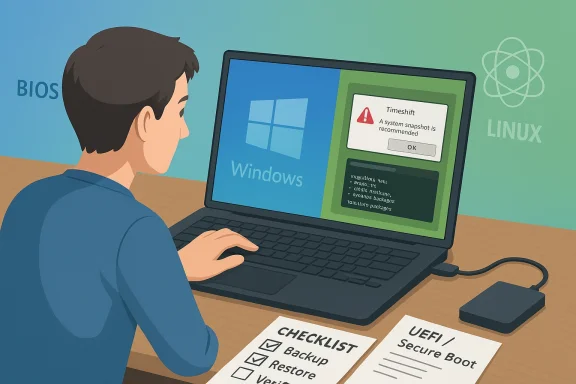 The thread: a user’s journey from failure to functional
Early attempts and common installer traps
The original poster describes burning an ISO to DVD, booting, and hitting repeated freezes during installation. They eventually booted live, attempted to install multiple times, and encountered inconsistent “internal” error messages during the installer’s final phases. Thoms when installer media is corrupted, when RAM or storage has issues, or when the installer misdetects the disk layout (MBR vs GPT) or firmware mode (Legacy BIOS vs UEFI).Other contributors recounted similar stories: older ISOs or different distributions sometimes installed without incident when newer ISOs failed, and in multiple posts Mint was explicitly praised for working where some Ubuntu upgrades broke existing systems. T e well‑reported reality that some installers are more tolerant of older hardware and particular BIOS/UEFI quirks than others.
The “it just works” narrative — and why it matters
Once the OP switched to Linux Mint and chose a simpler route (erase and install on the new disk), the machine became “rock solid” and responsive. That resolution — replacing the problematic installation attempts with a single, clean Mint install — is the most common pragmatic advice repeated in forums: when in doubt, back up, wipe, and install anew. The thread’s tone shifts from anxiety ton install takes, underscoring that many painful migration issues are resolvable with a methodical approach.Why Linux Mint? Strengths for Windows refugees
- Familiar desktop: The Cinnamon desktop intentionally mimics key Windows UX elements — a panel, a Start‑style menu, and desktop shortcuts — which reduces the learning curve for long‑time Windows users.
- Snapshots and safety nets: Timeshift, a system snapshot tool prominent in Mint’s ecosystem, gives users an easy rollback mechanism similar to Windows’ System Restore. It’s a major comfort factor for beginners.
- Lighter updates and fewer force Mint’s update workflows feel less intrusive than Windows Update’s restart‑heavy model — something repeatedly praised in forum discussions.
- Software availability and community: A mature package base and active community support make troubleshooting accessible; many Mint guides and user guides are explicitly targeted at newcomers.
The technical essentials you need before taking the plunge
1. Backups: non‑negotiable
- Make a full image of your Windows system drive or at minimum copy personal data to exterForum veterans repeatedly stress that unplanned data loss is the most common cause of regret.
2. Test from Live USB before touching disks
- Booting Mint from a live USB lets you verify hardware compatibility (Wi‑Fi, graphics, audio, peripherals) without modifying your disk layout. The OP ultimately achieved a stable system after testing and swrior frozen installs were avoided by running the live environment first.
3. Know your firmware mode (UEFI vs Legacy BIOS)
- Installers behave differently in UEFI vs Legacy BIOS. If Windows is installed in UEFI mode, match that mode for Mint to enable smooth bootloader configuration. Misaligned modes commonly cause missing boot entries or broken dual‑boot menus. Linux Mint’s installation guide has a dedicated section on UEFI and Secure Boot behaviors.
4. Secure Boot and third‑party drivers
- Secure Boot can complicate the process: depending on the ISO and shim/dkms/kernel versions, you may need to disable Secure Boot or enroll keys (MOK) if using certain proprietary drivers (notably NVIDIA). The Mint community and documentation provide specific steps, but the landscape has shifted over the years and occasional ISO builds have broken Secure Boot support — treat Secure Boot as a possible hurdle, not a certainty.
5. Fast Startup and BitLocker on Windows
- Windows features such as Fast Startup (a hybrid shutdown setting) and BitLocker encryption can prevent a clean dual‑boot and can make Wcessible from Linux until resolved. Disabling Fast Startup and pausing BitLocker (or decrypting the drive) are often required steps for dual‑boot setups. This is a common dual‑boot pitfall referenced in multiple community threads.
Tools: creating reliable installation media
- On Windows: Rufus is widely used, particularly for UEFI/GPT boots. Many users recommend Rufus for its reliability and control over partition schemes.
- On macOS/Windows/Linux: balenaEtcher is often suggested for simplicity, but a controversy over privacy/data sharing by Etcher’s maintainers has made some users wary. If you prefer conservative tooling, Rufus or the official dd methods (on Linux/macOS) are valid alternatives. Whichever tool you choose, verify the ISO checksum to avoid corrupted installs.
Gaming and Windows‑only applications: what to expect
One of the recurring worries for switchers is gaming and Windows‑only apps. The situation has improved dramatically in recent years:- Proton, Valve’s compatibility layer built on Wine, now allows a large and expanding catalog of Windows games to run on Linux via Steam Play. Valve continuously updates Proton; recent major releases have widened support and simplified forcing Proton per‑game within the Steam client. For many mainstream titles, performance and compatibility are excellent; for some anti‑cheat protected games, however, native Windows remains necessary or the experience will be unstable.
- For non‑Steam Windows apps, Wine and wrappers like Bottles or PlayOnLinux can help, but they require hands‑on tweaking. Expect a learning curve if you depend on niche Windows enterprise software or copy‑protected installers.
Troubleshooting the most frequent breakdowns
Installer freezes and “internal error” messages
- Possible causes:
- Corrupt install media (bad burn/image). Recreate the USB/DVD and verify checksums.
- Faulty RAM or failing storage — run memtest and SMART checks.
- Incompatibility with the ISO and very new hardware — try a newer kernel via a more recent Mint ISO or a different flavor like Ubuntu-based OWindows entry in GRUB after dual‑boot
- Run os‑prober and update-grub from Mint’s terminal; if that fails, check if Windows used proprietary boot mechanisms (BitLocker) or if the Windows partition is in an unusual state. These fixes are well documented and commonly suggested by community responders.
NVIDIA and proprietary drivers
- NVIDIA drivers can be a sticking point. If a driver refuses to load, test the open‑source Nouveau driver first, then use the Driver Manager to install the recommended proprietary driver. If Secure Boot blocks driver modules, you may need to sign them or disable Secure Boot temporarily.
Critical analysis — what Mint solves and what it doesn’t
Strengths
- Low‑friction UX for novices. Mint’s Cinnamon desktop reduces cognitive overhead for Windows users, making immediate productivity possible.
- Reliable snapshot and rollback via Timeshift. This reduces the fear of breaking the system and lowers the barrier to experimenting with packages or configuration changes.
- Smaller update fuss. Mint’s Update Manager and conservative approach mean fewer forced reboots during routine usage compared with Windows Update.
Risks and limitations
- Hardware compatibility is still uneven. Newer laptop components, especially Wi‑Fi, fingerprint readers, and hybrid graphics, may lack robust Linux support out of the box. Expect to research or test before committing.
- Peripheral and proprietary software lock‑in. Some specialized Windows applications, enterprise software, or niche games (particularly those using difficult anti‑cheat systems) may not run reliably under Proton or Wine.
- Secure Boot and firmware quirks. Modern UEFI implementations, firmware bugs, and OEM pressure toward Windows certification occasionally complicate installation. Documentation and forum workarounds exist, but they can be technical and intimidating.
The anecdote problem: subjective experiences vs systematic reality
- Forum posts (including the original TechPowerUp progress log) are invaluable for real‑world insight but are anecdotal by nature. They reflect specific hardware, ISOs, and user actions. Some users report near‑instant, flawless installs; others hit multiple show‑stopping errors. Treat community reports as data points, not guaranteed outcomes, and always perform your own live USB test and have backups ready.
A practical, step‑by‑step checklist for the cautious noob
- Backup everything: create file backups and a full disk image (recommended).
- Verify hardware: note whether Windows is installed in UEFI or Legacy BIOS mode and whether BitLocker or Fast Startup are enabled.
- Create a live USB with Rufus or Etcher and verify the ISO checksum.
- Boot the USB in “Try Linux Mint” mode and test:
- Wi‑Fi and Bluetooth
- Display and multiple monitors
- Suspend/resume
- Sound and microphone
- External devices (printers, scanners)
- If testing is successful, decide:
- Dual‑boot (keep Windows): disable Fast Startup, consider pausing BitLocker, make space for Mint in Windows Disk Management.
- Replace Windows entirely: be certain backups are complete.
- Install Mint, choose partitions carefully, or allow the installer to erase the disk.
- After install:
- Update the system via Update Manager.
- Install proprietary drivers via Driver Manager if needed.
- Configure Timeshift snapshots immediately.
- Install apps from the Mint repositories, Flatpak/Snap as preferred, and set up Steam + Proton if you game.
- Keep a Windows rescue or recovery USB handy until you’re confident everything is stable.
Realistic expectations for thirst week typically involves driver installs, tweaking the desktop layout, and restoring documents and email.
- The first month often requires solving edge cases — peripherals that need manual drivers, unique app compatibility, or gamer‑specific tweaks using Proton. The community is active and helpful; saving terminal outputs and logs when asking for help will speed responses.
Final verdict: is switching from Windows 10 Pro to Linux Mint a good idea for a noob?
Yes — if the move is planned and staged. The TechPowerUp progress log shows a pattern familiar to many: fear and failure at first, then success with a clean, cautious approach. Linux Mint offers a pragmatic balance of familiarity and power for users migrating from Windows, with tools like Timeshift reducing the risk of catastrophic misconfiguration.However, important caveats remain:
- If you rely on specific Windows‑only software (especially enterprise or anti‑cheat–protected games), do a compatibility audit first.
- If your laptop uses obscure hardware (rare Wi‑Fi adapters, fingerprint readers), test with a live USB prior to wiping anything.
- Plan backups and retain a Windows rescue USB until you are comfortable.
Switching operating systems is always a tradeoff: you gain control, privacy, and often performance — pt a learning curve and occasional friction. The TechPowerUp thread is an encouraging case: a noob who embraced testing, iterated, and ultimately found a stable system and a renewed sense of ownership over their machine. For many Windows users today, that outcome is worth the short sprint of learning required to get there.
Source: TechPowerUp From Windows 10 Pro to Linux Mint... as a Noob - My Progress Log
