

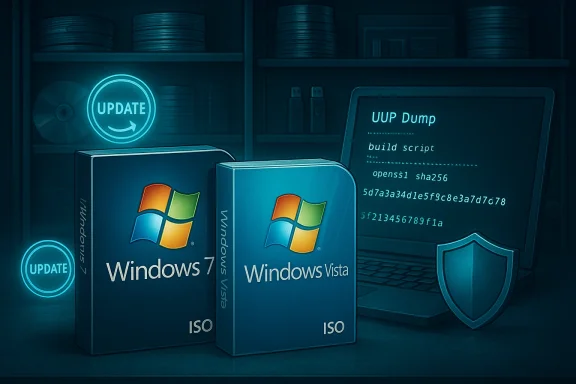
You can now grab ready-made Windows 7 and Windows Vista ISO images that already include the accumulated updates most users spent months installing after a fresh setup — a convenience that’s suddenly easier to access thanks to archived, community-curated images and Microsoft’s own refreshed installer builds becoming widely available again in public archives. These pre‑patched ISOs can drastically shorten deployment time for legacy PCs, test labs, and repair work, but they also carry important licensing, security, and compatibility trade‑offs that deserve careful attention.
Windows 7 and Windows Vista passed their official support milestones years ago: Windows 7 exited extended support on January 14, 2020, and Windows Vista reached end of extended support on April 11, 2017. That means Microsoft no longer publishes routine security updates for those releases to general customers, and many of the legacy installers no longer function seamlessly on modern hardware or update infrastructure. These end‑of‑support dates make a pre‑patched ISO a useful archive artifact for repair, compatibility testing, and offline reinstalls, because it bundles years of patches into a single image that can be installed immediately after media creation. Why does this matter now? Two trends converged:
This is a practical moment for anyone who maintains legacy machines: the right approach is to use the convenience of pre‑patched install media while insisting on the verification steps that separate a safe, efficient reinstall from a risky, unmanaged one.
Source: Neowin https://www.neowin.net/news/you-can...o-images-with-every-possible-update-included/
 Background
Windows 7 and Windows Vista passed their official support milestones years ago: Windows 7 exited extended support on January 14, 2020, and Windows Vista reached end of extended support on April 11, 2017. That means Microsoft no longer publishes routine security updates for those releases to general customers, and many of the legacy installers no longer function seamlessly on modern hardware or update infrastructure. These end‑of‑support dates make a pre‑patched ISO a useful archive artifact for repair, compatibility testing, and offline reinstalls, because it bundles years of patches into a single image that can be installed immediately after media creation. Why does this matter now? Two trends converged:- Microsoft and community channels have preserved or reissued refreshed Windows 7 / Vista images that include cumulative updates up to a particular baseline (for example, the 2018 Windows 7 “refresh” build), and those images have been archived and redistributed through reputable public archives.
- Community tooling (UUP Dump, builder scripts and curated archives) and modern file‑hosting make it simple to assemble or host “fully updated” AIO (all‑in‑one) ISOs that reduce post‑install patching to a minimum.
What changed — the new availability of fully updated ISOs
Official refresh images and archived copies
Microsoft historically released a refreshed set of Windows 7 installation media in 2018 (build family 7601, refresh revision ~24214) that already included many post‑SP1 fixes, .NET updates, and some convenience rollups. These refreshed ISOs were distributed via MSDN/volume channels and later mirrored or preserved in public archives. Community indexes and archive collections now point to those files and to community‑produced “fully updated” AIO ISOs for both Windows 7 and Vista. Important fact: these Microsoft refresh builds are distinct from third‑party AIO packs. The official refresh images came from Microsoft labs (MSDN/OEM channels) and were intended as updated baseline installers; community AIO bundles frequently combine multiple editions and add additional updates or drivers. Distinguishing the original Microsoft refresh ISO from repackaged AIOs is crucial when assessing trust and compliance.Community “fully updated” images and archive hosting
Independent archives and Windows ISO collections now host a range of “fully updated” ISOs: Windows 7 SP1 AIO fully updated images and Vista SP2 AIO images are available in public repositories that index Microsoft builds and community‑assembled images. These archives typically list the build revision, included updates, and sometimes checksums. The presence of an archived ISO means you can obtain a single file that includes a large cumulative update baseline, reducing the post‑install update volume.What these ISOs include (and what they don’t)
- Many of the “fully updated” Windows 7 ISOs are based on the 2018 refresh (build 7601.24214) and include security rollups, .NET and IE updates up to that point. The official refresh images often already include IE11 and select .NET Framework builds.
- Vista SP2 AIO images collected by archivists typically include service pack content and a large subset of post‑SP2 patches, but not every out‑of‑band update Microsoft released historically. The scope varies by archive entry.
- Third‑party AIO packs sometimes bundle additional runtime frameworks (Visual C++ redistributables, .NET 4.x), drivers (SATA / USB3), and convenience scripts. Those extras can be beneficial — if they come from trustworthy sources — but they are also the main vector where an image may be altered beyond simply adding Microsoft updates.
Why many users and IT pros want these ISOs
Short answer: speed, reliability, and offline deployment.- Faster provisioning: a pre‑patched ISO can cut hours (or many reboots) from a typical fresh install by eliminating large chains of cumulative updates delivered via Windows Update.
- Offline installs and lab imaging: technicians building VMs or repair media benefit from an install image that doesn’t rely on online update delivery or an aging Windows Update infrastructure.
- Preservation and recovery: ISOs provide a repeatable archival artifact for troubleshooting legacy software that requires a specific OS build.
The risks — licensing, supply chain and compatibility
Licensing and activation
A downloaded ISO is only the installation media — it does not transfer product licensing rights. Installing Windows 7 or Vista from an ISO still requires a valid product key or a digital license that is accepted by Microsoft’s activation servers. Beware of “pre‑activated” AIO downloads and sites that advertise activation bundled with the image; those distributions are almost always pirated and carry legal and security risk.Supply‑chain and tampering risks
Community archives are a valuable preservation resource, but they can host both honest, verified snapshots and repackaged images that include installers or binaries from unknown sources. The safest strategy is:- Prefer Microsoft‑issued refresh ISOs (when available) or build an updated ISO yourself from Microsoft update packages.
- If you use an archive copy, verify the file’s checksum (SHA-256 / SHA-1) and scan for malware before mounting or installing.
Driver and hardware compatibility
Old installers typically lack modern USB 3.0, NVMe, and newer chipset drivers, which can block install media from recognizing your storage or USB media. Many archive ISOs remain genuine but will require additional steps (driver injection, use of modern imaging tools such as Rufus, or patched install.wim handling) to work on contemporary PCs.Update delivery and serviceability
An ISO snapshot is a static point in time. If you integrate many updates into the install image, you reduce post‑install update volume — but you also must ensure the image remains serviceable. Removing or altering servicing components (Component Store, WinRE, Windows Update agents) to make a smaller image can break the ability to apply future updates or fixes. Community “core” builds that remove servicing components are explicitly not recommended for production machines.How these images were produced — methods and provenance
There are three common ways these “fully updated” ISOs are assembled:- Microsoft refresh / lab builds deposited to MSDN/OEM: official refreshed images (for example, the Windows 7 2018 refresh) were created by Microsoft and distributed via official channels. Archivists often mirror these original ISOs.
- UUP Dump / update assembly: projects like UUP Dump gather Microsoft Unified Update Platform packages and assemble an ISO locally by downloading the original update files from Microsoft and building a consolidated image. This is a reproducible method for building an ISO that contains up‑to‑date SSU + LCU baselines and is considered safer than downloading a prebuilt, repackaged ISO from an unknown host — because you can inspect the build scripts and confirm the downloads came directly from Microsoft.
- Community AIO builders and repacks: enthusiasts produce all‑in‑one ISOs combining multiple editions, updates, drivers, and even pre‑activation tools. These are convenient but are the least trustworthy. Use caution and verify integrity if you encounter these images on forums or public download sites.
How to obtain fully updated ISOs safely — recommended routes
Below are three practical methods ranked from most to least trusted.1. Microsoft official media / refresh ISOs (most trusted)
- Check Microsoft’s download pages and enterprise channels (MSDN/VLSC) for refreshed ISOs (the 2018 Windows 7 refresh is an example). Where Microsoft still hosts official files, prefer those copies and verify checksums if Microsoft provides them. Community mirrors sometimes publish Microsoft CDN URLs for these refresh ISOs (you can validate such links by comparing published checksums).
2. Build your own ISO from Microsoft updates (UUP Dump / DISM workflow)
- Use a trusted tool such as UUP Dump to assemble an ISO locally. The process:
- On UUP Dump pick the target build and edition, then generate the download package.
- Extract the package and run the platform script to download components directly from Microsoft and build an ISO.
- Verify the output ISO’s hash and scan for malware.
3. Archive or community “fully updated” ISOs (use with verification)
- If you obtain an archive copy (for example, from an established archive index), treat it as a snapshot that must be verified:
- Check the archive listing for build numbers and included update cutoff date.
- Compute SHA‑256/SHA‑1 of the downloaded ISO and compare with any checksums provided.
- Scan the ISO with multiple anti‑malware engines before using it.
- Prefer images that explicitly document their provenance (e.g., “built from Microsoft 7601.24214 files and patched with KBxxxx through date YYYY‑MM‑DD”).
Concrete step‑by‑step: get a fully updated Windows 7 ISO (recommended, safe method)
- Decide whether you can use Microsoft official media. If yes, obtain the refresh ISO from Microsoft or a verified mirror and check checksums.
- If official refresh ISO is unavailable, use UUP Dump:
- Visit UUP Dump and choose the Windows 7 (or Vista) build you want to assemble.
- Generate the download package (it outputs a small ZIP containing scripts and manifests).
- Run the included script on a clean machine to download packages from Microsoft and build an ISO locally.
- Compute a SHA‑256 hash of the produced ISO (Get‑FileHash -Algorithm SHA256 path\to\iso).
- Scan the ISO and test in a VM before deploying to physical hardware.
- If you use an archive ISO:
- Confirm the image’s metadata (build number, cutoff date).
- Compare checksums if provided by the archive.
- Run malware scans and test in a VM.
Practical deployment tips for legacy systems
- Driver gaps: prepare USB3/NVMe drivers separately if your install media doesn’t include them. Use modern imaging tools (Rufus, Ventoy) that can write NTFS‑backed USB sticks or handle large install.wim files.
- Activation: keep original product keys or OEM recovery media. Do not rely on “pre‑activated” downloads.
- Post‑install security: even with a “fully updated” ISO, install up‑to‑date antimalware and consider isolating legacy systems from sensitive networks. Where possible, migrate to supported OS versions for devices that process sensitive data.
What to watch for — red flags and things that are unverifiable
- “Every possible update” claims: treat absolute language cautiously. A snapshot can include nearly all publicly released Microsoft updates up to a certain date, but every possible patch (including vendor/OEM hotfixes or extremely obscure fixes) is unlikely. Confirm the image’s update cutoff date.
- Pre‑activated or cracked AIOs: these are illegal and commonly carry modified binaries, loaders, or other persistence mechanisms. Avoid them. Examples of such bundles are commonly hosted on dubious download portals and should be considered untrusted.
- Missing servicing infrastructure: bespoke “core” or “debloated” builds that remove Windows Update/WinRE can break future servicing and are not recommended for production endpoints. Test these only in disposable VMs or constrained appliances.
Quick reference: what to verify when you download an ISO
- Confirm the build string and date (for Windows 7, look for build 7601 with a refresh revision such as 24214 where applicable).
- Compute and compare SHA‑256 or SHA‑1 hashes against any published values.
- Confirm the archive or image description lists the KBs or cutoff date.
- Run a multi‑engine malware scan on the ISO file before mounting.
- Test the ISO in a virtual machine before any production deployment.
Final assessment and recommendations
The availability of Windows 7 and Vista ISOs that bundle broad update baselines is a useful development for enthusiasts, technicians, and researchers. These images save time and simplify deployment on legacy machines, and many of the best options are obtainable via reputable archives or are reproducible using UUP‑based tooling. However, there is no substitute for careful verification:- Prefer Microsoft‑issued refresh images when possible, or build your own ISO from Microsoft update packages (UUP Dump) to maintain provenance and security.
- Treat third‑party AIO images and pre‑activated distributions as high‑risk; avoid them for production or sensitive use.
- Verify checksums, scan for malware, and test in a VM before deploying to real hardware.
This is a practical moment for anyone who maintains legacy machines: the right approach is to use the convenience of pre‑patched install media while insisting on the verification steps that separate a safe, efficient reinstall from a risky, unmanaged one.
Source: Neowin https://www.neowin.net/news/you-can...o-images-with-every-possible-update-included/

