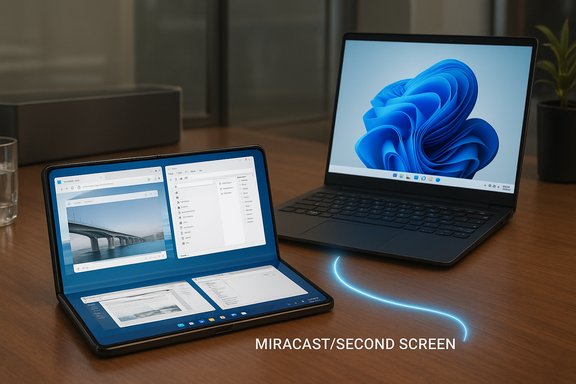
Samsung’s new Galaxy Z TriFold arriving with a built‑in “Second Screen” mode that can act as a wireless secondary monitor for Windows PCs immediately reframes what a phone can do for on‑the‑go productivity.
The Galaxy Z TriFold is Samsung’s first commercial tri‑fold phone, announced in early December 2025. It unfolds to a tablet‑sized 10.0‑inch Dynamic AMOLED 2X display with a QXGA+ resolution (2160 × 1584) and an adaptive 120 Hz refresh rate. The device is powered by a customized Snapdragon 8 Elite Mobile Platform, ships with 16 GB of RAM and starts in a 512 GB configuration, and uses a three‑cell 5,600 mAh battery distributed across the three panels. Samsung’s official product materials also highlight standalone Samsung DeX on the TriFold and an Extended Mode that supports an external display, which underline the company’s intention to position the device for serious productivity use.
Alongside those hardware and DeX claims, multiple reviews and hands‑on reports picked up an additional capability: the TriFold supports Samsung’s Second Screen functionality, allowing the phone’s main display to appear to a Windows PC as a wireless monitor. That feature uses the standard Windows wireless display workflow (the cast/“Connect to a wireless display” control, commonly accessed with Windows + K) and leverages the Miracast/Wi‑Fi Direct technology that Windows supports natively. In short, the TriFold can behave like a pocketable, wireless portable monitor for Windows laptops and desktops — no dedicated portable monitor required.
This feature isn’t wholly new to Samsung’s ecosystem; Samsung has previously offered a “Second Screen” experience on tablets that uses wireless display protocols to extend a Windows desktop. What’s notable is Samsung bringing that same experience to a three‑panel foldable phone with a 10‑inch screen — a form factor compact enough to carry in a jacket pocket but large enough to be practical as a secondary display.
That said, this is not a one‑size‑fits‑all replacement for traditional monitors. Wireless display technologies still carry inherent latency and reliability compromises, and the TriFold’s high purchase price and foldable durability concerns are real tradeoffs. For many users, the smartest approach will be hybrid: take advantage of Second Screen for quick, on‑the‑road productivity and pairing it with wired or dedicated displays when performance, color accuracy, or low latency is non‑negotiable.
Samsung’s move to bring a tablet‑class Second Screen experience into a pocketable tri‑fold phone is significant because it changes the calculus of what “carrying one device” can mean. Whether that value proposition justifies the cost will depend on how you work, where you work, and how often you need a second display without the bulk of extra hardware.
Source: pc-tablet.com Samsung Galaxy Z TriFold Works as a Wireless Secondary Monitor for Windows PCs
 Background
The Galaxy Z TriFold is Samsung’s first commercial tri‑fold phone, announced in early December 2025. It unfolds to a tablet‑sized 10.0‑inch Dynamic AMOLED 2X display with a QXGA+ resolution (2160 × 1584) and an adaptive 120 Hz refresh rate. The device is powered by a customized Snapdragon 8 Elite Mobile Platform, ships with 16 GB of RAM and starts in a 512 GB configuration, and uses a three‑cell 5,600 mAh battery distributed across the three panels. Samsung’s official product materials also highlight standalone Samsung DeX on the TriFold and an Extended Mode that supports an external display, which underline the company’s intention to position the device for serious productivity use.Alongside those hardware and DeX claims, multiple reviews and hands‑on reports picked up an additional capability: the TriFold supports Samsung’s Second Screen functionality, allowing the phone’s main display to appear to a Windows PC as a wireless monitor. That feature uses the standard Windows wireless display workflow (the cast/“Connect to a wireless display” control, commonly accessed with Windows + K) and leverages the Miracast/Wi‑Fi Direct technology that Windows supports natively. In short, the TriFold can behave like a pocketable, wireless portable monitor for Windows laptops and desktops — no dedicated portable monitor required.
This feature isn’t wholly new to Samsung’s ecosystem; Samsung has previously offered a “Second Screen” experience on tablets that uses wireless display protocols to extend a Windows desktop. What’s notable is Samsung bringing that same experience to a three‑panel foldable phone with a 10‑inch screen — a form factor compact enough to carry in a jacket pocket but large enough to be practical as a secondary display.
How the TriFold’s “Second Screen” works with Windows
The basic flow
- On the TriFold: open the Quick Settings and enable Second Screen (Samsung’s implementation keeps the Second Screen panel active so the device is discoverable).
- On Windows: press Windows + K (or go to Settings > System > Display > Connect to a wireless display) to open the cast/connect panel.
- Select the TriFold from the list of available wireless displays. Windows treats it as a sink (external monitor). Choose Extend or Duplicate from the Project menu.
- The PC’s keyboard and mouse continue to control apps; windows can be dragged onto the TriFold’s display just like a normal second monitor.
Why this matters technically
- The TriFold’s main screen is large enough (10.0 inches) and high‑resolution enough to be genuinely useful for reference panels, chat windows, terminals, or document previews.
- The 120 Hz adaptive refresh helps make animated UI transitions and scrolling look smoother, which reduces perception of lag when used as a wireless display.
- Because the TriFold supports Samsung DeX and Extended Mode, the phone can be part of a flexible mobile workstation: DeX for a desktop‑style environment on the TriFold itself, or Second Screen to extend a Windows laptop.
Verified specifications and limits
- Display: 10.0‑inch Dynamic AMOLED 2X, 2160 × 1584, up to 120 Hz adaptive refresh.
- Processor: Snapdragon 8 Elite Mobile Platform (customized for Galaxy).
- Memory and storage: 16 GB RAM; 512 GB (and higher configurations reported).
- Battery: 5,600 mAh (three‑cell distribution).
- Launch: initial availability in South Korea in December 2025; expected wider rollout, including the U.S., in early 2026.
- Price: the Korean launch price is roughly 3.59 million won (~$2,400–$2,500). U.S. pricing was not finalized at announcement time and will likely be higher.
Real‑world benefits for Windows users
- Pocketable convenience: Instead of carrying a separate portable monitor or tablet, the TriFold gives you a second display that fits in a jacket pocket when folded.
- True desktop extensions: Windows sees the TriFold as a monitor; you can extend your desktop rather than merely mirror, letting you move a chat window, reference doc, or media controls off your main screen.
- Seamless keyboard/mouse control: Because the PC remains the input source, you keep the speed and comfort of a full keyboard and mouse while offloading content.
- No extra dongles for occasional users: For travelers or hot‑desking office workers, the wireless workflow avoids the friction of cables and adapters.
- Complementary to DeX: The TriFold can run stand‑alone DeX and act as a compact desktop, while Second Screen provides reversible behavior when anchored to a Windows machine.
Practical tradeoffs and limitations
Wireless latency and responsiveness
Wireless display streaming (Miracast/Wi‑Fi Direct) inevitably adds latency. In real‑world testing of Miracast and similar wireless display adapters, typical input lag often falls into a range that is comfortable for office tasks (browsing, editing documents, chat) but less suitable for latency‑sensitive tasks such as competitive gaming, precision video scrubbing, or high‑frame‑rate remote drawing.- Expect the wireless display link to be fine for spreadsheets, reference windows, communications tools, and reading.
- Avoid relying on Second Screen for twitch gaming, timing‑sensitive editing, or color‑critical work where calibration and zero‑lag responses matter.
Battery drain
Driving a bright 10‑inch OLED and decoding a continuous video stream consumes significant power. Samsung gives the TriFold a large 5,600 mAh battery to help, but prolonged Second Screen use will drain the phone faster than standard standby. Practical mitigations include keeping the TriFold plugged into USB‑C power while used as a monitor, lowering screen brightness, or using a low‑power stand.Wireless reliability and IT policies
Connectivity quality depends heavily on the local environment:- Congested Wi‑Fi, competing 2.4 GHz traffic, or signal interference can cause stutter or disconnections.
- Enterprise networks often restrict device discovery or block peer‑to‑peer Wi‑Fi; IT teams may need to whitelist devices or enable Miracast/Direct connections.
- Some corporate security policies will prohibit the use of ad‑hoc wireless display connections for compliance reasons.
Durability and crease visibility
A tri‑fold display has two hinge lines; Samsung minimized creasing, but some crease visibility remains depending on angle and lighting. When used as a monitor, those folds may be noticeable when a document or window spans the entire width.Price and value proposition
At TriFold launch prices approaching flagship laptop territory, the device is expensive. Buyers must weigh the convenience of a single multi‑purpose device against the combined cost of a high‑end laptop plus a separate portable monitor or tablet.How to set up and optimize the TriFold as a wireless monitor for Windows
- Prepare Windows
- Ensure Windows has the Wireless Display optional feature installed if your system doesn’t show the cast/connect controls by default.
- Update graphics and Wi‑Fi drivers to the latest versions.
- Confirm Miracast support by running dxdiag and checking the Miracast line, or by testing Windows + K to see if the Cast pane appears.
- Prepare the TriFold
- Open Quick Settings and tap Second Screen (or Smart View developer option on some devices).
- Leave the Second Screen page visible while you pair; this ensures the device is discoverable.
- Connect from Windows
- Press Windows + K to open the Cast/Connect panel.
- Select the TriFold from the list. Accept pairing on the TriFold if prompted.
- Use Windows + P to choose Extend or Duplicate, then drag windows to the TriFold’s display.
- Optimize the connection
- Use 5 GHz or 6 GHz Wi‑Fi where available. If you’ve a Wi‑Fi 6/6E router, both PC and TriFold will benefit from higher throughput and lower congestion.
- Keep laptop and TriFold in line of sight when possible.
- Plug the TriFold into power during long sessions.
- Consider a stand or easel case to set the TriFold at a stable, ergonomic angle.
- Troubleshooting quick fixes
- If the TriFold doesn’t appear in Windows + K, confirm the TriFold’s Second Screen page is active; toggle Wi‑Fi and try again.
- Update the Wireless Display optional feature and verify firewall/antivirus isn’t blocking discovery.
- Reboot both devices and re‑pair. If stability is poor, try temporarily disabling 2.4 GHz radios on the router to force 5 GHz use.
Security and privacy considerations
- Miracast typically uses Wi‑Fi Direct and session encryption, but casting in public spaces or shared networks can expose screen contents if devices are misconfigured. Only connect on trusted networks or via direct Wi‑Fi Direct pairing.
- Corporate environments may require IT approval — Miracast and ad‑hoc peer connections can be blocked by policies; check with IT before using Second Screen on managed devices.
- When using the TriFold as a monitor, sensitive documents transferred to that display remain visible to anyone near the device; be mindful of shoulder surfing in public places.
Alternatives to Second Screen: when another route makes more sense
- Wired portable USB‑C monitors: nearly zero latency, consistent resolution/scaling, and often cheaper than a tri‑fold phone. Ideal for gaming, color work, or where reliability is paramount.
- Samsung DeX (wired or wireless to a monitor): if you want a full desktop interface driven from the phone itself rather than extending a Windows PC, DeX offers a more laptop‑like environment.
- Third‑party apps (SpaceDesk, SuperDisplay, Duet): these apps can run over Wi‑Fi or USB and provide different tradeoffs — sometimes lower latency via USB, or wider device compatibility. They require client software on the PC and the Android device.
- Miracast dongles (Microsoft Wireless Display Adapter): useful when the PC doesn’t support Miracast or when you want a fixed wireless receiver on a monitor or TV.
Critical analysis: strengths, risks, and what this means for Windows users
Notable strengths
- Genuine productivity utility: The TriFold’s 10‑inch canvas is large enough to host reference apps without needing a separate tablet. For mobile professionals who already plan to buy the device, the Second Screen feature is a meaningful productivity multiplier.
- Native Windows integration: Using the standard Windows cast workflow avoids vendor lock‑in. The experience behaves like any wireless display device to Windows.
- Synergy with DeX: The TriFold can function in either role — a compact DeX workstation or a wireless extension of a Windows machine — making the device versatile for multiple scenarios.
Potential risks and weak points
- Price/value tradeoff: At flagship phone price tiers, the TriFold is a major investment to gain a pocketable monitor — for many users, buying a separate laptop or a portable monitor will be cheaper and possibly more practical.
- Wireless limitations: Latency and wireless reliability remain Achilles’ heels of any wireless display strategy; workflows that require sub‑50 ms responsiveness will not be well served.
- Battery and thermals: Long sessions of acting as a display are battery‑intensive. Expect to keep the device plugged in for sustained productivity.
- Enterprise friction: Corporate networks and security policies may block peer‑to‑peer discovery, reducing the feature’s practicality in managed environments.
- Durability and usability: Two hinge lines mean two potential points of mechanical stress and visual creasing; how those age with heavy use as a monitor remains to be seen.
Where this matters most
- Digital nomads, consultants, and frequent travelers who already intend to invest in a high‑end Galaxy device may find the TriFold uniquely valuable: it reduces gadget clutter and simplifies travel setups.
- Casual users or those who prioritize gaming, color accuracy, or low latency will likely prefer traditional monitors and wired solutions.
Practical recommendations for Windows users considering the TriFold as a portable monitor
- If your primary need is a reliable second monitor for work (email, chat, docs), the TriFold’s Second Screen is an attractive convenience — but plan to use it plugged in.
- For visual professionals, gamers, or editors, pair the TriFold with a wired portable monitor or use DeX as a complement rather than trying to replace a quality external display.
- Enterprises should evaluate corporate policy implications before adopting TriFold as a standard device; IT teams may need to update acceptable use policies and configure network settings to permit Miracast/Wi‑Fi Direct sessions.
- Test the wireless environment before committing — try the TriFold in your typical workspaces (hotel rooms, cafes, coworking spaces) to evaluate latency and reliability.
Conclusion
The Samsung Galaxy Z TriFold’s ability to function as a wireless secondary monitor for Windows PCs is a practical, forward‑looking use of foldable hardware. It exemplifies a broader trend in which phone hardware is optimized not just for communication and media, but for genuinely useful productivity roles. For power users who value portability and already plan to buy the TriFold, Second Screen is a compelling reason to consider the device as part of a mobile workstation toolkit.That said, this is not a one‑size‑fits‑all replacement for traditional monitors. Wireless display technologies still carry inherent latency and reliability compromises, and the TriFold’s high purchase price and foldable durability concerns are real tradeoffs. For many users, the smartest approach will be hybrid: take advantage of Second Screen for quick, on‑the‑road productivity and pairing it with wired or dedicated displays when performance, color accuracy, or low latency is non‑negotiable.
Samsung’s move to bring a tablet‑class Second Screen experience into a pocketable tri‑fold phone is significant because it changes the calculus of what “carrying one device” can mean. Whether that value proposition justifies the cost will depend on how you work, where you work, and how often you need a second display without the bulk of extra hardware.
Source: pc-tablet.com Samsung Galaxy Z TriFold Works as a Wireless Secondary Monitor for Windows PCs