

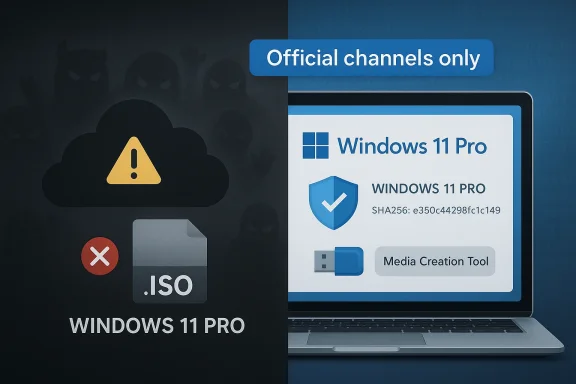
An article published under a headline promising to “Get Windows 11 Pro ISO From Google Drive” is the kind of quick-hit guidance that attracts clicks — and, all too often, risk. The core takeaway: while it’s technically possible to obtain a Windows 11 ISO from a third‑party cloud link (Google Drive, Dropbox, etc.), doing so is significantly riskier than using Microsoft’s official channels. This feature explains why, verifies key technical claims about legitimate Windows 11 media, and lays out step‑by‑step best practices for safely obtaining, verifying, and installing Windows 11 Pro — plus a blunt risk assessment of cloud-hosted ISOs, including malware, tampering, and license problems.
Since Windows 10, Microsoft has published official installation media in multiple ways: a web-based multi‑edition ISO, the Media Creation Tool that prepares a bootable USB, and, for enterprise customers, full ISOs and servicing channels. For Windows 11, the same pattern holds: Microsoft provides a multi‑edition ISO that contains Home, Pro, Education, and other indexes, and it supplies tools and documentation for creating bootable media or downloading the ISO directly. This is the authoritative and recommended route for most users.
Community forums and enthusiasts also document advanced workflows — using Rufus to customize an installer, extracting individual editions from a multi‑edition image, or rebuilding ISOs for specialized scenarios. Those tactics are useful for power users and IT pros, but they also create avenues by which unofficial or modified images spread. Community posts show people frequently sharing, testing, and validating ISO contents with DISM, SHA checks, and other forensic techniques. Those checks are powerful tools — but they’re only effective if the source is trustworthy to begin with.
In short: I could not open that specific external article at the time of this review, so I evaluated the general practice it represents rather than the specific page content.
If you must pursue a non‑official image for a lab or specialized use, isolate that environment, verify the file with multiple independent checks, and treat the machine as disposable. That approach preserves convenience for experimentation while keeping production systems secure.
Source: thedetroitbureau.com https://www.thedetroitbureau.com/today-report/get-windows-11-pro-iso-from-google-drive-1767646900/
 Background / Overview
Since Windows 10, Microsoft has published official installation media in multiple ways: a web-based multi‑edition ISO, the Media Creation Tool that prepares a bootable USB, and, for enterprise customers, full ISOs and servicing channels. For Windows 11, the same pattern holds: Microsoft provides a multi‑edition ISO that contains Home, Pro, Education, and other indexes, and it supplies tools and documentation for creating bootable media or downloading the ISO directly. This is the authoritative and recommended route for most users.Community forums and enthusiasts also document advanced workflows — using Rufus to customize an installer, extracting individual editions from a multi‑edition image, or rebuilding ISOs for specialized scenarios. Those tactics are useful for power users and IT pros, but they also create avenues by which unofficial or modified images spread. Community posts show people frequently sharing, testing, and validating ISO contents with DISM, SHA checks, and other forensic techniques. Those checks are powerful tools — but they’re only effective if the source is trustworthy to begin with.
What “Get Windows 11 Pro ISO From Google Drive” usually means — and why it matters
When a tutorial points you to a Google Drive link for a Windows 11 ISO, it generally falls into one of three categories:- A direct mirror of a genuine Microsoft ISO that someone uploaded for convenience (rare, and still risky).
- A modified / pre‑activated / debloated build (Tiny11, Nano11, or similar) that has been altered to remove features, remove telemetry, or bypass Microsoft Account requirements.
- A malicious or counterfeit image packaged to look like Windows 11 but carrying persistent malware or scripts that activate at install time.
The technical risks of cloud-hosted ISOs
- Malware baked into images: Attackers have long used ISO containers as a delivery vehicle. A malicious actor can include persistent scripts, unsigned drivers, or backdoors that survive installation. Recent threat reporting highlights campaigns where malicious ISO files were used to install browser hijackers or stealthy persistence mechanisms. Never assume an ISO on Google Drive is clean.
- Tampering and silent modifications: A cloud mirror may look legitimate while changing binaries inside the image (replacing install.wim with a modified build, adding unsigned installers, or preinstalling cracked activation tools). Even if some filenames and sizes match, subtle binary changes can subvert integrity checks unless you have a reliable, published checksum to compare against.
- Licensing and activation problems: “Pre‑activated” or “pro‑cracked” ISOs circumvent licensing and may carry additional software or telemetry to keep a crack working. Using such media can have legal, security, and update‑stability consequences.
- Update/servicing mismatches: A modified image can break how Windows receives updates or how Microsoft validates device entitlement. That can permanently impair Windows Update or cause driver mismatches later.
- Privacy and data exfiltration at first boot: Because OOBE and setup can run additional scripts or install agents, a compromised image can exfiltrate data as soon as networking is available.
What Microsoft provides (the authoritative baseline)
If you want Windows 11 Pro and a safe installation path, Microsoft’s official options are the right starting point:- The official multi‑edition ISO (Windows 11) downloadable from Microsoft’s Software Download page. This ISO contains Home, Pro, Pro for Workstations, Education, and other indexes; during setup you choose which edition to install or the installer picks the edition based on a product key/digital license.
- The Media Creation Tool (MCT), which downloads the correct build and can create a bootable USB. MCT is recommended if you want a straightforward, supported USB installer.
- For enterprise imaging and advanced deployments, Microsoft publishes ISOs and servicing guidance to MSDN/Volume Licensing customers and the Windows Insider/Tech channels as appropriate. That is the only route that guarantees cryptographic provenance and Microsoft’s support path.
How to verify a Windows 11 ISO (practical, tested steps)
Verification is the single most important habit to adopt if you handle OS images frequently. Below are tested steps every power user and admin should follow. Each numbered step is safe, reproducible, and uses built‑in or widely accepted tools.- Download only from a trusted source — preferably Microsoft. If you cannot reach Microsoft directly from your location, use a reputable download helper that resolves to Microsoft CDN endpoints; still verify the hash afterward.
- Compute a cryptographic hash of the ISO immediately after download. On Windows:
- Open PowerShell and run:
Get-FileHash "C:\Path\To\Win11.iso" -Algorithm SHA256
This computes the SHA‑256 fingerprint. Use built‑in tools on macOS or Linux similarly. - Compare the computed hash to a published, authoritative checksum. If Microsoft publishes an official SHA256 for that build or an entry in Tech Community/MSDN, compare to that. If not published, corroborate the checksum against multiple well‑regarded independent sites that mirror official downloads (but beware: the independent site must itself source the ISO from Microsoft’s servers). If hashes do not match, DO NOT USE the ISO.
- Inspect the ISO contents (optional, for advanced users): mount the ISO and run DISM or a file listing to confirm the presence and size of install.wim/install.esd and to list image indexes (Home, Pro, Education, etc.). Community examples show how to read the indexes and confirm the expected editions are present; a readable install.wim with the expected indexes is a good sign — but not proof of benign intent.
- Prefer a clean boot USB created from the official MCT, rather than running setup.exe from a mounted ISO on your daily machine. Creating a bootable installer reduces the surface for accidental execution of scripts and helps ensure the installer runs in a known state.
A quick, safe checklist: download + install Windows 11 Pro (recommended path)
- Step 1: Use a trusted connection and official channels. Prefer the Microsoft Software Download page or the Media Creation Tool.
- Step 2: If you must use a mirror, ensure the link resolves to Microsoft CDN endpoints; avoid anonymous cloud links without provenance.
- Step 3: Compute SHA‑256 of the ISO and compare it to authoritative checksums. If unavailable, disallow the image.
- Step 4: Create your bootable USB with MCT or, if you need advanced options, use Rufus but beware of compatibility/bypass changes. Validate created media works in a VM first.
- Step 5: After installation, confirm activation via Settings → System → Activation and allow Windows Update to complete initial servicing.
Why people still seek Google Drive ISOs (and where that logic goes wrong)
There are legitimate reasons users sometimes reach for a cloud mirror:- Microsoft’s direct downloads can be slow or intermittent from certain regions.
- Registering for Insider programs or navigating Microsoft pages can feel cumbersome.
- Some users want a single small ISO that contains only Pro or a debloated installer for VMs.
- A fast download from an unknown mirror is not worth the risk of an image that includes persistent malware or a cracked activation mechanism.
- Bypassing Microsoft Account requirements or reducing image size often requires altering the ISO — which breaks signature chains and update behavior.
- Community-built “tiny” images (Tiny11, Nano11, etc.) are useful in labs or VMs but are explicitly experimental and should not be treated as replacement for official images on production devices.
The special case: debloated or modified builds (Tiny11, Nano11, pre-activated ISOs)
Projects such as Tiny11 and Nano11 are community efforts to trim Windows 11 for testbeds or low‑footprint VMs. They’re popular among tinkerers because they reduce install size and remove features the author considers unnecessary. However, such images are built by modifying official media and therefore:- They are not signed by Microsoft and will not match official checksums.
- They can break update and servicing behavior.
- They are unsuitable for machines where security, compliance, or long‑term updates matter.
Legal and licensing considerations
- Official downloads are free to obtain, but Windows itself requires a valid license for activation. The multi‑edition ISO is free to download, but you must use a legitimate product key or a digital license linked to the hardware to have a properly licensed installation. Microsoft documentation and community Q&A confirm that the ISO download is free but activation still requires a valid key.
- “Pre‑activated” images or those distributed with cracks violate Microsoft’s licensing terms and expose you to legal and security risks. Beyond legalities, cracked media frequently includes additional components to maintain activation — those components are a common avenue for malware.
My attempt to review the referenced DetroitBureau article — transparency about what I could verify
You provided a pointer to a DetroitBureau piece titled “Get Windows 11 Pro ISO From Google Drive.” I attempted to fetch that article directly but was unable to retrieve the page due to a remote fetch timeout. Because the content of that specific article could not be inspected, I cannot verify its precise instructions, claims, or any embedded Google Drive links. That limitation is important: any step‑by‑step advice in the DetroitBureau piece that relies on a third‑party cloud link should be treated with caution unless it includes a published cryptographic hash and a clear statement of provenance. ([]())In short: I could not open that specific external article at the time of this review, so I evaluated the general practice it represents rather than the specific page content.
How attackers hide malicious content in ISOs — a brief technical explainer
- ISOs are containers. A malicious actor can add extra executable files that run during setup or after first login. Such files might be wrapped with a stealthy installer or scheduled task that runs with system privileges.
- Attackers may replace or augment the install.wim/install.esd with a modified image that includes credential‑stealing agents, rootkit components, or a custom unattend.xml that executes additional commands at OOBE.
- Unsigned drivers or obscure service installers can run at boot time and persist through reboots. Once a system is compromised, lateral movement and data exfiltration are possible.
What enterprise administrators should do differently
Enterprises and IT pros should follow strict image provenance controls:- Source all OS images from Microsoft Volume Licensing or Microsoft’s authenticated CDN endpoints.
- Maintain an internal catalog of approved ISOs and hashes, and require checksums for any externally obtained image.
- Use signing and image‑management tooling (MDM, System Center, or other imaging solutions) to ensure only authorized images are deployed.
- For specialized images (debloated or custom), build them in a controlled build pipeline, sign them internally, and document deviations from stock Microsoft images.
Final recommendations — a compact, actionable decision tree
- If you need a Windows 11 Pro ISO for a normal PC or VM: download the multi‑edition ISO directly from Microsoft or use the Media Creation Tool; verify the SHA‑256 hash after download.
- If a third‑party cloud link is the only option: do not use the image unless the uploader provides an authoritative checksum and you have independent confirmation the uploader is the original source (for example, a corporate mirror). If the uploader cannot prove provenance, reject the file.
- If you plan to use a debloated or pre‑activated build: restrict it to disposable VMs or test systems, and never use such images for primary workstations.
- Verify everything: use SHA‑256 checks, inspect install.wim indexes where practical, test media in an isolated VM first, and keep backups of any important data before installing.
Conclusion
The convenience of a Google Drive link is seductive, but it is not a substitute for trusted, verifiable distribution. Microsoft’s official channels are the safe, supported way to obtain Windows 11 Pro. When people publish “Get Windows 11 Pro ISO From Google Drive” how‑tos, they are packaging convenience with risk. For most users and for IT professionals, the right balance of safety, compliance, and long‑term reliability is to use official media, verify cryptographic hashes, and treat any unsigned or third‑party image as untrusted until proven otherwise.If you must pursue a non‑official image for a lab or specialized use, isolate that environment, verify the file with multiple independent checks, and treat the machine as disposable. That approach preserves convenience for experimentation while keeping production systems secure.
Source: thedetroitbureau.com https://www.thedetroitbureau.com/today-report/get-windows-11-pro-iso-from-google-drive-1767646900/
