

If you’ve ever needed to rename your Wi‑Fi, change the passphrase, or tighten the security on a home router, the process is simpler than you think — but it also carries a risk of accidentally locking yourself out or breaking critical services. This practical guide walks you through every step of accessing your router’s firmware, what settings you should prioritize changing, and the safety checks to perform before you hit Apply, all distilled and verified from hands‑on community guidance and expert how‑tos.
Every consumer router exposes a web interface (or an app) where the device’s full configuration lives: SSID names, Wi‑Fi passphrases, administrative credentials, security modes, attached devices, firmware version, and more. Getting in requires three things: the router’s local IP address, the administrator username, and the administrator password. The most common stumbling blocks are finding the correct gateway IP, locating or recovering the admin credentials, and knowing which options to change without disrupting service.
This article consolidates the practical steps — from finding the Default Gateway on Windows and macOS, to recovering from a forgotten password and making security‑first changes — and it flags the real risks (device compatibility, ISP‑provided gateway quirks, destructive resets). I cross‑checked the step sequences and recommendations against multiple community and vendor best practices so you can act confidently and safely.
However, important risks and tradeoffs deserve emphasis:
If you’re uncertain, follow the safe escalation: back up the config, update firmware, change one setting at a time, and verify. When in doubt about ISP‑provided equipment or complex provisioning, call your ISP or the router vendor for guided support. The goal is improved security without unnecessary downtime — and with the right precautions, you can achieve both.
Source: PCMag Australia Need to Update Your Wi-Fi Router Settings? Here's What to Do
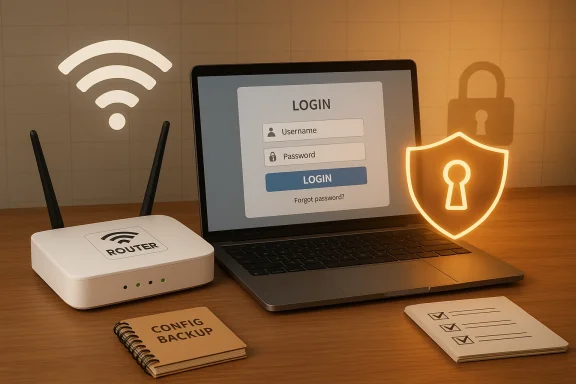 Background / Overview
Every consumer router exposes a web interface (or an app) where the device’s full configuration lives: SSID names, Wi‑Fi passphrases, administrative credentials, security modes, attached devices, firmware version, and more. Getting in requires three things: the router’s local IP address, the administrator username, and the administrator password. The most common stumbling blocks are finding the correct gateway IP, locating or recovering the admin credentials, and knowing which options to change without disrupting service.This article consolidates the practical steps — from finding the Default Gateway on Windows and macOS, to recovering from a forgotten password and making security‑first changes — and it flags the real risks (device compatibility, ISP‑provided gateway quirks, destructive resets). I cross‑checked the step sequences and recommendations against multiple community and vendor best practices so you can act confidently and safely.
Find your router’s IP address (the Default Gateway)
Knowing the router’s IP address is the first and non‑negotiable step. It’s the address you type into a browser to reach the admin interface.On Windows
Open Settings → Network & internet → Advanced network settings → Hardware and connection properties (Windows 11) or Status → View hardware and connection properties (Windows 10). Look for the Default Gateway field under the active adapter (Ethernet or Wi‑Fi). Alternatively, run the Command Prompt and type ipconfig; the Default Gateway line under your wireless or Ethernet adapter is the router’s IP. This is the method most tech guides use because it’s direct and universal.On macOS
Open System Settings, select Wi‑Fi, click the connected network name, choose Details, and look under the TCP/IP tab for the router address. This is macOS’s equivalent of Windows’ Default Gateway.Quick notes
- Common local gateway addresses include 192.168.1.1, 192.168.0.1, and 192.168.1.254, but don’t assume: always check ipconfig or System Settings first.
- If your client is connected through a VPN or a corporate proxy, you may not see the physical router’s gateway — disconnect the VPN first.
Logging in: credentials, sticker lookups, and recovery
Once you have the IP, open a web browser and enter that address. The router will present a login prompt for the administrative interface (this is different from your Wi‑Fi passphrase).Default credentials and where to find them
- Many routers ship with simple default logins such as admin / admin or admin / password. If you never changed them, try these.
- Check the physical router label: many vendors print the default username and password, model, and serial number on a sticker on the router. That sticker is your first stop.
- If you can’t log in, some routers offer an on‑device password recovery procedure that uses the device’s serial number or recovery token; the recovery option typically appears after repeated failed login attempts.
If you still can’t log in: factory reset
If defaults and recovery fail, a factory reset will restore the router to its out‑of‑box state (default IP + default username/password). Reset buttons are typically a small recessed hole on the unit that you press with a paper clip for several seconds. Model behavior varies — press time may be 5–12 seconds or more — so check your device documentation when possible. After a reset, you’ll be able to log in using the printed defaults. But be warned: reset is destructive and will remove ISP credentials, port forwards, DHCP reservations, and other custom settings. Back up configuration first if possible.Before you change anything: sanity checks and backups
When you first enter the admin UI, pause and do a safety checklist. This reduces the chance of breaking internet access or losing settings you’ll regret.- Export or save a configuration backup if the router supports it. Backups let you restore all settings if a change causes trouble.
- Note your ISP’s PPPoE or provisioning details if the device is also a modem or ISP‑provided gateway; factory reset without those details may require a call to your ISP to restore internet service.
- Don’t change multiple settings at once: make one change, apply it, test connectivity across devices, and only then proceed to the next change. This makes rollbacks straightforward.
What to change first — a prioritized checklist
When you’re ready to harden the device, make the minimal high‑impact changes first. These upgrades close obvious attack vectors while minimizing disruption.- Change the administrator password (and username if allowed). Use a long, unique passphrase and store it in a password manager. If the UI only allows changing the password, do that immediately.
- Update router firmware before making security changes. Firmware updates often patch vulnerabilities and, in some cases, add support for newer standards like WPA3. Apply updates from the vendor’s UI or official support site and reboot if required.
- Set Wi‑Fi encryption to the strongest available: WPA3‑Personal if supported, otherwise WPA2‑PSK (AES). Avoid WEP and WPA/TKIP entirely. If you have legacy devices that break with WPA3, use a WPA2/WPA3 transitional mode where available.
- Rename the SSID to something non‑identifying (avoid your family name or address). This improves privacy and reduces the chance attackers can guess router make/model from the SSID.
- Create a guest network for visitors and for IoT devices that don’t need access to your computers or NAS. Guest networks isolate traffic and limit lateral movement if a device is compromised.
- Disable risky services unless you explicitly need them: remote administration, WPS (Wi‑Fi Protected Setup), and UPnP. These features are convenient but increase attack surface. If you need remote access, prefer a secure VPN to expose the admin UI publicly.
Step‑by‑step: change the Wi‑Fi password and enable WPA3/WPA2
- Log in to the router’s admin interface at the Default Gateway.
- Find the Wireless or Wi‑Fi settings. Many routers also provide a Quick Setup wizard to guide the process.
- Under Security Options, choose WPA3‑Personal if available. If not, select WPA2‑PSK (AES). Avoid TKIP and WEP.
- Enter a new Wi‑Fi passphrase: long, random, or a memorable passphrase made from multiple words. Store it in a password manager.
- Apply the settings. All wireless clients will be disconnected and will need the new passphrase to rejoin. Reconnect devices and verify operation.
Firmware updates, drivers, and compatibility
Firmware matters. Unpatched routers are commonly exploited because they run network‑facing services and are often forgotten.- Check for router firmware updates in the admin UI or the vendor’s support portal and apply stable updates during a maintenance window. Some vendors push automatic updates via an app; others require manual download and flash. Always read release notes for breaking changes.
- Keep client network drivers (Windows network adapters: Intel, Realtek, Qualcomm) up to date. Driver–firmware mismatches can create weird instability — if your laptop is dropping connections, update or reinstall the Wi‑Fi driver and restart.
- If your router is end‑of‑life (no firmware updates for several years) consider replacing it. Older hardware may never receive WPA3 support or crucial security fixes. NIST and community guidance recommend prioritizing actively supported network hardware.
Advanced hardening: segmentation, DNS, and monitoring
Once the basics are done, these additional measures raise your home network security substantially.- Segment IoT devices: place cameras, smart bulbs, and similar appliances on a guest VLAN or isolated SSID to limit lateral movement if one is compromised. This is a key mitigation recommended in IoT guidance.
- Disable UPnP unless required. UPnP can open ports dynamically without your explicit consent and has a history of vulnerabilities. If you need port forwarding for games or servers, create explicit static forwards instead.
- Use a trusted DNS that supports privacy or filtering (e.g., Cloudflare, Quad9, or similar). Setting DNS at the router level gives all clients the same DNS behavior and can block known malicious domains.
- Turn off WPS, which is convenient but insecure. If your router still has WPS enabled by default, disable it.
- Regularly review the router’s connected device list and remove unknown clients. If your router supports logging or email alerts for new device connections, enable them.
Common pitfalls and troubleshooting when things go wrong
Even careful changes can cause hiccups. Here are the most common problems and how to fix them.I can’t reach the admin page
- Confirm your client’s Default Gateway matches the router IP using ipconfig (Windows) or the macOS TCP/IP settings. If it doesn’t, you’re not on the same local network or a VPN is interfering.
- If you changed the admin IP or port and forgot it, a factory reset will restore defaults — but remember the reset is destructive. Export a config before experimenting with the admin IP.
Devices fail to reconnect after changing Wi‑Fi security
- If you moved from WPA2 to WPA3 and some devices no longer connect, switch to WPA2/WPA3 transitional mode temporarily and upgrade the older devices’ firmware or network drivers. This measured approach balances security with compatibility.
Internet disappears after a factory reset
- ISP‑supplied modem/router combos may require ISP provisioning details (PPPoE credentials, VLAN tags, proprietary profiles). If you reset without those, you may need to contact your ISP to re‑provision the unit. Avoid resets unless you have those details or a backup.
Firmware update bricked the router
- Always follow vendor instructions and use firmware files from the official support site. If your router becomes unresponsive after an update, vendor recovery modes or TFTP recovery tools are often documented; contact vendor support. Export and securely store backup configs before major firmware upgrades.
Critical analysis — strengths and risks of the common advice
The typical “find IP → log in → change admin → change Wi‑Fi → update firmware” flow delivers a big security uplift for most home users with minimal effort. It closes the most obvious, high‑impact vulnerabilities: default admin logins, weak Wi‑Fi encryption, and unpatched firmware. That stepwise escalation mirrors both vendor and community troubleshooting guidance and is practical for non‑expert users.However, important risks and tradeoffs deserve emphasis:
- Compatibility vs security: Enabling WPA3‑only provides superior protection but can break legacy devices. Mixed mode (WPA2/WPA3) is a practical compromise but reduces the strictness of enforcement for older clients. Users should test devices one at a time rather than flipping a global security mode and walking away.
- Factory resets are destructive: resets erase ISP credentials, port forwards, static DHCP leases, and other customizations. For users with home servers, VPNs, or bespoke routing rules, a reset can create days of work. Back up configs and gather ISP info before resetting.
- Over‑tweaking features without understanding them: enabling strict firewall rules, aggressive QoS, or unfamiliar VLAN configurations can accidentally block legitimate services or devices. Change one setting at a time and verify system behavior.
- Vendor update model differences: some vendors auto‑push firmware, others require manual flashing. Blindly applying the “latest” update can sometimes remove features or change default behavior — always read release notes and prefer stable releases.
Practical checklist — what to do now (quick wins)
- Find your Default Gateway (ipconfig on Windows or System Settings → Wi‑Fi → TCP/IP on macOS) and log into the admin UI.
- Export the router configuration backup (if supported) and store it securely.
- Update firmware to the latest stable version and read the release notes.
- Change the admin password to a long, unique passphrase and save it in a password manager.
- Set Wi‑Fi security to WPA3 or WPA2‑AES and change the Wi‑Fi passphrase. Test device connectivity.
- Disable WPS, UPnP, and remote admin unless you explicitly need them. Use a VPN for remote access instead.
- Create a guest network for visitors and IoT devices. Segment devices where possible.
When to call in help or replace the router
- If firmware updates stop arriving and the device is several years old, or it’s listed as end‑of‑life by the vendor, replace it to maintain security posture. Unsupported routers are a growing risk.
- If a factory reset is required but you don’t have ISP credentials or the technical ability to reconfigure PPPoE/VLAN, call your ISP before pressing Reset. They can often provision the device or provide instructions.
- If you’re running a home network with many services (VPN server, home NAS, game servers), consider a higher‑end consumer or small business router that supports configuration export/import, VLANs, and robust logging. That reduces risk and simplifies recovery.
Final thoughts — practical security without paranoia
Accessing your router’s settings is one of the highest‑leverage actions you can take to improve home network security. A few focused changes — updating firmware, changing the admin password, enabling modern Wi‑Fi encryption, and isolating IoT devices — will protect you from the most common threats and accidental bandwidth thieves. But don’t rush: document changes, back up configs, and test one device at a time so you can reverse a change if it impacts your setup.If you’re uncertain, follow the safe escalation: back up the config, update firmware, change one setting at a time, and verify. When in doubt about ISP‑provided equipment or complex provisioning, call your ISP or the router vendor for guided support. The goal is improved security without unnecessary downtime — and with the right precautions, you can achieve both.
Source: PCMag Australia Need to Update Your Wi-Fi Router Settings? Here's What to Do
