

When you need to install software, troubleshoot an issue, or confirm whether a laptop is ready for a major update, knowing exactly which Windows edition, version and build is installed — and whether that copy is activated and 32-bit or 64-bit — removes guesswork and speeds repairs. This practical, step‑by‑step guide explains the fastest, safest ways to check Windows on any laptop, shows how to interpret the output, and covers activation and architecture checks so you can act with confidence.
Modern Windows exposes three complementary identifiers that matter to users and technicians: Edition (for example, Windows 11 Pro), Version (the feature‑update tag such as 23H2 or 25H2), and OS build (the precise build number that changes with cumulative patches). These three values are what driver installers, support teams, and Microsoft itself reference when diagnosing issues or confirming security status. For a quick visual check use Settings → System → About; for a lightning‑fast confirmation use winver; for exportable, detailed inventories use msinfo32, systeminfo or PowerShell commands. These are the built‑in, supported tools that Microsoft documents and vendors rely on.
Knowing the full OS string matters for several concrete reasons:
Example output (typical):
A practical point: Microsoft’s Windows servicing model ties security and feature coverage to Version and Build. That makes these fields essential for upgrade planning and for confirming whether a machine remains under mainstream support. In particular, machines still on end‑of‑life releases require upgrade planning to remain secure.
Recommendation: If your laptop has 4 GB of RAM or more, run a 64‑bit Windows build for best results; only keep 32‑bit Windows on very old hardware constrained by driver or firmware limits.
For a quick visual check (support calls):
These built‑in tools are reliable and supported, and they map directly to the values vendors and Microsoft use when discussing updates, patches, and compatibility. Keep the quick commands and export steps handy — a small amount of upfront information gathering saves hours on the back end when diagnosing or upgrading a laptop.
Source: VCGamers How to Check Windows on a Laptop Easily and Quickly
 Background / Overview
Modern Windows exposes three complementary identifiers that matter to users and technicians: Edition (for example, Windows 11 Pro), Version (the feature‑update tag such as 23H2 or 25H2), and OS build (the precise build number that changes with cumulative patches). These three values are what driver installers, support teams, and Microsoft itself reference when diagnosing issues or confirming security status. For a quick visual check use Settings → System → About; for a lightning‑fast confirmation use winver; for exportable, detailed inventories use msinfo32, systeminfo or PowerShell commands. These are the built‑in, supported tools that Microsoft documents and vendors rely on.Knowing the full OS string matters for several concrete reasons:
- Compatibility: Many apps and drivers list minimum Windows versions, editions, or architectures.
- Security & lifecycle: End‑of‑support deadlines or missing feature updates affect whether a machine receives patches.
- Troubleshooting: Support teams will usually ask for Edition, Version and Build before suggesting fixes.
- Activation & licensing: Unactivated installations can lose features or create audit risk for organizations.
- Performance decisions: Whether the system is 32‑bit or 64‑bit dictates maximum usable RAM and which installers to run.
Quick checklist: four methods at a glance
- Settings → System → About — best for most users; clean, copy‑friendly summary.
- winver (Run → winver) — the fastest visual check; instant popup with Edition, Version, Build.
- System Information (msinfo32) — exportable, complete hardware and OS profile for support tickets.
- Command line / PowerShell (systeminfo, Get-ComputerInfo) — scriptable, ideal for power users and automation.
How to check Windows on a laptop — step‑by‑step
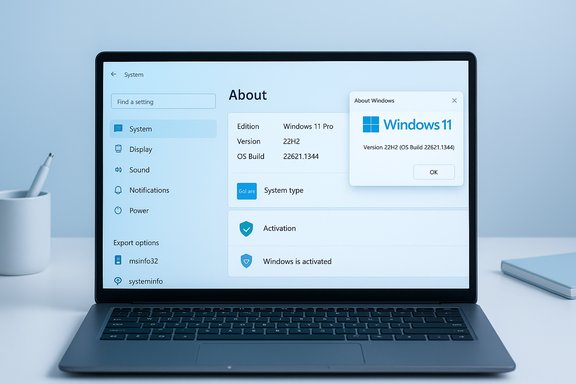
1) Easiest: Settings → System → About (GUI)
This is the canonical method aimed at regular users.- Press Windows + I to open Settings.
- Choose System on the left, then scroll down and click About.
- Under Windows specifications you’ll see three crucial fields: Edition, Version, and OS build.
- Under Device specifications you’ll find System type (e.g., 64‑bit operating system) and installed RAM.
Example output (typical):
- Edition: Windows 11 Pro
- Version: 23H2
- OS build: 22631.XXXX
- System type: 64‑bit operating system
2) Fastest: winver (Run → winver)
For instant confirmation use the classic winver dialog.- Press Win + R to open Run.
- Type winver and press Enter.
3) Exportable profile: System Information (msinfo32)
When you need a full inventory or want to attach a report to a support ticket, msinfo32 is the tool.- Press Win + R, type msinfo32, press Enter.
- In System Summary check OS Name and OS Version/Build.
- Use File → Export to save a plain text or .nfo report for sharing.
4) Command line and scripting: systeminfo and PowerShell
For automation or when you need structured output across many machines, use the command line.- Command Prompt / PowerShell (example):
- systeminfo — prints OS name, version, build, architecture, BIOS date and install date. Use filtering like systeminfo | findstr /B /C:"OS Name" /C:"OS Version".
- PowerShell: Get-ComputerInfo -Property OsName, OsDisplayVersion, OsBuildNumber — returns objects you can export to CSV or JSON.
5) Complementary checks: dxdiag and msinfo32 details
- dxdiag (Run → dxdiag) is useful when you need GPU and audio driver details and will also show the OS string at the top. Save a dxdiag.txt when vendors request GPU/DirectX diagnostics.
- msinfo32 exports, systeminfo CSV output, and PowerShell object exports are preferred when privacy or redaction is necessary — msinfo32 exports can include serials and MAC addresses, so review before sharing.
Checking activation and whether Windows is genuine
A copy of Windows that isn’t activated can limit features and expose the device to legal or support issues. There are two straightforward ways to check activation:- GUI: Settings → System → Activation. If the UI reads Windows is activated, the system holds an activation state.
- CLI: open an elevated Command Prompt and run slmgr /xpr. If the output says The machine is permanently activated, that indicates a genuine, permanent activation. For more detailed licensing data, use slmgr /dli and slmgr /dlv. These commands expose the licensing channel and any time‑limited evaluation status.
Interpreting the values: edition vs version vs build
- Edition — the SKU (Home, Pro, Enterprise, Education) that determines feature access and licensing.
- Version — the named feature update (for example, 23H2, 24H2, 25H2) that denotes the major feature release cycle.
- OS build — the precise build number that changes with cumulative updates (for example, *22631.* or 26100.), which support teams use to determine which security patches have been applied.
A practical point: Microsoft’s Windows servicing model ties security and feature coverage to Version and Build. That makes these fields essential for upgrade planning and for confirming whether a machine remains under mainstream support. In particular, machines still on end‑of‑life releases require upgrade planning to remain secure.
32‑bit vs 64‑bit: why it matters and how to check
Understanding whether your Windows install is 32‑bit or 64‑bit affects software choices and maximum usable RAM.- 32‑bit Windows — suitable for older laptops with less than ~4 GB of RAM; it is limited to roughly 3.2–3.5 GB usable memory in practical terms and cannot run many modern 64‑bit applications.
- 64‑bit Windows — recommended when the device has 4 GB of RAM or more; it supports much larger RAM capacities (tens or hundreds of gigabytes depending on SKU), improved performance, and modern security features.
Recommendation: If your laptop has 4 GB of RAM or more, run a 64‑bit Windows build for best results; only keep 32‑bit Windows on very old hardware constrained by driver or firmware limits.
Troubleshooting special cases and gotchas
When winver and msinfo32 disagree
Occasionally small differences appear because tools read slightly different metadata fields. Use msinfo32 or systeminfo when you need the most detailed, exportable record. For quick support calls, winver remains the fastest check.If systeminfo reports “Not Available” fields
Run the tool elevated (Administrator). Some driver and resource details are withheld when not run with elevated privileges. If details remain missing, cross‑check with msinfo32 or device vendor tools.Windows 10 end of support
Machines running Windows 10 that pass Microsoft’s end‑of‑support deadline should be prioritized for upgrade because they will no longer receive standard security updates. Checking Version and OS Build is the first step in assessing exposure and upgrade readiness.Activation changes after updates
Activation state can sometimes change after major updates, especially on devices that rely on unconventional activation paths. If activation status changes unexpectedly, run slmgr diagnostics and audit the machine for unauthorized activators or licensing workarounds. Treat machines that used gray‑market activators as higher risk for malware infection or instability.Practical examples and copy‑and‑paste snippets
Use these ready commands and steps depending on your role.For a quick visual check (support calls):
- Win + R → type winver → Enter.
- Windows + I → System → About → copy Windows specifications.
- Win + R → msinfo32 → File → Export → save a .txt for attachments.
- Open PowerShell (Admin) and run: Get-ComputerInfo -Property OsName, OsDisplayVersion, OsBuildNumber | Export-Csv C:\Temp\computers.csv.
- Open elevated Command Prompt and run: slmgr /xpr — parse the returned text for “permanently activated”. For more detail run slmgr /dli or slmgr /dlv.
- Win + R → dxdiag → Save All Information → attach dxdiag.txt.
Security and privacy considerations when sharing system reports
Exported reports often include serial numbers, MAC addresses, and hardware identifiers. Treat msinfo32 exports, dxdiag files, and systeminfo dumps as moderately sensitive. Redact or remove serials and MACs before posting publicly; share them only with trusted support personnel. Use secure channels when sending these reports to vendors.Final checklist: what to capture before you call support
- Edition, Version, OS Build (from Settings → System → About or winver).
- System type (x86 vs x64) and installed RAM (from About or systeminfo).
- Activation state (Settings → Activation or slmgr /xpr).
- Exported msinfo32 or dxdiag file if vendor support requests a full profile.
- Note the Installed on date from Settings → About if you need to demonstrate when Windows was first put on the machine.
Conclusion
Checking Windows on a laptop should be fast, accurate and reproducible. For everyday users, Settings → System → About and the winver dialog cover most needs. For technicians and IT teams, msinfo32, systeminfo and PowerShell provide exportable, scriptable reports that speed troubleshooting and inventory. Confirm activation with Settings or slmgr, and always verify whether the system is 32‑bit or 64‑bit before installing drivers or software.These built‑in tools are reliable and supported, and they map directly to the values vendors and Microsoft use when discussing updates, patches, and compatibility. Keep the quick commands and export steps handy — a small amount of upfront information gathering saves hours on the back end when diagnosing or upgrading a laptop.
Source: VCGamers How to Check Windows on a Laptop Easily and Quickly
