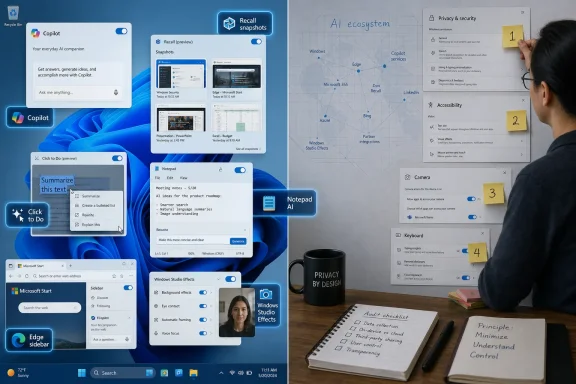
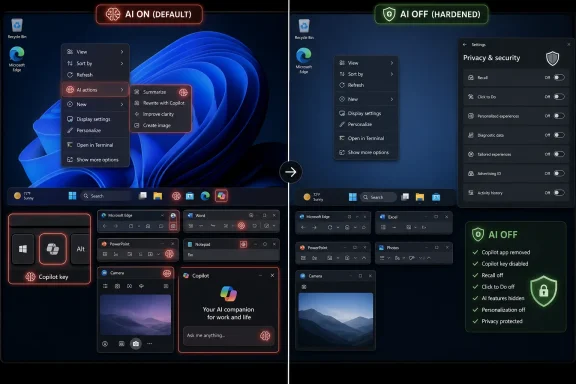
Microsoft’s newest Windows 11 AI controls now let a determined user disable or hide much of the operating system’s visible AI surface area in minutes, including context-menu actions, Copilot app entry points, Recall snapshots, Click to Do, and app-level tools in Notepad, Edge, Office, Photos, and camera settings. That is not the same thing as removing AI from Windows. It is something more revealing: Microsoft has reached the point where its AI push is broad enough to require a scavenger hunt for people who want a quieter PC.
The MakeUseOf walkthrough is useful because it proves both sides of Microsoft’s current bargain. Redmond can say, with some justification, that many of these features are optional, removable, or at least suppressible. But the fact that “turning off AI” means visiting Settings, individual apps, privacy panels, camera controls, Office options, and keyboard mappings says just as much about the direction of Windows as the features themselves.
The most striking thing about disabling AI in Windows 11 is not that it takes only a few minutes. It is that the five-minute version still reads like a guided tour through Microsoft’s product strategy. AI is in the shell, in the right-click menu, in inbox apps, in Office, in Edge, in the camera pipeline, in the keyboard, and, on Copilot+ PCs, in the way Windows interprets what is on the screen.
That is by design. Microsoft is not treating AI as a single application, the way it once treated Cortana or Widgets. It is treating AI as a service layer that can appear wherever the user is likely to pause: after selecting text, right-clicking a file, opening a photo, writing a note, starting a meeting, searching past activity, or pressing a dedicated key.
This is why the absence of a master “AI off” switch matters. Windows 11 now has plenty of toggles, but they are distributed according to Microsoft’s internal product map rather than the user’s mental model. To a user, Copilot, Recall, Click to Do, AI Actions, Object Eraser, Writing Tools, and Studio Effects all belong to the same broad category: things the PC is doing because Microsoft has decided AI should be ambient.
To Microsoft, they are different experiences owned by different teams. One belongs to the shell, another to privacy settings, another to the camera stack, another to Notepad, another to Photos, another to Microsoft 365, and another to Edge. That distinction may make engineering and compliance sense, but it turns user choice into a game of whack-a-mole.
The irony is that Microsoft already understands centralized control when it wants to. Windows Update, Defender, privacy permissions, default apps, and accessibility all have imperfect but recognizable command centers. AI, by contrast, is arriving as a federation of features. The result is a user experience that says “you are in control” while making the user prove it repeatedly.
The problem is that the Windows context menu was already overloaded before AI arrived. Windows 11 attempted to simplify it, then complicated the story by hiding legacy actions behind “Show more options,” pushing users into a new hierarchy that many still find slower than the old one. Adding AI into that space makes sense strategically, but it also makes Microsoft’s intent impossible to miss.
That is why the Settings > Apps > Actions panel is more important than it looks. It gives users a way to remove AI shortcuts from the context menu without registry edits, third-party shell tools, or enterprise policy. For enthusiasts, that is a welcome concession. For ordinary users, it is still buried one level deeper than it should be.
The MakeUseOf example captures the practical reality: right-click a photo and Windows may offer background removal in Photos or a Bing visual search. Right-click other supported file types and different actions appear, depending on installed Microsoft apps and services. In isolation, each shortcut can be defended as useful. In aggregate, they make Windows feel less like an operating system and more like a storefront for machine-assisted nudges.
Microsoft appears to know this can become visually absurd. Recent Windows Insider work has focused on hiding the AI Actions section when no enabled actions are available, which is exactly the sort of polish that should have existed before the feature showed up for mainstream users. The company is learning a familiar Windows lesson: if a feature lives in the shell, it is no longer a feature. It is part of the room.
That makes Click to Do much more consequential than another menu entry. It is not merely a shortcut to an app. It is a system-level interpretation layer that watches for selectable context and offers actions based on what Windows believes the user is trying to do.
For some people, that will be delightful. Selecting text and immediately getting a relevant action is the sort of friction reduction that made smartphones feel magical when selection menus became smarter. For others, it will feel like Windows is leaning over their shoulder.
The distinction matters because Copilot+ PCs are Microsoft’s proving ground for local AI. The company wants to argue that on-device processing, NPUs, and local storage make these features private enough to trust. That may be true in a narrow technical sense, but user trust is not built only on where data is processed. It is also built on whether the system behaves in ways people expect.
A visible toggle under Privacy & Security helps. But the deeper issue is that Click to Do changes the implied boundary between the user’s work and the operating system’s role. Traditional Windows waited for commands. AI Windows increasingly proposes them.
Those changes are meaningful. Recall in its current form is not the same proposition as the version that triggered an immediate privacy backlash when Microsoft first showed it off. Opt-in behavior, clearer controls, snapshot deletion, filtering, and system-tray visibility all matter.
But Recall still sits at the center of the Windows AI debate because it asks the user to accept a radical premise: the PC should remember what the user saw, not just what the user saved. That is a major shift. File systems remember documents. Browsers remember history. Applications remember recent items. Recall proposes that the operating system remember experience.
For many power users and administrators, that distinction is not academic. The modern desktop is full of sensitive content that is visible but not necessarily meant to be indexed into a retrievable timeline: one-time codes, private messages, client records, medical portals, source code, confidential dashboards, internal documents, legal materials, and personal photos. Even if Microsoft never sees the snapshots, the existence of a local searchable memory store changes the threat model.
The MakeUseOf advice is therefore straightforward: if you have a Copilot+ PC and do not want Recall, go to Privacy & Security, turn off snapshot saving, and delete any existing snapshots. That is the right consumer-level guidance. For organizations, the conversation is bigger. IT departments must decide whether Recall is a productivity tool, a compliance risk, a discovery concern, or simply another feature to disable until governance catches up.
Microsoft’s challenge is not just to secure Recall. It must convince users that Recall’s usefulness outweighs the anxiety created by its premise. That is a much harder problem than adding another encryption claim to a support page.
That split is going to shape Windows support for years. Copilot+ PCs are not merely faster laptops with a sticker. They are Microsoft’s attempt to define a new baseline for Windows hardware, where local AI acceleration becomes as expected as a webcam or fingerprint reader. Features like Recall, Click to Do, Live Captions translations, Cocreator-style image generation, and Studio Effects are part of the sales pitch.
The downside is fragmentation. A user reading a guide to disable AI may discover that half the instructions do not apply to their machine. Another user may find that the most controversial features are present only because they bought a newer laptop. Admins will need inventory awareness not just for CPU architecture and Windows edition, but for AI capability tiers.
That creates a peculiar reversal. For decades, buying a more capable PC generally meant getting better performance for the same Windows experience. With Copilot+ PCs, buying the more capable machine can also mean inheriting more OS-level intelligence to evaluate, configure, explain, or suppress.
Microsoft would argue that this is how platforms evolve. New hardware enables new capabilities; new capabilities become mainstream; mainstream behavior changes. That is true. It is also why the controls need to be obvious. The more deeply a feature depends on hardware-level integration, the less acceptable it is for users to hunt through scattered settings to understand what is active.
There is nothing inherently wrong with that. A writing helper in Notepad may be useful for quick drafts, tone changes, or cleanup. Paint’s background remover is genuinely handy. Photos’ object eraser can save a trip to heavier image software. Edge’s Copilot integration is useful for people who live in the browser. Office Copilot is one of Microsoft’s biggest commercial bets because the productivity suite is where AI can be sold as time saved rather than novelty.
The issue is not whether any one of these tools has value. Many do. The issue is whether users experience them as optional enhancements or as creeping occupation. The line between “available” and “pushed” is thin, and Microsoft has not always shown restraint when a strategic priority needs distribution.
That is why the app-by-app nature of disabling AI feels so revealing. Notepad has its own toggle. Edge has its own toolbar setting. Office apps have their own Copilot option. Photos does not simply offer a universal “hide AI editing” switch; the workaround described in the MakeUseOf piece is to install the legacy Photos app if you want the classic experience.
Legacy Photos is more than a nostalgic escape hatch. It is a metaphor for the current Windows moment. Users who want fewer intelligent surfaces increasingly find themselves reaching for older versions, classic modes, registry tweaks, local accounts, debloat scripts, and third-party tools. That is not because they hate progress. It is because they want progress to stop rearranging the furniture.
Office is where this becomes clearest. A Copilot button in Word, Excel, or PowerPoint is not merely another ribbon item. It is the front door to a paid productivity narrative: summarize the document, generate the deck, analyze the spreadsheet, rewrite the paragraph, prepare the meeting, draft the email. Microsoft believes AI can justify new subscription revenue and defend Microsoft 365 against rivals.
That means AI removal in Office is politically different from removing a cute Paint feature. Turning off Copilot in Word or Excel is not just personal preference; in an enterprise, it may intersect with licensing, tenant policy, data governance, training, and management expectations. Some organizations will mandate Copilot because they paid for it. Others will disable it because legal, security, or regulatory teams are not ready.
Windows enthusiasts often frame these features as bloat, and sometimes they are right. But from Microsoft’s perspective, the OS, the productivity suite, and the cloud are becoming one AI-assisted workflow. The company is not going to abandon that because a subset of users wants Notepad to remain spiritually 1995.
That is why the more realistic demand is not “remove all AI from Windows forever.” It is make AI explicit, reversible, and governable. Microsoft can win over skeptics with utility and transparency. It will lose them by making every surface feel like an upsell.
That is why many users who object to Recall may have no problem with Studio Effects. The feature operates in a familiar context: video calls. The user can see the effect. The data path feels intuitive. The benefit is immediate. It does not ask the PC to remember everything, summarize your documents, or suggest actions across the screen.
This distinction should guide Microsoft’s broader AI design. AI features are easier to accept when they are scoped to a task and clearly controlled near that task. A camera effect belongs in camera settings. A background blur toggle makes sense. A voice focus control makes sense. The user understands the bargain.
By contrast, broad ambient AI features require more trust because their boundaries are less obvious. Recall remembers across apps. Click to Do interprets screen content. Copilot can surface in multiple places. Context-menu AI appears based on file type and installed handlers. These may be powerful, but they also create ambiguity.
The best Windows AI features will probably be the ones that feel boring in this way. They will do one job, sit where users expect, and stop when disabled. If Microsoft wants AI to become normal, it should learn from Studio Effects rather than forcing every feature to become a Copilot funnel.
That decision was always going to irritate a certain class of user. Keyboard layouts are muscle memory. The keys displaced or altered by the Copilot push—often Menu or right Ctrl territory, depending on hardware—matter to accessibility workflows, power users, developers, and anyone who has spent years building habits around standard layouts.
Microsoft’s later willingness to let users customize the Copilot key is therefore welcome, but it also proves the original overreach. The setting to change what the key does has moved through Windows’ evolving settings landscape, with current guidance pointing users toward keyboard or text-input customization depending on build and configuration. It can launch Copilot, Search, or certain approved apps, and power users can go further with tools like PowerToys.
That last caveat is important. Microsoft’s built-in remapping is still more constrained than what enthusiasts expect from a genuine keyboard customization feature. If a key is physically on the user’s laptop, the user will reasonably think it should be theirs to remap. Limiting it to sanctioned actions or packaged apps may satisfy security and platform requirements, but it keeps the key in Microsoft’s conceptual custody.
The Copilot key is not the biggest AI issue in Windows. It may not even be the most annoying. But symbols matter, and this one says Microsoft wants AI to be not merely available but default. Letting users reclaim the key is less a favor than a correction.
Start with Settings > Apps > Actions to clean up the context menu. Move to Privacy & Security for Recall and Click to Do. Open Notepad’s settings for writing tools. Visit Edge settings for the Copilot toolbar button. Dive into Office app options for Copilot. Replace Photos with Legacy Photos if you want to avoid AI editing tools. Open camera settings to disable Studio Effects. Uninstall the Copilot app. Remap the Copilot key.
That is a lot of ground for “I don’t want AI in Windows.” It is manageable for WindowsForum readers, who are comfortable spelunking through Settings and know when to reach for PowerToys. It is not a reasonable expectation for mainstream users who simply want a PC that behaves like the one they had before.
The usual counterargument is that operating systems are complex and granular controls are good. That is true up to a point. Granularity helps when users understand the categories and when administrators can manage them centrally. But consumer Windows currently presents AI controls as a scattered set of product-level preferences rather than a coherent privacy and experience model.
A better design would offer both. Keep the granular controls for people who want Copilot in Office but not in Edge, Studio Effects on but Recall off, Paint tools available but context-menu AI hidden. But add a top-level Windows AI dashboard that shows what is installed, what is enabled, what uses local processing, what sends data to cloud services, what requires a Microsoft account, what is governed by organization policy, and what can be removed.
That would not satisfy everyone. Some users want no AI code on disk at all, which is not a realistic future for mainstream Windows. But it would move Microsoft from “trust us, there are toggles somewhere” to a model that respects informed consent.
Recall is the obvious flashpoint because snapshots may capture sensitive information. But it is not the only issue. Copilot integrations can raise questions about which tenant data is accessible, which prompts are logged, how generated content is handled, and whether employees understand the boundary between local assistance and cloud-backed services. AI actions in the shell may route users toward services the organization has not approved. Browser AI can collide with corporate web policies. App-level AI may appear before training or governance is ready.
Microsoft has enterprise controls for many of these areas, and managed Windows devices are not the same as unmanaged home PCs. But the sprawl still creates administrative burden. Every new AI surface becomes another setting to document, another policy to evaluate, another help-desk article to write, and another exception to explain.
There is also a human factor. Users do not experience policy categories; they experience buttons. If Copilot appears in one app but not another, if Recall exists on one laptop but not another, if the Copilot key opens different things depending on device state, the help desk absorbs the confusion. In a large organization, tiny interface inconsistencies become ticket volume.
This is where Microsoft’s ambition can work against it. A unified AI platform is easier to sell to executives than a patchwork of toggles is to administer. If Microsoft wants Windows AI to become standard in business environments, the management story must be as strong as the keynote demo.
The objection is ambush. Users dislike opening a familiar app and finding a new assistant button. They dislike context menus gaining promotional-feeling entries. They dislike hardware keys being reassigned to corporate strategy. They dislike features that require a blog post to explain whether their data is local, encrypted, filtered, uploaded, indexed, or used for training.
The Windows enthusiast community has a long memory. It remembers forced Edge prompts, Start menu ads, Candy Crush-era app installs, Microsoft account pressure, telemetry disputes, Teams integration, OneDrive nudges, and the slow erosion of local-first assumptions. AI arrives into that history, not onto a blank slate.
That history does not mean Microsoft is always wrong. Windows is better when it gains modern capabilities. Built-in security, virtualization, sandboxing, cloud recovery, improved accessibility, and hardware-backed authentication all required Microsoft to push the platform forward. Some users complained about those too, and many of the changes proved worthwhile.
But AI is different because it is both useful technology and business agenda. It can help users work faster, and it can also serve as a distribution channel for subscriptions and cloud services. Microsoft’s job is to make the first identity dominate the second. The current scatter of Copilot buttons and AI actions does not always inspire that confidence.
The old Control Panel survived for decades because Windows accumulated features faster than Microsoft could rationalize them. The modern Settings app was supposed to fix that by organizing the system around user tasks. But AI is arriving so quickly that Microsoft risks recreating the same fragmentation inside the new interface.
A serious Windows AI dashboard would not need to be ideological. It could be practical. Show the user a table of AI capabilities, their status, their processing model, their data implications, their shortcuts, their app owners, and their removal options. Let users choose a global preference during setup: full AI assistance, minimal AI assistance, or no proactive AI surfaces. Let them change that later.
For Copilot+ PCs, the dashboard should be even more explicit. If the hardware enables Recall, Click to Do, Studio Effects, Live Captions translation, or other NPU-backed features, Windows should explain what is available and what is active. A premium AI PC should not require a user to learn its capabilities from scattered support pages or third-party guides.
Microsoft may resist such a dashboard because it would make disabling AI too easy. That would be shortsighted. A clear control surface would reduce anxiety, help IT, and make users more willing to experiment. People are more likely to try powerful features when they know where the brakes are.
But the emotional victory is incomplete. Disabling features one by one does not restore the older Windows social contract, where the operating system mostly provided a place for applications to run. Modern Windows wants to participate. It wants to suggest, summarize, rewrite, remember, edit, frame, blur, search, and answer.
Some of that participation will become normal. In a few years, object removal in Photos may feel as mundane as red-eye correction once did. Voice isolation may become expected. Local summarization may become boringly useful. A good operating system should absorb useful ideas.
The danger is that Microsoft confuses adoption with acquiescence. If users keep AI features enabled because they are useful, Microsoft wins. If users keep them enabled because they do not know where the toggles are, Microsoft stores up resentment. Windows has survived many eras because it remains the default productivity platform for enormous numbers of people. Defaults are powerful, but they are not the same as trust.
Microsoft can keep arguing that these features are optional, local, secure, and useful, and in many cases it will have evidence on its side. But Windows users are not asking only whether AI can help them; they are asking whether the operating system still respects the difference between assistance and intrusion. The next phase of Windows AI will be judged less by how many new Copilot surfaces Microsoft can ship than by whether it can make the off ramp as carefully designed as the on ramp.
The MakeUseOf walkthrough is useful because it proves both sides of Microsoft’s current bargain. Redmond can say, with some justification, that many of these features are optional, removable, or at least suppressible. But the fact that “turning off AI” means visiting Settings, individual apps, privacy panels, camera controls, Office options, and keyboard mappings says just as much about the direction of Windows as the features themselves.
 Microsoft Built an AI Layer, Then Forgot the Off Switch Should Be One Switch
The most striking thing about disabling AI in Windows 11 is not that it takes only a few minutes. It is that the five-minute version still reads like a guided tour through Microsoft’s product strategy. AI is in the shell, in the right-click menu, in inbox apps, in Office, in Edge, in the camera pipeline, in the keyboard, and, on Copilot+ PCs, in the way Windows interprets what is on the screen.That is by design. Microsoft is not treating AI as a single application, the way it once treated Cortana or Widgets. It is treating AI as a service layer that can appear wherever the user is likely to pause: after selecting text, right-clicking a file, opening a photo, writing a note, starting a meeting, searching past activity, or pressing a dedicated key.
This is why the absence of a master “AI off” switch matters. Windows 11 now has plenty of toggles, but they are distributed according to Microsoft’s internal product map rather than the user’s mental model. To a user, Copilot, Recall, Click to Do, AI Actions, Object Eraser, Writing Tools, and Studio Effects all belong to the same broad category: things the PC is doing because Microsoft has decided AI should be ambient.
To Microsoft, they are different experiences owned by different teams. One belongs to the shell, another to privacy settings, another to the camera stack, another to Notepad, another to Photos, another to Microsoft 365, and another to Edge. That distinction may make engineering and compliance sense, but it turns user choice into a game of whack-a-mole.
The irony is that Microsoft already understands centralized control when it wants to. Windows Update, Defender, privacy permissions, default apps, and accessibility all have imperfect but recognizable command centers. AI, by contrast, is arriving as a federation of features. The result is a user experience that says “you are in control” while making the user prove it repeatedly.
The Context Menu Became the Front Line of the AI Backlash
The Windows right-click menu has always been a political battlefield. Every cloud sync client, archive tool, graphics driver, code editor, and security product wants real estate there because the context menu is where intent becomes action. Microsoft’s AI Actions are a natural extension of that logic: if the user right-clicks an image, offer background removal or visual search; if the user selects text, offer summarization or rewriting; if the user touches a file, offer a shortcut to something smarter than “Open.”The problem is that the Windows context menu was already overloaded before AI arrived. Windows 11 attempted to simplify it, then complicated the story by hiding legacy actions behind “Show more options,” pushing users into a new hierarchy that many still find slower than the old one. Adding AI into that space makes sense strategically, but it also makes Microsoft’s intent impossible to miss.
That is why the Settings > Apps > Actions panel is more important than it looks. It gives users a way to remove AI shortcuts from the context menu without registry edits, third-party shell tools, or enterprise policy. For enthusiasts, that is a welcome concession. For ordinary users, it is still buried one level deeper than it should be.
The MakeUseOf example captures the practical reality: right-click a photo and Windows may offer background removal in Photos or a Bing visual search. Right-click other supported file types and different actions appear, depending on installed Microsoft apps and services. In isolation, each shortcut can be defended as useful. In aggregate, they make Windows feel less like an operating system and more like a storefront for machine-assisted nudges.
Microsoft appears to know this can become visually absurd. Recent Windows Insider work has focused on hiding the AI Actions section when no enabled actions are available, which is exactly the sort of polish that should have existed before the feature showed up for mainstream users. The company is learning a familiar Windows lesson: if a feature lives in the shell, it is no longer a feature. It is part of the room.
Click to Do Is the More Ambitious—and More Unsettling—Version of Right-Click
Click to Do is the context menu idea with Copilot+ hardware underneath it. Instead of waiting for the user to right-click a file, Windows can offer AI-powered actions after the user selects text or imagery on the screen. It is a more fluid model, and it points directly at Microsoft’s vision for the PC: the operating system should understand the visible workspace well enough to act on it.That makes Click to Do much more consequential than another menu entry. It is not merely a shortcut to an app. It is a system-level interpretation layer that watches for selectable context and offers actions based on what Windows believes the user is trying to do.
For some people, that will be delightful. Selecting text and immediately getting a relevant action is the sort of friction reduction that made smartphones feel magical when selection menus became smarter. For others, it will feel like Windows is leaning over their shoulder.
The distinction matters because Copilot+ PCs are Microsoft’s proving ground for local AI. The company wants to argue that on-device processing, NPUs, and local storage make these features private enough to trust. That may be true in a narrow technical sense, but user trust is not built only on where data is processed. It is also built on whether the system behaves in ways people expect.
A visible toggle under Privacy & Security helps. But the deeper issue is that Click to Do changes the implied boundary between the user’s work and the operating system’s role. Traditional Windows waited for commands. AI Windows increasingly proposes them.
Recall Remains the Feature That Defines the Trust Problem
No Windows AI feature carries more symbolic weight than Recall. It is Microsoft’s attempt to make PC history searchable by periodically saving snapshots of user activity on Copilot+ PCs. The company has revised its approach since the feature’s rocky debut, emphasizing local storage, encryption, Windows Hello requirements, and user control over whether snapshots are saved.Those changes are meaningful. Recall in its current form is not the same proposition as the version that triggered an immediate privacy backlash when Microsoft first showed it off. Opt-in behavior, clearer controls, snapshot deletion, filtering, and system-tray visibility all matter.
But Recall still sits at the center of the Windows AI debate because it asks the user to accept a radical premise: the PC should remember what the user saw, not just what the user saved. That is a major shift. File systems remember documents. Browsers remember history. Applications remember recent items. Recall proposes that the operating system remember experience.
For many power users and administrators, that distinction is not academic. The modern desktop is full of sensitive content that is visible but not necessarily meant to be indexed into a retrievable timeline: one-time codes, private messages, client records, medical portals, source code, confidential dashboards, internal documents, legal materials, and personal photos. Even if Microsoft never sees the snapshots, the existence of a local searchable memory store changes the threat model.
The MakeUseOf advice is therefore straightforward: if you have a Copilot+ PC and do not want Recall, go to Privacy & Security, turn off snapshot saving, and delete any existing snapshots. That is the right consumer-level guidance. For organizations, the conversation is bigger. IT departments must decide whether Recall is a productivity tool, a compliance risk, a discovery concern, or simply another feature to disable until governance catches up.
Microsoft’s challenge is not just to secure Recall. It must convince users that Recall’s usefulness outweighs the anxiety created by its premise. That is a much harder problem than adding another encryption claim to a support page.
Copilot+ PCs Turn AI From Software Branding Into Hardware Segmentation
One reason the AI-off process varies so much is that Windows 11 now has two AI realities. On a conventional PC, the visible AI layer is mostly app-driven and cloud-adjacent: Copilot, Edge, Notepad writing tools, Office Copilot, Photos edits, and shell actions. On a Copilot+ PC, the operating system itself gains additional local AI capabilities tied to NPU-class hardware.That split is going to shape Windows support for years. Copilot+ PCs are not merely faster laptops with a sticker. They are Microsoft’s attempt to define a new baseline for Windows hardware, where local AI acceleration becomes as expected as a webcam or fingerprint reader. Features like Recall, Click to Do, Live Captions translations, Cocreator-style image generation, and Studio Effects are part of the sales pitch.
The downside is fragmentation. A user reading a guide to disable AI may discover that half the instructions do not apply to their machine. Another user may find that the most controversial features are present only because they bought a newer laptop. Admins will need inventory awareness not just for CPU architecture and Windows edition, but for AI capability tiers.
That creates a peculiar reversal. For decades, buying a more capable PC generally meant getting better performance for the same Windows experience. With Copilot+ PCs, buying the more capable machine can also mean inheriting more OS-level intelligence to evaluate, configure, explain, or suppress.
Microsoft would argue that this is how platforms evolve. New hardware enables new capabilities; new capabilities become mainstream; mainstream behavior changes. That is true. It is also why the controls need to be obvious. The more deeply a feature depends on hardware-level integration, the less acceptable it is for users to hunt through scattered settings to understand what is active.
The Inbox Apps Are Where AI Fatigue Becomes Personal
Notepad is a telling example because it has always been the anti-platform app. It opens quickly, edits plain text, and mostly stays out of the way. When even Notepad gains AI-powered writing tools, Microsoft sends a signal that no corner of Windows is too small for generative assistance.There is nothing inherently wrong with that. A writing helper in Notepad may be useful for quick drafts, tone changes, or cleanup. Paint’s background remover is genuinely handy. Photos’ object eraser can save a trip to heavier image software. Edge’s Copilot integration is useful for people who live in the browser. Office Copilot is one of Microsoft’s biggest commercial bets because the productivity suite is where AI can be sold as time saved rather than novelty.
The issue is not whether any one of these tools has value. Many do. The issue is whether users experience them as optional enhancements or as creeping occupation. The line between “available” and “pushed” is thin, and Microsoft has not always shown restraint when a strategic priority needs distribution.
That is why the app-by-app nature of disabling AI feels so revealing. Notepad has its own toggle. Edge has its own toolbar setting. Office apps have their own Copilot option. Photos does not simply offer a universal “hide AI editing” switch; the workaround described in the MakeUseOf piece is to install the legacy Photos app if you want the classic experience.
Legacy Photos is more than a nostalgic escape hatch. It is a metaphor for the current Windows moment. Users who want fewer intelligent surfaces increasingly find themselves reaching for older versions, classic modes, registry tweaks, local accounts, debloat scripts, and third-party tools. That is not because they hate progress. It is because they want progress to stop rearranging the furniture.
Office Copilot Shows Why Microsoft Will Not Back Down Easily
The consumer annoyance story should not obscure the business logic. Microsoft is not sprinkling AI through Windows because engineers are bored. It is doing so because Copilot is a platform bet across Windows, Microsoft 365, Azure, GitHub, security products, and developer tooling. Windows is the distribution layer for that bet.Office is where this becomes clearest. A Copilot button in Word, Excel, or PowerPoint is not merely another ribbon item. It is the front door to a paid productivity narrative: summarize the document, generate the deck, analyze the spreadsheet, rewrite the paragraph, prepare the meeting, draft the email. Microsoft believes AI can justify new subscription revenue and defend Microsoft 365 against rivals.
That means AI removal in Office is politically different from removing a cute Paint feature. Turning off Copilot in Word or Excel is not just personal preference; in an enterprise, it may intersect with licensing, tenant policy, data governance, training, and management expectations. Some organizations will mandate Copilot because they paid for it. Others will disable it because legal, security, or regulatory teams are not ready.
Windows enthusiasts often frame these features as bloat, and sometimes they are right. But from Microsoft’s perspective, the OS, the productivity suite, and the cloud are becoming one AI-assisted workflow. The company is not going to abandon that because a subset of users wants Notepad to remain spiritually 1995.
That is why the more realistic demand is not “remove all AI from Windows forever.” It is make AI explicit, reversible, and governable. Microsoft can win over skeptics with utility and transparency. It will lose them by making every surface feel like an upsell.
Studio Effects Are the Least Offensive AI Feature Because They Behave Like a Tool
Windows Studio Effects occupy a different category from Recall and Copilot. Automatic framing, background blur, eye contact, portrait lighting, and voice focus are AI features, but they feel like camera and audio enhancements rather than an operating system trying to interpret your work. They are bounded, visible, and easy to understand.That is why many users who object to Recall may have no problem with Studio Effects. The feature operates in a familiar context: video calls. The user can see the effect. The data path feels intuitive. The benefit is immediate. It does not ask the PC to remember everything, summarize your documents, or suggest actions across the screen.
This distinction should guide Microsoft’s broader AI design. AI features are easier to accept when they are scoped to a task and clearly controlled near that task. A camera effect belongs in camera settings. A background blur toggle makes sense. A voice focus control makes sense. The user understands the bargain.
By contrast, broad ambient AI features require more trust because their boundaries are less obvious. Recall remembers across apps. Click to Do interprets screen content. Copilot can surface in multiple places. Context-menu AI appears based on file type and installed handlers. These may be powerful, but they also create ambiguity.
The best Windows AI features will probably be the ones that feel boring in this way. They will do one job, sit where users expect, and stop when disabled. If Microsoft wants AI to become normal, it should learn from Studio Effects rather than forcing every feature to become a Copilot funnel.
The Copilot Key Is a Tiny Button With a Big Symbolism Problem
The dedicated Copilot key may be the purest expression of Microsoft’s AI confidence. Software features can be moved, hidden, or renamed. A physical key is a bet cast in plastic. It tells users that Microsoft expects Copilot to become important enough to deserve keyboard real estate.That decision was always going to irritate a certain class of user. Keyboard layouts are muscle memory. The keys displaced or altered by the Copilot push—often Menu or right Ctrl territory, depending on hardware—matter to accessibility workflows, power users, developers, and anyone who has spent years building habits around standard layouts.
Microsoft’s later willingness to let users customize the Copilot key is therefore welcome, but it also proves the original overreach. The setting to change what the key does has moved through Windows’ evolving settings landscape, with current guidance pointing users toward keyboard or text-input customization depending on build and configuration. It can launch Copilot, Search, or certain approved apps, and power users can go further with tools like PowerToys.
That last caveat is important. Microsoft’s built-in remapping is still more constrained than what enthusiasts expect from a genuine keyboard customization feature. If a key is physically on the user’s laptop, the user will reasonably think it should be theirs to remap. Limiting it to sanctioned actions or packaged apps may satisfy security and platform requirements, but it keeps the key in Microsoft’s conceptual custody.
The Copilot key is not the biggest AI issue in Windows. It may not even be the most annoying. But symbols matter, and this one says Microsoft wants AI to be not merely available but default. Letting users reclaim the key is less a favor than a correction.
The Five-Minute Disable Guide Is Really a Map of Microsoft’s AI Sprawl
The MakeUseOf piece works because it offers a simple promise: you can remove or hide the most obvious Windows 11 AI features quickly. But its deeper value is diagnostic. The list of places you must visit is a map of how aggressively Microsoft has embedded AI into the OS experience.Start with Settings > Apps > Actions to clean up the context menu. Move to Privacy & Security for Recall and Click to Do. Open Notepad’s settings for writing tools. Visit Edge settings for the Copilot toolbar button. Dive into Office app options for Copilot. Replace Photos with Legacy Photos if you want to avoid AI editing tools. Open camera settings to disable Studio Effects. Uninstall the Copilot app. Remap the Copilot key.
That is a lot of ground for “I don’t want AI in Windows.” It is manageable for WindowsForum readers, who are comfortable spelunking through Settings and know when to reach for PowerToys. It is not a reasonable expectation for mainstream users who simply want a PC that behaves like the one they had before.
The usual counterargument is that operating systems are complex and granular controls are good. That is true up to a point. Granularity helps when users understand the categories and when administrators can manage them centrally. But consumer Windows currently presents AI controls as a scattered set of product-level preferences rather than a coherent privacy and experience model.
A better design would offer both. Keep the granular controls for people who want Copilot in Office but not in Edge, Studio Effects on but Recall off, Paint tools available but context-menu AI hidden. But add a top-level Windows AI dashboard that shows what is installed, what is enabled, what uses local processing, what sends data to cloud services, what requires a Microsoft account, what is governed by organization policy, and what can be removed.
That would not satisfy everyone. Some users want no AI code on disk at all, which is not a realistic future for mainstream Windows. But it would move Microsoft from “trust us, there are toggles somewhere” to a model that respects informed consent.
Enterprise IT Will Treat AI as a Governance Problem, Not a Vibe
Consumers talk about AI in Windows as annoyance, clutter, or privacy anxiety. Enterprise IT will translate the same concerns into policy language: data retention, endpoint security, acceptable use, regulatory exposure, eDiscovery, user training, incident response, and configuration drift.Recall is the obvious flashpoint because snapshots may capture sensitive information. But it is not the only issue. Copilot integrations can raise questions about which tenant data is accessible, which prompts are logged, how generated content is handled, and whether employees understand the boundary between local assistance and cloud-backed services. AI actions in the shell may route users toward services the organization has not approved. Browser AI can collide with corporate web policies. App-level AI may appear before training or governance is ready.
Microsoft has enterprise controls for many of these areas, and managed Windows devices are not the same as unmanaged home PCs. But the sprawl still creates administrative burden. Every new AI surface becomes another setting to document, another policy to evaluate, another help-desk article to write, and another exception to explain.
There is also a human factor. Users do not experience policy categories; they experience buttons. If Copilot appears in one app but not another, if Recall exists on one laptop but not another, if the Copilot key opens different things depending on device state, the help desk absorbs the confusion. In a large organization, tiny interface inconsistencies become ticket volume.
This is where Microsoft’s ambition can work against it. A unified AI platform is easier to sell to executives than a patchwork of toggles is to administer. If Microsoft wants Windows AI to become standard in business environments, the management story must be as strong as the keynote demo.
Windows Enthusiasts Are Not Anti-AI; They Are Anti-Ambush
It is tempting to caricature resistance to Windows AI as nostalgia or paranoia. That would be a mistake. Many of the same users who disable Copilot in Windows are happily using ChatGPT, Claude, Gemini, GitHub Copilot, local LLMs, image generators, transcription tools, and AI search elsewhere. The objection is rarely that AI has no value.The objection is ambush. Users dislike opening a familiar app and finding a new assistant button. They dislike context menus gaining promotional-feeling entries. They dislike hardware keys being reassigned to corporate strategy. They dislike features that require a blog post to explain whether their data is local, encrypted, filtered, uploaded, indexed, or used for training.
The Windows enthusiast community has a long memory. It remembers forced Edge prompts, Start menu ads, Candy Crush-era app installs, Microsoft account pressure, telemetry disputes, Teams integration, OneDrive nudges, and the slow erosion of local-first assumptions. AI arrives into that history, not onto a blank slate.
That history does not mean Microsoft is always wrong. Windows is better when it gains modern capabilities. Built-in security, virtualization, sandboxing, cloud recovery, improved accessibility, and hardware-backed authentication all required Microsoft to push the platform forward. Some users complained about those too, and many of the changes proved worthwhile.
But AI is different because it is both useful technology and business agenda. It can help users work faster, and it can also serve as a distribution channel for subscriptions and cloud services. Microsoft’s job is to make the first identity dominate the second. The current scatter of Copilot buttons and AI actions does not always inspire that confidence.
The Windows AI Debate Now Has Its Own Control Panel Moment
Every major Windows transition eventually produces a control problem. Networking needed a better settings model. Security needed one. Privacy needed one. Updates still need one, depending on whom you ask. AI is now reaching that stage.The old Control Panel survived for decades because Windows accumulated features faster than Microsoft could rationalize them. The modern Settings app was supposed to fix that by organizing the system around user tasks. But AI is arriving so quickly that Microsoft risks recreating the same fragmentation inside the new interface.
A serious Windows AI dashboard would not need to be ideological. It could be practical. Show the user a table of AI capabilities, their status, their processing model, their data implications, their shortcuts, their app owners, and their removal options. Let users choose a global preference during setup: full AI assistance, minimal AI assistance, or no proactive AI surfaces. Let them change that later.
For Copilot+ PCs, the dashboard should be even more explicit. If the hardware enables Recall, Click to Do, Studio Effects, Live Captions translation, or other NPU-backed features, Windows should explain what is available and what is active. A premium AI PC should not require a user to learn its capabilities from scattered support pages or third-party guides.
Microsoft may resist such a dashboard because it would make disabling AI too easy. That would be shortsighted. A clear control surface would reduce anxiety, help IT, and make users more willing to experiment. People are more likely to try powerful features when they know where the brakes are.
The Real Win Is a PC That Stops Selling Itself
The practical victory in the MakeUseOf guide is modest but real. A user who wants a cleaner Windows 11 experience can remove the most obvious AI interruptions without reinstalling the OS or performing unsupported surgery. That is good news, especially compared with the darker fear that Microsoft would make AI unavoidable.But the emotional victory is incomplete. Disabling features one by one does not restore the older Windows social contract, where the operating system mostly provided a place for applications to run. Modern Windows wants to participate. It wants to suggest, summarize, rewrite, remember, edit, frame, blur, search, and answer.
Some of that participation will become normal. In a few years, object removal in Photos may feel as mundane as red-eye correction once did. Voice isolation may become expected. Local summarization may become boringly useful. A good operating system should absorb useful ideas.
The danger is that Microsoft confuses adoption with acquiescence. If users keep AI features enabled because they are useful, Microsoft wins. If users keep them enabled because they do not know where the toggles are, Microsoft stores up resentment. Windows has survived many eras because it remains the default productivity platform for enormous numbers of people. Defaults are powerful, but they are not the same as trust.
The Five-Minute Escape Route Has a Message for Redmond
The most concrete lesson from this episode is that Windows 11 AI can be quieted, but not cleanly. For users who want the short version, the path is manageable, and the implications are clear.- Windows 11 now exposes AI through multiple layers, including the shell, inbox apps, Microsoft 365 apps, Edge, camera effects, Copilot, and Copilot+ PC features.
- Disabling AI Actions from Settings can declutter the right-click menu, but it does not remove AI tools that live inside individual apps.
- Recall and Click to Do remain Copilot+ PC features that deserve special scrutiny because they operate across user activity rather than inside a single app.
- Uninstalling Copilot and remapping the Copilot key can reduce Microsoft’s most visible AI entry points, though built-in remapping remains more limited than many power users would like.
- The lack of a single Windows AI dashboard is now a product problem, not just a preference complaint.
- Microsoft’s best chance of making Windows AI acceptable is to make it transparent, reversible, and boringly well governed.
Microsoft can keep arguing that these features are optional, local, secure, and useful, and in many cases it will have evidence on its side. But Windows users are not asking only whether AI can help them; they are asking whether the operating system still respects the difference between assistance and intrusion. The next phase of Windows AI will be judged less by how many new Copilot surfaces Microsoft can ship than by whether it can make the off ramp as carefully designed as the on ramp.
References
- Primary source: MakeUseOf
Published: Thu, 02 Jul 2026 10:00:18 GMT
I disabled all 10 AI features in Windows 11 and it only took 5 Minutes
Say hello to simplicity. www.makeuseof.com
- Official source: support.microsoft.com
Retrace your steps with Recall | Microsoft Support
Retrace your steps with Recallsupport.microsoft.com - Official source: blogs.windows.com
Update on the Recall preview feature for Copilot+ PCs
Update Oct. 31, 2024: We are committed to delivering a secure and trusted experience with Recall. We recently shared updates to the security and privacy architecture for Recall in ablogs.windows.com - Official source: microsoft.com
Copilot+ PCs and AI Features for Businesses | Microsoft
Discover Microsoft Copilot+ PCs for your business. Learn how these AI-powered computers and laptops deliver business solutions with Copilot+ PC AI features that streamline work.www.microsoft.com
- Related coverage: tomshardware.com
Microsoft now allows you to reprogram the Windows Copilot key, but there's a catch | Tom's Hardware
The Copilot key can finally be customized to open something other than the Copilot AI assistant, but its customization is limited.www.tomshardware.com - Related coverage: windowscentral.com
Windows 11 25H2: Settings app redesign and new features explained | Windows Central
Windows 11's Settings app in 2025 introduced a slew of changes, including a new "Advanced" page and an AI agent for search. Key additions include Quick Machine Recovery, the ability to show the clock in the Notification Center, more Recall controls, and more.www.windowscentral.com
- Official source: learn.microsoft.com
Updated Windows and Microsoft 365 Copilot Chat experience | Microsoft Learn
Learn about changes to the Copilot in Windows experience for commercial environments and how to configure it for your organization.learn.microsoft.com - Related coverage: tomsguide.com
How to remap the Copilot key on Windows 11 | Tom's Guide
Windows 11 has a Copilot key built in, but sometimes you want to move it around. Here's how to remap the Copilot key in Windows 11, using the versatile Microsoft PowerToys.www.tomsguide.com - Related coverage: techradar.com
Microsoft's finally letting you change the Copilot key back to what it was before Windows 11's AI assistant existed | TechRadar
Taking back Right Controlwww.techradar.com - Related coverage: laptopmag.com
Microsoft Recall is gradually rolling out — will new privacy features get you to try Windows AI? | Laptop Mag
Microsoft Recall is rolling out gradually as part of the latest Windows Insider update almost a year after its announcement. Here's a look at what's changed.www.laptopmag.com - Official source: news.microsoft.com
- Official source: cdn-dynmedia-1.microsoft.com