

Knowing which port on your laptop is a USB 3 port is one of those small but practical skills that saves time, avoids bottlenecks, and prevents needless frustration when moving large files or connecting fast external drives. This guide distills simple, reliable methods for identifying USB 3 ports — from the easy visual cues to Windows tools and a quick real‑world speed test — and explains the technical background, common manufacturer quirks, and pitfalls to watch for so you can be certain a port will deliver the SuperSpeed performance you expect.
USB 3 (marketed as SuperSpeed USB) is the generation of USB that introduced much faster data rates and improved power delivery compared with USB 2.0. The most practical reasons to identify a USB 3 port are:
Conclusion
Identifying a USB 3 port on a laptop is straightforward when you combine the simple visual checks with Windows’ built‑in tools and a practical speed test. Color and labeling provide quick hints, Device Manager and xHCI entries confirm system support, and a real transfer verifies usable performance. Because USB naming has changed over time and manufacturers vary their markings, verifying with multiple methods eliminates guesswork and ensures you use the fastest port available for backups, external storage, and high‑bandwidth peripherals.
Source: Windows Report How to Identify USB 3 Port on Laptop (Simple Steps)
 Overview
USB 3 (marketed as SuperSpeed USB) is the generation of USB that introduced much faster data rates and improved power delivery compared with USB 2.0. The most practical reasons to identify a USB 3 port are:- Faster data transfers for external SSDs, backup drives, and high‑resolution video capture.
- Better support for bandwidth‑hungry peripherals such as docking stations and multiport adapters.
- Knowing which port supports higher power or charging profiles (though charging capability is not guaranteed solely by USB version).
Background: What “USB 3” actually means
Generations, marketing names, and raw speeds
USB standards have been renamed several times, which causes confusion. The essential, verifiable technical points are:- USB 3.0 / SuperSpeed originally defined a theoretical maximum of 5 Gbps (about 625 MB/s raw). This is commonly called USB 3.0 or USB 3.2 Gen 1 in the updated naming system.
- USB 3.1 / SuperSpeed+ added a 10 Gbps mode (often labeled USB 3.2 Gen 2).
- USB 3.2 Gen 2x2 can deliver 20 Gbps by using two 10 Gbps lanes over compatible Type‑C implementations. Marketing names vary and cause confusion between “USB 3.x” labels.
USB port shape vs. capability
Physical connector type (USB‑A, USB‑C, Micro‑B) does not, by itself, guarantee a particular speed. USB‑C is a connector that may carry USB 2.0, USB 3.x, USB4, or Thunderbolt — you must verify the port’s capabilities through labeling, specs, or system tools. Wired and other technical overviews emphasize that the connector and the protocol are separate attributes.Simple visual checks (fastest way)
1. Look at the port color
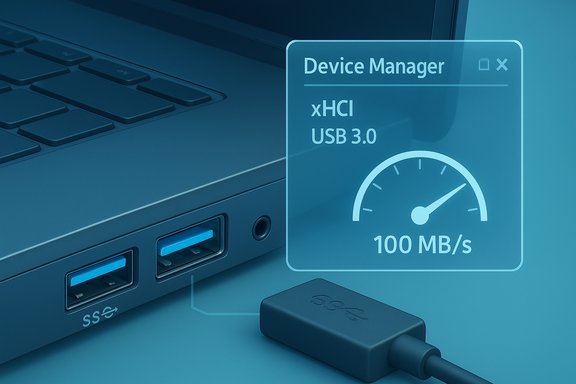
Most manufacturers use a blue plastic insert inside a rectangular USB‑A port to indicate SuperSpeed USB. Some models use slightly different hues (teal or turquoise) for later SuperSpeed+ ports, but blue is the most common visual cue. If the inner plastic of a Type‑A port is black, it’s likely USB 2.0. The color recommendation is a convention and appears in many product guides, but it’s not an absolute guarantee — manufacturers sometimes omit or vary the color coding.- Pros: Instant, no tools needed.
- Cons: Not enforced; some manufacturers use different colors or none at all.
2. Look for an “SS”, numeric, or charging symbol near the port
Manufacturers frequently stamp a small label or icon by the port:- SS stands for SuperSpeed; it’s the clearest indicator for USB 3.x.
- SS 10 or SS 20 indicates SuperSpeed at 10 Gbps or 20 Gbps respectively (commonly used for USB 3.1/3.2 variants).
- A lightning bolt symbol near a port typically means the port supports enhanced charging or is a “charging” port. That indicates power capability, not data speed. The presence of a charging icon should be treated separately from SuperSpeed labeling.
- Pros: Usually accurate when present.
- Cons: Small print, sometimes ambiguous, and icons can differ by vendor.
Windows methods to confirm (reliable)
3. Inspect Device Manager (Windows)
Windows provides a straightforward way to confirm whether your system exposes USB 3 capabilities:- Press Windows + X and open Device Manager.
- Expand Universal Serial Bus controllers.
- Look for entries such as:
- USB Root Hub (USB 3.0), USB Root Hub (USB 3.1), or similar;
- xHCI or eXtensible Host Controller (xHCI indicates USB 3 host controller support);
- Entries explicitly labeled USB 3.0, USB 3.1, or USB 3.2.
- Pros: Accurate; reads what Windows detects.
- Cons: Doesn’t always map which physical port is which — some laptops have mixed controllers and you may need to plug/unplug to map entries to ports.
4. Use the “USB View” and third‑party utilities
For deeper mapping, Microsoft’s USB View utility (or third‑party tools like HWiNFO, USBDeview, or similar) can show which physical USB port corresponds to a given hub and controller. These tools reveal vendor/product IDs, reported connection speed (e.g., “SuperSpeed”), and the exact host controller in use. For users who need to map ports precisely (e.g., on complex docking setups), these tools are invaluable.- Pros: Precise mapping and more detail than Device Manager.
- Cons: Requires downloading and running a utility.
Documentation check (authoritative)
5. Check manufacturer specs and the laptop support page
If the visual and Windows checks are inconclusive, look up your laptop’s model number on the manufacturer’s support site and read the Specifications or I/O Ports section. OEM spec sheets usually list which ports are USB 2.0, which are USB 3.x, and which Type‑C ports support USB‑PD, DisplayPort, or Thunderbolt.- Pros: Definitive when available.
- Cons: Some spec pages are terse; OEM marketing may use inconsistent names like “USB 3.0” or “SuperSpeed USB” interchangeably.
Real‑world verification: speed test
6. Test with a known USB 3 device
The most conclusive method is a performance test:- Use a known USB 3.0 flash drive or external SSD that is rated for SuperSpeed (preferably an SSD enclosure or NVMe/SSD with a USB 3.1/3.2 rating).
- Plug it into each port you want to test, one at a time.
- Copy a large file (several GB) and observe the transfer rate shown in the Windows copy dialog or use a benchmarking tool such as CrystalDiskMark.
- Interpret results:
- Transfer rates consistently above roughly 100 MB/s strongly suggest a USB 3 (SuperSpeed) port.
- Rates in the several hundreds of MB/s indicate higher SuperSpeed Gen 2 or Gen 2x2 links when both the device and cable support those modes.
Advanced checks and common pitfalls
Multiple host controllers and port mapping
Some laptops present a mix of host controllers (EHCI for USB 2.0, xHCI for USB 3.x). Device Manager will list multiple entries, and individual physical ports may be wired to different controllers. If you see both USB Root Hub and USB Root Hub (USB 3.0) entries, plug a device into a physical port and watch which entry appears or updates in Device Manager to map that port. Uploaded system traces and Device Manager logs commonly show both USB 2 and USB 3 controllers present.Color and label inconsistencies
While blue or teal inserts and “SS” markings are a de‑facto standard, they aren’t mandatory. Some manufacturers omit color coding for design reasons; some use a different color scheme or no label at all. When in doubt, use Device Manager or specs.Charging vs. data capability
A lightning bolt or charge icon near a port typically indicates enhanced power or “always‑on” charging, not higher data speed. USB power capabilities are defined by separate specs such as USB Battery Charging, USB-C non‑PD, and USB Power Delivery. A USB 2.0 port could still be a high‑power charging port, while a USB 3 port might offer only standard power unless it supports a charging specification. Reviews and technical guides emphasize that power delivery and data speed are separate attributes.USB‑C and Thunderbolt confusion
A USB‑C port may carry USB 2.0, any generation of USB 3, USB4, or Thunderbolt. The only reliable ways to confirm are: check the device documentation, inspect the port label (Thunderbolt often uses a lightning bolt icon), or confirm via OS tools. Don’t assume USB‑C equals SuperSpeed.Short step‑by‑step checklist (quick reference)
- Inspect the port:
- Blue/teal inner plastic or an SS label → likely USB 3.x.
- Lightning bolt → likely a charging or Thunderbolt indicator (check elsewhere for data speed).
- Open Device Manager → Universal Serial Bus controllers:
- Look for xHCI or USB Root Hub (USB 3.0/3.1/3.2) entries.
- If still unsure, consult the laptop model’s specification page on the manufacturer’s website.
- Verify with a transfer test using a known USB 3 device; sustained speed >100 MB/s is strong evidence of a SuperSpeed connection.
Practical examples and how to interpret results
- Example 1 — Port with blue insert and “SS” label: very likely SuperSpeed. Confirm in Device Manager for peace of mind.
- Example 2 — USB‑C port with no label: check OEM specs. If the spec lists “USB‑C (USB 3.2 Gen 2)” you can expect 10 Gbps maximum; if it lists Thunderbolt, expect the higher capability and extra features.
- Example 3 — Device shows 30–40 MB/s on this port: this is typical USB 2.0 speed. Try another port and repeat the test.
- Example 4 — Device shows 200–400 MB/s: this indicates a USB 3.x SuperSpeed link; further testing can reveal whether it’s Gen 1 (5 Gbps) or Gen 2 (10 Gbps).
Security, reliability, and when identification matters most
- For backups and large file moves, choosing a USB 3 port minimizes transfer time and reduces the window where interruptions or power changes can cause corruption.
- For docked workstations or external GPU enclosures, using the correct high‑bandwidth port is essential. Many docks require Thunderbolt or USB4 to run multiple displays and fast storage simultaneously.
- For charging devices, confirm whether the port claims “charging” or USB‑PD support — a SuperSpeed port is not automatically a fast charger.
Troubleshooting common issues
- Port shows up in Device Manager but devices run slowly:
- Ensure the device and cable are USB 3 rated; cheap cables or adapters may be USB 2 only.
- Try different USB 3 ports — some laptops have mixed‑speed ports.
- Update chipset and USB controller drivers from the laptop OEM or Intel/AMD vendor; older drivers sometimes prevent xHCI from operating correctly. System logs and Device Manager entries often reveal mismatched or missing xHCI drivers.
- Port not detected at all:
- Try Device Manager → Scan for hardware changes; check USB controller driver status.
- Boot into BIOS/UEFI and verify USB settings (some systems allow disabling ports).
- If a USB Root Hub (USB 3.0) entry is missing, the xHCI controller may be disabled or lacks drivers. Microsoft’s USB in Windows documentation explains host controller roles and how xHCI indicates USB 3 support.
Final verdict: best practice
- Use visual cues (blue, SS) as a first pass, but always confirm with Device Manager or OEM specs if you need certainty.
- Perform a real transfer test when practical; that proves real‑world throughput rather than relying solely on labeling.
- Keep cables and device firmware/drivers up to date; performance often depends more on the slowest link in the chain than on the port itself.
Conclusion
Identifying a USB 3 port on a laptop is straightforward when you combine the simple visual checks with Windows’ built‑in tools and a practical speed test. Color and labeling provide quick hints, Device Manager and xHCI entries confirm system support, and a real transfer verifies usable performance. Because USB naming has changed over time and manufacturers vary their markings, verifying with multiple methods eliminates guesswork and ensures you use the fastest port available for backups, external storage, and high‑bandwidth peripherals.
Source: Windows Report How to Identify USB 3 Port on Laptop (Simple Steps)
