

If you just unwrapped an Xbox or Microsoft Store gift card, a Game Pass code, or a 25‑character download key, redeeming it and getting straight to installs and subscriptions is usually quick — but there are a few small pitfalls that trip people up. This guide walks through every practical step to redeem Xbox and Microsoft Store codes on consoles, Windows, and mobile; explains how codes work; highlights buying and safety tips; and flags the common errors to avoid so you don’t lose money or time.
Microsoft distributes digital purchases and subscriptions through 25‑character redeemable codes (displayed as XXXXX‑XXXXX‑XXXXX‑XXXXX‑XXXXX). These codes cover a variety of things: Microsoft Store credit, Xbox Live and Xbox Game Pass subscriptions, full game downloads, in‑game currency, and Office / Microsoft 365 product keys. Redeeming any of these binds the entitlement or funds to a Microsoft Account so the content can be installed or spent across Xbox consoles and Windows devices. Official Microsoft guidance confirms the single canonical web flow at microsoft.com/redeem for off‑console redemption, and explains how gift card balances and download codes are handled after redemption. Microsoft’s console storefront also exposes a direct Redeem option inside the Microsoft Store app on Xbox consoles, and the on‑console flow is the most convenient when you want the product to start downloading immediately. Windows and mobile apps provide equivalent redeem flows for many code types, which is handy for copy/paste from a digital receipt. The how‑to steps below consolidate the most reliable paths and real‑world tips.
If everything is set up correctly, redeeming a code should be fast: sign in, paste or type the 25‑character code, confirm, and begin enjoying the content or subscription. Keep receipts and watch for region or account mismatches, and use the official Microsoft flows for the most reliable results.
Source: Windows Central https://www.windowscentral.com/how-to-redeem-xbox-windows-store-gift-cards/
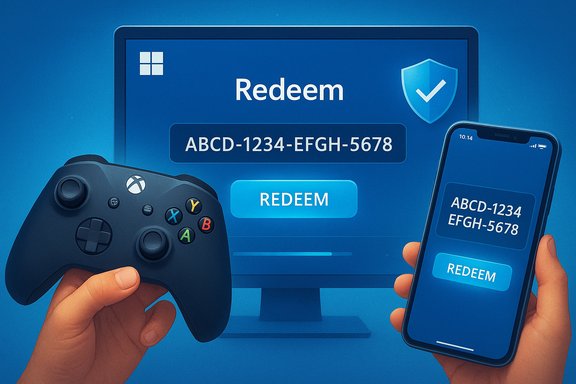 Background / Overview
Microsoft distributes digital purchases and subscriptions through 25‑character redeemable codes (displayed as XXXXX‑XXXXX‑XXXXX‑XXXXX‑XXXXX). These codes cover a variety of things: Microsoft Store credit, Xbox Live and Xbox Game Pass subscriptions, full game downloads, in‑game currency, and Office / Microsoft 365 product keys. Redeeming any of these binds the entitlement or funds to a Microsoft Account so the content can be installed or spent across Xbox consoles and Windows devices. Official Microsoft guidance confirms the single canonical web flow at microsoft.com/redeem for off‑console redemption, and explains how gift card balances and download codes are handled after redemption. Microsoft’s console storefront also exposes a direct Redeem option inside the Microsoft Store app on Xbox consoles, and the on‑console flow is the most convenient when you want the product to start downloading immediately. Windows and mobile apps provide equivalent redeem flows for many code types, which is handy for copy/paste from a digital receipt. The how‑to steps below consolidate the most reliable paths and real‑world tips. How Microsoft codes work: the essentials
- Code format: Most Microsoft and Xbox codes are 25 characters, often shown with hyphens between five‑character groups: XXXXX‑XXXXX‑XXXXX‑XXXXX‑XXXXX. Microsoft explicitly references 25‑character product keys for Office and many tokenized products.
- One‑time bind: Once redeemed, a code’s contents are typically permanently tied to the Microsoft Account that redeemed it. That means subscriptions, credit, or games moved to an account cannot be transferred later.
- Where value goes: Gift card amounts are placed into your Microsoft account balance and will be used first at checkout on the Microsoft Store online, the Microsoft Store app on Windows, or on Xbox. Microsoft’s support pages explain how the balance is applied at checkout and how it coexists with other payment methods.
- Regional and SKU limits: Some codes are region‑locked or tied to a specific SKU (for example, Game Pass promotions or publisher DLC). Redeeming in a different country may fail; check the product page or vendor notice before purchase.
- Anecdotal patterns: Consumer writeups sometimes claim common visual quirks (for example, some bundles of codes appear to tend toward certain trailing characters). These observations are anecdotal; unless Microsoft documents them, treat such claims cautiously and don’t rely on them when troubleshooting.
Redeeming on Xbox Series X|S and Xbox One — step by step
Quick console path (recommended when the code is for your console account)
- Press the Xbox button to open the Guide and sign in to the Microsoft Account you want to use.
- Navigate right to the Microsoft Store icon (shopping bag with a Microsoft logo).
- Open the Store sidebar by moving left from the top menu, then select Redeem (or “Use a code”).
- Enter the 25‑character code using the on‑screen keyboard, then select Confirm or Next.
- If the code is for a game, you’ll usually be taken to the game’s store page to begin install; subscriptions and store credit are applied automatically to the account. Monitor installations under My games & apps → Manage → Queue or Ready to install.
- Ignore hyphens if you type them — the entry will accept the contiguous characters. Double‑check you are signed in to the correct account before confirming.
- If the console is offline or in a restricted region, start with the web flow and retry on console later.
Redeeming on a PC or mobile device
microsoft.com/redeem — the universal web method
- Visit microsoft.com/redeem and sign in with the Microsoft Account you want the content to be associated with.
- Enter the 25‑character code and select Next, then Confirm.
- Subscriptions and store credit apply instantly. Downloadable games and apps handed off to your Xbox will appear in Ready to install on console or in the Microsoft Store / Xbox app libraries on PC. Some store pages allow remote installs to a console when the console is in Instant‑On and online.
Microsoft Store app on Windows and Xbox / Xbox app
- The Microsoft Store and Xbox apps provide a redeem option in the profile or three‑dot menu. Use these when you’re already on the device where you plan to use the content.
Mobile apps
- The Xbox mobile app (iOS / Android) includes Redeem a code under the menu → Browse → Redeem. This is handy to paste a code you received by email or chat.
Where to buy codes safely and how to avoid scams
- Buy from trusted retailers: Microsoft Store, Amazon, Best Buy, Walmart, and official game stores are the safest choices. Physical cards or digital codes from those sellers are normally reliable and have clear refund policies.
- Authorized digital retailers: Vendors like Loaded (formerly CDKeys / common third‑party vendors) can offer legitimate discounts but carry greater risk; check seller reputation, payment protection, and reviews before buying. If a deal looks too good to be true, it often is.
- Microsoft Rewards: Use Microsoft Rewards points to redeem Microsoft Store credit or gift cards; this is an official, low‑risk way to get free credit if you use Bing/Edge and participate in the Rewards program.
- Avoid unauthorized marketplaces: Untracked resellers, random forum sellers, or unknown stores may deliver used or invalid keys, or keys that are later revoked. Use payment methods with dispute protection (credit card, PayPal) if you buy outside official channels.
Troubleshooting common redemption errors
- Code shows as invalid: Confirm you entered the right characters and are signed into the correct Microsoft Account. If the code is region‑locked, redeeming from a different country will fail. If the code was previously redeemed by someone else, contact the retailer for a replacement or refund.
- Redeem page won’t accept the code: Try the console flow if you have the code printed and vice versa. Some temporary service outages or high traffic periods can cause errors; wait a few minutes and retry or use the web flow as a fallback.
- Product didn’t start installing on console: Check My games & apps → Manage → Ready to install. Remote installs require the console to be online and in a power state that permits background downloads (Instant‑On). If install still doesn’t start, sign out and sign back in or initiate install from the Microsoft Store app on Windows.
- Gift card balance missing after redemption: Confirm which account you used. Gift card funds always attach to the Microsoft Account used at redemption; they are not tied to hardware. For missing balances, Microsoft Support can assist.
Security, scams, and what to watch out for
- Phishing attempts: Never enter a 25‑character code on a non‑Microsoft domain. Scammers sometimes ask you to “redeem” a code on a fake page that harvests the key for resale.
- Screenshot sharing risk: A code redeemed once is bound to an account — but a posted screenshot of an unused code can be grabbed and used by scammers immediately. Treat codes like cash and share only with the intended recipient via a secure channel.
- Refunds and chargebacks: If a retailer sold an invalid or already‑used code, pursue the seller’s refund policy first; use your payment provider’s dispute process if the seller won’t act. Keep the order email and the vendor’s support transcript as evidence.
Special cases and advanced tips
Stacking Game Pass and subscription cards
- Microsoft allows stacking certain physical or code‑based subscription cards up to specific limits (for example, Game Pass cards can often be added to extend an existing subscription). However, limits and policy details change over time. Always confirm the stacking limits printed on the card or on the vendor page before purchase. If you rely on stacking for a multi‑month plan, verify the maximum extension length with Microsoft Support or the card’s terms.
Gifting digital content
- Digital codes are the usual way to gift games or subscriptions outside the Microsoft ecosystem. A redeemed code becomes non‑transferable, so only send an unused code to the recipient and confirm they redeem it into the correct Microsoft Account. If the recipient is outside your region, verify region compatibility first.
Office / Windows 25‑character keys
- Office product keys and some Windows product keys also use a 25‑character format. Microsoft directs Office/product key redemptions to a dedicated flow (for Office: Office.com/setup) and Windows activation is handled under Settings → Activation for product keys tied to an installation. These flows differ from the Store gift card flow, so use the exact Microsoft guidance for each product type.
Buyer’s checklist — before you purchase or redeem
- Confirm the seller is reputable and offers a refund policy.
- Match the region and SKU of the code to the recipient’s account/console region.
- Use microsoft.com/redeem or the console’s Redeem menu — these are official paths that minimize errors.
- If receiving a key via email, copy/paste the code — avoid retyping to reduce transcription errors.
- Keep order receipts and vendor communications until the code has successfully applied and you have verified the product or balance.
What the community and tech press commonly report (practical context)
Consumer how‑to pages and retailer support documents consistently describe the same core flows: on‑console via the Microsoft Store, on the web at microsoft.com/redeem, and inside the Microsoft or Xbox apps for PCs and phones. Independent how‑to coverage emphasizes practical differences — for example, that the console path immediately queues installs while the web path is convenient for pasting codes from email. Those consistent cross‑checks help validate the recommended workflows below. One repeated but unverified community note sometimes appears in buying guides — a casual observation that many promo keys “end in Z.” This is an anecdote rather than an official Microsoft rule and should not be used as a diagnostic or proof of validity; treat it as curiosity, not fact, until Microsoft documents such patterns.Quick reference: common redemption flows (cheat sheet)
- Console (Xbox One / Series X|S): Guide → Microsoft Store → Redeem → enter code → confirm → install/queue.
- Web: microsoft.com/redeem → sign in → paste 25‑character code → Next → Confirm.
- Windows PC / Microsoft Store app: Profile menu → Redeem code or gift card → enter code.
- Mobile: Xbox app → Menu → Browse → Redeem a code → enter code.
Final analysis — strengths, pitfalls, and consumer protections
The Microsoft ecosystem makes code redemption broadly straightforward and cross‑device: the same code types can be applied across Xbox consoles and Windows devices, and web redemption at microsoft.com/redeem is a dependable fallback. That simplicity is a strength: it minimizes friction for gifting, promotional distribution, and remote purchases. Official support documentation and major how‑to outlets line up on steps to redeem and common fixes, which reduces ambiguity for most users. However, there are persistent risks:- Grey‑market sellers can introduce invalid or revoked keys; cheap keys from unknown sellers carry long‑term legal and functional risks. Buy from reputable sellers and use protected payment methods.
- Region locking and SKU mismatches are frequent causes of redemption failure; cross‑check the product description before purchase.
- Phishing and fake redemption interfaces are a real threat — only enter codes on microsoft.com or official apps.
If everything is set up correctly, redeeming a code should be fast: sign in, paste or type the 25‑character code, confirm, and begin enjoying the content or subscription. Keep receipts and watch for region or account mismatches, and use the official Microsoft flows for the most reliable results.
Source: Windows Central https://www.windowscentral.com/how-to-redeem-xbox-windows-store-gift-cards/
