

If you want Copilot out of sight — or gone entirely — this guide walks through every practical method for removing, disabling, or blocking Microsoft Copilot on Windows 11, from the safest GUI options up to durable enterprise controls and AppLocker/WDAC enforcement. It explains what each step actually does, shows exact registry keys and PowerShell commands you’ll need, highlights the durability trade‑offs, and warns about the risks: Windows updates and tenant provisioning can reintroduce Copilot unless you pair local removal with policy or application control.
Microsoft’s Copilot in Windows ships as a mix of components: a consumer Copilot app (when packaged as an Appx/UWP-style app), a taskbar affordance and Win+C hotkey, File Explorer context‑menu extensions, protocol handlers, and deeper OS or hardware features on Copilot+ devices. That two‑layer model means “removing Copilot” can mean different things — hiding the taskbar button, uninstalling a front‑end app, blocking a shell extension, or enforcing a fleet‑wide ban. Community testing and vendor guidance agree: start with low‑risk GUI steps and escalate to Group Policy, registry, or AppLocker for durable results.
Key takeaways up front:
This guide provides a complete, practical roadmap for removing or neutralizing Copilot on Windows 11: quick GUI fixes, PowerShell removal, registry/GPO mappings, the Packaged COM CLSID trick for the context menu, and enterprise‑grade enforcement options — along with the risks and maintenance steps you’ll need to keep it gone. Follow the level of enforcement that matches your risk tolerance and operational capacity, and always verify results on the exact Windows build you run.
Source: Sportskeeda Tech https://tech.sportskeeda.com/gaming-news/how-remove-copilot-windows-11-full-guide/
 Background / Overview
Microsoft’s Copilot in Windows ships as a mix of components: a consumer Copilot app (when packaged as an Appx/UWP-style app), a taskbar affordance and Win+C hotkey, File Explorer context‑menu extensions, protocol handlers, and deeper OS or hardware features on Copilot+ devices. That two‑layer model means “removing Copilot” can mean different things — hiding the taskbar button, uninstalling a front‑end app, blocking a shell extension, or enforcing a fleet‑wide ban. Community testing and vendor guidance agree: start with low‑risk GUI steps and escalate to Group Policy, registry, or AppLocker for durable results.Key takeaways up front:
- For most home users: hide the taskbar button (instant) and uninstall the Copilot app via Settings if the uninstall option is available.
- For power users: confirm package names with PowerShell and remove the Appx package carefully.
- For admins: use Microsoft’s supported Group Policy / registry mapping to turn off Copilot, and add AppLocker/WDAC rules to prevent re‑provisioning.
Quick, safe steps for most users (GUI-first)
These steps are the least risky, reversible, and solve the majority of everyday annoyances.1. Hide the Copilot taskbar button (fast, reversible)
- Open Settings (Win + I).
- Go to Personalization → Taskbar.
- Under Taskbar items (or “Taskbar items”), toggle Copilot off.
2. Uninstall the Copilot app from Settings (if shown)
- Open Settings → Apps → Installed apps (or Apps & features).
- Search for “Copilot.”
- Click the three‑dot menu next to the entry and choose Uninstall.
- Reboot and verify taskbar and shortcut behavior.
3. Stop Copilot from auto‑starting
- Open Task Manager → Startup tab → find Copilot → Disable.
- Alternatively, use Settings → Apps → Startup to disable Copilot startup entries.
Power user: uninstall Copilot with PowerShell
PowerShell removal gives more control, but it’s also riskier. Always confirm package names before removing anything.Verify installed Copilot packages
Open PowerShell (run as Administrator) and run:- Get-AppxPackage | Where-Object { $_.Name -like "Copilot" }
Remove for the current user
If the package name is confirmed, remove it:- $pkg = Get-AppxPackage -Name "Exact.Package.Name"
- Remove-AppxPackage -Package $pkg.PackageFullName
Remove provisioned package (all users) — admin required
To attempt a system‑wide removal of a provisioned package:- Get-AppxPackage -AllUsers -Name "Exact.Package.Name" | Remove-AppxPackage -AllUsers
- Provisioned packages and system components may be resistant to removal and can cause side effects if incorrectly targeted. Create a system restore point and backup your registry before proceeding.
Admin / Pro / Enterprise: Group Policy and Registry (supported path)
For managed devices, Microsoft provides a supported Group Policy setting to turn Copilot off. This is the recommended first step for durable disabling on Windows 11 Pro, Enterprise, and Education.Group Policy path
- Open Local Group Policy Editor (Win + R → gpedit.msc).
- Navigate: User Configuration → Administrative Templates → Windows Components → Windows Copilot.
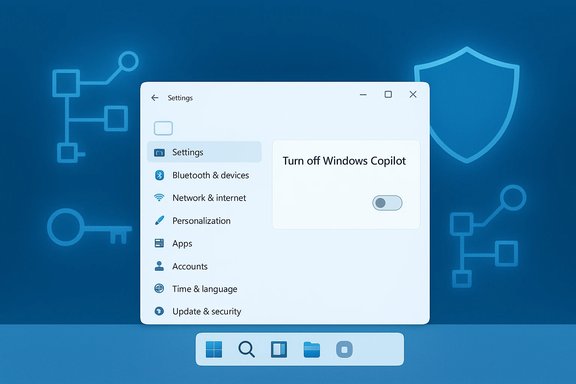
- Open Turn off Windows Copilot → set to Enabled → Apply → OK.
- Run gpupdate /force or restart the device.
Registry equivalent (for Windows 11 Home or scripted rollouts)
If you lack gpedit.msc, set the same policy via the registry. Back up the registry before editing.- Per‑user (affects the signed‑in user):
Path: HKEY_CURRENT_USER\Software\Policies\Microsoft\Windows\WindowsCopilot
Value: TurnOffWindowsCopilot (DWORD 32‑bit) = 1 - Machine‑wide (admin; affects all users):
Path: HKEY_LOCAL_MACHINE\SOFTWARE\Policies\Microsoft\Windows\WindowsCopilot
Value: TurnOffWindowsCopilot (DWORD 32‑bit) = 1
Remove the “Ask Copilot” context menu (safe, reversible)
If the File Explorer right‑click “Ask Copilot” entry is your main annoyance, you can hide it by blocking the Packaged COM shell extension rather than uninstalling the app.Steps to block the shell extension
- Open Registry Editor (regedit).
- For per‑user (no admin required): go to HKCU\Software\Microsoft\Windows\CurrentVersion\Shell Extensions\Blocked.
- Right‑click → New → String Value (REG_SZ).
- Name it exactly: {CB3B0003-8088-4EDE-8769-8B354AB2FF8C}
- (Optional) Set value data to “Ask Copilot” for identification.
- Restart File Explorer (Task Manager → Windows Explorer → Restart) or reboot.
Durable enforcement at scale: AppLocker, WDAC, and tenant controls
A local uninstall or policy change may not be permanent. Microsoft’s provisioning and Windows updates can reintroduce Copilot. For fleet durability, use layered controls:- Deploy the Group Policy / registry key (TurnOffWindowsCopilot) via ADMX/Intune.
- Create AppLocker or Windows Defender Application Control (WDAC) rules that block the Copilot package family or publisher (test in Audit mode first). Example conceptual rule: publisher = CN=MICROSOFT CORPORATION, package family = MICROSOFT.COPILOT.
- Disable tenant‑level automatic provisioning of consumer Copilot from Microsoft 365 admin controls if applicable.
Special admin tool: RemoveMicrosoftCopilotApp (Insider / gated)
Microsoft introduced a narrowly scoped Group Policy named RemoveMicrosoftCopilotApp in Insider previews (reported in Build 26220.7535 / KB5072046). It performs a one‑time uninstall of the consumer Copilot app, but only under strict conditions:- The device has both Microsoft 365 Copilot (tenant‑managed) and the consumer Microsoft Copilot app installed.
- The consumer Copilot app was not installed by the user (it was provisioned/OEM).
- The app has not been launched in the last 28 days.
Step‑by‑step checklists (copy/paste)
Below are concise checklists for different roles. Create a restore point before making system changes.Home user — low risk (recommended)
- Settings → Personalization → Taskbar → toggle Copilot off.
- Disable Copilot in Task Manager → Startup if present.
- Settings → Apps → Installed apps → Uninstall Copilot (if option exists) → Reboot.
- If context menu is annoying, add the Shell Extensions Blocked GUID under HKCU and restart Explorer.
Power user — local removal
- Create system restore point; back up Registry.
- Verify packages: Get-AppxPackage | Where-Object { $_.Name -like "Copilot" }.
- Remove for current user: Remove-AppxPackage -Package (use the PackageFullName from step 2).
- (Optional) Remove from all users if provisioned: Get-AppxPackage -AllUsers -Name "Exact.Package.Name" | Remove-AppxPackage -AllUsers.
IT admin — fleet enforcement (recommended)
- Pilot on representative devices (same servicing channel).
- Apply Group Policy: User Configuration → Administrative Templates → Windows Components → Windows Copilot → Turn off Windows Copilot = Enabled.
- Deploy AppLocker/WDAC rules to block MICROSOFT.COPILOT package family; test in Audit mode.
- Disable tenant provisioning of consumer Copilot in Microsoft 365 admin center where possible.
- Add ongoing verification to your update cycle and remediation runbook.
Verification and troubleshooting
After any removal or policy change, verify these points:- Settings → Apps → Installed apps: confirm Copilot is absent.
- Taskbar: Copilot button absent and Win+C does nothing (or is disabled).
- Context menu: “Ask Copilot” no longer appears (if you used the Shell Extensions Blocked GUID).
- PowerShell: Get-AppxPackage | Where-Object { $_.Name -like "Copilot" } returns nothing.
Risks, limitations, and cautionary notes
- Re‑provisioning risk: Windows feature updates, Store restores, or tenant pushes can reintroduce Copilot. A one‑time uninstall is not guaranteed durable without AppLocker/tenant controls. Manage expectations and monitor after updates.
- Package name variability: Copilot package names and CLSIDs vary across builds and Insider experiments. Always confirm names and GUIDs on the target machine before running destructive commands.
- Potential breakage: Removing provisioned Appx packages or editing policies/registry incorrectly can destabilize the OS. Create restore points and have recovery media ready.
- Feature loss: Removing Copilot removes productivity features tied to it (Drafting helpers, Designer assistances, Explorer integrations). Balance privacy and minimal UI preferences against productivity needs.
- Unsupported hacks: Community tools that delete system files or deep AI components can break updates and are unsupported; avoid them unless you accept the operational risk. Use Microsoft‑documented policies where possible.
- Any article or guide that claims a single registry tweak will “completely remove Copilot forever” should be treated cautiously. Microsoft changes delivery mechanisms; what works on one build can be undone by later updates. Test on representative images and maintain a verification cadence.
Final analysis and practical recommendations
For most users the cleanest, lowest‑risk path is:- Hide the Copilot taskbar button.
- If you want it gone, uninstall the Copilot app via Settings; if that option isn’t available, consider PowerShell removal after verifying the package name.
- If you manage multiple machines or need durable removal, apply the supported Group Policy / registry mapping and add AppLocker/WDAC protections; test in a pilot ring and add ongoing verification to your update process.
This guide provides a complete, practical roadmap for removing or neutralizing Copilot on Windows 11: quick GUI fixes, PowerShell removal, registry/GPO mappings, the Packaged COM CLSID trick for the context menu, and enterprise‑grade enforcement options — along with the risks and maintenance steps you’ll need to keep it gone. Follow the level of enforcement that matches your risk tolerance and operational capacity, and always verify results on the exact Windows build you run.
Source: Sportskeeda Tech https://tech.sportskeeda.com/gaming-news/how-remove-copilot-windows-11-full-guide/
