

Disabling Windows updates is a straightforward way to regain control over when your PC downloads patches and restarts, but it’s a choice that carries immediate convenience and long-term risk in equal measure; this feature story explains every practical method, the technical trade-offs, and a safe, test-first plan for any user who truly needs to stop automatic updates on Windows 10 or Windows 11.
Windows Update exists to deliver security fixes, driver updates, and feature improvements. Microsoft’s supported controls let administrators and end users defer or pause updates, but they intentionally limit persistent, indefinite consumer opt-outs to reduce exposure to critical vulnerabilities. For most people, the built‑in Pause and Active Hours controls are the safest way to avoid disruptive restarts while staying patched; Microsoft documents the Pause control and how long it can be used. Power users and system administrators, however, sometimes need durable control over update behavior — for example, to preserve specific driver or application versions, to maintain deterministic lab machines, or to avoid large downloads on metered links. There are several supported and unsupported methods to stop automatic updates: using the Settings pause options, changing Group Policy (Pro/Enterprise), setting metered connections, editing the registry, disabling Windows Update services, or disabling scheduled update tasks. Community guides and forums catalog these options, along with the caveats and the ways Windows may attempt to repair or re-enable update components.
What to change (examples):
How to do it:
Disabling Windows updates can buy control and reduce interruptions, but it shifts responsibility squarely onto your shoulders: you must patch deliberately, test before broad rollout, and maintain recovery options. Follow supported paths when possible, prefer policy‑based controls over fragile hacks, and treat service‑level disables as tactical — not strategic — solutions.
Source: PCWorld Disable Windows updates to more precisely control your PC
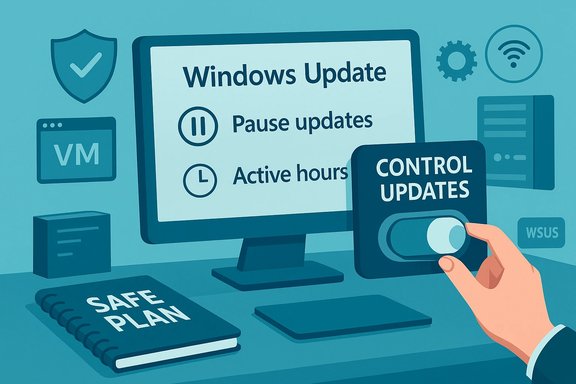 Background / Overview
Windows Update exists to deliver security fixes, driver updates, and feature improvements. Microsoft’s supported controls let administrators and end users defer or pause updates, but they intentionally limit persistent, indefinite consumer opt-outs to reduce exposure to critical vulnerabilities. For most people, the built‑in Pause and Active Hours controls are the safest way to avoid disruptive restarts while staying patched; Microsoft documents the Pause control and how long it can be used. Power users and system administrators, however, sometimes need durable control over update behavior — for example, to preserve specific driver or application versions, to maintain deterministic lab machines, or to avoid large downloads on metered links. There are several supported and unsupported methods to stop automatic updates: using the Settings pause options, changing Group Policy (Pro/Enterprise), setting metered connections, editing the registry, disabling Windows Update services, or disabling scheduled update tasks. Community guides and forums catalog these options, along with the caveats and the ways Windows may attempt to repair or re-enable update components. Why disabling updates matters — and why it’s risky
Disabling updates delivers immediate benefits for control and predictability:- No surprise restarts during important work or long render jobs.
- Avoidance of problematic driver or feature changes that can break a specific workflow.
- Bandwidth savings on metered or remote connections.
- Security exposure. Unpatched systems are the most common vectors in malware attacks and ransomware incidents. Delaying updates may leave known vulnerabilities exploitable.
- Support and warranty concerns. Vendors and some support channels expect recent patches as part of troubleshooting—unpatched machines may be ineligible for support.
- Automatic repairs and reinstate behaviors. Windows includes repair components (for example, the Windows Update Medic service) that can re‑enable update functionality — meaning “permanent” disables are often fragile and can be reverted by the OS.
Quick primer: supported options you should try first
Before using more aggressive techniques, try these built‑in, supported controls.Pause updates (short term)
Windows Settings lets you pause updates for a limited time (typically up to 35 days). This is the best first move when you need a guaranteed quiet period. Microsoft documents the Pause flow and the requirement to install updates after the pause expires.- Settings → Windows Update → Pause updates → choose duration.
- After the pause expires you must install the latest updates.
Active Hours and restart notifications
Set Active Hours so Windows avoids scheduling update restarts during your typical work window, and enable the “Notify me when a restart is required” option so you control reboots. These settings reduce interruption without turning off updates entirely.Metered connections
Mark a Wi‑Fi (or in some cases Ethernet) network as metered to prevent background downloads on that connection — a quick way to stop big downloads when working with limited bandwidth. Note: Windows may still apply some critical patches over metered connections in edge cases.The step‑by‑step methods to stop updates (from least to most aggressive)
Below are the practical ways people use to stop Windows updates. Each section shows the steps, the expected effect, and the risks.1) Use Group Policy (Windows Pro / Enterprise / Education) — the supported enterprise route
Why use it: Group Policy gives long‑term, auditable, and reversible control over update behavior without relying on fragile service hacks. It’s the recommended approach for managed devices and power users on Pro. Microsoft documents the relevant policies (for example, Configure Automatic Updates and No auto‑restart with logged on users). How to apply (high level):- Press Win + R → gpedit.msc.
- Navigate to Computer Configuration → Administrative Templates → Windows Components → Windows Update.
- Edit “Configure Automatic Updates” to select the desired behavior (for example, “Notify for download and notify for install”).
- Optionally enable “No auto‑restart with logged on users for scheduled automatic updates” or use the Windows Update for Business policies to defer feature and quality updates.
2) Registry policy keys (Windows Home and scriptable setups)
Why use it: Home editions lack gpedit.msc by default. Many Group Policy settings map to registry keys — editing those keys is how Home users achieve similar control. Community documentation shows keys such as NoAutoUpdate and NoAutoRebootWithLoggedOnUsers under HKLM\SOFTWARE\Policies\Microsoft\Windows\WindowsUpdate\AU.What to change (examples):
- HKLM\SOFTWARE\Policies\Microsoft\Windows\WindowsUpdate\AU\NoAutoUpdate = DWORD (1) to disable automatic updates.
- HKLM\SOFTWARE\Policies\Microsoft\Windows\WindowsUpdate\AU\NoAutoRebootWithLoggedOnUsers = DWORD (1) to prevent automatic reboot when users are signed in.
3) Stop and disable the Windows Update service (services.msc) — the “nuclear” user method
What it does: Stops the Windows Update engine (wuauserv). When disabled, Windows cannot download or install updates automatically until the service is re‑enabled. This is the method described in many step‑by‑step guides and consumer tutorials. How to do it:- Press Win + R → type services.msc → Enter.
- Find the service named Windows Update (service short name: wuauserv), double‑click it.
- Click Stop under Service status.
- Set Startup type to Disabled; click Apply → OK.
- Optionally stop and disable supporting services: Background Intelligent Transfer Service (BITS) and Update Orchestrator tasks.
- Open an elevated Command Prompt.
- sc stop wuauserv
- sc config wuauserv start= disabled
4) Disable UpdateOrchestrator scheduled tasks
What it does: The UpdateOrchestrator task scheduler contains tasks like Reboot and ScheduleRestart that cause reboots and orchestrate installations. Disabling these tasks reduces the chance of automatic restarts and scheduled installations.How to do it:
- Open Task Scheduler → navigate to Task Scheduler Library → Microsoft → Windows → UpdateOrchestrator.
- Right‑click tasks such as Reboot → Disable.
- Also review tasks under WindowsUpdate for scheduled starts.
5) The Windows Update Medic (WaaSMedicSvc) and why it matters
Windows includes a Windows Update Medic Service intended to repair update components that have become corrupted. That service is often the reason why “disabled” services can come back: WaaSMedicSvc can repair or reconfigure update services to restore updateability. Community experience shows that attempting to permanently disable Windows Update frequently requires addressing WaaSMedicSvc as well — and that doing so is unsupported and can be fragile. Microsoft’s own community forum and many practical guides document the medic service behavior. Practical guidance: Avoid trying to permanently remove or destructively block the Medic service. If you must, understand that registry permission changes and denying SYSTEM access are advanced, brittle, and may break future servicing or recovery paths. For devices that must remain offline or under strict control, use enterprise tooling (WSUS, Intune, Windows Update for Business) instead.Reversing your changes — how to safely turn updates back on
If you disabled updates using Services or registry, re‑enable them as follows:- Services: services.msc → Windows Update → set Startup type to Manual or Automatic and click Start.
- Registry: remove the NoAutoUpdate DWORD or set it to 0 under HKLM\SOFTWARE\Policies\Microsoft\Windows\WindowsUpdate\AU. Reboot.
- Group Policy: set Configure Automatic Updates back to Not Configured or choose a supported policy option, then run gpupdate /force.
A safe, repeatable plan for users who need control but want safety
If you decide to disable automatic updates, follow this checklist to avoid blind spots:- Create a full backup image (disk image) and enable System Restore before making changes. This preserves recovery paths in case an update or setting breaks the OS.
- Use a test machine or VM to trial the disable method. Document the exact steps you took so reverting is trivial.
- Maintain a manual update schedule: pick a monthly “Windows Update day” (ideally after Patch Tuesday), check Microsoft Release Health / known‑issues reports, then re‑enable updates, install patches, and re‑disable if necessary. Community guides recommend waiting 1–2 weeks after Patch Tuesday for early problem reports.
- Keep all security software (antivirus/antimalware) updated independently where possible.
- Consider using Group Policy or Windows Update for Business when multiple machines require identical configuration — that avoids fragile service hacks and traces changes for auditors.
Alternatives to disabling: safer long‑term strategies
- Use Windows Update for Business or WSUS in small networks to schedule, stage, and test updates before broad deployment. These are designed for controlled rollouts.
- Use app installers outside the Microsoft Store for software that must be kept at a specific version; store apps are increasingly auto‑updated and Microsoft has limited indefinite opt‑outs for Store updates. News reports and community discussion note changes in Store behavior limiting permanent disabling of automatic app updates to short pauses (1–5 weeks).
- Maintain system images or a baseline golden image to quickly rebuild machines if an update breaks essential functionality.
Common pitfalls and troubleshooting
- Windows may re‑enable services: the Medic service and update orchestrator can restore disabled services or scheduled tasks; expect this and monitor your changes.
- Some updates are forced for critical security reasons and may apply despite local disables; that is by design to protect the ecosystem. Treat any “permanent off” as provisional.
- Disabling updates may cause Windows Update errors when you later try to update; prepare to run the built‑in Troubleshooter or repair commands (DISM / SFC) if components were altered. Community guides list reset sequences for the SoftwareDistribution and Catroot2 folders if update errors occur.
Step‑by‑step: the Services method (detailed walkthrough)
This is the exact flow many tutorials and quick guides show. Use it only after you’ve taken backups and understand the risks.- Press Windows key + R. Type services.msc and press Enter.
- In the Services console, scroll to Windows Update (display name) — service short name is wuauserv. Double‑click to open Properties.
- Click Stop to halt any running update activity.
- Under Startup type choose Disabled. Click Apply → OK.
- Repeat for auxiliary services you wish to halt (optional): Background Intelligent Transfer Service (BITS) and Update Orchestrator Service. Do not disable services you rely on for security or recovery unless you explicitly understand the downstream effects.
- To reverse: open the same Properties dialog and set Startup type back to Manual (or Automatic), then click Start.
Final verdict: when to disable, when to defer, and what to document
Disabling Windows updates is sometimes necessary — for single‑purpose lab devices, certain legacy hardware, or controlled production systems — but it must be done with a professional‑grade checklist, clear revert steps, and a mandatory manual update cadence.- For most home users: use Pause, Active Hours, and metered connections rather than service kills.
- For power users: prefer Group Policy or scripted registry policies, and keep a VM or alternate test machine for vetting updates.
- For administrators: use WSUS, Intune, or Windows Update for Business to orchestrate staged deployments and preserve security.
Disabling Windows updates can buy control and reduce interruptions, but it shifts responsibility squarely onto your shoulders: you must patch deliberately, test before broad rollout, and maintain recovery options. Follow supported paths when possible, prefer policy‑based controls over fragile hacks, and treat service‑level disables as tactical — not strategic — solutions.
Source: PCWorld Disable Windows updates to more precisely control your PC
