

Whether your laptop shows a stable Wi‑Fi icon but web pages won’t load, your phone drops calls in the middle of a video call, or streaming quality suddenly tanks, the first — and most useful — step is to check what kind of problem you actually have. The ExpressVPN how‑to guide walks through the platform‑specific status checks, router checks, and speed and latency diagnostics that let you separate a local device issue from a router problem, from an ISP outage, or from broader network congestion. rview
Modern home and mobile networks are convenient, but they add layers that can fail: device settings, Wi‑Fi radios, the router’s firmware, the ISP’s modem and backbone, and even the path your packets take across the internet. That complexity is why a structured approach — observe, measure, isolate, then fix — works best. The ExpressVPN guide lays that structure out for Windows, macOS, Android, and iOS devices, and it emphasizes measuring speed and responsiveness (download/upload/latency/packet loss) before making major changes.
This article expandpractical checks, commands you can run, what the numbers really mean, and dependable troubleshooting steps you can follow in under 20 minutes. Where helpful, I cross‑checked vendor documentation and independent references so you can trust the thresholds and methods below.
Before running tests, do these fast checks (each takes under a minute):
Caveat: some servers block ICMP (ping) or deprioritize testing traffic, so a failed ping doesn’t always mean total internet outage — but consistent high latency or packet loss to multiple targets is a reliable red flag.
Checking your internet connection doesn’t have to be a guessing game. With a few quick checks, a couple of tests, and a disciplined order of operations you can usually pinpoint where the failure lives — device, wireless, router, or ISP — and fix it or hand the right evidence to support so they can fix it for you. If you’d like, save this checklist as a single document on your phone so the next outage is easier, faster, and less stressful.
Source: ExpressVPN How to check your internet connection on any device
Modern home and mobile networks are convenient, but they add layers that can fail: device settings, Wi‑Fi radios, the router’s firmware, the ISP’s modem and backbone, and even the path your packets take across the internet. That complexity is why a structured approach — observe, measure, isolate, then fix — works best. The ExpressVPN guide lays that structure out for Windows, macOS, Android, and iOS devices, and it emphasizes measuring speed and responsiveness (download/upload/latency/packet loss) before making major changes.
This article expandpractical checks, commands you can run, what the numbers really mean, and dependable troubleshooting steps you can follow in under 20 minutes. Where helpful, I cross‑checked vendor documentation and independent references so you can trust the thresholds and methods below.
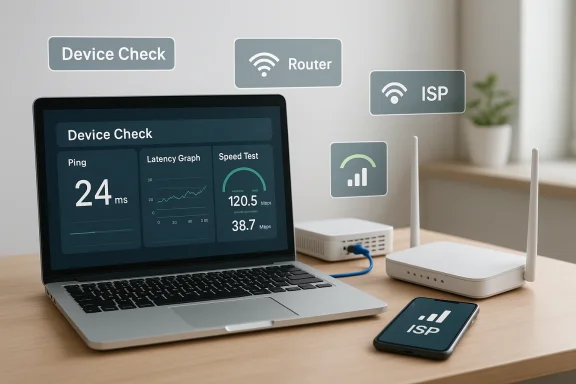 Quick checklist — confirm basic connectivity
Before running tests, do these fast checks (each takes under a minute):- Is the device’s Wi‑Fi or mobile data turned on? Is Airplane Mode off?
- Does another device on the same network have the same problem?
- Do web pages or apps return an explicit “No internet” or DNS/timeout error?
- Can you reach the router’ the default gateway IP) from a connected device?
How to check connection status on any device
Windows (10 / 11)
- Look at the network icon on the taskbar: it shows Wi‑Fi bars or an Ethernet plug and a connection state. For detailed status, open Settings > Network & Internet, which shows current connectivity and quick access to troubleshooters. Microsoft’s support docs describe these controls and the built‑in Network Troubleshooter.
- Quick command‑line checks: open Command Prompt and run:
- ipconfig /all — inspect assigned IP addresses and default gateway.
- ping -n 20 1.1.1.1 — checks basic rearip time (replace 1.1.1.1 with another stable host if you prefer).
- ipconfig /flushdns — clear DNS cache if name resolution looks broken.
macOS (MacBook, iMac)
- Click the Wi‑Fi icon in the menu bar: a blue symbol means you’re associated with a network. Use System Settings (or System Preferences on older macOS) > Network to see status and details. Apple also provides Wireless Diagnostics for deeper analysis (hold Option and click the Wi‑Fi icon to .com]
- Terminal test: ping -c 20 1.1.1.1 to run a 20‑packet ping and inspect latency and packet
- Wi‑Fi: Settings > Connections (or Network & Internet) will show the Wi‑Fi network name if connected. If the device says “Connected, no internet,” try opening a browser.
- Mobile data: turn Wi‑Fi offnections > Mobile Networks and ensure mobile data is enabled for the correct SIM. If browsing fails, test with another app and check carrier coverage.
iOS (iPhone / iPad)
- Wi‑Fi: Settings > Wi‑Fi — ensure the toggle is on and a network name appears. If you need mobile nd open Settings > Cellular to confirm the cellular data switch for your SIM is enabled. Try loading a simple web page to verify.
Check your router and local network
If device settings look okay but internet access fails, the router or modem is the likely culprit.- Power and lights: confirm the router and modem are powered and LED indicators show normal status. Most ISPs and router makers document what each light means. If the modem never shows an “online” or WAN/Internet light, the issue is upstream with the ISP.
- Cable check: verify Ethernet, coax, or phone cables are secure and undamaged.
- Power cycle: unplug both modem and router for 30–60 seconds, then power the modem first and wait for it to fully connect before powering the router. This power‑cycling order prevents the router from booting before the modem has a WAN connection. Multiple vendor support pages recommend this sequence.
- Connect wired: temporarily connect r with an Ethernet cable. If wired works and Wi‑Fi doesn’t, the issue is in the wireless layer (signals, interference, or Wi‑Fi configuration).
Measuring speed, latency, and reliability (what the numbers mean)
A simple “I’m slow” doesn’t help you or your ISP. Measure these three things:- Download / Upload speed (Mbps) — how fast you can move bytes. Important for streaming, downloads, video upload.
- Latency / Ping (ms) — how long a round trip to a server takes. Critical for gaming, video calls, and interactive apps.
- Packet loss (%) — how many packets fail to arrive; even small packet loss can cause choppy audio/video regardless of Mbps.
Online speed‑test tools
- Speedtest by Ookla: offers manual server selection, detailed latency, jitter, and sometimes packet loss metrics. Use it when you want full diagnostics. Ookla’s support documentation explains ping and packet behavior.
- Fast.com (Netflix): focuses primarily on download speed and runs automatically. It’s lightweight and useful as a quick check, especially to confirm whether streaming throughput is sufficient. Netflix’s announcement explains the service intent and behavior.
Command‑line ping test and interpretation
- macOS: ping -c 20 1.1.1.1
- Windows: ping -n 20 1.1.1.1
- Under ~50 ms — low latency; good for gaming and real‑time calls.
- 50–150 ms — moderate latency; acceptable for most browsing and video calls, may be noticeable in fast gaming.
- Above ~150 ms — high latency; likely to cause lag or poor call quality. Multiple independent guides and ISP support pages use similar thresholds for “good” vs “poor” ping.
Caveat: some servers block ICMP (ping) or deprioritize testing traffic, so a failed ping doesn’t always mean total internet outage — but consistent high latency or packet loss to multiple targets is a reliable red flag.
What affects internet speed and stability
Understanding causes helps you pick the right fix.1. Connection type (ISP technology)
- Fiber‑optic: typically lowest latency and highest symmetric speeds (upload ≈ download). Best for gaming and heavy upload use.
- Cable: fast download speeds but uses shared neighborhood bandwidth — speeds can dip at peak times.
- DSL: runs over copper phone lines; speed decreases with distance to the provider’s equipment.
- Satellite / fixed wireless: higher latency (signal travel time and contention); weather and line‑of‑sight can cause variability.
2. Local congestion and peak hours
Even if your plan nominally delivers 200 Mbps, many providers operate shared infrastructure where evening peak usage can reduce throughput. Running multiple speed tests across the day reveals patterns.3. Wi‑Fi signal, interference, and router capabilities
Wi‑Fi adds unique variables:- Distance, walls, and floors weaken signal strength.
- Interference from neighboring networks and household electronics (microwaves, baby monitors, Bluetooth) can reduce throughput.
- Older routers (pre‑Wi‑Fi 5 or pre‑Wi‑Fi 6) may not support modern features like OFDMA or MU‑MIMO that reduce latency with many devices.
Upgrading to Wi‑Fi 6 (802.11ax) hardware can reduce latency and improve performance in crowded environments — vendors and independent tech sites explain how Wi‑Fi 6 achieves lower latency and better handling of many devices.
4. Device hardware and software
Old network adapters, outdated drivers, or background apps can cap effective throughput. Make sure device drivers and router firmware are kept current.5. Routing and distance
Even with fast local links, routing across the internet and long distances to servers can add latency. Choosing a closer test server or game server reduces measured ping.Practical step‑by‑step troubleshooting (actionable)
Follow this sequence to isolate and fix most problems. Work top‑to‑bottom and stop when the issue is resolved.- Reproduce the problem and document: which devices, time of day, symptoms (slow, dropouts, buffering).
- Test a second device: if it works, the issue is device‑specific; if it fails, continue.
- Power cycle the modem then the router (wait 30–60s unplugged). This restores the WAN link and clears transient firmware issues. Vendor support pages and ISPs recommend this as the first troubleshooting step.
- Test wired vs wireless: connect a laptop with Ethernet to rule out Wi‑Fi.
- Run speed tests (Speedtest, Fast.com) and a ping test to a stable host (1.1.1.1 / 8.8.8.8). Record the results.
- If speeds are far below your plan or there’s packet loss:
- Reboot again and check outside cables.
- Check router admin for WAN IP and logs (look for link errors).
- Try a different DNS (e.g., 1.1.1.1 or 8.8.8.8) and flush DNS cache.
- Update firmware & drivers: router firmware and device network drivers can fix persistent issues. Manufacturer docs list firmware steps.
- If Wi‑Fi only is affected: move router to better central location, switch between 2.4 GHz and 5 GHz bands, or manually select a less congested channel (use a Wi‑Fi analyzer app to pick a channel).
- If all devices and wired tests fail, check provider status pages or call ISP — your modem or their network might be down. Keep your test results and modem/router serial/MAC handy when you call.
Advanced troubleshooting tips
Use traceroute / MTR
Traceroute reveals hop‑by‑hop latency. If latency spikes at an ISP hop, the problem may be upstream. Tools like MTR (or Windows’ tracert) combine traceroute with ongoing latency to identify intermittent issues.Check for packet loss on local network
Run ping to the gateway (your router IP) and to a public IP. Loss to the gateway implies a local problem (router or local wiring). Loss only beyond the gateway points to ISP or backbone problems.Firmware and configuration tweaks
- Disable experimental features like “Smart Connect” or “Band Steering”es keep dropping between bands.
- Try manual channel and channel width selection (especially in the 5 GHz band) to reduce contention.
- If you lease ISP equipment and suspect firmware issues, ask the ISP about a remote re‑provision or a firmware update.
DNS and name resolution problems
If ping to an IP works but hostnames fail, flush the DNS cache and try alternate DNS servers. On Windows: ipconfig /flushdns. On macOS: sudo dscacheutil -flushcache; sudo killall -HUP mDNSResponder (commands vary by macOS version).VPNs, proxies, and apps that affect measurement
Be aware that VPNs or proxy apps can affect ping (routing your traffic through a remote server) and measured throughput. When testing, temporarily disable VPNs to see baseline performance. ExpressVPN’s guide notes this implicit effect and recommends testing without VPNs to avoid misleading results.When to contact your ISP — what to provide
If you reach the point of calling support, gather:- Date/time and duration of the issue.
- Which devices are affected and results from a wired speed test.
- Speedtest screenshots or numbers (download/upload/ping).
- Ping/traceroute results showing packet loss or hop latency.
- Modem/router model, serial number, and MAC address (oftbel).
Having this data speeds diagnosis and avoids circular reboots. ISP and support guidance both recommend keeping a log of tests and steps you tried before calling.
Safety, security, and final cautions
- Avoid factory resets unless you’re ready to reconfigure the router: resets erase custom settings and can reqing.
- If your router is leased from the ISP, talk to them before replacing or resetting it — some services (phone/TV) may stop working until re‑provisioned. Vendor support pages and ISP guidelines warn about this.
- Watch for equipment age: a router that needs frequent reboots or can’t achieve your plan’s speeds is often cheaper to replace than to endlessly troubleshoot. Frequent resets are a sign the device is failing.
Summary — a fast, practical workflow
- Check device basics (Wi‑Fi, Airplane Mode, mobile data).
- Try another device to isolate the problem.
- Power‑cycle modem then router; test wired.
- Run speed tests (Speedtest, Fast.com) and ping/traceroute. Record results.
- If local wired works but Wi‑Fi fails, focus on router placement, channels, and Wi‑Fi standard (consider upgrading to Wi‑Fi 6 for crowded homes).
- If everything fails, gather logs and call your ISP with the data.
Checking your internet connection doesn’t have to be a guessing game. With a few quick checks, a couple of tests, and a disciplined order of operations you can usually pinpoint where the failure lives — device, wireless, router, or ISP — and fix it or hand the right evidence to support so they can fix it for you. If you’d like, save this checklist as a single document on your phone so the next outage is easier, faster, and less stressful.
Source: ExpressVPN How to check your internet connection on any device
