

Sticky Keys is an accessibility feature that can be helpful for users who struggle to hold multiple keys at once, but for many Windows 11 users it appears unexpectedly and interferes with gaming, fast typing, or muscle-memory keyboard shortcuts. This guide explains every practical way to turn off Sticky Keys in Windows 11, shows how to stop the Shift‑five‑times pop‑up from reappearing, and provides safe troubleshooting and verification steps — including a registry fallback for stubborn cases — so you can eliminate accidental Sticky Keys interruptions without breaking anything important.
Sticky Keys lets modifier keys (Shift, Ctrl, Alt, Windows) remain “latched” after you press them once, enabling chorded shortcuts with sequential key presses instead of held-down combinations. It’s an accessibility convenience for people with limited dexterity, but for many users it’s an annoyance: pressing Shift five times will trigger the Sticky Keys prompt by default, which is how the feature is typically activated or toggled. Windows 11 exposes Sticky Keys in multiple places — Settings (Accessibility → Keyboard), the classic Control Panel Ease of Access entry, and the sign‑in/lock screen accessibility menu — so there are several ways to disable it depending on where and when the problem appears. If UI methods fail, a per‑user registry edit can force the setting off. Each option is covered below, with precise step‑by‑step instructions and safety notes.
Step‑by‑step:
How it works: Sticky Keys settings are stored under HKEY_CURRENT_USER\Control Panel\Accessibility\StickyKeys. The string value named Flags encodes which sub‑features are active. Setting Flags to 506 is widely documented to represent the “disabled” state for Sticky Keys. Use the native Registry Editor to change this for the current user only. Step‑by‑step:
Sticky Keys is an inclusive feature with a very specific use case; for the majority of desktop and gaming users it’s safe and sensible to disable both the feature and its hotkey. When the normal UI won’t hold the change, the per‑user registry Flags value is a reliable fallback used by power users and documented across Microsoft community resources and reputable how‑tos. If you follow the Settings → disable hotkey → registry fallback sequence and back up before modifying the registry, you’ll remove unwanted interruptions while keeping the option to restore accessibility functionality if needed. Conclusion: disable via Settings first, turn off the Shift‑5 shortcut, then use the registry only when necessary — and always back up before you edit. This approach resolves nearly all unexpected Sticky Keys behavior without unnecessary risk.
Source: 9meters How to Turn Off Sticky Keys in Windows 11 (Step‑by‑Step) - 9meters
 Background / Overview
Sticky Keys lets modifier keys (Shift, Ctrl, Alt, Windows) remain “latched” after you press them once, enabling chorded shortcuts with sequential key presses instead of held-down combinations. It’s an accessibility convenience for people with limited dexterity, but for many users it’s an annoyance: pressing Shift five times will trigger the Sticky Keys prompt by default, which is how the feature is typically activated or toggled. Windows 11 exposes Sticky Keys in multiple places — Settings (Accessibility → Keyboard), the classic Control Panel Ease of Access entry, and the sign‑in/lock screen accessibility menu — so there are several ways to disable it depending on where and when the problem appears. If UI methods fail, a per‑user registry edit can force the setting off. Each option is covered below, with precise step‑by‑step instructions and safety notes. Why Sticky Keys becomes a problem
- It activates unintentionally during gaming or fast typing when the Shift key is tapped repeatedly, interrupting input flow and sometimes producing unexpected behavior.
- Modifier keys that appear “stuck” can break muscle-memory shortcuts and macros, creating the impression of a broken keyboard.
- Some third‑party keyboard utilities, remapping tools, or vendor overlays can conflict with accessibility toggles and cause Sticky Keys behavior to persist across reboots. Community troubleshooting threads repeatedly point to vendor software and driver issues as common culprits.
Quick essentials (TL;DR)
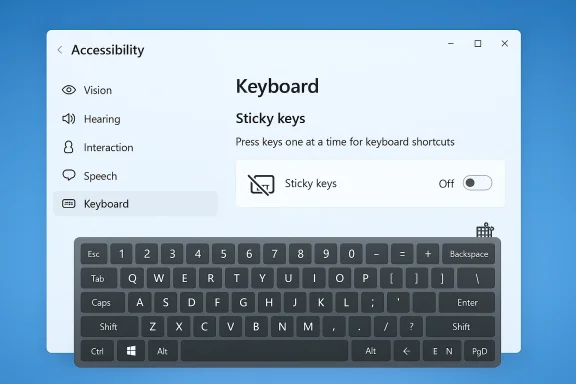
- Settings → Accessibility → Keyboard → Toggle Sticky Keys to Off.
- Also disable the Keyboard shortcut for Sticky Keys so tapping Shift five times won’t re-enable or show the prompt.
- If the UI methods don’t stick, apply the registry fallback: set the Flags value under HKEY_CURRENT_USER\Control Panel\Accessibility\StickyKeys to 506, then restart. Use the registry only as a last resort.
Method 1: Turn Off Sticky Keys via Windows Settings (Recommended)
This is the safest and recommended approach for most users: it’s fast, reversible, and available in every Windows 11 build.- Press Windows + I to open Settings.
- Select Accessibility from the left column.
- Click Keyboard (in the Interaction section).
- Find Sticky Keys and flip the toggle to Off.
Method 2: Disable the Sticky Keys shortcut (Stop the Shift‑5 prompt)
Even when Sticky Keys is off, the Shift‑five‑times shortcut may still bring up the Sticky Keys prompt. Prevent this by disabling the keyboard shortcut inside the Sticky Keys options.Step‑by‑step:
- Open Settings → Accessibility → Keyboard.
- Click the arrow or the Sticky Keys entry to open its detailed settings.
- Turn Off the option labeled Keyboard shortcut for Sticky Keys or similar wording (Windows occasionally changes exact text).
- Optionally disable Show the Sticky Keys icon on the taskbar and Play a sound when modifier keys are pressed if you want no UI or audio feedback.
Method 3: Turn Off Sticky Keys from the Lock Screen
If Sticky Keys is activating before you sign in (for example, at the lock screen), you can disable it from the lock screen accessibility menu:- At the Windows sign‑in screen, click the Accessibility icon (lower‑right corner).
- Choose Keyboard or Sticky Keys from the accessibility list.
- Toggle Sticky Keys Off.
Method 4: Disable Sticky Keys using Control Panel (Classic UI)
Some administrators and long‑time Windows users prefer Control Panel’s classic view:- Press Windows + R, type control and press Enter.
- Go to Ease of Access → Ease of Access Center.
- Click Make the keyboard easier to use.
- Uncheck Turn on Sticky Keys.
- Click Apply, then OK.
Method 5: Turn Off Sticky Keys using the Registry (Advanced; last resort)
If Sticky Keys stubbornly re‑enables after reboot or you’re managing systems programmatically, the per‑user registry value can force the behavior off. This is for advanced users or administrators comfortable editing the registry; a mistaken edit can cause other problems, so back up the registry or create a System Restore point first.How it works: Sticky Keys settings are stored under HKEY_CURRENT_USER\Control Panel\Accessibility\StickyKeys. The string value named Flags encodes which sub‑features are active. Setting Flags to 506 is widely documented to represent the “disabled” state for Sticky Keys. Use the native Registry Editor to change this for the current user only. Step‑by‑step:
- Press Windows + R, type regedit, and press Enter. Approve UAC if prompted.
- Navigate to: HKEY_CURRENT_USER\Control Panel\Accessibility\StickyKeys
- If the StickyKeys key does not exist, create it under Accessibility.
- In the right pane, double‑click Flags (create a new String Value (REG_SZ) named Flags if missing).
- Set the value data to 506 and click OK.
- Restart Windows (a logoff/logon may suffice).
How to confirm Sticky Keys is off
- Press Shift five times — nothing should happen, and no Sticky Keys dialog should appear.
- Press a modifier (Shift/Ctrl/Alt/Win) then a regular key — modifiers should not remain latched.
- Look for the Sticky Keys icon in the system tray/taskbar — it should be absent (unless the taskbar icon option is enabled).
- Reboot and repeat the checks to confirm persistence.
Troubleshooting: Common problems and fixes
- Sticky Keys keeps turning on after reboot: Confirm the Keyboard shortcut for Sticky Keys is disabled in Settings; then use the registry Flags method if the UI options do not persist. Some managed/enterprise images may reapply settings via Group Policy.
- Sticky Keys activates only in games: Disable the shortcut before launching games and consider running games in exclusive fullscreen. Also disable overlay or macro utilities (Razer Synapse, Logitech G hub, Corsair iCUE) that can hook keyboard events. Community troubleshooting threads often recommend unplugging or disabling vendor utilities to isolate the problem.
- Modifier keys still “stick” even after disabling: Test with On‑Screen Keyboard (OSK) or another physical keyboard to rule out hardware faults. If OSK shows a stuck state when pressing a key, the keyboard or firmware might be defective.
- Changes don’t apply for another user or at sign‑in: Registry edits under HKEY_CURRENT_USER are per‑user. To make system‑wide changes for all profiles you’d need to update each user hive or use Group Policy scripts. Enterprise admins should use centralized policies rather than editing individual registries.
Safety and risk notes (important)
- Always back up the registry before editing. Create a System Restore point or export the relevant key. Mistyped registry edits can affect unrelated accessibility features. This is essential.
- When you change Flags you’re touching bitfields that control multiple Sticky Keys behaviors. While 506 is frequently recommended for “off,” the numeric encoding depends on which subflags you want disabled — Microsoft documentation and community Q&A confirm 506 is a safe “disabled” value for many setups, but if your environment is heavily customized, validate after a restart.
- For centrally managed devices (work or school PCs), Group Policy may override local settings. Consult your IT admin before making registry changes on corporate machines.
Should you keep Sticky Keys enabled?
Keep Sticky Keys if:- You have limited hand or finger mobility and need to press shortcut keys sequentially rather than simultaneously.
- You rely on modifier‑only workflows that are easier with latched keys.
- You game or type quickly and don’t rely on sequential shortcuts.
- You use macros or remapping layers that conflict with intermittent modifier activation.
- The Shift‑five‑times prompt interrupts workflows or public demonstrations.
Extra tips for power users
- Use Microsoft PowerToys or AutoHotkey to remap problematic keys instead of disabling accessibility across the board. These tools provide granular control and are easier to revert.
- If Sticky Keys appears enabled only at the lock screen, disable it there as well and verify the change after signing in; sometimes the sign‑in screen and user session can differ if a sign‑in script or policy toggles accessibility.
- Test with a different keyboard or in Safe Mode to isolate third‑party utilities or drivers. A clean boot that disables non‑Microsoft startup apps is a quick way to determine whether vendor software is re‑enabling Sticky Keys.
Final checklist before you close this out
- Settings → Accessibility → Keyboard → Sticky Keys: Off.
- Sticky Keys detailed options → Keyboard shortcut for Sticky Keys: Off.
- If the issue persists, Control Panel → Ease of Access → Make the keyboard easier to use → uncheck Sticky Keys.
- As a last resort, edit HKEY_CURRENT_USER\Control Panel\Accessibility\StickyKeys → Flags = 506 and restart (backup first). Proceed with caution.
- Verify after reboot: press Shift 5 times (no prompt), try modifier + key sequences, check for the taskbar icon.
Sticky Keys is an inclusive feature with a very specific use case; for the majority of desktop and gaming users it’s safe and sensible to disable both the feature and its hotkey. When the normal UI won’t hold the change, the per‑user registry Flags value is a reliable fallback used by power users and documented across Microsoft community resources and reputable how‑tos. If you follow the Settings → disable hotkey → registry fallback sequence and back up before modifying the registry, you’ll remove unwanted interruptions while keeping the option to restore accessibility functionality if needed. Conclusion: disable via Settings first, turn off the Shift‑5 shortcut, then use the registry only when necessary — and always back up before you edit. This approach resolves nearly all unexpected Sticky Keys behavior without unnecessary risk.
Source: 9meters How to Turn Off Sticky Keys in Windows 11 (Step‑by‑Step) - 9meters
