

I moved two non‑technical family members off an out‑of‑support Windows 10 install and onto Zorin OS, and the result has been quietly transformative: they lost almost none of the muscle memory from Windows, their day‑to‑day tasks run faster on old hardware, and I can manage updates and backups without daily handholding.
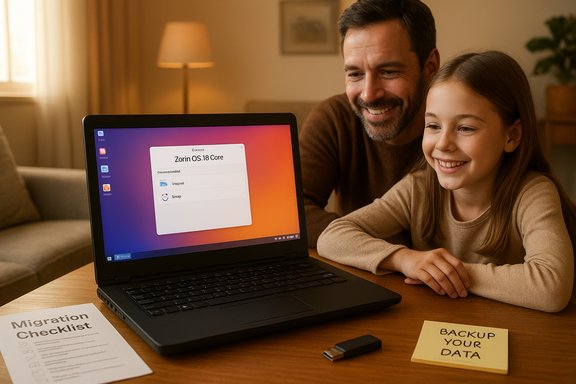
Windows 10 reached end‑of‑support on October 14, 2025, which forced many households and small setups to decide between paying for extended support, buying new hardware, or switching platforms. Zorin OS 18 arrived at that moment with a clear migration argument: a Windows‑familiar desktop, a curated app set, and an Ubuntu LTS base that promises multi‑year security updates — a practical, low‑cost alternative for web‑first families. The experience I’m reporting mirrors a first‑person migration report originally shared on XDA: an older laptop that ran Windows 10 until EOL was re‑provisioned for a niece and a mother using Zorin OS Core. The device became more responsive and the family accepted the new system with minimal friction because the UI and workflow felt familiar.
This article explains precisely why Zorin worked for them, what you should verify before you switch family PCs, the risks and mitigations, and a step‑by‑step migration playbook you can use to replicate the success.
Zorin OS is not a universal cure, but for the specific, real‑world case of reviving an older family laptop and keeping non‑technical users productive and comfortable, it hits the right combination of familiarity, performance, and simplicity. The switch reduces hardware waste, removes a looming security risk from an unsupported Windows install, and gives families a secure, privacy‑oriented desktop that doesn’t demand daily technical babysitting. Conclusion: if your household is mainly web‑centric and you want a predictable, low‑friction path away from Windows 10, Zorin OS 18 is a practical, well‑engineered option that deserves serious consideration.
Source: XDA This is the Linux distro I moved my non-tech family members to
 Background / Overview
Windows 10 reached end‑of‑support on October 14, 2025, which forced many households and small setups to decide between paying for extended support, buying new hardware, or switching platforms. Zorin OS 18 arrived at that moment with a clear migration argument: a Windows‑familiar desktop, a curated app set, and an Ubuntu LTS base that promises multi‑year security updates — a practical, low‑cost alternative for web‑first families. The experience I’m reporting mirrors a first‑person migration report originally shared on XDA: an older laptop that ran Windows 10 until EOL was re‑provisioned for a niece and a mother using Zorin OS Core. The device became more responsive and the family accepted the new system with minimal friction because the UI and workflow felt familiar.This article explains precisely why Zorin worked for them, what you should verify before you switch family PCs, the risks and mitigations, and a step‑by‑step migration playbook you can use to replicate the success.
Why Zorin OS works for non‑technical users
Familiar UI that reduces cognitive friction
Zorin’s design goal is explicit: reduce the learning curve for Windows and macOS migrants. The distribution ships with a Zorin Appearance tool that offers layout presets to mimic Windows 10/11 or macOS, plus immediate visual previews so users see the result before applying it. That single‑click similarity—taskbar at the bottom, a start‑style menu, app icons, and a system tray—removes the single biggest blocker for non‑technical users: unfamiliar navigation. On the laptops I handled, that familiarity mattered more than any subtle performance advantage. The niece and mother instinctively opened the app launcher, launched a browser, and used LibreOffice without asking “how do I do this now?” That immediate usability is Zorin’s strongest practical feature for household migrations.Lightweight enough for older hardware
Zorin OS 18 is built on Ubuntu 24.04 LTS and ships with kernel and desktop optimizations that improve responsiveness on older machines. The official technical notes and reviews put the minimum RAM at 2 GB (with 4 GB recommended for comfortable multitasking), and the Lite edition (XFCE) remains an option for very low‑spec systems. These modest requirements let you revive many laptops that Windows would struggle to update.Practical default app choices
Zorin includes a pragmatic default application set aimed at common household uses:- Brave as the default browser (selected for privacy and configured with optional features disabled).
- LibreOffice for document work.
- A user‑friendly Files manager and media utilities for photos and video playback.
- A built‑in Software app that aggregates APT repos, Flathub (Flatpak), and Snap, allowing simple graphical app installs and updates.
Long‑term support and an Ubuntu base
Zorin OS 18 uses the Ubuntu LTS lineage, meaning security and package updates are aligned with a predictable upstream lifecycle. The Zorin team has stated the 18 series will be maintained through at least mid‑2029, offering a multi‑year maintenance window for families not interested in frequent OS churn. That predictability is important for household devices where the owner doesn’t want to manage frequent major upgrades.What actually changed for my family — practical observations
Installation and first boot
I booted the laptop from a Zorin 18 Core USB, chose the standard install, and the guided installer took less than 30 minutes. The system recognized Wi‑Fi and the touchpad without extra drivers on most hardware. The first‑boot experience presented the default layout and a short welcome tour that helped them find the web browser, files, and the LibreOffice icon right away. This low‑training onboarding was the same smooth path described by the XDA author.Everyday performance
With 2–4 GB of RAM and an old spinning disk, Zorin OS felt snappier than Windows 10. Browsing, video playback at 720p–1080p, and LibreOffice tasks ran cleanly. The built‑in Software store (with Flatpak enabled) made installing a few additional apps trivial. For purely web‑centric tasks, the family’s workflow is effectively unchanged, and the laptop no longer felt bogged down by background update processes that used to slow Windows.Updates and maintenance
I set up automatic security updates and configured a weekly manual check. The Software app consolidates OS packages and Flatpaks so I can update everything from one place, which reduces the amount of remote help I must provide. The family never needed to open a terminal or use apt — the GUI handles it.Strengths — what Zorin brings to the migration table
- Low switching cost: Zorin Appearance reduces re‑training time by preserving mental models from Windows.
- Privacy‑oriented defaults: Brave is shipped with optional features disabled and Zorin’s settings aim to limit unexpected data flows out of the box.
- App availability via Flatpak and Snap: The Software store exposes Flathub and Snap without terminal commands, lowering the technical barrier for adding apps.
- Long maintenance lifecycle: Ubuntu 24.04 LTS base and Zorin’s support promise through 2029 give breathing room for households to plan future upgrades.
- Performance on old hardware: Properly configured, Zorin Core (and Lite when needed) revives machines that would otherwise be tossed or sold.
Risks and trade‑offs — what to watch out for
Peripheral and driver edge cases
Wi‑Fi adapters, specialized printers, webcams, and some older fingerprint readers are still the most common trouble spots when moving to Linux. Always test hardware in a live USB session before installing; the live session will confirm basic drivers for network, sound, and display. If a device uses a proprietary Windows driver, you may need to keep a Windows machine or a VM as a fallback. Community forums show many success stories, but also isolated hardware edge cases that require manual driver installs.Windows‑only apps and games
If family members depend on specific Windows‑only programs (for example, specialized accounting software or certain hobbyist games that rely on kernel‑level anti‑cheat), Wine and Proton may not be a reliable substitute. Zorin includes a Windows App Support tool to help, but heavy or enterprise Windows software is better handled via virtualization or a retained Windows machine. Plan for a fallback VM if necessary.Support expectations vs. paid offerings
Zorin offers Pro and Education editions with extras. For most home users, Core (the free edition) provides everything needed. The Pro edition bundles additional layouts and apps targeted at power users or organizations; it’s not essential for basic household use. Don’t buy features that duplicate what you can install yourself.Misinformation and download metrics
At launch, Zorin’s marketing and some coverage referenced download milestones and interest metrics. Treat such figures as directional indicators of curiosity rather than proof of mass migration. Several community reports amplified download numbers beyond what the project confirmed; label these claims unverified unless Zorin publishes an official figure.Step‑by‑step migration playbook (what I did)
- Back up everything first.
- Create a full disk image (Clonezilla, Macrium) and copy personal files to an external drive or cloud.
- Export browser bookmarks and passwords (or configure sync services).
- Make a Live USB and test.
- Boot the Zorin ISO in “Try” mode and test Wi‑Fi, sound, video, and printing.
- If a peripheral fails in Live mode, research a driver or consider keeping a Windows fallback.
- Install Zorin OS (Core recommended for most households).
- Use the guided installer. Choose full disk replacement only after you’re sure you have backups.
- Enable automatic security updates and install any available updates immediately after first boot.
- Configure accounts and sync.
- Set up browser sync (Brave or an alternative) and add email (Evolution or Thunderbird).
- If you rely on OneDrive, enable GNOME Online Accounts or use rclone/OneDrive clients for sync.
- Install additional apps from the Software app (Flathub / Snap) — no terminal required.
- Set up backups and a recovery plan.
- Schedule automated file backups to an external disk or cloud.
- Create a system snapshot tool (Timeshift) for quick rollbacks if you want a GUI rollback option.
- Keep a Windows VM for edge cases (VirtualBox, GNOME Boxes, or QEMU/KVM).
- Use the VM for any software that absolutely won’t run on Linux.
Configuration tips for households and non‑technical users
Make the desktop look familiar and remove clutter
- Use Zorin Appearance to select the Windows‑style layout. It’s a single click and restores muscle memory.
- Pin the most‑used apps to the taskbar (browser, files, office, media player).
- Disable animations on very old hardware to improve perceived responsiveness.
Keep updates simple
- Turn on automatic security updates for unattended patching.
- Configure a weekly reminder for optional software updates (major feature updates can be deferred until you confirm no issues).
Backups and data safety
- Configure an external drive backup and a cloud backup (OneDrive, Google Drive via rclone, or any cloud client they prefer).
- Keep at least one full disk backup image until you’re confident in the new setup.
Remote help
- Install a simple remote‑assist tool (Remmina, or enable Remote Desktop > Remote Login in settings for RDP) so you can troubleshoot without a house visit. Zorin 18 added remote login improvements that make remote support easier.
When Zorin isn’t the right choice
- Complex enterprise software or proprietary device drivers that have no Linux replacements.
- Households that demand native support for specific Windows games with unbending anti‑cheat systems.
- Users who want the absolute least maintenance responsibility but are tied to an ecosystem heavily integrated with Windows software licensing.
Critical assessment — strengths vs. hazards
Zorin OS 18 is a very pragmatic migration path: it trades absolute parity with Windows for a familiar skin, a curated app set, and sensible defaults that reduce helpdesk time. For families that primarily use browsers, email, and simple office apps, the transition is nearly frictionless. The formal Ubuntu LTS base and Zorin’s 2029 support window make this a low‑risk operational choice for households and small organizations that prefer not to buy new hardware. The hazards are real but manageable: hardware driver gaps, niche Windows software that refuses to run on compatibility layers, and a learning curve for occasional troubleshooting. These are not fatal flaws; they’re the usual compromise when changing an operating system. The correct posture is to pilot, test, and maintain a fallback VM or retained Windows machine for mission‑critical Windows apps.Final recommendations (for families and caretakers)
- Start with a live USB test—do not skip this. Verify Wi‑Fi, printers, cameras, and media playback.
- Use Zorin Core for most home machines; reserve Pro for paid setups that actually need the extras.
- Keep a Windows VM for any stubborn legacy apps and avoid breaking workflows on day one.
- Automate backups and updates—this plus a remote assistance path removes the most common support calls.
- Consider the hardware: if you have less than 2 GB of RAM, look at Zorin Lite or even lighter distributions; if the device is newer, Core will likely perform well.
Zorin OS is not a universal cure, but for the specific, real‑world case of reviving an older family laptop and keeping non‑technical users productive and comfortable, it hits the right combination of familiarity, performance, and simplicity. The switch reduces hardware waste, removes a looming security risk from an unsupported Windows install, and gives families a secure, privacy‑oriented desktop that doesn’t demand daily technical babysitting. Conclusion: if your household is mainly web‑centric and you want a predictable, low‑friction path away from Windows 10, Zorin OS 18 is a practical, well‑engineered option that deserves serious consideration.
Source: XDA This is the Linux distro I moved my non-tech family members to
