

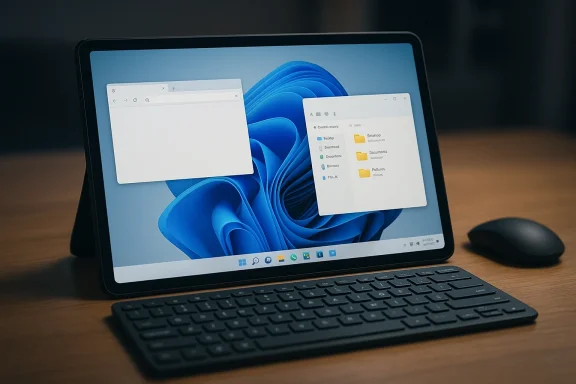
Lately, Android tablets have been inching closer to laptop territory, but the interface has often remained stubbornly phone-first. HyperDroid PC Launcher is one of the more convincing attempts to close that gap, replacing the default Android home screen with a Windows 11-style desktop complete with a taskbar, Start menu, file explorer, and windowed app workflow. The result is not a true desktop operating system, but it does make a strong case that the right launcher can transform a tablet from a large slab of glass into something far more useful for writing, editing, and travel work.
For years, Android tablet owners have faced the same paradox: the hardware keeps getting better, while the software often lags behind in ambition. Tablets ship with fast processors, plenty of RAM, stylus support, keyboards, mice, and increasingly capable multitasking features, yet the default interface still tends to behave like an oversized phone. That mismatch matters more when the tablet is used as a daily productivity device rather than a media screen.
Google has taken some meaningful steps toward a more desktop-like Android experience. Official Android documentation now describes desktop windowing as a tablet-first multitasking mode with a persistent taskbar, pinning support, and resizable windows, and notes that this capability is available starting with Android 15 QPR1 for the Pixel Tablet in developer preview form. That is an important signal: Android’s own roadmap increasingly acknowledges that large screens need a different interface model.
But a roadmap is not the same thing as a polished daily experience. The built-in desktop features are still limited in availability, and they do not always deliver the familiar, efficient visual language people associate with Windows or ChromeOS. That is where third-party launchers come in. HyperDroid PC Launcher is one of several apps trying to fill that space by layering a PC-like shell over Android’s mobile foundation. The idea is straightforward: if the operating system will not fully act like a desktop, the launcher can at least make it feel like one.
HyperDroid is especially interesting because it does not merely imitate a theme. According to its Google Play listing, it is designed as a Win 11 Style Launcher that aims to “transform” Android into a desktop-like environment, and the app is distributed through the Play Store as a free product with premium options. That matters because accessibility and friction are part of the appeal here. A launcher only becomes genuinely useful if people can try it quickly, switch their home app, and decide whether the trade-offs are worth it.
There is also a deeper cultural reason these apps keep finding an audience. Many users do not want Android to become Windows. They want Android to stop feeling compromised when paired with a keyboard, mouse, and external display. The desktop aesthetic is not just nostalgia; it is a shorthand for control, density, and efficiency. HyperDroid taps directly into that desire.
The launcher approach is clever because it avoids the complexity of emulation or dual-boot systems. Instead of replacing Android, HyperDroid changes the front door. It turns the home screen into a desktop-style environment with a taskbar, pinned apps, system tray, and Start menu-like launcher. That means the tablet can still use ordinary Android apps, but the workflow around them becomes much more PC-like.
HyperDroid attempts to solve this by making the launcher itself the productivity layer. That is a smart move because most people interact with the operating system through the shell far more often than they realize. A better launcher can reduce friction everywhere else.
A few practical problems it addresses:
That design choice may look superficial at first, but it is actually central to the app’s value. A desktop interface is not just about appearance. It is about predictable spatial organization. Users know where to look for open apps, search, system toggles, and pinned shortcuts. That reduces hesitation, which in turn reduces cognitive load.
HyperDroid leans hard into that principle. It uses a desktop-style wallpaper, desktop icons, and a centered interface that resembles the modern Windows 11 shell closely enough to trigger immediate recognition. That is not an accident. It is the launcher’s core argument.
At the same time, the design is clearly aspirational rather than exact. The app mimics the desktop experience, but it cannot fully replicate Windows-level consistency because Android apps are still Android apps. That tension is what gives the launcher both charm and limitation.
This is where the launcher stops being merely decorative. A persistent taskbar changes how you approach the device. Instead of returning to a blank phone-style home screen after every task, you remain within a stable desktop frame of reference.
The practical advantage is obvious:
On a phone-style interface, file handling can feel hidden or fragmented. On a desktop-style launcher, it becomes visible again. That visibility matters for productivity because it encourages a more organized relationship with local storage.
This helps the tablet feel like a tool rather than a content sink. A work machine needs obvious places for documents to live. If those places are easy to reach, the device feels more trustworthy.
Still, there is a caveat. A visually Windows-like file explorer is not the same as the depth of a real desktop file system. Android’s storage model and app sandboxing still shape the experience underneath. So the launcher improves presentation and access, even if it cannot fully change the architecture.
That distinction is important. Android itself has increasingly supported multi-window behavior, and Google’s own documentation says desktop windowing is built around multiple resizable windows and a fixed taskbar on large-screen devices. HyperDroid benefits from that broader ecosystem shift, even though it is not itself Android’s native desktop implementation.
That is where HyperDroid’s windowed approach becomes meaningful. It lets the tablet participate in a workflow that feels closer to a lightweight PC, especially when paired with a physical keyboard and mouse. The bigger display on a tablet gives the launcher enough room to breathe; on a phone, the same interface is much more cramped and less convincing.
A few takeaways stand out:
This matters because a lot of work today already happens in the browser. Email, document editing, dashboards, content management, and collaboration tools are often web-first, so the ability to treat a site like a pinned desktop item is more than cosmetic. It reduces friction and makes the tablet feel more like a workstation.
That said, browser support on Android remains a mixed bag. HyperDroid can imitate the desktop browsing mindset, but it cannot fully replicate the breadth of a true desktop browser ecosystem. The point is not to compete with Chrome on Windows or Safari on macOS. The point is to make the web feel anchored inside a tablet desktop.
In practical terms, the launcher helps users:
Even so, the project lives in a very real gray zone between utility and novelty. A launcher can only go so far when the apps underneath are still Android apps. That means some of the built-in tools are more visual approximations than full-fledged desktop replacements.
That is not a failure so much as a boundary. The app succeeds when users understand it as a workflow adapter, not a replacement OS.
In that sense, HyperDroid’s performance story is tied to user expectation management:
On a phone, desktop styling tends to feel constrained. Icons become smaller, text gets harder to read, and the interface fights against the limited workspace. On a tablet, those same elements have room to express themselves. The result is less like a costume and more like a usable interface model.
That does not mean phones are worthless here. It just means the value proposition is different. On a phone, HyperDroid is an impressive novelty; on a tablet, it becomes a plausible way to work.
The practical distinction looks like this:
Still, there is a key difference. Native Android desktop features are about evolving the platform. HyperDroid is about giving users the experience now, even if the rest of the operating system has not fully caught up.
In other words, HyperDroid is part of a broader pattern in Android: when the platform is not yet giving users the exact form factor they want, third-party tools step in to bridge the gap. This is the same reason alternative launchers, taskbar utilities, and productivity overlays continue to have loyal followings.
The larger market implication is simple. If Android tablets keep becoming more powerful, users will keep demanding more credible desktop behaviors. A launcher like HyperDroid is effectively a proof point showing that there is real appetite for that shift.
The broader Android ecosystem will matter too. If Google continues to expand native desktop windowing and large-screen support, launchers like HyperDroid may become less of a workaround and more of a complement. If Android tablets stay in the middle ground between phone and PC, these third-party shells may remain essential for a certain class of users.
HyperDroid PC Launcher does not solve Android’s desktop problem once and for all, but it does something arguably more useful in the short term: it makes the problem feel solvable. For tablet owners who are tired of a blown-up phone interface, that alone is a meaningful step forward.
Source: MakeUseOf A custom launcher gave my Android tablet the desktop feel it was missing
 Overview
For years, Android tablet owners have faced the same paradox: the hardware keeps getting better, while the software often lags behind in ambition. Tablets ship with fast processors, plenty of RAM, stylus support, keyboards, mice, and increasingly capable multitasking features, yet the default interface still tends to behave like an oversized phone. That mismatch matters more when the tablet is used as a daily productivity device rather than a media screen.Google has taken some meaningful steps toward a more desktop-like Android experience. Official Android documentation now describes desktop windowing as a tablet-first multitasking mode with a persistent taskbar, pinning support, and resizable windows, and notes that this capability is available starting with Android 15 QPR1 for the Pixel Tablet in developer preview form. That is an important signal: Android’s own roadmap increasingly acknowledges that large screens need a different interface model.
But a roadmap is not the same thing as a polished daily experience. The built-in desktop features are still limited in availability, and they do not always deliver the familiar, efficient visual language people associate with Windows or ChromeOS. That is where third-party launchers come in. HyperDroid PC Launcher is one of several apps trying to fill that space by layering a PC-like shell over Android’s mobile foundation. The idea is straightforward: if the operating system will not fully act like a desktop, the launcher can at least make it feel like one.
HyperDroid is especially interesting because it does not merely imitate a theme. According to its Google Play listing, it is designed as a Win 11 Style Launcher that aims to “transform” Android into a desktop-like environment, and the app is distributed through the Play Store as a free product with premium options. That matters because accessibility and friction are part of the appeal here. A launcher only becomes genuinely useful if people can try it quickly, switch their home app, and decide whether the trade-offs are worth it.
There is also a deeper cultural reason these apps keep finding an audience. Many users do not want Android to become Windows. They want Android to stop feeling compromised when paired with a keyboard, mouse, and external display. The desktop aesthetic is not just nostalgia; it is a shorthand for control, density, and efficiency. HyperDroid taps directly into that desire.
What HyperDroid Is Trying to Solve
HyperDroid PC Launcher is trying to fix the most persistent complaint about Android on larger screens: the hardware looks like a laptop, but the software still behaves like a phone. That is a subtle but important distinction. A tablet can technically support split-screen apps, freeform windows, and external input devices, yet still feel awkward if the underlying home experience does not match the way people actually work.The launcher approach is clever because it avoids the complexity of emulation or dual-boot systems. Instead of replacing Android, HyperDroid changes the front door. It turns the home screen into a desktop-style environment with a taskbar, pinned apps, system tray, and Start menu-like launcher. That means the tablet can still use ordinary Android apps, but the workflow around them becomes much more PC-like.
Why the shell matters more than the specs
Tablet performance has reached a point where many devices can handle productivity duties without breaking a sweat. What they often lack is a navigation model that respects sustained work. If every app launch feels like the beginning of a phone session, the device never fully escapes its mobile identity.HyperDroid attempts to solve this by making the launcher itself the productivity layer. That is a smart move because most people interact with the operating system through the shell far more often than they realize. A better launcher can reduce friction everywhere else.
A few practical problems it addresses:
- It gives the tablet a persistent taskbar instead of a drifting mobile dock.
- It surfaces a Start menu for quicker app access.
- It presents windowed app behavior in a more familiar form.
- It makes the device feel more coherent when used with keyboard and mouse.
- It helps the tablet stand upright as a workstation rather than a giant app grid.
First Impressions and Design Philosophy
The most immediate appeal of HyperDroid is visual recognition. The launcher borrows heavily from Windows 11’s design language, and that familiarity lowers the learning curve almost instantly. If you have spent years using Windows, the layout feels obvious in a way that most Android tablet home screens do not.That design choice may look superficial at first, but it is actually central to the app’s value. A desktop interface is not just about appearance. It is about predictable spatial organization. Users know where to look for open apps, search, system toggles, and pinned shortcuts. That reduces hesitation, which in turn reduces cognitive load.
Familiarity as a productivity feature
People often underestimate how much speed comes from muscle memory. Once a launcher has a stable structure, users stop thinking about navigation and start thinking about tasks. On a tablet, that can be the difference between a gadget you occasionally tolerate and a device you actually rely on.HyperDroid leans hard into that principle. It uses a desktop-style wallpaper, desktop icons, and a centered interface that resembles the modern Windows 11 shell closely enough to trigger immediate recognition. That is not an accident. It is the launcher’s core argument.
At the same time, the design is clearly aspirational rather than exact. The app mimics the desktop experience, but it cannot fully replicate Windows-level consistency because Android apps are still Android apps. That tension is what gives the launcher both charm and limitation.
The Taskbar and Start Menu
The taskbar is arguably the most important part of the whole concept, because it changes the device from a launcher-centric mobile UI into a continuously oriented workspace. HyperDroid’s taskbar includes the usual elements users expect from a desktop environment: pinned apps, a Start menu entry point, search, and a system tray with status indicators.This is where the launcher stops being merely decorative. A persistent taskbar changes how you approach the device. Instead of returning to a blank phone-style home screen after every task, you remain within a stable desktop frame of reference.
Why the Start menu matters
The Start menu is more than a convenience button. It is the central address book of the interface. HyperDroid’s app drawer replacement presents installed Android apps in a grid, with search at the top and a Recommended area for recent items. That arrangement is familiar enough to feel natural for Windows users while still reflecting Android’s underlying app model.The practical advantage is obvious:
- Faster access to frequently used apps.
- Easier search when you do not remember an app’s exact location.
- A cleaner separation between open windows and the app library.
- Better support for mouse-driven navigation.
- A stronger sense of “being at a desktop,” not just inside a launcher.
File Management and Built-In Utilities
One of HyperDroid’s stronger claims is that it is not just a skin. The launcher includes a built-in file explorer modeled after the familiar Windows file manager, with a sidebar for common locations such as Documents, Downloads, Music, Pictures, and Videos. That makes a real difference because file access is one of the first things that exposes Android’s mobile heritage.On a phone-style interface, file handling can feel hidden or fragmented. On a desktop-style launcher, it becomes visible again. That visibility matters for productivity because it encourages a more organized relationship with local storage.
The value of a visible file system
The launcher’s file explorer is especially useful for users who move documents, media, and downloaded files around frequently. A tablet used for writing or editing often needs quick access to offline files, and a clear file manager lowers the barrier to that kind of work. HyperDroid also reportedly includes a music player and the ability to browse storage in a more structured way.This helps the tablet feel like a tool rather than a content sink. A work machine needs obvious places for documents to live. If those places are easy to reach, the device feels more trustworthy.
Still, there is a caveat. A visually Windows-like file explorer is not the same as the depth of a real desktop file system. Android’s storage model and app sandboxing still shape the experience underneath. So the launcher improves presentation and access, even if it cannot fully change the architecture.
Windowed Apps and Multitasking
HyperDroid’s desktop appeal depends heavily on multitasking, because a fake desktop without windowing would just be a themed home screen. The launcher positions itself around the idea that apps can coexist in a more layered workspace, even if the underlying Android support is still the real engine doing the work.That distinction is important. Android itself has increasingly supported multi-window behavior, and Google’s own documentation says desktop windowing is built around multiple resizable windows and a fixed taskbar on large-screen devices. HyperDroid benefits from that broader ecosystem shift, even though it is not itself Android’s native desktop implementation.
Why multitasking feels different on a tablet
On a tablet, multitasking is not only about running two apps side by side. It is about maintaining context. If you are writing in one app, checking references in another, and moving files in a third, the launcher needs to stop feeling like a dead end between sessions.That is where HyperDroid’s windowed approach becomes meaningful. It lets the tablet participate in a workflow that feels closer to a lightweight PC, especially when paired with a physical keyboard and mouse. The bigger display on a tablet gives the launcher enough room to breathe; on a phone, the same interface is much more cramped and less convincing.
A few takeaways stand out:
- Tablet screens give HyperDroid room to feel credible.
- Windowed behavior helps with document-heavy tasks.
- Mouse and keyboard support make the interface worthwhile.
- The desktop metaphor breaks down faster on smaller phones.
- The larger the display, the less the launcher feels like a novelty.
Browser, Shortcuts, and Web App Behavior
Another interesting part of HyperDroid’s pitch is the inclusion of a browser that supports extensions, plus the ability to pin websites as desktop shortcuts. That gives the launcher a useful bridge between Android apps and the increasingly web-based reality of modern productivity.This matters because a lot of work today already happens in the browser. Email, document editing, dashboards, content management, and collaboration tools are often web-first, so the ability to treat a site like a pinned desktop item is more than cosmetic. It reduces friction and makes the tablet feel more like a workstation.
Web shortcuts as workflow glue
Pinned web shortcuts are a small feature with an outsized effect. They let a tablet owner create launchable entry points for services like YouTube or Instagram, but the more interesting use case is work tools. A browser shortcut can act like a lightweight PWA-style container, which is exactly the kind of practical compromise a tablet desktop needs.That said, browser support on Android remains a mixed bag. HyperDroid can imitate the desktop browsing mindset, but it cannot fully replicate the breadth of a true desktop browser ecosystem. The point is not to compete with Chrome on Windows or Safari on macOS. The point is to make the web feel anchored inside a tablet desktop.
In practical terms, the launcher helps users:
- Keep recurring sites pinned in a visible workspace.
- Reduce the need to re-open tabs from scratch.
- Treat web services like durable tools.
- Bridge app-based and browser-based workflows.
- Move closer to a PWA-like productivity model.
Performance, Polish, and Practical Limits
HyperDroid’s biggest surprise may be that it reportedly runs smoothly enough to feel usable rather than gimmicky. A launcher can have a clever interface, but if it stutters or lags, the illusion collapses quickly. According to the original hands-on account, performance on a tablet was responsive, with no obvious lag or major visual glitches. That kind of polish is crucial for a free launcher because users will not tolerate instability just to preserve an aesthetic.Even so, the project lives in a very real gray zone between utility and novelty. A launcher can only go so far when the apps underneath are still Android apps. That means some of the built-in tools are more visual approximations than full-fledged desktop replacements.
Where the illusion ends
The launcher can present the shape of a desktop, but it cannot entirely change Android’s DNA. Some features feel close to Windows rather than equal to it. The browser may support extensions, but it is still part of the Android ecosystem. The file explorer may look like Windows, but it is not a Windows file system. The settings panels may resemble a desktop control center, but they do not become one.That is not a failure so much as a boundary. The app succeeds when users understand it as a workflow adapter, not a replacement OS.
In that sense, HyperDroid’s performance story is tied to user expectation management:
- Smooth enough for practical use on a tablet.
- Better suited to multitasking than mobile-style launchers.
- Limited by Android’s app model.
- Strongest when used with accessories.
- Less compelling if you expect a true Windows substitute.
Tablet Versus Phone: Where It Works Best
Although HyperDroid can run on phones, the tablet case is where the launcher really makes sense. The difference is not just screen size. It is the entire relationship between display density, input method, and task complexity.On a phone, desktop styling tends to feel constrained. Icons become smaller, text gets harder to read, and the interface fights against the limited workspace. On a tablet, those same elements have room to express themselves. The result is less like a costume and more like a usable interface model.
Why tablets benefit disproportionately
A tablet offers enough screen real estate to support the desktop illusion without constant compromise. That means the launcher can function as a serious productivity layer instead of a visual experiment. When you pair it with a mouse and keyboard, the whole package starts to resemble a lightweight travel workstation.That does not mean phones are worthless here. It just means the value proposition is different. On a phone, HyperDroid is an impressive novelty; on a tablet, it becomes a plausible way to work.
The practical distinction looks like this:
- Phones favor compactness, not desktop fidelity.
- Tablets provide enough room for taskbars and windows.
- Keyboard and mouse support make the desktop metaphor stronger.
- Landscape orientation becomes the default, not the exception.
- Travel productivity is where the launcher has the clearest case.
How It Compares with Android’s Native Direction
HyperDroid is arriving at a moment when Android itself is inching toward a more desktop-oriented future. Google’s documentation for desktop windowing shows that the platform is increasingly willing to treat large displays as productivity surfaces rather than just oversized phones. That makes HyperDroid feel less like an anomaly and more like a preview of what users have wanted all along.Still, there is a key difference. Native Android desktop features are about evolving the platform. HyperDroid is about giving users the experience now, even if the rest of the operating system has not fully caught up.
Launcher innovation versus platform evolution
That distinction matters for two reasons. First, platform features usually arrive slowly and unevenly across devices. Second, launcher developers can often move faster than OS teams, especially when they are responding to immediate user frustration.In other words, HyperDroid is part of a broader pattern in Android: when the platform is not yet giving users the exact form factor they want, third-party tools step in to bridge the gap. This is the same reason alternative launchers, taskbar utilities, and productivity overlays continue to have loyal followings.
The larger market implication is simple. If Android tablets keep becoming more powerful, users will keep demanding more credible desktop behaviors. A launcher like HyperDroid is effectively a proof point showing that there is real appetite for that shift.
Strengths and Opportunities
HyperDroid’s strengths are not theoretical; they show up in the everyday experience of making a tablet feel more like a workstation. The app is strongest when it reduces friction rather than merely adding visual flair, and that is why it has room to grow.- Familiar Windows 11-style layout lowers the learning curve.
- Taskbar and Start menu improve workflow continuity.
- Desktop-style file explorer makes local files easier to manage.
- Web shortcuts and browser support help unify app and web work.
- Tablet-friendly spacing gives the interface room to breathe.
- Free entry point makes it easy to test without commitment.
- Ad-supported model keeps the barrier to experimentation low.
Risks and Concerns
The same qualities that make HyperDroid appealing also create its biggest risks. Desktop imitation is easy to admire and harder to sustain, especially when users expect consistency, speed, and depth that Android itself was not originally designed to provide.- It is still Android underneath, so the desktop feel has limits.
- Phone use feels cramped, which narrows the audience.
- Some tools are more visual than functional, especially compared with real desktop equivalents.
- Users may overestimate what the launcher can do and then feel disappointed.
- Reliance on third-party software always raises trust and maintenance questions.
- App behavior can vary across devices because Android hardware is fragmented.
- The desktop illusion can collapse if a user expects full Windows parity.
What to Watch Next
The most interesting question is not whether HyperDroid can mimic Windows. It is whether it can evolve into something more durable: a credible productivity shell for Android tablets that users trust enough to make part of their daily routine. That will depend on whether it keeps improving the parts that matter most, especially file management, multitasking, and device adaptability.The broader Android ecosystem will matter too. If Google continues to expand native desktop windowing and large-screen support, launchers like HyperDroid may become less of a workaround and more of a complement. If Android tablets stay in the middle ground between phone and PC, these third-party shells may remain essential for a certain class of users.
Key things to monitor
- Whether HyperDroid expands its desktop tools beyond visual mimicry.
- How fast Android’s native desktop windowing matures across devices.
- Whether tablet makers begin treating launchers and shells as a real differentiator.
- If more apps are optimized for mouse, keyboard, and freeform windows.
- Whether users adopt this approach for travel work, note-taking, and light editing.
- How the launcher evolves in response to feedback from power users.
HyperDroid PC Launcher does not solve Android’s desktop problem once and for all, but it does something arguably more useful in the short term: it makes the problem feel solvable. For tablet owners who are tired of a blown-up phone interface, that alone is a meaningful step forward.
Source: MakeUseOf A custom launcher gave my Android tablet the desktop feel it was missing
