

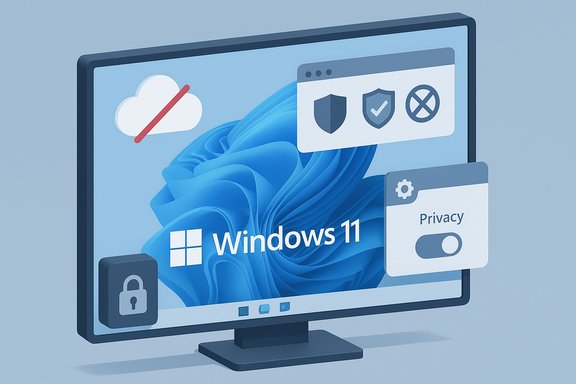
I decided to go completely incognito on Windows 11 — and in doing so I turned a default "cloud-first" PC into a device that shares almost nothing it doesn't have to, trades convenience for control, and forces a handful of practical new habits that significantly reduce the surface attackers and data‑hungry services normally see.
Background / Overview
Windows 11 ships as a modern, cloud‑integrated platform: location services, tailored experiences, app permissions, OneDrive integration, and diagnostic telemetry are all enabled by default to deliver personalization and recovery features. Those conveniences also create telemetry surfaces and sync pathways that can expose metadata and, in some cases, user files to cloud services. The core thesis for going incognito on Windows 11 is simple — reduce those automatic data flows, limit remote fingerprints, and keep important files under your control rather than in third‑party clouds. Community documentation and how‑to guides covering local accounts, OneDrive behaviour, telemetry management, and privacy‑first browsers form the bulk of the practical playbook many power users now follow.This article is a practical, verified rundown of what “going incognito” on Windows 11 actually means, how I implemented it, which tweaks deliver the most privacy bang for the effort, and the trade‑offs you must accept. It cross‑checks policy and technical details against vendor documentation and community-tested tactics so you can make informed choices rather than rely on folklore.
Why going incognito on Windows 11 matters
Windows 11 treats many features as opt‑in‑by‑default for convenience: account sync, cloud backup, tailored suggestions, and diagnostic uploads. Each of these creates recurring background traffic or state that can be used to profile or recover activity on a device.- Telemetry and diagnostics: Windows collects diagnostic and usage telemetry to detect crashes, improve features, and help troubleshooting. Enterprises can restrict telemetry via Group Policy, but consumer installs often default to richer levels that send additional data. Microsoft documents the policy mapping and explains the allowed values for the “Allow Telemetry”/“Allow Diagnostic Data” policy (0 = Security, 1 = Basic, 2 = Enhanced, 3 = Full). Using Group Policy to pick the most restrictive setting is the supported path for stronger control.
- Cloud sync (OneDrive): When you sign in with a Microsoft account, OneDrive setup often nudges or automatically enables Known Folder Move (KFM) — backing up your Desktop, Documents, and Pictures to OneDrive. That’s convenient for recovery, but it also means local documents become cloud objects unless you opt out. Microsoft’s OneDrive client exposes “Manage backup” and a “Back up your folders” flow to enable or disable this behaviour.
- Browser fingerprinting & tracking: Browsers — and websites — use persistent identifiers, scripts, and fine‑grained telemetry to fingerprint devices. A privacy‑focused browser and sensible extensions mitigate this, but fingerprinting remains hard to eliminate entirely. The best defense combines browser choices, extensions, and behavioural changes.
The privacy blueprint: what I changed and why
Below are the practical steps I took to get my Windows 11 machine into "incognito" posture. Each item is explained, its benefits listed, and notable risks or limitations flagged.1. Use a local Windows account (or a minimal Microsoft account)
Why: A local account keeps sign‑in credentials and device personalization off Microsoft’s cloud by default. That removes automatic cross‑device sync of many settings and reduces identity fingerprinting.How I did it:
- During OOBE (Out‑Of‑Box Experience) I avoided signing in with an MSA and created a local account. On many Windows 11 releases you can choose I don’t have internet → Continue with limited setup to create a local user. Historically the Shift+F10 → oobe\bypassnro trick has been used to force an offline setup flow, and community tools like Rufus or unattended installations have provided more robust ways to avoid the forced MSA prompt. However, Microsoft has been tightening these bypass paths in Insider builds and public releases; the command‑line tricks are being blocked in newer previews, so this step can be version‑dependent and fragile. If you rely on these workarounds, test the installer media you’ll actually use.
- Limits automatic cloud sync of many profile elements.
- Reduces cross‑device identity linkage.
- You lose automatic features like OneDrive seamless sync, Find My Device tied to an MSA, and passkey syncing.
- Some Microsoft Store purchases and licensing conveniences are easier with an MSA.
- Microsoft has been actively making it harder to avoid an MSA during setup, so the offline/local route can require extra steps or custom media.
2. Stop OneDrive from automatically syncing known folders
Why: OneDrive’s Known Folder Move is often presented at setup and may be enabled by default after sign‑in. Backing Desktop and Documents to the cloud is convenient, but if your threat model is privacy rather than remote recovery, you should control that copy.How I did it:
- After setup I opened the OneDrive tray menu → Settings → Backup → Manage backup, and turned Off Desktop/Documents/Pictures backup. If OneDrive already moved files, you can choose to move them back to “This PC only” during the stop process.
- Files remain local unless you choose to store them in a cloud account you control.
- Removes an automatic copy that could be exposed by a cloud breach or misconfigured share.
- You lose the automatic off‑device backup and easy multi‑device access that OneDrive provides. Consider a local NAS or encrypted external backup to replace it. Microsoft’s documentation and community Q&A emphasize that Known Folder Move is intentionally persistent and reversible via the OneDrive UI.
3. Use privacy‑focused browsers and extensions
Why: Browsers are the primary attack surface for tracking, fingerprinting, and scripted data collection. Choosing the right browser reduces third‑party trackers, fingerprinting vectors, and ad injection.My choices and rationale:
- Brave: built‑in ad and tracker blocking with fingerprinting resistance; good default protection for general browsing.
- Firefox: use its Enhanced Tracking Protection in Strict mode or enable Resist Fingerprinting (with caution — it can break some sites). Firefox balances compatibility and anti‑tracking controls.
- DuckDuckGo (app/extension): strong blocker layers like tracker‑loading protection and fingerprinting mitigation for mobile and quick sessions.
- Immediate reduction of third‑party tracking and scripted fingerprinting.
- Fewer cross‑site identifiers and ad injection.
- Some advanced anti‑fingerprinting features can break site functionality.
- No browser can guarantee complete protection against a determined fingerprinting adversary; Tor Browser remains the strongest option for serious threat models. Multiple independent browser vendor docs describe how they handle these protections and where they fall short.
4. Reduce telemetry and diagnostic data
Why: Telemetry is a persistent channel by which the OS reports activity and errors. Reducing it lowers exposure.How I did it:
- On Windows 11 Pro I used Group Policy: Run gpedit.msc → Computer Configuration → Administrative Templates → Windows Components → Data Collection and Preview Builds → Allow Telemetry and set the appropriate value (the most restrictive allowed for the edition). Microsoft documents the mapping of values (0–3) and the supported behaviour; note that value 0 (Security) is restricted to Enterprise/Education/server SKUs in practice, while consumer editions typically allow values 1–3 via policy. Where gpedit is unavailable (Home), registry edits map to the same keys, but with more caution required.
- Disable Connected User Experiences and Telemetry (DiagTrack) service if needed — this has been used by community guides — but be aware that aggressive service disablement can break diagnostics and may be re‑enabled by feature updates.
- Lower background upload of usage data and less behavioral signal for profiling.
- Some troubleshooting workflows and Microsoft support scenarios may request you temporarily re‑enable richer diagnostics.
- Major feature updates sometimes reset telemetry defaults; you should re‑check after significant updates.
5. Audit and tighten app permissions
Why: Camera, microphone, location, and filesystem access are granted per‑app in Windows 11. Locking down these permissions reduces the chance that a malicious or overly permissive app will exfiltrate audio, video, or file contents.How I did it:
- Settings → Privacy & security → review all permission categories and revoke access for apps that do not require that capability.
- For Store/UWP apps this is straightforward; for Win32 apps, limit their access by keeping fewer apps installed and using Windows Security features like Controlled Folder Access.
- Reduces app‑level attack surface and limits what a compromised app can leak.
- You may need to re‑enable permissions for certain apps (video calls, imaging tools), and doing so can occasionally cause functionality regressions if misapplied. Community guides recommend a short test pass for essential apps after any permission lockdown.
Tactical tools and install‑time decisions
Preparing install media and avoiding forced MSA sign‑in
If you plan to install many machines or want a repeatable incognito posture, prepare installation media that prevents OOBE from forcing a Microsoft account. Community tools like Rufus (Extended install options), Flyoobe, and unattended autounattend.xml configurations are widely discussed among enthusiasts and technicians. These tools range from lightweight (Rufus’ extended installer) to heavy (custom ISOs with preconfigured OOBE). Use these only after testing — aggressive image pruning can remove serviceability components and create long‑term update headaches.Important caution: Microsoft has been blocking some of the installer bypasses in preview builds and may continue to tighten the setup flow. That means any installer‑level trick can be time‑sensitive; if reproducibility matters, document your ISO’s exact version and test updates regularly.
Virtual machines and sandboxes: an extra layer
For untrusted browsing or running unknown apps, a VM or sandbox is the cleanest approach. Virtual machines isolate activity from the host, and you can destroy a VM after use to remove any persistent traces. This is overkill for daily use but excellent for high‑risk tasks. Community guides and forum threads highlight VMs as the decisive boundary for testing and privacy‑sensitive tasks.Verifying claims and what to watch for (technical validation)
Several specific technical claims appear frequently in privacy guides; here’s a quick verification of the most important ones.- Claim: “Setting Allow Telemetry to 0 (off) via Group Policy stops all telemetry.” — Verification: Microsoft documents the Allow Telemetry policy and values; 0 = Security is available for Enterprise/Education and certain OS SKUs, but consumer editions cannot fully eliminate required diagnostic data. Use Group Policy per Microsoft’s guidance for supported results.
- Claim: “OneDrive automatically uploads Desktop/Documents/Pictures without consent.” — Verification: OneDrive prompts for Known Folder Move during setup and can be enabled by default after a Microsoft account sign‑in; it can be turned off via the OneDrive UI (Manage backup). Microsoft’s OneDrive support pages and Q&A confirm both the behaviour and the steps to disable it.
- Claim: “Chromium browsers no longer save copied text from Incognito to clipboard history or Cloud Clipboard.” — Verification: Multiple independent outlets reported a code change (sourced to Microsoft/Chromium work in 2024) that prevents clipboard history/cloud sync for content copied from private browsing sessions; the change has been incorporated into Chrome and Edge rollouts and is reflected in multiple technical reports. This is a notable privacy win, but it’s limited to clipboard history — it does not make incognito browsing invisible to network observers.
- Claim: “Brave/Firefox/DuckDuckGo block fingerprinting by default.” — Verification: Each vendor provides protective layers: Brave includes Shields with fingerprinting resistance, Firefox offers Enhanced Tracking Protection and optional resistFingerprinting, and DuckDuckGo layers tracker‑loading protection and fingerprint protections. None perfectly eliminate fingerprinting; the combination of browser choice and behaviour matters most.
Practical checklist to go incognito — step‑by‑step
- Back up your data to a local, encrypted external drive or NAS; do not rely on cloud backups while you change account types and migration paths.
- Prepare installer media (optional): if you intend to avoid MSA at install time, use a tested ISO and follow either the offline setup flow or a documented Rufus/Flyoobe process — but verify current routing because Microsoft updates can break tricks.
- During OOBE, create a local account (or a minimal separate Microsoft account if you need some cloud features). Disconnect network if you want to force a local setup where that option is still present.
- After first boot:
- OneDrive: Tray → Settings → Backup → Manage backup → turn off Known Folder Move for Desktop/Documents/Pictures.
- Telemetry: gpedit.msc → Computer Configuration → Administrative Templates → Windows Components → Data Collection and Preview Builds → Allow Telemetry — choose the most restrictive allowed for your edition. If you lack gpedit (Home), consider conservative registry changes or use the Settings UI first.
- Permissions: Settings → Privacy & security → audit camera/mic/location/files and revoke unnecessary access.
- Browser: install a privacy browser (Brave/Firefox/DuckDuckGo) and add minimal, vetted extensions (uBlock Origin, HTTPS Everywhere equivalents, privacy extension suites).
- Harden backups: set up an encrypted local backup schedule (image + file backups) or an on‑premises NAS rather than cloud first‑line backups.
- Test support workflows: keep notes on changes so you can revert temporarily if Microsoft support asks you to re‑enable telemetry for troubleshooting.
Strengths, limitations, and realistic threat models
Going incognito this way gives you meaningful reductions in automatic cloud telemetry, fewer first‑party cloud copies of files, and a much smaller fingerprint when browsing. The most important wins are:- Reduced automatic cloud presence — fewer files and settings automatically stored in Microsoft cloud services.
- Lower telemetry surface — stricter Group Policy or Settings choices limit what Windows ships as diagnostics by default.
- Cleaner browsing posture — privacy browsers and blocking lower the probability of cross‑site tracking and fingerprinting.
- Not bulletproof anonymity: Local privacy is improved, but your ISP, corporate network, and the sites you visit still see traffic unless you use network‑level protections (VPNs, Tor). Browser protections reduce fingerprinting but do not remove it entirely.
- Support and functionality trade‑offs: Reducing telemetry and killing services can complicate vendor support. Be ready to re‑enable optional diagnostics temporarily for troubleshooting.
- Installer fragility: Microsoft has actively patched bypasses for opting out of MSA at setup; what works one month may be blocked on the next preview release. If you depend on a workaround, document which ISO/build you used and be prepared for maintenance.
- Update resets: Windows feature updates sometimes restore defaults or re‑enable promotional settings. Re‑check the key toggles after major updates.
Final analysis and recommendation
For private users who want to significantly reduce their Windows‑side exposure, the most effective, low‑risk combination is:- Create a local account (or a dedicated, minimal Microsoft account) at install time where possible, and keep a separate cloud account for purchases or device recovery if needed.
- Turn off OneDrive Known Folder Move unless you explicitly want cloud backup; use local encrypted backups or NAS for recovery.
- Use privacy‑focused browsers and strict tracking protection for day‑to‑day browsing.
- Reduce telemetry via Settings first, then use Group Policy on Pro/Enterprise to lock down diagnostic levels where appropriate. Verify after each major feature update.
- For high‑risk activities, isolate them in a VM or dedicated machine and avoid storing sensitive artifacts outside encrypted volumes.
The landscape is evolving: Microsoft and browser vendors keep changing install and privacy behaviours, so maintain a checklist and validate after each major Windows feature update. Use vendor documentation for the definitive mapping of Group Policy/registry settings and re‑test your chosen methods periodically.
Going incognito on Windows 11 is not a single switch; it’s a practical posture built from multiple small, verifiable decisions. Taken together, those decisions make a cloud‑first OS behave like a personal machine again — with far less automatic telemetry, fewer cloud copies of your files, and a smaller digital footprint for would‑be snoopers to exploit.
Source: MakeUseOf This is how I went completely incognito on Windows 11
