

If your Gigabyte Z590 board is stopping you from upgrading to Windows 11 because “TPM 2.0” is missing, a small 12‑pin TPM daughter card built around Infineon’s SLB9670 can be the practical fix — but only when you match the right module, the right header and the right firmware. This article walks through what the GC‑TPM2.0‑style 12‑pin Infineon SLB9670 modules actually do, why they work on a subset of Gigabyte Z590 (and other) motherboards, how to install and verify one safely, and the realistic security and performance trade‑offs you should expect.
Windows 11 requires a Trusted Platform Module (TPM) version 2.0 as part of its baseline security model. That TPM requirement can be satisfied by a discrete, physical TPM soldered or plugged into a motherboard header, or by a firmware TPM exposed by the CPU (Intel PTT or AMD fTPM). If a desktop board ships with an empty TPM header, you can often populate it with a compatible discrete module to present a hardware TPM to Windows and the UEFI firmware. Microsoft explicitly documents how to check and enable TPM 2.0 and warns that TPM 2.0 is required for supported Windows 11 installations.
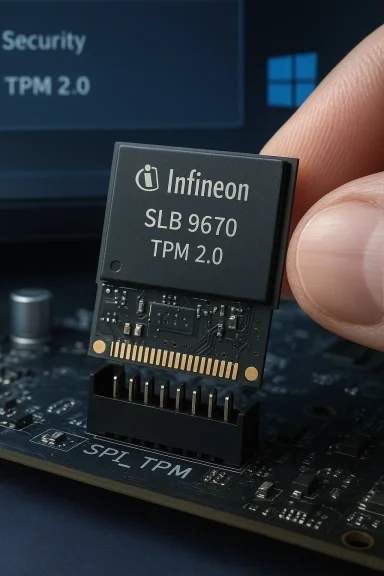
Gigabyte’s manuals and product pages show that many Z590‑series motherboards provide a labeled SPI_TPM header (a 12‑pin, “12‑1” footprint) and that Gigabyte’s own GC‑TPM2.0 family (and third‑party modules built around the same Infineon SLB9670 chip) are designed for those headers. The official manuals include the SPI_TPM pinout and advise that the TPM module plugs into a small 12‑pin header near the board’s lower edge.
Important points to verify before buying:
Source: fingerguns.net https://fingerguns.net/itm/12-Pin-With-Infineon-SLB9670-Chip-For-Gigabyte-Z590/508860/
 Background / Overview
Windows 11 requires a Trusted Platform Module (TPM) version 2.0 as part of its baseline security model. That TPM requirement can be satisfied by a discrete, physical TPM soldered or plugged into a motherboard header, or by a firmware TPM exposed by the CPU (Intel PTT or AMD fTPM). If a desktop board ships with an empty TPM header, you can often populate it with a compatible discrete module to present a hardware TPM to Windows and the UEFI firmware. Microsoft explicitly documents how to check and enable TPM 2.0 and warns that TPM 2.0 is required for supported Windows 11 installations. Gigabyte’s manuals and product pages show that many Z590‑series motherboards provide a labeled SPI_TPM header (a 12‑pin, “12‑1” footprint) and that Gigabyte’s own GC‑TPM2.0 family (and third‑party modules built around the same Infineon SLB9670 chip) are designed for those headers. The official manuals include the SPI_TPM pinout and advise that the TPM module plugs into a small 12‑pin header near the board’s lower edge.
What the Infineon SLB9670 is — a technical primer
- The SLB9670 (also given as SLB‑9670 / SLB9670VQ2.0 in vendor documents) is Infineon’s widely used TPM controller that implements the TCG TPM 2.0 standard and supports SPI host interfaces suitable for desktop motherboards. It has Common Criteria (EAL4+) and FIPS‑related firmware options and is specifically referenced by several Gigabyte TPM module SKUs.
- Key properties:
- TCG TPM 2.0 compliant with a SPI host interface (the typical interface for GC‑TPM2.0 daughter cards).
- Firmware versions exist that implement TPM 2.0; however, older firmware or certain builds might present as TPM 1.2 until a firmware update is applied. That’s an important caveat when buying third‑party modules.
- In practice, the SLB9670 provides the hardware root of trust used by BitLocker, Windows Hello attestation, measured boot and other platform security functions that Windows leverages. It does not magically change CPU compatibility lists or add missing instruction set features to an older processor — those remain separate upgrade gates for Windows 11.
Which motherboards can use a 12‑pin SLB9670 module?
Gigabyte calls the family GC‑TPM2.0 SPI (and variants GC‑TPM2.0 SPI 2.0 / GC‑TPM2.0 SPI V2). Those modules are intended for Gigabyte motherboards that expose a 12‑pin SPI_TPM (12‑1) header. Examples given in Gigabyte documentation and retailer pages include many Z490/Z590 boards and later Intel 400/500/600 series models — but compatibility lists vary by exact board revision and SKU. The board manual is definitive: if your manual shows an SPI_TPM header with the 12‑pin pinout, a GC‑TPM2.0‑style module is the correct hardware form factor.Important points to verify before buying:
- Confirm the header type: SPI_TPM (12‑pin, with one missing pin = “12‑1”), not a 14‑pin LPC header or some other debug header. The pinout is documented in Gigabyte manuals.
- Confirm the motherboard SKU/revision. Retailer compatibility lists can be helpful but may be incomplete. If in doubt, use the exact manual for your board model and revision.
- Laptops and many all‑in‑ones do not have a discrete TPM header and cannot accept these plugs; discrete modules are mainly for desktop motherboards with a labeled TPM header.
Installation: step‑by‑step (and safety checklist)
This is a hardware operation requiring opening the case and short, careful handling. Follow these steps exactly:- Preflight checklist
- Back up important data or create a full disk image. Firmware/BIOS changes and TPM clears can make encrypted volumes inaccessible if you lose keys.
- Power off the PC and unplug it from mains. Touch a grounded metal object to discharge static, or work on an anti‑static mat.
- Confirm the board’s TPM header pinout in the manual (look for SPI_TPM and the 12‑pin diagram).
- Physical install
- Locate the TPM header (usually near the bottom edge of the board). Manuals show position and pin numbering.
- Align the module so the connector notch matches the missing‑pin position on the header. The metal contacts on the daughter card should face inward toward the board, per common vendor guidance and pictures used by Gigabyte and third‑party sellers.
- Seat gently and press straight down. Do not bend or force the module sideways — the tiny connector and board pins are fragile.
- Firmware/UEFI and Windows steps
- Power on and enter the UEFI/BIOS. Ensure the motherboard firmware recognizes the new TPM device. If the header matches and the module is compatible, the BIOS will usually show a TPM or “Security device” present under Security or Advanced settings. Gigabyte manuals and vendor pages indicate enabling TPM/Intel PTT or equivalent when needed.
- If necessary, update the motherboard BIOS to the latest vendor release before proceeding — many motherboards require firmware updates to expose or initialize add‑on TPMs correctly. Community guides and vendor support pages strongly recommend this.
- Boot to Windows and verify with tpm.msc (Trusted Platform Module Management) or the Windows Security → Device security panel. Check “Specification version” = 2.0. If Windows reports “Compatible TPM cannot be found,” recheck wiring and BIOS settings.
- Backup.
- Power down and ground yourself.
- Confirm 12‑pin SPI_TPM header in manual.
- Install module with notch aligned; chip faces inward.
- Update BIOS if needed.
- Enable TPM in UEFI and verify in Windows (tpm.msc).
Common problems and how to troubleshoot
- Module not detected at boot
- Confirm header match (SPI_TPM 12‑pin vs LPC or debug header). Some boards have multiple nearby connectors — double‑check the label and manual.
- Update BIOS/UEFI; some boards only add proper TPM support in later firmware.
- Check orientation: a reversed connector will not read and can damage pins.
- Windows reports TPM 1.2 or shows wrong specification
- Some SLB9670 chips may ship with firmware that reports TPM 1.2 until firmware is updated to a TPM 2.0 build. Infineon support threads document cases where the module shows as 1.2 and needs the correct firmware or configuration. If you see “Specification version < 2.0,” contact the seller or check for firmware updates from the module maker.
- Module physically fits but still won’t work
- Not all 12‑pin modules are electrically identical. Some third‑party boards or modules use slightly different pin positions or protocols (SPI vs LPC). Community reports note buying the wrong variant (LPC instead of SPI) and the module doing nothing; this is a common cause of “it won’t work.” Always insist on the exact interface (SPI_TPM) and, if possible, a seller return policy.
- Windows still refuses to upgrade to Windows 11 after installing a TPM
- Verify the CPU is on Microsoft’s supported CPU list and that Secure Boot is enabled (UEFI/GPT required). TPM 2.0 is only one gate in the Windows 11 compatibility check. Microsoft’s troubleshooting guidance describes how to enable TPM and verify the specification version.
Security benefits — what a hardware TPM actually gives you
Installing a proper TPM 2.0 module anchored to the motherboard provides true, hardware‑anchored integrity and key protection:- Secure key storage for BitLocker keys and attestation keys, making key exfiltration far harder than pure software storage.
- Measured boot and attestation: the TPM can securely record boot component measurements for later attestation in enterprise scenarios.
- Platform attestation for Windows features like Windows Hello and some enterprise management features.
- Because the TPM executes cryptographic operations inside tamper‑resistant silicon, it reduces a class of attacks aimed at extracting keys from system memory or disk.
- Make an unsupported CPU supported.
- Protect against malware that gains control after boot if you’ve disabled mitigations.
- Replace good security hygiene, OS updates, or strong passwords.
Marketing claims vs reality: does a TPM “improve game performance”?
Short answer: No — a TPM does not improve frame rates. Any claim that adding a TPM module will “improve performance in some games” is at best misleading.- TPM provides cryptographic services and attestation; it does not accelerate physics, rendering, or GPU/CPU game workloads.
- Some modern anti‑cheat stacks and platform protection features require TPM/Secure Boot and may run integrity checks at game launch. Those checks are not the same as runtime FPS acceleration. In fact, enabling platform security features such as VBS/Memory Integrity can, on certain older CPU microarchitectures, cause measurable gaming performance regressions — the community and benchmark vendors (UL/3DMark etc.) have documented VBS‑related slowdowns in some scenarios. If gaming performance is your core concern, test before and after enabling extra virtualization‑based protections and consult vendor guidance.
Buying advice and red flags
If you decide to buy a 12‑pin SLB9670 module (or a GC‑TPM2.0 equivalent), follow these rules to reduce risk:- Prefer official Gigabyte GC‑TPM2.0 modules or reputable retailers that explicitly list your exact board model in compatibility charts. Gigabyte’s own TPM SKUs use the SLB9670 and are documented for a set of board families.
- Confirm the interface: SPI_TPM (12‑pin, 12‑1) for the SLB9670 modules used on Z590; avoid LPC or 14‑pin variants unless your manual states LPC. Many third‑party modules are ambiguous about interface; ask the seller.
- Watch out for firmware/version issues: Infineon community threads show SLB9670 modules can present as TPM 1.2 when shipped with older firmware; a seller who can’t confirm firmware or provide firmware update steps is riskier.
- Beware of suspiciously cheap listings and unclear return policies. Counterfeit/damaged modules are a genuine risk in small, commodity electronics. Look for:
- Clear photos of the actual product (not stock images).
- Seller history and reasonable warranty/return terms.
- Listing text that specifically names SLB9670 and SPI_TPM 12‑pin (not just “TPM 2.0 module”).
- Community feedback (forum posts, reviews) for the exact seller or product SKU.
General guidance on counterfeit components (industrial and consumer sectors) shows that unrealistic prices, poor packaging, and lack of proper markings are top red flags.
What to expect after install: verification and housekeeping
After physical install and BIOS enablement, do these checks:- Windows → Run → tpm.msc: ensure “Specification Version” = 2.0 and TPM is Ready.
- Windows Security → Device security → Security processor details: verify specification/version fields.
- BitLocker / Windows Hello: if you use BitLocker, suspend it before changing TPM/firmware settings and recreate protectors after provisioning.
- If the module appears but Windows shows TPM 1.2 or “incomplete,” consult the module seller or Infineon support; firmware mismatches or a need for provisioning can be the cause.
Critical analysis — strengths, limitations, and recommendations
Strengths- A correctly matched SLB9670‑based TPM module is a low‑cost, low‑effort way to bring a hardware root of trust to many Gigabyte Z590 and related desktop motherboards that left the TPM socket unpopulated. It restores features like BitLocker hardware protection and lets Windows detect a platform TPM for Windows 11 eligibility.
- When combined with Secure Boot and a supported CPU, the TPM enables a modern platform security posture (measured boot, attestation, HVCI/VBS when desired). This fills an important gap for DIY and upgrade‑minded users.
- Compatibility is not universal. The physical connector may be 12‑pin, but the electrical interface (SPI vs LPC), module firmware, or board firmware can prevent success. Community reports show many buy attempts fail because they ordered the wrong variant or a cheap clone. Verify the exact interface and vendor SKU.
- Firmware and provenance matter. The SLB9670 can be shipped with older firmware or mis‑provisioned keys; modules that present as TPM 1.2 are not useful for Windows 11 until updated. Infineon community and datasheets confirm firmware variance is real.
- Security features that go beyond TPM — such as virtualization‑based protections — can affect performance on some older CPUs. If your goal is gaming, don’t expect performance boosts from a TPM and be prepared to test the effects of enabling additional defenses like VBS.
- Read your motherboard manual and identify the header type and exact board SKU. Do this before you buy anything.
- If possible, buy the manufacturer’s GC‑TPM2.0 module for the cleanest compatibility story; otherwise buy from a reputable retailer that explicitly lists your board and interface.
- Update BIOS first, install the module, enable TPM in UEFI, and verify with tpm.msc. If Windows still refuses the supported upgrade, check CPU compatibility and Secure Boot.
- Keep expectations realistic: this is about security and compatibility, not game FPS.
Conclusion
A 12‑pin TPM daughter card built on Infineon’s SLB9670 can be an efficient, affordable route to bring TPM 2.0 to many Gigabyte Z590 and similar motherboards that shipped with an empty header. When you verify the SPI_TPM (12‑pin) header in your board manual, buy a module that explicitly names SLB9670 or Gigabyte’s GC‑TPM2.0 family, update your BIOS, and follow the BIOS and Windows verification steps, you will in most cases achieve a working hardware TPM and be able to meet the TPM 2.0 portion of the Windows 11 requirements. However, compatibility traps (wrong interface, firmware reporting TPM 1.2, counterfeit or poorly made modules) are real and common; verify the exact interface, insist on clear seller guarantees, and treat performance claims linking TPM to gaming FPS as marketing hype rather than fact. Use the TPM to harden your platform — but always pair it with proper firmware updates, Secure Boot, and good operational practices to get the security benefits you expect.Source: fingerguns.net https://fingerguns.net/itm/12-Pin-With-Infineon-SLB9670-Chip-For-Gigabyte-Z590/508860/
