

If you want a fast, controlled way to move to Windows 11 — whether for a single HP laptop or a fleet of machines — creating a bootable USB and installing from it remains one of the most reliable paths. This guide synthesises HP’s step‑by‑step approach with community-tested best practices and enterprise deployment notes, so you get a practical, low‑risk workflow for both in‑place upgrades and clean installs, plus clear troubleshooting guidance when firmware or hardware checks block progress.
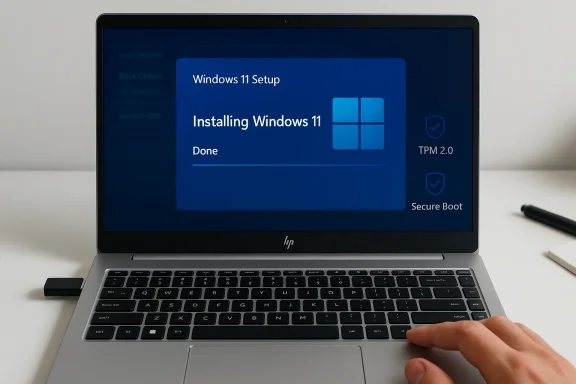
Windows 11 introduced stricter hardware rules compared with Windows 10 — TPM 2.0, UEFI/Secure Boot, 64‑bit only and minimum RAM/storage thresholds are the most common blockers. These rules are enforced during the installer’s preflight checks and can stop an in‑place upgrade; some advanced tools can bypass checks but doing so carries support and security trade‑offs. For most users, the supported path is to confirm firmware settings and create official installation media (Media Creation Tool), or for technicians, create tailored ISOs with Rufus or enterprise imaging tools.
A second, practical driver for doing a USB‑based install now is lifecycle timing: Windows 10 reached its formal end of mainstream support on October 14, 2025. If you’re still on Windows 10 you should plan a migration — the USB installer is especially useful for machines where Windows Update does not offer the upgrade automatically.
Installing Windows 11 from a USB is straightforward when you prepare carefully: verify TPM/UEFI state, use the Media Creation Tool for supported installs, and follow HP’s recovery/backup advice if you choose a clean install. For advanced users, Rufus provides flexibility but also greater responsibility — know the support and security implications before you bypass requirements. With the right checks, a reliable USB drive, and a good backup, you’ll finish with a clean, up‑to‑date Windows 11 system ready for everyday use or enterprise deployment.
Source: HP Install Windows 11 from USB: Step-by-Step Guide
 Background / Overview
Windows 11 introduced stricter hardware rules compared with Windows 10 — TPM 2.0, UEFI/Secure Boot, 64‑bit only and minimum RAM/storage thresholds are the most common blockers. These rules are enforced during the installer’s preflight checks and can stop an in‑place upgrade; some advanced tools can bypass checks but doing so carries support and security trade‑offs. For most users, the supported path is to confirm firmware settings and create official installation media (Media Creation Tool), or for technicians, create tailored ISOs with Rufus or enterprise imaging tools.A second, practical driver for doing a USB‑based install now is lifecycle timing: Windows 10 reached its formal end of mainstream support on October 14, 2025. If you’re still on Windows 10 you should plan a migration — the USB installer is especially useful for machines where Windows Update does not offer the upgrade automatically.
What you need before you start
Minimum hardware and firmware checklist
- CPU: 1 GHz or faster, 2 or more cores on a 64‑bit processor or SoC.
- RAM: 4 GB minimum (8 GB recommended for everyday use).
- Storage: 64 GB minimum (100 GB+ recommended to leave breathing room).
- Firmware: UEFI firmware with Secure Boot capability.
- TPM: Trusted Platform Module version 2.0 (can be discrete TPM or firmware fTPM/Intel PTT).
- Graphics/Display: DirectX 12 / WDDM 2.x, 720p+ display.
These baseline checks are enforced by the installer; in many HP models TPM and Secure Boot exist but are disabled by default in firmware, so verifying UEFI settings first removes the most common blocker.
Required tools and supplies
- A fast USB flash drive — 16 GB or larger recommended (USB 3.0 for speed).
- A second storage device (external HDD/SSD) for a full data backup.
- A working PC with internet access to download the Media Creation Tool or an ISO.
- About 1–2 hours for preparation and installation on most laptops; allow more time if you need to update firmware or back up large data sets.
Step 1 — Verify compatibility and prepare firmware
Before creating any media: run a compatibility check and record the firmware state. Use Windows’ PC Health Check or your OEM-provided diagnostics to confirm TPM, Secure Boot, and CPU compatibility. On HP machines, the common UEFI access keys (Esc, F9, F10) appear briefly at POST; the splash screen shows the correct key to enter firmware or the boot menu. If TPM or Secure Boot are present but disabled, enable them and save changes. If the platform lacks TPM 2.0, a firmware/BIOS update may expose fTPM/PTT settings — check HP’s support site for model‑specific guidance.- Tip: Update your BIOS/UEFI before the upgrade. Firmware updates can expose TPM/UEFI options and fix compatibility bugs that block Windows 11.
Step 2 — Create the bootable Windows 11 USB (official route)
For most users the safest method is Microsoft’s Media Creation Tool. It creates a UEFI‑friendly, verified installation USB and handles image integrity for you.- On a working Windows PC, download and run the Windows 11 Media Creation Tool.
- Accept the license, choose Create installation media (USB flash drive, DVD, or ISO file), then Next.
- Pick language, edition and 64‑bit architecture (Windows 11 is 64‑bit only).
- Choose USB flash drive and select the inserted USB (the tool will erase it).
- Wait while the tool downloads the Windows 11 image and writes it to the USB drive. The process can take 15–60 minutes depending on internet and USB speed.
Step 3 — Create the bootable USB (advanced route for technicians)
Power users and IT pros sometimes need extra flexibility — dual‑boot media, NTFS on the USB (for large WIM files), or controlled bypass options for testing older hardware. Rufus is the common choice.- Rufus lets you:
- Choose GPT vs MBR, set target system to UEFI, and pick NTFS if the install.wim is larger than FAT32 limits.
- Create media that can bypass TPM/Secure Boot checks (explicit checkboxes to remove requirements). Use these only for lab or non‑production work — Microsoft considers such installs unsupported and updates may be restricted.
- Download the Windows 11 ISO and the latest Rufus binary.
- Open Rufus, select the USB device and choose the ISO.
- Set Partition scheme to GPT and target to UEFI (non‑CSM) for modern HP systems.
- Choose NTFS if necessary, confirm options, and press Start.
Step 4 — Installing Windows 11 from the USB
There are two commonly used install modes:Option A — In‑place upgrade (keeps your files & apps)
- Boot to your current Windows desktop, insert the USB, open the drive in File Explorer and run Setup.exe.
- Follow the prompts; this path preserves apps, settings and activation, and is less disruptive. It’s the recommended path if you want continuity and the installer allows it.
Option B — Clean install (recommended for fresh starts)
- Insert the bootable USB into the target PC.
- Reboot and access the boot menu (HP models typically use Esc, F9 or F12 — the prompt is shown during POST).
- Boot from the USB drive. At the Windows Setup screen choose language and click Install now.
- If prompted for a product key choose I don’t have a product key if the device has a digital license; Windows will usually activate automatically after installation.
- Choose Custom: Install Windows only (advanced) for a clean installation — format the system partition if you want a truly fresh start.
- Follow on‑screen prompts until setup completes and Windows boots into OOBE (out‑of‑box experience).
- Note: A clean install removes bundled OEM apps and user data — always back up beforehand. HP recommends creating recovery media prior to wiping a system.
After installation — activation, drivers and updates
- Run Windows Update repeatedly until no further updates appear; this pulls down security updates, feature patches and driver updates Microsoft distributes. OEM drivers and firmware (from HP) can be installed via HP Support Assistant for model‑specific optimisations.
- If Windows did not activate automatically, enter your product key under Settings → Activation, or sign in with the Microsoft account that holds your digital entitlement.
- Re‑install antivirus, productivity tools and any specialised drivers (especially for audio, Wi‑Fi and GPU) from HP’s support site when available. Generic drivers may work, but OEM drivers minimise compatibility issues.
Troubleshooting the most common blockers
“This PC can’t run Windows 11”
The installer’s common blockers are TPM 2.0, Secure Boot, UEFI vs legacy BIOS, insufficient RAM or unsupported CPU. Confirm TPM is enabled in UEFI (it may appear as Platform Security, TPM Device, fTPM or Intel PTT), and ensure the firmware is in UEFI mode with Secure Boot enabled. Firmware updates often expose hidden toggles.USB won’t boot
- Ensure USB is first in UEFI boot order or choose it from the Boot Menu at POST. On HP machines the Boot Menu key is often Esc or F9.
- Recreate the USB with Media Creation Tool if the drive was made with an unsupported method; confirm the drive was formatted and written successfully.
Setup fails during file copy or driver stage
- Free up disk space (20–30 GB minimum free recommended), update the BIOS/UEFI and storage controller drivers, and retry. A reliable, high‑quality USB 3.0 drive reduces read/write errors.
Activation problems
- If you skipped entering a key, sign into the Microsoft account linked to the digital license once online. If activation still fails on a device that previously ran Windows 10/11, collect hardware IDs and contact HP or Microsoft support for activation assistance.
Risks and trade‑offs — what you need to know
- Bypassing TPM/Secure Boot: Tools and registry hacks exist to install Windows 11 on unsupported hardware. This may keep older PCs functional but makes the installation unsupported by Microsoft and potentially ineligible for updates — a serious security risk. Use bypasses only for testing or lab environments, not production.
- Data loss from clean installs: Without proper backups you will lose personal files, activation states for some apps, and OEM recovery partitions. Follow a strict backup routine before wiping a system.
- Driver compatibility: Older peripherals may not have Windows 11 drivers; confirm vendor support for devices like scanners, printers and niche peripherals before upgrading.
Enterprise and multi‑device deployment notes
For IT teams, HP and community guidance converge on a phased rollout:- Inventory and pilot: test critical apps and drivers on a small pilot group.
- Staged deployment: use Microsoft Endpoint Manager/Intune or SCCM for controlled rollouts.
- Hardware refresh phase: replace incompatible endpoints on a planned timetable rather than forcing bypasses.
Post‑installation optimisation checklist
- Create a System Restore Point and a fresh system image after setting up. This gives a quick rollback if a future update breaks functionality.
- Configure Windows Security: enable Defender, firewall, and automatic updates. Consider endpoint protection suites for business machines.
- Install OEM drivers from HP and run HP Support Assistant to keep firmware and drivers current.
- Personalise privacy and telemetry options in Settings to match organisational policies or personal comfort.
Final recommendations and a realistic timeline
- If your PC is supported, prefer the Media Creation Tool and either run an in‑place upgrade (to keep apps and settings) or do a clean install if you want a fresh system. The official tool and supported install paths minimize long‑term risks and keep your device within Microsoft’s update policy.
- Avoid unsupported bypasses on production machines — the convenience today may become a security and support burden tomorrow. If your hardware fails the checks and you can’t enable TPM/Secure Boot via firmware updates, treat that as a reason to consider hardware refresh or a managed ESU/bridge approach.
- If you manage many devices, plan a pilot phase, update firmware first, and deploy via managed tools. For single users, back up everything, create the official USB, update firmware, and install during a scheduled maintenance window.
Installing Windows 11 from a USB is straightforward when you prepare carefully: verify TPM/UEFI state, use the Media Creation Tool for supported installs, and follow HP’s recovery/backup advice if you choose a clean install. For advanced users, Rufus provides flexibility but also greater responsibility — know the support and security implications before you bypass requirements. With the right checks, a reliable USB drive, and a good backup, you’ll finish with a clean, up‑to‑date Windows 11 system ready for everyday use or enterprise deployment.
Source: HP Install Windows 11 from USB: Step-by-Step Guide
