

Microsoft’s February Intune update stitches together three practical, long‑requested controls—multi‑administrator approvals for critical policies, deeper Advanced Analytics query controls for large fleets, and assignment filter support for Apple’s Declarative Device Management—into a single release that’s explicitly aimed at eliminating dangerous administrative workarounds and tightening Zero Trust device governance. The changes are small‑sounding on the surface, but together they remove procedural loopholes that have long pushed IT teams toward fragile, high‑risk practices.
Microsoft Intune has steadily evolved from a basic MDM console into a policy‑driven control plane for Zero Trust device posture. For years, administrators have used informal processes—shadow admin accounts, duplicated policies, or broad assignments—to work around governance gaps in Intune. Those workarounds create drift, increase the blast radius of mistakes, and complicate compliance evidence. The February release directly addresses those pain points by adding formal, product‑level controls: approval gates to stop careless changes, more reliable fleet query join semantics to locate gaps, and targeted delivery controls for Apple DDM that prevent one‑size‑fits‑all updates.
Microsoft documents the functional surface of these capabilities in multiple places: the Intune team’s “What’s New” note for February, the Advanced Analytics and Device Query guidance, and the core Intune multi‑admin approval documentation—together they form the authoritative picture of what changed and how to adopt it.
For teams that want to move quickly: prioritize a narrow MAA scope, convert a handful of triage scripts to MDQ queries using the new join types, and run a DDM + filter pilot for Apple update rollouts. Those three small projects will deliver outsized returns: fewer emergency rollbacks, fewer accidental policy exposures, and faster, evidence‑driven troubleshooting across a mixed‑OS fleet.
Overall, this update is a concrete example of product design meeting operational reality: the best security controls are those you can enforce without crippling the people who need to move fast. Microsoft’s February Intune changes make that balance more achievable—provided administrators treat product features as a change in governance and update their people, process, and runbooks accordingly.
Source: Petri IT Knowledgebase Microsoft Intune Expands Policy Approvals, Analytics for Stronger Device Governance
 Background
Microsoft Intune has steadily evolved from a basic MDM console into a policy‑driven control plane for Zero Trust device posture. For years, administrators have used informal processes—shadow admin accounts, duplicated policies, or broad assignments—to work around governance gaps in Intune. Those workarounds create drift, increase the blast radius of mistakes, and complicate compliance evidence. The February release directly addresses those pain points by adding formal, product‑level controls: approval gates to stop careless changes, more reliable fleet query join semantics to locate gaps, and targeted delivery controls for Apple DDM that prevent one‑size‑fits‑all updates.Microsoft documents the functional surface of these capabilities in multiple places: the Intune team’s “What’s New” note for February, the Advanced Analytics and Device Query guidance, and the core Intune multi‑admin approval documentation—together they form the authoritative picture of what changed and how to adopt it.
What changed: quick summary of the three headline features
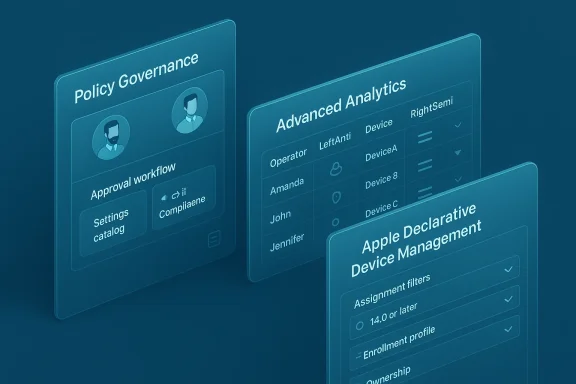
- Multi‑administrator approvals expand to configuration and compliance policies. Intune now supports requiring a second admin to approve creation, modification, assignment, or deletion of device configuration policies created through the Settings catalog and for device compliance policies. This builds on multi‑admin approval support already present for apps, scripts, device actions, RBAC role changes, and device categories.
- Advanced Analytics: richer Multiple Device Query (MDQ) output and join types. MDQ results now include operator details and support additional join types—specifically leftanti and rightsemi—allowing admins to locate missing or mismatched devices more precisely across OS boundaries. Device columns in joined results are clickable, and the console improves error messaging for faster troubleshooting.
- Apple DDM policies gain assignment filter support. Declarative Device Management (DDM)–based settings (for example, software‑update declarations) can now be targeted using Intune assignment filters so you can scope DDM policies by OS version, enrollment profile name, or ownership (company vs. personal). Note: Microsoft’s docs show this as a recent and rolling change; older pages still claim DDM lacked filter support, so tenant availability and doc alignment should be verified.
Deep dive: Multi‑administrator approvals (MAA)
What administrators get
- Second‑admin gating on critical configuration objects created via the Settings catalog and on device compliance policies. Changes—create, edit, assign, delete—are held pending approval by a different administrator. That second admin reviews a business justification and either approves or rejects the request. Audit logs record the whole flow.
- Centralized requests and approver workflow. Requests surface under Tenant administration > Multi Admin Approval. Approvers see details and can annotate the request. When approved, the original requester completes the operation to let Intune process the change. All status transitions are time‑bounded (for example, requests can expire) and logged.
Why this matters
- Prevents accidental broad changes. Many organizations historically duplicated policies into “test” versions or used shadow accounts to avoid accidental disruption. A formal MAA flow reduces the need for those unsafe workarounds by making oversight part of the product rather than process.
- Improves auditability and governance. Because every request, approval, note, and completion is logged, security, compliance, and internal audit teams get a clearer trail for change control evidence. This matters for regulated industries and for any organization building proof of least privilege.
Practical caveats and risks
- Workflow latency and staffing. Adding approval gates introduces a human dependency. If approvers are not staffed or reachable, critical policy changes can be delayed. Intune currently does not send built‑in notifications for requests; organizations must establish on‑call rosters or messaging processes to avoid bottlenecks.
- Approver permissions and role design. Approvers must be in designated approval groups and have appropriate Intune roles. Careless role assignment could create blind spots where nobody with the right mix of permissions can approve requests. Use RBAC planning to avoid orphaned approvals.
- Scope creep for approvals. Resist the temptation to protect too many small changes with MAA. A sensible policy is to protect only high‑risk surfaces (global compliance baselines, enforcement thresholds, production‑critical configuration profiles) and leave low‑risk edits outside the approval path.
Deployment checklist (high level)
- Identify the top 10 configuration and compliance artifacts that, if misconfigured, would create the most risk.
- Create approver groups mapped to business units or risk tiers.
- Configure Access Policies and enable MAA for targeted profile types.
- Test the flow end‑to‑end using non‑production tenants or pilot groups.
- Update runbooks and establish notification channels for approvers.
- Monitor audit logs for missed approvals and adjust scope.
Deep dive: Advanced Analytics and multiple‑device queries (MDQ)
What changed technically
- Operator metadata in MDQ results. Query outputs now include which operator and join type produced each row. That visibility reduces guesswork when queries return unexpected results and helps admins reason about why a device is missing from a result set.
- New join types: leftanti and rightsemi. These join operators are particularly useful for negative‑match queries (find devices present in table A but not in table B) or for filtering by existence without duplicating rows. They allow large‑scale fleet joins across disparate OS inventory tables with better precision.
- Clickable Device join syntax. When the Device entity is joined, the Device column is now interactive in results, enabling quick pivoting into single‑device views and reducing context switching during triage.
Why operators like leftanti and rightsemi matter
In practice, an admin attempting to find “which devices are missing the FileVault DDM declaration” or “which macOS machines are missing a required kernel extension” frequently needs to run anti‑joins—rows in devices table that are not represented in the target inventory table. Before, admins had to engineer complex queries and maintain fragile custom join syntax; leftanti/rightsemi standardize and simplify that logic, making fleet‑wide gap analysis both faster and less error prone.Operational impact
- Faster, more precise triage. Help desks and NOC teams can run a single MDQ and iterate quickly; clickable joins reduce the number of manual lookups needed per incident.
- Better Zero Trust signals. More accurate device presence and configuration reconciliation feeds conditional access and risk engines with higher‑quality telemetry; fewer false positives means fewer disruptive access blocks for users.
Example scenarios (conceptual)
- Run a leftanti join to list corporate devices that don’t report a required endpoint agent record.
- Use rightsemi to filter devices that have an app inventory entry but lack the associated security configuration.
- Quickly pivot from a Device column in MDQ results to a single‑device timeline to correlate a missing setting with a recent enrollment or update event.
Deep dive: Apple Declarative Device Management (DDM) — assignment filters are now supported (with caveats)
The promise
DDM allows Apple devices to execute server‑driven declarations—such as enforcing the latest OS or targeting a specific OS version—without the interactive MDM prompts that historically limited automation. The February Intune changes permit DDM policies to be assigned with the same assignment filters used for MDM policies, enabling targeting by OS version, enrollment profile, or ownership to avoid applying declarations broadly to personally‑owned devices. That addresses a very real operational risk: forcing an iPhone or iPad update on a personal device causing user disruption or data loss.Important compatibility and doc notes
- Docs changed over time. Until recently, Intune’s managed‑software‑updates guidance explicitly stated that assignment filters are not supported for DDM‑based policies. That language persisted on some pages even as Microsoft rolled the filter capability into product releases and in‑development notes. Administrators should verify the behavior in their tenant and check the current Microsoft Learn guidance for the precise state of rollout. In short: the feature is documented as rolling out, but older guidance may still exist—test before broad adoption.
- Rollout windows and tenant visibility. Assignment filter support for DDM is described in Microsoft’s in‑development and what’s‑new notes and is being rolled to tenants progressively; don't assume immediate availability on all tenants. Check your Intune admin center and the new Settings Catalog options for DDM assignment filter fields.
Practical guidance
- Use assignment filters to carve out pilot cohorts by OS version: target iOS 17+ for a pilot, then expand.
- Use enrollment profile name or DeviceManagementType filter to exclude personally owned devices.
- Run MDQ queries to validate filter membership before enforcing DDM declarations broadly.
Risks and testing
- Misconfigured filters can block updates. If a filter is too narrow, updates may not reach devices you intended, creating a false sense of coverage. Always preview filters against your device inventory and run MDQ to confirm results.
- Legacy doc confusion may mislead teams. Because some documentation still references the older limitation, cross‑check the Settings Catalog UI in your tenant and consider a pilot validation plan before using filters for broad production rollouts.
Governance and security analysis: strengths and potential pitfalls
Strengths
- Stronger change control without custom processes. Built‑in MAA removes the temptation to rely on email approvals or shadow accounts; approvals live where the change happens and are auditable.
- Higher‑quality signals for trust decisions. Advanced Analytics MDQ improvements reduce the likelihood of incorrect conditional‑access evaluations by surfacing why devices were excluded or missing. This directly supports Zero Trust posture enforcement.
- Granular Apple targeting reduces collateral damage. Assignment filters for DDM let organizations be surgical with OS rollouts and security declarations, reducing disruption to users and the help desk.
Potential pitfalls
- Operational friction vs. security tradeoff. Approvals improve safety but slow urgent changes. Organizations must define clear escalation paths and emergency procedures (for example, pre‑authorized approver lists or temporary exceptions) to avoid operational paralysis.
- Documentation drift and feature availability. As Microsoft updates docs and products rapidly, admins must confirm tenant availability and reconcile contradictory guidance—especially for the DDM filter story where older pages still claim a limitation. Test and validate in your tenant.
- Human process weaknesses remain. MAA is only as good as the human process that backs it; approvers need SLAs, a culture of timely review, and an audit process to ensure approvals don’t become rubber stamps.
Recommendations: how to adopt these features safely and quickly
- Pilot MAA for a narrow, high‑impact scope. Start with compliance baselines or a single global configuration profile. Measure approval turnaround time and adjust approver rosters.
- Validate MDQ querunbooks. Replace brittle ad‑hoc inventory scripts with MDQ queries that use the new join types; store these queries in a shared, versioned knowledge base for triage teams.
- Test DDM + assignment filters in a sandbox. Create filters (OS version, enrollment profile) and preview matched devices prior to enforcing updates. Track results with MDQ to make sure membership matches expectations.
- Design emergency bypass procedures. Document when and how an approver exception is allowed, who authorizes it, and how it’s recorded after the fact. Make exceptions discoverable in audit logs.
- Monitor audit logs and approval metrics. Use Intune audit logs to measure request frequency, approval times, and rejected‑request reasons—feed that data into regular governance reviews.
- Communicate changes to help desk and security teams. Ensure SOC/NOC, help desk, and platform engineers understand the new behaviors so they can use MDQ and the approval surface effectively in incident response.
Troubleshooting and what to watch
- If a policy change doesn’t apply after approval, check for configuration conflicts (per‑setting status in Settings Catalog) and review the My requests / Received requests panes for stuck operations. Audit logs provide the timeline of who submitted, who approved, and why—use this to identify human process errors as much as technical ones.
- For MDQ, remember there are limits: max ~50,000 returned rows, up to three joins per query, and quotas on the number of queries per minute/month. Plan queries and pagination accordingly for very large fleets.
- When adopting DDM assignment filters, run both the policy preview and a device‑level MDQ to confirm filter matches before enforcing deadlines. If behavior contradicts expectations, check for differences in the Device Management Type property values and enrollment profile naming conventions.
Conclusion
Microsoft’s February Intune release is a solid, operationally focused set of enhancements that reduce reliance on ad‑hoc workarounds and harden device governance. By formalizing approvals for settings catalog configuration and compliance policies, improving MDQ operator semantics for fleet‑scale queries, and enabling assignment filters for Apple DDM, Microsoft has closed several long‑standing gaps that forced IT teams into fragile manual processes. Admins should pilot the changes aggressively—validating tenant availability and documentation, designing approver SLAs, and updating runbooks to leverage MDQ and filters—because the security and operational posture gains are real, but only if the organizational processes are adjusted to match.For teams that want to move quickly: prioritize a narrow MAA scope, convert a handful of triage scripts to MDQ queries using the new join types, and run a DDM + filter pilot for Apple update rollouts. Those three small projects will deliver outsized returns: fewer emergency rollbacks, fewer accidental policy exposures, and faster, evidence‑driven troubleshooting across a mixed‑OS fleet.
Overall, this update is a concrete example of product design meeting operational reality: the best security controls are those you can enforce without crippling the people who need to move fast. Microsoft’s February Intune changes make that balance more achievable—provided administrators treat product features as a change in governance and update their people, process, and runbooks accordingly.
Source: Petri IT Knowledgebase Microsoft Intune Expands Policy Approvals, Analytics for Stronger Device Governance
