

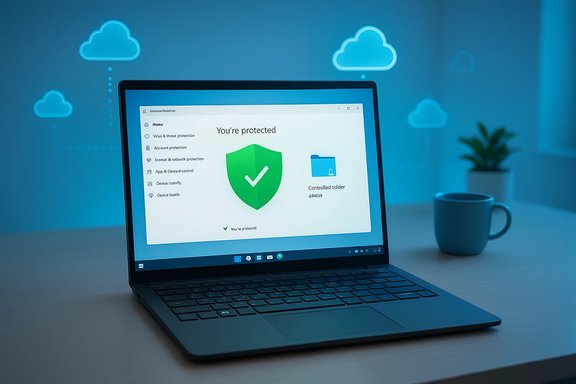
Windows 11 already gives most users a strong, zero‑cost baseline of antivirus protection through Microsoft Defender, and the message from Microsoft is simple: for everyday use, built‑in defenses plus a few smart habits are often sufficient. The guidance emphasizes real‑time scanning, cloud‑delivered intelligence, ransomware protection (Controlled Folder Access), and family safety features that activate automatically without extra subscriptions or complex setup.
Windows has shipped with integrated security for years, and that integration is now the core selling point for Defender: tight OS hooks, automatic updates via Windows Update, and features that reach beyond simple signature scanning into cloud telemetry, tamper protection, and targeted ransomware defenses. These changes have shifted the practical question from “Do I need antivirus?” to “Does Defender meet my risk profile?” Independent reviews and community analyses show Microsoft Defender closing the gap with many paid suites on protection and performance, while still trailing in some advanced features and cross‑platform management that enterprise or power users may require.
However, there are a few places that require nuance or caution:
The balance for most readers is pragmatic: rely on the built‑in defenses as the baseline, strengthen them with the hardening checklist above, and add targeted, interoperable tools where use cases demand extra capabilities. Remain skeptical of broad claims about “catching every threat” and treat forward‑looking statements about attacker tools as a prompt to keep systems patched and backups current rather than as a reason for panic.
Source: Microsoft Trusted Antivirus Protection for PCs | Microsoft Windows
 Background
Windows has shipped with integrated security for years, and that integration is now the core selling point for Defender: tight OS hooks, automatic updates via Windows Update, and features that reach beyond simple signature scanning into cloud telemetry, tamper protection, and targeted ransomware defenses. These changes have shifted the practical question from “Do I need antivirus?” to “Does Defender meet my risk profile?” Independent reviews and community analyses show Microsoft Defender closing the gap with many paid suites on protection and performance, while still trailing in some advanced features and cross‑platform management that enterprise or power users may require.Overview of Microsoft’s guidance (what the provided material says)
Microsoft’s consumer guidance for “trusted antivirus protection” boils down to three simple claims:- You’re protected out of the box. Windows 11 enables Defender by default so new machines start with real‑time protection immediately.
- Key protections are built in and automated. Defender provides on‑access scanning, cloud‑delivered intelligence for fast detection, and ransomware mitigations such as Controlled Folder Access.
- Good habits matter. Microsoft pairs technical safeguards with behavior‑based advice: keep Windows and apps updated, use strong sign‑in methods (Windows Hello), leave the firewall on, and back up files to OneDrive or another service.
What Microsoft Defender actually covers — features and capabilities
Core protections
- Real‑time protection (on‑access scanning): Blocks known malware and prevents many common attacks at the moment files are opened or executed.
- Cloud‑delivered protection: Files and behaviors can be checked against Microsoft’s cloud intelligence for faster identification of new threats.
- Automatic updates: Security intelligence (definitions) and Defender improvements are delivered via Windows Update, keeping the engine current without user intervention.
- Tamper Protection: Prevents malicious actors (or poorly written scripts) from disabling Defender settings.
- Controlled Folder Access (ransomware mitigation): Locks down sensitive folders so untrusted apps cannot modify or encrypt files without explicit permission.
- Microsoft Defender Offline: A restart‑based scan that runs in a minimal environment to detect stealthy threats like rootkits.
- App & Browser Control (SmartScreen): Blocks malicious or suspicious websites and downloads — especially effective when using Microsoft Edge, though some protections are browser‑specific.
Ancillary features
- Firewall & Network Protection: Windows Firewall works alongside Defender to manage inbound and outbound network access.
- Account protection and Windows Hello: Biometric sign‑in options reduce reliance on passwords and can limit account compromise.
- Family safety and parental controls: Integrated controls help parents manage children’s device usage and content access.
How well Defender performs — independent testing and real‑world context
Multiple independent testing organizations and aggregated review analyses indicate that Microsoft Defender has markedly improved over recent years. Key observations from independent testing and reviewers:- Protection scores are strong in many AV‑Test and AV‑Comparatives cycles, showing Defender can achieve near‑top marks in protection, performance, and usability in several test windows.
- Real‑world phishing and URL blocking can lag behind the absolute leaders in some rounds, and certain web protections are most effective when used with Microsoft Edge. This is an important practical caveat for users who prefer Chrome or Firefox.
- Performance impact is low. Defender’s tight integration with Windows means it typically has a smaller system footprint and causes fewer disruptions compared with many third‑party products.
Strengths: what Defender and Microsoft’s approach get right
- Low friction, high adoption. Because Defender is enabled by default and maintained through Windows Update, the average user benefits without needing to research, install, or pay for a separate product. This reduces the window of exposure when new devices are set up.
- Tight OS integration equals efficiency. Built‑in telemetry, security configuration, and features like Tamper Protection allow Defender to operate efficiently and with fewer system conflicts than some third‑party agents.
- Ransomware mitigations. Controlled Folder Access gives users a practical, built‑in way to prevent unauthorized apps from encrypting files — a key defense in an era of frequent ransomware campaigns.
- Reasonable lab performance for everyday threats. Independent lab cycles show Defender catching a large share of prevalent threats, which is what most home users will encounter.
Limitations and risks: where Defender can fall short
- Advanced enterprise features are missing in the free baseline. Endpoint Detection and Response (EDR), automated rollback, and sophisticated forensic tooling are part of enterprise or third‑party products rather than Defender’s consumer baseline. Organizations should evaluate Microsoft Defender for Endpoint or other enterprise products when those capabilities are required.
- Phishing/web protections depend on browser choice. Some URL filtering and SmartScreen protections are optimized for Microsoft Edge; users of other browsers may experience weaker blocking of malicious links unless additional extensions or protections are used.
- Zero‑day and social engineering gaps. No antivirus can fully guard against social engineering (scams that trick users into revealing secrets) or brand‑new zero‑day exploits before signatures or behavioral heuristics are available. These are human and timing problems, not strictly product flaws.
- Feature tradeoffs in free vs. paid tiers. Many third‑party vendors reserve advanced remediation, network‑level protections, or unlimited VPNs for paid tiers. Defender covers the essentials but doesn’t bundle every convenience feature found in commercial suites.
Practical hardening checklist: getting the most from built‑in protections
- Enable and verify real‑time protection and cloud delivery in Virus & Threat Protection.
- Turn on Tamper Protection to prevent apps and scripts from disabling Defender settings.
- Enable Controlled Folder Access for folders containing documents, photos, and other irreplaceable files. Add trusted apps as needed to avoid false positives.
- Use Microsoft Defender Offline if you suspect deeply hidden malware that normal scans miss.
- Keep Windows and apps patched; configure Windows Update to apply security updates automatically.
- Use strong sign‑in methods (Windows Hello with biometric or PIN) and enable multi‑factor authentication where available.
- Keep the firewall enabled and review network profiles (Public vs. Private) when you connect to new networks.
- Back up important data to OneDrive or a separate external storage solution with versioning enabled. Backups are the last line of defense against ransomware.
When to consider third‑party antivirus or additional layers
- You manage a business or handle sensitive intellectual property, legal/health records, or regulated data. Enterprise needs usually require centralized management, EDR, and incident response capabilities not present in the consumer Defender baseline.
- You need consistent multi‑platform protection across Mac, Linux, Android, and iOS from a single console. Defender’s consumer version is Windows‑centric; cross‑platform suites can simplify protection for mixed environments.
- You want bundled privacy extras (unlimited VPN, identity theft monitoring, bundled password managers) that Defender does not provide in its base offering. Many paid suites differentiate on those extras.
Critical assessment: strengths, contradictions, and unverifiable claims
Microsoft’s messaging is consistent and pragmatic: Defender protects the majority of users with minimal fuss. That claim is supported by lab results and the product’s performance in many real‑world tests.However, there are a few places that require nuance or caution:
- Microsoft emphasizes cloud intelligence and rapid updates, which is accurate, but claims about catching every new threat instantly are optimistic — cloud lookups and heuristics reduce response time but cannot guarantee immediate detection of novel, targeted zero‑days. This limitation is inherent to any signature/telemetry‑based system and should be understood by users.
- Statements that “built‑in protections are enough for most users” are broadly true, but they depend on user behavior. High‑risk browsing habits, installing unsigned apps, or ignoring OS updates can quickly raise your risk above what Defender alone was designed to mitigate. This is a real‑world caveat sometimes underplayed in consumer guidance.
- Assertions about AI‑based malware evolving faster than defenses are plausible and widely reported in industry commentary, but predicting precise timelines or impact of AI in offense vs. defense requires ongoing measurement; it is a trend to monitor rather than an absolute technical failure of Defender. Treat such forward‑looking claims as cautionary, not definitive. Flagging this as a caution helps readers prioritize updates and layered defenses.
Practical recommendations for readers
- For the average home user who primarily browses, streams, shops, and works on office documents, enable Defender defaults, keep Windows updated, and use strong sign‑in and backup practices. This combination delivers excellent protection with minimal friction.
- Power users, small businesses, and anyone handling regulated data should evaluate enterprise‑grade protections (Defender for Endpoint or third‑party EDR) that provide centralized management, automated investigation, and remediation workflows.
- If you prefer a layered approach without swapping Defender, consider adding a specialist tool alongside Defender (for example, a dedicated password manager, a standalone VPN, or a browser extension for phishing protection), but avoid running conflicting real‑time antivirus engines together. Many vendors include guidance about interoperability; follow those recommendations to prevent stability issues.
Conclusion
Microsoft’s “trusted antivirus protection” message is accurate in substance: Windows 11 ships with a capable, low‑friction antivirus in Microsoft Defender, and when paired with routine security hygiene—timely updates, secure sign‑in, firewall use, and backups—it protects most home users against the bulk of everyday threats. Independent lab testing corroborates Defender’s substantial improvements in protection and performance, though specialized needs (enterprise EDR, cross‑platform management, and advanced privacy bundles) still justify third‑party solutions for some users.The balance for most readers is pragmatic: rely on the built‑in defenses as the baseline, strengthen them with the hardening checklist above, and add targeted, interoperable tools where use cases demand extra capabilities. Remain skeptical of broad claims about “catching every threat” and treat forward‑looking statements about attacker tools as a prompt to keep systems patched and backups current rather than as a reason for panic.
Source: Microsoft Trusted Antivirus Protection for PCs | Microsoft Windows
