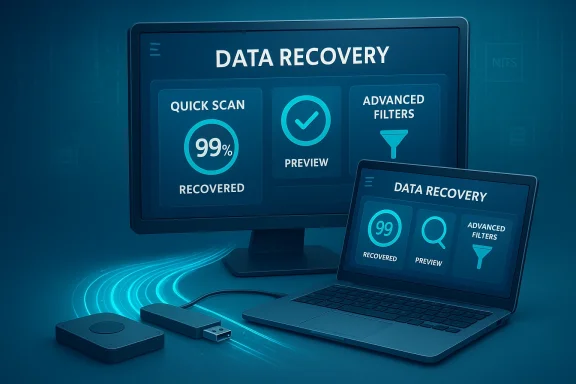
iToolab’s RecoverGo Windows Data Recovery V1.3.0 arrives with bold claims — the vendor says the new release can recover “permanently deleted files” with a success rate up to 99%, and bundles user-friendly scanning modes, file previews, and support for a wide range of storage media. The update is being presented as a practical tool for everyday Windows users who have emptied the Recycle Bin, formatted a volume, or lost files after a system glitch, but the announcement also raises important technical and trust questions that every Windows user should weigh before buying or relying on a paid recovery tool.
Data recovery is a crowded, technically demanding space where vendor marketing often outpaces demonstrable, lab-tested results. Consumer-grade recovery tools range from simple GUI utilities to advanced forensic suites; some vendors publish high recovery percentages for marketing, while real-world success depends on many variables — drive type, whether TRIM ran on andwhether the sectors holding the deleted data have been overwritten. Best-practice triage steps and built-in alternatives like Windows’ snapshot and backup features remain the most reliable first defenses against data loss.
iToolab’s press release and product pages position RecoverGo V1.3.0 as a modern, easy-to-use consumer product for Windows 11/10/8/7, promising fast scans, previews, and compatibility with internal drives, external HDDs, SSDs, SD cards, USB drives and cameras. The vendor also lists tiered pricing plans (1 Month, 1 Year, Lifetime) that match common commercial models for recovery tools.
That said, “up to 99% recovery” needs context. Without independent, reproducible lab tests that document conditions and methods, a single percentage figure is insufficient evidence for universal performance. The recovery community and technical guidance consistently warn that SSD/TRIM behavior, overwrite status, and drive health are decisive factors that cannot be resolved by any single GUI alone. In short: the claim is plausible in controlled conditions (for example, recent deletionfile types) but is not a general guarantee for all deletion scenarios. Treat the 99% figure as a vendor-reported marketing claim until independent tests demonstrate otherwise.
For WindowsForum readers and practical Windows users: if you’ve lost files, run a free scan and preview with RecoverGo or any reputable recovery tool to see whether the deleted files are visible and previewable. If previews work and file integrity looks good, the tool has done the hard part — then weigh the cost of purchase against the value of the recovered data. If a free preview shows nothing or the device is an SSD showing TRIM behavior, be realistic about the odds and consider professional recovery for priceless data.
iToolab’s RecoverGo V1.3.0 is a useful tool to have in the toolkit — particularly for consumers dealing with mechanical drives, USB media, or memory cards. Its UI conveniences and preview features align with the practical needs of non-technical users, and its store pricing follows familiar market patterns. But the single most important takeaways remain the same as they’ve always been for file recovery: act quickly, avoid writes to the affected drive, use previews to validate results, and treat vendor-reported recovery percentages with healthy skepticism unless backed by independent verification.
Source: Send2Press iToolab RecoverGo Windows Data Recovery V1.3.0 Officially Released: Recover Permanently Deleted Files
 Background
Data recovery is a crowded, technically demanding space where vendor marketing often outpaces demonstrable, lab-tested results. Consumer-grade recovery tools range from simple GUI utilities to advanced forensic suites; some vendors publish high recovery percentages for marketing, while real-world success depends on many variables — drive type, whether TRIM ran on andwhether the sectors holding the deleted data have been overwritten. Best-practice triage steps and built-in alternatives like Windows’ snapshot and backup features remain the most reliable first defenses against data loss.iToolab’s press release and product pages position RecoverGo V1.3.0 as a modern, easy-to-use consumer product for Windows 11/10/8/7, promising fast scans, previews, and compatibility with internal drives, external HDDs, SSDs, SD cards, USB drives and cameras. The vendor also lists tiered pricing plans (1 Month, 1 Year, Lifetime) that match common commercial models for recovery tools.
What iToolab is claiming in V1.3.0
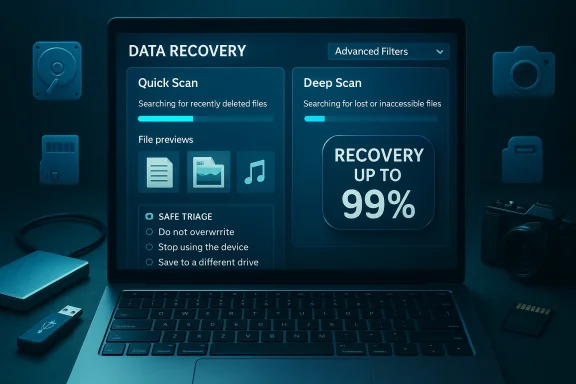
iToolab’s announcement highlights several feature claims that are central to the product’s value proposition:- Optimized scanning modes — improved quick and advanced scans intended to find deeply deleted data.
- High reported success rate — marketing material and the product page state a recoverability rate “up to 99%” for severe data-loss scenarios.
- Free scan and preview — the ability to scan and preview files without paying, then choose which items to recover.
- Advanced filters — filename, type, and path filters to reduce scan noise and speed identification.
- Wide device compatibility — claims of recovering files from HDD, SSD, SD card, USB flash, and digital cameras.
- Tiered pricing — 1 Month, 1 Year and Lifetime licenses, with listed price points that appear in the vendor store.
- Simple workflow — download, choose a location to scan, run Quick or Advanced scan, preview, recover. The vendor’s user guide walks users through these steps.
Why the 99% claim warrants scrutiny
Vendor-reported recovery peive marketing copy, but they require careful interpretation. The practical recoverability of deleted data varies dramatically by scenario:- On a mechanical hard drive (HDD), deleted data often remains until ery tools typically have higher odds of success.
- On a solid-state drive (SSD), the presence and behavior of TRIM means the operating system can instruct the SSD to erase blocks that are no longer allocated, making deleted data unrecoverable very quickly in many cases. This is a widely accepted technical reality.
- Recovery also depends on whether the file system’s metadata (e.g., NTFS MFT entries) remains intact; if metadata is missing, tools must rely on signas that are slower and less precise.
The technical reality of file recovery: what works and what doesn’t
Understanding why recovery succeeds or fails will help you judge any recovery tool clasignature scans- Metadata (fast) scans use file system records (like NTFS’s Master File Table). These are fast and accurate when metadata survives. They are the best option for recent deletions on NTFS volumes.
- Signature (deep/raw) scans read sectors directly and search for known file headers/footers. They can find files after metadata is lost but are slower and may produce partial or fragmented results. Expn large volumes.
SSDs and TRIM
- TRIM is effectively the biggest single limit on SSD recoverability. When TRIM is enabled (the default on modern Windows installations and SSD firmware), deleted blocks are marked for erasure and the SSD controller often clears them quickly, drastically reducing the recovery window. Foiate action* is vital for SSDs — but even immediate action may not help if TRIM has already run.
Overwrites, secure erases, and physical damage
- If sectors have been overwritten by new writes, or a secure wipe has been performed, recovery at software level is effectively impossible. Only specialized hardware-level forensic techniques can attempt recovery in rare cases — and those are costly and not guaranteed.
Practical triage rules every user should follow
- Stop writing to the affected drive immediately — every write increas If possible, remove the drive and attach as a secondary disk or USB device to do scanning from a different host.
- Recover to a different physical drive — never write recovered files back to the source.
- Use Quick (metadata) scans first; escalate to Deep/Advanced scans only if necessary.
These steps are repeated across best-practice guides because they materially improve the chance of success.
Where RecoverGo fits: features, workflow and pricing
iToolab positions RecoverGo as a straightforward GUI recovery product for Windows users. From the materials published by the company and the press release:- The advertised workflow is familiar and accessible: install on a different drive from the one being scanned, select the location, run a Quick or Advanced scan, preview results, then recover to an external or alternate drive. The vendor’s step-by-step guide echoes the standard safe-practice workflow.
- The product page claims support for “1000+ file types” and lists extensive image, document and video formats — an expected marketing assertion for modern recovery tools.
- Pricing is tiered: the vendor store shows 1 Month, 1 Year and Lifetime licensing options, with the Lifetime package marketed as the best value for frequent users. Promotional discounts are sometimes applied in seasonal sales events. The store page includes statements about licensing boundaries and refund policy disclaimers typical of consumer software merchants.
How to evaluate recovery software claims (a checklist)
When a vendor advertises a high success percentage, use this checklist to evaluate the claim:- Does the vendor publish independent lab results or third-party tests replicable by others?
- Are therhmultiple scenarios (HDD vs SSD, formatted vs deleted, fragmented media)?
- Does the vendor qualify their percentage (e.g., “up to 99% on HDDs under controlled conditions”) or is it an absolute number?
- Are user reviews corroborative and from multiple sources (not just vendor-published testimonials)?
- Is there a generous trial that allows recovery of at least a small set of files to validate performance in your environment?
Independent signals and user feedback
Independent review coverage and user feedback can help form an evidence base:- iToolab’s own marketing pages and the Sent2Press/StreetInsider press release describe the V1.3.0 release and the 99% claim. Those are vendor and syndication sources and reflect the official announcement.
- Third-party comparison lists and recent roundups will sometimes include iToolab RecoverGo alongside other mainstream tools; however, aggregated comparison pages are not the same as controlled forensic testing. They can reflect editor testing methodology, but methodology matters and should be inspected.
- Community feedback (forums and social channels) frequently contains both praise for successful recoveries and reports of disappointment, especially where users misunderstand free-trial limitations or where SSD/TRIM made recovery impossible. Real-world user experiences are informative, but they are anecdotal and subject to sampling bias; treat them as signals rather than definitive proof.
Practical steverGo safely (based on iToolab’s guide)
If you choose to try RecoverGo, follow safe procedures to preserve recoverability:- Stop writing to the affected drive. Power down unneeded apps and avoid saving to the same volume.
- Install RecoverGo on a separate drive or boot from clean media so the installer does not write to the source disk. The vendor guide emphasizes installing on another drive.
- Choose the correct scan location — select the partition, folder or ethe files were lost.
- Run a Quick Scan first, review results. If nothing appears, run the Advanced/Deep scan. Expect long runtimes on multi-terabyte media.
- Use preview to confirm file integrity before paying or restoring. RecoverGo advertises free preview capabilities.
- Recover to a different physical drive (external HDD/SSD or another internal disk) and verify files after recovery.
Security, privacy and vendor hygiene
Before running any recovery tool, consider the following:- Download the installer from the vendor’s official store to avoid tampered binaries. iToolab’s store page mentions digital signing and secure transaction processing — small positive indicators, but not a substitute for independent verification.
- Scan the installer with up-to-date AV engines and, if you can, verify checksums if the vendor publishes them. Community advice consistently recommends verifying downloads and using portable builds where available.
- Read the licensing terms carefully so you understand trial limits, refund policies, and whether previews are free while full recovery requires payment. Many commercial tools limit recovery in their free editions or use preview-only trials to let users confirm recoverability before paying.
When to try RecoverGo — and when to stop and call a pro
Try RecoverGo (or any GUI recovery tool) when:- The data was on an HDD or removable media (USB, SD) and deletion was recent.
- You can stop using the device and follow safe triage rules.
- You want an accessible GUI with preview capability and don’t have immediate access to a forensic service.
- The drive shows signs of physical failure (clicking, SMART errors).
- The data is mission-critical and resides on an SSD that likely had TRIM enabled; laboratory-level chip-off or controller repairs may be the only option.
- You cannot or will not follow basic triage rules (for example, attempting to recover by installing software to the affected drive).
Critical appraisal and final verdict
iToolab RecoverGo Windows Data Recovery V1.3.0 is a credible addition to the consumer recovery market: it packages familiar and useful features — Quick/Deep scans, previews, filters, and multi-device compatibility — into an accessible UI that will be helpful for many typical HDD and removable-media recoveries. The product pages and the press release provide the expected marketing and practical guidance for typical users.That said, “up to 99% recovery” needs context. Without independent, reproducible lab tests that document conditions and methods, a single percentage figure is insufficient evidence for universal performance. The recovery community and technical guidance consistently warn that SSD/TRIM behavior, overwrite status, and drive health are decisive factors that cannot be resolved by any single GUI alone. In short: the claim is plausible in controlled conditions (for example, recent deletionfile types) but is not a general guarantee for all deletion scenarios. Treat the 99% figure as a vendor-reported marketing claim until independent tests demonstrate otherwise.
For WindowsForum readers and practical Windows users: if you’ve lost files, run a free scan and preview with RecoverGo or any reputable recovery tool to see whether the deleted files are visible and previewable. If previews work and file integrity looks good, the tool has done the hard part — then weigh the cost of purchase against the value of the recovered data. If a free preview shows nothing or the device is an SSD showing TRIM behavior, be realistic about the odds and consider professional recovery for priceless data.
Quick recommendations (cheat sheet)
- Immediate action: Stop using the affected drive; connect it to another machine for scanning if possible.
- Try free preview first: Use RecoverGo’s free scan and preview to verify recoverability in your environment.
- Recover to a different drive: Always restore recovered files to separate media.
- Validate results: Open recovered files to confirm they are intact before trusting them as the final copy.
- Treat 99% as a vendor claim: Seek independent verification if you must rely on that figure for mission-critical decisions.
iToolab’s RecoverGo V1.3.0 is a useful tool to have in the toolkit — particularly for consumers dealing with mechanical drives, USB media, or memory cards. Its UI conveniences and preview features align with the practical needs of non-technical users, and its store pricing follows familiar market patterns. But the single most important takeaways remain the same as they’ve always been for file recovery: act quickly, avoid writes to the affected drive, use previews to validate results, and treat vendor-reported recovery percentages with healthy skepticism unless backed by independent verification.
Source: Send2Press iToolab RecoverGo Windows Data Recovery V1.3.0 Officially Released: Recover Permanently Deleted Files