

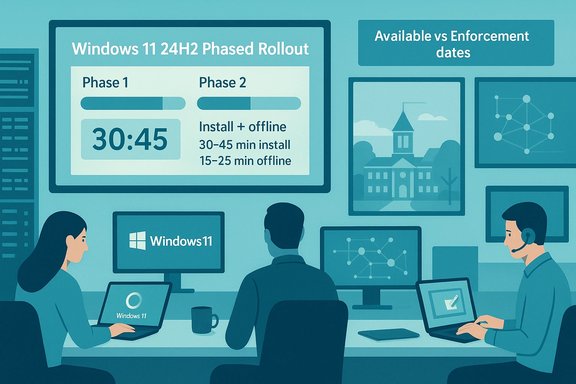
On February 3, James Madison University’s IT organization will begin a campus-wide upgrade of endpoints running Windows 11 v23H2 to v24H2, a staged move that IT says will complete in two production phases and includes a short but unavoidable connectivity window during the install. The university’s advisory lists the available dates and enforcement dates for each phase, warns that on‑prem installations generally take 30–45 minutes while remote endpoints may take longer depending on ISP download speeds, and notes a 15–25 minute interval during which an endpoint will be inaccessible while the feature update is applied. This article verifies those details, places the JMU schedule in the broader context of Microsoft’s 24H2 rollout and servicing model, explains what the timing and downtime actually mean for users and admins, evaluates known risks and reported regressions with 24H2 installs, and gives explicit, actionable guidance for IT teams and end users to prepare, minimize disruption, and recover quickly if something goes wrong.
The principal risk remains the possibility of mission‑critical regressions hitting a small subset of devices — a reality of complex OS upgrades that even Microsoft mitigates with staged rollouts, safeguard holds, and KIR mechanisms. JMU’s available/enforcement cadence gives the IT team the breathing room needed to respond to any such issues — provided the campus IT team uses that time for thorough pilot testing, vendor driver checks, and robust communication.
In short: the plan is sound, the timelines are defensible, and the warnings are honest. With the recommended pilot work, pre‑staging, and helpdesk resourcing, the campus can expect a smooth transition for most users — while remaining prepared to respond quickly to the inevitable exceptions that accompany any large OS upgrade.
If immediate next steps are needed for your team, prioritize (1) a small pilot across representative on‑prem and remote devices, (2) driver and firmware validation for high‑risk device classes, and (3) clear user communications that emphasize saving work and planning for the 15–25 minute downtime window on the enforcement dates. These three actions will have the largest near‑term impact on reducing help‑desk load and minimizing user disruption.
Source: James Madison University Windows 11 Updates
 Background
Why Windows 11 v24H2 matters now
Windows 11 version 24H2 is Microsoft’s major annual feature update series that delivered a broad set of UI refinements, security and servicing changes, and under‑the‑hood improvements to the update pipeline itself. Microsoft reworked parts of the servicing stack and the way feature updates are delivered to reduce install times and the size of feature packages for many devices, while continuing to use staged rollouts and safeguard holds to protect incompatible configurations. Independent reporting and Microsoft’s release‑health pages confirm the staged availability model and the presence of safeguard holds for known incompatibilities. Organizations that remained on v23H2 (or older Windows 11 releases) should treat a v24H2 deployment as a significant platform upgrade — not a one‑minute patch. For managed campus devices, IT teams typically push the update using a controlled schedule (as JMU has announced) to keep the impact predictable.JMU’s schedule at a glance
- Production Phase 1: Available Date — February 3; Enforcement Date — February 17.
- Production Phase 2: Available Date — February 10; Enforcement Date — February 24.
Verifying the technical claims
Is Windows 11 v24H2 the correct target version?
Yes. Microsoft’s official release health documentation and accompanying release notes confirm the existence of Windows 11, version 24H2, its gradual rollout model, and the kinds of servicing/feature improvements shipped with it. The documentation also shows Microsoft’s continued use of safeguard holds and Known Issue Rollbacks (KIRs) when compatibility problems arise. This matches JMU’s decision to use a phased rollout and to notify users of potential downtime.Are the installation time estimates reasonable?
- Microsoft has optimized the servicing stack in recent feature releases to reduce install times for many scenarios; in controlled tests Microsoft reported large percentage improvements vs earlier releases. However, actual install duration depends on many variables: hardware performance, the presence of pending cumulative updates, free disk space, driver and firmware updates, and whether the machine is on the corporate network (which may allow faster payload distribution) or remote (where ISP speeds, latency, and concurrency matter). Independent technical summaries and community testing show wide variance in field results.
- Therefore, JMU’s 30–45 minute estimate for on‑prem endpoints is a plausible, conservative expectation for well‑maintained campus machines that receive content via local caching or fast internal networks; the warning that remote devices may take longer is both accurate and prudent. Consider the 15–25 minute inaccessible window to be the period where the OS performs offline servicing tasks and restarts — this is consistent with how Windows feature updates operate in typical in‑place upgrade paths.
Are there known compatibility issues or reported regressions for 24H2?
Yes — Microsoft’s release health pages list several known issues that have affected subsets of devices and configurations after the 24H2 rollout. Industry reporting has also documented high‑impact issues that briefly forced Microsoft to impose compatibility holds for affected systems (for example, problems with certain games or specific hardware interactions in past rollouts). That history means any campus deployment should assume there may be edge cases and be ready with rollback/mitigation plans.What the JMU schedule means for users and for IT
For end users (faculty, staff, students in the affected groups)
- Expect a prompt or forced install window beginning February 3 for Phase 1. If you are in Phase 1 groups (Academic Affairs, Admin & Finance, University Advancement, Access & Enrollment Management), your endpoint will be offered the update on Feb 3 and may be enforced (auto‑installed) starting February 17 if you have not scheduled or deferred it. Phase 2 follows a week later.
- Plan for a short outage: the endpoint will be unreachable for network services for about 15–25 minutes while the device completes the offline portion of the upgrade. Save open work and close sensitive applications before the scheduled install window.
- Remote users should expect potentially longer total time due to download and pre‑install tasks. If you have limited bandwidth, schedule the install for off‑hours or connect to campus network (if possible) to speed the process.
For IT teams and desktop engineers
- The Available Date → Enforcement Date pattern indicates a soft offer period followed by an automatic enforcement. Use the soft period for last‑mile communications, targeted pilot rollouts, and additional driver/firmware updates for device classes with known issues.
- Validate update compatibility for business‑critical applications (lab software, classroom systems, specialized printers, exam lockdown browsers, and any software that hooks into low‑level drivers). Microsoft’s safeguard hold mechanism and release health pages can help identify platform‑specific problems in advance.
- Expect and plan for exceptions: some endpoints may remain blocked from the update due to safeguard holds or will require manual intervention (driver updates, BIOS updates, or staged reimaging).
Known and emerging risks — critical analysis
Strengths in the approach
- Phased rollout with enforcement windows reduces blast radius and gives IT time to respond to anomalies. JMU’s plan is aligned with industry best practices for large fleets and mirrors Microsoft’s recommended staged deployment model.
- Clear user communications (dates, expected durations, and the progress window behavior) set expectations and reduce help‑desk panic. The 15–25 minute inaccessible window is explicitly called out, which helps users save their work preemptively.
- Conservative time estimates for remote users acknowledge real world variance in ISP speeds and are operationally honest.
Risks and downsides
- Edge‑case regressions still occur. Microsoft’s rollout history shows that even with staged releases and KIRs, some high‑impact regressions (device‑specific or application‑specific) can slip into field deployments. Notable incidents in earlier rollouts required emergency patches or temporary holds. IT should treat this deployment as likely to require reactive fixes or targeted rollbacks in rare cases.
- Remote installation variability. For remote endpoints with slow or metered connections, installs may be prolonged or fail partway, producing inconsistent states that complicate remote remediation. JMU’s note that remote endpoints “may be longer depending on ISP download speeds” acknowledges this, but IT must plan for remote recovery paths (e.g., offline media, VPN bandwidth management, or device pickup options).
- Potential for high help‑desk load during enforcement windows. Enforce dates concentrate failures into a short time window. Without sufficient staffing or automated health checks, support queues can become overwhelmed. IT should stagger enforcement and use telemetry to prioritize problematic device classes.
- Dependency on driver and firmware readiness. Feature updates sometimes expose driver bugs. Ensure vendor firmware and drivers are tested and approved before pushing the campus‑wide enforcement. Microsoft’s release‑health pages and hardware vendors’ advisories must be monitored for late‑breaking issues.
Recommendations — practical and prioritized
For IT administrators (urgent checklist)
- Run a focused pilot on representative hardware and software stacks starting immediately. Include a subset of remote endpoints to reproduce connectivity-related problems.
- Confirm driver and firmware availability from OEMs for your major device models; update BIOS/UEFI and critical drivers during the pilot window.
- Use telemetry (Windows Update for Business reports, Intune, SCCM/ConfigMgr, WSUS) to detect devices stuck on pre‑requisites or blocked by safeguard holds.
- Enable Delivery Optimization and local caching for on‑prem devices to reduce bandwidth and speed installs. For remote devices, configure Delivery Optimization settings to permit safe peer caching if available.
- Stagger enforcement within each production phase if possible — avoid enforcing across an entire department at once. The available → enforcement window gives you time to surface and remediate issues.
- Publish clear pre‑update guidance for end users: save work, close applications, plug in laptops, ensure they’re on a stable network; include the exact available/enforcement dates and the expected 15–25 minute offline period.
- Prepare rollback and repair procedures. Document how to roll back a failed in‑place upgrade (using Windows rollback, recovery media, or reimage processes), and ensure recovery media is up to date and available.
- Staff the helpdesk adequately for the enforcement windows and prioritize phone and remote‑access support for users who experience prolonged downtime.
For end users (concise guidance)
- Back up important files before Feb 3 (cloud or external drive).
- Save and close critical work before the scheduled upgrade window.
- Expect a short period (15–25 minutes) where the device will not be reachable during the install. Plan meetings and teaching sessions accordingly.
- If on a slow home connection, schedule the install for off‑hours or consider connecting to campus network briefly to download the payload, if permitted under campus policy.
Remote endpoints: specifics and mitigations
Remote endpoints are the usual wildcard in campus rollouts. JMU is correct to call out ISP variability; here are targeted mitigations:- Pre‑stage updates: Where management tools allow, push the update payload or OS image to devices before the enforced install window so the offline upgrade is the primary remaining step. This reduces total visible downtime and avoids heavy concurrent downloads.
- Use Delivery Optimization (DO): Configure DO to enable peer caching within the campus network, and to limit bandwidth for remote endpoints to avoid saturating home connections. DO can significantly reduce upstream bandwidth usage if configured correctly.
- Offer offline media: For critical or slow devices, provide a method for manual in‑place upgrade using a USB image created by IT (ensuring the image is current and tested).
- VPN considerations: Large downloads over VPN may be throttled or cause congestion; schedule remote installs for times when VPN load is low, or use split‑tunneling for Windows Update traffic if policy allows.
- Alternative paths: For devices that repeatedly fail, consider reimaging or physical service as a last resort.
Post‑upgrade verification and follow‑up
- Automate health checks: After enforcement dates, run automated checks to verify critical services, app compatibility, and user login success. Flag failing devices for immediate remediation.
- Monitor Microsoft release health for any emerging 24H2 issues that could affect campus systems; KIRs and patches may be posted after the initial enforcement window.
- Collect user feedback from pilot groups and early adopters to spot subtle regressions that telemetry may miss (especially UI behaviors or app edge cases).
- Schedule a second wave of fixes: Reserve a short follow‑up maintenance window 1–2 weeks after enforcement to push BIOS/driver updates, policy adjustments, or emergency patches that surfaced in the deployment.
What to watch for: specific red‑flag scenarios
- Devices that fail to boot after the upgrade or land in WinRE; ensure recovery media and local console access options are ready. Past incidents have required emergency patches for WinRE regressions.
- Mission‑critical classroom systems with specialty hardware (proctors, capture appliances, AV switchers) — test these first.
- Gaming or multimedia software that uses specialized audio or graphics drivers; earlier rollouts have required temporary holds for certain titles and drivers.
Short FAQ (clear answers you can send to end users)
- Q: When will my computer update?
A: If you’re in Phase 1 groups, the update is available on Feb 3 and may be enforced beginning Feb 17; Phase 2 becomes available on Feb 10 with enforcement from Feb 24. - Q: Will I lose my files?
A: No — the in‑place upgrade preserves user files and most applications; however, a backup is strongly recommended. - Q: How long will I be offline?
A: Expect a 15–25 minute period where the device is not accessible; total install time varies but JMU estimates 30–45 minutes on campus networks. Remote endpoints may take longer. - Q: Can I delay the update?
A: The advisory indicates a soft offer then an enforcement date; you can delay during the available window, but enforcement will apply after the enforcement date if not rescheduled by IT. Check with your local IT support for exception policies.
Final assessment
JMU’s communication is appropriately direct, practical, and realistic: it provides clear dates, explicit expectations on downtime, and a sensible phased approach that aligns with Microsoft’s own recommended deployment practices for major feature updates. The 30–45 minute on‑prem window and the 15–25 minute inaccessible interval are reasonable planning figures for a controlled, campus environment, but are estimates and can vary by hardware, pending pre‑requisites, and remote network conditions. IT should not treat those numbers as guarantees.The principal risk remains the possibility of mission‑critical regressions hitting a small subset of devices — a reality of complex OS upgrades that even Microsoft mitigates with staged rollouts, safeguard holds, and KIR mechanisms. JMU’s available/enforcement cadence gives the IT team the breathing room needed to respond to any such issues — provided the campus IT team uses that time for thorough pilot testing, vendor driver checks, and robust communication.
In short: the plan is sound, the timelines are defensible, and the warnings are honest. With the recommended pilot work, pre‑staging, and helpdesk resourcing, the campus can expect a smooth transition for most users — while remaining prepared to respond quickly to the inevitable exceptions that accompany any large OS upgrade.
If immediate next steps are needed for your team, prioritize (1) a small pilot across representative on‑prem and remote devices, (2) driver and firmware validation for high‑risk device classes, and (3) clear user communications that emphasize saving work and planning for the 15–25 minute downtime window on the enforcement dates. These three actions will have the largest near‑term impact on reducing help‑desk load and minimizing user disruption.
Source: James Madison University Windows 11 Updates
