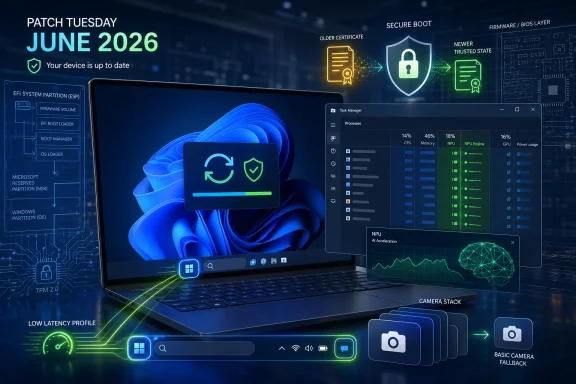
Microsoft is expected to begin rolling out the June 2026 security update for Windows 11 on Tuesday, June 9, 2026, bringing a batch of quality-of-life features to versions 24H2 and 25H2 through the same cumulative servicing channel. The headline is not one giant redesign, but a cluster of smaller changes aimed at making Windows feel faster, less rigid, and more aware of the hardware now shipping in modern PCs. That matters because Windows 11’s reputation problem has rarely been that it lacks features; it is that too many everyday interactions have felt slower, stranger, or more constrained than users expected from a mature desktop OS. June’s update looks like Microsoft trying to win back trust one latency fix, camera setting, and setup checkbox at a time.

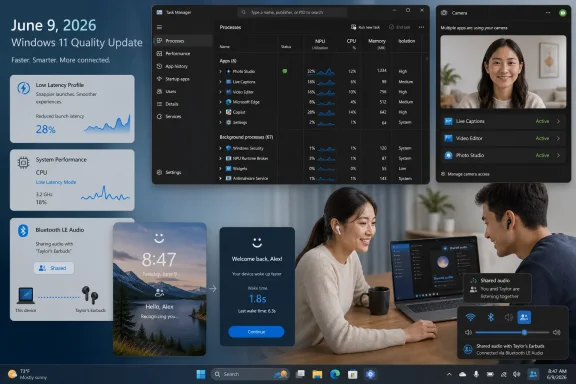
Windows 11 June 2026 update screen with Task Manager, camera apps, and shared audio features.Microsoft Finally Ships an Update About Feel, Not Flash​

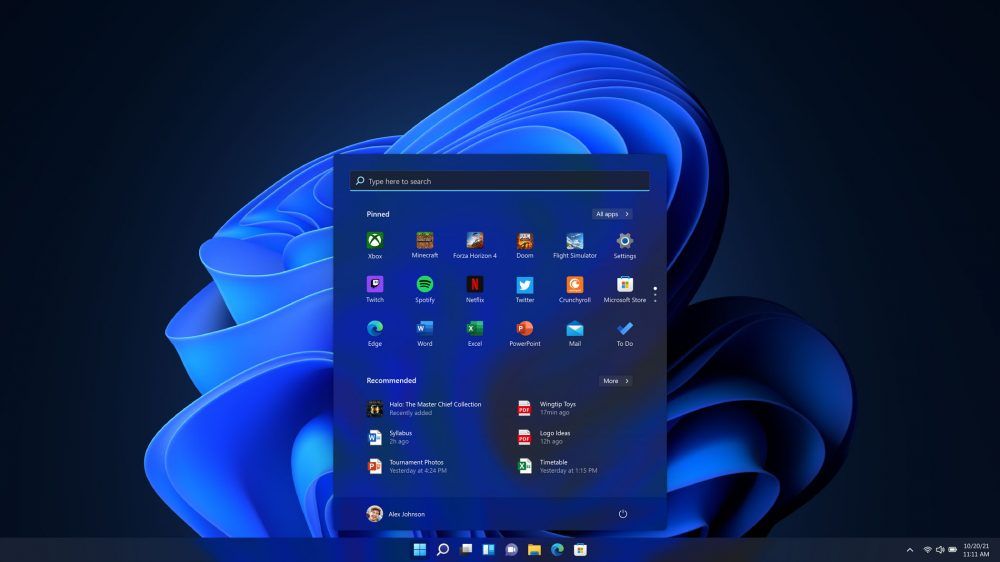
For much of the Windows 11 era, Microsoft has talked about beauty, security, AI, and productivity while users kept complaining about the same thing: the operating system did not always feel as immediate as Windows should. Menus could hesitate. File Explorer could stutter. The Start menu, redesigned with great confidence, sometimes behaved like a web app auditioning for a desktop role.
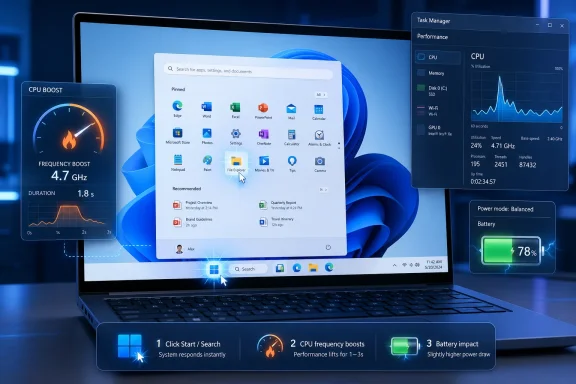
The June 2026 update is interesting because it appears to target that perception directly. The new Low Latency Profile is not a feature users will admire in screenshots, and it will not win a keynote demo by itself. It is a scheduler and power-management behavior that briefly pushes the processor harder during interactive moments, the kind of tiny windows of time in which the user decides whether a system feels fast or sticky.
That is a more meaningful change than it first appears. Desktop performance is not only about benchmark charts or sustained CPU loads. It is about whether an app opens when summoned, whether a flyout appears before the user’s attention drifts, and whether right-clicking feels instantaneous rather than negotiated.
Microsoft reportedly expects the feature to improve app launches by up to 40 percent and some system interactions by up to 70 percent, though those numbers should be treated as best-case figures rather than a universal promise. The real test will be older and lower-end PCs, where a one-to-three-second burst of CPU frequency could make the difference between “this machine is aging” and “this is still fine.”

The Low Latency Profile Is a Quiet Admission About Windows 11​

The most revealing part of Low Latency Profile is that users cannot toggle it. There is no grand setting in the Settings app, no Control Panel relic, no “optimize for responsiveness” switch with a marketing paragraph underneath. It simply activates in the background when Windows decides an interactive task would benefit from a short burst of performance.
That invisibility is both sensible and telling. Sensible, because most users should not have to manage processor behavior to make the Start menu open quickly. Telling, because it acknowledges that perceived responsiveness is now a system-level responsibility, not something that can be delegated to faster chips or more RAM.
Windows has long had an uneasy relationship with power management. Laptop users want battery life, gamers want boost clocks, enterprise admins want predictable thermals, and everyone wants the machine to respond instantly without sounding like a small vacuum cleaner. Low Latency Profile tries to thread that needle by spending extra power in short, targeted bursts rather than treating every workload like a marathon.
There will be edge cases. Some users may worry about thermals, fan noise, and battery behavior, especially on thin-and-light laptops where firmware already plays aggressive games with power limits. But if Microsoft’s implementation is disciplined, this is exactly the sort of invisible plumbing that Windows 11 has needed more of.
The feature also hints at a broader engineering shift. Instead of pretending that new visual layers and AI affordances are cost-free, Microsoft is beginning to optimize the path between user intent and UI response. That is the part of the OS users actually feel hundreds of times per day.

Shared Audio Turns Bluetooth From Solitary Convenience Into a Social Feature​

Shared Audio is the kind of feature that seems obvious once it exists. Windows 11 will allow two people to listen to the same audio stream from a single PC using compatible Bluetooth LE Audio devices. That turns a laptop into a shared movie screen, a travel entertainment device, or a quiet co-op gaming setup without requiring a headphone splitter from a forgotten drawer.
The technical foundation matters here. This is not simply pairing two old Bluetooth headsets and hoping the audio stack survives. The feature relies on Bluetooth LE Audio broadcast capabilities, which means hardware support will determine whether it feels magical or merely unavailable.
That hardware caveat will frustrate some users. Bluetooth audio on Windows has historically been a grab bag of codecs, drivers, latency surprises, and headset profile compromises. Shared Audio depends on a more modern ecosystem, so the first wave will inevitably favor newer PCs, newer earbuds, and users who already live near the front edge of device refresh cycles.
Still, the direction is right. For years, Windows treated audio output as a largely individual affair unless users installed third-party routing tools or relied on app-specific tricks. Shared Audio brings a consumer-friendly behavior into the shell itself, with access from Quick Settings and a taskbar indicator when sharing is active.
That taskbar indicator is more than UI polish. Audio broadcasting is a state users should be able to see and end quickly. Microsoft has learned, sometimes the hard way, that ambient sharing features need obvious controls if they are going to feel trustworthy.

Task Manager Becomes a Window Into the AI PC Microsoft Keeps Selling​

Task Manager’s expanded NPU monitoring is less glamorous than a Copilot demo, but it may be more important for understanding the next phase of Windows hardware. Microsoft and its partners have spent the last two years telling buyers that neural processing units are central to the future of PCs. Users and admins now need a way to see whether those chips are doing anything useful.
The June update adds more visibility across the Processes, Users, and Details tabs, including NPU utilization, active engines, and memory usage. It also expands the Performance view to show neural engines integrated into the GPU. For IT pros, developers, and technically curious users, this gives the AI PC a dashboard rather than a sticker.
That matters because the NPU is still a fuzzy concept for many buyers. CPUs and GPUs have decades of user understanding behind them. People know when the processor is pegged or when a GPU bottleneck is ruining a game. NPUs, by contrast, have often been presented as magic silicon for local AI features that may or may not be active on a given system.
Task Manager can turn that ambiguity into evidence. If an image tool, transcription feature, background effect, or local model is using the NPU, users should be able to see it. If the NPU sits idle while marketing claims swirl around it, users should be able to see that too.
The new Isolation column is another small but useful addition. Showing which apps run inside an AppContainer sandbox gives power users and admins a clearer view of process security boundaries. It is not a full security audit, but it makes Windows’ app isolation model more legible at the exact moment when local AI workloads, packaged apps, and background services are becoming harder to reason about.

Multi-App Camera Support Fixes a Rule That No Longer Made Sense​

Windows’ one-app-at-a-time camera behavior has long been one of those limitations users encountered only when it ruined a workflow. A video call could monopolize the webcam. A streaming app could block a meeting app. A content creator juggling preview, capture, and conferencing tools could end up fighting the OS instead of producing anything.
The new multi-app camera option changes that by allowing the same webcam stream to be used by multiple applications at once. Microsoft is putting the setting under the Camera page, alongside a basic camera mode intended for troubleshooting. That combination suggests the company is not merely adding a convenience feature; it is acknowledging how fragile camera pipelines can be on real PCs.
This is especially useful in the post-pandemic desktop reality. Cameras are no longer occasional accessories for rare calls. They are part of daily work, streaming, education, remote support, telehealth, and creator workflows. A modern OS should not treat the webcam as a single-use peripheral in a multi-app world.
There are privacy implications, and Microsoft needs to keep the indicators unambiguous. If more than one application can access the camera stream, users must be able to understand when the camera is active and which apps are involved. Convenience cannot come at the cost of turning camera access into a guessing game.
The basic camera mode is less exciting but possibly just as valuable for support desks. Camera issues are notoriously messy because hardware, drivers, privacy permissions, app frameworks, and vendor utilities all collide. A simplified mode gives admins and users a way to separate “the camera is broken” from “the camera’s advanced stack is broken.”

Setup Gets a Small Choice That Users Should Have Had Years Ago​

The ability to choose a custom user profile folder name during setup sounds minor until you have lived with the alternative. Windows has often generated profile folder names from Microsoft account details in ways that feel arbitrary, clipped, or simply ugly. Once created, that folder name becomes a stubborn piece of the system’s identity.
The June update reportedly adds the option during the Out-of-Box Experience, near device-name configuration. Users can define the profile folder name before Windows creates the account directory, provided they follow Windows naming rules and avoid prohibited characters. If they skip it, Windows continues with its default behavior.
This is a small victory for user agency. It does not change the security model, transform setup, or answer every complaint about Microsoft account pressure in Windows 11. But it fixes a real annoyance that has lasted too long because it was probably not painful enough inside Microsoft’s own telemetry dashboards.
For enthusiasts and admins, profile folder naming has practical consequences. Scripts, development environments, backup paths, game saves, and application settings may all expose or depend on the user directory. A clean folder name can prevent years of irritation.
It also reflects a broader truth about Windows: tiny defaults become permanent architecture in people’s lives. A setup screen is not just onboarding. It is where Windows makes decisions that users may carry across the life of a PC.

Windows Hello Gets Faster Where Delay Feels Personal​

Windows Hello performance improvements are another case where milliseconds matter more than feature count. Microsoft is optimizing the Windows Biometric service to reduce latency when resuming from Modern Standby. In plain English, the PC should be better at recognizing you quickly after waking.
Authentication delays feel different from other delays. Waiting for an app is annoying; waiting for a device to acknowledge your face or fingerprint can feel oddly personal, as if the machine is hesitating over whether you belong there. That emotional quality makes sign-in responsiveness disproportionately important.
The update also adjusts how Windows chooses default authentication methods. Fingerprint and face recognition remain the default on lock and sign-in screens when available, even if the user previously used another method. But after three PIN uses, Windows shifts back toward PIN until the user changes methods again.
That sounds like a small behavioral tweak, but it reflects how real people interact with devices. Biometrics are convenient until lighting, posture, gloves, docking setups, or camera angle make them less reliable. PIN fallback is not failure; it is part of a healthy authentication flow.
Enterprise environments will care about the details. Windows Hello is often bound up with Enhanced Sign-in Security, device trust, policy, and compliance requirements. Any change that makes biometric sign-in faster without weakening security will be welcomed, but admins will still want to test behavior across hardware generations before assuming consistency.

Search, Storage, USB, Battery, and Personalization Show the Value of Boring Fixes​

The smaller changes in the June update may be the ones users notice only after they stop being annoyed. Windows Search gaining the ability to find files with two-character queries is not a revolution, but it removes an arbitrary-feeling limitation. Users do not search according to product-team assumptions; they search according to fragments they remember.
The Settings app’s storage improvements also matter. Allowing volume sizes to be specified in gigabytes rather than forcing megabyte-style precision makes the interface more human. It is a tiny example of Microsoft remembering that Settings is supposed to be an administration surface, not a unit-conversion exam.
Personalization improvements around color matching for desktop backgrounds continue the same theme. Windows 11 has leaned heavily on visual coherence, sometimes at the expense of control. Better color extraction and matching will not appease users who want full classic-era customization back, but it improves the default experience for everyone else.
The reported USB and battery improvements fall into the same category of maintenance that rarely gets applause but defines day-to-day reliability. Nobody writes love letters to an OS because USB devices behave properly or battery reporting is less weird. They complain loudly when those things fail.
That is the recurring pattern here. June’s update is not about a single flagship experience. It is about reducing friction in places where Windows has taught users to expect friction.

Controlled Rollouts Keep Turning Patch Tuesday Into a Maybe​

The biggest practical caveat is Microsoft’s Controlled Feature Rollout model. Even if the June 2026 security update starts rolling out on June 9, not every user will see every feature immediately. Some improvements arrive gradually, and some may depend on hardware, region, configuration, or Microsoft’s release pacing.
That is now normal for Windows, but normal does not mean simple. Patch Tuesday used to be a relatively straightforward contract: install the update, receive the changes. Modern Windows servicing is more conditional, with enablement packages, staged rollouts, feature flags, and preview updates blurring the line between “shipped” and “available.”
For consumers, the result is mild confusion. One user gets Shared Audio, another does not. One PC exposes a camera setting, another waits. A support article says a feature exists, while a real machine insists otherwise.
For IT departments, the consequences are more serious. Gradual feature delivery complicates validation, documentation, help desk scripts, and user training. Admins can control many aspects of update deployment, but Microsoft’s ongoing shift toward continuous feature delivery means the OS is less static between annual versions than it once was.
This is where Microsoft’s Windows 11 servicing story remains messy. The company wants the flexibility of cloud-era product iteration inside a desktop operating system that enterprises still expect to be predictable. June’s update may be sensible in content, but its delivery model remains part of the larger Windows 11 tension.

The AI PC Needs Better Plumbing Before It Needs More Slogans​

It is impossible to separate this update from Microsoft’s broader AI PC campaign. NPU monitoring, Windows Hello optimization, camera pipeline changes, and responsiveness work all sit beneath the layer of Copilot and agentic computing that Microsoft would rather talk about on stage. Yet this plumbing is what determines whether those ambitions feel credible.
If Windows is going to run more local AI workloads, users need visibility into specialized hardware. If video and audio become richer collaboration surfaces, cameras and Bluetooth stacks need to stop behaving like afterthoughts. If AI features make the OS heavier, the shell must become more responsive, not less.
That is why Low Latency Profile may be the most strategically important feature in the bunch. It says Microsoft knows the baseline experience must improve before users will tolerate more intelligence layered on top. A slow AI PC is still a slow PC.
The expanded Task Manager metrics also serve as a quiet accountability mechanism. Microsoft and OEMs can sell NPUs, but Windows now gives users a better way to observe whether workloads actually use them. That visibility may push developers to make better use of local acceleration rather than treating AI hardware as a marketing checkbox.
The June update does not solve the fundamental skepticism around AI in Windows. Many users remain wary of features that feel intrusive, cloudy, or bolted on. But by improving the foundations around performance, hardware visibility, audio, camera, and sign-in, Microsoft is doing the less glamorous work that an AI-capable operating system actually requires.

The June Build Rewards Users Who Wanted Windows to Behave Like Windows​

The most encouraging aspect of this release is its humility. There is no suggestion that Windows must be reinvented around a single assistant, feed, or subscription-shaped idea. Instead, the update improves how the OS launches apps, shares audio, reports hardware usage, handles webcams, names accounts, and signs users in.
That is not a small thing. Windows 11 has often suffered when Microsoft treated the desktop as a canvas for strategic priorities rather than a working environment with decades of muscle memory behind it. Users do not reject change automatically; they reject change that slows them down or removes control without offering something better.
This June update seems to understand that bargain. Multi-app camera support gives users more flexibility. Custom profile folder naming gives them more control. Task Manager’s NPU metrics give them more visibility. Low Latency Profile gives them more speed without asking them to learn a new feature.
There is still plenty to criticize. Gradual rollouts remain opaque. Hardware-dependent features like Shared Audio may arrive unevenly. Performance claims need independent testing across real machines, not just ideal configurations. But the direction is healthier than yet another round of shell experiments that ask users to adapt while Windows itself does not.
For Windows enthusiasts, this is the kind of update that may not generate excitement on installation day but could make the OS feel less compromised over time. For admins, it is another reminder that cumulative updates increasingly carry user-visible behavior changes alongside security fixes. For Microsoft, it is proof that polish can be a product strategy.
The June 2026 Update’s Real Message Is in the Small Print​

June’s release is best understood as a practical update rather than a showcase update. Its features are concrete, but their value depends on hardware support, rollout timing, and whether Microsoft’s promised responsiveness gains survive contact with real-world PCs.
  • Windows 11 versions 24H2 and 25H2 are expected to receive the same June 2026 quality update content, with rollout beginning on June 9, 2026.
  • Low Latency Profile is designed to make short interactive actions feel faster by briefly boosting processor frequency when Windows detects the need.
  • Shared Audio depends on compatible Bluetooth LE Audio hardware, so availability will vary more than the Quick Settings button might suggest.
  • Task Manager’s new NPU metrics make AI hardware less abstract by showing utilization, engines, and memory behavior in familiar diagnostic views.
  • Multi-app camera support modernizes webcam use for meetings, streaming, recording, and troubleshooting, but clear privacy indicators remain essential.
  • The new setup option for custom profile folder names fixes a small but persistent Windows annoyance before it becomes permanent on a new PC.
The best version of Windows 11’s future is not the one with the loudest AI branding or the most dramatic Start menu revision; it is the one where the operating system becomes faster, more transparent, and less arbitrary without demanding applause for every correction. June’s update points in that direction, and if Microsoft keeps choosing this kind of work over spectacle, Windows 11 may finally start to feel less like a platform trying to justify itself and more like the dependable desktop its users wanted all along.

References​

  1. Primary source: Windows Central
    Published: Wed, 03 Jun 2026 19:22:09 GMT
  2. Related coverage: techradar.com
  3. Related coverage: windowslatest.com
  4. Official source: blogs.windows.com
  5. Related coverage: pureinfotech.com
  6. Related coverage: pcworld.com
  1. Related coverage: digitbin.com
  2. Official source: news.microsoft.com
 

Windows 11’s June 2026 Low Latency Profile is Microsoft’s short-lived CPU-frequency behavior for boot and app launch responsiveness, exposed in Windows power-management documentation under the provisioning alias “LowLatency” and best understood as an interaction-triggered performance profile rather than a normal user-facing speed switch. For most readers, the immediate action is simple: do not go hunting for a Settings toggle that may not exist on your PC. Watch the June 2026 servicing window for Windows 11 versions 24H2 and 25H2, test the update on representative hardware, and measure whether app launches, Start, menus, and boot-adjacent workflows feel more responsive without creating thermal, fan, or battery regressions.
The important part is not that Windows might open Start a little faster. The important part is that Microsoft is formalizing a pattern Windows has needed for years: the operating system should know the difference between a machine doing nothing, a machine compiling code, and a user waiting for a menu to appear. Low Latency Profile points toward a Windows that treats responsiveness as a first-class power-management state, not as an accidental side effect of choosing Balanced, Best performance, or a vendor utility preset.

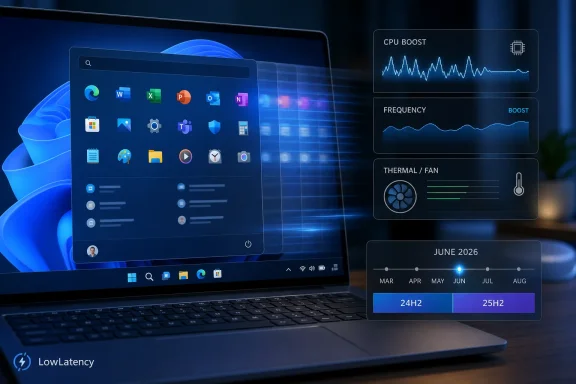
Laptop screen shows Windows-style icons with CPU boost, frequency, thermal/fan, and performance charts.Microsoft Is Turning Responsiveness Into a Power Policy​

For decades, Windows power management has been explained to users through blunt instruments. Pick a power plan, move a slider, plug in or unplug, and hope the scheduler, firmware, silicon, and drivers do the right thing. That model works tolerably well for sustained workloads, but it is clumsy for the interactions that determine whether a PC feels fast.
The Low Latency Profile changes the frame. Microsoft’s own power-management documentation lists a “LowLatency” profile activated during boot and app launch time, with the provisioning alias “LowLatency.” That wording matters because it places the behavior in the power-management stack, not in the Start menu team’s bag of animation tricks.
A boot sequence and an app launch are not just CPU-bound jobs. They are chains of short, dependent operations: storage access, service startup, process creation, UI composition, security checks, shell integration, and the final moment when the user sees something and decides whether the PC is responsive. Shaving a little delay off those handoffs can be more noticeable than improving a benchmark score that runs for ten minutes.
That is why calling this a “faster Start menu” tweak undersells it. The Start menu is merely the most visible test case. The deeper story is Windows becoming more explicit about when the system should bias toward latency instead of efficiency.

The Setting Most Users Want Is Not a Setting Yet​

The practical answer for readers is less glamorous than the rumor cycle suggests: there is no broad, consumer-facing Low Latency Profile switch that every Windows 11 user should flip today. The profile exists in Microsoft’s power-management documentation as a provisioning alias, and the relevant behavior is tied to boot and app launch time. That makes it something administrators, OEMs, and Microsoft’s servicing pipeline may influence before ordinary users ever see it as a Settings control.
If you are an enthusiast, the correct move is not to start applying random registry edits from forum posts or copying powercfg incantations from screenshots. Windows power tuning has enough legitimate knobs already, and many of them interact with firmware, chipset drivers, thermal policy, and vendor management layers. A supposed shortcut to “LowLatency” that is not documented for your build and hardware can just as easily produce worse battery life, higher idle draw, or meaningless placebo.
If you are an IT admin, the path is more disciplined. Treat Low Latency Profile as a behavior to validate during the June 2026 update cycle, especially on Windows 11 24H2 and 25H2 machines that represent your fleet. You are looking for changed user-perceived latency, not a single CPU graph spike.
The testing procedure should be boring on purpose. Establish a baseline before the June update, record boot-to-ready observations, test common app launches, watch thermals and fan curves on laptops, and check whether any endpoint agents or line-of-business apps become noisier during login. Then repeat after patching a pilot group.

June 2026 Is the Servicing Window to Watch, Not a Magic Date​

Microsoft’s Windows 11 release information identifies June 2026 as a baseline, restart month for 24H2 and 25H2 servicing. That is why June is the right window to watch for broader delivery and regressions. It does not mean every PC gets an identical visible feature on the same morning.
This distinction is important because Windows features now move through a layered delivery model. Cumulative updates, controlled rollouts, enablement logic, device eligibility, and server-side pacing can all decide whether a feature is present, dormant, staged, or quietly unavailable. The result is a Windows ecosystem where two fully patched PCs can behave differently for reasons that are not obvious from the Settings app.
For WindowsForum readers, that is both familiar and frustrating. The modern Windows update channel is no longer just a list of binaries; it is a policy and eligibility system. Low Latency Profile fits that model neatly because CPU boost behavior is exactly the kind of feature Microsoft would be cautious about broadening across wildly different laptop designs, desktop boards, firmware revisions, and silicon generations.
That also means the absence of a visible switch is not proof that the work is unimportant. Some of the most consequential Windows changes never arrive as a shiny Settings page. They arrive as altered defaults, new provisioning hooks, or better cooperation between the OS and hardware.

26H1 Is a Hardware Story, Not the Mainstream Upgrade Path​

The other trap is confusing Windows 11 version 26H1 with the normal next step for existing PCs. Microsoft has described Windows 11 version 26H1 as a targeted release for specific device hardware and silicon, not a broad every-PC rollout. That makes it a hardware enablement branch more than a general audience destination.
That matters for Low Latency Profile because interaction-aware CPU behavior is inherently hardware-sensitive. A brief frequency ramp on a thin-and-light Arm laptop, a gaming desktop, and a corporate ultrabook can have very different consequences. The operating system may ask for responsiveness, but firmware and silicon decide how gracefully that request is fulfilled.
For existing Windows 11 PCs, the mainstream practical focus remains 24H2 and 25H2 servicing. June 2026 is the relevant observation point because that is where broad servicing activity can expose whether the same responsiveness ideas are moving into the installed base. 26H1 may tell us where Microsoft and silicon vendors want to go; 24H2 and 25H2 will tell us what most users actually experience.
This is also where Microsoft’s messaging has to be precise. If users hear “new Windows performance mode” and assume their current laptop is about to receive a visible turbo button, disappointment follows. If admins understand it as a targeted, interaction-aware power-management behavior that may surface through servicing and hardware policy, the story becomes more useful.

Static Power Plans Were Always Too Blunt for Modern PCs​

The old power-plan model assumes users can choose a durable personality for the machine. Balanced tries to mediate. Best performance leans toward speed. Battery saver pulls the other way. But interactive computing does not map cleanly onto those fixed states.
A PC at idle should be miserly. A PC waiting for a context menu should be briefly impatient. A PC rendering video should be judged on sustained throughput and thermal equilibrium. Treating all of those moments as variations of the same slider is a design compromise inherited from an earlier era.
Low Latency Profile suggests a different bargain. Windows can remain efficient most of the time while briefly becoming more aggressive when the user is blocked on a foreground interaction. That is the right instinct, because perceived performance is often decided in sub-second gaps that benchmarks hide.
The risk is that “brief” must stay brief. If interaction-aware boosting becomes sloppy, every background app that claims urgency could turn into a small power tax. The credibility of the feature depends on tight scoping: boot, launch, and genuinely foreground responsiveness events, not a general excuse to run hotter.

The CPU Graph Will Mislead People​

The first wave of enthusiast analysis will almost certainly include screenshots of CPU frequency jumping during launches and menu opens. Those screenshots are useful, but they are not the whole story. A momentary ramp can be a sign of better latency policy, or it can be cosmetic noise with little user benefit.
The measurements that matter are closer to human experience. How long until the app window is usable? Does File Explorer appear faster on cold launch? Does the Start menu feel immediate after the machine has been sitting idle? Does the first launch after boot improve, or only repeated launches that were already cached?
Admins should also separate local responsiveness from network and service delays. A CPU boost cannot fix a slow identity provider, a bloated login script, a network home drive, or an endpoint security agent performing expensive work at startup. Low Latency Profile can reduce one class of waiting, but it cannot make the whole Windows startup stack magically disciplined.
That is why Microsoft’s decision to place the profile in the boot and app-launch path is interesting but limited. It attacks the moments where short CPU urgency can matter. It does not replace software hygiene, driver quality, startup pruning, or sane enterprise image design.

OEMs and Firmware Vendors Now Have Less Room to Hide​

One underappreciated consequence of Low Latency Profile is that it puts more pressure on the hardware platform. If Windows asks for a short responsiveness burst and the machine cannot deliver it without roaring fans, stutter, or battery weirdness, the blame will not stay neatly inside Redmond. Modern performance is a negotiation among Windows, firmware, silicon, and thermal design.
That is especially true on laptops. A desktop tower can absorb a short frequency ramp with little drama. A thin notebook with conservative skin-temperature limits and vendor-specific power controls may respond more unevenly. Two machines can run the same Windows build and still feel different because their firmware policies interpret performance requests differently.
This is where enthusiasts will learn more from comparative testing than from declarations. The most interesting results will come from machines that are thermally constrained, battery-sensitive, or heavily managed by OEM utilities. If Low Latency Profile helps those systems feel less sluggish without harming idle behavior, Microsoft has something meaningful.
If the gains mainly show up on already-fast desktop hardware, the feature becomes less transformative. The real prize is improving the ordinary Windows laptop: the machine that spends most of its life in Balanced mode, sleeps and wakes often, opens Teams, Edge, Explorer, Settings, and a few business apps, and is judged by whether it feels awake when the user is.

Enterprise IT Should Pilot for Feel, Then Audit for Cost​

Enterprise administrators have learned to distrust performance improvements that cannot be explained operationally. Low Latency Profile deserves a fair pilot, but not blind enthusiasm. Any feature that changes CPU-frequency behavior can have second-order effects.
The first cost to watch is battery life, though the danger may be more about repeated bursts than a single app launch. A short boost during login is unlikely to matter by itself. A workday full of foreground app churn, browser launches, shell actions, and collaboration tools might reveal a different picture on smaller batteries.
The second cost is thermal noise. Many organizations buy thin laptops in bulk, and many users judge those laptops by fan behavior as much as speed. If a responsiveness feature makes a machine feel snappier but audibly more nervous, help desks will hear about it.
The third cost is fleet variability. The same Windows update can behave differently across generations of Intel, AMD, and Arm hardware, and across OEM firmware revisions. IT teams should not assume a pilot on premium developer laptops predicts the experience on frontline devices or older corporate machines.

The Start Menu Debate Is a Proxy War Over Trust​

WindowsForum users have already been circling the Low Latency Profile story through the lens of Start, menus, and everyday responsiveness. That is understandable. The Start menu is the front door of the operating system, and when it hesitates, users do not think about scheduler policy. They think Windows is slow.
But the emotional charge around this feature comes from something deeper than Start. Many Windows users believe the OS has become heavier over time, and they are skeptical of fixes that appear to compensate for overhead rather than remove it. A CPU boost can look like clever engineering or like a bandage, depending on how much trust the user still has.
Both readings can be true. It is entirely legitimate for Microsoft to optimize the latency path with smarter CPU behavior. It is also legitimate for users to ask why basic shell interactions need special help in the first place. The right answer is not to dismiss the feature, but to judge whether it improves real interaction latency without becoming an excuse for bloat.
This is where Microsoft should be careful with its framing. If Low Latency Profile is sold as a magic speedup, it invites backlash. If it is explained as a narrow power-management profile for moments when the user is waiting, it becomes easier to evaluate honestly.

Practical Tuning Starts With Not Fighting the OS​

For enthusiasts, the temptation will be to stack Low Latency Profile with every other performance tweak: maximum processor state, high-performance plans, vendor turbo modes, disabled sleep states, startup trimming, and background service cuts. Some of those choices can be reasonable in specific contexts. Combined blindly, they make troubleshooting impossible.
The smarter approach is to let the OS policy show its behavior first. Run the June update on a test machine, keep the existing power mode, and observe. If responsiveness improves, the lesson may be that Windows can now do the short burst itself without forcing the entire system into an always-hot posture.
That is the philosophical shift. The old enthusiast answer to sluggishness was often to raise the floor: keep clocks higher, disable more savings, and trade efficiency for readiness. Low Latency Profile is closer to raising the ceiling only when the user is waiting. Done well, that is a better bargain.
For admins, this means avoiding premature policy overrides. A fleet with aggressive custom power settings may mask or undermine the benefit. Before deciding the new behavior is irrelevant, test it on machines that are close to Microsoft and OEM defaults.

The June Patch Cycle Becomes a Responsiveness Regression Test​

The June 2026 baseline servicing month for Windows 11 24H2 and 25H2 gives IT teams a useful checkpoint. It is not just another security patch cycle. It is a chance to add responsiveness to the normal regression matrix.
That does not require lab-grade instrumentation for every organization. A practical pilot can capture user-facing timings and qualitative feedback. The key is consistency: same devices, same apps, same network conditions, same login state, before and after patching.
Power users can do a lighter version at home. Note how the machine behaves after cold boot, after wake, and after a long idle period. Launch the same common apps. Open the same shell surfaces. Watch whether the improvement, if present, is broad or limited to a few cached actions.
The mistake is measuring only the best case. A machine that feels fast after everything is cached tells you little. The more revealing test is the first interaction after Windows has been quiet, because that is where a latency-aware boost should matter most.

The Real Upgrade Is a Windows That Knows When You Are Waiting​

The concrete takeaway is that Low Latency Profile is best treated as a narrowly scoped responsiveness policy, not as a new universal performance mode. It belongs in the same conversation as servicing reliability, OEM firmware quality, and enterprise pilot discipline, because all three determine whether users experience it as polish or as another mysterious Windows behavior.
  • Windows lists LowLatency as a power-management profile activated during boot and app launch time, with “LowLatency” as its provisioning alias.
  • Windows 11 version 26H1 should not be treated as the broad upgrade path for existing PCs, because it is targeted at specific new device hardware and silicon.
  • The June 2026 servicing window for Windows 11 24H2 and 25H2 is the practical moment to watch for broader delivery, changed behavior, and regressions.
  • Users should not expect a universal Settings toggle, and they should avoid undocumented registry or power-policy hacks that claim to force the feature.
  • IT teams should pilot the June update on representative hardware and compare responsiveness, battery behavior, thermals, fan noise, and startup workflows before broad deployment.
  • The feature’s success should be judged by whether Windows feels ready at the moment of interaction, not by whether a CPU monitor shows a dramatic clock spike.
Low Latency Profile is a small feature with a large implication: Windows is inching away from static performance personalities and toward an operating system that reacts to user intent in real time. If Microsoft keeps the behavior narrow, measurable, and respectful of battery and thermals, this could become one of those invisible changes that makes Windows feel less sluggish without asking users to become power-plan mechanics. If it becomes another opaque layer in the servicing stack, the backlash will be predictable; but the direction is right, and the next phase of Windows performance will be won or lost in exactly these short, impatient moments when the user clicks and waits.

References​

  1. Primary source: learn.microsoft.com
  2. Independent coverage: support.microsoft.com
  3. Independent coverage: blogs.windows.com
  4. Primary source: WindowsForum
 

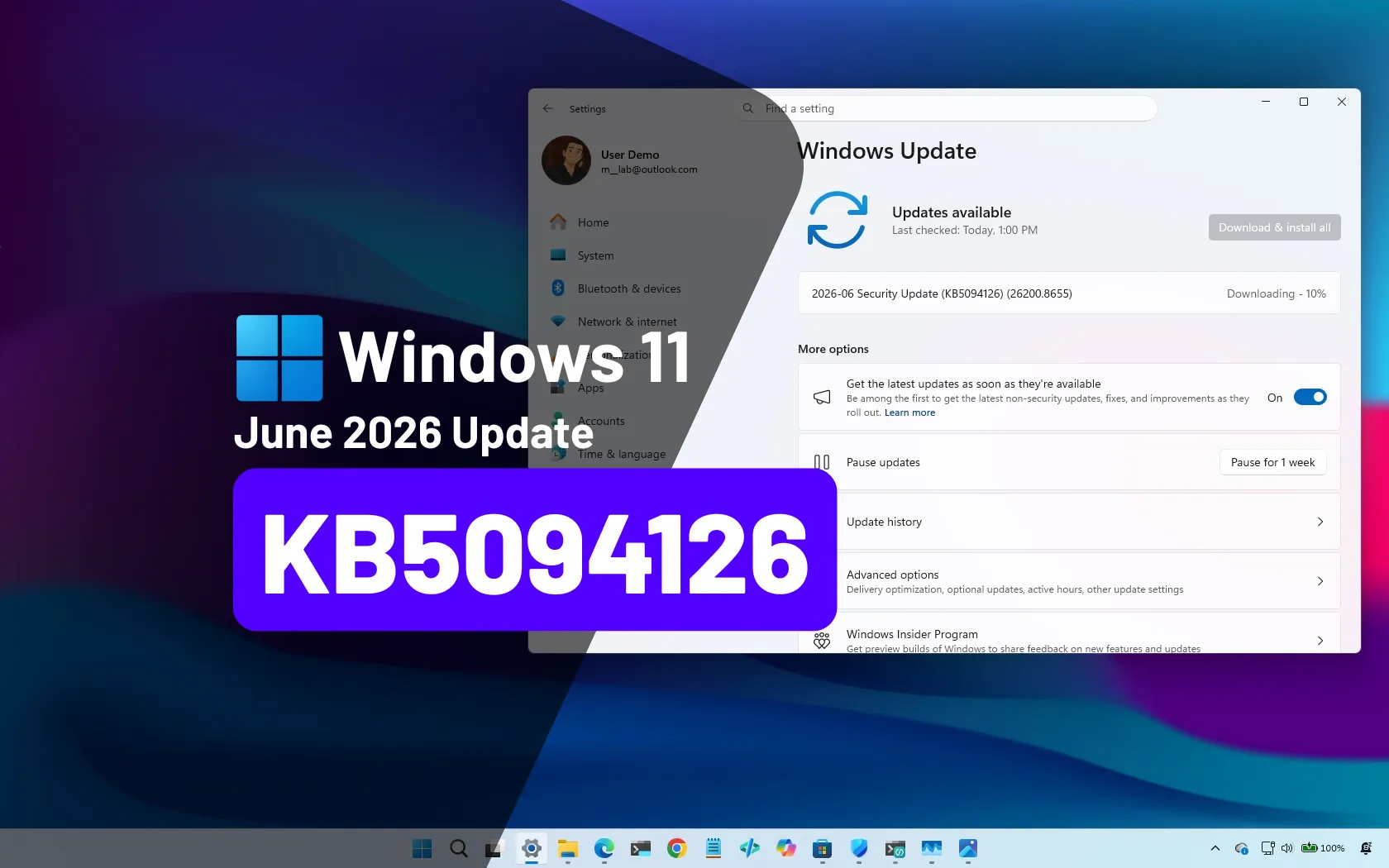
Microsoft began rolling out the June 2026 Patch Tuesday update for Windows 11 on June 9, 2026, targeting versions 25H2 and 24H2 with new builds reported as 26200.8655 and 26100.8655. It is not just another security bundle with a few cosmetic fixes stapled on. This release reads like Microsoft using Patch Tuesday as a vehicle for everything Windows 11 has been trying to become: faster at the shell, more explicit about AI hardware, more forgiving of modern peripherals, and more urgent about the boot chain. The risk is that a monthly update this ambitious also asks users and administrators to trust several moving parts at once.

Security-focused Windows patch Tuesday June 2026 interface with secure boot, device status, and system monitoring visuals.Microsoft Turns Patch Tuesday Into a Feature Train​

Patch Tuesday used to be the boring half of Windows servicing. Security fixes arrived on the second Tuesday of the month, optional previews carried most of the visible experimentation, and cautious administrators could mostly separate “must install” from “nice to have.” Windows 11 has steadily blurred that line, and the June 2026 update makes the blur impossible to ignore.
The update contains the usual security baseline, but it also brings performance work, accessibility changes, camera plumbing, Task Manager upgrades, Storage settings refinements, font fixes, Store improvements, USB reliability changes, and Secure Boot certificate handling. Some of these are immediate. Others are staged through Microsoft’s Controlled Feature Rollout machinery, which means two PCs on the same build may not behave identically on day one.
That distinction matters because the update is being sold, at least in enthusiast coverage, as one of the most feature-heavy monthly Windows 11 releases in recent memory. It may well be. But the more important story is that Microsoft is increasingly treating the operating system as a continuously reconfigured service, where the installed build number is only part of the truth.
For home users, that mostly means new behavior might appear after the update rather than immediately with it. For IT departments, it means testing can no longer stop at “does the cumulative update install.” It has to include whether policy, hardware eligibility, firmware state, and staged feature flags produce different outcomes across the fleet.

The Headline Performance Fix Is Hidden in Plain Sight​

The most interesting user-facing change in the June update is also the one Microsoft appears least interested in branding loudly. The changelog language describes accelerated app launch and core shell experiences such as Start, Search, and Action Center. Underneath that dry phrasing is the broader rollout of what has been called the Low Latency Profile.
The idea is simple: when the user performs an interactive action, Windows briefly gives the CPU a sharper kick. Instead of waiting for normal scheduling and frequency behavior to catch up, the system triggers short bursts of processor activity around the moments when latency is most visible. Opening Start, invoking Search, launching an app, or pulling up quick shell surfaces are exactly the places where a half-second delay makes a PC feel old.
This is not the same as making a slow laptop into a workstation. It is a responsiveness feature, not a throughput miracle. The benefit should be most noticeable on budget systems, older machines, and mid-range laptops that are frequently caught between aggressive power management and an increasingly complex Windows shell.
That distinction is worth making because Windows 11’s performance reputation has never been about a single benchmark. Users complain when the Start menu hesitates, when Search takes a beat too long, when Settings opens like a web app under load, or when a machine with perfectly adequate hardware feels strangely reluctant. A targeted latency boost addresses the psychology of performance as much as the engineering of it.
There is no obvious toggle for ordinary users, and that is probably by design. Microsoft does not want a “turbo button” support surface exposed in Settings, and most users would not know when to enable or disable it anyway. The tradeoff is transparency. When Windows gets faster because of an invisible profile, it becomes harder to diagnose when it does not.

Secure Boot Is the Mandatory Story Behind the Feature Parade​

The most consequential part of the June update is not the feature that makes Start open faster. It is the Secure Boot certificate transition. Microsoft has been warning that older Secure Boot certificates issued in the 2011 era are reaching expiration in June 2026, and the company has been moving Windows devices toward 2023 certificates before that deadline becomes a real-world boot-chain problem.
Secure Boot sits below the everyday Windows experience. Its job is to help ensure that the software involved in starting the machine is trusted before the operating system loads. When that trust chain depends on aging certificates, the problem is not cosmetic. It touches firmware, boot managers, third-party boot loaders, recovery paths, BitLocker behavior, and the messy diversity of PC hardware.
The June update reportedly expands high-confidence targeting data so more eligible devices can receive the newer Secure Boot certificates automatically. That phrasing is doing a lot of work. Microsoft is not simply blasting firmware-adjacent trust updates at every machine. It is trying to identify devices that have produced enough successful update signals to be safe candidates.
That caution is warranted. Secure Boot updates are the sort of thing that can be invisible when they go right and catastrophic when they go wrong. A consumer might only notice an extra restart. An administrator might see BitLocker recovery prompts, firmware dependencies, inconsistent OEM readiness, or devices that need policy decisions before they can be considered healthy.
The June update also adds a policy path for organizations that want to limit Secure Boot service data sent to Microsoft. That is a small but telling acknowledgement. The certificate migration depends on telemetry-like confidence signals, but many enterprises operate in environments where data minimization is not optional. Microsoft is trying to thread the needle between automated safety and administrative control.

The Firmware Layer Remains Windows’ Weakest Link​

The Secure Boot story is also a reminder that Windows servicing is never just Microsoft servicing. OEM firmware, device-specific BIOS updates, storage layouts, BitLocker configuration, and enterprise management tools all sit between Redmond’s intent and the user’s machine. When something breaks at that layer, the user rarely blames the firmware vendor first. They blame Windows Update.
That is not always fair, but it is understandable. Windows Update is the delivery mechanism users see, and it is the moment when the machine changes state. If a BIOS update creates a BitLocker loop, if an older device cannot cleanly accept certificate changes, or if a recovery partition is too small for servicing assumptions, the experience collapses into the same bucket: “the update broke my PC.”
The June update’s fix for installation failures tied to limited EFI System Partition space belongs in this same conversation. Error 0x800f0922 has long been one of those codes that tells normal users almost nothing and tells administrators they are about to spend time inspecting partitions. If devices with very little free space in the EFI partition were failing after recent servicing activity, fixing that path is not glamorous, but it is essential.
This is where Windows 11’s modernity runs into the accumulated archaeology of the PC ecosystem. A new laptop with current firmware, a clean partition layout, and supported hardware should glide through this update. An upgraded machine with a cramped EFI partition, an OEM utility in the mix, and a history of skipped firmware updates may not feel like part of the same platform.
Microsoft’s problem is that both are Windows PCs. Patch Tuesday has to serve the pristine and the peculiar at the same time.

Task Manager Becomes an AI Hardware Truth Serum​

The June update’s Task Manager changes are more important than they first appear. Windows 11 already had some awareness of NPUs, but the new process-level columns make AI hardware usage visible in a way that matters to power users, developers, and administrators. Seeing an NPU graph is useful. Seeing which process is using the NPU is accountability.
This is overdue. Microsoft, Intel, AMD, Qualcomm, and PC makers have spent the last two years selling the idea that neural processing units are central to the next phase of personal computing. But if the operating system cannot clearly show when that hardware is being used, the NPU risks becoming another spec-sheet ornament.
Adding NPU and NPU Engine columns to Task Manager’s Processes, Users, and Details views gives users a way to distinguish between marketing and activity. If a transcription tool, image feature, Copilot+ capability, or local model claims to use AI acceleration, Task Manager can now help show whether that claim maps to actual hardware use. The Details page going further with dedicated and shared NPU memory makes the tool more useful for troubleshooting, not just curiosity.
The update also surfaces neural engines associated with GPUs in the Performance page. That reflects the reality that AI acceleration is not always a single neat block labeled “NPU.” Modern systems may distribute these workloads across CPU instructions, GPU blocks, discrete NPUs, and shared memory paths. Windows needs to expose that complexity without drowning users in it.
The new Isolation column is quieter but equally useful. Showing whether a process runs inside an AppContainer gives administrators and security-minded users a better view of sandboxing boundaries. In an era where Microsoft wants more apps distributed through controlled channels and more workloads isolated by design, Task Manager is becoming less of a panic button and more of a trust inspector.

Multi-App Camera Fixes a Limitation That Felt Increasingly Absurd​

The one-app-at-a-time webcam model made sense in an older desktop world. It makes much less sense in 2026, when a user might be on a Teams call, recording in OBS, using accessibility software, running a virtual camera layer, and authenticating through Windows Hello across the same workday. The camera is no longer a single-purpose peripheral. It is part of the productivity stack.
Multi-App Camera addresses that mismatch by allowing multiple applications to access the same camera stream simultaneously. In practical terms, it should reduce the familiar failure mode where the first app to grab the camera blocks everything else. That is especially relevant for streamers, trainers, hybrid workers, support technicians, educators, and anyone who has ever tried to join one meeting while another communications app still had its hooks in the device.
The addition of Basic Camera mode is just as important for troubleshooting. By letting Windows fall back to a generic camera driver, Microsoft gives users and administrators a cleaner way to separate Windows problems from OEM driver problems. If the camera works in Basic Camera mode and fails with the vendor driver, the finger points in a more useful direction.
Group Policy support makes this more than a consumer convenience. Enterprises can decide whether shared camera access fits their privacy and compliance posture. That matters because a feature that helps a creator record a call could make a regulated workplace nervous if it is deployed without policy guardrails.

Setup Finally Stops Mangling the User Folder​

The new Windows Setup option to choose a custom user folder name sounds minor until you have lived with the old behavior. For years, Microsoft account setup could generate awkward profile folder names from truncated email addresses. Once created, the folder under C:\Users was difficult to rename cleanly because so much software assumes that path will remain stable.
This was one of those paper-cut design choices that made Windows feel indifferent to ownership. The account display name might look polished, but the actual file system identity could be an ugly fragment that followed the user for the life of the installation. Developers, command-line users, and anyone who spends time in paths noticed it immediately.
Adding a setup-time choice is the right fix, though it arrives with an obvious limitation. Existing installations do not get a safe built-in rename path. That is understandable from an engineering perspective, because changing an established profile directory can break applications, environment variables, scripts, and registry references. But it also means the people most annoyed by the old behavior may not benefit until their next clean install or new PC.
Still, this is a meaningful shift. Windows 11 setup has often felt like a funnel for Microsoft account onboarding rather than a place where the user can shape the machine. Giving people control over the profile folder name is a small restoration of agency.

Accessibility Gets Practical Rather Than Promotional​

Magnifier’s improvements in the June update are not flashy, but they are the kind of changes that matter when accessibility is a daily dependency rather than a settings category. Clearer screen reader announcements for zoom changes, view switches, color inversion, and Magnifier state reduce uncertainty for users who cannot rely on visual confirmation.
Support for magnifying permitted protected content addresses another long-standing friction point. Protected surfaces exist for security and content-rights reasons, but accessibility tools become less useful when they stop working precisely where a user needs them. The key word is “permitted,” because Microsoft is still balancing content protection boundaries against assistive access.
The smoother lens-mode movement also belongs in the category of changes that are difficult to appreciate unless you rely on the feature. Jitter in a magnification tool is not just visually unpleasant. It can create fatigue, reduce accuracy, and make the interface feel unstable.
Windows accessibility has improved significantly over the last several years, but the platform still has to prove that those improvements survive contact with the rest of the OS. An accessibility feature that works only in ideal content and ideal apps is not enough. June’s Magnifier work appears to move in the more useful direction: fewer surprises, clearer feedback, and broader applicability.

Windows Hello Gets Nudged Back Toward Biometrics​

Windows Hello changes in the June update address a subtle annoyance in the sign-in flow. If face or fingerprint recognition is configured, Windows will more consistently return those methods to the default rather than letting PIN entry quietly take over after occasional use. The exception, reportedly, is repeated PIN use, after which Windows will respect the pattern until the user switches again.
That sounds like a small behavioral tweak, but sign-in defaults shape how secure features are actually used. If a device has a camera and fingerprint reader, but the lock screen keeps presenting PIN as the path of least resistance, users may drift toward the weaker or less convenient habit. Making biometrics reliably primary reinforces the feature Microsoft wants people to use.
The update also reduces latency after Modern Standby before biometric sign-in becomes available. That is another real-world fix. A face camera that is theoretically fast but practically late after wake creates friction every time the lid opens.
Enhanced Sign-in Security fixes for missing secure enrollment metadata round out the package. This is the less visible side of Windows Hello: not the animation on the lock screen, but the trust and enrollment state behind it. As Microsoft leans further into passkeys, local presence, and hardware-backed sign-in, these reliability details become more central.

Search, Storage, and Personalization Get the Kind of Fixes Users Actually Notice​

Windows Search gaining useful results from as few as two characters is a deceptively important change. Many files, projects, codes, and abbreviations are short. If Search refuses to become useful until the user types more, it fails a common workflow. Better short-string matching should make local search feel less arbitrary.
Storage settings also get a common-sense improvement with Dev Drive sizes available in gigabytes rather than forcing users into megabyte arithmetic. Dev Drives are aimed at developers and technical users, but that does not justify clumsy input. A feature can be advanced and still respect basic ergonomics.
Reducing unnecessary UAC prompts in Storage settings is another welcome correction. User Account Control should appear when privilege is needed, not when a settings page merely opens. Every unnecessary elevation prompt trains users to approve prompts reflexively, which weakens the security model it is supposed to protect.
Personalization fixes for accent color matching and wallpaper persistence fall into the same practical category. Nobody should have to think about whether a custom wallpaper survives a restart or whether automatic accent color is approximating the wrong shade. These details are not strategic, but they shape whether the desktop feels cared for.

USB, Sensors, and HID Fixes Show Microsoft Fighting the Standby Tax​

The June update’s USB4 display and USB3 recovery fixes are aimed at a class of problems that make modern laptops feel less reliable than older desktops. Docking stations, USB-C hubs, external monitors, and sleep-resume cycles are now central to everyday work. When a display fails to wake or a USB device disappears until physically reconnected, the entire promise of a flexible workstation falls apart.
Improved USB4 display reliability after standby should matter particularly to users with docked laptops. These setups are common in offices and home workstations, and they are also notoriously sensitive to firmware, cables, monitors, docks, and driver stacks. Windows cannot fix every bad dock, but it can improve its side of the resume sequence.
The USB3 recovery work appears aimed at preventing hardware fault conditions from turning into user-visible dead devices. That kind of resilience is unglamorous and valuable. A robust OS should recover from flaky peripherals without demanding a reboot or cable ritual.
Sensor hub and HID power improvements target another persistent Windows laptop complaint: standby battery drain. If apps or failed devices keep parts of the input or sensor stack awake when the system should be conserving power, the user sees only the outcome: a bag-warmed laptop or a battery that mysteriously lost charge overnight. Fixing these drains is not just about battery life. It is about restoring trust in sleep.

The Store and Shell Fixes Are Small Signals of a Larger Cleanup​

Microsoft Store download performance and clearer error reporting are not going to sell anyone on the June update by themselves. But they matter because the Store remains a required piece of Microsoft’s app model, whether users love it or tolerate it. If downloads are slow or failures are cryptic, confidence in that model erodes.
The specific improvement around Windows Update group policy interference is especially relevant for managed devices. Store errors caused by policy should say something useful. Otherwise, users blame the Store, help desks chase ghosts, and administrators have to reverse-engineer what the client should have told them in the first place.
Task Scheduler remembering column widths is another tiny fix that will delight exactly the sort of person who notices Task Scheduler column widths. That is not sarcasm. Administrative tools live or die by accumulated respect for user preference, and losing layout changes across sessions is the kind of irritation that makes old tools feel abandoned.
Times New Roman rendering fixes for Greek and Cyrillic combining marks are similarly niche but important. Font correctness is infrastructure. If diacritical marks are positioned badly, documents look unprofessional, readability suffers, and users working outside English get reminded that their needs are often treated as edge cases.

Controlled Rollout Is Both Safety Net and Moving Target​

The June update’s two-speed delivery model is now a normal part of Windows 11, but normal does not mean simple. Security and certain reliability fixes arrive broadly through the normal rollout. Many features, including some of the most visible ones, arrive gradually through Controlled Feature Rollout.
For Microsoft, this is rational. Gradual rollout limits blast radius, allows telemetry-driven holds, and gives the company a way to pause or adjust features without pulling the whole update. For users, it creates confusion. Two people can install the same Patch Tuesday update and compare notes only to find that one has a feature and the other does not.
For administrators, the challenge is sharper. Documentation, support scripts, training material, and help desk expectations all depend on knowing what a machine should do. Controlled rollout replaces a clean yes-or-no version model with a more probabilistic reality. The build number says the code may be present; the feature state says whether the user can touch it.
This is the price of Windows as a service. Microsoft can improve the OS faster and reduce mass breakage, but the platform becomes less legible. The June update is a good example of why that tradeoff is both defensible and frustrating.

The June Build Rewards Fast Adoption, but Not Blind Adoption​

For most home users on supported Windows 11 hardware, installing the June 2026 update promptly is the sensible path. The Secure Boot certificate work alone makes delay a poor strategy, and the performance and reliability fixes add enough upside to make the update more than routine maintenance. The usual advice applies: back up important data, leave the machine plugged in during installation, and do not interrupt firmware or boot-related update behavior.
For enthusiasts, the update is interesting because it gives Windows 11 a more responsive feel without requiring a new device. Low Latency Profile is exactly the sort of under-the-hood change that can shift perception if it works broadly. The Task Manager NPU columns also give power users a better way to inspect the AI claims now attached to premium PCs.
For IT administrators, this is a testing release, not just a deployment release. Secure Boot certificate state, BitLocker recovery behavior, EFI partition health, OEM firmware readiness, camera policy, AppContainer visibility, Store policy interactions, and staged feature availability all deserve attention. The update may be good news, but it is not trivial news.
The strongest argument for the June update is that it fixes things at the levels where Windows 11 most often feels rough: launch latency, sleep-resume reliability, peripheral sharing, setup polish, and opaque hardware acceleration. The strongest argument for caution is that several of those improvements intersect with hardware-specific behavior, and hardware-specific behavior is where Windows updates most often become uneven.

This Patch Tuesday Is Really a Windows 11 Course Correction​

The June 2026 update is best understood as a course correction rather than a pile of features. It tries to make Windows 11 feel faster, make modern AI hardware more visible, make webcams behave like shared resources, make accessibility more dependable, and make the Secure Boot transition happen before the calendar turns into a security incident.
Near the close, the practical read is straightforward:
  • Users on supported Windows 11 24H2 or 25H2 systems should treat the June update as important, especially because of the Secure Boot certificate transition.
  • Low Latency Profile may make the Start menu, Search, Action Center, and app launches feel snappier, but its rollout may not appear on every machine immediately.
  • Administrators should verify Secure Boot certificate status, firmware readiness, BitLocker behavior, and EFI partition health before assuming fleet-wide success.
  • Task Manager’s new NPU and isolation visibility makes Windows 11 more transparent for AI workloads and sandboxed apps.
  • Multi-App Camera and Basic Camera mode should reduce webcam conflicts and make driver troubleshooting cleaner.
  • Controlled Feature Rollout means installing the update and seeing every advertised feature are not the same event.
The larger lesson is that Microsoft is still rebuilding Windows 11 in public, one cumulative update at a time. June 2026 shows the upside of that model: meaningful improvements can arrive without waiting for a once-a-year feature release. It also shows the tension at the center of modern Windows servicing, where security deadlines, staged features, firmware dependencies, and user expectations all arrive through the same update button. If Microsoft can keep the reliability story calm, this may be remembered as the month Windows 11 stopped merely accumulating features and started sanding down the friction that made those features harder to trust.

References​

  1. Primary source: Windows Latest
    Published: Tue, 09 Jun 2026 16:52:57 GMT
  2. Related coverage: windowscentral.com
  3. Official source: learn.microsoft.com
  4. Official source: microsoft.com
  5. Related coverage: pcworld.com
  6. Official source: support.microsoft.com
 

Microsoft’s June 2026 Windows 11 update begins rolling out Low Latency Profile, a new responsiveness feature for Windows 11 24H2 and 25H2 that briefly raises CPU frequency during foreground interactions such as launching apps, opening Start, invoking Search, and displaying shell flyouts. The promise is simple: Windows should feel quicker before the user has time to notice the operating system thinking. The controversy is just as simple: Microsoft is improving perceived speed by spending short bursts of power, not by magically making Windows lighter. That distinction matters, because Low Latency Profile is both a useful fix and a revealing admission about where Windows 11 still struggles.

Laptop screen shows Windows Start menu with CPU boost and Task Manager CPU performance charts displayed.Microsoft Has Finally Decided That “Feels Fast” Is a Feature​

For years, Windows performance arguments have been fought on the wrong terrain. Benchmarks told one story, users told another, and both sides were usually right. A PC could post fine synthetic scores and still feel sluggish when Start hesitated, Search stalled, File Explorer blinked into view, or Outlook took just long enough to make the user click twice.
Low Latency Profile is Microsoft’s attempt to attack that gap directly. Instead of waiting for a workload to become obviously demanding, Windows briefly anticipates the moment when responsiveness matters most: the first second or two after a user asks the machine to do something. That means opening an app, calling up a menu, or triggering a visible interface change can receive a short CPU-frequency lift.
This is not a new kind of performance in the cinematic “your PC is 40 percent faster now” sense. It is a new policy choice about latency, which is the delay between intent and visible response. Microsoft is betting that trimming the first beat of delay will do more for user satisfaction than another invisible optimization buried under the scheduler.
That bet is probably correct. Most people do not experience Windows as a benchmark suite. They experience it as a sequence of tiny waits.

The Trick Is Short, Sharp, and Deliberately Unromantic​

Low Latency Profile reportedly works by pushing the processor toward maximum or near-maximum frequency for a very brief window, often described as roughly one to three seconds, when the user triggers certain foreground interactions. Once the burst has passed, the CPU returns to its normal power behavior. The point is not sustained horsepower; it is to get Windows out of its own way during the moments that shape perception.
That is why LLP is being discussed alongside app launches, Start menu activation, context menus, notification flyouts, File Explorer, and Windows Search. These are not glamorous workloads. They are the daily texture of the operating system, and they are exactly where modern Windows has too often felt heavier than its hardware should allow.
The reported gains are attention-grabbing: native app launches up to 40 percent faster and some shell interactions up to 70 percent faster in Microsoft’s and Windows Central’s descriptions. Those figures should be read as scenario-specific, not as a blanket promise that every PC becomes dramatically quicker after the update. But they still point to something real: Windows 11 has a latency budget problem, and Microsoft has found enough low-hanging fruit to make the interface measurably snappier.
There is a refreshing bluntness to the mechanism. LLP does not pretend that every delay can be solved by cleaner code or better animations. Sometimes the fix is to wake the CPU sooner, run faster for a second, and stop pretending that the operating system can always coast in an efficiency-first state without users noticing.

Windows K2 Is a Reputation Repair Program Wearing an Engineering Badge​

The feature is being discussed as part of Microsoft’s broader Windows K2 initiative, a reported internal push to address complaints about Windows 11 performance, reliability, and responsiveness. Whether K2 becomes a durable engineering program or just a marketing-friendly label, its existence says something important. Microsoft knows the complaints are not merely nostalgia from Windows 7 diehards or forum noise from power users.
Windows 11 has often felt like an operating system built around competing priorities. It wants to be polished, secure, cloud-connected, AI-ready, touch-friendly, power-efficient, backward-compatible, enterprise-manageable, and visually modern. Each goal has a cost. The bill shows up as services, shell components, background tasks, web-backed surfaces, security layers, and UI frameworks stacked across a platform that still has to run Win32 software from another era.
That makes K2’s focus on foundational experience overdue. Users do not care whether a delay is caused by power management, shell architecture, Defender scanning, graphics composition, web content, storage latency, or a framework boundary. They click, Windows pauses, and the operating system gets the blame.
Low Latency Profile is therefore less interesting as a single feature than as a signal. Microsoft is no longer treating responsiveness as an aesthetic concern. It is treating it as an operating-system promise.

The “Band-Aid” Criticism Is Not Wrong, But It Is Incomplete​

The backlash was predictable. If Windows feels slow because it is too complex, too layered, or too eager to run background components, then briefly boosting CPU clocks can look like a workaround rather than a cure. The operating system gets heavier, the silicon gets faster, and users are told to be grateful when the machine burns a little more power to hide the mess.
There is truth in that critique. A short CPU burst does not make Windows Search less sprawling. It does not simplify the shell. It does not remove duplicated settings surfaces, reduce telemetry plumbing, or resolve the long-running tension between native UI and web-powered experiences. If Windows 11 has architectural drag, LLP does not dissolve it.
But calling it only a band-aid misses how modern operating systems actually deliver responsiveness. Every major platform uses policy decisions to prioritize foreground work, wake processors aggressively, schedule tasks differently, and treat human interaction as more urgent than background bookkeeping. Phones do this. Linux desktops can do this. macOS does this. The idea that Windows should never boost for interactivity is more purist than practical.
The real question is not whether the technique is morally clean. The real question is whether Microsoft applies it surgically, measures it honestly, and continues to remove the underlying delays rather than declaring victory because Start opens faster on a demo machine.

Laptop Users Will Feel the Trade-Off First​

The obvious cost of LLP is power. A CPU that jumps to high frequency for a second is still using more energy during that second, and laptops live by the accumulation of small costs. Microsoft’s argument is that the bursts are brief enough to matter for responsiveness without becoming a major battery drain.
That may be true for many machines, especially if the faster completion of a task lets the system return to idle quickly. Race-to-idle behavior is not inherently wasteful. A processor that works hard briefly and sleeps sooner can be more efficient than one that crawls through the same task at a lower clock.
The problem is that Windows laptops are not one category. A premium ultraportable with a modern Intel, AMD, or Arm chip may absorb LLP gracefully. A budget laptop with a small battery, mediocre cooling, and an already aggressive vendor power profile may expose the downside more clearly. Short boosts can mean fan spin, temperature spikes, or battery estimates that wobble more than users expect.
Microsoft also appears to be making LLP difficult to observe directly. There is no obvious user-facing toggle, no friendly “Low Latency Profile is active” indicator, and no simple setting comparable to Battery Saver or Best Performance. Users trying to detect it are left watching Task Manager while opening Start, Search, apps, or context menus and looking for brief CPU-frequency or utilization spikes.
That opacity is a mistake. If Microsoft is confident that LLP is safe and beneficial, it should say so in Windows itself. Power-sensitive users, administrators, and reviewers should not have to reverse-engineer a responsiveness feature by staring at graphs.

The Missing Toggle Is Where Consumer Convenience Collides With Admin Culture​

For consumers, a feature like LLP is exactly the sort of thing that should probably be on by default. Most users will not understand it, will not tune it correctly, and will judge Windows by whether it feels better after the update. If the trade-off is small, Microsoft is right to hide the complexity.
For IT professionals, the absence of obvious control is more irritating. Enterprises care about battery runtime, thermals, acoustic behavior, predictability, and support calls. They also care about whether a fleet of laptops suddenly behaves differently after Patch Tuesday, especially if help desks start hearing that fans are spinning up when users open Teams, Outlook, or File Explorer.
This is the recurring Windows management dilemma. Microsoft increasingly ships consumer-friendly behavior as a controlled rollout, often without the sort of clear knobs and documentation that admins want on day one. The feature may be beneficial. The deployment model still makes professionals feel like passengers.
Group Policy, Intune settings, power profile integration, or at least formal documentation would go a long way. A simple user toggle may not be necessary for everyone, but fleet administrators should not have to rely on unofficial feature IDs or community reporting to understand what changed. Hidden performance policy is still policy.

Budget PCs Are the Best Case and the Hardest Case​

The MakeUseOf framing is right about one thing: the biggest visible benefit may come on older or cheaper PCs. High-end machines already brute-force many of Windows 11’s hesitations. A fast NVMe SSD, a modern CPU, enough RAM, and a well-cooled chassis can make UI delays less noticeable, even if the underlying software path is still inefficient.
On budget hardware, the problem is more exposed. Low clocks, slow storage, limited memory, background OEM utilities, and thermal constraints all stack up. If LLP helps Windows prioritize foreground interaction on machines where every second feels longer, it could make the difference between “usable” and “annoying.”
But that is also where the trade-offs are sharpest. Budget laptops often have the weakest cooling and smallest batteries. They may be exactly the systems that benefit from brief boosts and exactly the systems most likely to show side effects. An entry-level laptop that feels snappier but runs warmer is still an improvement for some users, but it is not a free one.
This is why wider rollout data matters. Microsoft’s internal numbers and early enthusiast testing are useful, but the real test is the messy installed base: school laptops, small-business machines, aging consumer notebooks, low-end desktops, virtualized environments, and hardware with years of driver cruft. Windows performance features live or die in the long tail.

“Enable It Early” Is Tempting, but Preview Updates Are Still Preview Updates​

The feature is associated with the May 26, 2026 preview update KB5089573, which brings Windows 11 24H2 and 25H2 systems to builds 26100.8524 and 26200.8524 respectively. It is also expected to roll into the June 2026 security update cycle through Microsoft’s normal staged rollout. That means some users will see it quickly, while others may install the update and still wait for Microsoft’s controlled feature rollout machinery to flip the relevant switch.
For enthusiasts, there are two obvious paths: join the Windows Insider or preview channel path where the update appears, or use ViveTool to enable feature IDs associated with LLP. The latter has become a familiar Windows hobbyist ritual. Microsoft hides or stages features, the community finds IDs, and impatient users flip them on.
That is fine on a test machine. It is a bad habit on a production system unless you accept the risk. Preview cumulative updates exist to validate fixes and features before broader release. ViveTool exists in the gray zone between exploration and unsupported configuration. It can reveal what Microsoft is building, but it does not turn a staged feature into a guaranteed, documented, supportable capability.
There are already scattered user reports around KB5089573 involving installation trouble, crashes, BitLocker recovery prompts, broken search fields, or performance regressions. Some of those reports may be unrelated to LLP. Some may be isolated. Some may be the ordinary noise that surrounds any Windows cumulative update. But they are a reminder that “get it early” and “get it safely” are not the same instruction.
For WindowsForum readers, the sensible advice is boring because it is correct: try LLP early on a non-critical PC, a spare laptop, or a system image you can roll back. Do not deploy preview builds across a work fleet because a headline promised a snappier Start menu.

The CPU Spike Is a Symptom Users Can See, Not the Whole Story​

One reason LLP has become controversial is that users can apparently see the behavior in Task Manager. Open Start, Search, an app, or a flyout, and the CPU may briefly jump toward high utilization or frequency. To some users, that looks alarming. To others, it looks like proof that Microsoft has been leaving performance on the table.
Both reactions are understandable, but neither is complete. A momentary spike is not automatically bad. Interactive computing is full of bursts. The ideal system is not one that never spikes; it is one that spikes for the right reasons, finishes promptly, and returns to idle without thrashing the machine.
The more important measurement is not whether CPU usage touches a scary number for a second. It is whether the interaction completes faster, whether battery drain over a real session changes materially, whether thermals remain acceptable, and whether the system avoids harming background work. A desktop user with a powerful CPU may never care. A laptop user in a meeting might.
Microsoft should provide better observability here. Windows already exposes power modes, battery usage, startup impact, and efficiency recommendations. A responsiveness feature that changes CPU behavior should eventually be visible in a way that is understandable without turning every user into a performance analyst.

The Shell Is Where Windows Wins or Loses Trust​

The most telling detail about LLP is that it focuses on ordinary interface surfaces. Start, Search, File Explorer, context menus, and app launching are not edge cases. They are the front door. If they hesitate, the entire operating system feels suspect.
That matters more in 2026 than it did a decade ago. Windows now competes not just with macOS and Linux desktops, but with the expectations set by phones and tablets. Users are trained to expect immediate visual feedback. Even when the underlying task takes time, the interface must acknowledge intent quickly.
Windows 11 has improved in fits and starts, but the shell has carried a reputation for being inconsistent. Some parts are fluid, others lag. Some surfaces are modern, others feel bridged from older eras. Some interactions seem fast on new hardware but strangely heavy on machines that should still be adequate.
Low Latency Profile does not solve all of that. But it recognizes where the emotional damage happens. A slow export job is a workload. A slow Start menu is an insult.

Microsoft’s Best Defense Is That Everyone Else Already Cheats​

One of the more interesting arguments from Microsoft-aligned voices is that this is not exotic. Other operating systems already bias scheduling and power behavior around interactivity. Smartphones are especially aggressive about making touch response feel immediate, because a handheld device that hesitates under your finger feels broken regardless of benchmark results.
That comparison is fair, but Windows has a harder job. It runs on a wider range of hardware, with more driver variation, more background software, more legacy baggage, and more enterprise controls. The same latency trick that feels seamless on a tightly integrated phone can become messier on a five-year-old laptop with questionable firmware and vendor utilities.
Still, Microsoft should not be embarrassed by the concept. It should be embarrassed only if LLP becomes a substitute for deeper cleanup. A responsiveness boost is an acceptable technique. A responsiveness boost used to paper over endless bloat is not.
This is where Windows K2 will be judged. If the next year brings faster shell surfaces, cleaner background behavior, fewer inexplicable waits, and better power-aware scheduling, LLP will look like an early piece of a serious program. If nothing else improves, critics will remember it as the moment Microsoft admitted Windows needed a kick in the CPU to feel modern.

Patch Tuesday Turns Performance Into a Moving Target​

The timing also matters. The June 2026 Windows 11 update is not just a feature drop; it is part of the security update rhythm that millions of machines follow whether users pay attention or not. Microsoft’s controlled rollout model means performance changes can arrive gradually, invisibly, and unevenly across similar systems.
That creates a communication challenge. One user installs KB5089573 and sees nothing. Another sees snappier app launches. A third sees CPU spikes. A fourth reads about LLP, checks Task Manager, and concludes something is wrong because the numbers move differently than before. In the Windows ecosystem, inconsistent rollout often becomes indistinguishable from inconsistent quality.
Microsoft has reasons for staging features. Gradual rollouts let it detect problems before they hit everyone. They also make troubleshooting more complicated. When an update contains code but a server-side rollout controls activation, users and admins can struggle to answer the simplest question: “Do I have this feature or not?”
That ambiguity is tolerable for cosmetic changes. It is less tolerable for performance policy. If Windows is going to alter CPU behavior in the name of responsiveness, the operating system should expose enough state for support teams, reviewers, and advanced users to know what is happening.

Security, AI, and Responsiveness Are Now Competing for the Same Budget​

The broader story is that Windows is being asked to do more with the same user patience. Security features add overhead. AI features want local compute. Cloud integrations add background activity. Compatibility layers preserve decades of software expectation. At the same time, users expect instant response and all-day battery life.
That is an impossible triangle unless the operating system becomes more intentional about when it spends resources. LLP is one expression of that intentionality. It says the foreground moment is worth prioritizing, even if it costs a burst of power.
There will be more of this. NPUs will get better visibility in Task Manager. AI features will lean on dedicated silicon where available. Camera and audio features will grow more flexible. Windows will keep trying to become more capable without feeling heavier. The only way that works is if Microsoft treats responsiveness, efficiency, and observability as linked problems rather than separate teams’ scorecards.
For sysadmins, that means update testing has to include user-experience checks, not just application compatibility and boot success. For enthusiasts, it means CPU graphs need context. For Microsoft, it means no more hiding major behavioral changes behind vague promises of “quality improvements.”

The Snappier Start Menu Comes With Fine Print​

Low Latency Profile is one of those Windows features that sounds smaller than it is. It does not redesign the desktop, replace the kernel, or add a shiny new app. It changes how aggressively Windows responds to the user in the first seconds of interaction, which is exactly where the operating system’s reputation is made.
The practical read is straightforward:
  • Windows 11 24H2 and 25H2 are receiving Low Latency Profile through the KB5089573 preview path and the June 2026 staged update rollout.
  • The feature briefly raises CPU frequency during foreground interactions such as app launches, Start, Search, context menus, File Explorer, and other shell surfaces.
  • The largest visible gains are likely to appear on slower or older PCs, though those machines may also be more sensitive to battery and thermal trade-offs.
  • There is no obvious consumer-facing switch or status indicator, which makes the feature harder to validate and harder for administrators to manage.
  • Enthusiasts can experiment early through preview builds or ViveTool, but production machines should wait for the broader, documented rollout unless rollback is easy.
  • The feature should be judged by real-world responsiveness, battery impact, thermals, and reliability, not by whether Task Manager briefly shows a dramatic CPU spike.
The best version of this story is not that Microsoft found a hidden turbo button. It is that Microsoft is finally treating the small waits inside Windows as first-class bugs. If Low Latency Profile becomes one piece of a broader effort to make Windows 11 feel lighter, faster, and more predictable, users will forgive the occasional CPU sprint; if it becomes the whole strategy, the snappier Start menu will only make the remaining sluggishness harder to excuse.

References​

  1. Primary source: MakeUseOf
    Published: Mon, 08 Jun 2026 14:00:19 GMT
  2. Related coverage: windowscentral.com
  3. Official source: support.microsoft.com
  4. Related coverage: windowslatest.com
  5. Related coverage: pureinfotech.com
  6. Related coverage: windowsreport.com
  1. Official source: learn.microsoft.com
  2. Related coverage: windowspower.de
  3. Related coverage: cultura-informatica.com
  4. Related coverage: tomshardware.com
  5. Related coverage: techradar.com
 

Back
Top