

Microsoft pushed a targeted February 10, 2026 cumulative (KB5077179) for Windows 11 (OS Build 28000.1575) that must be installed with care: the package ships as multiple MSU files with a required install order, includes servicing‑stack and dynamic‑update considerations, and is intended for both live systems and offline image servicing depending on your deployment scenario. rview
Windows servicing in early 2026 is operating on two parallel tracks: the ongoing H2 feature cadence for the broad Windows 11 installed base, and a smaller, platform‑first branch (reported as Build 28000 / version 26H1) that enables next‑generation silicon and deep firmware/driver integrations for OEM‑shipped devices. That broader servicing context matters because KB5077179 targets the newer build family and ties into the same servicing mechanics Microsoft has used for other cumulative and out‑of‑band packages this year.
Functionally, KB50on the Microsoft Update Catalog and the KB support article explicitly documents two methods of installation: (1) let DISM discover and apply a folder of MSUs together, or (2) install each MSU individually in the documented order (which includes a prerequisite package named KB5043080 in many similar rollups). The KB also calls out special handling when adding the update to Windows installation media and warns to match month‑stamped Dynamic Update packages.
In short: applying the packages in the wrong order, or leaving out a required SSU, is a common cause of failed updates and the associated errors administrators encounter (0x800f0922, 0x80070306, 0x800f0838, among others). Microsoft’s guidance to place all MSUs in a single folder and let DISM sequence prerequisites is therefore both deliberate and pragmatic.
A second operational risk derives from the Secure Boot certificate refresh work Microsoft has been conducting: certificate roaintenance but it operates at the firmware/trust anchor level and can interact with OEM firmware peculiarities. Microsoft hicate deliveries based on telemetry to reduce risk, but organizations that depend on specialized pre‑boot chains or anti‑cheat systems should validate certificate rotation in a controlled test environment.
Finally, if your estate includes legacy hardware or very old modem/serial devices, earlier 2026 updates removecy drivers. While that is a January headline, it demonstrates the broader principle: small, policy‑driven packaging changes can in specialized environments and should be accounted for in your testing matrices.
Practical, final recommendations:
In short: KB5077179’s mechanics are straightforward once you accept Microsoft’s multi‑MSU sequencing model and use DISM/PowerShell as the KB prescribes. The benefits are improved modularity and targeted payloads; the risks are operational misconfiguration and driver/firmware interactions that are best caught by a disciplined pilot program.
Source: Microsoft Support February 10, 2026—KB5077179 (OS Build 28000.1575) - Microsoft Support
Windows servicing in early 2026 is operating on two parallel tracks: the ongoing H2 feature cadence for the broad Windows 11 installed base, and a smaller, platform‑first branch (reported as Build 28000 / version 26H1) that enables next‑generation silicon and deep firmware/driver integrations for OEM‑shipped devices. That broader servicing context matters because KB5077179 targets the newer build family and ties into the same servicing mechanics Microsoft has used for other cumulative and out‑of‑band packages this year.
Functionally, KB50on the Microsoft Update Catalog and the KB support article explicitly documents two methods of installation: (1) let DISM discover and apply a folder of MSUs together, or (2) install each MSU individually in the documented order (which includes a prerequisite package named KB5043080 in many similar rollups). The KB also calls out special handling when adding the update to Windows installation media and warns to match month‑stamped Dynamic Update packages.
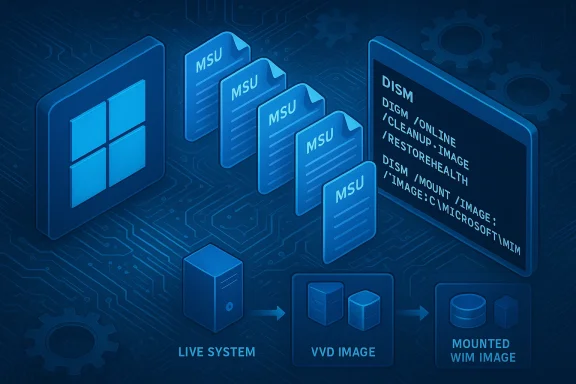 What the KB actually says (practical summary)
- The u to OS Build 28000.1575 and is packaged as one or more standalone .msu files.
- Two supported install methods are provided: Method 1 (place all MSU files in DISM /Add‑Package or Add‑WindowsPackage) and Method 2 (install each MSU in the specific order using DISM or the Windows Update Standalone Installer).
- The KB lists the specific MSU filenames and the required order when using Method 2 (prerequisite firsmulative). In practice that means installing KB5043080 before KB5077179 when required.
- For offline image servicing, the KB provides DISM /Image:<mountdir> /Add‑Package examples and suggests using the PowerShelequivalent for scripted deployments.
Why the installation order and multiple MSUs matter
Microsoft bundles servcing‑stack updates (SSUs), dynamic updates, and the latest cumulative update (LCU) together, and sometimes splits these into multiple MSU files because of sequencing dependencies or optional component payloads (for example, AI components only applicable on specific Copilot+ devices). If you try to apply only the LCU without its prerequisites or without the correct servicing stack, you can trigger servicing errors (manifest/applicability failures), component store corruption, or the well‑known error codes that administld.In short: applying the packages in the wrong order, or leaving out a required SSU, is a common cause of failed updates and the associated errors administrators encounter (0x800f0922, 0x80070306, 0x800f0838, among others). Microsoft’s guidance to place all MSUs in a single folder and let DISM sequence prerequisites is therefore both deliberate and pragmatic.
Installation mechanics: a steelow is a practical, test‑first playbook for applying KB5077179 safely across pilots and production rings.
Pre‑deployment checklist
- Inventory affected devices and confirm OS build and branch (use winver or Settings → About). Targeted devices should be on the branch the KB addresses (Build 28000 series in this case).
- Ensure devices have the required servicing stack updates (SSUs) and other prerequisites already installed, especially when managing offline images or a sealed golden image. Microsoft bundles SSUs with many LCUs; if you use offline installers, stage SSUs first.
- Confirm firmware and driver beporting for recent cumulative rollups shows that certain GPU driver/firmware combinations (NVIDIA being called out frequently) can amplify transient display blackouts or freezes after updates. Update drivers or test on a driver‑controlled pilot configuration.
Method 1 — Let DISM sequence prerequisites automatically (recommended for most admins)
- Downliles for KB5077179 from the Microsoft Update Catalog into a single folder, e.g., C:\Packages.
- Open an elevated Command Prompt and run:
DISM /Online /Add‑Package /PackagePath:C:\Packages\Windows11.0‑KB5077179‑x64.ms PowerShell:
Add‑WindowsPackage ‑Online ‑PackagePath "C:\Packages\Windows11.0‑KB5077179‑x64.msu"
DISM will scan the folder and install prerequisite MSUs (SSU, prerequisite LCUs) in the correct order.
Method 2 — Install each MSU individually (if you need explicit control)
- From the KB or Update Catalog, identify the prerequisite MSU (often windows11.0‑kb5043080‑x64.msu) and then the target MSU.
- Install the prerequisite first:
DISM /OnlkagePath:C:\Packages\windows11.0‑kb5043080‑x64.msu - Then install the target cumulative:
DISM /Online /Add‑Package /PackagePath:C:\Packages\windows11.0‑kb5077179‑x64.msu - Reboot if prompted and validate the build number with winver.
Servicing an offline image
- Mount the offline WIM, then run:
DISM /Image:C:\mountdir /Add‑Package /PackagePath:Windows11.0‑KB5077179‑x64.msu
Or use PowerShell Add‑WindowsPackage with -Path and -PackagePath and -PreventPending as required. The KB explicitly covers offline image update patterns and dynamic update considerations.
Verifying success and troubleshooting tips
- After install, confirm the OS build with winver and inspect CBS and DISM logs: %windir%\Logs\CBS\CBS.log and %windir%\Logs\DISM\dism.log. These logs are the first place to look for servicing‑stack and component‑store errors.
- If DISM reports a missing SSU requirement (CBS_E_NEW_SERVICING_STACK_REQUIRED or 0x800f0823), obtain the correct SSU for your image and apply it before attempting the LCU. Microsoft’s KBs commonly note the minimum SSU baseline for offline image servicing.
- If you encounter error codes like 0x800f0838 or 0x800f0922 during offline or catalog installs, re-check package sequencing and ensure the target image matches the package’s applicability (architecture, build family). Community troubleshooting threads repeatedly show these errors are often due to sequencing or missing prerequisites.
Risks, known regressions, and community signals
Community telemetry and forum threads around January–February 2026 updates show two recurring classes of issues: (1) installation/servicing failures — often tied to SSU sequencing or insufficient EFI/system partition space — and (2) intermittent display black scs, typically correlated with certain GPU driver versions. These signals emerged quickly after earlier monthly rollups and were used by Microsoft to guide staged rollouts and out‑of‑band fixes. Administrators should treat these as early warning signs and validate on representative hardware before broad deployment.A second operational risk derives from the Secure Boot certificate refresh work Microsoft has been conducting: certificate roaintenance but it operates at the firmware/trust anchor level and can interact with OEM firmware peculiarities. Microsoft hicate deliveries based on telemetry to reduce risk, but organizations that depend on specialized pre‑boot chains or anti‑cheat systems should validate certificate rotation in a controlled test environment.
Finally, if your estate includes legacy hardware or very old modem/serial devices, earlier 2026 updates removecy drivers. While that is a January headline, it demonstrates the broader principle: small, policy‑driven packaging changes can in specialized environments and should be accounted for in your testing matrices.
Enterprise deployment checklist (recommended)
- Inventory: Query all devices for OS build, driver versions, firmware versions, and EFI partition size.
- Baseline: Verify SSU and LCU baselines; record existing CBS/DISM log snapshots for later comparison.
- Pilot: Select a small, representative pilot group that includes high‑risk endpoints (NVIDIA GPUs, legacy peripherals, VPN/WSL users, AVD/RemoteApp).
- Packaging: Download all MSU files from the Microsoft Update Catalog and stage in a single share for DISM automation.
- Apply: Prefer Method 1 (DISM /Add‑Package with PackagePath pointing to the MSU) to let DISM sequence prerequisites automatically.
- Validate: Reboot where required, verify winver, test GPU/display scenarios, test networking/WLS/VPN, and validate Secure Boot behavior on affected hardware.
- Rollout: Gradually expand rings, monitor telemetry, and be prepared to pause if servicing errors or live incidents spike.
Why Microsoft structures updates this way (analysis)
There are solid engineering reasons behind multi‑MSU packaging and DISM sequencing:- SSUs must sometimes be applied before LCUs because servicing‑stack enhancements chanrocessed. Packing them together but splitting into multiple MSUs allows Microsoft to keep bodies of changes modular while maintaining strict sequencing.
- Some payloads are conditional (device‑specific AI components, for example) and using multiple MSUs lets Microsoft include optional payloads without forcing them onto incompatible hardware. This reduces unnecessary failure vectors while enabling targeted innovation on Copilot+ silicon.
- For offline media servicing, explicit package ordering and PowerShell/DISM examples let enterprises and OEMs replicate the same servicing steps that Windows Update would perform automatically on connected devices. That parity is essential for imaging and for air‑gapped environments.
Quick reference commands and checks
- Apply MSU(s) letting DISM sequence prerequisites:
DISM /Online /Add‑Package /PackagePath:C:\Packages\Windows11.0‑KB5077179‑x64.msu
Add‑WindowsPackage ‑Online ‑PackagePath "C:\Packages\Windows11.0‑KB5077179‑x64.msu" - Install a specific MSU (prerequisite first):
DISM /Online /Add‑Package /PackagePath:C:\Packages\windows11.0‑kb5043080‑x64.msu
DISM /Online /Add‑Package /PackagePath:C:\Packages\windows11.0‑kb5077179‑x64.msu - Inspect installed packages (to identify LCUs/SSUs):
DISM /Online /Get‑Packages - Remove LCU via DISM (wusa uninstall will not remove SSU):
DISM /Online /Remove‑Package /PackageName:<LCU‑PackageName> ([learn.microsoft.com](DISM Operating System Package (.cab or .msu) Servicing Command-Line Options&- Useful logs: %windir%\Logs\CBS\CBS.log and %windir%\Logs\DISM\dism.log — collect these early if you see failures.
Final assessment and recommendations
KB5077179 is not a surprise in the cadence of Windows servicing: it follows the same explicit, modular packaging pattern Microsoft has used throughout 2025–2026 to support both security and platform evolution (SSU/LCU packaging, Dynamic Update alignment, and conditional AI payloads). That packaging design provides strong benefits — predictable offline image servicing, targeted payload delivery, and granular prereq sequencing — but it raises operational demands for administrators who must validate SSUs, sequencing, driver compatibility, and Secure Boot certificate changes before broad deployment.Practical, final recommendations:
- Use the DISM folder method for most deployments to avoid sequencing errors.
- Pilot broadly enough to include GPU, VPN/WSL and firmware‑diverse machines. Watch for black‑screen or transient freeze reports tied to GPU drivers.
- Ensure SSUs and dynamic updates align with the KB month and matching Dynamic Update packages when servicing installation media.
- Collect CBS and DISM logs on failure and be prepared to remove the LCU using DISM if you must roll back, remembering SSUs aren’t removable via wusa.exe.
In short: KB5077179’s mechanics are straightforward once you accept Microsoft’s multi‑MSU sequencing model and use DISM/PowerShell as the KB prescribes. The benefits are improved modularity and targeted payloads; the risks are operational misconfiguration and driver/firmware interactions that are best caught by a disciplined pilot program.
Source: Microsoft Support February 10, 2026—KB5077179 (OS Build 28000.1575) - Microsoft Support
