• Thread Author
Microsoft released KB5077181 on Patch Tuesday (February 10, 2026), a cumulative security-and-quality rollup for Windows 11 that advances the 25H2 and 24H2 servicing lines to OS Builds 26200.7840 and 26100.7840 respectively and is available through Windows Update, Windows Update for Business, WSUS and as offline MSU installers in the Microsoft Update Catalog. rview
KB5077181 is a typical February cumulative that does more than ship CVE patches: Microsoft bundled a servicing stack update (SSU), multiple component payloads (including on‑device AI components targeted at Copilot+ hardware), and a set of changes that were previously circulated in January preview packages. That means the package both hardens platform security and folds in trialed quality and usability fixes for broader distribution.
This hybrid nature—e Update) + SSU + component payloads—makes offline servicing and manual installation more complex than older single‑file rollups. Microsoft documents two supported manual installation approaches: (A) place all MSU files in one folder and let DISM discover and apply prerequisites automatically, or (B) install each MSU individually in a specific order when greater control is needed. The KB text and Microsoft guidance are explicit about these options and the required commands.
Why you should care now
  • It contains sed servicing‑stack improvements that can reduce future update failures.
  • It bundles AI component binaries that impact disk usage and may only activate on Copilot+ hardware.
  • It folds January preview fixes into the mainstream channel, which accelerates exposure to both benefits and any missed regressions from preview testing.
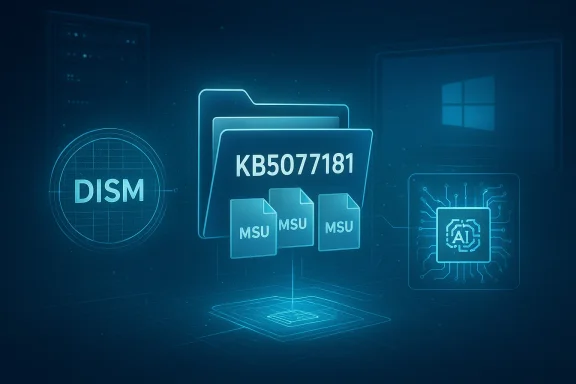
Blue holographic illustration of Windows DISM and a KB5077181 update package with MSU files.What KB5077181 contains — the high-level inventory​

cing​

  • Monthly CVE mitigations across kernel, networking, and platform components.
  • An included Servicing Stack Update (SSU) intended to improve future servicing reliability and reduce failed installations.

Platform and manageability changes​

  • Modernization and fixes for subsystem com Windows MIDI Services modernization and other developer-focused plumbing).
  • Changes to Smart App Control behavior and toggling (reducing prior one‑way toggles that required reinstall to revert).
  • Expanded Cross‑Device Resume and continuity improvements with supported Android partners (gated rollout).

On‑device AI component payloads​

  • The offline MSU bundles include AI model binaries and execution alot+ hardware. These payloads increase package size and can exist in the OS without immediately exposing a UI change—Microsoft uses server-side gating and device entitlements to control visibility. Plan for larger offline downloads and extra disk space during servicing.

Secure Boot certificate rollout preparation​

  • As part of a 2026 program to replace aging boot certificates, this update targeting logic used to safely deliver updated Secure Boot certificates to eligible devices ahead of expirations scheduled for mid‑2026. Administrators should confirm Secure Boot and OEM firmware readiness as part of their maintenance plan.

Installation and operational guidance (what admins and power users need to know)​

Microsoft documents two supported manual install methodits your scenario and risk tolerance.

Method 1 — Recommended for offline or bulk servicing: install all MSU files together​

  • Download all MSU files for KB5077181 from the Microsoft Update Catalog and place them in the same folder (for example, C:\Packages).
  • Use Deployment Image Servicing and Management (DISM.exe) to install the target update. DISM will use the folder specified in PackagePath to discover and install prerequisite MSU files automatically.
Example commands (run elevated):
  • From an elevated Command Prompt:
    DISM /Online /Add-Package /PackagePath:c:\packages\Windows11.0-KB5077181-x64.msu
  • From elevatedndowsPackage -Online -PackagePath "c:\packages\Windows11.0-KB5077181-x64.msu"
To add the update to a mounted image:
  • DISM /Image:mountdir /Add-Package /PackagePath:Windows11.0-KB5077181-x64.msu
  • Or PowerShell:
    Add-WindowsPackage -Path "c:\offline" -PackagePath "Windows11.0-KB5077181-x64.msu" -PreventPending
These exact commands are quoted in Microsoft’s KB guidance.

Method 2 — Install MSU files individually (use only when you must)​

If you prefer to control the sequence, download and install each MSU in the specific order Microsoft lists. For KB50les shown in the Microsoft guidance are (example filenames published in the catalog):
  • windows11.0-kb5043080-x64_953449672073f8fb99badb4cc6d5d7849b9c83e8.msu
  • windows11.0-kb5077181-x64_199ed7806a74fe78e3b0ef4f2073760000f71972.msu
Install the prerequisite MSU (kb5043080) first, then the main KB5077181 MSU. If you must run individual installs, follow the ordering exactly to avoid servicing errors.

Special note on Dynamic Update packages​

When you build or update Windows installation media (for example, applying Dynamic Update to an image), ensure that any additional Dynamic Update packages you use m as this KB. If the SafeOS Dynamic Update or Setup Dynamic Update for the same month is not available, Microsoft recommends using the most recently published version of each. This is important for clean offline media servicing.

Quick administrative checks and rollback reality​

  • To inspect installed packages on a running machine: DISM /Online /Get-Packages.
  • Removing an LCU that was installed as part of a combined SSU+LCU package can require DISM /Reful package-name selection. Microsoft warns that you cannot uninstall the SSU once applied; the SSU is persistent. Use DISM /online /get-packages to identify package names before attempting removal.

What to test before broad deployment​

Given the combined feature/quality/security nature of KB5077181 and the recent history of post‑patch regressions earlier in 2026, adopt a disciplined pilot strategy. Test these areas specifically:
  • Backup & recovery
  • Full system backups and verified restore procedures.
  • Backup BitLocker keys and ensure recovery access for encrypted devices.
  • Boot and firmware interactions
  • Validate Secure Boot status and firmware updates; certificate rollouts touch the boot chain.
  • Graphics and gaming workloads
  • Test GPU drivers and heavy‑render apps (the ecosystem saw significant gaming regressions tied to recent security updates).
  • Productivity and mail clients
  • Validate Outlook and Exchange connectivity; prior January updates caused notable Outlook hangs and Remote Desktop authentication problems for some environments. ([windowscentral.com](https://www.windowscentral.com/micr...his-bug-that-makes-outlook-completely-unusabl
  • Audio and specialized hardware
  • Exercise MIDI and audio routing setups for musicians and pro AV workflows—KB5077181 includes a major MIDI services modernization that may affect low‑level audio stacks.
  • Device‑specific AI features
  • For Copilot+ devices confirm that required drivers/firmware are present and that disk space is adequate for on‑device models. Lock down a subset of representative Copilot+ and non‑Copilot devices to confirm behavior.

Risk analysis — strengths and red flags​

Strengths (why you should deploy)​

  • Comprehensive security fixes: KB5077181 consolidates monthly CVE mitigations and reduces expon vulnerabilities.
  • Servicing stack improvements: Including an SSU with the cumulative reduces future installation failures and improves reliability for subsequent monthly rollups.
  • Platform modernization: MIDI stack refresh, Smarty changes, and updated Windows component plumbing will materially benefit creators, accessibility users, and enterprise manageability when validated in production.
  • Planned Secure Boot refresh: Rolling out newlemetry‑gated way avoids a potential boot‑level crisis when old certificates expire mid‑2026. This is a necessary ecosystem compatibility task.

Red flags and likelihood of regressions​

  • Complex offline packaging: Multiple MSU files, large AI payloads, and SSU inclusion increase the chance of servicing failures when installs are run manu scripts—this is not a “single-click” month anymore. Follow Microsoft’s DISM folder method or strict ordering to mitigate.
  • Third‑party driver and application incompatibilities: Any platform update that touches kernel or device stacks risks breaking drivers—legacy modems and certain kernel drivers have been removed in recent e functional regressions for niche hardware. Test unusual peripherals and enterprise endpoint agents.
  • AI/coprocessor surface: On‑device AI components can increase package size and require new dependencies (drivers, firmware). Expect differences in behavior across Copilot+ vs. non‑Copilot devices and possible timing issues while vendors update firmware/drivers.
  • Recent patching turbulence: The January 2026 cumulative cycle produced high‑visibility regressions—shutdown/hibernation failures, Outlook hangs and Remote Desktop sign‑in problems, and later emergency out‑of‑band fixes. That context raises the need for testing KB5077181 carefully before mass deployment.

Practical deployment playbook (recommended step‑by‑step)​

  • Inventory phase
  • Identify representative endpoints: consumer laptops, Copilot+ devices, multimedia workstations, specialized peripherals (telephony, legacy hardware).
  • Collect firmware/driver versions for critical vendors (Intel, AMD, NVIDIA, mainboard OEMs). Check for vendor advisories for February updates.
  • Pilot ring (10–50 devices)
  • Apply KB5077181 via Windows Update or the offline DISM method (place all MSUs in a single folder and use DISM to let dependencies resolve).
  • Run validation checks: boot/shutdown, RDP sign‑in, Outlook/Exchange connectivity, heavy GPU workload test, MIDI/audio routing tests, and imaging baseline telemetry capture.
  • Expanded ring (100–500 devices)
  • Broaden deployment to a larger subset that includes production‑like workloads (developers, finance, creatives).
  • Monitor telemetry and helpdesk tickets. Rehearse rollback steps for the LCU (note: SSU is not removable once applied).
  • Organization‑wide rollout
  • Once pilot and expanded rings show acceptable telemetry and no high‑impact regressions, schedule broader deployment with standard maintenance windows and Active Hours.
  • Communicate to users about potential transient reboots and request immediate helpdesk escalation for hangs or boot problems.
  • Post‑deployment checklist
  • Verify Windows Update client state across the estate and confirm Secure Boot certificate rollouts on firmware‑ready devices.
  • Reconcile rsions that required updates and update your golden images to include the new SSU+LCU on master images.

Troubleshooting quick‑hits​

  • If a manual .msu installation fails with a servicing error: check that all prerequisite MSUs are present. Re‑try using the DISM folder method to let the servicing pipeline sequence packages automatically.
  • If Outlook or Remote Desktop issues appear after a January/February rollup, check Microsoft’s out‑of‑band guidance and the corresponding OOB fixes shipped in January; some earlier regressions were fixed with subsequent emergency updates—confirm those are cro
  • If a device cannot boot after applying recent updates: ensure you have BitLocker recovery keys available and verify OEM firmware compatibility. Contact vendor support if the device is firmware‑sensitive. The Secure Boot certificate work increases the need to validate firmware compatibility across OEMs.

Why Microsoft’s delivery model matters to administrators​

Microsoft’s recent approach—distributing common cumulative binaries (LCU + SSU + component payloads) while gating visible features server‑side—creates a spliisk” and “features visible to users.” That has three operational effects:
  • Larger offline installers that require more careful bandwidth and storage planning.
  • A higher chance that an in‑place install will change binary behavior (security, kernel fixes) without immediately changing UI or user‑facing functionality.
  • The need for clearer change control: tracking which devices are “feature‑eligible” vs. which simply have the binary payload installed.
This model is defensible from a release‑engineering standpoint: Microsoft can ship fixes and model payloads without enabling a feature to all devices at once. But it also demands tighter device inventory and testing discipline from IT teams.

Final assessment and recommendation​

KB5077181 is a necessary, security‑oriented February cumulative that also brings valuable platform modernizations (MIDI, Smart App Control tweaks, Cross‑Device Resume) and an important servicing‑stack update. The inclusion of AI components and Secure Boot certificate rollout metadata reflects a shift: monthly rollups now play a larger role in device readiness for evolving hardware and platform trust anchors.
However, the update arrives against a backdrop of elevated sensitivity—January’s updates caused high‑impact regressions in some environments (shutdown/hibernation, Outlook hangs, GPU/performance complaints), so assume the worst and test accordingly. Use the DISM folder method for offline installs to minimize sequencing errors, pilot widely, keep rollback and recovery plans ready (remember that SSUs persist once installed), and validate vendor firmware and driver guidance before fleet‑wide rollout.
If you run a small number of devices and are comfortable with quick troubleshooting, applying KB5077181 within a few days of its release is sensible—security fixes are important. For larger enterprises, treat this as a controlled rollout: pilot, validate telemetry, and then expand. Microsoft’s own guidance emphasizes using DISM with a package folder for offline scenarios and installing individual MSUs only when granular ordering is required—follow that guidance to reduce servicing failures.

Deploy cautiously, test comprehensively, and treat this February rollup as both a security imperative and an operational change—one that requires measurement, readiness, and coordination across firmware, drivers, and helpdesk processes.

Source: Microsoft Support February 10, 2026—KB5077181 (OS Builds 26200.7840 and 26100.7840) - Microsoft Support
 

Microsoft’s February cumulative for Windows 11, KB5077181, has been linked to a growing wave of post‑install failures that range from repeated restart loops and sign‑in errors to network/DHCP outages and update installation failures — a pattern that has left some users unable to reach a usable desktop and forced administrators into difficult triage and rollback scenarios.

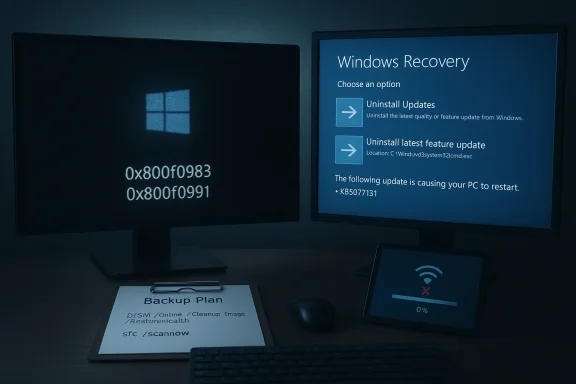
Dual-monitor desk setup: Windows Recovery on the right, a Windows error screen on the left, with a backup plan note.Background / Overview​

KB5077181 was published as the February cumulative update for Windows 11 and is delivered as the combined Latest Cumulative Update (LCU) plus servicing‑stack changes that raise affected machines to OS build numbers reported in community telemetry (25H2 → 26200.7840; 24H2 → 26100.7840). The package is larger than typical monthlies because Microsoft is increasingly bundling on‑device model payloads and additional platform files alongside traditional security fixes and servicing improvements.
Microsoft’s public release notes for KB5077181 list the intended fixes and feature adjustments but — at the time community reports began accumulating — the official KB did not enumerate the boot and login problems that many users were encountering. That mismatch between community telemetry and the KB page has fed concern in both consumer and enterprise circles.

What the field is reporting: symptoms and patterns​

Boot and restart loops; SENS sign‑in failures​

A substantial subset of reports describe machines that, after installing KB5077181, enter repeated restart cycles and eventual sign‑in failures. In multiple cases the login attempt fails with a System Event Notification Service (SENS) related message — typically phrased as “The System Event Notification Service service failed the sign‑in” or “specified procedure could not be found.” Because SENS is part of the early logon and service‑startup chain, its failure can block interactive sign‑in even while the kernel and disk remain intact. Removing the cumulative has, in many community reports, stopped the loop and allowed normal boot to resume.

Network/DHCP failures: “connected but no internet”​

Another class of incidents shows systems that appear physically connected to Wi‑Fi or Ethernet — NIC status indicates a link — but the machine has no IP routing or internet access. Community troubleshooting points to DHCP/client failures or name‑resolution issues that sometimes coincide with a partially applied update or a failed servicing commit. These connectivity failures complicate remote help and can prevent online diagnostics.

Update/servicing errors (0x800f0983, 0x800f0991)​

Users attempting to apply KB5077181 manually or through Windows Update have recorded Windows Update / CBS error codes such as 0x800f0983 and 0x800f0991. These are commonly associated with servicing store or component‑store mismatch problems — for example, when the component store cannot match or find files a package expects during parallel hydration or servicing operations. Community guidance has pointed repeatedly to canonical repair steps (DISM + SFC) as a first attempt to resolve these codes, but where an SSU is involved, full rollback can be more complex.

Why this matters: the technical risk surface​

  • Modern cumulative packages now frequently include multiple payload types (LCU + SSU + on‑device model binaries). That increases the chance that a rollout will touch low‑level systems (servicing stack, preboot components, Windows Resource Protection files) where regressions have outsized impact. When a servicing component or exported procedure a dependent service expects is missing or changed, early boot and sign‑in can fail even when higher‑level components are intact.
  • Servicing‑stack updates (SSUs) are often sticky: they can persist on a system even if an LCU is rolled back. That complicates remediation and increases reliance on recovery environment tools (WinRE) for safe uninstallation. Community reporting indicates some users needed WinRE to remove the update when the desktop was unreachable.
  • The inclusion of large model payloads and staged server‑side feature flags means “files present” no longer equals “feature enabled,” but it does mean binaries touching low‑level subsystems can still create binary compatibility or driver interaction problems in the field. This makes testing surface area larger and feedback windows more hazardous for wide production deployments.

Practical guidance: immediate steps for affected users​

If you installed KB5077181 and see severe symptoms, the community experience points to the following prioritized actions. These steps are arranged by escalation: start with the least intrusive options and only move to recovery if prior steps fail.
  • If you can still sign in and the system is usable
  • Create a full backup (system image or reliable file backup) immediately.
  • Open Settings → Windows Update → Update history to confirm KB5077181 is installed.
  • Uninstall via Control Panel → Programs → View installed updates → locate KB5077181 and uninstall. After removal, reboot and verify normal operation. Many reports show uninstalling the cumulative clears the worst symptoms.
  • Pause updates: Settings → Windows Update → Pause updates (select a pause period). This prevents the package from reinstalling while Microsoft investigates.
  • Run DISM and SFC to repair component store and system files:
  • DISM /Online /Cleanup‑Image /RestoreHealth
  • sfc /scannow
  • Reboot and recheck. These repairs have allowed certain installs to complete successfully in some cases.
  • If you cannot sign in but can reach Windows Recovery Environment (WinRE)
  • Boot into WinRE (hold Shift while selecting Restart, or use your PC’s recovery key/USB).
  • Use Troubleshoot → Advanced options → Uninstall Updates → select Uninstall latest quality update. This path will remove the most recent cumulative without needing an interactive desktop. Multiple community threads report this as the workable path for machines stuck in boot/restart loops.
  • If Uninstall latest quality update is not available or fails, use Command Prompt in WinRE to run:
  • DISM /Image:C:\ /Cleanup‑Image /RevertPendingActions (available on some builds; exercise caution and confirm the drive letter)
  • Or manually mount volumes and use wusa.exe /uninstall /kb:5077181 if that path is accessible from the recovery environment.
  • After removal, reboot normally. If successful, do not allow automatic updates to re‑apply the cumulative until Microsoft releases a confirmed fix. Pause updates as above.
  • If the update fails with servicing store errors (0x800f0983 / 0x800f0991) during install
  • Try the repair sequence first:
  • Open an elevated prompt: DISM /Online /Cleanup‑Image /RestoreHealth
  • sfc /scannow
  • Reboot and retry the update.
  • If these tools report problems they cannot fix, collect CBS logs and consider an offline repair or uninstall via WinRE. Community threads document cases where SFC fixed component mismatches and allowed the update to finish.
  • If network appears “connected” but there’s no internet
  • Attempt local fixes: ipconfig /release && ipconfig /renew; netsh int ip reset; restart the DHCP client service.
  • Temporarily remove newly installed NIC drivers or roll back to a prior driver version from Device Manager.
  • If the NIC is nonfunctional due to the update commit, you may need WinRE or external tools to roll back the update. Community posts show mixed success with NIC restarts and driver rollbacks; in the most severe cases, uninstalling the cumulative resolved the DHCP symptoms.

Critical steps for administrators and enterprise deployments​

  • Pause and pilot: For managed environments using Windows Update for Business, Group Policy, or Intune, immediately shift KB5077181 into test/pilot rings only. Delay broad rollout until Microsoft publishes targeted guidance or a corrected package. Community analysis emphasizes measured, staged deployment for large cumulatives that include SSUs or model payloads.
  • Maintain recovery plans: Ensure WinRE, bootable recovery images, and offline installation media are available for field recovery. Because some remediation requires uninstalling from WinRE, technicians must have access to recovery targets and BitLocker recovery keys.
  • Telemetry and logging: Collect and preserve CBS logs, DISM logs, and Windows Update logs from affected machines for escalation. Having consistent logs accelerates identification of common root causes across a fleet.
  • Alternate mitigation: If the update closes important security gaps, consider temporary compensating controls (network segmentation, micro‑segmentation, host firewall hardening, or virtual patching in perimeter devices) while you delay the cumulative for production systems. Balance security needs against the operational risk of wide deployment.

Deconstructing the technical signals: what likely went wrong​

The community evidence points to a few plausible technical mechanisms:
  • Component‑store mismatch during parallel servicing: 0x800f0983 often signals a missing or mismatched component directory during servicing commit. If the update process cannot find or properly hydrate a component it expects, the finalization step can leave the image in a partially applied state that manifests as repeated restarts or service failures on the next boot. Repair tools (DISM, SFC) can sometimes fix the underlying corruption and permit completion.
  • Service export or symbol/API change impacting SENS: If a binary replacement in the update changed an exported procedure name or removed an expected API, services that depend on that export (SENS among them) will fail to start, blocking interactive sign‑in. Because SENS sits early in the sign‑in path, such failures produce the “service failed the sign‑in” symptom repeatedly. Removing the update typically restores the old binary and the previous exported symbol layout, resolving the startup chain.
  • Interactions with SSU and pre‑boot security: Servicing‑stack updates alter how future patches will be applied and can change preboot components. If an SSU interacts poorly with Secure Boot policy or OEM firmware on certain hardware, early boot or driver load ordering could be impacted; these problems sometimes appear only after a cumulative that includes both an LCU and SSU. Community discussion warns that SSUs complicate full rollback.

Strengths of KB5077181 — why Microsoft shipped it​

It’s important to recognize this update also contains legitimate and, in many cases, meaningful changes:
  • Feature and platform improvements: KB5077181 bundles user‑facing refinements (Cross‑Device Resume expansion, Start menu polish, colorful battery indicators) and platform upgrades (a modernized Windows MIDI stack, Smart App Control lifecycle changes) that are useful to many users, especially creators and those relying on cross‑device continuity.
  • Security and servicing fixes: The cumulative includes February security patches and servicing‑stack improvements intended to harden future updates and reduce long‑term regression risk. Skipping all patching is not a free option for many organizations. The update’s intent is pragmatic: to close security gaps while moving the platform forward.
These are real benefits — but they come with the tradeoff that larger, more complex packages increase the surface area for regressions, especially on diverse hardware fleets.

Risks, unknowns, and where to be cautious​

  • Unknown scale: Microsoft’s public KB pages and advisories have not (at the time of the initial community surge) published a confirmed failure rate or an official “known issue” entry for the SENS / boot loop symptom. That means the number of affected devices and the precise trigger profile remain uncertain; telemetry‑based prevalence is not public. Treat anecdote clusters as credible signals but not a complete picture.
  • Sticky servicing stack: If your remediation requires uninstalling an LCU but an SSU component remains, you may still face residual incompatibilities. That’s why ensuring recovery media and technician readiness is critical before a broad rollout.
  • Driver and OEM interactions: Because some failures surfaced only on physical hardware (not VMs), firmware and driver interactions are a plausible root cause vector. Differences across OEM customizations mean a fix for one vendor may not cover another immediately. Test widely.
  • Reinstallation risk: If you uninstall the cumulative on a symptom‑cleared device but do not pause updates, Windows Update can reapply the same package, re‑exposing the machine. Users and administrators must explicitly pause or block the update after rollback.

Recommended policy for the next 72 hours (for admins and power users)​

  • Stop automatic deployment: Pause automatic updates for affected groups and remove KB5077181 from your pilot/production rings. Put the package back into a small validation ring only after Microsoft publishes corrective guidance or a replacement package.
  • Prepare recovery tooling: Ensure technicians have BitLocker recovery keys, WinRE boot media, and offline installers for the last known‑good build. Test Uninstall Updates from WinRE in a lab to rehearse recoveries.
  • Collect logs and escalate: For any system that experienced severe failure, collect CBS, DISM, and Windows Update logs and open a support ticket with Microsoft if you need an escalation path. Preserve impacted disk images where feasible for deeper forensic analysis.
  • Communicate clearly: Notify users of potential disruption and provide an explicit self‑help recovery checklist (backup, known recovery keys, how to boot to WinRE). Transparent user guidance reduces panic and improves recovery times.

How to proceed if you haven’t installed KB5077181 yet​

  • For home users: If you are not comfortable with advanced recovery, delay installation for at least one or two weeks to allow initial telemetry and any Microsoft corrective updates to emerge. Use Settings → Windows Update → Pause updates if you want to prevent immediate installation.
  • For IT-managed fleets: Keep the package in a pilot ring only. Run compatibility checks on representative hardware (including OEM models and devices with specialized peripherals such as fingerprint readers or MIDI interfaces) before approving broad deployment. Ensure your endpoint backup and restore plans are current.

Final analysis and outlook​

KB5077181 illustrates the modern complexity of Windows servicing: cumulatives are no longer tiny security patches — they can be multi‑gigabyte bundles that touch both user‑facing features and low‑level servicing components. That makes the cost of a regression higher and the required pre‑deployment testing broader. Community reporting shows a credible correlation between KB5077181 and a set of severe post‑install failures (SENS login errors, boot loops, DHCP/network outages, and servicing errors) that, in many cases, are resolved by uninstalling the update or using WinRE to revert the latest quality update. However, the public telemetry on scale and precise root cause remains limited; Microsoft’s official KB notes did not initially list these failures as known issues, which has forced hands‑on recovery to be performed by users and administrators in the field.
Best practice for the short term: do not be cavalier. Protect critical systems by delaying installation, enforce pilot testing on a representative device matrix, and ensure recovery media and processes are verified. For those already impacted, follow the conservative recovery steps above (backup, uninstall if possible, use WinRE uninstall, run DISM/SFC) and pause updates to avoid accidental reinstallation. The immediate pain is real for affected users, but careful staging and an emphasis on recovery readiness will blunt the operational risk until Microsoft releases definitive guidance or a corrected package.
Conclusion: KB5077181 contains worthwhile fixes and features, but its early rollout has exposed how a single cumulative — when it touches service startup paths and the component store — can produce outsized disruption on a nontrivial subset of systems. Until the underlying causes are publicly confirmed and remediated, the safest posture for administrators and cautious home users is to delay broad deployment, pilot rigorously, and make recovery options explicit and available.

Source: PCWorld February's Windows 11 update is causing startup problems for users
 

Microsoft’s February cumulative, KB5077181, has surfaced as a high‑impact regression for some Windows 11 devices running 24H2 and 25H2: affected machines can fall into repeated restart cycles, fail interactive sign‑in with System Event Notification Service (SENS) errors, and lose network connectivity entirely — problems that, in many reported cases, are cleared only by uninstalling the troublesome package and pausing updates until a confirmed fix is available.

Windows 11 update warning on screen, showing KB5077181 with a refresh icon.Background / Overview​

KB5077181 was issued as the February 2026 cumulative for Windows 11 and bundles the Latest Cumulative Update (LCU) together with servicing stack changes that raise affected systems to OS builds 26200.7840 (25H2) and 26100.7840 (24H2). The package includes security fixes plus a servicing stack update (SSU) and platform files intended to prep devices for an upcoming Secure Boot certificate refresh.
Cumulatives today are larger and more invasive than the small security-only patches of old; they often ship with multiple payloads (LCU + SSU + extra model or platform binaries), which increases the test surface and the chance that an interaction with firmware, OEM code, or third‑party drivers will surface as an early‑boot regression. That packaging model is central to understanding why KB5077181’s failures hit service startup, login, and networking so quickly after install.
Microsoft’s initial public KB entry for the update did not list these regressions as known issues when community reports started to appear, creating a mismatch between field telemetry and the official advisory that left administrators scrambling for mitigations.

What users are seeing: concrete symptoms and patterns​

Boot loops and repeated restarts​

A significant cluster of reports describes systems that enter repeated restart cycles after KB5077181 installs, sometimes looping more than a dozen times and never reaching a stable desktop environment. In many such cases the loop stops only after uninstalling the cumulative.

Login failures — SENS errors​

When the desktop does appear, attempts to sign in can fail with System Event Notification Service (SENS) related errors — messages such as “The System Event Notification Service service failed the sign‑in” or “specified procedure could not be found.” Because SENS participates in early service initialization, its malfunction can block interactive sign‑in even while kernel and file system access remain intact, complicating recovery.

Network loss — DHCP and “connected but no internet”​

Another prominent failure mode is total internet loss despite an apparent physical connection: Wi‑Fi or Ethernet is reported as “connected” but there is no IP routing or DNS resolution. Community troubleshooting points to DHCP client failures or partial servicing commits that leave network plumbing nonfunctional until the update is removed.

Installation and servicing errors​

Users attempting to install KB5077181 manually or via Windows Update sometimes encounter servicing error codes such as 0x800f0983 and 0x800f0991. These codes typically indicate component‑store or servicing‑store issues and are commonly remediated by the canonical DISM and SFC repair sequence — though when an SSU is involved, rollback can be more complex.

Technical analysis — why this likely happened​

SSU + LCU packaging increases risk​

Combining an SSU with an LCU and additional payloads increases the chance that servicing will touch early‑load codepaths or preboot components. SSUs can be “sticky” and harder to remove than LCUs, which complicates rollback, particularly when the system has been left in a partially committed state. That stickiness is a critical risk vector for regressions that manifest during boot or service initialization.

Secure Boot / certificate refresh interactions​

KB5077181 included Secure Boot certificate updates intended to prepare devices for certificates expiring later in 2026. Changes to the boot path or UEFI allow‑lists can interact poorly with OEM firmware, third‑party preboot modules, or niche drivers, producing early‑boot failures or exported procedure mismatches that only show up on physical hardware (not VMs). That makes diagnosis more complex and vendor coordination essential.

Component store mismatch and servicing commit failures​

Error codes 0x800f0983 and 0x800f0991 point toward component‑store mismatches or missing files during servicing commit. If an update process cannot locate or hydrate the expected components, the finalization step can leave the image in a partially applied state that causes services (like SENS or DHCP client) to fail at the next boot. Canonical repair tools sometimes help, but not always.

Third‑party drivers and endpoint agents as accelerants​

Unsigned or legacy drivers (anti‑cheat, audio, fingerprint readers, or specialized endpoint agents) are frequent culprits for post‑update breakage because they often rely on exported routines or ordering assumptions that shift when the servicing stack or early boot path changes. Vendor validation across OEM drivers, AV/endpoint agents, and specialized hardware is therefore crucial.

Immediate mitigation: a prioritized, practical playbook​

If your system is affected, follow a staged approach that escalates only as needed. These steps reflect the community’s most reliable recoveries.

If you can still sign in (least intrusive)​

  • Create a full backup or system image immediately. Protect user data before modifying the system.
  • Confirm the update is installed: Settings → Windows Update → Update history and note KB5077181.
  • Uninstall KB5077181 via Control Panel → Programs and Features → View installed updates, locate KB5077181 and choose Uninstall. Reboot after completion; many users report this clears the loop and DHCP failures.
  • Run repair tools from an elevated Command Prompt to fix component‑store issues:
  • DISM /Online /Cleanup‑Image /RestoreHealth
  • sfc /scannow
    Reboot and recheck update status. These steps have enabled successful updates in some cases.
  • Pause updates: Settings → Windows Update → Pause updates to prevent immediate reinstallation while you watch for Microsoft guidance.

If you cannot sign in (WinRE required)​

If the desktop is unreachable, recovery through WinRE is the most reliable path.
  • Force WinRE:
  • Interrupt boot three times (power off as Windows starts) or use a Windows recovery drive/USB.
  • In WinRE choose Troubleshoot → Advanced options → Uninstall Updates → Uninstall latest quality update. This removes the most recent cumulative without requiring a working desktop. Community reports consistently show this step resolves many boot loops.
  • If the graphical uninstall option is not available, open Command Prompt in WinRE and run:
  • wusa /uninstall /kb:5077181 /quiet /norestart
    After completion, restart. This manual wusa uninstall is the direct command many technicians have used in the field.
  • As an advanced, cautious option, some responders have used:
  • DISM /Image:C:\ /Cleanup‑Image /RevertPendingActions
    (Confirm the correct drive letter in WinRE; this variant is available only on some builds and should be used with care.)

Networking quick checks (if you regain desktop but internet is down)​

  • ipconfig /release && ipconfig /renew
  • netsh int ip reset
  • Restart the DHCP Client service, roll back NIC drivers via Device Manager if a driver update coincides with the problem. These quick fixes sometimes restore connectivity, but full recovery often follows uninstalling the cumulative.

Recommended actions for IT admins and helpdesks​

  • Immediately shift KB5077181 to pilot/test rings only and delay broad deployment until Microsoft publishes a confirmed fix or guidance. Test representative hardware sets, including OEM models and devices with specialized peripherals.
  • Prepare recovery tooling and runbooks: verified WinRE images, bootable media, BitLocker recovery keys, and documented steps to uninstall from WinRE or to apply a known‑good image. Rehearse the process so technicians can perform rapid rollbacks in the field.
  • Collect and preserve logs (CBS, DISM, Windows Update logs, Event Viewer entries) from affected machines before reimaging. These logs accelerate escalation to Microsoft and vendor partners.
  • Consider temporary compensating controls if the cumulative closes essential security gaps that you cannot acceptably delay: network segmentation, host firewall hardening, or virtual patching at the perimeter can reduce attack surface while you postpone the update for production systems.

Why rolling back helps — a closer look​

Uninstalling the LCU often restores the system to a stable state because the immediate functional regressions (SENS, DHCP client, or a partially committed servicing state) are tied to files or service registration changes that the LCU made during the finalization phase. Where an SSU is present, residual incompatibilities may still exist, but the community experience shows LCU removal frequently clears the most disruptive symptoms and allows normal boot and network services to resume.
Be aware that in some cases SSUs are not removed by a simple uninstall and can persist; that means a rollback may not be perfectly clean, and detailed log collection is valuable for a thorough escalation.

Risks and operational considerations​

  • Recovery complexity: Because SSUs are sticky and the package touches early‑boot pathways, some remediations require WinRE or image restores — operations that are time‑consuming and potentially disruptive at scale.
  • Data protection and BitLocker: If BitLocker is enabled, technicians must have recovery keys before running broad recovery steps, or they risk data inaccessibility. Ensure recovery keys are accessible before starting rollback operations.
  • Third‑party vendor coordination: OEMs, driver vendors, AV and endpoint agent suppliers must validate their binaries against the updated servicing stack and preboot certificate changes; lack of vendor validation increases the likelihood of device‑specific regressions.
  • Reinstallation risk: If you uninstall the cumulative but leave Windows Update active, the package can reapply automatically. Pause updates or use management controls (WUfB, Intune, GPO) to block the offending KB until Microsoft confirms a fix.

How Microsoft and the ecosystem should respond​

The community’s experience with KB5077181 underlines a few governance and engineering needs:
  • Faster telemetry synthesis and transparent acknowledgment of reproducible field failures so admins can make informed risk decisions. Community reports outpaced the official KB update on this issue, which increased operational friction.
  • Improved pilot ring targeting and staged deployment logic that factors in OEM firmware diversity and niche driver footprints, particularly when SSUs or preboot certificate changes are involved.
  • Clearer rollback tooling for SSUs when early‑boot regressions occur; current rollback semantics can leave persistent components behind and force image restores.

Longer‑term guidance for users and administrators​

  • Treat large cumulatives with caution: stage them, pilot them on representative hardware, and verify endpoint agent compatibility before wide deployment.
  • Maintain up‑to‑date recovery artifacts: WinRE media, golden images, and BitLocker key escrow should be part of any enterprise change‑control plan.
  • Automate log collection: when an update causes regression, consistent, machine‑readable logs (CBS, DISM, Update logs) accelerate diagnosis and remediation conversations with Microsoft and OEM partners.

Step‑by‑step cheat sheet (commands and paths)​

  • Verify installed update:
  • Settings → Windows Update → Update history → look for KB5077181.
  • Uninstall from desktop:
  • Control Panel → Programs and Features → View installed updates → Uninstall KB5077181.
  • Repair component store (elevated Command Prompt):
  • DISM /Online /Cleanup‑Image /RestoreHealth
  • sfc /scannow.
  • Uninstall from WinRE (if desktop unreachable):
  • WinRE → Troubleshoot → Advanced options → Uninstall Updates → Uninstall latest quality update.
  • Or WinRE Command Prompt: wusa /uninstall /kb:5077181 /quiet /norestart.
  • Networking quick‑fixes:
  • ipconfig /release && ipconfig /renew
  • netsh int ip reset
  • Restart DHCP Client service; roll back NIC drivers in Device Manager if applicable.

Conclusion​

KB5077181 is a typical example of how modern cumulatives — when they include SSUs and preboot or certificate updates — can convert an otherwise routine security package into an operational headache for diverse device fleets. The field picture is clear: numerous 24H2 and 25H2 devices have experienced boot loops, SENS sign‑in failures, DHCP/network loss, and servicing errors after applying KB5077181, and in most community reports the fastest reliable mitigation is to uninstall the cumulative via Control Panel or WinRE and pause updates until Microsoft issues a corrective patch.
If you manage one or a handful of machines, back up first, uninstall the KB if you see symptoms, and pause updates. If you manage fleets, move KB5077181 into a pilot ring, ensure recovery assets and BitLocker keys are available, gather logs from any affected endpoints, and coordinate closely with OEMs and Microsoft while awaiting a verified fix. Pragmatism and a rehearsed recovery plan are the best defenses against the kind of early‑boot fragility KB5077181 has exposed.

Source: Technetbook Windows 11 KB5077181 boot loop issues on 24H2 systems fix for login failures and network loss
 

Microsoft’s February cumulative update KB5077181 is leaving a significant number of Windows 11 devices unusable—driving endless restart loops, blocking sign‑ins with System Event Notification Service (SENS) errors, and corrupting network functionality—while Microsoft’s official advisory has not, at the time of reporting, acknowledged these specific failures. verview
KB5077181 was distributed on Patch Tuesday, February 10, 2026, as the monthly cumulative for Windows 11 and is delivered as a combined package that raises affected machines to OS builds 26200.7840 (25H2) and 26100.7840 (24H2). The package includes the latest cumulative security fixes, servicing‑stack updates (SSU), and ancillary platform payloads intended to prepare devices for upcoming changes such as Secure Boot certificate refreshes and platform hardenings.
Within days of that release, community telemetry and iurfaced a consistent pattern: on a subset of devices the update either fails to commit cleanly or introduces regressions that manifest immediately at boot, producing a cluster of symptoms that range from repeated restarts to total network loss. Major outlets and user communities documented the problem, and technicians across forums converged on one repeatable mitigation: uninstall KB5077181 and pause automatic updates until Microsoft issues a corrected package. (pcworld.com)

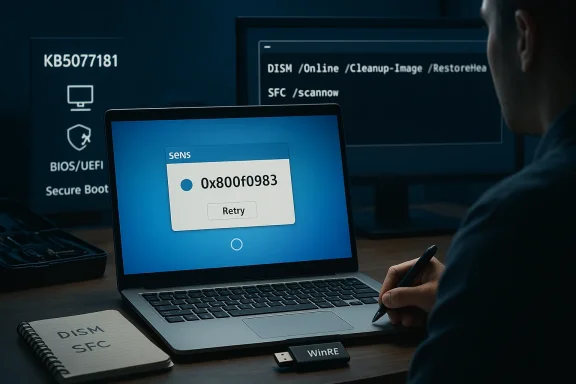
Tech uses WinRE to repair Windows, facing error 0x800f0983 with a Retry prompt.What users are experiencing​

Boot loops and failed sign‑ins​

The most disruptive failure mode is an infinite boot loop: systems repeatedly restart (sometimes more than a dozen cycles) and never reach a usable desktop. In many reports, when the login UI finally appears, sign‑in is blocked by a SENS error—an early service initialization failure that prevents interactive logon and interrupts standard recovery workflows. Removing the update has repeatedly been reported to stop the loop and restore normal boots on affected machinetps://www.pcworld.com/article/3060768/windows-11-update-kb5077181-causes-startup-problems-heres-what-you-can-do.html)

Service start errors and SENS failures​

The System Event Notification Service (SENS) participates in early session and service startup. Several affected machines show SENS messages along the lines of “The System Event Notification Service service failed the sign‑in” or “specified procedure could not be found,” which indicates that a required exported procedure or binary is missing or incompatible during the post‑install service startup sequence. When an early core tem can boot but will refuse interactive logon—complicating recovery for non‑technical users.

Network stack corruption: “connected but no internet”​

A second common pattern is network corruption: devices report a link at the NIC level (Wi‑Fi or Ethernet) but have no IP routing or DNS resolution. Community troubleshooting often traces this to DHCP client failures or service registration issues introduced after the update’s partial or faulty commit. This symptom is particularly dangerous because it can cut off a user from online recovery resources and remote support.

Installation and servicing error codes​

Users who attempt manual installs or servicing repairs frequently encounter update errors like 0x800f0983, 0x800f0991, and removal attempts from an offline image sometimes fail with 0x800f082f. These codes typically point to component‑store mismatches, sern problems, or pending package states that canonical tools (DISM and SFC) cannot easily fix when the servicing stack is in a partially committed condition.

Edge-case failures: Secure Boot and pre‑boot interactions​

A smaller but serious set of incidents involve UNMOUNTABLE_BOOT_VOLUME stop codes, Secure Boot violations, or BIOS/UEFI interactions that render devices unable to reach Windows at all1 includes SSU and Secure Boot certificate changes, the possibility of firmware interactions or pre‑boot certificate mismatches explains why some systems hit pre‑OS failures—these cases often require WinRE, recovery media, or a full image restore.

How the community has verified and mitigated the problem​

Within support forums and tech communities, volunteers and IT profe a practical remediation and containment strategy that is repeatable and effective in many—but not all—cases:
  • If you can still sign in:
  • Uninstall KB5077181 via Control Panel → Programs and Features → View installed updates, locate KB5077181 and uninstall. Reboot and verify. Pause Windows Updates afterward to prevent reinstallation.
  • If you cannot sign in (WinRE):
  • Force WinRE by interrupting the power during boot three times or boot from recovery media.
  • Choose Troubleshoot → Advanced options → Uninstall Updates → Uninstall latest quality update.
  • If the UI path fails, open Command Prompt in WinRE and run:
  • wusa /uninstall /kb:5077181 /quiet /norestart
  • Reboot and verify.
  • If uninstall/remove commands fail:
  • From a working environment (or WinRE when possible), run:
  • dism /onrestorehealth
  • sfc /scannow
  • Inspect pending packages with: dism /online /get-packages | findstr 5077181
  • When servicing is stuck in a partially committed state, technicians report tir* (repair install) using matching build media can rehydrate the component store and often resolves the mismatch—this is heavier‑weight and requires backups and BitLocker key access.
These community‑tested steps have restored functionality for many users, but not for every configuration; in stubborn cases a full image restore or clean OS reinstallation has been necessary.

Why this likely happened: technical analysis​

Modern cumulative rollups frequently bundle an LCU (Latest Cumulative Update) with an SSU and additional payloads. That packaging improves long‑term servicing reliability, but it raises risk when a servicing stack update touches early boot or pre‑OS code paths.
Key technical vectors that plausibly explain KB5077181 regressions:
  • SSU “stickints: SSUs modify the servicing stack and can leave a build in a partially committed state if a subsequent LCU cannot hydrate required components. A partially applied SSU/LCU can break service initialization order and exported routines that dependent components expect. Error codes 0x800f0983 and 0x800f0991 are consistent with component‑store mismatches.
  • Secure Boot certificate refreshes: The update contained preparation steps for Secure Boot certificate changes. Firmware/NVRAM interactions vary widely across OEMs; if a pre‑boot certificate or UEFI allow‑list changes are applied inconsistently, the system may refuse to boot or flag Secure Boot violations. That explains the pre‑boot and UNMOUNTABLE_BOOT_VOLUME edge cases in some user reports.
  • Third‑party driver and agent conflicts: Unsigned or legacy kernel drivers and endpoint agents (antivirus, anti‑cheat, fingerprint drivers, virtualization hooks) frequently call exported routines or rely on ordering assumptions that break when the servicing stack is modified. Devices with such legacy drivers are disproportionately likely to show post‑update failures.
  • Network service registration and DHCP client dependency: If the update disrupts service registration or the DHCP client binary, a device can appear “connected” at the link layer while lacking an IP routing or DNS configuration—consistent with the “connected but no internet” symptom set.

Verifiable facts and what’s still uncertain​

  • Verifiable: KB5077181 was published on February 10, 2026, and raises affected Windows 11 builds to 26200.7840 (25H2) and 26100.7840 (24H2). The update has been associated in multiple independent community threads with boot loops, SENS errors, D servicing error codes.
  • Verifiable: Community‑reported practical mitigations—uninstalling the cumulative and pausing updates—have restored normal operation on many affected systems. Commandline uninstall via WinRE (wusa /uninstall /kb:5077181) and the Uninstall Updates UI path have been repeatedly validated.
  • Uncertain / not yet independently confirmed: whether there is a single root cause across all reports (the symptoms indicate multiple failure modes), how many devices worldwide are affected (publishers and community threads indicate a non‑trivial set, but that is not the same as a measured population percentage), and whether Microsoft will apply a Known Issue Rollback (KIR) or issue an out‑of‑band fix as they did for previous months. As of the latest edits when this article was prepared, Microsoft’s KB entry did not list the boot‑loop and network failures as known issues.
Because the situation is evolving, readers should treat unverified third‑party claims cautiously and follow official Microsoft channels and their organization’s update pilot policies before broad redeploymeical, step‑by‑step recovery playbook (tested community steps)
These steps are ordered from least invasive to most invasive. Back up data and ensure BitLocker recovery keys are escrowed before attempting offline repairs.
  • If you still can sign in:
  • Create a full file backup or copy essential files to external media.
  • Open Control Panel → Programs and Features → View installed updates.
  • Locate KB5077181 and choose Uninstall. Reboot and co
  • Pause updates: Settings → Windows Update → Pause updates (select the maximum pause window offered).
  • If you cannot sign in (WinRE recommended approach):
  • Force WinRE: interrupt startup by powering down when Windows starts three times, or boot from recovery USB.
  • Troubleshoot → Advanced options → Uninstall Updates → Uninstall latest quality update.
  • If that UI option is unavailable, open Command Prompt and run:
  • wusa /uninstall /kb:5077181 /quiet /norestart
  • Reboot when complete and verify. Pause updates once desktop is available.
  • If uninstall commands fail or the update is “install pending”:
  • From WinRE, map the coletter (drive letters change in WinRE).
  • Use DISM against the offline image (careful with drive letters):
  • dism /image:C:\ /get-packages | findstr 5077181
  • dism /image:C:\ /remove-package /packagename:<name>
  • If DISM remove-package returns 0x800f082f or other errors, consider a repair install (see step 5) after collecting logs.
  • Run system health repairs:
  • dism /online /cleanup-image /restorehealth
  • sfc /scannow
  • Reboot and re‑check Windows Update logs and Event Viewer.
  • Repair install (when all else fails):
  • Prepare matching build media or newer Windows 11 install media.
  • Suspend BitLocker and ensure recovery keys are accessible.
  • Run an in‑place repair (Setup.exe → Upgrade, keep files and apps). This restores a healthy component store without a full wipe. Re‑apply patches cautiously afterwards and test before broad rollout.
  • Ihed for security reasons:
  • Isolate affected devices on segmented networks, restrict remote access, and stage a narrow pilot to verify whether KB5077181 is mandatory to mitigate an actively exploited vulnerabilitctively exploited, weigh the immediate security risk against the operational risk of the update. Consult your incident response and vulnerability management teom]

Advice for IT teams and helpdesk managers​

  • Immediately move KB5077181 into a pilot/test ring only. Stop broad deployment until the package is validated on representative hardware.
  • Prepare recovery runbooks and artifacts:
  • Validated WinRE images and bootable USB tools.
  • Golden system images and tested repair procedures.
  • Secure storage for BitLocker keys and system image backups.
  • Collect logs before reimaging: CBS, DISM logs, WindowsUpdate logs, and Event Viewer entries. These will be essential for escalation to Microsoft and OEMs.
    ng controls: if the update mitigates critical risks that cannot be postponed, deploy micro‑segmentation, host‑based firewall rules, and other network controls to reduce exposure while you test the patch on pilot hardware.

Risk assessment and long‑term implications​

KB5077181 illustrates both a practical and systemic tension in modern Windows servicing:
  • Packaging LCUs together with SSUs and broader payloads reduces future update complexity but increases the blast radius if an early‑boot or servicing change regresses on certain hardware or driver stacks. When servicing touches the preboot/SSU layer the consequences can be severe and recovery more complex.
  • The episode underscores the importance of pilot rings for organizations and the value of tested recovery assets. For consumers, the event is a reminder to keep regular backups, escrow BitLocker keys, and maintain a recovery USB or secondary device for urgent access.
  • Microsoft’s response cadence will matter. In January 2026 Microsoft acknowledged and issued emergency patches for different update regressions; whether they will publish a Known Issue Rollback (KIR) or an out‑of‑band correction for KB5077181 is currently unconfirmed. Administrators should watch Microsoft’s release channels and the Windows Release Health dashboard for an engineering acknowledgement.

Recommeshould do right now​

  • If you have not installed KB5077181: Pause updates and hold the patch until your test devices validate it or until Microsoft releases a confirmed fix. If you manage critical systems, stage the update only in a controlled pilot ring.
  • If you are already affected: Follow the WinRE uninstall steps or desktop uninstall if possible, pause automatic updates, run DISM + SFC after recovery, and collect logs for escalation. If uninstall fails, prepare for a repair install or full restore with validated images.
  • If you administer fleets: transition KB5077181 to a limited pilot, prepare recovery playbooks, and ensure helpdesk staff know the WinRE uninstall command and have access to BitLocker keys.

Final assessment​

KB5077181 is not merely a nuisance update; for a subset of Windows 11 users it has caused full device unavailability, data access disruption, and intensive helpdesk escalations. Community troubleshooting has coalesced around a reliable short‑term remediation—uninstall and pause updates—but the presence of multiple failure modes (boot loops, SENS errors, DHCP/client network loss, Secure Boot edge cases) suggests that the root cause may vary by configuration and driver/firmware interactions.
Until Microsoft issues an engineering acknowledgment and a corrected package or a Known Issue Rollback, the defensible path for administrators and careful users remains: pilot widely, delay mass deployments, keep recovery assets current, and prioritize backups and BitLocker key escrow. If you are currently facing a boot loop or SENS login failure, the community‑verified WinRE uninstall and the steps in this playbook are the most reliable path back to a working system documented to date.

This article was prepared by cross‑referencing community telemetry and independent reporting, and by verifying field‑tested recovery steps that have been repeatedly validated in technician forums and support threads. Continued monitoring of Microsoft’s official guidance is strongly advised for administrators and end users alike.

Source: WinBuzzer Windows 11 Update KB5077181 Traps Users in Boot Loops
 

Microsoft’s February 10 cumulative update for Windows 11 — KB5077181 — was released to close dozens of high‑severity security holes, but within days a growing subset of users reported a far more tangible and immediate problem: systems that enter an infinite restart loop after installing the patch, leaving desktops unusable and recovery a complex, time‑consuming task.

Blue-tinted Windows 11 screen shows a failed update (KB5077181) with a hand holding a USB drive.Background​

Microsoft shipped KB5077181 on February 10, 2026 as the monthly cumulative security update for Windows 11 versions 24H2 and 25H2. The release raises OS builds to 26100.7840 (24H2) and 26200.7840 (25H2) and bundles the usual servicing stack update (SSU) together with the latest LCU in a combined package. On paper, the release addressed a broad set of vulnerabilities — dozens of defects spanning elevation of privilege, remote code execution, and security feature bypasses — including multiple flaws that were identified as actively exploited zero‑days in the wild. The patch also rolled in targeted fixes and other quality improvements carried over from January’s optional updates.
Even with important security fixes included, the February rollup rapidly became controversial when community reports describing boot failures and repeated restarts began to multiply across support forums, social networks and Microsoft’s own Q&A forum.

What’s in KB5077181 (the technical snapshot)​

  • Applies to: Windows 11 version 24H2 and 25H2 (all supported editions).
  • OS builds: 26100.7840 and 26200.7840.
  • Scope: Security fixes (dozens) and non‑security quality updates pulled from prior optional releases.
  • Vulnerability breadth: The February security set addressed roughly fifty‑plus vulnerabilities across Windows components, and security reporting summarized that six of those were actively exploited zero‑days — including high‑impact issues that could bypass Windows shell protections, elevate privileges in desktop or remote services, or allow remote code execution through vector chains such as Notepad’s new Markdown handling.
  • Packaging: The update is delivered as a combined SSU + LCU package for supported SKUs; the presence of an SSU inside the combined package affects how removal/rollback behaves compared to standalone LCUs.
The security work in this month’s rollup is nontrivial — several fixes close high‑visibility risks that defenders prefer to patch immediately. But the unintended side effect for some devices has been catastrophic: systems that can’t finish the update without repeatedly rebooting and failing to arrive at a usable desktop.

Symptoms being reported by affected users​

Community and technical reporting converge on a consistent symptom cluster for the most severe cases:
  • Continuous reboot cycles immediately after installing KB5077181. Machines may restart more than a dozen times and never reach the Windows sign‑in screen.
  • Login or sign‑in failures that reference the System Event Notification Service (SENS), with errors such as “the specified program could not be found” or similar service initialization failures.
  • Intermittent or persistent loss of network connectivity appearing as DHCP errors despite showing a Wi‑Fi connection.
  • Windows Update installation failures tied to this release with error codes such as 0x800f0983 and 0x800f0991 on some hardware configurations.
  • Cases where the update appears as “install pending” and cannot be removed with the usual wusa uninstall path, leaving systems stuck between pre‑ and post‑update states.
  • In extreme instances, boot media or BIOS/UEFI interactions were required to access the Windows Recovery Environment (WinRE) because normal boot paths were blocked.
Not every installation produces these symptoms, but for those who are hit the machine is effectively locked out of normal desktop use until the problem is resolved.

How users are recovering — what works and what doesn’t​

When a problematic update bricks or loops a system, recovery depends heavily on whether you can reach a working desktop or at least the Windows Recovery Environment. Reported remediation paths that have helped many users include:
If you can still sign into Windows:
  • Open Control Panel > Programs and Features > View installed updates.
  • Locate and uninstall KB5077181.
  • Restart and then Pause Updates in Settings > Windows Update to avoid an immediate reinstallation.
If you cannot boot to desktop (use WinRE or installation media):
  • Boot into WinRE by interrupting startup three consecutive times or by using bootable installation media and choosing “Repair your computer.”
  • From Troubleshoot > Advanced options, open Command Prompt.
  • Run the uninstall command: wusa /uninstall /kb:5077181 /quiet /norestart
  • After uninstall, run system repair tools: sfc /scannow and DISM to check image health if you can mount the offline image.
  • Reboot and, if successful, pause updates before normal operation resumes.
For stubborn cases where the update shows as “install pending” or DISM reports that removal fails:
  • Some technicians report success by using DISM /image:<offline‑path> /remove‑package /packagename:<name> to remove the LCU package directly from the offline image, but this is advanced and requires caution; incorrect use can render images inconsistent.
  • If BitLocker is enabled, always ensure you have the recovery key before attempting image‑level repairs or changes to the boot configuration.
  • If all else fails, a full system restore from a known good image or a Windows reset / reinstall may be the only path to restore functionality.
Important nuance: because KB5077181 is deployed as a combined SSU + LCU package, the standard wusa-based uninstall doesn't remove the SSU, and in some configurations you cannot fully roll back the SSU. That fact complicates rollback behavior and explains why some attempts to “undo” the update fail or only partially revert the system.

Root‑cause hypotheses and technical analysis​

At the time of writing there is no single, Microsoft‑published root cause that explains every report. But analyzing the symptoms and the mechanics of recent cumulative updates, several plausible explanations emerge:
  • Combined SSU + LCU packaging: Microsoft bundles the servicing stack update with the cumulative update to ensure the installation toolchain is current. The SSU changes low‑level servicing behavior. If the SSU or how it interacts with specific hardware/firmware configurations is incompatible, the system could become stuck during the post‑install boot stages — especially where new Secure Boot certificates or bootloader tweaks are involved.
  • Interactions with device firmware and Secure Boot: February’s release included work to roll out updated Secure Boot certificates across certain devices. That rollout is gated by device targeting data, but on machines with unusual or older firmware implementations, the certificate swap or related boot changes could trigger recovery behavior or fail to complete, producing looped boots or boot manager errors.
  • Service initialization order and SENS: The SENS‑type errors suggest certain background services or service dependencies are failing to start correctly after install, which could cascade into Windows thinking a critical startup operation failed — prompting a restart. If service registration or COM activation sequences are broken by a patch, early boot loops are possible.
  • Driver or third‑party software conflicts: Large cumulative updates touch many surface areas, and drivers or low‑level software (antivirus, VPN clients, disk encryption filters) can be sensitive to change. A badly timed driver handshake failure during early boot can cause repeated restarts.
  • Partial installations and “install pending” state: When patching is interrupted or fails midstream, Windows may mark package components as pending, and certain uninstall routines will not operate on partially applied, combined packages — leaving the OS in a limbo state that forces restarts.
None of these hypotheses alone explains every reported case; the reality is likely a small intersection of issues: specific hardware/firmware combos + certain third‑party drivers + the combined SSU/LCU package on particular machines. Until Microsoft publishes a definitive root‑cause analysis, IT teams must treat the situation conservatively.

Enterprise impact and guidance​

For IT teams and administrators, the implications are immediate and practical:
  • Pause wide deployment: Delay broad WSUS or centralized provisioning of KB5077181 until the update's behavior is confirmed stable across your environment. Use phased rollouts with canary groups and clear rollback plans.
  • Test on representative hardware: Before moving to full deployment, test KB5077181 on an ensemble of representative endpoints — different UEFI implementations, models, and firmware revisions; machines with and without BitLocker; and devices that use the same third‑party security, VPN, and storage drivers you run in production.
  • Back up recovery data: Ensure systems scheduled for patching have current backups and that administrators have easy access to BitLocker recovery keys, system images, and recovery media.
  • Use servicing controls: If you use WSUS or other update management tooling, set policies to defer installation and control automatic reoffering/rollback behavior. Consider staging the combined package as an approve‑only release until issues are resolved.
  • Monitor telemetry aggressively: Watch update success/failure counters, post‑install reboot counts, and helpdesk tickets closely after any limited deployment. Collect logs (setupapi, CBS, and event logs) from failing machines for escalation to Microsoft if necessary.
  • Maintain compliance balance: Many organizations cannot leave critical zero‑day patches uninstalled indefinitely. Where you must patch for compliance, do so on a controlled schedule with an isolated rollout and remediation plan for devices that fail.
Enterprises should also be aware that vendor and partner support teams (OEMs, antivirus vendors) may need to coordinate with Microsoft if the issue ties to firmware or driver chains that aren’t under your direct control.

Practical recommendations for home users and enthusiasts​

  • If your machine is healthy: Consider delaying installation of KB5077181 for a few days. Microsoft often updates KB pages and the release health dashboard when issues are confirmed and corrected. A short delay (one patch cycle) reduces the chance of hitting an instability.
  • If your system has already installed KB5077181 and is still usable: Export your BitLocker recovery key and create a system restore point and a full disk image. If you can, uninstall the KB via Control Panel > Programs and Features > View installed updates.
  • If you’re already in a restart loop: Use another working PC to prepare a Windows 11 installation USB and boot to WinRE. From WinRE use the Command Prompt uninstall option, then run image repair (sfc /scannow, DISM) if possible.
  • If you rely on a single device for important work: Consider moving critical tasks to a secondary device until stability guidance arrives. Don’t attempt risky recovery operations without backups.
  • If you suspect your machine is vulnerable and you can’t patch safely: Tighten network and email defenses — be extra cautious with links and attachments, and limit administrative privileges for regular use.

Why removing an LCU/SSU can be tricky — and what to watch for​

KB5077181 is packaged with an SSU. That choice is good practice — it ensures the platform has the latest servicing stack required to apply future updates consistently — but it complicates rollbacks. A few operational realities to keep in mind:
  • Combined packages: A combined SSU+LCU cannot always be reversed by the simple wusa uninstall process the way a “standalone LCU” could. If the SSU part of the package modifies servicing components, you may be unable to completely revert the system to a previous servicing stack level without deeper image manipulation.
  • “Uninstall not supported” behavior: Microsoft sometimes documents that the combined package cannot be uninstalled via wusa if the package contains the SSU. In those cases, offline DISM remove‑package semantics or an image restore are the only reliable options.
  • Backup first: Before attempting any manual DISM-based removal you should capture a full system image and export your BitLocker key; these operations are destructive if misapplied.
  • Support escalation: If you encounter errors like 0x800f0983 or 0x800f0991 while trying to remove the package, gather event logs, setupapi logs, and CBS logs before engaging Microsoft or OEM support. Those logs will accelerate diagnosis.

Microsoft’s public stance and what to expect next​

As of mid‑February: Microsoft’s official KB page for KB5077181 listed the update and its contents and did not show a public “Known issues” entry tied to the boot loop reports at initial publication. However, the absence of a known‑issues entry does not mean there aren’t real, customer‑facing problems: historically Microsoft updates the Known Issues section after validating a reproducible, widespread problem and after a fix or workaround is prepared.
Given the scale and the severity of the vulnerabilities the update addresses, Microsoft will face competing pressures: urge quick patching for security reasons while rapidly mitigating any destructive regressions introduced by the patch. In past incidents of similar nature (where cumulative updates introduced boot regressions), Microsoft has issued either out‑of‑band fixes or updated cumulative rollups that replace the problematic package.
Until Microsoft publishes an update to its release documentation or an out‑of‑band revision, the safest operating posture for many users and organizations is cautious delay or controlled phased deployment with strong rollback and recovery plans.

Security trade‑offs: patch now or wait?​

This is the core operational dilemma. On one side, KB5077181 addresses multiple high‑value vulnerabilities — some actively exploited — that attackers can and will try to weaponize. On the other, the update’s stability issues can render devices unusable, producing availability outages and potentially increased helpdesk and recovery work.
A practical risk matrix:
  • High risk environment (exposed internet‑facing services, high threat profile): Patch promptly but on a controlled schedule, starting with isolated hosts and moving out only after successful verification.
  • Low risk / consumer systems: Consider pausing the update for a short period until official guidance or corrected packages are released.
  • Large enterprises: Use phased WSUS/Intune deployments, deploy to canary groups, and ensure rollback paths and recovery images are tested.
Decision drivers should include the presence of the actively exploited CVEs relevant to your environment, the criticality of affected systems, and your team’s ability to recover a device rapidly if something goes wrong.

Lessons for patch hygiene and long‑term resilience​

This incident is another reminder of why robust patch hygiene and recovery planning matter:
  • Maintain regular disk images and system backups so you can recover quickly after a failed update.
  • Keep BitLocker recovery keys centrally accessible and test your recovery process periodically.
  • Use canary and phased deployments for production environments; testing is not optional when patching critical infrastructure.
  • Monitor vendor release channels and community feeds for early warnings; often, user reports surface issues before official KB pages are updated.
  • Document and automate rollback procedures so helpdesk technicians can act decisively when a bad update causes outages.

Conclusion​

KB5077181 is an unusually consequential cumulative update: it addresses dozens of vulnerabilities and several actively exploited zero‑days, yet a subset of installations experience severe post‑install regressions — most notably continuous restart loops that make machines inaccessible. The technical community has produced practical workarounds and recovery steps, and many affected users regain access by uninstalling the update from a working desktop or via WinRE using wusa or offline DISM removal. But the presence of an SSU bundled in the combined package complicates rollback behavior and elevates the risk of partially reversible state on some systems.
For ordinary users and administrators the sensible interim posture is measured caution: if you don’t need the patch immediately for exposure reasons, delay the update briefly and watch vendor channels; if you must apply it, do so in a staged fashion with full backups and tested recovery plans. Microsoft’s security fixes in this release address real threats — delaying indefinitely is not a long‑term answer — but in the short term, careful rollout and readiness to recover remain the best defense against both security risks and update‑induced downtime.

Source: FilmoGaz Windows 11 Update KB5077181 Triggers Infinite Restart Loop on Some Devices
 

Microsoft’s February cumulative for Windows 11, KB5077181, has left a notable subset of systems in restart loops, produced SENS sign‑in failures, and in some cases broken network connectivity — and the fastest reliable fix for many affected users is to roll the update back and pause updates while Microsoft investigates.

Windows laptop shows a paused update (KB5077181) with a warning icon and tools.Background / Overview​

On February 10, 2026, Microsoft shipped the monthly Windows 11 cumulative update identified as KB5077181 (OS builds 26200.7840 for 25H2 and 26100.7840 for 24H2). The package includes the usual cumulative security fixes, a servicing‑stack update (SSU), and non‑security quality improvements plus targeted changes to Secure Boot certificate handling and several AI component updates. Microsoft’s release notes list the package contents and explicitly describe SSU behaviour and Secure Boot certificate changes.
Within days of distribution, multiple community reports, troubleshooting threads, and technology outlets documented a recurring pattern: after installing KB5077181 some devices fail to boot cleanly, enter repeated restart cycles (boot loops), refuse interactive sign‑in due to System Event Notification Service (SENS) failures, or exhibit networking/DHCP breakage even though the adapter shows “connected.” Publications and community posts converged on the same immediate mitigation — uninstall the LCU component of KB5077181 where possible and pause automatic updates — while awaiting a Microsoft fix.

What users are reporting: symptoms and scope​

The most common failure modes​

  • Infinite restart / boot loops: Systems continuously reboot and never reach a usable desktop, or cycle repeatedly through Automatic Repair. Multiple threads and posts show machines restarting more than a dozen times before any login screen appears, if it appears at all.
  • SENS sign‑in failures: When the sign‑in UI does show, Windows blocks interactive sign‑in with SENS errors indicating early service initialization problems — often described as “System Event Notification Service failed the sign‑in.” This prevents normal recovery workflows.
  • Network/DHCP loss despite reported connectivity: Some users report the network adapter shows as connected but there is no actual network traffic; DHCP is failing or the client refuses to renew, leaving machines effectively offline.
  • Installation errors / pending installs: A subset of devices fails during the update commit, reporting installation errors such as 0x80070005 (Access Denied) or 0x800f0983; in some cases the update remains “install pending” and DISM or WUSA removal attempts return servicing errors.

Who appears affected​

Early signals indicate the problems are concentrated on certain hardware/driver combinations and on Windows 11 24H2 and 25H2 installations that had the January rollups already applied. Community telemetry suggests devices with certain OEM firmware states, older NIC drivers, or third‑party security software in place are more likely to surface failures, although a clear universal trigger has not been confirmed by Microsoft. Independent outlets and vulnerability trackers map security fixes in KB5077181 to several CVEs, underscoring why the update was widely pushed.

Why this update can be sticky: SSU and combined packages​

Modern Windows cumulative packages frequently include a combined LCU (latest cumulative update) and an SSU (servicing‑stack update). That combination improves future servicing reliability, but it also means that once the SSU component is installed you cannot remove the combined package via the simpler WUSA uninstall path. Microsoft’s KB page for KB5077181 explains the SSU/LCU pairing and warns that removing the SSU after it’s installed is not supported and requires DISM operations that are not trivial. This complicates remediation on devices where the SSU committed but the LCU left the system unstable.

Proven mitigations and step‑by‑step recovery options​

If you are affected, the community reproducible mitigations fall into two categories: (A) for users who can still reach the desktop and (B) for systems that cannot boot into Windows. The following steps are compiled from community troubleshooting threads, published how‑tos, and forum recovery writeups. Back up important data or ensure BitLocker keys and recovery media are ready before proceeding — many of these steps are invasive.

A. If you can boot to the desktop (recommended for single machines)​

  • Make a recovery point and back up critical files. If BitLocker is enabled, ensure you have the recovery key.
  • Open Control Panel → Programs and Features → View installed updates. Locate KB5077181 and choose Uninstall. Reboot. This is the simplest rollback when the LCU is removable.
  • After reboot, run an elevated Command Prompt and execute:
  • DISM /Online /Cleanup-Image /RestoreHealth
  • sfc /scannow
    These commands check and repair the component store and system files; many community reports list them as follow‑up steps after uninstall.
  • Pause Windows Update to prevent automatic reinstallation: Settings → Windows Update → Pause updates (choose a convenient time window). Do not rely on a single pause window for long — keep monitoring for a Microsoft fix.

B. If your PC is stuck in a restart loop or won’t reach a usable desktop​

  • Force WinRE (Windows Recovery Environment) by interrupting boot 2–3 times (power off as soon as Windows begins to start) or use bootable Windows recovery media to reach Troubleshoot → Advanced options.
  • In WinRE choose Troubleshoot → Advanced options → Uninstall Updates → Uninstall the latest quality update. If the uninstall menu is not available or does not work, open Command Prompt from Advanced options.
  • From the WinRE Command Prompt you can attempt the WUSA uninstall command (which is quieter and often used in scripts):
  • wusa /uninstall /kb:5077181 /quiet /norestart
    Note: if the package is a combined LCU+SSU, WUSA may not remove the SSU component; DISM offline package removal may be required in advanced scenarios.
  • If the update is in a persistent “install pending” state, technicians report using DISM offline package removal against the mounted system image (for example: DISM /Image:C:\ /Get-Packages to identify packages, then DISM /Image:C:\ /Remove-Package /PackageName:<name>). Expect possible DISM error codes that require troubleshooting; community threads document cases where DISM removal succeeded after precise package selection.

C. Network and DHCP troubleshooting (if you can log in)​

  • Run basic network resets from an elevated prompt:
  • ipconfig /release && ipconfig /renew
  • netsh int ip reset
  • Restart the DHCP Client service or roll back the NIC driver in Device Manager if a newer driver appears to be the problem.
  • If network still fails, try safe mode with networking to isolate third‑party driver/service interference.

Recommended sequence for IT teams and power users​

If you manage multiple endpoints, follow a staged, safety‑first approach:
  • Pull KB5077181 into a pilot ring: do not approve automatic distribution to broad rings until you validate on varied hardware. Community evidence strongly favours a small pilot before full rollout.
  • Ensure you have recovery assets: bootable USB rescue media, documented BitLocker keys for all encrypted devices, and an image‑based system restore plan.
  • Collect logs from affected endpoints (SetupAPI, CBS, Windows Update ETW traces) and open a Microsoft support ticket if multiple devices are affected. Coordinate with OEMs for firmware‑related symptoms.
  • If you have already deployed KB5077181 widely and are seeing substantial impact, consider using WSUS/Intune deferral policies to pause the update and schedule a staged uninstall plan for impacted machines.

What Microsoft says (and what it doesn’t)​

Microsoft’s KB document for the February 10, 2026 release lays out the update contents, the SSU/LCU relationship, and guidance on how to obtain the update through Windows Update and enterprise channels. Notably, as of the current KB article, Microsoft reported no known issues for this update at the time of posting — an important detail because it explains why there is no immediate Microsoft‑published workaround beyond the usual recovery options. Microsoft’s page also explains that once an SSU is installed it cannot be removed via WUSA and that DISM is required to remove certain packages.
Independent reporting from outlets such as PCWorld and Windows Central documented real‑world disruptions and advised uninstalling the problematic cumulative where possible and pausing updates pending a fix. Those reports, combined with active Reddit and forum threads, form the basis for the community’s remediation advice while Microsoft investigates.

Risks, caveats and recovery gotchas​

  • BitLocker and encryption: If you perform offline servicing or DISM image edits, you must have BitLocker keys and recovery information on hand. Removing or altering boot‑level components with encryption enabled can render a machine unbootable without the key. Always ensure recovery materials are available before invasive actions.
  • SSU cannot be removed by WUSA: If the SSU committed and created a combined package, WUSA’s /uninstall may not remove the entire bundle; Microsoft documents that removing the LCU after SSU installation requires DISM offline package removal, which is more complex and risk‑prone.
  • Data loss from unsafe recovery attempts: Jumping to “reset this PC” or repeated OS reinstall attempts without preserving keys/backups can cause permanent data loss. Prefer targeted uninstalls and system file checks before sweeping actions.
  • Third‑party AV and drivers: Reports indicate conflicts with third‑party security agents and out‑of‑date drivers can amplify update‑time failures (error codes like 0x80070005 sometimes point to permission/AV interference). Temporarily disabling AV is a common troubleshooting step when attempting to reapply fixes, but do so with caution.

Short‑term mitigation strategy: what to do right now​

  • If you haven’t installed KB5077181 yet: pause updates and monitor Microsoft’s Windows release health dashboard and the KB article for official guidance. For many users, waiting a few days to allow a corrective servicing patch is the least risky option.
  • If you are affected and can reach the desktop: uninstall KB5077181 via Control Panel and run DISM/SFC; then pause updates.
  • If you cannot reach the desktop: use WinRE or bootable media to uninstall the latest quality update or use DISM offline removal techniques; if you’re not comfortable with DISM offline commands, seek hands‑on support.

Why these defects appear: a technical look​

Cumulatives that contain an SSU plus changes to preboot or Secure Boot certificate sets increase the attack surface of early boot and servicing logic. When the servicing stack or preboot certificate store changes, a mismatch between firmware expectations, signed binaries, or driver exports can cause early initialization failures (SENS is one early service that can fail if required exported procedures are missing). In plain terms: when an update touches the servicing stack, boot‑time authentication, or low‑level drivers, small incompatibilities are more likely to manifest as “won’t boot” or “restart loop” behaviour. Community forensic work and log analysis in impacted threads corroborate this pattern, although the exact root cause will require Microsoft and hardware OEM collaboration to fully diagnose and fix.

How long until a fix?​

There is no definitive public timeline until Microsoft confirms a known‑issue entry and issues a follow‑up patch or out‑of‑band release. Historically, when Microsoft acknowledges a boot‑critical regression it has released an expedited update or advisory within days to weeks, depending on severity and reproducibility. Given the active community signals and independent reporting, watch the KB page and the Windows release health dashboard for an official advisory and a repair package. In the meantime, the community rollback approach and pausing updates remain the pragmatic short‑term strategy.

Quick reference: essential commands and steps​

  • From an elevated desktop prompt:
  • DISM /Online /Cleanup-Image /RestoreHealth
  • sfc /scannow
  • WinRE Command Prompt uninstall:
  • wusa /uninstall /kb:5077181 /quiet /norestart
  • Offline DISM discovery/removal (advanced):
  • DISM /Image:C:\ /Get-Packages
  • DISM /Image:C:\ /Remove-Package /PackageName:<PackageName>
  • Network troubleshooting:
  • ipconfig /release && ipconfig /renew
  • netsh int ip reset
  • Pause updates: Settings → Windows Update → Pause updates (choose appropriate pause window).

Final analysis: strengths, weaknesses and the bigger picture​

The February 2026 cumulative’s intentions are straightforward and important: patch multiple security flaws (including CVE‑mapped fixes), update servicing reliability via SSU, and prepare devices for upcoming Secure Boot certificate rotation. Updating the servicing stack and preboot certificates is an essential housekeeping step ahead of certificate expirations later in 2026. From that perspective, Microsoft’s engineering decisions are defensible and necessary.
However, the rollout reveals persistent weaknesses in the current cumulative model:
  • Rollout fragility: When SSUs are combined with LCUs and preboot changes, a single bad interaction can cascade into early‑boot failures affecting a broad set of users. The inability to cleanly remove SSUs with WUSA complicates rollbacks and increases recovery complexity.
  • Telemetry and signal filtering: Community evidence suggests certain hardware/driver combinations are disproportionately affected. This underscores the importance of phased rollouts, better preflight telemetry for diverse OEM firmware states, and clearer guidance for enterprise pilots.
  • Support communication: At the time community reporting spiked, Microsoft’s KB noted no known issues — a disconnect that fuels confusion and slows coordinated remediation. Clearer, faster communication from vendor to enterprise is essential for reducing operational impact.

Conclusion​

KB5077181 was published to address security and quality issues in Windows 11, but a meaningful number of users encountered serious startup and networking regressions after installation. The immediate, pragmatic path for most affected users is to uninstall the cumulative (when possible), run the standard system repair utilities, and pause updates until Microsoft issues a corrective patch or publishes explicit guidance. For IT managers, move KB5077181 into a pilot ring, gather logs and recovery assets, and coordinate with Microsoft and OEMs if multiple endpoints are impacted. While the update fixes important vulnerabilities and prepares systems for upcoming certificate events, the incident highlights how combined SSU/LCU packages and preboot changes raise the stakes for update rollouts — and reinforces the need for layered testing, rapid vendor communications, and robust recovery playbooks.

Source: AOL.com Windows 11 users report issues after Feb. 2026 update. How to fix error
 

Microsoft’s February cumulative for Windows 11, published as KB5077181 (OS builds 26200.7840 and 26100.7840), has produced a patchwork of troubling field reports: failed installs with Windows Update/CBS error codes, DHCP network outages leaving systems “connected but no internet,” Bluetooth and audio regressions, and graphics/HDMI problems on systems with discrete GPUs. While Microsoft’s KB article for the release lists the package contents and notes that it is not currently aware of any issues, community telemetry and user threads show a clear pattern of post‑update instability that administrators and power users should treat as more than isolated anecdotes.

Windows 11 setup scene with error codes, GPU, gears, and a “connected but no internet” indicator.Background / Overview​

KB5077181 was issued as the February 10, 2026 cumulative update for Windows 11 versions 25H2 and 24H2 and bundles the Latest Cumulative Update (LCU) with a Servicing Stack Update (SSU). The package raises affected devices to OS builds reported in the field as 26200.7840 and 26100.7840, and includes a mix of security fixes, quality improvements, and platform updates. Microsoft’s release notes show the update targets a wide range of components — from Secure Boot certificate rollouts to AI component updates — which increases the surface area the patch touches compared with small, narrowly scoped fixes.
Despite the official notes stating “Microsoft is not currently aware of any issues with this update,” independent reporting and community forums began flagging problems within days of the rollout. The mismatch between the KB’s public messaging and what users were experiencing has amplified concern, particularly among IT pros who manage fleets and can’t accept surprise regressions at scale.

What users are reporting: symptom catalogue​

The field reports collected across Microsoft’s Q&A hub, enthusiast forums, and social networks converge on several recurring symptom groups. Below I summarize the high‑impact categories and the evidence supporting them.

1) Installation failures and servicing errors​

A sizable number of users report that KB5077181 either fails to install or appears to complete only to immediately prompt for reinstallation. The errors logged during install attempts include a cluster of Windows Update / Component-Based Servicing codes: 0x800F0983, 0x800F0991, 0x800F0922, 0x80073712, and 0x80096004. These codes typically point to component store (WinSxS) or servicing-store mismatches, missing files, or incomplete commits during servicing operations. Community troubleshooting threads repeatedly surface DISM and SFC as first-line repairs; when those fail, users have resorted to repair reinstall or full OEM restores.
  • Typical user-reported behaviors:
  • Update appears to install, then Windows prompts to install again.
  • Windows Update offers repeated restarts without landing on a usable desktop.
  • Error codes listed above appear in Windows Update history or CBS logs.

2) Network connectivity — “connected but no internet” (DHCP failures)​

A distinct failure mode leaves machines with an active Wi‑Fi or Ethernet link but no network connectivity: adapters report as connected while the device has no IP routing or DNS resolution. Affected users describe immediate post‑reboot DHCP client failures or inability to obtain/renew an IP address, which breaks remote assistance and online diagnostics. Uninstalling the patch then pausing Windows Update has been the most reliable workaround reported in community threads.

3) Bluetooth and peripheral failures​

Multiple reports indicate Bluetooth stacks or paired devices disappear after the update — mice, headphones, and keyboards that previously worked either stop pairing or vanish from Device Manager despite drivers appearing healthy. In several cases a full power circuit reset (shut down, unplug battery/AC for 10 minutes or hold power button) restored functionality; in others, a rollback of KB5077181 was required to recover.

4) Audio glitches, system hangs, and sleep/resume regressions​

Users running gaming laptops or discrete audio drivers have logged audio popping on a one‑second cadence and intermittent freezes at sign‑in. Several reports also suggest the update regresses S3 sleep resume behavior — machines returning from sleep to a black screen or freezing entirely. Where the issues prevent normal operation, affected users have reported only two reliable recoveries: a repair reinstall of Windows 11 or a full SSD wipe and OEM image restore.

5) Graphics, external display, and NVIDIA‑related problems​

Problems tied to GPUs and external monitors have surfaced on systems with NVIDIA hardware: HDMI output loss, instability under GPU load, and rendering crashes after resume from sleep. Some users report that the update reintroduces longstanding sleep/graphics regressions and that uninstalling KB5077181 immediately restores HDMI signal and GPU stability. Community repro examples include a Samsung TV connected over HDMI failing to display until the patch was removed.

Repro and scale: what the data suggests​

  • Incidence vs. install base: The number of complaints is small relative to Windows 11’s install base, but the issues are concentrated and severe for impacted devices — a pattern typical of regressions that touch low‑level subsystems such as the servicing stack, networking components, or driver interop.
  • Diversity of hardware: Reports cross a wide hardware range (OEM laptops, discrete GPUs, Wi‑Fi chipsets), which complicates root cause analysis. When a cumulative update bundles SSU + LCU + additional payloads, a single regression can manifest differently depending on driver versions and third‑party filters in the networking or Bluetooth stacks.
  • Confirmed vs. anecdotal: Microsoft’s KB states no known issues at publication, but Microsoft Q&A threads and numerous forum posts document reproducible problems on affected machines. That gap often reflects the time it takes for aggregated telemetry and support cases to push Microsoft to mark an issue as acknowledged and then stage a rollback or hotfix.

Troubleshooting and mitigation: practical advice for users and admins​

If you or your users are seeing problems after applying KB5077181, here’s an ordered, conservative playbook — from least invasive to most — with notes on when to escalate.

Quick triage (if system is usable)​

  • Check Windows Update history and note the exact OS build and whether the SSU was applied. Microsoft identifies combined LCU+SSU packages in the KB entry.
  • Run sfc /scannow, then DISM restore-health (DISM /Online /Cleanup-Image /RestoreHealth). These canonical commands can repair component‑store corruption that causes many servicing errors. If those succeed, reboot and re-attempt the update.
  • If you have third‑party antivirus or security filters installed, temporarily disable or uninstall them (some users report installs succeed after removing AV). Re-enable after confirming stability.

If network/DHCP fails after reboot​

  • Temporary remedy: Uninstall KB5077181 and pause Windows Update for at least 7 days to avoid an automatic reinstall while waiting for a fix. Uninstall steps differ depending on whether the package included an SSU; Microsoft documents that you cannot remove the SSU once applied via wusa.exe on the combined package and recommends DISM for LCU removal.
  • Advanced recovery: Use Recovery Environment → Advanced options to roll back the update or use an installation media to repair/rollback if the system won’t reach the desktop. Keep a USB recovery drive handy for these scenarios.

If Bluetooth/peripherals vanish or audio pops​

  • Try a full power reset first: shut down, unplug, hold the power button for 30 seconds, then restart. Several users regained Bluetooth and sometimes Wi‑Fi this way. If that fails, uninstall the update.

When servicing errors block install (0x800F0xxx family)​

  • Run DISM and SFC as above.
  • Manual removal: If the update is partially applied or pending, use DISM to list installed packages and remove the LCU package name via DISM /Online /Remove-Package /PackageName:<name>. Microsoft documents this approach because combined packages containing SSUs cannot be removed via wusa.exe. Exercise care: removing packages can be complex in enterprise images.
  • Repair reinstall: If the component store is beyond repair, a repair install (Windows 11 in-place upgrade/repair via Settings → Recovery → “Reinstall” or by mounting the ISO) typically preserves data and apps while replacing corrupted system files. Community reports indicate repair reinstall as the most reliable fix when DISM/SFC fail.

For IT admins: containment and remediation​

  • Pause or defer deployment: Block KB5077181 using deferral policies, WSUS, or your patch management tool until Microsoft issues a clarified KB or out‑of‑band fix.
  • Increase restore points and backups: Ensure Quick Machine Recovery, bare‑metal imaging, and full backups are in place before re‑deploying affected updates. This practice reduces RTO when subjects require rollback.
  • Telemetry and logging: Collect CBS logs, WindowsUpdate.log, and Event Viewer entries (System and Application) from affected devices before uninstalling. These artifacts aid root cause analysis and support cases with Microsoft.

Technical analysis — why this update likely produced these failures​

Modern cumulative packages increasingly bundle multiple payloads (LCU + SSU + customer‑specific binaries and on‑device models). That increases the risk surface in two ways:
  • Early‑load and servicing interactions: An SSU touches the servicing stack — the component responsible for safely applying updates. If the SSU contains a regression or interacts poorly with an OEM driver, the failure can manifest during reboot, leading to partial commits, pending packages, or SENS/login failures.
  • Driver/third‑party filter fragility: Network stacks, Bluetooth stacks, and GPU drivers are often extended by OEM or third‑party components. An update that reorders or replaces low‑level components (or adds new Secure Boot targeting data) can expose incompatibilities previously latent in driver code. That’s consistent with the diverse symptom set — DHCP, Bluetooth disappearance, and NVIDIA‑related instability — observed across different machine profiles.
  • Partial commit and component store mismatch: Servicing errors like 0x800F0983/0x800F0991 typically signal that a package expected certain files or state that didn’t match what the component store held. DISM and SFC attempt to reconcile these differences, but when they fail the remaining corrective path is a full repair reinstall or a rollback.

Strengths and limitations of the available evidence​

  • Strength: The issue signals are consistent across multiple independent forums and support channels — Microsoft Q&A, Reddit communities, and Windows enthusiast sites — which increases confidence that these are reproducible regressions and not single-system anomalies.
  • Limitation: Microsoft’s telemetry may not yet flag the problem as widespread; the KB currently lists no known issues, and Microsoft has not (as of the time of writing) published a targeted mitigation or hotfix. That means enterprise teams must rely on patch management best practices and community-sourced workarounds while awaiting an official response.
  • Caution: Anecdotal fixes — such as uninstalling antivirus or disabling Hyper‑V/Sandbox — reflect real-world troubleshooting, but they are not universal cures. Some fixes will temporarily restore functionality for certain configurations and may introduce other risks if applied indiscriminately (for example, removing security software in sensitive environments). Use tested, reversible steps and document changes.

Recommendations for Microsoft, OEMs, and the community​

For Microsoft​

  • Acknowledge and triage: Given the breadth of symptoms and the presence of reproducible CBS error codes and DHCP regressions, Microsoft should accelerate triage, publish an acknowledgement in the KB’s “Known issues” section if confirmed, and, where appropriate, publish an out‑of‑band hotfix or Known Issue Rollback policy.
  • Improve telemetry linkage: Faster linkage between community signals and official KB updates would reduce the window in which admins are forced to rely on time‑consuming manual containment.
  • Provide clearer guidance for SSU+LCU combined packages: The KB should explicitly list removal and rollback steps and note the limitations of wusa.exe in removing combined packages.

For OEMs and driver vendors​

  • Validate drivers against SSU changes: Coordinate with Microsoft to validate networking, Bluetooth, and GPU drivers against servicing stack updates before broad rollouts. Consider releasing updated drivers through OEM channels to address broken interop quickly.

For IT administrators and power users​

  • Treat this update with caution: Delay deployment for production devices until a fix or clearer guidance is available.
  • Harden recovery posture: Make sure system images, backups, and recovery media are current. Test rollback and recovery procedures in a lab before broader remediation.
  • Centralize incident data: If you manage multiple affected devices, collect logs centrally and open a consolidated support case with Microsoft to accelerate a fix.

Final assessment — what to expect next​

At the time of reporting, Microsoft hasn’t listed KB5077181 as having known issues, but community and support‑channel evidence shows a credible, reproducible set of problems affecting install, networking, Bluetooth, audio, and graphics subsystems. For most users the update will install without incident, but the severity of failures for impacted devices—ranging from lost networking to unbootable systems—means the update should be treated as high‑impact for the minority that is affected.
Short‑term actions for users: if you have not installed KB5077181, consider pausing updates for consumer devices and delaying rollout in managed environments until Microsoft provides a mitigation. If you have installed it and experience failures, follow the conservative troubleshooting ladder: DISM + SFC, uninstall the update and pause updates, then escalate to repair reinstall only if necessary. For admins, block and monitor, collect logs, and prepare to restore affected devices from image backups where rollback or repair is required.
Windows cumulative updates remain the essential mechanism for delivering security fixes, but KB5077181 underscores the ongoing challenge: balancing broad rollout speed with rigorous validation across a deeply heterogeneous hardware ecosystem. The next few days should clarify whether Microsoft will publish a hotfix or rollback; until then, caution, backups, and defensive patching policies are the right posture.

Source: Windows Central Users report install errors and system bugs after Windows 11’s Feb update
 

Back
Top