

Microsoft released KB5077181 for Windows 11 (25H2) on February 10, 2026, a substantial cumulative update that folds in new user-facing features, platform modernizations, and large on-device AI payloads — and it is being distributed both via Windows Update and as offline .msu installers in the Microsoft Update Catalog.
Microsoft's monthly cumulative updates have increasingly become vehicles for more than security fixes: they now carry feature enablement changes, servicing stack updates (SSUs), and on-device AI model payloads that can significantly increase package size. KB5077181 follows that pattern, taking fixes and trialed changes from January preview builds and promoting them into the stable cumulative for Windows 11 25H2 and 24H2. The binary payloads shipped with this update may be present on a device without immediate UI changes because Microsoft often gates features server-side or by hardware entitlements.
This article summarizes what KB5077181 delivers, verifies key technical points, and provides a practical, critical analysis for both home users and IT teams planning deployment.
A security-oriented change makes Storage Settings require administrator privileges to access, which prevents non‑admin users from querying potentially sensitive storage information. This is a subtle change but one with clear security intent; administrators should be aware of any scripts or helpdesk playbooks that rely on non‑privileged access to Storage Settings.
KB5077181 represents a continued evolution of Windows servicing: security fixes wrapped with feature deliveries and on‑device AI components. For most users the update will deliver incremental benefits and improved platform reliability, but for organizations and creators the new package size, driver dependencies, and feature gating demand a cautious, well‑tested rollout. Apply the update after validating critical workflows, plan for increased bandwidth and storage, and use the new SAC toggle and Device Card as opportunities to refine security and support processes.
Source: FilmoGaz Windows 11 KB5077181 25H2 Launches: New Features and Offline Installers Available
 Background
Microsoft's monthly cumulative updates have increasingly become vehicles for more than security fixes: they now carry feature enablement changes, servicing stack updates (SSUs), and on-device AI model payloads that can significantly increase package size. KB5077181 follows that pattern, taking fixes and trialed changes from January preview builds and promoting them into the stable cumulative for Windows 11 25H2 and 24H2. The binary payloads shipped with this update may be present on a device without immediate UI changes because Microsoft often gates features server-side or by hardware entitlements.This article summarizes what KB5077181 delivers, verifies key technical points, and provides a practical, critical analysis for both home users and IT teams planning deployment.
What’s new in KB5077181 — Executive summary
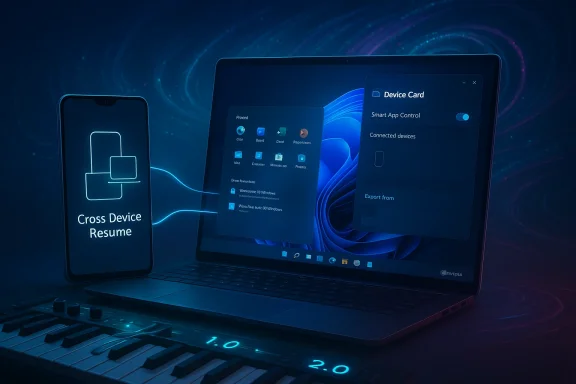
KB5077181 is a hybrid release: it contains security and quality fixes, a bundled SSU to improve update reliability, feature-enablement flips tested in previous previews, and on-device AI component payloads intended for Copilot+ capable systems. Major user-visible changes and platform updates included in this release are:- Cross‑Device Resume expansion for Android devices (resume tasks started on phone on the PC).
- Windows MIDI Services modernization with support for both MIDI 1.0 and MIDI 2.0, app‑to‑app routing, and simultaneous device access.
- Smart App Control (SAC) lifecycle change — you can now toggle SAC on or off from Settings without reinstalling Windows.
- A refreshed Start menu and colorful battery icons in the taskbar as part of a broader UI rollout.
- A new Device Card on the Settings homepage summarizing system specs (storage, RAM, etc.).
- Storage Settings access now requires administrator rights, adding a layer of protection for storage metadata.
- Fixes for Nvidia GPU black‑screen issues, improving stability for affected systems.
Cross‑Device Resume: continuity beyond OneDrive
How it works
Cross‑Device Resume in KB5077181 extends the "handoff" experience from simple OneDrive document syncing to contextual resumption of activities started on a linked Android phone. Instead of streaming an Android UI, the phone sends a small metadata payload (an AppContext) to Windows, which maps the payload to the best local handler — a native desktop app if present, or a browser fallback otherwise. Examples include resuming Spotify playback, picking up Microsoft 365 documents (Word, Excel, PowerPoint) opened inside Microsoft's Copilot mobile app, and restoring some compatible browser sessions.Practical limits and gating
- The feature is staged: installing the KB is necessary but not always sufficient; Microsoft uses controlled feature rollouts (server-side flags) that gate availability by account, device, region, or OEM entitlements.
- App and vendor support matters: the phone app, desktop app, and OEM partner integrations determine the quality and breadth of the experience.
What users should expect
For consumers, Cross‑Device Resume aims to reduce friction for common sessions like music or document editing. For organizations, the feature is low risk but dependent on app and device ecosystem readiness; pilot deployments should verify the specific app workflows in use.Windows MIDI Services: a meaningful modernization for creators
Improvements included
KB5077181 modernizes Windows MIDI Services to support:- MIDI 1.0 and MIDI 2.0 interoperability
- Custom port names, loopback, and app‑to‑app routing
- Lower latency options and better handling when multiple apps use the same physical MIDI device.
Why it matters
Musicians and DAW (Digital Audio Workstation) users often struggle with device sharing and routing conflicts. The update promises more reliable routing and fewer conflicts for multi-app workflows, which can significantly streamline studio setups and live performance scenarios.Caveats
- Audio ecosystems rely heavily on driver quality and third‑party utilities; the new services reduce software-level friction but cannot fix buggy device drivers. Administrators should pilot the update in studio stations and test vendor drivers and plugins before broad rollout.
Smart App Control: reversible without reinstall
One of the most consequential usability changes in KB5077181 is that Smart App Control (SAC) is no longer a one‑way commitment. Historically, if SAC was disabled it often required a clean reinstall to re-enable enforcement; the update introduces an in‑OS toggle so users and administrators can enable or disable SAC from Windows Security › App & Browser Control.Benefits
- Operational flexibility: Temporarily disable SAC to install or run a trusted legacy application, then re-enable enforcement.
- Lower friction for end users and IT staff who previously avoided SAC because it was effectively irreversible.
Risks and recommendations
- SAC can still produce false positives and block legitimate software (unsigned drivers, anti‑cheat engines, hardware control tools). Always:
- Keep backups or system images before enabling SAC on production machines.
- Test SAC in a controlled environment with key applications.
UI changes: Start menu and colorful battery icons
KB5077181 continues a gradual rollout of a redesigned single‑page Start menu and introduces colorful battery icons in the taskbar. The Start menu changes favor a cleaner one‑page layout, more pins for high‑resolution displays, and pre‑categorized app groups like Music or Productivity.UX notes
- The Start redesign is phased and may not appear immediately after installation because of Microsoft’s gating.
- Early reports note that in some configurations the Start menu can cover more screen area than expected and that pre‑assigned categories are not freely movable by users. Microsoft is reportedly monitoring feedback.
Device Card and Storage Settings admin requirement
The Settings homepage gains a Device Card that surfaces high‑level system statistics (available storage, installed RAM, etc.), offering a quick summary similar to what many OEM launchers provide.A security-oriented change makes Storage Settings require administrator privileges to access, which prevents non‑admin users from querying potentially sensitive storage information. This is a subtle change but one with clear security intent; administrators should be aware of any scripts or helpdesk playbooks that rely on non‑privileged access to Storage Settings.
Under the hood: SSU, AI payloads, and package size
Servicing Stack Update (SSU)
KB5077181 bundles an SSU alongside the Latest Cumulative Update (LCU). Microsoft includes SSUs to improve reliability of future servicing operations, and the presence of an SSU can complicate removal; imported SSUs are often persistent and cannot be uninstalled via standard Control Panel removal methods. Administrators should test package removal in lab images because restoring prior states may require DISM-level operations.On‑device AI models and package bloat
A major reason offline installers are unusually large this cycle is the inclusion of on‑device AI component binaries for Copilot+ features. Test reports and catalog listings commonly place client offline package sizes in the 3.8–4.3 GB range; some reporting rounds this to "exceeds 4 GB" depending on the architecture and whether both LCU and SSU are combined. Microsoft may still gate model activation by hardware (NPU presence) or server flags even when the binaries are present.Operational implications
- Bandwidth and storage: IT teams should plan for multi‑gigabyte downloads, catalog storage, and expanded WSUS content.
- Feature gating reality: Installing binaries does not always equal feature availability; verify server-side entitlements and hardware capabilities for Copilot+ behaviors.
Offline installers and manual installation: practical guide
For administrators and advanced users who prefer offline deployment, Microsoft publishes standalone .msu installers in the Microsoft Update Catalog. KB5077181 provides combined and component MSUs that must be handled carefully.Two supported deployment workflows
- Recommended (bulk offline): Put all MSU files in a single folder and let DISM discover and apply prerequisites automatically against an offline image or running system. This is the simplest offline approach for image servicing.
- Controlled (stepwise): Install each checkpoint MSU individually in the order listed on the catalog page when you require precise control over dependency ordering. This helps avoid missing a prerequisite or installing in an unsupported sequence.
Quick install commands
- To run an .msu interactively on the target PC: open an elevated command prompt and run:
- wusa.exe windows11.0-kb5077181-x64.msu (replace filename as appropriate).
- For offline image servicing, use DISM:
- Mount the image.
- DISM /Add-Package /PackagePath:"path\to\windows11.0-kb5077181-x64.msu" (repeat for each MSU or let DISM discover packages in a folder).
Removal caveats
If the MSU contains an SSU, the SSU often remains after attempts to uninstall the LCU; removing an SSU requires advanced DISM package removal commands and exact package naming. Always test removal procedures in lab images before attempting in production.Known issues, stability notes, and troubleshooting
Nvidia black‑screen fixes
KB5077181 addresses previously reported black‑screen issues on systems with Nvidia GPUs, improving stability for many gamers and daily users. If you still see display instability after updating, verify you have the latest GPU drivers from the vendor and check for OEM UEFI/firmware updates.Smart App Control false positives
SAC continues to be a double‑edged sword: it prevents many malware vectors but can block legitimate installers, drivers, or anti‑cheat modules. Now that SAC is reversible without reinstalling Windows, the operational cost of a false positive is lower, but admins should still pilot SAC and prepare rollback procedures.Start menu layout and display issues
Some early testers reported the redesigned Start menu occupying more screen real estate than intended in particular display/scaling configurations. Because this change is being phased and potentially gated, users who dislike the behavior should check for relevant feature flags and feedback channels; Microsoft has acknowledged monitoring such feedback.MIDI driver compatibility concerns
While the new MIDI Services reduce OS-level conflict, driver or DAW plugin incompatibilities can still cause regressions in complex audio setups. Studios and AV professionals should test vendor drivers and plugin chains before updating production workstations.Deployment guidance and best practices
For IT teams managing broad rollouts, KB5077181 mixes security hardening with functional changes and larger payloads. Follow these practical steps:- Inventory and risk assessment
- Identify machines with Copilot+ hardware or NPUs that might activate on‑device models.
- Flag audio production systems and gaming rigs that use specialized drivers for separate pilot testing.
- Lab validation
- Test installation, feature visibility, SSU behavior, and removal procedures in a non‑production image.
- Confirm SAC toggle behavior and test the impact on critical applications.
- Offline installer strategy
- For air‑gapped or bandwidth‑limited environments, pre-download the appropriate .msu files and maintain them in WSUS/ConfigMgr content libraries. Budget for multi‑gigabyte storage.
- Staged rollouts
- Use phased deployment and maintenance windows. Monitor telemetry and user reports for any regressions in GPU, audio, or app behaviors.
- Communication and support
- Notify help desk staff about the SAC toggle change and possible Start menu behavior changes so they can respond to end‑user questions quickly.
Security, privacy, and compliance considerations
KB5077181 includes on‑device AI binaries. While placing models on clients can reduce cloud round trips and improve latency, administrators and privacy officers should evaluate:- Data handling expectations: Microsoft’s update notes do not provide exhaustive telemetry or model‑level audits inside the KB entry itself, so organizations concerned about model behavior should consult Microsoft’s developer docs and OEM guidance for details.
- Feature gating vs. binary presence: Model binaries may be present but inactive; organizations should confirm whether models are enabled on their hardware to understand privacy and compliance implications.
Final analysis — strengths, risks, and what to watch
KB5077181 is significant because it bundles modern platform improvements and convenience features with essential security hardenings. Its strengths include:- Meaningful user benefits: Cross‑Device Resume and the Start menu refresh are genuine UX improvements where ecosystem cooperation exists.
- Platform modernization: The MIDI Services update and SAC lifecycle fix address long‑standing pain points for creators and security-conscious users respectively.
- Operational resiliency: Bundled SSUs aim to reduce update failures and improve servicing reliability.
- Large offline packages: Multi‑gigabyte installers increase bandwidth, storage, and update complexity; organizations must plan accordingly.
- Feature gating complexity: Installing binaries does not guarantee immediate access to features; this complicates validation and user expectations.
- Third‑party driver dependencies: Audio and GPU driver ecosystems remain sources of potential regressions; test before mass deployment.
- SAC false positives: Although reversible, SAC can still interrupt workflows and requires careful pilot testing.
- Vendor driver updates from GPU and audio manufacturers as they respond to the changes in KB5077181.
- Microsoft guidance for Copilot+ model activation, model sizes, and any follow‑up KBs clarifying privacy and telemetry.
Quick checklist for users and admins
- Back up or image systems before wide deployment.
- Pilot KB5077181 on representative systems (gaming rigs, audio workstations, Copilot+ devices).
- Use Windows Update for incremental, delta‑optimized installs where possible; use offline .msu installers only when necessary.
- If you deploy .msu files, keep them in a controlled folder and prefer DISM discovery for offline servicing.
- Train help desk staff on the SAC toggle and the potential Start menu display differences.
KB5077181 represents a continued evolution of Windows servicing: security fixes wrapped with feature deliveries and on‑device AI components. For most users the update will deliver incremental benefits and improved platform reliability, but for organizations and creators the new package size, driver dependencies, and feature gating demand a cautious, well‑tested rollout. Apply the update after validating critical workflows, plan for increased bandwidth and storage, and use the new SAC toggle and Device Card as opportunities to refine security and support processes.
Source: FilmoGaz Windows 11 KB5077181 25H2 Launches: New Features and Offline Installers Available
