KB5077241 Preview Update for Windows 11: Sysmon Inbox, Emoji 16, WebP Desktop, Secure Boot Prep

  • Thread Author
Microsoft has quietly pushed KB5077241 into the Windows 11 preview channel and, while it’s not a headline-grabbing feature update, it is one of the more consequential quality-and-security releases in months — bundling a practical taskbar speed test, a curated Emoji 16 roll‑in, in‑box Sysmon (System Monitor) as an optional feature, WebP wallpaper support, camera pan/tilt controls, RSAT for Arm64, and critical groundwork for the upcoming Secure Boot certificate rotation that could affect thousands of devices if overlooked.

Blue Windows-style desktop with a 'Preview Update KB5077241' banner and row of emoji icons.Background​

Microsoft published KB5077241 as a non‑security preview update on February 24, 2026, covering Windows 11 versions 24H2 and 25H2 and producing OS builds 26100.7922 and 26200.7922 respectively. The update is distributed as a preview (optional) servicing wave and uses a phased rollout model, so when you see the changes can vary by device and configuration.
The timing for KB5077241 matters. 2026 started poorly for Windows update reliability — a string of January fixes and emergency out‑of‑band patches raised doubts among IT teams about update testing and rollout behavior, and administrators are more cautious than usual about accepting cumulative and preview releases without validating them in controlled environments first. That context colors how organizations should approach KB5077241: treat it as a functional preview with important platform implications, but validate critical behaviors in a test ring before broad deployment.

What’s in KB5077241 — Quick overview​

This is not a rework of the OS, but a focused bundle of platform, manageability and security changes:
  • Built‑in Sysmon (optional inbox feature) — Sysmon is now packaged with Windows and integrates with Event Log (disabled by default).
  • Taskbar network speed test — a one‑click launcher exposed from the network icon or Wi‑Fi Quick Settings that runs a browser‑based speed check.
  • Emoji 16.0 glyphs — a small, curated set of new emoji now available in the emoji panel (Win + .).
  • Camera pan/tilt controls exposed in Settings for supported webcams.
  • WebP as desktop background support.
  • RSAT on Arm64, various File Explorer and printing fixes, Widgets settings improvements, and a BitLocker reliability fix.
  • Secure Boot certificate updates: KB5077241 contains targeting data and mechanisms that expand device eligibility for receiving new Secure Boot certificates rolled out by Microsoft and OEMs ahead of certificate expirations beginning June 2026. This part of the update is operationally significant.
Those feature bullets hide a set of operational trade‑offs: built‑in Sysmon changes how endpoint telemetry is provisioned; Secure Boot certificate work requires cross‑team coordination for firmware updates and BitLocker considerations; and the taskbar speed test is a small convenience with minimal operational footprint. Below I unpack the most consequential items and show what to test, what to watch for, and how to prepare.

Sysmon, in‑box: what changed and why it matters​

The practical change​

Sysmon (System Monitor), long distributed as part of the Sysinternals toolkit, is now included in Windows as an optional, disabled‑by‑default feature. Enabling the feature installs Sysmon as a native component and writes its output to the Windows Event Log so existing SIEM and EDR pipelines can consume system‑level telemetry without deploying the separate Sysinternals package. Microsoft documents the enablement paths in KB5077241 (Settings > System > Optional features > More Windows features, or via DISM/PowerShell) and explicitly warns administrators to uninstall any previously installed Sysmon from Sysinternals before enabling the inbox version to avoid conflicts.
Practical enablement examples are straightforward:
  • Settings route: Settings > System > Optional features > More Windows features > select Sysmon and enable.
  • CLI route: DISM or Add‑WindowsPackage to add the KB package, then run the Sysmon installer command to complete setup (the KB notes running sysmon -i after feature install).

Why this matters to defenders​

Organizations that depend on endpoint telemetry — SOCs, IR teams, and threat hunters — will welcome the simpler provisioning. Making Sysmon available in the image (as an optional feature) lowers the friction for baseline telemetry on freshly imaged endpoints, Cloud PCs, and non‑persistent configurations where installing Sysinternals manually is inconvenient. It also aligns Windows with a “batteries‑included” security posture that makes threat detection easier to standardize.

Caveats and operational risks​

  • Configuration still matters. Sysmon’s value comes from a quality configuration file (filters, event IDs toggled, exclusions). Shipping a default, aggressive configuration can produce enormous event volumes and false positives; shipping an overly restrictive one reduces detection fidelity. Plan a configuration lifecycle: test templates, vet exclusions for common enterprise software, and tune retention policies.
  • Event Log volume and storage — enabling Sysmon without retention planning can fill event stores or overload SIEM ingestion budgets. Validate logging rates in a lab before rolling out at scale.
  • Compatibility with existing Sysmon installs — Microsoft explicitly asks teams to uninstall the older Sysinternals Sysmon before enabling the inbox feature. Failing to remove the legacy package can produce unpredictable behavior.

Recommended actions for IT/SecOps teams​

  • Validate the Sysmon inbox feature in a dedicated test ring and collect realistic event volumes using your standard configuration.
  • Convert your canonical Sysmon configuration and test it against the inbox implementation; confirm Event Log paths and retention behavior.
  • Add Sysmon enablement/disablement to your imaging automation and group policy workflows; ensure rollback is possible.
  • Update runbooks to include the explicit uninstall step for legacy Sysmon prior to enabling the inbox feature.

Taskbar network speed test — tiny convenience, big signal​

KB5077241 surfaces a one‑click network speed test from the system tray network icon and the Wi‑Fi/Cellular Quick Settings. Selecting the entry opens a browser‑based speed test to measure latency, download, and upload on Ethernet, Wi‑Fi or cellular connections. This is a lightweight, diagnostic convenience aimed at end users and helpdesk staff to reduce time‑to‑diagnosis on connectivity complaints.
Why this is worth noting:
  • It signals Microsoft’s preference for small, integrated diagnostics in UX surfaces rather than pushing users to third‑party sites or tools.
  • It’s low risk functionally, but because it launches the default browser it’s dependent on the browser environment and any enterprise proxy or monitoring that might affect test results. Test in your environment before relying on the number as evidence when troubleshooting.

Emoji 16 and WebP wallpaper support — quality of life and creator friendliness​

KB5077241 adds a curated subset of Emoji 16.0 to the emoji panel and enables WebP images as desktop backgrounds from Settings or File Explorer. These are consumer‑visible polish items that improve creator and communication workflows and reduce the friction of modern image formats on the desktop. While minor in absolute importance, they represent Microsoft’s continued incremental investments in user experience and cross‑platform consistency.

Camera pan/tilt controls, RSAT Arm64, and other incremental improvements​

The update exposes basic pan and tilt controls for supported cameras in Settings > Bluetooth & devices > Cameras, and it ships Remote Server Administration Tools (RSAT) support for Arm64 devices. These changes are modest individually but meaningful in aggregate: improved camera controls help hybrid workers, and RSAT on Arm64 closes a long‑standing tooling gap for administrators managing Arm64 servers and endpoints. The release also includes numerous File Explorer, sleep/resume, printing spooler and Windows Update UI reliability fixes.

Secure Boot certificate rotation — the operational imperative​

Arguably the most critical reason to pay attention to KB5077241 is its role in the larger Secure Boot certificate refresh that Microsoft and OEMs have been coordinating for months. The certificates Microsoft originally shipped in 2011 (KEK/DB CA certificates) start to expire in June 2026 (and cumulatively through October 2026). Microsoft has published guidance and is rolling 2023 CA certificates to replace the expiring 2011 authorities; KB5077241 carries additional device targeting and rollout signals to increase the set of devices eligible to automatically receive the new certificates.

What happens if devices do not receive the new certificates?​

  • Devices that do not receive updated CA entries will continue to boot, but they will not be able to receive new Secure Boot updates after the old CAs expire. That means firmware‑level and boot‑time security updates (DB/DBX, Windows Boot Manager updates) may not be applicable, exposing those devices to future boot‑level threats or leaving them unable to accept new signed loaders or option ROMs. Over time this degrades device security posture and could block platform upgrades.

Who needs to act?​

  • Most modern Windows 11 devices will receive the new certificates automatically through Windows Update and OEM firmware updates, but some fleets — particularly older hardware, specialized appliances, some VMs, and certain servers or IoT devices — may require firmware updates or manual steps from OEMs. OEM support pages (HP, ASUS and others) and Microsoft recommend checking your fleet and applying BIOS/UEFI updates where applicable.

How to check certificate state (quick verification cheatsheet)​

Before rolling any changes, verify Secure Boot and the presence of the 2023 certificates:
  • Confirm Secure Boot is enabled:
  • Run PowerShell as Administrator and execute:
  • Confirm-SecureBootUEFI
  • A result of True indicates Secure Boot is active.
  • Inspect the DB (Allowed Signature Database) for the 2023 CA:
  • Use (run elevated):
    [System.Text.Encoding]::ASCII.GetString((Get‑SecureBootUEFI db).bytes) -match 'Windows UEFI CA 2023'
  • If the command returns True, the updated CA is present in the DB.
  • Check KEK similarly:
    [System.Text.Encoding]::ASCII.GetString((Get‑SecureBootUEFI kek).bytes) -match 'Microsoft Corporation KEK 2K CA 2023'
  • True indicates the new KEK entry exists.
  • Registry deployment status and event logs:
  • Inspect HKLM:\SYSTEM\CurrentControlSet\Control\SecureBoot\Servicing for rollout state keys (NotStarted, InProgress, Updated) and watch System log Event ID 1808 for certificate application success.
Those are the authoritative checks Microsoft and community runbooks recommend; they can be scripted across fleets for reporting or integrated into existing device health dashboards.

Recommended Secure Boot workplan for IT teams​

  • Inventory — identify devices with Secure Boot enabled and capture current DB/KEK contents using the PowerShell checks above. Flag hardware that lacks OEM firmware updates or is out of vendor support.
  • Test — apply the certificate update and any BIOS/UEFI firmware update to a pilot cohort. Confirm BitLocker behavior is preserved and note if BitLocker recovery prompts appear after firmware upgrades. OEM documentation warns BitLocker recovery key prompts are possible and provide steps to minimize user impact.
  • Automate — script the PowerShell verification steps and integrate them into patch orchestration tools to monitor rollout progress and surface devices that require manual intervention.
  • Coordinate with procurement/OEMs — for older or specialized hardware, request firmware updates or documented procedures from OEMs. Many vendors (HP, ASUS) already published guidance and BIOS updates to help devices receive the new CAs.
  • Communicate — inform helpdesk and end‑user support teams about possible BitLocker recovery prompts after firmware changes and ensure recovery keys are escrowed in your identity or management platform.

Deployment guidance and risk mitigation for KB5077241​

KB5077241 is a preview (optional) update that contains both convenience features and important platform targeting adjustments. Approach deployment with the following practical checklist:
  • Test ring first — validate Sysmon enablement, event volume, SIEM ingestion and correlation; test the taskbar speed test workflow and confirm WebP wallpaper handling; validate camera PTZ controls for commonly used webcams.
  • Secure Boot readiness — run the PowerShell checks above across your estate and escalate devices that lack the 2023 CAs. Create a remediation queue and prioritize server and critical endpoints for firmware updates.
  • Backup and recovery — ensure BitLocker keys are accessible and preserved before applying BIOS/UEFI updates. Expect some endpoints to prompt for recovery keys after firmware updates, so surface recovery keys in advance for high‑risk devices.
  • Monitor Microsoft’s release notes and health dashboard — follow the Windows release health and KB pages for any post‑release corrections or known issues tied to KB5077241. Microsoft lists no known issues at publication, but the January experience underlines the need to monitor closely after rollout.

What to watch for in the coming weeks​

  • Phased availability — feature availability for the taskbar speed test, Sysmon, and Emoji 16 may be gated by Controlled Feature Rollout logic and device targeting, so don’t assume uniform availability immediately after installing the KB.
  • Sysmon configuration drift — as organizations enable Sysmon via group policy or images, mismatched configurations across environments will create blind spots or overload SIEM pipelines. Standardize and version control Sysmon configs.
  • Certificate rollout telemetry — monitor event logs (Event ID 1808 and related Secure Boot events) and the registry servicing keys to verify certificate application status at scale. Automate remediation for devices stuck “NotStarted” or “InProgress.”
  • OEM firmware cadence — some OEMs publish firmware updates quickly while others lag. Maintain a prioritized list of models that require manual firmware updates and track vendor advisories.

Final analysis: strengths, risks, and the path forward​

KB5077241 bundles sensible, low‑risk productivity and manageability improvements with a quietly significant operational element: the Secure Boot CA lifecycle. The inclusion of Sysmon as an optional inbox feature is a pragmatic win for defenders and image builders — it reduces friction for delivering baseline telemetry across modern Windows 11 fleets. The speed test, WebP wallpaper support, camera PTZ controls and Emoji 16 upgrades are practical, user‑facing polish that will be appreciated by helpdesk teams and creators alike.
That said, the update must be handled with discipline:
  • Do not enable Sysmon at scale without configuration and ingestion planning. Event volume and retention are the tactical blockers here. Test with representative workloads and ensure SIEM filters and retention policies are sized appropriately.
  • Secure Boot certificate rotation is a cross‑team problem. It requires firmware updates, validation scripts, and clear recovery procedures for BitLocker. Treat the certificate work as an infrastructure lifecycle program, not an incidental patch. Missing the migration window could reduce device security posture and complicate future boot‑time protections.
  • Continue to watch Microsoft’s update hygiene. Given January’s emergency updates and fixes earlier in the year, conservative rollout and robust rollback-runbooks remain prudent. Validate in test rings and have recovery plans for impacted productivity apps or drivers.
KB5077241 is a useful, carefully scoped preview that signals Microsoft’s current priorities: bolster endpoint telemetry accessibility, tidy UX friction points, and prepare the platform for the 2026 Secure Boot certificate transition. For administrators and security teams, it is an early invitation to inventory, test, and automate the Secure Boot checks and to plan Sysmon rollout responsibly. For end users, the experience will be mostly invisible — small, helpful conveniences and more consistent emoji and wallpaper behavior. For enterprise security, however, this release sets a timetable and a set of operational tasks that shouldn’t be deferred.

Prepare your test plan now: verify Secure Boot CA status with the PowerShell checks, validate Sysmon behavior in a controlled ring, and script telemetry to monitor both installation success and any unintended service disruptions. KB5077241 is small in scope but substantial in consequence — treat it as an operational milestone, not just another optional preview.

Source: Windows Report https://windowsreport.com/kb5077241...i-sysmon-integration-and-secure-boot-updates/
 

Microsoft’s February preview for Windows 11 (KB5077241) is small on headline glamour but large in practical consequence: it updates the operating system to OS Builds 26200.7922 (25H2) and 26100.7922 (24H2), pushes a phased replacement of expiring Secure Boot certificates, expands recovery and restore tooling for organizations, and folds formerly external utilities like Sysmon into Windows as an optional feature—changes that should be read as an early warning and an operational checklist for both IT teams and power users. ([support.microsoft.microsoft.com/en-us/help/5077241)

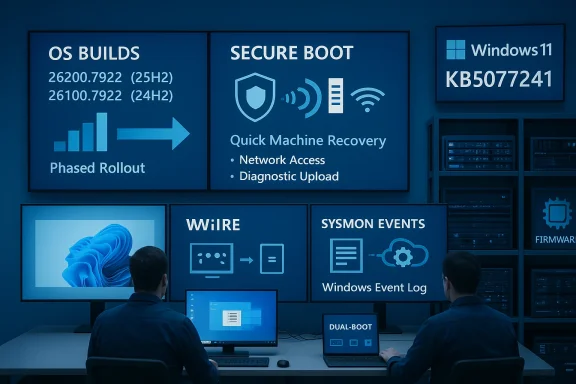
A blue-lit operations room with multiple screens showing Windows 11 updates and security tools, two engineers at work.Background​

Microsoft publishes monthly optional “preview” cumulative updates to let admins and enthusiasts validate non-security changes ahead of the regular Patch Tuesday. The February 24, 2026 preview—tracked as KB5077241—arrives amid a broader, time-sensitive engineering effort: several Microsoft-issued UEFI/firmware signing certificates first used around 2011 are scheduled to begin expiring in June 2026. Microsoft’s solution is a coordinated, phased rollout of new certificate material delivered via Windows servicing and, where necessary, OEM firmware updates. The KB and accompanying guidance make the timeline and intent explicit: update certificates now to avoidures later.
That alone lifts this preview out of “quality-of-life” status—if certificate updates or firmware prerequisites are mishandled, the potential impact is boot-level and can affect anti‑cheat systems, dual‑boot setups, virtual machines, and the ability to update pre‑OS components. Microsoft’s Ks a phased rollout and the importance of OEM firmware readiness.

What’s new in KB5077241 — quick summary​

  • OS builds: 26200.7922 (Windows 11 25H2) and 26100.7922 (Windows 11 24H2).
  • Secure Boot certificate rollout: increased coverage and phased distribution of replacement certificates ahead of expiration in June 2026.
  • BitLocker reliability: fixes to prevent system freezes after entering a BitLocker recovery key.
  • Windows Backup for Organizations: first-sign-in app and settings restore for Microsoft Store apps on Entra‑joined devices, Cloud PCs and multi‑user environments.
  • Quick Machine Recovery (QMR): enabled by default on Pro devices that aren’t domain‑joined or managed; WinRE can connect to the network, upload diagnostics, and apply fixes to bring a machine back to bootable state.
  • Sysmon in-box: System Monitor (Sysmon) is now available as a Windows feature that writes events to the Windows Event Log; installable via Settings or DISM.
  • UI and convenience: taskbar-accessible network speed test, WebP wallpaper support, PTZ camera pan/tilt controls, updated Widgets settings, Emoji 16 additions.
  • Enterprise additions: RSAT support on Windows 11 Arm64, various File Explorer and Windows Update performance improvements.
These items are delivered as optional preview updates; administrators can wait for the normal rollout or test these changes in a phased deployment.

Secure Boot certificate rollover — why this matters now​

Secure Boot enforces a firmware-level chain of trust for the pre-OS environment. The certificates Microsoft used to support that chain date back to 2011 and are part of UEFI variables (KEK, DB, DBX) relied upon by firmware, boot components and third‑party low‑level software. Those certificates are scheduled to begin expiring starting June 2026; without replacement certificates across the ecosystem, systems risk losing the ability to trust new signatures, receive pre‑boot security updates, or validate newly signed boot components. Microsoft’s KB and blog guidance therefore treat the certificate update as a global maintenance task affecting Windows, hypervisors, VMs and dual‑boot Linux installs.
Strengths of Microsoft’s approach:
  • Preventative: rolling certificates now avoids a hard stop in June; the KB explicitly warns that inaction could affect boot trust.
  • Phased targeting: devices only receive new certificates accessful update signals—this reduces risk of a mass rollout to incompatible firmware.
What’s still ambiguous:
  • Microsoft’s phased targeting is intentional but opaque. The KB says rollout uses “high confidence device targeting data,” but it does not publish a device-level hitlist. That means organizations must assume they’ll need to validate firmware and Windows servicing sequences across their fleets. Community threads and prior rollouts show OEM firmware readiness is often the gating factor, and failures in the past have blocked legitimate boot paths (e.g., DBX/bootloader blockings). Treat Microsoft’s assurances seriously but plan for manual verification.
Risk factors:
  • OEM firmware lag: if vendors don’t ship firmware updates in time, Windows-level certificate changes may be insufficient and could leave machines in an untrusted boot state.
  • Dual‑boot and Linux compatibility: certificate rollovers can inadvertently block non‑Windows bootloaders; previous DBX updates have broken Linux systems. IT should test multi‑boot devices in a lab before broad rollout.
Practical takeaway: start an immediate inventory and test cycle now—see the detailed checklist below.

Quick Machine Recovery (QMR): a powerful safety net with trade-offs​

QMR is one of the most consequential operational changes in KB5077241. Conceptually, QMR brings a managed, networked repair flow into the Windows Recovery Environment (WinRE). When WinRE detects a non-boot condition, it can now bring up the network, transmit diagnostic telemetry, and receive targeted fixes or orchestrated update steps intended to restore bootability. Microsoft has tested QMR in Insider builds in direct response to large‑scale incidents (notably the mid‑2024 CrowdStrike driver‑related outage) and is now enabling it more broadly for Pro devices that aren’t domain‑joined.
Why QMR is compelling:
  • Reduced onsite triage: remote diagnosis and automated fixes can rescue machines that would otherwise require physical intervention. This materially reduces downtime for both consumers and small‑business fleets.
  • Automated recovery patterns: the flow is designed to run WinRE, apply a scan, and fetch relevant fixes—avoiding blind reimaging where possible.
Legitimate concerns and constraints:
  • Data and privacy: QMR initiates network connections from WinRE and transmits diagnostic data. Administrators need to understand exactly what telemetry is sent and whether it complies with corporate policy or regulatory constraints. Microsoft’s docs outline the flow but leave detailed telemetry schemas to policy documents; treat this as a privacy audit item.
  • Control and opt-out: the KB makes clear QMR stays off for domain‑joined or enterprise‑managed devices unless organizations enable it. However, Pro devices outside management may be enabled by default—organizations with BYOD fleets should inventory which machines are possible candidates.
  • Risk of incorrect fixes: any automated remediation that applies changes at boot risks side‑effects. Microsoft’s phased signals and limited targeting reduce this, but IT should test QMR in a controlled environment before enabling it broadly.
Recommendation: create an organizational policy that documents allowed WinRE network activity, defines telemetry retention and access, and outlines a testing regimen for QMR before enabling it on business‑owned but non-domain Pro devices.

Windows Backup for Organizations: smoother migrations, with caveats​

KB5077241 extends Windows Backup for Organizations to restore Microsoft Store apps and settings on first sign-in for Microsoft Entra‑joined devices, Cloud PCs and multi‑user setups. The practical effect is a more consistent first‑use experience for migrating users, reducing post‑migration help‑desk tickets. Microsoft has positioned this as a key tool for easing mass migrations from Windows 10 to Windows 11.
What works well:
  • App/setting fidelity: automatic restoration of Store apps and their settings can significantly reduce the friction of device replacement.
Operational notes:
  • Entra / Intune preconditions: Microsoft requires Entra binding and certain build baselines; IT must enable the Windows Backup for Organizations service and ensure administrative entitlements. This is an opt‑in capability, so it will not be applied without tenant configuration.
  • Scope limits: the backup/restore focus is Microsoft Store apps and settings; traditional Win32 app reinstallation (e.g., third‑party enterprise apps) will still require packaging or Endpoint Manager workflows. Test any complex app profiles in a pilot cohort before relying on the restore flow in production.

Sysmon in‑box and other security tooling​

Having Sysmon available as an optional Windows feature is a meaningful win for defenders: long a Sysinternals staple, Sysmon provides high-fidelity host telemetry useful for threat detection and incident response. KB5077241 lets administrators enable Sysmon from Settings > System > Optional features or through DISM, with events written to the Windows Event Log for consumption by SIEM and EDR tools. Note that Sysmon is off by default and, if you installed the Sysinternals version previously, Microsoft recommends uninstalling it before enabling the built‑in feature.
Why this is important:
  • Lower barrier to enterprise monitoring: making Sysmon an optional feature simplifies deployment in locked‑down or constrained environments.
Practical guidance:
  • Deploy Sysmon with carefully crafted configuration files to avoid noisy telemetry and to ensure relevant events are collected. Use shorter debug windows when testing and iterate configuration with security teams.

Smaller changes that matter​

KB5077241 bundles many productivity tweaks that will be visible to everyday users:
  • A the network icon labeled Perform speed test—which, in practice, launches a web search result that includes an embedded speed test in the default browser. This is a pragmatic UI shortcut more than a native network diagnostic tool.
  • WebP desktop wallpaper supporttings, PTZ camera controls, and updated emoji sets (Emoji 16). These are quality‑of‑life improvements that signal Microsoft’s continuing incremental polish of the UX.
While not operationally urgent, these small changes compound to improve daily user experience and reduce simple support tickets.

Reliability work: BitLocker and Nearby Sharing​

KB5077241 also includes reliability fixes for BitLocker and Nearby Sharing. The BitLocker change is explicit: systems should no longer hang after the user enters the BitLocker recovery key. This addresses a severe UX block where recovery operations—already a stressful process—could leave machines unresponsive. Nearby Sharing reliability with larger files is also improved, addressing a frequent source of intermittent complaints.
Recommendation: update recovery documentation and test BitLocker recovery flows in lab images after applying the preview in controlled settings. Validate that user guidance to retrieve and input recovery keys remains accurate.

Enterprise readiness checklist — what IT teams should do now​

  • Inventory: Build a list of devices with Secure Boot enabled, their OEM and firmware versions, and whether they are Entra‑joined, domain‑joined, or unmanaged.
  • OEM firmware: Contact major OEMs and check firmware update availability for affected models; prioritize machines without recent firmware activity.
  • Lab tests: Apply KB5077241 in a lab and simulate BitLocker recovery, QMR flows, and multi‑boot scenarios. Verify that Linux bootloaders and VM hosts are unaffected.
  • Policy & telemetry: Decide whether QMR is permitted for your environment. If enabled, document telemetry retention and access controls and include QMR in incident response runbooks.
  • Backup and restore validation: Test Windows Backup for Organizations’ first‑sign‑in restore on Entra‑joined devices; validate Microsoft Store app behavior and policy implications for license re‑acquisition.
  • Communication: Notify end users of expected changes (Emoji/WebP, Widgets) and provide guidance for systems where major firmware work is planned.
  • Rollout plan: Use phased deployment and rollback strategies; for large fleets, pilot on non‑critical devices and watch health telemetry.

Privacy, telemetry and the “networked recovery” trade-off​

QMR’s capability to bring WinRE online and send diagnostics to Microsoft is a clear functional win, but it also raises reasonable privacy and governance questions. The KB describes the behavior and control surface—QMR is off for domain‑joined devices by default and is discoverable via Windows Update and management controls—but doesn’t surface the full telemetry schema in the preview notice. Organizations will need to demand transparency: what exact logs are transmitted, for how long are they retained, and who at Microsoft or a service provider can access them? These are not academic concerns in regulated sectors.
If your organization cannot accept remote WinRE network traffic, you should keep QMR disabled on managed devices and document a manual recovery playbook.

What could go wrong — scenarios to watch​

  • Firmware lag + certificate rollout mismatch: if OEMs don’t ship requisite firmware updates, automatic replacement of Secure Boot certificates at scale could render some recovery or pre‑OS signing paths untrusted. Past updates that touched DB/DBX variables caused real compatibility problems for Linux and custom boot loaders. Test multi‑boot systems before broad deployment.
  • Unintended QMR changes: automated fixes—if not well‑targeted—could change drivers, disable or reconfigure security tools, or otherwise destabilize certain systems. Keep the QMR control in management policies and test thoroughly.s://www.theverge.com/news/638890/microsoft-quick-machine-recovery-restore-pcs-crowdstrike)
  • Update-induced instability: independent reporting shows some February cumulative updates have introduced install failures and functional regressions on some hardware; that reinforces the value of pilot deployments before broad acceptance. Pause if you are protecting mission‑critical systems until results from pilots are validated.

Recommended plan for home and power users​

  • Enable System Restore and make a full image backup before installing preview or early cumulative updates. Use built‑in or third‑party imaging tools.
  • If you have a multi‑boot setup (Linux + Windows), do not install Secure Boot–related updates in bulk without testing; ensure you have recovery media and mirrored firmware images.
  • Be cautious with optional preview updates on mission‑critical machines; they are precisely for testing and early validation. Consider waiting for the normal rollout if you prefer stability.

Final analysis — constructive realism​

KB5077241 is a pragmatic, operationally important preview. It signals Microsoft’s priorities for 2026: reduce downtime through network‑enabled recovery, harden the pre‑OS trust chain before certificate expiry, and make defensive tooling more accessible by bringing Sysmon into Windows as an optional feature. For admins, the work is straightforward but non-trivial: firmware validation, controlled pilots, and clear policies around QMR telemetry and recovery behavior.
These are not headline features like AI copilots or new UI paradigms, but they are arguably more consequential. A poorly coordinated Secure Boot certificate replacement or an untested QMR rollout would cause real, expensive outages. Conversely, a well‑executed program will reduce the number of machines that require physical intervention and will smooth migrations to Windows 11 for many organizations.
Be pragmatic: treat KB5077241 as the start of a maintenance project, not a simple monthly update. Inventory, test, and communicate—and if you need time, make use of the optional update model to stage deployment rather than forcing a full organization‑wide immediate install.

Appendix — Quick reference (what to install / test first)​

  • Apply KB5077241 in a lab build and validate: BitLocker recovery, QMR flow, Windows Backup for Organizations restore, Sysmon enablement.
  • Check OEM firmware updates for devices with Secure Boot enabled; prioritize any systems with older firmware.
  • Validate dual‑boot systems and VM hosts for bootloader & shim compatibility.
  • If you manage Pro devices not domain‑joined, decide if you want QMR active by default; document telemetry collection and retention.
KB5077241’s pragmatic mix of security, recovery and small user‑experience changes makes it a must‑review for IT teams and a “test-first” candidate for enthusiasts. Treat this preview as your early warning system and your opportunity to harden the fleet before June’s certificate deadlines arrive.

Source: heise online Windows Update Preview: New Secure Boot Certificates, App Backups, and More
 

Microsoft’s February preview for Windows 11, packaged as KB5077241, is small in headline drama but meaningful in everyday impact — it lands as an optional, non-security preview that updates eligible machines to OS Build 26200.7922 (25H2) and 26100.7922 (24H2) and brings a pragmatic mix of new conveniences, enterprise-focused tooling, and preparation for an important Secure Boot certificate refresh. ([support.microsoft.icrosoft.com/en-us/help/5077241)

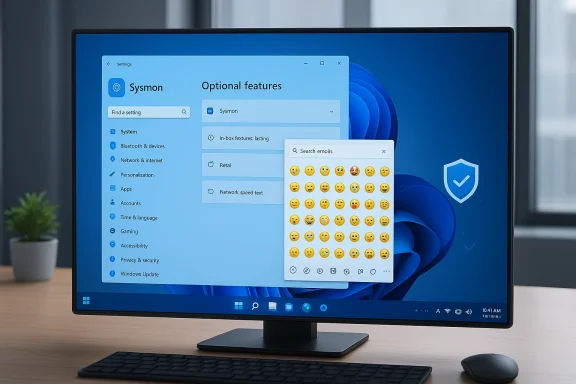
A desktop monitor displays Windows settings with an emoji picker overlay.Background / Overview​

This release is a preview-quality update: Microsoft describes KB5077241 as an optional (non-security) preview whose purpose is to improve functionality, performance, and reliability before the next regular cumulative security update. It won’t install automatically — users must opt in via the Windows Update optional updates area — and it’s being rolled out in phases to devices.
That rollout model matters because several of the changes in KB5077241 are staged and tied to device telemetry and compatibility signals. Microsoft is explicitly using targeted delivery to ensure that sensitive changes — notably the distribution of new Secure Boot certificates — are applied safely and in a controlled fashion. Administrators and users should treat this preview as both a sneak peek at upcoming behavior and a technical checklist for readiness.

What’s new in KB5077241 — feature highlights​

At a glance, KB5077241 blends small UX conveniences with under-the-hood improvements and one notably strategic move for enterprise defenders. The following items are the core user-facing and platform changes documented by Microsoft:
  • Emoji 16.0 support — a curated set of updated emoji glyphs added to the emoji picker.
  • Built-in Sysmon (System Monitor) — Sysmon is now available as an optional, in-box feature rather than only as a separate Sysinternals download. This is significant for defenders and IT teams.
  • First-sign-in Restore for organizations — improved setup behavior that restores apps and settings automatically on supported, managed devices.
  • Network Speed Test in the taskbar — a one-click network speed test control accessible from the network icon and Wi‑Fi quick settings; currently implemented as a launcher that opens a browser-hosted speed test widget.
  • Microsoft account perks linked in Start — the Start menu’s account menu links to your Microsoft account benefits page for easier discovery.
  • Camera pan and tilt (PTZ) controls — supported cameras can be controlled via Settings for pan, tilt, and zoom functions.
  • File Explorer and desktop polish — Extract all for archive folders, support for WebP desktop backgrounds, more reliable new-window behavior, and storage dialog refinements.
These items are mostly quality-of-life improvements: small changes that cumulatively make Windows feel smoother and more modern. Several items — WebP wallpaper support, Extract all in the command bar, and tegration — are the kind of incremental changes that often go unnoticed until you rely on them during troubleshooting or day-to-day use. Community reporting and preview threads have tracked these changes across Insider and Release Preview flights.

Deep dive: Sys matters​

What changed​

Sysmon (System Monitor), long a staple of Windows defenders distributed via Sysinternals, has been made available as an optional, inbox feature inside Windows 11 in preview channels. That mlity can be delivered and serviced using the Windows servicing pipeline instead of as a separate download.

Practical implications​

  • For security teams, this reduces deployment friction: enabling Sysmon across an estate can be done with OS feature management and Group Policy or MDM, and updates to Sysmon delivered through Windows Update remove an extra operational step.
  • For defenders, the in-box model increases the likelihood that accurate, high-fidelity host telemetry will be present on endpoints by default (or easier to enable), which can shorten detection and investigation time.
  • For cautious admins, bundling a powerful telemetry tool inside the OS raises policy questions: who controls Sysmon configuration, how telemetry flows to analytics backends, and whether enabling it by default (if that ever becomes a policy choice) would increase telemetry volume or privacy surface. These are operational decisions that should be governed by organizational telemetry policies.

Risks and recommendations​

  • Treat the in-box presence as an operational convenience, not a replacement for a deliberate configuration lifecycle. Sysmon’s value depends on a tuned configuration; default settings can be noisy and produce data that’s expensive to ingest and store.
  • Test and baseline memory/CPU I/O costs in lab environments before mass enabling. Use staged rollout with monitoring to spot any unintended performance regressions.

The taskbar network speed test — convenience vs. control​

KB5077241 surfaces a new “Perform speenetwork menu and Wi‑Fi quick settings. Important technical details and practical caveats:
  • The taskbar control acts as a launcher to a browser-hosted speed-test widget (currently surfaced via Bing), not an in-OS speed measurement engine. That means the actual test runs in the browser and is subject to the browser’s networking behavior and the remote test host’s methodology.
  • For end users and helpdesk staff, this is click path to download/upload/latency numbers without remembering a URL or installing tools.
Key considerations:
  • Because the test runs in the browser, enterprise policies that restrict external web access or default-to-private browser profiles might affect the test’s behavior.
  • Privacy and telemetry: launching a web-hosted test typically involves external services (e.g., Ookla or Bing’s partner); IT teams should be aware of what endpoints and telemetry are involved when recommending the feature to users.

Secure Boot certificate refresh — an operational priority​

KB5077241 also carries messaging and telemetry to support Microsoft’s broader Secure Boot certificate replacement effort. Microsoft has warned that certificates issued in 2011 that enabled Secure Boot on many devices will begin expiring starting in June 2026, with expirations continuing through October 2026. Microsoft’s guidance: update to the 2023 certificate set before expiration to avoid a degraded or non-compliant secure-boot state.

What Microsoft is doing in this update​

  • The update includes targeted device eligibility data so devices can automatically receive the newer Secure Boot certificates only after demonstrating successful update signals. This is a phased and telemetry-driven delivery to prevent mass disruption.

Why this matters​

  • Secure Boot is a foundational boot-time integrity mechanism. If the root certificates that validate boot components expire without replacement, devices might enter a degraded security state that limits future boot-component security updates and potentially affects new firmware or OS compatibility.
  • Most modern devices shipped with updated certificates or will receive them via Windows Update, but older or specialized hardware may require firmware updates from OEMs or manual enrollment steps. Organizations running appliance-like systems or long-lived hardware need to inventory and plan for potential remediation. Independent reporting corroborates Microsoft’s timeline and guidance.

Recommended actions for IT​

  • Inventory devices and identify systems produced prior to 2012 or with custom firmware.
  • Confirm current Secure Boot certificate status via management tooling or firmware interfaces.
  • Ensure Windows Update is enabled and that devices receive optional device-targeted updates. For specialized hardware, coordinate with OEMs for firmware-level updates.
  • Test the certificate update process in a controlled pilot before broad deployment.

Reliability, printing, BitLocker and sleep improvements​

KB5077241 includes a clutch of stability and reliability fixes that improve common pain points:
  • Display and sleep/wake reliability — improvements to reduce resume delays and improve reliability when waking from sleep, including under heavy load scenarios.
  • BitLocker recovery reliability — fixes an issue where devices might stop responding after entering a BitLocker recovery key. This is a targeted reliability fix with clear operational benefit for disk-encrypted devices.
  • Printing and Nearby Sharing stability — enhanced printing behavior under heavy workloads and better Nearby Sharing reliability with larger files. These fixes are incremental but address scenarios that can affect productivity in busy offices.
These are the kind of fixes that IT departments will appreciate because they reduce the incidence of costly, user-visible support calls. The Microsoft KB article lists the improvements and explicitly marks the update as quality-focused.

Installation — how to get KB5077241​

Because KB5077241 is an optional preview, it will not install automatically. Microsoft provides multiple ways to obtain it:
  • Open Start → Settings → Windows Update.
  • Under Optional updates available, find and select the February 2026 Preview update (KB5077241).
  • Choose Download and install, and follow prompts to complete installation.
Advanced and offline installation options:
  • Admini MSU packages from the Microsoft Update Catalog and deploy them via DISM, Windows Update Standalone Installer, or WSUS. Microsoft’s KB entry includes the DISM and PowerShell commands and notes about servicing stack updates (SSUs).
Recommended pre-install checks:
  • Ensure you have a recent backup or recovery point, particularly if you manage BitLocker-protected devices.
  • Confirm that your device’s firmware and drivers are current to reduce the chance of compatibility problems with new platform features (especially for camera PTZ controls or WebP wallpapers).
  • For enterprises, use staged deployment: pilot a subset of systems, validate telemetry and stability, then widen the rollout.

Privacy, telemetry, and enterprise policy considerations​

Several KB5077241 features raise policy and privacy considerations that organizations should evaluate before broad deployment:
  • Sysmon: The in-box presence increases the chance endpoints are instrumented, but telemetry collection must be governed by the organization’s logging retention and access policies. Configure Sysmon filters to balance detection fidelity with data volume.
  • Network speed test: Because the taskbar speed test launches a browser-hosted test, IT controls over external web access or content filtering may affect results. Additionally, using third-party test hosts implies outbound telemetry to those services.
  • Certificate replacement: Automatic distribution of new Secure Boot certificates depends on device signals; organizations concerned about deterministic changes to boot configuration should test and document behavior, particularly for systems with custom boot chains.
Privacy-minded administrators should document what telemetry flows are introduced or modified by enabling new features and update policies accordingly.

Known issues and troubleshooting​

Microsoft lists no known issues at the time of KB5077241’s publication, but a few practical troubleshooting points are worth keeping in mind:
  • If the optional update doesn’t appear in Windows Update, check that your device is eligible for the preview channel or that your organization’s Windows Update for Business policies aren’t blocking preview releases. For offline installs, use the Microsoft Update Catalog and verify you select the correct MSU files for your build and architecture.
  • For BitLocker-protected notebooks, have recovery keys accessible before installing any preview updates in case a recovery prompt appears; KB5077241 addresses some BitLocker hang scenarios, but best practice is to be prepared.
  • If a device fails to receive the new Secure Boot certificates automatically, consult Microsoft’s Secure Boot certificate guidance and contact your OEM for firmware updates or manual enrollment steps where necessary.
If you encounter installer errors, the servicing stack update (SSU) mentioned alongside the KB is relevant — Microsoft bundles SSU and LCU packages in combined payloads and documents removal and installation sequences in the KB.

Cross-checks and verification​

To ensure accuracy and to give readers confidence, the high-level claims in this article are cross-referenced with Microsoft’s official KB entry for KB5077241 and independent reporting:
  • Microsoft’s KB entry (February 24, 2026) lists builds 26200.7922 and 26100.7922 and details the features and installation guidance described above.
  • Microsoft’s Secure Boot certificate guidance explains the certificate lifecycle and the June–October 2026 expiration window and the requirement to move to the 2023 certificate set.
  • Independent tech outlets have reported on Microsoft’s Secure Boot certificate timeline and the planned phased rollout, corroborating the timeline and operational recommendations.
Community analysis and preview chatter from Insider and Release Preview sightings further illustrate how the taskbar speed test, PTZ controls, and Sysmon in-box have been observed across preview channels. Those community reports align with the KB’s stated features.

Practical recommendations — what to do next​

For home users
  • If you like early access to small features and want to test the improvements, opt into the optional update via Settings → Windows Update → Optional update you have a recent backup.
  • Keep BitLocker recovery keys handy and ensure Windows Update is enabled so that the Secure Boot certificate refresomatically if eligible.
For IT admins and security teams
  • Inventory devices to assess exposure to expiring Secure Boot certificates and identify any systems that may require OEM firmware updates.
  • Pilot KB5077241 on representative hardware to validate Sysmon configuration, sleep/wake reliability, and printing behavior under load.
  • Update documentation and runbooks to account for the new in-box Sysmon option and the taskbar speed-test behavior (noting the browser-hosted nature).
  • Communicate to end users about the Secure Boot certificate timeline and provide channels for OEM firmware coordination for specialized systems.

Final analysis — strengths, limitations, and risk assessment​

KB5077241’s strengths are pragmatic and operational. Microsoft focused on small but meaningful gains: a one-click speed test for quick diagnostics, native camera PTZ controls for hybrid work scenarios, File Explorer polish that saves clicks, and critical background work to ensure Secure Boot continuity. The inclusion of Sysmon as an optional in-box feature is strategically important for security operations, lowering barriers to consistent endpoint telemetry.
Limitations and risks:
  • The taskbar speed-test design choice (a browser-hosted widget) is pragmatic but not a native diagnostic; it cushions engineering effort but increases dependency on web services and introduces privacy/telemetry trade-offs.
  • Bundling Sysmon into the OS is operationally convenient but raises governance questions; organizations must avoid treating the in-box presence as a set-and-forget solution. Proper configuration and retention policies remain essential.
  • The Secure Boot certificate replacement, while well-managed and phased, creates a hard calendar: devices need the 2023 certificate set before 2011 certificates expire beginning June 2026. Organizations that delay or block optional updates risk hitting a maintenance cliff where additional manual steps or firmware updates become necessary.
Overall, KB5077241 represents the kind of incremental but impactful update that modern Windows servicing aims to deliver: useful surface-level features for end users paired with platform-level changes that IT must plan for. For most users and organizations, the recommended path is cautious testing followed by staged deployment, with special attention to Secure Boot readiness and Sysmon configuration.

Conclusion​

KB5077241 is not a blockbuster feature drop, but it is an operationally significant preview: a tidy collection of convenience features (Emoji 16 support, WebP wallpapers, taskbar speed test), quality fixes (sleep/resume, BitLocker, printing), and a strategic move to embed defender tooling (Sysmon) inside Windows. Most importantly, it carries Microsoft’s device-targeting plumbing for the Secure Boot certificate refresh that begins to take effect in June 2026 — a timeline organizations should prioritize. Install in pilot rings, validate Sysmon and boot certificate behaviors, and prepare firmware/vendor coordination for legacy or specialized hardware to avoid surprises when the 2011 certificates begin to expire.

Source: thewincentral.com Windows 11 KB5077241 Update: Download link, New Features - WinCentral
 

Back
Top