

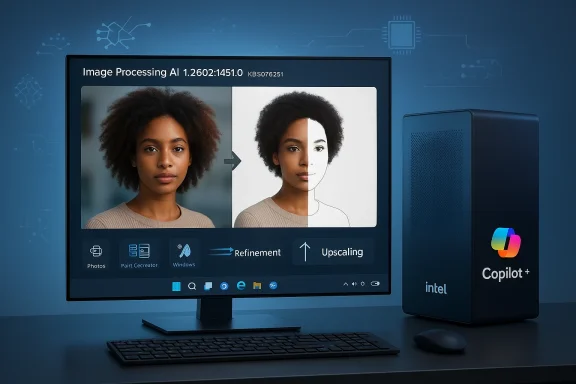
Microsoft has quietly pushed another incremental but important update to the on-device AI stack on Copilot+ PCs: KB5079251, which updates the Image Processing AI component to version 1.2602.1451.0 for Intel‑powered systems running Windows 11, version 24H2 and Windows 11, version 25H2. The bulletin follows Microsoft’s modular approach to shipping AI component fixes and improvements outside of full OS feature updates, and it will be delivered automatically via Windows Update to eligible Copilot+ devices once the latest cumulative OS update prerequisite is satisfied. For users and IT teams who rely on Photos, Paint’s Cocreator flows, Windows Studio Effects, Auto Super Resolution, and other image‑centric AI features, this release is primarily a maintenance and capability refinement intended to improve image scaling, segmentation, and foreground/background extraction in real‑world scenarios.
That said, privacy considerations remain:
Practical signals to monitor over the coming months:
Conclusion
KB5079251 (Image Processing AI component version 1.2602.1451.0 for Intel‑powered Copilot+ PCs) is a targeted maintenance release in Microsoft’s ongoing effort to refine on‑device imaging AI. It’s representative of the new update model for Windows AI components: frequent, modular, and focused on improving real‑time segmentation, scaling, and image transformation quality. Because Microsoft’s KBs for these components are intentionally concise, the practical impact must be validated by testing: run the functional and performance checks outlined above, stage the update in pilot rings, and ensure device drivers and cumulative OS updates are current before broad rollout. The upside is better, faster image edits and camera effects that stay on device; the downside is an operational requirement for ongoing validation and careful telemetry monitoring, especially in managed environments where image fidelity or reliability is a business requirement.
Source: Microsoft Support KB5079251: Image Processing AI component update (version 1.2602.1451.0) for Intel-powered systems - Microsoft Support
 Background
What Microsoft means by “AI components” and Copilot+ PCs
Microsoft split many on‑device AI capabilities into modular “AI components” to allow faster, targeted updates that don’t require a full OS refresh. These components power local models and pipelines used by consumer features (Photos app, Paint, Camera/Studio effects) and system features (contextual actions in File Explorer). Copilot+ PCs are devices that meet Microsoft’s hardware profile for enhanced on‑device AI, typically including NPUs or other silicon acceleration and firmware requirements. The Copilot+ program and the modular AI component model let Microsoft iterate on model weights, runtime optimizations, and platform integrations at a higher cadence than traditional cumulative updates.The cadence so far
Since the introduction of Copilot+ PC experiences, Microsoft has issued a series of processor-targeted Image Processing AI updates: small version bumps and processor‑specific KBs (Qualcomm, AMD, Intel). Those releases typically focus on image scaling accuracy, foreground/background segmentation quality, and reliability of AI‑based editing operations. The KB naming convention and split by silicon vendor reflect device‑specific deployment and driver/runtime differences that can materially impact visual output and performance on each platform.What KB5079251 actually contains
High‑level summary
- Applies to: Copilot+ PCs with Intel processors running Windows 11, version 24H2 or version 25H2.
- Component updated: Image Processing AI component.
- New component version: 1.2602.1451.0.
- Delivery method: Windows Update (automatic) — requires the latest cumulative OS update for the applicable Windows 11 version.
- Purpose: Improvements to image processing tasks such as image scaling and foreground/background extraction used by Photos, Paint, Camera pipeline, and other AI‑enabled imaging features.
What the version bump implies
A jump in the minor version (from previously shipped 1.2601.x builds to 1.2602.1451.0) usually indicates:- New model weights or configuration tweaks for segmentation and scaling models.
- Runtime optimizations for the Intel execution path (for example, better offloading to available NPUs or more efficient use of integrated GPUs).
- Stability and reliability fixes addressing crashes or edge cases observed in telemetry or user reports.
Why this update matters to users and IT administrators
User‑facing improvements
Although the KB text doesn’t list feature‑level changes, the Image Processing component underpins several user scenarios:- Photos app: AI‑assisted edits (Restyle, Generative Erase, background removal) depend on accurate foreground extraction and hole‑filling. Better segmentation means fewer artifacts when replacing or blurring backgrounds.
- Paint Cocreator: When Paint generates or restyles images, the Image Processing component affects how drawn strokes are interpreted and merged with generated content.
- Windows Studio Effects / Camera pipeline: Live background blur, portrait segmentation and lighting adjustments rely on fast, accurate per‑frame segmentation.
- Auto Super Resolution (Auto SR): Upscaling for games and some applications uses image transform and processing pieces; improvements can yield crisper results or better performance.
- File Explorer AI actions: Context menu AI actions that open images into Photos/Paint for edits benefit from smoother handoff and consistent processing results.
Operational importance for admins
- The update is automatic but depends on the latest cumulative update — important for patch schedules.
- For enterprises using imaging workflows or deploying Copilot+ devices at scale, component updates encourage testing before broad rollout.
- Because updates are processor‑targeted, hardware inventory accuracy matters: installing the Intel build on non‑Intel hardware is avoided by Microsoft’s distribution logic.
Technical analysis: what’s likely changed under the hood
The role of the Image Processing AI component
The Image Processing AI component is a modular package that provides:- Segmentation models to detect foreground(s) and background(s) in still images and video frames.
- Scaling and super‑resolution primitives for upscaling or providing detail reconstruction.
- Pre‑ and post‑processing code to hand off tensors to other components (Image Transform, Execution Provider) or to integrate output into apps like Photos and Paint.
Intel platform specifics
On Intel‑powered Copilot+ PCs, the runtime path can vary:- Some workloads are accelerated on an NPU where present and supported.
- Others will use the integrated GPU (iGPU) or optimized CPU routines.
- Intel’s recent silicon and driver stacks have focused on lowering quantization artifacts and reducing per‑frame latency; component updates may optimize memory layouts, change quantization schemes, or alter pre‑processing thresholds to better align with hardware characteristics.
- Improved model thresholds for segmentation to reduce visible haloing around complex edges (hair, fur, semi‑transparent objects).
- Refinements in upscaling kernels to preserve high‑frequency detail without amplifying noise.
- Better CPU/GPU/NPU cooperation to lower latency on live camera effects and reduce battery impact in mobile devices.
What we cannot confirm from the bulletin
- Precise model changes (weights, architecture) — Microsoft does not publish model weight diffs in these KBs.
- Exact performance delta (frames per second, power consumption) on specific Intel SKUs — such figures require independent benchmarks and telemetry access.
- Any security fixes tied to this component — the bulletin does not mention CVEs or security remediations.
Deployment, verification, and troubleshooting
How the update is delivered
- The update is distributed via Windows Update and is designed to be installed automatically on eligible Copilot+ Intel devices.
- Prerequisite: device must have the latest cumulative update for Windows 11 version 24H2 or 25H2 installed. Ensure your cumulative servicing stack is current before expecting the component to appear.
How to check whether KB5079251 is installed
- Open Settings → Windows Update → Update history.
- Look for an entry naming the component (for example, an entry listing “Image Processing version 1.2602.1451.0 for Intel‑powered systems” with a month/year stamp).
- Alternatively, check component versions via the system component list or use enterprise device management tools to inventory AI component versions across fleets.
If the update fails or causes issues
- Basic steps:
- Reboot and allow Windows Update to retry.
- Ensure device drivers (particularly GPU and NPU drivers, where applicable) are up to date from OEM or Intel channels.
- Check Event Viewer for Application and System logs that reference the component or Photos/Paint crashes.
- If a user experiences regressions in image output quality:
- Update Photos and Paint to the latest Microsoft Store versions.
- Reproduce the issue and capture sample images, device logs, and steps to recreate.
- Use Settings → Update history → Uninstall updates to remove the component if necessary (availability of an uninstall option varies).
- For managed environments:
- Use staged deployments and pilot groups before broad deployment.
- Employ Windows Update for Business or WSUS to defer until validation is complete.
Risks, limitations, and privacy considerations
Opaque change logs and operational risk
Microsoft’s KBs for AI components intentionally provide minimal public detail. That reduces the chance of exposing implementation details but leaves IT teams without a traditional changelog for risk assessment. For mission‑critical imaging pipelines or regulated environments, this lack of granularity is a challenge: admins must rely on testing rather than declarative release notes.Privacy and on‑device processing
One important benefit of the Copilot+ on‑device model is that image processing and model inference happen locally, which reduces the need to upload images to cloud services for segmentation or editing. This improves privacy posture for sensitive images and supports offline workflows.That said, privacy considerations remain:
- Some features (for example, those that offer richer generative capabilities) may still rely on cloud services or require a Microsoft account and connectivity.
- Telemetry data collected by Windows (to monitor feature health and model improvement) may contain metadata about feature usage; admins should review organizational telemetry and privacy controls if they have strict data governance needs.
Security surface and attack vectors
AI components that manipulate images are not typically directly exploitable in the same way as network services, but they can increase an attack surface when:- A malicious image triggers a crash in a processing path, potentially enabling local escalation or denial of service.
- The transformation pipeline interacts with other privileged components (camera drivers, kernel modules) and exposes a poorly validated input handling path.
Testing checklist and recommendations
Whether you are an advanced consumer or an IT admin responsible for Copilot+ deployments, run these checks before and after KB5079251 installs:- Hardware and software prerequisites
- Confirm device is a Copilot+ PC and identifies as an Intel‑powered device.
- Confirm the latest cumulative update for Windows 11 24H2/25H2 is present.
- Functional tests (end‑user visible)
- Open Photos and run Restyle Image and Remove Background on a variety of images (portraits, landscapes, low‑contrast edges).
- Run Paint’s Cocreator flows: test hand‑drawn prompts combined with text prompts and verify seams/artifacts.
- Exercise Windows Studio Effects during a video call: check background blur, portrait lighting and noise reduction stability.
- Performance and reliability tests
- Measure responsiveness and latency of live segmentation in camera apps.
- Compare upscaling results (Auto SR) in a gaming session before and after the update; note frame rate and thermal characteristics.
- Stress test with batch image edits in Photos to check for crashes or memory spikes.
- Regression and rollback plan
- Keep a set of sample images and steps for reproducing any issues.
- Use a pilot deployment to catch platform‑specific regressions that might not appear on other silicon.
- Confirm whether your environment can uninstall the component through Update history or requires a remedial system image recovery.
For enterprise IT: how to operationalize Copilot+ AI component updates
- Inventory and classification
- Identify all Copilot+ devices and classify them by hardware vendor and model.
- Track which devices are Intel vs AMD vs Qualcomm to ensure you monitor the correct KBs and component versions.
- Staged deployment
- Use a phased approach: pilot (5–10 devices), early adopters (departmental rollouts), then broad deployment.
- Use Windows Update for Business policies to control deferral windows and ring assignments.
- Monitoring and feedback loop
- Collect feedback from pilot users and capture logs for any regressions.
- Use endpoint monitoring to detect changes in crash rates for Photos/Paint or camera driver events.
- Communication and user guidance
- Inform users that the update is automatic and that they may notice image editing/segmentation improvements.
- Provide guidance on how to report visual regressions and how to capture reproducible samples.
The broader picture and what to watch next
Microsoft’s modular AI component approach reflects an important shift in OS maintenance: rather than an all‑or‑nothing OS update, feature and model improvements can land more frequently and with targeted scope. For users, that means faster refinements to image editing quality and live camera effects; for IT teams, it means more frequent but smaller changes to validate.Practical signals to monitor over the coming months:
- Additional component updates (Image Transform, Execution Provider) that often land in tight succession and can interact with Image Processing changes.
- OEM driver and NPU runtime updates from Intel or device manufacturers — these can change the effective runtime behavior more than the component itself.
- If Microsoft starts publishing more detailed release notes for AI components, that will materially reduce the validation burden on admins.
Conclusion
KB5079251 (Image Processing AI component version 1.2602.1451.0 for Intel‑powered Copilot+ PCs) is a targeted maintenance release in Microsoft’s ongoing effort to refine on‑device imaging AI. It’s representative of the new update model for Windows AI components: frequent, modular, and focused on improving real‑time segmentation, scaling, and image transformation quality. Because Microsoft’s KBs for these components are intentionally concise, the practical impact must be validated by testing: run the functional and performance checks outlined above, stage the update in pilot rings, and ensure device drivers and cumulative OS updates are current before broad rollout. The upside is better, faster image edits and camera effects that stay on device; the downside is an operational requirement for ongoing validation and careful telemetry monitoring, especially in managed environments where image fidelity or reliability is a business requirement.
Source: Microsoft Support KB5079251: Image Processing AI component update (version 1.2602.1451.0) for Intel-powered systems - Microsoft Support
