

Microsoft released the May 2026 non-security preview update KB5089573 for Windows 11 versions 25H2 and 24H2 on May 26, 2026, moving those systems to OS builds 26200.8524 and 26100.8524 while also documenting a serious installation failure tied to the earlier May security update. The preview is nominally about quality improvements, new PC features, and servicing-stack polish. But the more important story is that Windows servicing is again colliding with the smallest and least glamorous partition on the disk: the EFI System Partition.
The update lands in the familiar late-month preview slot, the place where Microsoft tests the next Patch Tuesday’s non-security payload with users and administrators willing to go first. That usually makes these releases useful but optional. This one is still optional in the ordinary Windows Update sense, but its known-issue section turns it into a warning flare for anyone managing Windows 11 fleets with old OEM layouts, cramped boot partitions, or aggressive endpoint tooling that has stuffed files into the wrong corner of the system disk.
KB5089573 is the sort of Windows update that tries to be three things at once. It is a quality update for Windows 11 24H2 and 25H2. It is a staging vehicle for new user-facing behavior, including Shared Audio, camera policy controls, Task Manager visibility into AI hardware, and Windows Setup refinements. And it is a servicing update that sits uncomfortably close to a known failure path in KB5089549, the May 2026 security update.
That split personality matters. Microsoft’s preview updates are not security releases, but they often preview the changes that will roll into the next mandatory cumulative update. For enthusiasts, they are a way to see what is coming. For IT departments, they are a rehearsal — and sometimes a smoke test — for the update that will later arrive with more urgency.
The immediate risk is not that KB5089573 itself introduces a spectacular new desktop-breaking regression. The documented failure is tied to KB5089549, and Microsoft says mitigation is already flowing through Known Issue Rollback for consumer and unmanaged business devices. The risk is subtler: Windows servicing is making assumptions about available space in the EFI System Partition, and a meaningful number of real-world devices apparently do not meet those assumptions.
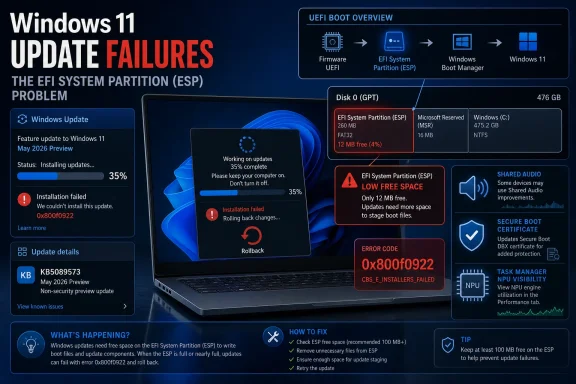
That is not a glamorous failure mode. It does not produce a blue screen with a meme-worthy stop code. It produces the more maddening ritual familiar to many Windows users: the update appears to install, the machine reboots, progress reaches roughly the mid-30s, and then the system announces that something did not go as planned before undoing the work.
That is the first practical lesson: this is not a generic “Windows Update is broken” event. Error 0x800f0922 has historically been one of those codes that can send administrators chasing VPNs, .NET components, reserved partitions, and update plumbing. Here, Microsoft is explicitly narrowing the blast radius to systems with limited ESP space, especially devices with 10 MB or less available.
The EFI System Partition is normally invisible to the user because it is supposed to be boring. It contains boot-related files used by UEFI firmware and operating systems. On a clean, modern Windows deployment, it should be sized and maintained with enough headroom for boot servicing work, firmware-related files, and recovery-adjacent changes.
But “should” is doing a lot of work. OEM factory images, years of feature upgrades, dual-boot experiments, old recovery tools, third-party security products, and firmware utilities can all leave traces in places ordinary users never inspect. A Windows update that needs to modify boot files can therefore discover, late in the process, that the partition it depends on has become a tiny attic filled with vendor leftovers.
Microsoft’s workaround points directly at that model. The registry setting named EspPaddingPercent appears to influence how much space Windows servicing expects to reserve or tolerate when working with the ESP. Setting it to zero is not an elegant fix; it is a servicing-side accommodation that lets the update proceed on machines where the default margin collides with reality.
That is good engineering in the abstract. It reduces the need for emergency out-of-band updates and lets Microsoft reverse a bad change with less disruption than the old “remove the cumulative update” playbook. It also reflects an important shift in Windows: the operating system is no longer just patched by packages, but by cloud-distributed configuration and rollback signals.
For enterprise-managed devices, however, the story is less magical. Microsoft says administrators need to install and configure a special Group Policy matching Windows 11 24H2 and 25H2, then restart affected devices. That is reasonable in a domain-managed world, but it means the mitigation has to pass through the same governance, testing, change-control, and deployment machinery as any other emergency policy.
That divide has become one of the defining tensions in Windows maintenance. Consumer devices can often receive a quiet cloud mitigation before the user fully understands what happened. Managed devices, by design, may not. Enterprises asked Microsoft for control, and control means owning the timing of the fix.
The uncomfortable part is that KIR does not absolve administrators from root-cause work. If a fleet has many systems with almost no free ESP space, a rollback policy may get this month’s update past the immediate failure, but it does not turn a cramped boot partition into a healthy one. It buys time, not headroom.
But KB5089573 is not irrelevant just because it is optional. Microsoft’s preview releases are increasingly where the company exposes the next wave of Windows behavior before the security update cycle makes it mainstream. The features and fixes in this release are likely to matter again when the next cumulative security update arrives through Windows Update, Windows Update for Business, WSUS, and deployment rings.
That makes this week a window for administrators, not a deadline. If you manage Windows 11 24H2 or 25H2 devices, the right reaction is not to panic-install the preview. It is to identify whether your device population has a boot-partition problem before the next mandatory servicing event turns that problem into help-desk tickets.
The 10 MB figure is the key triage threshold Microsoft gives. It is not necessarily a promise that 11 MB is safe forever, but it tells admins where to start. Devices with ESPs that are nearly full deserve attention, particularly if they come from older images, heavily customized OEM builds, or environments where endpoint security and firmware management tools have been allowed to write into boot-related paths.
For home users, the advice is simpler. If Windows Update already failed with 0x800f0922 after the May 2026 update, restarting may help the KIR mitigation apply. If the failure persists, the registry workaround exists, but it is not something casual users should treat as a harmless tweak. Editing the registry to adjust boot-servicing behavior is the kind of fix that belongs behind a backup, a recovery plan, and preferably someone who knows how to reverse it.
Task Manager’s new NPU visibility is more strategically revealing. Microsoft is still trying to make the AI PC feel like a real platform rather than a sticker on a box. Adding optional NPU and NPU Engine columns, memory details, and better reporting of neural engines folded into GPUs gives power users and administrators a way to see whether AI-related hardware is actually doing anything.
That matters because the Copilot+ PC era needs observability. If Microsoft and PC makers expect users to care about NPUs, Windows has to expose them as operational resources, not just marketing claims. Task Manager became a cultural object because it tells users what the machine is doing. Giving AI accelerators a clearer presence there is a quiet but necessary step.
The camera changes are similarly practical. Multi-App Camera allows more than one application to access the camera stream at once, while Basic Camera mode provides a simplified path for troubleshooting or stability. More importantly for business environments, Microsoft is adding Group Policy control for those camera modes, acknowledging that webcam behavior is now both a collaboration feature and an administrative surface.
Windows Setup also gets a small but overdue improvement: the ability to choose a custom user folder name during setup on the Device Name page. That sounds minor until you remember how many Windows users have fought with truncated Microsoft account-derived folder names, awkward local profile paths, and post-install rename procedures that can break assumptions. Giving users a supported moment to choose the folder name is not revolutionary, but it is humane.
Windows Hello also receives several fixes and behavior changes. The update improves biometric service performance after Modern Standby, reduces unexpected authentication blocks in Enhanced Sign-in Security, and changes sign-in behavior so that face or fingerprint remains the default when available. If a user chooses PIN three times in a row, Windows will stick with PIN until the user changes methods again.
That is a classic Windows 11 pattern: Microsoft is tightening default behavior around security and convenience, then adding enough persistence logic to stop the system from feeling capricious. Authentication is one of those areas where tiny behavior changes can feel enormous because users encounter them at the moment they are trying to get into the machine. Reliability here is product design, not just bug fixing.
The USB changes also deserve attention. Microsoft says the update improves reliability for displays attached to USB4 docks and hubs, particularly after standby, and adds resiliency and recovery measures to the USB3 stack. Anyone who has used a modern laptop with a dock knows why this matters: the dream of one-cable computing is still too often undermined by black displays, sleeping peripherals, and the occasional ritual of unplugging and replugging everything like it is 2006.
Battery-life fixes around sensors, HID, and input are also part of that same story. Windows laptops increasingly live or die by standby behavior. If a sensor hub remains powered because of an app, or a failed HID device causes unnecessary activity, the user does not see the root cause; they see a hot bag and a dead battery. Microsoft’s servicing notes are dry, but the practical impact is the difference between a device that sleeps and one that merely pretends to.
Secure Boot depends on trust anchors and signed components. When certificates age out, the ecosystem has to move carefully: too fast, and devices risk boot problems; too slowly, and the security posture decays. Microsoft’s update notes say Windows quality updates now include additional high-confidence device targeting data to increase coverage of devices eligible to automatically receive new Secure Boot certificates, with controlled rollout based on successful update signals.
That language is bureaucratic, but the logic is clear. Microsoft does not want to spray boot-trust changes indiscriminately across every Windows device on the planet. It wants telemetry and targeting to determine which machines are likely to survive the change. In a world of endless OEM firmware variations, that caution is rational.
It also makes the ESP failure more concerning. The same class of device that has a cramped, messy boot partition may also be the class of device least suited to smooth Secure Boot certificate maintenance. If Windows needs to place or update boot-related material and the ESP is effectively full, then future boot-trust work could run into similar operational constraints.
The new LimitSecureBootRequiredServiceData policy adds another wrinkle. Microsoft is giving privacy- and compliance-conscious organizations a way to limit Secure Boot service data sent to Microsoft by suppressing a normally transmitted event. That satisfies a real enterprise requirement, especially in restricted-traffic baselines. But it also underscores the trade-off: less service data can mean less targeting intelligence for delicate rollout decisions.
The problem is that partition layouts are not easy to modernize at scale. Expanding an ESP can involve moving partitions, touching disk geometry, and accepting the risk that a failed operation could make a device unbootable. Consumer tools may make this look simple, but enterprise administrators rightly treat partition surgery as a last resort.
That leaves Microsoft trying to work within layouts that were created years ago under assumptions that may no longer hold. Some devices shipped with small ESPs. Others accumulated non-Microsoft files over time. Still others were imaged by organizations that optimized for consistency rather than generous boot-partition headroom.
The CBS log phrase about third-party or OEM files outside Microsoft boot directories is especially telling. Microsoft is effectively saying: we found stuff in the boot partition that is not ours, and it is contributing to the space problem. That may be technically true, but from the customer’s perspective it is all part of the Windows PC supply chain. Users do not care whether the wasted space belongs to an OEM, firmware updater, security product, or Microsoft. They care that the update failed.
This is where Microsoft’s platform responsibility becomes complicated. Windows runs on an enormous hardware ecosystem precisely because Microsoft does not control every firmware image, driver package, and OEM utility. But when servicing fails, the Windows brand takes the hit. The openness of the PC ecosystem becomes Microsoft’s support burden.
The registry command modifies how Windows handles padding around the EFI System Partition during boot-file servicing. The intent is to allow installation where the default space check blocks progress. But padding exists for a reason: servicing systems often reserve margin to avoid leaving machines in a fragile state.
That does not mean the workaround is unsafe when used as Microsoft describes. It does mean it should be scoped to affected systems, documented, and revisited. A registry setting added during a deployment fire drill has a way of becoming permanent infrastructure folklore. Six months later, nobody remembers why it exists, and two years later it is baked into a remediation script.
A better enterprise response is layered. Use KIR where appropriate to stop the immediate bleeding. Use the registry workaround only where required to get a stuck system moving. Then inventory ESP free space, identify models or images with recurring issues, and decide whether the long-term answer is cleanup, reimaging, partition resizing during refresh, or vendor escalation.
For individual enthusiasts, the same principle applies in miniature. If you are comfortable inspecting partitions and logs, this is a solvable problem. If you are not, do not start deleting random files from the EFI partition because a forum post told you an OEM folder looked suspicious. The ESP is not a downloads folder with a firmware accent; it is part of the boot chain.
A good deployment ring for this release should include devices from different OEMs, different model years, different provisioning eras, and different security baselines. It should include laptops that have been upgraded in place across multiple Windows releases, not just pristine reference machines. The machines most likely to fail are often the least represented in a lab.
Administrators should also make sure update failure telemetry is being correlated with disk layout data. If the help desk sees 0x800f0922, the next step should not be a generic reset of Windows Update components. It should be an ESP free-space check and a review of CBS logs for the specific servicing-boot-files signatures Microsoft described.
The Known Issue Rollback policy is another test case. Enterprises that have not practiced deploying KIR policies should treat this as a reminder to document the process before a worse regression arrives. KIR is only as useful as an organization’s ability to distribute and verify it quickly.
There is also a communications lesson. Users who see “Something didn’t go as planned. Undoing changes.” often assume the system is broken or that they did something wrong. IT teams can reduce unnecessary tickets by explaining that some devices may fail at a specific stage, that the update rolls back rather than leaving Windows half-installed, and that remediation is available.
The Windows AI PC transition is going to be less like a single product launch and more like a long sequence of plumbing changes. Models, indexing, image search, content extraction, semantic analysis, NPUs, privacy controls, and telemetry settings will all evolve through cumulative updates. Users may notice one or two features, but administrators will have to manage the substrate.
This release updates AI components such as Image Search, Content Extraction, Semantic Analysis, and the Settings Model to version 1.2605.856.0. Microsoft notes that AI component updates are applicable to Copilot+ PCs and will not install on ordinary Windows PCs or Windows Server. That distinction is increasingly important because Windows 11 is now a family of experiences split by hardware capability.
Task Manager’s new NPU reporting helps make that split visible. A Copilot+ PC that never uses its NPU for anything observable is difficult to defend as a distinct category. Conversely, a system that can show AI accelerator usage in the same utility that shows CPU, memory, disk, network, and GPU activity gives users a way to connect silicon claims to system behavior.
The broader enterprise question is whether AI components become another servicing domain with their own testing burden. If content extraction and semantic indexing features change through cumulative updates, organizations will need to understand not just whether Windows boots, but whether search behavior, data handling, and local AI features still align with policy. That is the quiet administrative cost of making the OS more intelligent.
None of those changes will sell a PC. But they are the sort of friction removals that make an operating system feel less like a pile of legacy panels stitched together by committee. Windows has accumulated decades of small annoyances. Fixing them is not glamorous, but refusing to fix them is how a platform starts to feel old.
The Microsoft Store changes are also worth noting. Microsoft says the update includes underlying changes to improve download performance and bandwidth usage, along with better error reporting when downloads fail because Windows Update group policy settings are enabled. That second point is aimed squarely at managed environments, where Store behavior often intersects awkwardly with update controls.
Fonts get a global-language fix, too, with Times New Roman updated to improve rendering of combining diacritical marks across Greek and Cyrillic scripts. For most English-language users, that will be invisible. For users and organizations working in those scripts, it is the difference between professional text rendering and subtle typographic failure.
Reliability fixes for sign-in screens, lock screens, File Explorer, touch gestures, and Settings theme changes round out the release. These are the places where Windows has to be boring. A flashy feature can be optional; a broken lock screen or unreliable Explorer session is a daily tax.
Microsoft has built more sophisticated safety valves than it had a decade ago. Known Issue Rollback is real progress. Gradual rollout is real progress. Better targeting for Secure Boot certificate updates is real progress. But each of those systems also makes Windows servicing feel more conditional, more cloud-mediated, and harder for administrators to reason about from first principles.
The company’s challenge is to avoid turning every update into a detective story. When a known issue says the failure may happen on devices with 10 MB or less free on the ESP, that is refreshingly concrete. The next step should be equally concrete guidance for auditing, cleaning, and preventing ESP exhaustion across common Windows deployment patterns.
PC makers also have a role here. If OEM utilities and firmware tools are leaving unnecessary files in the ESP, Microsoft can document the symptom, but vendors need to stop creating the condition. The Windows ecosystem cannot treat the boot partition as free real estate and then act surprised when the update engine needs room to work.
For Windows enthusiasts, this is another reason to pay attention to disk layout when building, imaging, or repairing systems. For sysadmins, it is a reason to include hidden partitions in health baselines. For Microsoft, it is a reminder that the most consequential part of a Windows update may not be the feature users can see, but the boot infrastructure they never should have to think about.
The update lands in the familiar late-month preview slot, the place where Microsoft tests the next Patch Tuesday’s non-security payload with users and administrators willing to go first. That usually makes these releases useful but optional. This one is still optional in the ordinary Windows Update sense, but its known-issue section turns it into a warning flare for anyone managing Windows 11 fleets with old OEM layouts, cramped boot partitions, or aggressive endpoint tooling that has stuffed files into the wrong corner of the system disk.
 Microsoft Ships a Preview, but the Boot Partition Steals the Headline
KB5089573 is the sort of Windows update that tries to be three things at once. It is a quality update for Windows 11 24H2 and 25H2. It is a staging vehicle for new user-facing behavior, including Shared Audio, camera policy controls, Task Manager visibility into AI hardware, and Windows Setup refinements. And it is a servicing update that sits uncomfortably close to a known failure path in KB5089549, the May 2026 security update.That split personality matters. Microsoft’s preview updates are not security releases, but they often preview the changes that will roll into the next mandatory cumulative update. For enthusiasts, they are a way to see what is coming. For IT departments, they are a rehearsal — and sometimes a smoke test — for the update that will later arrive with more urgency.
The immediate risk is not that KB5089573 itself introduces a spectacular new desktop-breaking regression. The documented failure is tied to KB5089549, and Microsoft says mitigation is already flowing through Known Issue Rollback for consumer and unmanaged business devices. The risk is subtler: Windows servicing is making assumptions about available space in the EFI System Partition, and a meaningful number of real-world devices apparently do not meet those assumptions.
That is not a glamorous failure mode. It does not produce a blue screen with a meme-worthy stop code. It produces the more maddening ritual familiar to many Windows users: the update appears to install, the machine reboots, progress reaches roughly the mid-30s, and then the system announces that something did not go as planned before undoing the work.
The 35 Percent Rollback Is a Boot-Servicing Problem, Not a Mystery
The reported symptom pattern is precise enough to be useful. Affected devices begin installing the May security update normally, fail during the restart phase at approximately 35–36 percent, roll back, and return error 0x800f0922. In CBS logs, Microsoft says administrators may see entries indicating insufficient free space on the EFI System Partition, including failures in servicing boot files and references to third-party or OEM files outside Microsoft boot directories.That is the first practical lesson: this is not a generic “Windows Update is broken” event. Error 0x800f0922 has historically been one of those codes that can send administrators chasing VPNs, .NET components, reserved partitions, and update plumbing. Here, Microsoft is explicitly narrowing the blast radius to systems with limited ESP space, especially devices with 10 MB or less available.
The EFI System Partition is normally invisible to the user because it is supposed to be boring. It contains boot-related files used by UEFI firmware and operating systems. On a clean, modern Windows deployment, it should be sized and maintained with enough headroom for boot servicing work, firmware-related files, and recovery-adjacent changes.
But “should” is doing a lot of work. OEM factory images, years of feature upgrades, dual-boot experiments, old recovery tools, third-party security products, and firmware utilities can all leave traces in places ordinary users never inspect. A Windows update that needs to modify boot files can therefore discover, late in the process, that the partition it depends on has become a tiny attic filled with vendor leftovers.
Microsoft’s workaround points directly at that model. The registry setting named EspPaddingPercent appears to influence how much space Windows servicing expects to reserve or tolerate when working with the ESP. Setting it to zero is not an elegant fix; it is a servicing-side accommodation that lets the update proceed on machines where the default margin collides with reality.
Known Issue Rollback Is Now Part of the Update Contract
Microsoft’s second mitigation is Known Issue Rollback, or KIR, and this is where the modern Windows servicing model shows both its strength and its opacity. KIR allows Microsoft to disable a problematic non-security change without requiring every affected system to uninstall the whole update. For unmanaged consumer and small-business devices, the mitigation is supposed to arrive automatically, with a restart helping the policy take effect sooner.That is good engineering in the abstract. It reduces the need for emergency out-of-band updates and lets Microsoft reverse a bad change with less disruption than the old “remove the cumulative update” playbook. It also reflects an important shift in Windows: the operating system is no longer just patched by packages, but by cloud-distributed configuration and rollback signals.
For enterprise-managed devices, however, the story is less magical. Microsoft says administrators need to install and configure a special Group Policy matching Windows 11 24H2 and 25H2, then restart affected devices. That is reasonable in a domain-managed world, but it means the mitigation has to pass through the same governance, testing, change-control, and deployment machinery as any other emergency policy.
That divide has become one of the defining tensions in Windows maintenance. Consumer devices can often receive a quiet cloud mitigation before the user fully understands what happened. Managed devices, by design, may not. Enterprises asked Microsoft for control, and control means owning the timing of the fix.
The uncomfortable part is that KIR does not absolve administrators from root-cause work. If a fleet has many systems with almost no free ESP space, a rollback policy may get this month’s update past the immediate failure, but it does not turn a cramped boot partition into a healthy one. It buys time, not headroom.
The Optional Update Is Still a Preview of June’s Reality
The temptation with any late-month Windows preview is to shrug and wait. Most users should not rush optional cumulative previews onto production machines unless they need a specific fix or are deliberately testing. That advice still holds.But KB5089573 is not irrelevant just because it is optional. Microsoft’s preview releases are increasingly where the company exposes the next wave of Windows behavior before the security update cycle makes it mainstream. The features and fixes in this release are likely to matter again when the next cumulative security update arrives through Windows Update, Windows Update for Business, WSUS, and deployment rings.
That makes this week a window for administrators, not a deadline. If you manage Windows 11 24H2 or 25H2 devices, the right reaction is not to panic-install the preview. It is to identify whether your device population has a boot-partition problem before the next mandatory servicing event turns that problem into help-desk tickets.
The 10 MB figure is the key triage threshold Microsoft gives. It is not necessarily a promise that 11 MB is safe forever, but it tells admins where to start. Devices with ESPs that are nearly full deserve attention, particularly if they come from older images, heavily customized OEM builds, or environments where endpoint security and firmware management tools have been allowed to write into boot-related paths.
For home users, the advice is simpler. If Windows Update already failed with 0x800f0922 after the May 2026 update, restarting may help the KIR mitigation apply. If the failure persists, the registry workaround exists, but it is not something casual users should treat as a harmless tweak. Editing the registry to adjust boot-servicing behavior is the kind of fix that belongs behind a backup, a recovery plan, and preferably someone who knows how to reverse it.
The Feature List Shows Where Windows 11 Is Heading
Away from the known issue, KB5089573 reads like a snapshot of Microsoft’s current Windows 11 priorities. Shared Audio brings Bluetooth LE Audio broadcast-style listening to supported Windows 11 PCs, allowing two people to listen from the same device at the same time. That is a small feature, but it is exactly the kind of modern laptop polish Windows has historically ceded to phones and tablets.Task Manager’s new NPU visibility is more strategically revealing. Microsoft is still trying to make the AI PC feel like a real platform rather than a sticker on a box. Adding optional NPU and NPU Engine columns, memory details, and better reporting of neural engines folded into GPUs gives power users and administrators a way to see whether AI-related hardware is actually doing anything.
That matters because the Copilot+ PC era needs observability. If Microsoft and PC makers expect users to care about NPUs, Windows has to expose them as operational resources, not just marketing claims. Task Manager became a cultural object because it tells users what the machine is doing. Giving AI accelerators a clearer presence there is a quiet but necessary step.
The camera changes are similarly practical. Multi-App Camera allows more than one application to access the camera stream at once, while Basic Camera mode provides a simplified path for troubleshooting or stability. More importantly for business environments, Microsoft is adding Group Policy control for those camera modes, acknowledging that webcam behavior is now both a collaboration feature and an administrative surface.
Windows Setup also gets a small but overdue improvement: the ability to choose a custom user folder name during setup on the Device Name page. That sounds minor until you remember how many Windows users have fought with truncated Microsoft account-derived folder names, awkward local profile paths, and post-install rename procedures that can break assumptions. Giving users a supported moment to choose the folder name is not revolutionary, but it is humane.
Accessibility and Reliability Are Doing the Real Work
The most interesting Windows updates are often not the ones with the splashiest feature names. KB5089573 includes improvements to Magnifier announcements when used with a screen reader, support for magnification of permitted protected content, and smoother lens-mode movement. These are not forum-flamebait features, but they affect whether Windows feels predictable and accessible to people who depend on assistive tools.Windows Hello also receives several fixes and behavior changes. The update improves biometric service performance after Modern Standby, reduces unexpected authentication blocks in Enhanced Sign-in Security, and changes sign-in behavior so that face or fingerprint remains the default when available. If a user chooses PIN three times in a row, Windows will stick with PIN until the user changes methods again.
That is a classic Windows 11 pattern: Microsoft is tightening default behavior around security and convenience, then adding enough persistence logic to stop the system from feeling capricious. Authentication is one of those areas where tiny behavior changes can feel enormous because users encounter them at the moment they are trying to get into the machine. Reliability here is product design, not just bug fixing.
The USB changes also deserve attention. Microsoft says the update improves reliability for displays attached to USB4 docks and hubs, particularly after standby, and adds resiliency and recovery measures to the USB3 stack. Anyone who has used a modern laptop with a dock knows why this matters: the dream of one-cable computing is still too often undermined by black displays, sleeping peripherals, and the occasional ritual of unplugging and replugging everything like it is 2006.
Battery-life fixes around sensors, HID, and input are also part of that same story. Windows laptops increasingly live or die by standby behavior. If a sensor hub remains powered because of an app, or a failed HID device causes unnecessary activity, the user does not see the root cause; they see a hot bag and a dead battery. Microsoft’s servicing notes are dry, but the practical impact is the difference between a device that sleeps and one that merely pretends to.
Secure Boot Certificate Renewal Turns Into a Servicing Theme
KB5089573 also carries a reminder about Secure Boot certificates used by most Windows devices, which Microsoft says are set to expire starting in June 2026. That is not just a calendar notice. It is one of the reasons boot servicing is going to be a recurring topic over the next year.Secure Boot depends on trust anchors and signed components. When certificates age out, the ecosystem has to move carefully: too fast, and devices risk boot problems; too slowly, and the security posture decays. Microsoft’s update notes say Windows quality updates now include additional high-confidence device targeting data to increase coverage of devices eligible to automatically receive new Secure Boot certificates, with controlled rollout based on successful update signals.
That language is bureaucratic, but the logic is clear. Microsoft does not want to spray boot-trust changes indiscriminately across every Windows device on the planet. It wants telemetry and targeting to determine which machines are likely to survive the change. In a world of endless OEM firmware variations, that caution is rational.
It also makes the ESP failure more concerning. The same class of device that has a cramped, messy boot partition may also be the class of device least suited to smooth Secure Boot certificate maintenance. If Windows needs to place or update boot-related material and the ESP is effectively full, then future boot-trust work could run into similar operational constraints.
The new LimitSecureBootRequiredServiceData policy adds another wrinkle. Microsoft is giving privacy- and compliance-conscious organizations a way to limit Secure Boot service data sent to Microsoft by suppressing a normally transmitted event. That satisfies a real enterprise requirement, especially in restricted-traffic baselines. But it also underscores the trade-off: less service data can mean less targeting intelligence for delicate rollout decisions.
The ESP Is Becoming Windows’ Hidden Maintenance Debt
The EFI System Partition used to be a thing most Windows users never needed to name. That era is ending. Between Secure Boot renewals, recovery environment servicing, OEM boot files, BitLocker-adjacent workflows, and cumulative updates that need to touch boot components, the ESP has become a small partition with a large operational role.The problem is that partition layouts are not easy to modernize at scale. Expanding an ESP can involve moving partitions, touching disk geometry, and accepting the risk that a failed operation could make a device unbootable. Consumer tools may make this look simple, but enterprise administrators rightly treat partition surgery as a last resort.
That leaves Microsoft trying to work within layouts that were created years ago under assumptions that may no longer hold. Some devices shipped with small ESPs. Others accumulated non-Microsoft files over time. Still others were imaged by organizations that optimized for consistency rather than generous boot-partition headroom.
The CBS log phrase about third-party or OEM files outside Microsoft boot directories is especially telling. Microsoft is effectively saying: we found stuff in the boot partition that is not ours, and it is contributing to the space problem. That may be technically true, but from the customer’s perspective it is all part of the Windows PC supply chain. Users do not care whether the wasted space belongs to an OEM, firmware updater, security product, or Microsoft. They care that the update failed.
This is where Microsoft’s platform responsibility becomes complicated. Windows runs on an enormous hardware ecosystem precisely because Microsoft does not control every firmware image, driver package, and OEM utility. But when servicing fails, the Windows brand takes the hit. The openness of the PC ecosystem becomes Microsoft’s support burden.
The Registry Workaround Is a Scalpel, Not a Strategy
Microsoft’s first workaround asks affected customers to add a registry value under the Bfsvc control path, setting EspPaddingPercent to zero, then restart and retry the update. That is a specific and useful mitigation. It is also the sort of workaround that should make administrators pause.The registry command modifies how Windows handles padding around the EFI System Partition during boot-file servicing. The intent is to allow installation where the default space check blocks progress. But padding exists for a reason: servicing systems often reserve margin to avoid leaving machines in a fragile state.
That does not mean the workaround is unsafe when used as Microsoft describes. It does mean it should be scoped to affected systems, documented, and revisited. A registry setting added during a deployment fire drill has a way of becoming permanent infrastructure folklore. Six months later, nobody remembers why it exists, and two years later it is baked into a remediation script.
A better enterprise response is layered. Use KIR where appropriate to stop the immediate bleeding. Use the registry workaround only where required to get a stuck system moving. Then inventory ESP free space, identify models or images with recurring issues, and decide whether the long-term answer is cleanup, reimaging, partition resizing during refresh, or vendor escalation.
For individual enthusiasts, the same principle applies in miniature. If you are comfortable inspecting partitions and logs, this is a solvable problem. If you are not, do not start deleting random files from the EFI partition because a forum post told you an OEM folder looked suspicious. The ESP is not a downloads folder with a firmware accent; it is part of the boot chain.
Enterprise Rings Should Treat This as a Pre-Patch Tuesday Drill
The practical importance of KB5089573 is that it gives administrators a chance to rehearse before the next security update hardens the timeline. Late-month preview updates exist partly so organizations can validate changes against representative devices. This month, the validation target is obvious: boot partition health.A good deployment ring for this release should include devices from different OEMs, different model years, different provisioning eras, and different security baselines. It should include laptops that have been upgraded in place across multiple Windows releases, not just pristine reference machines. The machines most likely to fail are often the least represented in a lab.
Administrators should also make sure update failure telemetry is being correlated with disk layout data. If the help desk sees 0x800f0922, the next step should not be a generic reset of Windows Update components. It should be an ESP free-space check and a review of CBS logs for the specific servicing-boot-files signatures Microsoft described.
The Known Issue Rollback policy is another test case. Enterprises that have not practiced deploying KIR policies should treat this as a reminder to document the process before a worse regression arrives. KIR is only as useful as an organization’s ability to distribute and verify it quickly.
There is also a communications lesson. Users who see “Something didn’t go as planned. Undoing changes.” often assume the system is broken or that they did something wrong. IT teams can reduce unnecessary tickets by explaining that some devices may fail at a specific stage, that the update rolls back rather than leaving Windows half-installed, and that remediation is available.
The AI PC Keeps Arriving Through Plumbing
Microsoft’s AI story in KB5089573 is not a grand unveiling. It is a set of component version bumps and Task Manager improvements. That is exactly why it matters.The Windows AI PC transition is going to be less like a single product launch and more like a long sequence of plumbing changes. Models, indexing, image search, content extraction, semantic analysis, NPUs, privacy controls, and telemetry settings will all evolve through cumulative updates. Users may notice one or two features, but administrators will have to manage the substrate.
This release updates AI components such as Image Search, Content Extraction, Semantic Analysis, and the Settings Model to version 1.2605.856.0. Microsoft notes that AI component updates are applicable to Copilot+ PCs and will not install on ordinary Windows PCs or Windows Server. That distinction is increasingly important because Windows 11 is now a family of experiences split by hardware capability.
Task Manager’s new NPU reporting helps make that split visible. A Copilot+ PC that never uses its NPU for anything observable is difficult to defend as a distinct category. Conversely, a system that can show AI accelerator usage in the same utility that shows CPU, memory, disk, network, and GPU activity gives users a way to connect silicon claims to system behavior.
The broader enterprise question is whether AI components become another servicing domain with their own testing burden. If content extraction and semantic indexing features change through cumulative updates, organizations will need to understand not just whether Windows boots, but whether search behavior, data handling, and local AI features still align with policy. That is the quiet administrative cost of making the OS more intelligent.
The User-Facing Fixes Are Small, but They Add Up
It is easy to dismiss the rest of KB5089573 as housekeeping. Search can now find and prioritize files with as few as two characters. Dev Drive creation and volume resizing can specify gigabytes instead of only megabytes. Storage settings delay the UAC prompt until a user chooses to view temporary files. Task Scheduler remembers column widths.None of those changes will sell a PC. But they are the sort of friction removals that make an operating system feel less like a pile of legacy panels stitched together by committee. Windows has accumulated decades of small annoyances. Fixing them is not glamorous, but refusing to fix them is how a platform starts to feel old.
The Microsoft Store changes are also worth noting. Microsoft says the update includes underlying changes to improve download performance and bandwidth usage, along with better error reporting when downloads fail because Windows Update group policy settings are enabled. That second point is aimed squarely at managed environments, where Store behavior often intersects awkwardly with update controls.
Fonts get a global-language fix, too, with Times New Roman updated to improve rendering of combining diacritical marks across Greek and Cyrillic scripts. For most English-language users, that will be invisible. For users and organizations working in those scripts, it is the difference between professional text rendering and subtle typographic failure.
Reliability fixes for sign-in screens, lock screens, File Explorer, touch gestures, and Settings theme changes round out the release. These are the places where Windows has to be boring. A flashy feature can be optional; a broken lock screen or unreliable Explorer session is a daily tax.
The Real Test Is Whether Microsoft Can Make Boot Servicing Boring Again
The best version of Windows Update is uneventful. It downloads, stages, restarts, completes, and disappears from the user’s mind. The May 2026 ESP issue is a reminder that achieving that boring outcome requires an enormous amount of coordination among firmware, partitions, certificates, OEM files, servicing-stack logic, rollback systems, and administrative policy.Microsoft has built more sophisticated safety valves than it had a decade ago. Known Issue Rollback is real progress. Gradual rollout is real progress. Better targeting for Secure Boot certificate updates is real progress. But each of those systems also makes Windows servicing feel more conditional, more cloud-mediated, and harder for administrators to reason about from first principles.
The company’s challenge is to avoid turning every update into a detective story. When a known issue says the failure may happen on devices with 10 MB or less free on the ESP, that is refreshingly concrete. The next step should be equally concrete guidance for auditing, cleaning, and preventing ESP exhaustion across common Windows deployment patterns.
PC makers also have a role here. If OEM utilities and firmware tools are leaving unnecessary files in the ESP, Microsoft can document the symptom, but vendors need to stop creating the condition. The Windows ecosystem cannot treat the boot partition as free real estate and then act surprised when the update engine needs room to work.
For Windows enthusiasts, this is another reason to pay attention to disk layout when building, imaging, or repairing systems. For sysadmins, it is a reason to include hidden partitions in health baselines. For Microsoft, it is a reminder that the most consequential part of a Windows update may not be the feature users can see, but the boot infrastructure they never should have to think about.
The May Preview’s Practical Message Fits in the Boot Margin
KB5089573 is worth testing, but not because Shared Audio or Task Manager’s NPU columns are suddenly mission-critical. Its real value is that it exposes where Windows 11 servicing is headed and where some devices are not ready for it.- Windows 11 24H2 and 25H2 systems receiving KB5089573 move to OS builds 26100.8524 and 26200.8524, respectively.
- The documented 0x800f0922 failure is tied to the May 2026 security update KB5089549 and is associated with EFI System Partitions that have very little free space, especially 10 MB or less.
- Consumer and unmanaged business devices should receive the mitigation automatically through Known Issue Rollback, while enterprise-managed devices require a matching Group Policy and a restart.
- Microsoft’s registry workaround can help affected devices install the update, but it should be treated as a targeted remediation rather than a fleet-wide habit.
- The preview also advances Microsoft’s Secure Boot certificate renewal work, AI PC observability, camera controls, accessibility behavior, USB reliability, and everyday Windows polish.
- Administrators should use this preview cycle to inventory ESP health and validate KIR deployment processes before the next mandatory cumulative update arrives.
References
- Primary source: Microsoft - Message Center
Published: 2026-05-26 10:00 PT
May 26, 2026—KB5089573 (OS Builds 26200.8524 and 26100.8524) Preview - Microsoft Support
 support.microsoft.com