The important thing about KB5095093 and KB5095091 is not that they are “feature-packed,” although they are. It is that Microsoft is increasingly treating cumulative updates as the delivery vehicle for operating-system behavior that once would have waited for a named Windows release. For home users, that means new switches and small conveniences may arrive without ceremony. For administrators, it means the preview channel has become less optional as a source of early warning.
Microsoft Turns the Preview Update Into the Real Release Candidate
The word preview can make these updates sound disposable, as if they are beta toys for people who enjoy watching progress bars. That is not quite right. The late-month optional cumulative update is best understood as Microsoft’s public dress rehearsal for the next mandatory security update, minus the security payload that gives Patch Tuesday its urgency.
KB5095093 applies to Windows 11 versions 24H2 and 25H2, the mainstream branches that most current Windows 11 PCs will either be running or moving toward. KB5095091 applies to Windows 11 version 26H1, a newer branch that is more tightly bound to Microsoft’s Copilot+ PC and ARM64-era ambitions. The split matters because the two updates overlap in philosophy but not in audience.
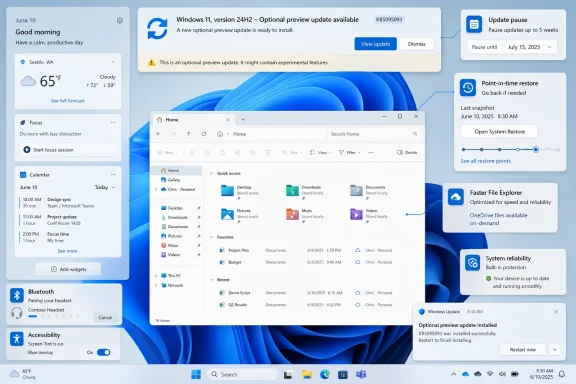
For 24H2 and 25H2, Microsoft is focusing on recovery, update controls, File Explorer polish, Widgets quieting, Bluetooth reliability, networking, printing, and shell stability. That is the unglamorous list Windows administrators actually care about, because it touches the daily friction points that generate tickets. The headline feature is Point-in-Time Restore, but the larger story is a platform trying to make ordinary failures less catastrophic.
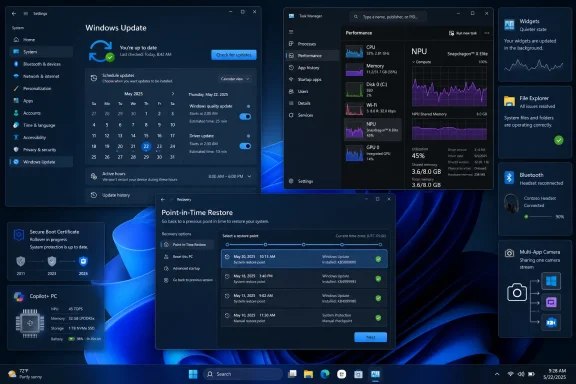
For 26H1, the center of gravity shifts. KB5095091 brings deeper Task Manager visibility into NPU usage, Multi-App Camera support, Windows Setup changes for custom user folder naming, Magnifier improvements, Windows Hello behavior changes, Dev Drive usability tweaks, USB reliability work, and battery-life optimizations around sensors and input devices. That is Microsoft preparing Windows for a hardware class where cameras, neural processors, standby behavior, and AI components are first-order operating-system concerns.
The updates are optional today, but optional is a misleading comfort. Microsoft says these changes are expected to flow into the next security update through Windows Update for Business and the normal cumulative update pipeline. In plain English: if you manage Windows fleets, this is the test window.
Point-in-Time Restore Is Microsoft Admitting Rollback Still Matters
The most consequential addition in KB5095093 is Point-in-Time Restore for Windows. Microsoft describes it as a way to roll back a PC, including apps, settings, and personal files, to a recent automatic restore point. The feature is pitched as a downtime reducer, and that is exactly the right frame.
Windows has long had restore mechanisms, recovery partitions, uninstall options, reset flows, and enterprise imaging strategies. Yet none of that has eliminated the everyday nightmare: a driver, update, app, or configuration change leaves a device technically bootable but operationally broken. The user does not want a lecture on servicing stack design. The help desk does not want a forensic exercise. Everyone wants to go back to this morning, before the machine became haunted.
Point-in-Time Restore is important because it recognizes that rollback is not a sign of failure in modern Windows servicing; it is a required control surface. Microsoft has spent years making Windows Update more automatic, more cumulative, and more difficult for ordinary users to avoid. That model only works if the escape hatch is equally modern.
The feature also fits a wider shift in Windows resiliency. Microsoft has been under pressure to make Windows recover more gracefully after update problems, driver conflicts, and software failures. A recovery feature that includes apps, settings, and personal files is an attempt to meet users where they are: not in an IT lab, but on a deadline, with a device that needs to become usable again quickly.
The catch, as always, will be reliability and transparency. Users need to know when restore points exist, what they include, what they do not include, and what risks are involved. Administrators will want policy controls, auditability, and predictable behavior across managed devices. If Microsoft gets those details right, Point-in-Time Restore could become one of the most practical Windows additions in years. If it gets them wrong, it becomes another recovery option users discover only after it is too late.
The Calendar Finally Becomes the Windows Update Interface
KB5095093 also adds a calendar-based pause experience in Windows Update settings. Instead of thinking in abstract blocks of days, users can choose an end date for pausing updates, up to 35 days. They can extend the pause by selecting a different end date and pause again as needed.
This sounds small, but it is one of those usability changes that reveals a lot. Windows Update has historically spoken in the language of servicing policy: active hours, deferrals, rings, deadlines, grace periods, and restart notifications. Humans plan around dates. A calendar is a better mental model.
For consumers, the improvement is obvious. If you are traveling, presenting at a conference, finishing a project, or leaving a machine untouched for a week, you do not want to calculate whether a 14-day pause expires before or after the critical moment. You want to say, “not until after Friday.”
For IT administrators, the feature is less about convenience than expectations. Consumer-facing controls shape what employees think Windows should allow, even on managed systems. If Microsoft makes date-based update pausing feel normal, enterprise users will increasingly expect update scheduling to align with business calendars rather than Microsoft’s release cadence.
That does not mean organizations should let everyone self-manage cumulative updates. It does mean Microsoft is acknowledging that update trust is partly a user-experience problem. People resent updates less when the controls match how they live and work.
Widgets Gets Quieter Because Microsoft Finally Heard the Complaint
Widgets has always suffered from an identity crisis. It wants to be glanceable information, a lightweight dashboard, a news surface, and a re-engagement engine. Users often experience it as something that opens when they did not ask for it and nags them with information they did not seek.
KB5095093 moves Widgets toward a quieter default. Microsoft says Widgets no longer open on hover, notifications and taskbar badges are minimized by default, and the dashboard behavior is simpler on first use. Users can still customize the experience, but the defaults are being tuned to reduce interruptions.
This is the right direction. Windows is already visually busy: taskbar badges, notifications, Start menu recommendations, search highlights, Copilot entry points, system tray indicators, app banners, and browser prompts all compete for attention. A dashboard that behaves like a surprise panel is not helpful.
The change also reflects a broader lesson Microsoft has been slow to absorb. Features that are useful when summoned become resented when they summon themselves. Widgets can survive as a dashboard. It cannot thrive as another attention tax.
The more interesting implication is that Microsoft is willing to retreat from aggressive engagement defaults when they become too irritating. That matters beyond Widgets. It suggests the company understands, at least selectively, that Windows’ value is not measured by how often it can interrupt the user.
File Explorer Remains the Place Where Windows’ Ambitions Meet Its Debt
File Explorer gets another dense round of fixes and refinements in KB5095093. Microsoft says launch speed and performance are improved, the OneDrive shortcut issue under administrative File Explorer is addressed, the address bar handles unusual paths more reliably, suggestions close more consistently, duplicated OneDrive favorites are fixed, and rename behavior is less glitchy.
That sounds like janitorial work because it is. It is also essential. File Explorer is one of the oldest and most heavily used surfaces in Windows, and every attempt to modernize it collides with decades of user habits, shell extensions, cloud sync integrations, path handling, legacy applications, and administrative workflows.
The update also brings quick actions when hovering over files in File Explorer Home, including options such as opening the file location and asking Copilot, with support for work and school accounts in eligible environments. This is the modern Microsoft pattern: performance fixes and AI-adjacent affordances arrive together, as if one buys permission for the other.
For enthusiasts, the Copilot quick action will be divisive. Some will welcome it as a way to summarize or interrogate local and cloud files. Others will see it as another example of Microsoft inserting AI into a workflow that mostly needed speed, consistency, and fewer surprises.
For administrators, the operational question is not whether Copilot belongs in File Explorer as an idea. It is whether its availability, account scope, regional limitations, and data-handling behavior can be governed clearly. File Explorer is not a toy surface. It is where users touch contracts, source code, medical records, tax files, HR documents, legal discovery, and confidential project plans.
Bluetooth, Printing, and Networking Get the Kind of Fixes Users Only Notice When They Fail
KB5095093 includes a notably practical Bluetooth section. Microsoft is improving mute-state synchronization between Windows’ audio mixer and Bluetooth Hands-Free Profile devices, compatibility with some Bluetooth audio accessories, pairing behavior, microphone reliability, reconnection after hibernation, LE Audio recovery, and Bluetooth settings stability.
This is not glamorous, but it is exactly where modern Windows PCs often feel unreliable. A laptop that handles AI summarization but cannot reliably reconnect headphones after sleep is not a futuristic device. It is an expensive annoyance. Bluetooth has become part of the baseline productivity stack, especially for hybrid workers, and its failures are emotionally disproportionate because they tend to happen at the start of calls.
Phone Link call routing is also being refined. Outgoing calls placed from a paired phone should keep audio on the phone while ringing and transfer to the PC only when answered there. Incoming call audio should respect Do Not Disturb on Windows. These are the sorts of changes that make an ecosystem feel coherent rather than merely connected.
Printing gets a forward-looking change: new printer installations use Internet Printing Protocol by default when supported, part of Microsoft’s broader move toward Windows Ready Print and away from legacy third-party printer-driver dependency. Anyone who has managed print drivers in an enterprise knows why this matters. Printer drivers have long been a reliability, security, and compatibility swamp.
Networking improvements cover virtualized environments, SR-IOV behavior for Confidential Virtual Machines, nested Hyper-V provisioning, Wi-Fi power-related bug checks, WWAN connectivity, IPv6 VPN support, third-party VPN compatibility, and preservation of network adapter settings across OS upgrades. That is a lot of plumbing, but it reinforces the point: Windows is not merely a desktop shell. It is a virtualization host, a VPN endpoint, a mobile workstation, and a managed enterprise node.
26H1 Shows the Copilot+ PC Future Is Really a Hardware Management Story
KB5095091’s most revealing change is Task Manager’s expanded NPU reporting. On PCs with neural processing units, users can add NPU and NPU Engine columns across Processes, Users, and Details pages, along with dedicated and shared NPU memory metrics. Neural engines that are part of a GPU can appear on the Performance page, giving users a more complete view of AI-related activity.
This matters because AI on Windows cannot remain a marketing abstraction. If applications are going to use NPUs, users and administrators need to see that usage. Performance complaints, battery drain, thermal behavior, privacy concerns, and app accountability all require instrumentation.
Task Manager has always been where Windows makes invisible resource consumption visible. CPU, memory, disk, network, GPU, startup impact, efficiency mode — each became meaningful to users only after Windows exposed enough information to argue with misbehaving software. NPU usage is joining that list.
The move also reflects an uncomfortable truth for the Copilot+ PC era. Local AI features will only be trusted if they are observable. A user may not understand every neural engine detail, but they understand the difference between “my PC is busy and I can see why” and “something is happening in the background and Microsoft says it is fine.”
KB5095091 also updates AI components to version 1.2605.856.0, including Image Search, Content Extraction, Semantic Analysis, and Settings Model. Microsoft notes that these AI component updates apply only to Copilot+ PCs and do not install on regular Windows PCs or Windows Server. That distinction is going to become increasingly important as Windows branches into hardware-dependent experiences that share a brand but not identical capability.
Multi-App Camera Is a Small Fix for a Very 2020s Problem
The new Multi-App Camera feature in KB5095091 allows multiple applications to access the same camera stream at the same time. Microsoft also adds a Basic Camera mode for troubleshooting and stability, and enterprise administrators can configure camera behavior through Group Policy.
This is a practical concession to how people actually work now. A user may be in Teams while using a virtual camera utility, a browser-based conferencing tool, a recorder, a proctoring platform, a sign-language accessibility tool, or a support application. Historically, camera access could become a tug-of-war, with one app monopolizing the device and another failing mysteriously.
Multi-App Camera does not sound like a flagship feature because it solves a problem users have been conditioned to accept as normal. But the impact could be substantial for hybrid work, support desks, streamers, educators, telehealth workflows, and accessibility setups. The old one-camera-one-app model no longer fits the software reality around it.
The enterprise policy angle matters. Camera access is not just a convenience issue; it is a privacy and compliance issue. Allowing multiple applications to share a feed increases flexibility, but it also demands clear management. Organizations will need to decide whether the feature is acceptable everywhere, limited to certain device classes, or blocked in high-sensitivity environments.
Basic Camera mode is equally important in a less glamorous way. Troubleshooting camera stacks can be miserable because the chain includes firmware, drivers, privacy settings, app permissions, Windows camera services, vendor utilities, and conferencing software. A simplified mode gives support teams a cleaner diagnostic baseline.
Windows Setup Finally Lets Users Name Their Own Folder
KB5095091 adds a deceptively satisfying Windows Setup change: users can choose a custom name for their user folder on the Device Name page during initial setup. If they skip it, Windows uses the default folder name as before.
This is the kind of detail power users have complained about for years. Windows has often derived user folder names in ways that feel arbitrary, truncated, or tied too closely to Microsoft account assumptions. The result is a local path that can irritate users every time they see it, especially developers and administrators who live in terminals, scripts, and file paths.
Giving users a supported way to define the folder name during OOBE is not revolutionary. It is just respectful. It acknowledges that paths matter, that naming matters, and that a local user profile is still part of the personal architecture of a PC.
There are limits. The feature applies during setup, and folder names still must follow Windows naming requirements. It is not a magical retroactive fix for existing profiles with awkward names. But it is a welcome sign that Microsoft is smoothing one of the rough edges created by the Microsoft-account-first setup era.
Accessibility Improvements Are Becoming Core Platform Work, Not Side Projects
Both updates contain accessibility-related changes, but KB5095091’s Magnifier improvements and KB5095093’s Screen Tint feature deserve attention. Magnifier now provides clearer announcements when used with a screen reader, supports more precise experiences, and improves smoothness in lens mode. Screen Tint lets users apply a full-screen color overlay to reduce eye strain and improve readability.
Screen Tint is distinct from Night Light. Night Light is primarily about reducing blue light and shifting display warmth, often for evening use. Screen Tint is about applying a color overlay that can make long work sessions more comfortable or readable for some users.
The important shift is that accessibility features are increasingly blending into general usability. A setting designed for readability or visual comfort may help users with specific needs, but it may also help anyone staring at a display for ten hours. The same is true of better Magnifier announcements: the immediate audience is users relying on assistive technology, but the broader benefit is a Windows platform with more predictable interaction feedback.
Microsoft’s accessibility work is strongest when it is treated as core OS engineering rather than a moral appendix. These updates point in that direction. The features are not isolated downloads or special modes; they are part of cumulative Windows servicing.
The Known Office Automation Issue Is the Warning Label IT Should Not Ignore
Both KB5095093 and KB5095091 carry a known issue involving Microsoft Office applications failing to open from certain third-party apps after Windows updates released on or after June 9, 2026. The affected pattern involves third-party applications that use OLE automation to interact with Office. Microsoft says Word, Excel, PowerPoint, Access, and other Office apps may be affected when launched from within those applications, sometimes without an error message.
The named examples include CCH Engagement, Workpaper Manager, dental software such as Dentrix and Softdent, and Zotero, though Microsoft cautions that similar applications may also be affected. The workaround for users is to open the Office application or document directly instead of launching it through the affected third-party software. Organizations can contact Microsoft Support for business for an additional workaround on affected devices.
This is the part of the release notes that should stop administrators from casually approving the preview update fleet-wide. OLE automation is old, but old does not mean irrelevant. Accounting, legal, healthcare, research, records-management, and line-of-business systems still lean on Office automation in ways that are invisible until they break.
The issue also illustrates why Windows compatibility remains so difficult. Microsoft can modernize AI components, update NPU telemetry, and redesign Widgets, but it still has to preserve workflows built on decades-old automation models. The Windows ecosystem is not a clean-room platform. It is an archaeological site with payroll attached.
For home users, this known issue may never matter. For enterprises, it is exactly why preview updates exist. If your organization depends on document-management software that launches Office under the hood, this is a lab-first release, not a broad deployment candidate.
Secure Boot, GIFs, and the Strange Breadth of a Windows Cumulative Update
KB5095093 also includes messaging about Secure Boot certificate expiration, noting that certificates used by most Windows devices are set to expire starting in June 2026. Microsoft has been updating certificates on consumer and non-managed business devices over recent months, and the update includes additional device-targeting data to expand certificate delivery while keeping rollout controlled.
This is the kind of maintenance users rarely see until it goes wrong. Secure Boot is foundational to the Windows trust chain, but certificate rollover is not a consumer-friendly topic. Microsoft’s job is to make the transition boring. The fact that it is surfacing in cumulative update notes is a reminder that firmware-era trust decisions eventually become Windows servicing events.
There is also an unexpectedly mundane but user-visible change: the emoji panel is moving GIF content to GIPHY after the deprecation of Google’s Tenor API. Microsoft warns that starting June 30, 2026, users who have not installed the latest update may see a “GIF service is not available” message in the emoji panel.
That detail is almost comical in the same release notes as Secure Boot certificates and Confidential VM networking, but it captures the reality of Windows. The OS now mediates firmware trust, enterprise authentication, AI acceleration, printer setup, Bluetooth headsets, cloud files, and GIF search from the same servicing pipeline.
This breadth is both Windows’ strength and its burden. A cumulative update can fix a Recycle Bin filename bug, improve Netlogon secure-channel behavior with older domain controllers, update AI models, and change how GIFs work in the emoji picker. No other mainstream consumer OS carries quite the same combination of legacy gravity and modern surface area.
The July Patch Tuesday Preview Has Already Told Admins Where to Look
The practical path is straightforward, but not identical for every audience. Enthusiasts who enjoy early access and understand rollback can install the optional updates through Windows Update or the Microsoft Update Catalog. Most ordinary users can wait for the next mandatory cumulative update unless one of the fixes addresses a specific pain point.
Administrators should treat KB5095093 and KB5095091 as test material for July’s wider rollout. That means validating Office automation workflows, VPN clients, Bluetooth audio devices used in support and call-center environments, printing behavior, File Explorer integrations, camera-dependent workflows, and device recovery expectations. The release notes are long because the blast radius is wide.
There is one more wrinkle: gradual rollout. Microsoft notes that some features arrive in phases rather than landing on every eligible device immediately. That makes validation harder, because two machines on the same build number may not expose the same user-facing features at the same time.
That is frustrating, but it is now part of Windows administration. Build numbers tell you less than they used to. Feature availability can depend on device, market, account type, hardware capability, rollout phase, and policy state. The old model of “install build, get feature” is being replaced by a more fluid servicing system.
The June Preview Is Really a Map of Microsoft’s Priorities
If there is a single message in these updates, it is that Microsoft wants Windows to be more resilient, more observable, and more hardware-aware without waiting for the next marketing cycle.
- KB5095093 brings Windows 11 24H2 and 25H2 to OS builds 26100.8737 and 26200.8737, with Point-in-Time Restore, calendar-based update pausing, quieter Widgets, File Explorer fixes, Bluetooth improvements, networking work, printing changes, and shell reliability updates.
- KB5095091 brings Windows 11 26H1 to OS build 28000.2340, with NPU monitoring in Task Manager, Multi-App Camera support, custom user folder naming during setup, Magnifier improvements, Windows Hello refinements, USB reliability work, and battery-life improvements.
- Both updates are optional non-security previews, but their contents are expected to feed the next mandatory cumulative update cycle.
- Both updates include AI component version 1.2605.856.0, though those components apply only to Copilot+ PCs rather than every Windows PC.
- The known Office automation issue is the most important deployment caution for organizations that rely on third-party document, accounting, healthcare, research, or workflow software.
- Gradual rollout means installing the update does not guarantee that every advertised feature appears immediately on every eligible device.
The old Windows release rhythm trained users to look for the big version name. The new rhythm asks them to watch the cumulative update notes, because that is where Windows actually changes now. KB5095093 and KB5095091 are not just previews of July’s servicing payload; they are previews of a Windows strategy that keeps moving more of the operating system through monthly channels, where recovery, AI hardware, accessibility, enterprise policy, and legacy compatibility all have to coexist. For users, that means useful improvements may arrive faster. For IT, it means the quiet update at the end of the month is no longer quiet at all.