

Windows searchrch left me stalled in the wrong place more times than I can count, so I replaced it with three free tools — PowerToys Run (and its newer successor, Command Palette), Everything, and Raycast — and the result is a faster, more predictable, keyboard-first workflow that finally feels intentional rather than accidental. ws’ built‑in search has evolved into a multi‑purpose surface that mixes local files, app shortcuts, web suggestions, and promoted content. That breadth is convenient for casual lookups, but it also introduces latency, noise, and results that don’t match a power user’s intent. The three tools covered here intentionally fragment the problem: one gives you millisecond file lookups, one gives you a small, safe Microsoft‑built command palette, and one rethinks search as an action surface where finding and doing are one step.
Why this matters now moving toward a keyboard‑first command palette model (PowerToys’ Command Palette is the documented successor to PowerToys Run), and third‑party projects are bringing their best ideas to Windows. That means the ecosystem now gives users options that are both better integrated and more experimental — a useful split depending on how conservative or adventurous you are.
Adopting third‑party tools carries legitimate risks — policy friction, update variability, and privacy considerations — but the productivity gains are measurable. For power users and creators who spend large parts of their day searching, launching, or pasting, these utilities are not optional conveniences: they are practical efficiency multipliers. The trade is administrative discipline: install carefully, audit settings, and keep a tested rollback plan.
Adopting a set of small, focused utilities is not about patching Windows’ failures — it’s about choosing tools that match how you work. For me, the combination of Everything, PowerToys Run / Command Palette, and Raycast turned a daily annoyance into a set of reliable, predictable shortcuts that shave minutes (and often tens of minutes) off routine tasks. Once you stop waiting for Windows search to “get it right,” your workflow stops losing time to small frictions — and the keyboard starts to feel like the fastest path from idea to result.
Source: How-To Geek I finally ditched Windows search for these 3 free tools, and I’m not going back
Why this matters now moving toward a keyboard‑first command palette model (PowerToys’ Command Palette is the documented successor to PowerToys Run), and third‑party projects are bringing their best ideas to Windows. That means the ecosystem now gives users options that are both better integrated and more experimental — a useful split depending on how conservative or adventurous you are.
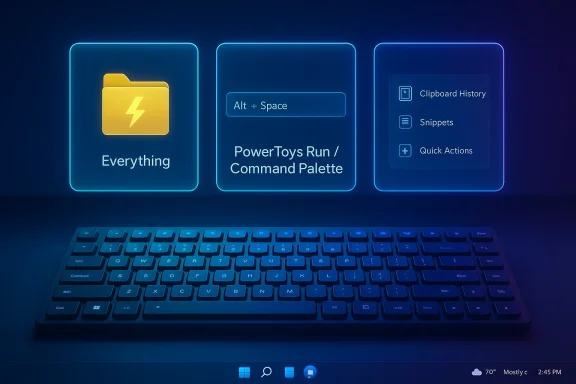 Overview of the three approaches
- Everything — a single‑purpose, names-first file indexer that returns results in milliseconds and is optimized for filename/path lookups. It’s the best tool when you know a file exists and need to get to it immediately.
- PowerToys Run / Command Palette — Microsoft’s keyboard launcher (PowerToys Run) and its modern evolution (Command Palette) give a lightweight, predictable command bar tightly integrated with Windows. If you want something that feels like a natural OS extension, this is the safest bet.
- Raycast — an ambitious, keyboard‑centric command hub that combines launcher, file search, clipboard history, snippets, and action extensions so you don’t just find things — you act on them immediately. Raycast’s Windows release has been a public beta and brings the action‑first model popularized on macOS to Windows.
Everything — the millisecond file finder
What it is and how it works
Everything is a lightweight indexer from Voidtools that keeps a compact in‑memory database of file names and paths. By default it indexes all local fixed NTFS volumes and keeps the index current by monitoring the NTFS change journal, which is why it can return file name matches in fractions of a second. The developer documentation explains the default NTFS behavior, index options, and how the database is stored and updated.What it does best
- Instant filename lookup: type a partial name and results appear as you type.
- Extremely small steady‑state footprint: typical RAM and disk usage are minimal even with millions of files, according to the vendor’s FAQ.
- Real‑time updates: changes are reflected immediately because Everything reads the file system journal rather than relying on periodic scans.
Verified technical claims
- Indexing speed and scale: the vendor documents concrete examples — a fresh Windows install (≈120k files) indexes in about a second and 1,000,000 files in about a minute under normal conditions. The memory and disk footprints are also published for typical file counts. These are practical metrics you can use to plan deployments.
- NTFS default behavior: Everything automatically includes fixed NTFS volumes and exposes options for ReFS, removable volumes, and folder indexing for non‑NTFS targets.
Strengths
- Speed: nothing else in common use beats Everything for filename/path lookups on Windows.
- Simplicity: it’s focused and opinionated — it doesn’t try to be a launcher, assistant, or web search proxy.
- Low overhead: the steady‑state resource usage is small and predictable.
Risks and limitations
- Not a full‑text indexer by default: Everything’s core design indexes names and paths. It supports content searches with content: queries, but full‑text sea the tool’s primary strength. Use a complementary content indexer if you need fast content queries across many documents.
- Non‑NTFS storage and networked drives require configuration: mapped drives, NAS shares, FAT/FAT32 volumes, and offline media need explicit folder indexing. Performance and capability vary by target.
- Enterprise policy and security: background indexing services can run afoul of corporate policies; check with IT before rolling out widely.
Practical adoption tips
- Install from the official Voidtools download to avoid repackaged installers.
- Consider the “Everything Service” option for consistent indexing without running the UI as administrator.
- If you need file metadata (size, dates) indexed, enable those options intentionally — they increase memory use.
- Keep Windows Search enabled as a fallback in managed environments where policies forbid third‑party services.
PowerToys Run and Command Palette — Microsoft’s safe, first‑party command bar
What PowerToys Run is
PowerToys Run is a compact, keyboard‑invoked launcher shipped as part of Microsoft PowerToys. It behaves like a classic command palette: hit a hotkey, start typing, and launch apps, find files, run calculations, or execute system actions. Microsoft documents the default shortcuts and the set of supported system commands.Why Command Palette matters
Microsoft has published a new PowerToys utility, Command Palette, which is intended as the successor to PowerToys Run. Command Palette keeps the keyboard‑first launcher ideas but extends them with a more modern, extensible design and additional integrations. The Microsoft documentation states it is the strategic direction for in‑PowerToys command launching. News outlets covering Windows development confirm the shift and note that Command Palette brings a heavier focus on extensibility and developer‑friendly features.Strengths
- First‑party integration: PowerToys is maintained by Microsoft, distributed through familiar channels and compatible with enterprise update tooling more easily than some third‑party alternatives.
- Low learning curve: behaves like Spotlight or a basic launcher — no new ecosystem or account required.
- Stable, simple feature set: launching, quick calculations, and system commands with predictable behavior and keyboard shortcuts (PowerToys Run default is Alt+Space; Command Palette default is Win+Alt+Space).
Limitations and trade‑offs
- Less ambitious than Raycast: it’s a launcher and lightweight command palette, not a full productivity hub. If you want integrated clipboard retention, snippets, or an extension store, you’ll need a separate tool.
- Feature cadence: Microsoft is updating PowerToys actively, but it moves on a different cadence than community projects. That’s a strength for stability but means fewer experimental features.
Practical adoption tips
- Use PowerToys Run if you prefer a conservative, first‑party upgrade to Start menu search.
- If you want to try the future direction while staying on Microsoft’s track, enable Command Palette once available and map the hotkey in a way that doesn’t conflict with your other hotkeys.
Raycast — search + action, rethought
What Raycast is on Windows
Raycast started on macOS as a premium command palette and grew into a full productivity platform. Its Windows build is explicitly action‑first: the same palette finds files and apps but also exposes immediate actions — paste from the clipboard history, expand snippets, run extensions, or invoke AI prompts — without context switching. Raycast’s Windows product has been released in public beta and is updated frequently via changelogs.Key features that change workflows
- Clipboard History with searchable previews and retention options.
- Snippets for text expansion with keyword triggers.
- Quicklinks to pin frequently used files, folders, and web links.
- File search with actions (rename, show details) directly in the action panel.
- Extensions ecosystem and an integrated Quick AI during beta.
Strengths
- Workflow consolidation: find, act, and paste without leaving the keyboard.
- Extensibility: first‑ and third‑party extensions let you add integrations for services you already use.
- Rapid iteration: the changelog shows frequent updates and incremental feature improvements to Windows users.
Risks, caveats, and verified issues
- Beta sindows release was a public beta for an extended period; some features (notably snippet expansion early on) experienced reliability issues across certain Windows configurations. Community threads and changelogs show issues were reported and many have received fixes, but beta caveats remain relevant. If you rely on text expansion in production workflows, test carefully.
- Cloud sync and privacy: cloud features and Pro plans introduce telemetry and sync considerations. Organizations must evaluate retention, encryption, and whether team or enterprise plans better fit governance needs. Raycast’s pricing and enterprise options explicitly address admin controls, BYOK, and SOC2 compliance for enterprise customers.
- Ongoing subscription costs: while the free tier covers many features, teams and power users who need unlimited AI or cloud sync will incur recurring costs. Consider that in total cost of ownership.
Practical adoption tips
- Try Raycast on a single machine first; enable only the features you need (clipboard, file search, snippets).
- For paste method and window permissions are reliable on your apps (some secure fields or remote desktop clients block paste actions).
- Audit and tune cloud sync and retention settings before enabling teaed environments.
Comparative analysis: which tool for which job
Raw file hunting
- Pick Everything. Its narrow focus and NTFS‑backed index make it the fastest way to answer “where did I save that file?” and it’s ideal when you do not need content search.
Safe, integrated launching and system commands
- Pick PowerToys Run / Command Palette. If you want a small, stable, Microsoft‑maintained command bar that behaves predictably across Windows updates, this is the least risky upgrade.
Full workflow consolidation (search + act)
- Pick Raycast. If you live on the keyboard, want snippet expansion, clipboard history, and quick actions integrated into search, Raycast reduces context switches better than the others — at the cost of being newer on Windows and having optional paid features.
Combined setup that covers most use cases
- Install Everything as your primary file lookup.
- Use PowerToys Run or Command Palette for reliable, Microsoft‑backed launching.
- Add Raycast if you want to collapse snippet/clipboard/quick action workflows into a single hub.
Security, privacy, and enterprise considerations
- Install only from official sources: vendor pages, GitHub releases, or Microsoft Store. Community repackagers can bundle unwanted software.
- Check enterprise policies before enabling background indexers or input‑hooking features: Things that capture clipboard data or intercept keyboard input (snippets, paste to active app) can be restricted in managed environments. Raycast’s Pro/Enterprise documentation lists administrative controls for teams; PowerToys is easier to justify in locked‑down environments since it’s a first‑party Microsoft project.
- Audit cloud sync and retention: clipboard and snippet sync can leak secrets if misconfigured. Use local‑only modes, encryption, and BYOK where available for high‑sensitivity workflows.
- Test snippet/paste behavior with secure apps and remote desktop: many enterprise apps and remote sessions behave differently and may block text expansion or programmatic paste operations. The Raycast community has discussed snippet issues tied to settings and Windows quirks.
How to adopt the trio safely — step‑by‑step
- Pick one test machine and create a restore point or image snapshot.
- Install Everything first and let it complete the initial index. Use the "Everything Service" for consistent background indexing if you prefer not to run the UI ele times against the vendor’s published expectations.
- Install PowerToys and enable PowerToys Run. Confirm the default Alt+Space hotkey does not conflict with other shortcuts. If Command Palette is available in your PowerToys version, try it on a secondary keybinding (Win+Alt+Space is one documented default).
- Install Raycast last. Start with Clipboard History and Quicklinks, and only enable cloud sync if you want cross‑device settings. Verify snippet behavior in your most‑used apps before replacing your current text‑expander.
- Maintain a simple rollback plan (uninstall, disable service, restore snapshot) and keep the built‑in Windows search as a fallback until you are confident.
Final verdict — why I won’t go back
Each of these tools solves a core failing of Windows’ default system search in a targeted way. Everything gives you the single‑purpose speed Windows’ broader indexer sacrifices. PowerToys Run / Command Palette provides a safe, Microsoft‑backed ’t demand a subscription or new ecosystem. Raycast reimagines search as an action surface and eliminates many micro‑frictions — once you rely on immediate actions (paste, snippet expansion, quicklinks) the Start menu’s mixed results feel like a step back.Adopting third‑party tools carries legitimate risks — policy friction, update variability, and privacy considerations — but the productivity gains are measurable. For power users and creators who spend large parts of their day searching, launching, or pasting, these utilities are not optional conveniences: they are practical efficiency multipliers. The trade is administrative discipline: install carefully, audit settings, and keep a tested rollback plan.
Quick reference — commands and defaults worth remembering
- PowerToys Run default hotkey: Alt + Space. Command Palette default (PowerToys): Win + Alt + Space.
- Everything indexes local NTFS volumes by default and updates via the NTFS USN Journal; expect initial indexing of tens of thousands of files in seconds on modern drives.
- Raycast defaults: keyboard‑invoked palette (customizable), clipboard history and snippets in free tier, Pro adds unlimited clipboard retention and cloud sync; test snippet expansion stability on your target apps before relying on it.
Adopting a set of small, focused utilities is not about patching Windows’ failures — it’s about choosing tools that match how you work. For me, the combination of Everything, PowerToys Run / Command Palette, and Raycast turned a daily annoyance into a set of reliable, predictable shortcuts that shave minutes (and often tens of minutes) off routine tasks. Once you stop waiting for Windows search to “get it right,” your workflow stops losing time to small frictions — and the keyboard starts to feel like the fastest path from idea to result.
Source: How-To Geek I finally ditched Windows search for these 3 free tools, and I’m not going back
