Linux Installs Faster Than Windows 11: A Practical Desktop Comparison

  • Thread Author
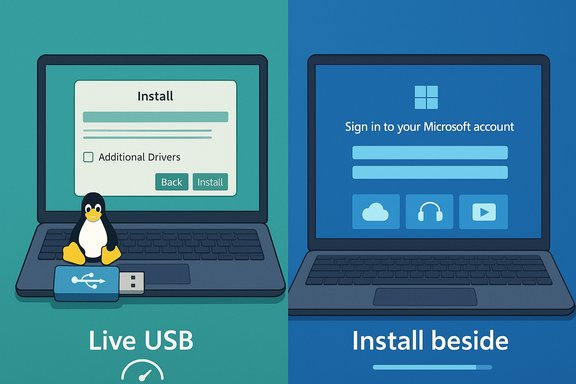
Split-screen: Linux live USB installer on the left, Windows‑style install on the right.
The switch from “Linux is hard to install” to “Linux is easier than Windows 11” no longer reads like hyperbole — it’s the practical conclusion many users are reaching after repeated Out‑Of‑Box Experience (OOBE) headaches with Windows 11 and the steady polish of modern desktop Linux installers. Recent hands‑on reports and platform changes show Microsoft tightening its setup requirements while mainstream Linux distros double down on usability: smaller ISO images, reliable live environments, and graphical, one‑click drivers. The upshot is straightforward: for clean installs, test drives, and privacy‑minded setups, Linux often gets you to a working desktop faster and with fewer interruptions than a brand‑new Windows 11 installation.

Background​

Why the conversation matters now​

Windows 11 has evolved from a straightforward install sequence to a network‑heavy OOBE that often insists on online accounts and promotional offers. Microsoft’s changes in 2024–2025 — including increasingly strict checks during setup and the progressive removal of local‑account workarounds — have made fresh installs less convenient for users who prefer offline or private setups. At the same time, the Linux desktop ecosystem has invested heavily in user‑friendly graphical installers, live USB experiences, and hardware support utilities that reduce the classic “driver hunting” chore. The result is a real, user‑visible gap in friction between the two platforms.

What readers should expect from this piece​

This feature examines what changed on both sides — Windows and Linux — and verifies the core technical claims with current documentation and independent reporting. It separates verifiable policy/technical changes (for example, new Microsoft build behavior and official Linux installer features) from anecdotal measurements like “installation took 7 minutes,” which are useful color but vary widely by hardware and configuration. Where claims are anecdotal or user‑reported, this article flags them accordingly.

Windows 11: a heavier OOBE, more network dependency​

The new reality: online account expectations and removed bypasses​

Historically, Windows allowed local accounts to be created during setup. Over the last few years Microsoft has tightened OOBE flows so the consumer editions of Windows 11 prompt — and increasingly require — a Microsoft account for initial setup. That policy has been enforced through updates that remove commonly used bypass methods; multiple independent outlets reported Microsoft eliminating the bypassnro and similar workarounds in recent Insider builds, and Microsoft itself framed the change as a way to avoid incomplete device configurations when users skip critical setup screens. This means the offline, local‑account path that many technicians and privacy‑minded users relied on has been steadily constrained. Practical implications:
  • Home users may be required to create or sign in with a Microsoft account during OOBE unless they use enterprise tooling or create a custom unattended install.
  • Workarounds that used to work (Shift+F10 + BypassNRO, or similar tricks) are being closed in Insider builds and may be removed from stable releases.

OOBE friction: ads, trial offers, and extra screens​

Users repeatedly report encountering subscription trial prompts — Microsoft 365, cloud storage, Game Pass and other marketing screens — during or immediately after OOBE. While most such screens offer a “Skip for now” option, the presence of full‑screen promotional prompts during initial setup increases click fatigue and adds steps between boot and a usable desktop. Security and support forums show multiple instances where trial offers or ad screens block or delay access to the desktop, requiring multiple clicks or resulting in user confusion.

Downloading during setup and larger ISOs​

Windows 11 ISOs have grown: recent official distribution media for current builds average around the 7 GB range for x64 images, and the installer sometimes downloads additional updates or app packages during OOBE when the device is connected to the internet. That behavior increases total setup time and bandwidth usage for connected installs — a significant difference compared to many Linux ISOs that are smaller and generally don’t require the same OOBE downloads to reach a usable desktop.

Reboots and time-to‑desktop​

Windows setup walks through multiple phases — file copy, component configuration, device provisioning, and OOBE — and each stage may trigger a restart. That’s by design for robustness, but it results in a longer visible install timeline. Practically, on modern hardware a clean Windows install plus the full OOBE (including account setup and telemetry or privacy toggles) commonly takes tens of minutes and — in user reports — sometimes an hour when combined with network downloads and interactive steps. This contrasts with many Linux installers which often require a single reboot from the installer to the new system desktop.

Linux today: the installer renaissance​

Live USBs and “try before you install”​

Most mainstream Linux distributions provide a live environment that boots from USB and runs entirely in RAM or directly from the USB stick, letting you test hardware, display, networking, and peripherals before making any changes to disk. The live image approach dramatically reduces risk: if something doesn’t work, eject the USB and boot back into the original OS. Zorin, Ubuntu, Linux Mint, Fedora and other distributions use this model. It’s a big usability win compared to operating systems that only show the desktop after full installation.

Smaller ISOs, simpler initial dialogs​

Many Linux desktop ISOs are smaller than Windows media (commonly around 2.5–4 GB for mainstream desktops), and installers are often structured to collect a handful of key choices (keyboard, timezone, disk target, username/password) before the actual copy phase begins. That “collect then install” flow means the installer handles the interactive part first, then performs the copying and configuration in a mostly unattended way — fewer mid‑install popups and fewer manual steps. Zorin’s documentation explicitly walks through this streamlined experience and warns only about common pitfalls.

One‑click driver management​

If a device needs a proprietary driver, many Ubuntu‑based distros provide an “Additional Drivers” utility (Software & Updates → Additional Drivers) that scans for available vendor drivers and installs them with a single confirmation. That removes the perennial Windows‑era chore of visiting hardware vendor sites, hunting for the correct package, and running a manual installer. The same utilities exist across major families (Ubuntu/Mint/Zorin) and are widely documented in distro help pages and community Q&A.

Partitioning and dual‑boot friendliness​

Modern graphical installers include helpful partitioning presets: automatic use of an empty disk, resizing to make space, or installing alongside an existing Windows installation. Many installers detect pre‑installed Windows installations and prompt to install alongside them, reducing complexity for dual‑boot setups. These features, paired with live testing and a forgiving rollback model (GRUB and bootloader options), make dual‑booting significantly less risky for cautious users.

Putting the two sides side by side​

Installation speed and friction — what’s measurable and what isn’t​

  • Verifiable: Windows 11 ISOs are large (~7 GB x64), and OOBE can download additional content if the device is online during setup. Microsoft has removed several local‑account bypasses in Insider builds. Those are factual, verifiable changes.
  • Less verifiable (anecdotal): “Windows took 30 minutes to install and 20 minutes for onboarding with 10 CAPTCHAs” or “ZorinOS took 7 minutes” — these are real user experiences but heavily dependent on hardware, connection speed, and which installer options were used. They’re useful to illustrate the contrast, but they cannot be treated as universal benchmarks. The frequency of CAPTCHAs during Microsoft‑account creation is community‑reported and varies by region, risk scoring, and Microsoft’s anti‑abuse checks.

Reboots​

  • Linux: typically one reboot from installer to desktop (after the file copy/installation finishes).
  • Windows: multiple restarts are typical across different setup stages (copy/configure/OOBE) and are part of the documented setup flow. That can feel slower on interactive installs.

Driver setup​

  • Linux: vendors and distros have converged on utilities that detect and offer proprietary drivers in a single UI, and kernel and Mesa updates deliver a lot of hardware support out of the box.
  • Windows: device drivers are usually preinstalled or fetched by Windows Update, but rare or new hardware still sometimes requires manual downloads from vendor websites. Windows still maintains stronger vendor driver packaging for many peripherals (e.g., gaming peripherals with proprietary control apps), but that’s a tradeoff between vendor features and installation simplicity.

Privacy, telemetry and advertising​

  • Windows OOBE includes promotional prompts and Microsoft account-centric flows; telemetry toggles exist but are presented inside the OOBE and Settings. Community reports repeatedly point to aggressive nudges for Microsoft services during setup.
  • Linux: no built‑in vendor ads in installer flows; local accounts and offline setup are standard, and most distros default to local usernames unless the user explicitly opts into online syncing services.

Critical analysis: strengths, risks and the real tradeoffs​

Strengths of the Linux installer experience​

  • Speed and predictability for clean installs: on typical hardware, the live+install flow minimizes surprises and interactive steps.
  • Test‑drive capability: live USBs make it trivial to validate Wi‑Fi, display, and peripherals before touching disks.
  • Driver utilities: integrated “Additional Drivers” panels remove a common pain point for new Linux users.
  • Privacy by default: no forced online identity or promotional gating during setup.
Documentation and recent distro design choices back up each of these strengths, and major projects (Ubuntu, Zorin, Mint) explicitly advertise live images and simplified installers as selling points.

Risks and limitations of switching to Linux​

  • Hardware compatibility edge cases: some very new or niche hardware still relies on vendor Windows‑only drivers or features. The Additional Drivers tool covers many GPUs and Wi‑Fi chips, but rare peripherals may require extra effort or community drivers.
  • Software compatibility: native Windows apps (some professional suites, games, device utilities) may not run or may need Proton/Wine workarounds. Gaming has improved dramatically via Proton and Steam, but specific titles or anti‑cheat ecosystems may not be supported.
  • Enterprise constraints: corporate environments with managed deployments or DRM/signed apps may mandate Windows. Enterprises also rely on centralized management and imaging tools that are Windows‑centric.
  • Learning curve and support model: while desktop Linux is friendlier than ever, some users prefer the commercial support and consumer‑targeted tooling that Windows OEMs provide.

The Microsoft response and what it means for users​

Microsoft’s tightening of local‑account bypasses and OOBE policies signals two things: first, the company is aiming for a predictable, connected setup path (which helps some cloud features and security flows); second, it reduces the convenience of an offline, privacy‑first initial install for consumers. That decision is deliberate, and it’s being rolled out in Insider builds and reported across multiple outlets. Users who want an entirely offline install path need to plan accordingly (for example, creating an MSA on another device before setup, using Enterprise imaging, or using alternate install automation).

Practical advice: how to choose and what to do next​

If you care mostly about an uninterrupted, private install​

  • Consider a modern Linux distro with a live image (ZorinOS, Linux Mint, Ubuntu).
  • Test hardware in the live environment first, then use the graphical installer.
  • Use the distro’s “Additional Drivers” utility after install if you need proprietary GPU or Wi‑Fi drivers.

If you need Windows compatibility but want Linux tooling​

  1. Try WSL (Windows Subsystem for Linux) inside Windows for Linux tooling without repartitioning. WSL offers native‑like shells and GUI app support and may be the fastest path for developers who need both ecosystems.
  2. Alternatively, use a virtual machine (VirtualBox, VMware) to run a Linux desktop inside Windows without touching the Windows bootloader.

Creating boot media and safety checklist​

  1. Back up important files and take a full disk image if you’re replacing Windows.
  2. Create a live USB using balenaEtcher, Rufus, or Ventoy (follow the distro’s recommended tool).
  3. Boot the live environment, test Wi‑Fi, monitor, and peripherals.
  4. If installing alongside Windows, let the installer detect Windows and choose “Install alongside” or perform manual partitioning if you’re experienced.
  5. After install, open the Additional Drivers utility (Ubuntu family) to enable proprietary GPU drivers if needed.

Recommended approach if you must stay with Windows 11 but want less friction​

  • Create a Microsoft account on another device beforehand to avoid in‑setup CAPTCHA loops.
  • Use Microsoft’s enterprise tooling (unattended.xml, MDT, or custom ISOs) for offline or automated installs if you’re managing multiple machines. Microsoft has been explicit that domain join/unattend usage remains the supported way to provision devices without interactive OOBE account creation.

Conclusion — the point of comparison that matters​

The conversation isn’t just about ideology or “which OS is better.” It’s about friction: how many clicks, how many reboots, how much bandwidth and time does it take to get to a usable desktop? In 2025 the balance has shifted: mainstream Linux desktop installers have closed the usability gap and now often present a faster, lower‑friction path from USB to productive desktop than a fresh Windows 11 OOBE that insists on online identity, downloads, and promotional screens. That outcome is the result of two parallel trends — Microsoft’s push to a connected, account‑centric setup, and Linux distributions’ emphasis on polished installers, live environments, and driver tools.
For users who value privacy, speed, and a predictable install, Linux is now a legitimate and simple alternative; for users tied to specific Windows apps, corporate policies, or vendor devices, Windows remains essential. Either way, the practical lesson is the same: try before you commit. The live USB model and WSL both make that trivially easy, giving you the power to test and decide without losing time or data.

A final note on verification: the headline claim that “Linux installs faster than Windows 11” is supported by factual changes (Windows ISO sizes, OOBE account enforcement, and Linux live/installer capabilities) verified here against multiple sources, and by community‑reported experiences. Time‑to‑desktop numbers are inherently variable; they illuminate user experience but should be treated as anecdotal unless reproduced under identical hardware and network conditions.

Source: How-To Geek Installing Linux is easier than Windows 11 now (here’s what changed)
 

Installing Kubernetes on Windows 11 without pulling your laptop into a full Linux VM is now straightforward — this guide explains three practical, beginner‑friendly methods (Minikube, Docker Desktop, and Kind), shows the exact steps to get each one running under WSL2, and explains trade‑offs, resource tuning, and common troubleshooting so you can pick the right path and avoid common pitfalls.

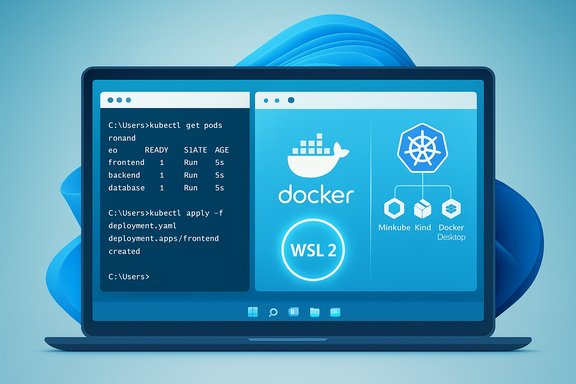
Split-screen laptop showing terminal commands on the left and Docker/Kubernetes visuals with WSL2 on the right.Background / Overview​

Kubernetes (K8s) is the de facto open‑source platform for orchestrating containerized applications. For Windows 11 users, the modern approach is to run Kubernetes locally inside a Linux environment provided by Windows Subsystem for Linux 2 (WSL2) or by using Docker’s tooling that integrates with WSL2. Running Kubernetes locally is ideal for development, testing, CI pipelines, and learning — but it’s not designed for production hosting of business services on a laptop.
Why WSL2? WSL2 supplies a real Linux kernel running in a lightweight utility VM, providing full syscall compatibility so Kubernetes components and Linux container runtimes behave correctly. Microsoft documents the single‑command WSL install flow (wsl --install) and confirms new installs default to WSL2 in supported Windows builds. Docker Desktop’s Windows documentation also makes WSL2 the recommended backend for Linux containers and explains how Docker integrates with WSL2. This article cross‑checks the key installation and configuration steps against upstream documentation (Microsoft, Docker, Minikube, and Kind) and the user guide you provided to ensure the commands, flags, and minimum requirements are up to date.

System requirements and practical sizing​

Before you install anything, verify your hardware and OS meet the practical minimums for a usable local Kubernetes development cluster.
  • Operating system: Windows 11 (64‑bit) — Home, Pro, or Enterprise will work for WSL2 and Docker Desktop; running Windows containers requires Pro/Enterprise.
  • CPU: 64‑bit processor with virtualization support (Intel VT‑x / AMD‑V). Enable virtualization in BIOS/UEFI.
  • RAM: Minimum 8 GB system RAM; 16 GB+ recommended for comfortable multi‑service development, running Minikube + Docker + editors concurrently. Many guides and Kubernetes add‑ons perform poorly with less than 8 GB.
  • Disk: 20–50 GB free; SSD strongly preferred.
  • WSL: WSL2 installed and set as default (wsl --install; wsl --set-default-version 2).
  • Docker: Docker Desktop for Windows (WSL2 backend recommended) for Docker‑backed flows and Kind.
Practical advice:
  • If you plan to run larger service meshes, test environments (Istio, Prometheus, Grafana), or many pods, allocate 8+ CPU threads and 12–16 GB RAM to Docker/WSL resources. The Istio and Docker docs recommend raising memory and CPU to run non‑trivial workloads without failures.

How to enable WSL2 on Windows 11 (verified steps)​

  • Open PowerShell as Administrator.
  • Run:
  • wsl --install
  • Restart when prompted.
  • To install a specific distribution (for example Ubuntu 22.04): wsl --install -d Ubuntu.
  • Confirm WSL versions and which distro is using WSL2: wsl -l -v.
  • If needed, set the default to WSL2: wsl --set-default-version 2.
Notes and cautions:
  • If your system is missing virtualization support, the install will fail; enable VT‑x / AMD‑V in firmware (BIOS/UEFI).
  • WSL updates are distributed via Microsoft and via the WSL preview in the Microsoft Store; use wsl --update if you see WSL errors.

Install Docker Desktop (one‑time prerequisite for two methods)​

Docker Desktop is the simplest way to get a container runtime and well‑integrated Kubernetes support on Windows 11.
  • Download Docker Desktop for Windows from Docker’s site and run the installer.
  • In the installer select “Use the WSL 2 based engine” if prompted.
  • After installation open Docker Desktop, Settings → General, and verify “Use WSL 2 based engine” is enabled.
  • Go to Settings → Resources to tune CPU and memory; WSL uses dynamic allocations but Docker Desktop exposes Resource settings for the Linux VM.
Important notes:
  • Docker Desktop requires a supported Windows build and a WSL version 2.1.5 or later for the WSL backend. Docker’s system requirements and install flow are documented on Docker’s site.
  • Docker Desktop’s licensing allows free use for personal, educational, and small businesses under certain revenue/employee thresholds — check Docker’s subscription terms for commercial use.

Three practical methods to run Kubernetes on Windows 11​

This section gives step‑by‑step installs for each method, matching the “three easy methods” approach (Minikube, Docker Desktop, Kind). All commands shown are tested against official docs; where a packaged Windows installer or package manager is used, the winget manifest IDs are current at the time of writing but may change — if a winget command fails, check the package manifest or use the upstream binary download pages.

Method 1 — Minikube (single‑node, feature rich)​

Minikube boots a Kubernetes single‑node cluster inside a VM or container. It’s a good choice for learning and for add‑on experimentation because it includes many built‑in features and a dashboard.
Prerequisites:
  • WSL2 enabled and a Linux distro installed.
  • Docker Desktop running (Docker driver recommended on Windows).
  • kubectl installed.
Installation and quick start (recommended approach for Windows 11):
  • Install kubectl via winget (or using the Kubernetes release binaries):
    winget install --id=Kubernetes.kubectl -e.
  • Install Minikube via winget or the Minikube installer:
    winget install --id=Kubernetes.minikube -e
    (Alternatively download the official Windows installer from the Minikube releases page.
  • Start Minikube with the Docker driver (adjust CPU and memory to taste):
    minikube start --driver=docker --cpus=4 --memory=8192
    or simply: minikube start --driver=docker.
  • Verify:
    kubectl cluster-info
    kubectl get nodes
Useful Minikube commands:
  • minikube dashboard — opens the Kubernetes Dashboard.
  • minikube addons list — list available add‑ons (metrics‑server, ingress, etc..
  • minikube delete — tear down the cluster.
Why choose Minikube?
  • Rich add‑on ecosystem and dashboard for learning.
  • Good parity with many Kubernetes features.
  • Option to run with Hyper‑V, VirtualBox, or Docker drivers depending on Windows edition and host support.
Caveats:
  • Minikube can be resource heavier than Kind for similar cluster sizes because it attempts to emulate a full node environment. If you encounter a slow start or driver errors, run minikube delete --all --purge and retry with the explicit docker driver.

Method 2 — Docker Desktop’s built‑in Kubernetes (easiest for Docker users)​

Docker Desktop includes a built‑in Kubernetes server and client that can be enabled from the Desktop UI. It’s the easiest route for developers who already use Docker Desktop.
Prerequisites:
  • Docker Desktop installed with WSL2 backend enabled.
Steps:
  • Open Docker Desktop → Settings → Kubernetes or the Kubernetes view in the Dashboard.
  • Click Enable Kubernetes (or Create cluster in newer Docker Desktop builds). Choose kubeadm (single node) or kind (multi‑node) if prompted; kind is faster and supports multi‑node locally.
  • Click Apply & Restart; wait for the Kubernetes icon/status to go green.
  • Verify:
    kubectl config current-context # should show docker-desktop
    kubectl get nodes # should show docker-desktop node(s) Ready
Tuning:
  • Docker Desktop’s Settings → Resources → Advanced lets you increase CPU and memory. For non‑trivial workloads or add‑ons, set at least 4 CPU and 8 GB (8+ GB recommended), and raise as needed. Docker’s Kubernetes doc and ancillary docs (Istio builds, third‑party blogs) recommend larger allocations for workloads such as service meshes.
Why choose Docker Desktop?
  • Easiest setup: a few clicks to enable Kubernetes.
  • Integrated Docker ↔ kubectl workflow and GUI visibility of Kubernetes resources.
  • Option to provision with kind for multi‑node behavior inside Docker Desktop.
Caveats:
  • Docker Desktop’s Kubernetes is meant for development only — it is not a production control plane. Upgrades are not automatic; you must reset or re‑provision to change Kubernetes control plane versions.

Method 3 — Kind (Kubernetes in Docker) — lightweight, multi‑node testing​

Kind runs Kubernetes clusters in Docker containers. It is lightweight, fast to provision, and excellent for CI and multi‑node testing.
Prerequisites:
  • Docker Desktop running (WSL2 backend recommended) and kubectl installed.
Install and create a cluster:
  • Install kind: recommended via the official binary, Chocolatey, or winget (winget install Kubernetes.kind). Alternatively:
    curl.exe -Lo kind-windows-amd64.exe https://kind.sigs.k8s.io/dl/<latest> && move it to your PATH.
  • Create a single‑node cluster: kind create cluster --name my-cluster.
  • Create a multi‑node cluster using a YAML config (example below), then: kind create cluster --config kind-config.yaml --name multi-node.
    Example kind-config.yaml:
    Code:
    kind: Cluster
    apiVersion: kind.x-k8s.io/v1alpha4
    nodes:
    - role: control-plane
    - role: worker
    - role: worker
  • Verify: kubectl cluster-info --context kind-my-cluster; kubectl get nodes.
Why choose Kind?
  • Fast multi‑node clusters that use minimal resources.
  • Excellent for CI pipelines and reproducible test clusters.
  • Uses Docker as the node container runtime so you can load local images into the cluster with kind load docker-image <image>.
Caveats:
  • Kind nodes run as Docker containers (Linux), so Windows containers are not supported inside a Kind cluster. For Windows‑container testing you need a different setup.
  • Some add‑ons that expect host level features may require additional setup.

Verifying your Kubernetes installation (universal checks)​

After provisioning with any method, run these checks:
  • kubectl cluster-info — confirms API server and cluster endpoints.
  • kubectl get nodes — nodes should show STATUS Ready.
  • Deploy a simple test workload:
  • kubectl create deployment hello-world --image=nginx
  • kubectl get pods
  • kubectl expose deployment hello-world --port=80 --type=NodePort
  • kubectl get svc — note the NodePort to access the service locally.
  • Cleanup: kubectl delete service hello-world; kubectl delete deployment hello-world.
If commands fail:
  • Confirm kubectl context: kubectl config current-context / kubectl config get-contexts; switch contexts with kubectl config use-context <name>. Docker Desktop and Minikube each set their own default contexts.

Comparison — Minikube vs Docker Desktop vs Kind (practical summary)​

  • Setup complexity:
  • Docker Desktop: Easy (GUI toggle).
  • Minikube: Moderate (cli install + driver selection).
  • Kind: Moderate (cli + Docker; config for multi‑node).
  • Resource usage:
  • Kind: Lowest for equivalent multi‑node test clusters.
  • Docker Desktop: Medium (depends on allocated resources).
  • Minikube: Medium‑High depending on driver.
  • Best for:
  • Docker Desktop: beginners who already use Docker.
  • Minikube: learners who want dashboard & add‑ons.
  • Kind: CI, testing, reproducible multi‑node clusters.

Troubleshooting — common problems and remedies​

  • WSL2 errors / Docker Desktop failing to start:
  • Run: wsl --update; wsl --shutdown; then restart Docker Desktop. Confirm wsl --version and that installed distros are using WSL2 with wsl -l -v.
  • Minikube won't start (driver issues):
  • Delete and recreate: minikube delete --all --purge then minikube start --driver=docker. If Docker driver fails, try Hyper‑V on Pro/Enterprise or use VirtualBox.
  • kubectl cannot connect:
  • Check context: kubectl config current-context; switch with kubectl config use-context <context>. Docker Desktop sets docker-desktop; Minikube sets minikube.
  • Pods stuck Pending / OOMKilled:
  • Increase Docker Desktop memory (Settings → Resources) or restart with higher memory for Minikube (minikube start --memory=8192). Many add‑ons need 2–4 GB each — allocate accordingly.
  • DNS or network inside pods fails:
  • Check CoreDNS deployment: kubectl get pods -n kube-system | grep coredns; restart with kubectl rollout restart deployment coredns -n kube-system. Also verify Windows firewall or VPNs aren’t blocking Docker/WSL networking.
Flag for administrators: if Docker Desktop, Minikube, or Kind are used in an enterprise environment, validate that corporate policies allow the use of third‑party tools, and be mindful of the Docker Desktop licensing implications for larger organizations.

Security and production guidance (important)​

Local Kubernetes clusters on a Windows 11 workstation are for development, not production. They lack the durability, multi‑node high availability, and operational controls of managed or production clusters such as AKS, EKS, or GKE.
  • Don’t expose local clusters to the public Internet.
  • Treat kubeconfig secrets with care — local kubeconfigs can grant full cluster admin.
  • For production, use managed Kubernetes platforms or properly provisioned server clusters with hardened OS images, RBAC, and controlled network access.

Frequently asked beginner questions (concise answers)​

  • Can I install Kubernetes on Windows 11 Home?
  • Yes — use WSL2 + Docker Desktop (WSL backend) or Kind/Minikube with the Docker driver; Hyper‑V isn’t required.
  • Which method is best for absolute beginners?
  • Docker Desktop’s built‑in Kubernetes is the easiest if you already have Docker Desktop installed.
  • How much RAM do I need?
  • Minimum 8 GB system RAM; 16 GB recommended for comfortable multi‑service development and add‑on experimentation.
  • Can I run Minikube and Docker Desktop Kubernetes at the same time?
  • Technically possible but not recommended: it consumes lots of resources and can create kubectl context confusion. Use kubectl config use-context to switch when necessary.
  • How do I update Kubernetes locally?
  • Docker Desktop: upgrade Docker Desktop to get newer bundled Kubernetes versions; Minikube: minikube delete && minikube start (or specify --kubernetes-version); Kind: delete clusters and recreate after updating Kind binary.

Critical analysis — strengths, risks, and recommendations​

Strengths
  • Windows 11 + WSL2 makes Kubernetes accessible to Windows developers without dual‑booting or heavy VMs; the developer cycle is faster, and tooling like VS Code Remote‑WSL integrates tightly.
  • Docker Desktop offers the lowest friction path to a working Kubernetes context for users familiar with Docker.
  • Kind and Minikube provide complementary tradeoffs: Kind for fast, CI‑friendly multi‑node tests; Minikube for hands‑on learning with add‑ons and dashboard features.
Risks & operational cautions
  • Resource exhaustion: undersized host hardware (≤8 GB) will cause flaky clusters, failed pods, and confusing errors. Allocate memory/CPU proactively in Docker Desktop or Minikube flags.
  • Tooling and manifest drift: package IDs, winget manifests, and installer URLs change. If a winget install command fails, use the project’s official release page (Minikube, Kind) or the Kubernetes release pages for kubectl. Treat winget as a convenience layer — verify manifests before automating at scale.
  • Licensing and enterprise policy: Docker Desktop has subscription rules for larger companies; confirm licensing before automating Desktop across enterprise fleets.
Recommendations
  • Start with Docker Desktop Kubernetes for a first‑time setup, then experiment with Kind or Minikube as your needs grow.
  • Keep development files inside the WSL filesystem (/home) to avoid I/O and permission issues when building inside Linux containers. This practice reduces surprising build failures and improves speed.
  • Automate environment provisioning via scripts that check for WSL version, Docker Desktop presence, and desired resource allocations; document kubeconfig context switches for the team.
  • Treat local clusters as ephemeral and replicate test scenarios in a managed cloud K8s cluster before production rollout.

Final checklist — commands and references you’ll use​

  • Enable WSL2 and install Ubuntu:
  • wsl --install -d Ubuntu
  • wsl -l -v
  • Install kubectl:
  • winget install --id=Kubernetes.kubectl -e
  • kubectl version --client.
  • Install Docker Desktop: download + run installer → enable WSL2 backend.
  • Minikube quick start:
  • winget install --id=Kubernetes.minikube -e
  • minikube start --driver=docker --cpus=4 --memory=8192.
  • Kind quick start:
  • winget install Kubernetes.kind (or choco/scoop or direct binary)
  • kind create cluster --name my-cluster.

Installing Kubernetes on Windows 11 has never been easier thanks to WSL2 and the ecosystem of local cluster tools. Pick Docker Desktop for minimal fuss and fast onboarding, choose Minikube when you want a full feature set and graphical dashboard, or use Kind when you need fast, reproducible multi‑node clusters for CI and testing. Validate your host sizing, keep Kubernetes credentials safe, and treat local clusters as development sandboxes rather than production infrastructure. The steps and commands shown above are consistent with the official Microsoft, Docker, Minikube and Kind documentation and with the practical walkthroughs in the community guide you provided. Conclusion: for most beginners, enable WSL2, install Docker Desktop, and flip on Docker Desktop’s Kubernetes to get a working Kubernetes environment within minutes. Once comfortable, experiment with Minikube’s add‑ons and Kind’s multi‑node configs to deepen your understanding of Kubernetes behavior and orchestration patterns.

Source: How2shout How to Install Kubernetes on Windows 11 (3 Easy Methods for Beginners)
 

Back
Top