

Linux Mint 22.3 "Zena" arrives as a quietly radical answer to the question many Windows users are now asking: what comes after Windows?
Linux Mint 22.3, codenamed Zena, is a point release in the 22.x line that the Mint team designed to combine long-term stability with modern hardware support and practical desktop polish. It is an LTS-style update that tracks Ubuntu 24.04’s point releases and the Ubuntu Hardware Enablement (HWE) stacks, bringing a newer kernel and driver set into the conservative, user-focused Mint experience. The project bills this release as supported through April 2029, aligning its maintenance window with the upstream Ubuntu 24.04 LTS lifecycle. Multiple independent outlets and the official Linux Mint notes confirm the core facts: Cinnamon 6.6 on the Cinnamon edition, a hardware-enabled kernel in the 6.14 series, a reworked System Reports now called System Information, a new System Administration app for boot options, and user-facing improvements across Nemo, Warpinator, Timeshift and several XApps.
This article is an evidence-first appraisal aimed at anyone considering leaving Windows or rethinking their desktop. I verify the technical claims against official release notes and independent reporting, analyze what they mean in practice, and lay out a realistic migration plan — including the risks you should test for before committing.
Mint’s approach — conservative UX with a modern kernel and clear upgrade paths — addresses the central anxiety many Windows users have: losing control of their systems to opaque update cycles. Where Windows pushes periodic big-version upgrades that often coincide with hardware refreshes, Mint offers a predictable LTS window and in-place HWE updates. That’s attractive for users who prefer to keep existing hardware longer.
That said, no migration is zero-risk. The HWE kernel introduces both capability and a small surface area for regressions, especially around proprietary drivers and virtualization modules. Your success depends on realistic testing: confirm driver and app compatibility before switching primary machines, and keep robust backup/snapshot strategies in place.
For Windows refugees who value a familiar desktop, clear control over the system, and a long maintenance horizon without forced quarterly reinvention, Linux Mint 22.3 is the most compelling practical alternative available today. It doesn’t solve every edge-case — especially proprietary driver woes or Windows-only enterprise apps — but in the daily-to-weekly user experience, it delivers a predictable, modern, and humane computing environment that is finally ready for mainstream adoption.
Linux Mint 22.3 is not a philosophical experiment; it is a practical, polished desktop that lowers the barrier to switching from Windows while providing the update predictability and control many users crave. For anyone rethinking their OS in 2026, Zena deserves serious consideration — provided you test your hardware and critical workflows first.
Source: MakeUseOf Linux Mint released its best version yet, and it’s the ultimate Windows replacement
 Background / Overview
Linux Mint 22.3, codenamed Zena, is a point release in the 22.x line that the Mint team designed to combine long-term stability with modern hardware support and practical desktop polish. It is an LTS-style update that tracks Ubuntu 24.04’s point releases and the Ubuntu Hardware Enablement (HWE) stacks, bringing a newer kernel and driver set into the conservative, user-focused Mint experience. The project bills this release as supported through April 2029, aligning its maintenance window with the upstream Ubuntu 24.04 LTS lifecycle. Multiple independent outlets and the official Linux Mint notes confirm the core facts: Cinnamon 6.6 on the Cinnamon edition, a hardware-enabled kernel in the 6.14 series, a reworked System Reports now called System Information, a new System Administration app for boot options, and user-facing improvements across Nemo, Warpinator, Timeshift and several XApps.This article is an evidence-first appraisal aimed at anyone considering leaving Windows or rethinking their desktop. I verify the technical claims against official release notes and independent reporting, analyze what they mean in practice, and lay out a realistic migration plan — including the risks you should test for before committing.
What changed in Zena: the essentials
Under the hood: base, kernel, and support window
- Linux Mint 22.3 continues to build on the Ubuntu 24.04 LTS lineage and adopts the 24.04.x point-release HWE stack. This is the mechanism Mint uses to keep the base both stable and relevant to new hardware.
- The release includes a Linux 6.14 HWE kernel that brings broader CPU and GPU support and updated Mesa graphics stacks compared with older LTS kernels.
- Mint 22.3 is distributed and supported as part of the 22.x lifecycle with updates and security maintenance consistent with Ubuntu 24.04’s standard support timeline — supported through April 2029 under the normal LTS maintenance schedule.
Desktop and usability: Cinnamon 6.6
- Cinnamon 6.6 is the star of the user-visible changes on the flagship edition. The update focuses on polish and ergonomics rather than radical redesign.
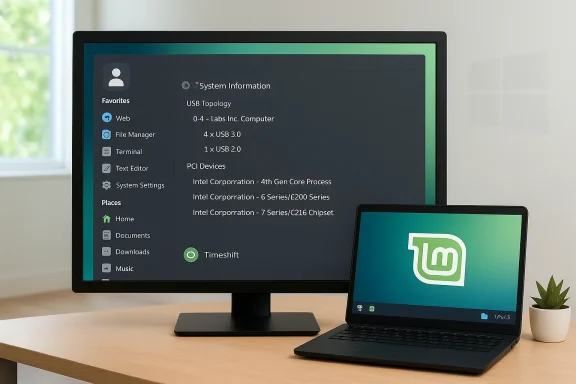
- The application menu is redesigned with a sidebar for avatar, favorites, and places, and the menu offers new layout options and search-bar placement choices.
- Input handling, especially for non-English layouts and complex input methods like IBus, is improved — a practical improvement for multilingual users and a key piece of progress for Cinnamon’s Wayland support.
- Visual clarity improved via full-color icons in the interface and notification badges in the window list, making it easier to spot unread messages or alerts at a glance.
System tooling: diagnostics, boot control, and backups
- System Reports has been rebadged and rebuilt as System Information: it’s now a full diagnostic center showing USB topology (controllers, speeds, power limits), GPU hardware acceleration status, PCI devices with driver assignments and IDs, and BIOS/firmware information including Secure Boot and boot mode. That consolidation reduces the need to parse command-line logs when troubleshooting hardware.
- A new System Administration tool (root-requiring) adds a simple GUI for GRUB/boot menu behavior: show/hide, timeout, and boot parameters. It’s a small but meaningful step to give less technical users safe access to low-level boot options.
- Timeshift gains pause-and-resume for snapshot operations, so backups are less disruptive to interactive usage.
- Warpinator adds IPv6 support and a text-message capability for on-network messaging between devices.
- Nemo 6.6, the Mint file manager, adds pause/resume for file transfers, a Template Manager for "Create New" templates, and improved search matching.
Visual consistency: XApp Symbolic Icons (XSI)
Mint introduced the XApp Symbolic Icons (XSI) to ensure consistent monochrome category icons across the desktop. This is a deliberate response to fragmentation and changes in GNOME’s Adwaita set: Mint now maintains a native icon path that preserves visual consistency for non-GNOME apps and symbolic (monochrome) icon themes.Strengths: why this release matters for Windows-to-Linux migrants
1) Long-term stability with modern hardware support
Zena’s HWE-based kernel gives users modern hardware compatibility while remaining within the 22.x line. For users who dread frequent OS upgrades or hardware-forced refresh cycles, this is a big win: you can benefit from updated drivers and kernels without an explosive change to desktop behavior.2) A familiar, friendly desktop that respects power users
Cinnamon retains the Windows-like mental model — panels, a central menu, system tray — but with modern conveniences (notification badges, workspace UX refinements, fractional scaling improvements). That means less retraining for a typical Windows user and quicker day-to-day productivity.3) Better, discoverable system diagnostics
The new System Information and System Administration apps turn formerly arcane maintenance tasks into GUI operations. For users who have lived through Windows repair modes and convoluted startup settings, this is a solid ally: diagnostics for USB and PCI, BIOS info, and a GUI for GRUB make troubleshooting approachable.4) Practical UX wins that desktop power users will appreciate
Pause/resume file copies in Nemo, pausable Timeshift snapshots, Warpinator IPv6/text support — these are not flashy, but they are exactly the types of small, usable improvements that compound into a better daily experience.5) Sensible upgrade path and LTS lifecycle
Because Mint tracks Ubuntu’s LTS stack, the productization and security update cadence are predictable. The declared support window to 2029 matches expectations for users who want to avoid frequent migrations.Risks and limitations — what to test before you switch
For a candid decision you must weigh practical downsides. Zena is excellent — but not flawless. Here are the main risks experienced users and reviewers have flagged.1) HWE kernel regressions and driver issues
- The 6.14 HWE kernel brings wider hardware compatibility, but it also introduces regressions for certain use cases. Reports and upstream bugs have shown issues with VirtualBox modules and some older NVIDIA cards that depend on the legacy 470 driver (which NVIDIA no longer maintains for newer kernels).
- Practical consequence: VirtualBox users or those with older proprietary GPU drivers should test carefully before upgrading. You can boot older kernels from GRUB or install a different Mint release to retain a less aggressive kernel.
2) Proprietary drivers and closed-source modules
Closed-source kernel modules (certain NVIDIA driver versions, proprietary Wi‑Fi drivers, and some virtualization modules) are more brittle when a kernel changes. Mint’s Driver Manager generally handles NVIDIA drivers well, but exceptions persist — particularly for end-of-life driver series.3) Wayland readiness remains a work in progress
Cinnamon’s Wayland support is improving (notably for input methods), but it is not yet the default, fully-featured replacement for X11. If you depend on workflows that explicitly require mature Wayland behavior (e.g., certain screen-capture or DRM workflows), test them.4) Migration friction around specialized Windows applications
- Native Windows business or industry apps don’t magically run better under Mint. Wine, Proton, and virtualization remain useful tools, but they require per-app testing.
- If you depend on specialized Windows-only software that lacks Linux ports or stable compatibility layers, you must plan for either dual-boot, virtualization (VM), or cloud/remote-hosting options.
5) Some early-adopter rough edges
Early reports from user forums and community threads show a handful of isolated issues — freezes, missing icons in certain corner cases, and the occasional X11/driver hiccup. These are typical for any point release that upgrades kernels and drivers. Mint’s conservative defaults and its community support model mitigate risk, but cautious users should wait a short window or test in a VM/live USB first.Migration strategy: practical, tested steps for Windows users
If you’re considering switching a primary Windows workstation to Linux Mint 22.3, follow this pragmatic, sequential plan to reduce risk and downtime.- Back up everything first.
- Make a complete image or use file-level backup. Windows users should export browser bookmarks, email archives, and application-specific data (e.g., Photoshop presets, office templates).
- Test on hardware without commitment.
- Create a live USB and boot Mint 22.3 in live mode to confirm basic hardware support (Wi‑Fi, sound, GPU output, keyboard, touchpad).
- Alternatively, install in a VM (VirtualBox/VMware). Note: VirtualBox may require kernel-module adjustments; if you rely on VirtualBox heavily, perform additional testing.
- Check proprietary driver compatibility.
- Use Driver Manager in the live session (or after installing) to see recommended NVIDIA or Broadcom drivers. If Driver Manager suggests legacy or unsupported drivers, investigate alternatives.
- Validate critical apps.
- Test the applications you can’t live without. For Windows-only apps, test via Wine/Proton or a VM. If an app fails, identify whether a Linux-native alternative or cloud-hosted equivalent exists.
- Use Timeshift and snapshots.
- Before any major change, take a Timeshift snapshot. If something goes wrong, snapshot-based rollback is fast and reliable.
- Install and update incrementally.
- Apply all updates after installation and reboot. If you use the HWE kernel and find regressions, boot the previous kernel from GRUB and decide whether to stick with it.
- Keep a rescue plan.
- Maintain a Windows recovery USB or an image backup for the first 30 days. Treat your migration like any critical change: roll-back options reduce anxiety.
- Learn key terminal commands (optional but recommended).
- Basic package management (apt), driver handling, and Timeshift restore commands will make occasional troubleshooting far easier.
Use cases: who should move now and who should wait
Move now if:
- You want a modern, stable desktop that is friendly to ex-Windows users.
- Your hardware is less than 5 years old and you value an LTS support window through 2029.
- You prefer a desktop that emphasizes user control, discoverable diagnostics, and reversible system snapshots.
- You want an OS with a strong community and practical utilities to make the transition smoother.
Wait or test more if:
- You rely on legacy proprietary drivers (e.g., old NVIDIA 470-series) or expect to use VirtualBox heavily.
- Your workflow depends on a single, mission-critical Windows-only app that’s not well supported in Wine/Proton or via virtualization.
- You need a fully mature Wayland environment for specialized workflows immediately.
Deep-dive: what Cinnamon 6.6 and Nemo 6.6 actually change day-to-day
Menu and workflow refinements
The redesigned menu is not a cosmetic tweak; it shortens the path between intent and action. The sidebar places Favorites, Places, and your avatar in a single, persistent column. That reduces the number of clicks to reach frequent folders and mimics a Windows Start + Quick Access habit, making the first weeks of transition less jarring.Input and internationalization
Cinnamon’s input handling now places XKB layouts and IBus methods in parallel UI flows. For multilingual users, that means less fiddling and fewer sessions of "why won’t my keyboard layout switch in this app?" — an accessibility and completeness improvement.File operations and reliability
The long-requested ability to pause and resume file transfers in Nemo addresses a glaring productivity gap that Windows users have taken for granted. When copying big archives or moving VMs, being able to pause to give resources back to the interactive session can vastly improve responsiveness.Backup hygiene
Timeshift snapshots are no longer a block operation; pausing snapshots when you need interactive responsiveness is a pragmatic improvement. This change makes frequent snapshotting less costly in daily use.The market context: why Mint matters now
Windows 10’s consumer support officially ended in October 2025, and many users face either forced hardware upgrades to meet Windows 11’s requirements or short-term paid extension programs. That transition has nudged an unusual number of non-technical users to evaluate alternatives. Linux Mint’s conservative, familiar desktop and its new diagnostics and administration tools position it as a credible replacement for many everyday Windows users who prioritize longevity and user control over cloud-tethered upgrade cycles.Mint’s approach — conservative UX with a modern kernel and clear upgrade paths — addresses the central anxiety many Windows users have: losing control of their systems to opaque update cycles. Where Windows pushes periodic big-version upgrades that often coincide with hardware refreshes, Mint offers a predictable LTS window and in-place HWE updates. That’s attractive for users who prefer to keep existing hardware longer.
Final verdict — a balanced perspective
Linux Mint 22.3 "Zena" is not a gimmick or a rebrand — it’s a thoughtful, incremental evolution that closes several gaps that used to make Windows users hesitate. Its combination of an LTS-aligned lifecycle, a more modern HWE kernel, improved diagnostics, and daily-use refinements (pause/resume file operations, better menu ergonomics, and more discoverable backup controls) make it arguably the most polished Mint release in years.That said, no migration is zero-risk. The HWE kernel introduces both capability and a small surface area for regressions, especially around proprietary drivers and virtualization modules. Your success depends on realistic testing: confirm driver and app compatibility before switching primary machines, and keep robust backup/snapshot strategies in place.
For Windows refugees who value a familiar desktop, clear control over the system, and a long maintenance horizon without forced quarterly reinvention, Linux Mint 22.3 is the most compelling practical alternative available today. It doesn’t solve every edge-case — especially proprietary driver woes or Windows-only enterprise apps — but in the daily-to-weekly user experience, it delivers a predictable, modern, and humane computing environment that is finally ready for mainstream adoption.
Quick checklist before you make the jump
- Take a full backup and create a Windows recovery image.
- Test Mint 22.3 from a live USB or VM; confirm Wi‑Fi, audio, and display.
- Verify proprietary driver recommendations in Driver Manager.
- Test your critical applications (native, Wine/Proton, or VM).
- Create a Timeshift snapshot immediately after a fresh install.
- Keep an alternate kernel available in GRUB if you experience regressions.
- Read the Mint 22.3 release notes and known-issues list to check for hardware-specific caveats.
Linux Mint 22.3 is not a philosophical experiment; it is a practical, polished desktop that lowers the barrier to switching from Windows while providing the update predictability and control many users crave. For anyone rethinking their OS in 2026, Zena deserves serious consideration — provided you test your hardware and critical workflows first.
Source: MakeUseOf Linux Mint released its best version yet, and it’s the ultimate Windows replacement
