

Lively Wallpaper can turn an ordinary Windows 11 desktop into a moving, interactive canvas — and for many users it’s become the first app they install on a fresh system. What began as a community-built, free, open-source utility has matured into a polished Windows-native experience that supports videos, GIFs, webpages, shaders, and even small Unity/Godot scenes as desktop backgrounds. It’s lightweight by design, pauses itself when you run fullscreen apps or games, and gives you per-wallpaper customization that makes animated desktop backgrounds practical, not just eye candy.
Lively Wallpaper’s combination of open-source transparency, WinUI-native polish, and pragmatic performance controls make it a practical tool rather than a gimmicky toy. For anyone who enjoys personalization without sacrificing performance, it’s a rare win: motion and interactivity that behave like a first-class citizen on Windows 11.
Source: MakeUseOf My Windows 11 desktop is unrecognizably stunning with this wallpaper app
 Background
Why animated wallpapers matter again
Windows personalization has always been an emotional shortcut to making a PC feel like “home.” Static wallpapers do the job, but animated and interactive wallpapers add motion, context, and — when used appropriately — utility. In recent years, third-party apps filled the gap left by the OS: Wallpaper Engine on Steam built a massive paid ecosystem, while free options like Lively Wallpaper offered a lighter, open alternative for users who want motion without a price tag. Lively’s focus on efficiency and native Windows design has made it a standout option for Windows 11 users.Where Lively fits in the wallpaper ecosystem
Lively occupies the middle ground between full-featured paid tools and simple slideshow apps. It’s:- Free and open-source (GPLv3), with source and releases hosted on GitHub.
- Available on the Microsoft Store for easy installs, or downloadable as an installer for offline use.
- Built with WinUI 3 and the Windows App SDK to provide a native Windows 11 look and feel.
What Lively Wallpaper does (Overview of capabilities)
Supported wallpaper types
Lively supports a wide variety of wallpaper types — not just video files:- Video files (MP4, MKV, AVI and other common formats)
- Animated GIFs
- Web pages and interactive web content (rendered with a Chromium-based renderer)
- YouTube and other online video links (added as web-based wallpapers)
- Shadertoy shaders and custom shader URLs
- Small Unity and Godot projects that run as wallpaper via Lively’s runtime support
Per-monitor and multi-monitor behavior
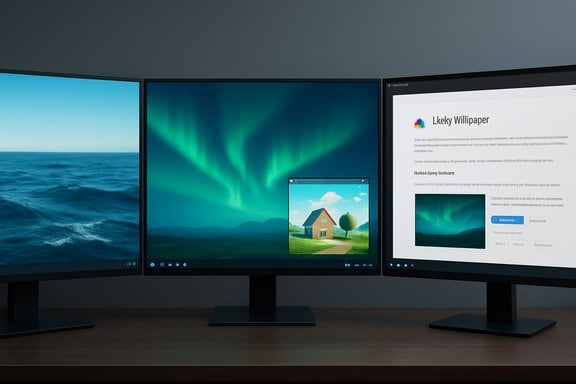
Lively treats multi-monitor setups as first-class citizens: you can span a single animated wallpaper across multiple displays or assign different wallpapers to each monitor. High-DPI and ultrawide resolutions are supported, and per-display settings let you tailor quality and performance.Performance features and pause logic
Perhaps the single most important technical claim Lively makes — and backs up — is efficiency. The app implements multiple algorithms to detect when the wallpaper should pause:- Grid detection (default): divides the screen into tiles and determines when windows cover a set percentage of the display.
- Foreground or All Process checks: pause depending on active or covering apps.
- Direct3D detection for exclusive fullscreen games.
How to set a video or web page as wallpaper — a practical guide
The UI is intentionally simple: Lively’s Library is where wallpapers live; the Add button creates new entries. Here is a step-by-step for turning a video into your wallpaper:- Install Lively Wallpaper from the Microsoft Store (recommended) or download the installer from the GitHub releases page.
- Launch Lively Wallpaper. The Library view shows installed and built-in wallpapers.
- Click the “+” (Add wallpaper) button or drag-and-drop a file into the Library area. You can also paste a URL for web-based wallpapers.
- In the Add dialog, choose the file (MP4, MKV, GIF, etc. or enter a web/YouTube URL. Give the wallpaper a Title and optional Description, then click OK.
- Customize playback settings: mute audio, cap FPS, change playback speed, tweak saturation/contrast, or apply shaders where supported. Close the dialog and the wallpaper immediately becomes active.
Why Lively Wallpaper stands out — strengths and notable features
1. Open-source, free, and transparent
Because Lively is open-source on GitHub, the code is visible and the community can contribute. That eliminates lock-in and makes the app easier to trust for privacy-conscious users. The project also maintains release notes and a public issue tracker, so the development process is transparent.2. Native Windows 11 UI (WinUI 3)
Lively uses WinUI 3 and the Windows App SDK to deliver a modern, consistent experience — its UI looks and behaves like a native Windows 11 app rather than a patched-together utility. That reduces friction for users who prefer a polished look.3. Real performance controls and smart pause
The app’s pause algorithms and per-app rules keep resource impact minimal. Unlike some animated wallpaper tools that keep burning CPU/GPU cycles even when a game is running, Lively is designed to hand those resources back automatically. You can tailor the behavior in Performance settings.4. Wide media and interactivity support
From simple MP4s to fully interactive webpages and audio-reactive shaders, the variety is impressive. Shadertoy integration and the ability to run small Unity/Godot scenes make Lively attractive for creative users who want more than a looping clip.5. Screensaver and automation capabilities
Lively can act as a screensaver and supports command-line control and automation — useful for kiosk setups or creative rigs. The installer version even provides screensaver plugins that can run independently of the app.Trade-offs and potential risks — what to watch out for
No app is flawless. Lively excels in many areas, but there are real caveats and security considerations.Resource and battery impact
- Animated wallpapers necessarily use more resources than static images. Even though Lively pauses intelligently, running high-resolution or complex web-based wallpapers can increase background GPU/CPU usage and impact battery life on laptops. Always test on battery and use the “pause on battery” option if needed.
Security and privacy concerns with web-based wallpapers
- Webpage wallpapers run inside a Chromium-based renderer. That means arbitrary web content can execute JavaScript on your desktop. Treat third-party webpages and unknown shader URLs with the same caution you’d give any website. Avoid untrusted or obscure web sources, and prefer files you host locally if you’re security-conscious. The GitHub docs explicitly note Lively uses a Chromium renderer for webpages.
Installer vs. Microsoft Store — SmartScreen and trust
- The Microsoft Store build is easier and more trusted for most users. The standalone installer can trigger SmartScreen or antivirus heuristics on some systems — a common issue for small open-source binaries distributed outside the Store. The project’s documentation and community recommend using the Store version where possible; the installer exists for users who prefer a traditional setup or need features the Store version limits.
Compatibility with Windows Insider builds and HDR
- Users have reported cases where particular Windows Insider builds or HDR configurations caused Lively to behave unexpectedly. The developer actively tracks issues on GitHub and releases fixes, but there may be a lag on bleeding-edge OS builds. If you rely on Insider builds, expect occasional hiccups.
Antivirus false positives and user caution
- Some antivirus products have flagged Lively as suspicious in certain configurations. This is often a false positive due to heuristics, but always download the app from official sources (GitHub releases or the Microsoft Store) and scan installers if you’re unsure. The community has documented instances where users saw alerts; checking the project repository and verifying signatures helps reduce risk.
Troubleshooting: common problems and fixes
- Wallpaper won’t play or shows black: try reinstalling the Microsoft Store version; toggle HDR off, test again; check for known GitHub issues for your Windows build.
- App flagged by SmartScreen after installer: use the Microsoft Store distribution to avoid SmartScreen warnings, or verify the installer hash on the GitHub Releases page.
- Sluggish window dragging when wallpaper is active: reduce wallpaper resolution, lower FPS cap, or add the affected application to the “pause” list in Performance settings.
- Audio visualizer or web content misbehaving: ensure the wallpaper’s source is reachable and lightweight; complex web pages may require rendering power similar to a browser tab. Prefer purpose-built shader or webpage wallpapers for best results.
Lively vs. Wallpaper Engine vs. upcoming native Windows features
Comparison snapshot
- Lively Wallpaper: Free, open-source, WinUI-native, lightweight, supports videos/GIFs/webpages/Shadertoy/Unity/Godot, Microsoft Store and installer. Great balance of features and cost (free).
- Wallpaper Engine: Paid ($4.99 on Steam), massive Workshop community, deep authoring tools, reskins for audio visualizers, robust performance tuning and sharing. Best for power users who want a massive library and creator tools.
- Native Windows video wallpaper (coming): Microsoft has been testing native video wallpaper support in Insider builds; when available, this will let users set basic video backgrounds without third-party apps. That feature will reduce the need for simple video-as-wallpaper use-cases but won’t match the interactivity and shader/Unity/Godot support of Lively or Wallpaper Engine. Keep an eye on native rollout — it’s a meaningful shift for the ecosystem.
How to think about choosing
- If you want a free, open, and flexible solution with interactive possibilities and frequent updates: Lively is a compelling choice.
- If you want the largest library, mature editor, and don’t mind paying a one-time fee: Wallpaper Engine is the go-to.
- If you only need to set a video as wallpaper and prefer an OS-native option: watch for Microsoft’s native video wallpaper feature and consider switching when it’s available. But note that native support likely won’t cover advanced interactivity and shader content.
Advanced tips and workflows
- Use per-wallpaper quality settings to balance visuals and performance. Lower resolution or FPS caps when you are doing CPU/GPU intensive tasks.
- Prefer local files for privacy — web-based wallpapers are convenient but introduce remote resources and scripts. Host your favorite animations locally when possible.
- If you stream music and want visual reaction, select an audio-visualizer wallpaper or enable the app’s audio features (it reads system audio data for reactive wallpapers).
- For gamers: add your game’s executable to Lively’s “Application Rules” and set it to pause automatically so you get maximum performance while gaming.
Community, development, and the future
Lively’s GitHub repository is active — releases, changelogs, and community issue threads show a responsive development cycle. The project accepts contributions, has a Patreon for supporters, and exposes a developer API that lets creators craft interactive wallpapers that access hardware readings or audio information. That openness creates a vibrant small ecosystem for creators who want to publish shaders, web-based wallpapers, or Unity/Godot scenes. At the same time, the Windows personalization landscape is changing: native video wallpaper support in Windows may lessen the need for third-party tools for simple video wallpapers, but Lively’s interactivity, shader integration, and open design give it a distinct niche that native implementations may not cover. For now, Lively remains relevant for users who want more than a looping clip on their desktop.Final verdict — who should install Lively Wallpaper?
Lively Wallpaper is an excellent pick if you:- Want animated or interactive Windows 11 wallpapers without paying for a license.
- Prefer open-source software that you can audit or modify.
- Need per-app and per-monitor performance control so wallpapers don’t interfere with gaming or heavy workloads.
- Enjoy creative or generative wallpaper types (Shadertoy, Unity/Godot, audio visualizers).
Lively Wallpaper’s combination of open-source transparency, WinUI-native polish, and pragmatic performance controls make it a practical tool rather than a gimmicky toy. For anyone who enjoys personalization without sacrificing performance, it’s a rare win: motion and interactivity that behave like a first-class citizen on Windows 11.
Source: MakeUseOf My Windows 11 desktop is unrecognizably stunning with this wallpaper app
