

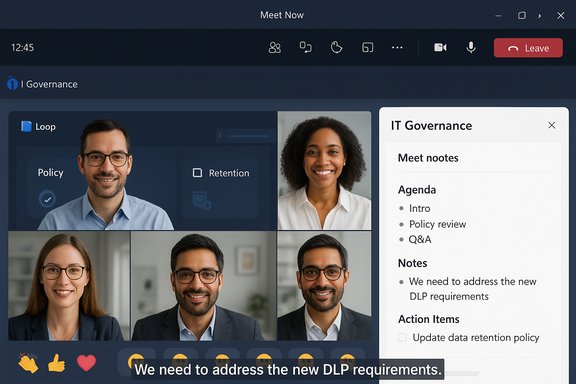
Microsoft’s Teams roadmap is pointing at two practical, user-facing additions that will change how many organizations run spontaneous collaboration: Loop-powered meeting notes in instant calls and chats, and tenant-branded meeting reactions. Both items are listed for rollout in early 2026 and, together, they aim to make ad‑hoc meetings more structured and on‑brand — but they also raise important governance, accessibility, and security questions that IT teams should prepare for now.
Microsoft has been steadily weaving Loop components and Copilot experiences across Microsoft 365 to make collaboration more fluid and AI‑assisted. Until now, Teams’ collaborative meeting notes (Loop components) have been tied primarily to scheduled meetings and channel meetings; casual “Meet now” sessions and calls from chat have often lacked the structured, shareable notes experience. Separately, Teams’ reaction and emoji system has evolved from a simple set of reactions into a customizable set of tenant‑level images and GIFs — and Microsoft is extending that capability into meetings with branded reaction icons that admins can upload and manage.
These changes are listed in Microsoft’s planning channels as scheduled for early 2026 and reflect a broader push to blur the lines between scheduled and ad‑hoc collaboration while giving organizations tools to enforce consistent branding and templates across meeting artifacts.
Key points for IT teams:
However, these features are not purely benign. The ownership model of Loop components, the interaction with retention and legal holds, and the potential for brand and accessibility mistakes create genuine governance overhead. Administrators will need to plan — now — for policies, training, and pilot testing so that these additions deliver value without creating brittle processes or compliance gaps.
In short: treat these roadmap updates as useful building blocks. Plan governance and pilot them thoughtfully; when deployed correctly they will increase meeting productivity and cohesion — when ignored they risk adding noise, ownership confusion, and compliance complexity.
Source: Windows Report Microsoft Teams Will Add Loop Meeting Notes and Branded Reactions in 2026
 Background
Microsoft has been steadily weaving Loop components and Copilot experiences across Microsoft 365 to make collaboration more fluid and AI‑assisted. Until now, Teams’ collaborative meeting notes (Loop components) have been tied primarily to scheduled meetings and channel meetings; casual “Meet now” sessions and calls from chat have often lacked the structured, shareable notes experience. Separately, Teams’ reaction and emoji system has evolved from a simple set of reactions into a customizable set of tenant‑level images and GIFs — and Microsoft is extending that capability into meetings with branded reaction icons that admins can upload and manage.These changes are listed in Microsoft’s planning channels as scheduled for early 2026 and reflect a broader push to blur the lines between scheduled and ad‑hoc collaboration while giving organizations tools to enforce consistent branding and templates across meeting artifacts.
What’s changing: an overview
- Loop Meeting Notes for Instant Calls and Meet Now
- Meeting notes powered by Loop components will be available for instant meetings and calls started from chat, not only scheduled meetings. That means users can create, co‑author, and persist structured agendas, notes, and action items even when a meeting isn’t planned on the calendar.
- Branded Meeting Reactions
- Tenants will be able to upload custom reaction icons (emojis/GIFs) that are instantly available to meeting participants. This places corporate identity — or event‑specific imagery — into the real‑time reactions palette used during meetings.
- Copilot support continuing across meeting workflows
- Parallel updates to Copilot in Outlook and Teams will improve meeting prep and follow‑up, and some Copilot experiences will require specific licenses.
Loop meeting notes in instant meetings — deep dive
How it works
- Loop components are modular, co‑editable elements that live across Microsoft 365 (Teams, Outlook, OneDrive/Loop app). When a component is used as meeting notes, it provides:
- Real‑time collaborative editing during the meeting.
- Structured fields for agenda items, notes, and action items that can be assigned and tracked.
- Automatic synchronization across all places the component is shared, so edits in the meeting, chat, or Loop web app remain consistent.
- With the planned change, the same Loop component will be creatable and attachable to an instant meeting (Meet now) or call started inside chat. That means participants in a spontaneous call can launch a shared notes space without scheduling a calendar entry first.
Benefits for end users
- Faster capture of decisions and actions in ad‑hoc conversations.
- Reduced friction when turning conversations into trackable work items (integration with Planner/To Do via assigned tasks).
- Persistent context for follow‑up: notes remain discoverable after the meeting in the Loop app and may appear in meeting recap artifacts.
Admin and governance considerations
- Storage and ownership — Loop components are stored in the OneDrive for Business account of the component creator unless moved to a shared workspace. That creates several operational considerations:
- If the component creator leaves the company or deletes their account, access can be disrupted unless components are moved to a shared location first.
- Admins may want to adopt a practice of creating meeting templates or shared workspaces for recurring teams to reduce ownership risks.
- Sharing links and access controls — Loop components generate company shareable links by default in many configurations. Tenants that prefer restrictive access can change defaults to people‑specific links, but this requires careful admin configuration to avoid access‑friction for forwarded meeting invites.
- Known limitations to watch for — historically, Loop notes have had platform and scenario limitations (e.g., channel meeting edge cases, mobile support differences). The expansion to instant meetings will likely follow a staged rollout; admins should track tenant release rings and test in pilot groups.
Security, compliance, and eDiscovery
- Loop components are treated like other Microsoft 365 content for compliance and eDiscovery, but they introduce nuance:
- Because components can be embedded across chat, channel, and meeting contexts, search and retention behaviors may vary depending on where the component is stored and how sharing links are configured.
- Organizations with strict retention or legal hold requirements should map Loop component storage to existing retention policies; in many environments, components will be discoverable via OneDrive search and eDiscovery exports.
- Admins should ensure that Loop features are governed by existing Data Loss Prevention (DLP), sensitivity labels, and Information Protection rules. If sensitive content appears in a meeting note, it inherits the protection posture of its storage location.
Branded meeting reactions — what to expect
What branded reactions are
- Branded reactions let tenant admins upload custom icons and animated images that appear in the Teams reactions menu used in meetings. These are available to meeting participants in the tenant and are meant to reinforce visual identity during live interactions.
Practical use cases
- Corporate all‑hands where reactions use brand mascots or event logos for recognition and polls.
- External presentations where a partner’s or customer’s icon is used to denote feedback during a co‑presented session.
- Seasonal or campaign overlays (e.g., product launch icons, anniversary badges) that create a cohesive meeting experience.
Administrative controls and limits
- Tenant admins control who can upload custom reactions; many tenant settings allow admins to:
- Restrict who may create custom emojis or reactions.
- Limit the number of custom images.
- Enforce content policies for imagery (to prevent inappropriate or copyrighted images).
- Capacity: custom emoji systems in Teams already have tenant quotas in place (for related features administrators can add thousands of custom emojis). Tenants should confirm exact limits in admin docs and plan governance accordingly.
Risks and moderation
- Brand misuse: allowing broad upload rights could result in off‑brand or unapproved images circulating in meetings.
- Legal/copyright exposure: uploaded images must be owned or licensed by the tenant; otherwise, the organization may be exposed to claims.
- Accessibility impact: decorative or animated reactions must not be the sole channel of communication for important meeting outcomes; meetings should continue to use captioning, transcripts, and accessible artifacts.
Copilot, Outlook Classic, and the meeting lifecycle
Microsoft is pushing Copilot into more parts of the meeting lifecycle: agenda creation, meeting prep summaries, and follow‑ups. Some Copilot features require specific licenses and may appear first in preview or in the “new Outlook” experiences before being added to the classic Win32 client.Key points for IT teams:
- License gating: features like Copilot‑created meeting agendas or attachment summarization are gated behind Copilot licenses; plan license assignments accordingly.
- Privacy and prompt data: Copilot interactions may be logged for service health and quality; tenants concerned about exposure of prompts or meeting content should review Copilot admin controls and the organization’s data‑handling policies.
- User training: Copilot can accelerate note and agenda creation, but outputs should be validated — Copilot is a synthesis tool and can hallucinate or misattribute facts unless checked.
Implementation checklist for IT teams (practical steps)
- Audit current Loop usage and ownership patterns in your tenant:
- Identify who creates Loop components and how often components are used for meetings.
- Update admin policies and permissions:
- Define who’s allowed to create Loop components and who can upload branded reactions.
- Configure sharing defaults:
- Decide on company shareable links (CSL) vs people‑specific links (PSL) based on your collaboration model.
- Align retention and compliance:
- Ensure Loop component storage flows into your existing eDiscovery, retention, and DLP policies.
- Pilot with a small group:
- Run a pilot to validate cross‑platform behavior (desktop, web, mobile) and verify interactions with Planner/To Do.
- Train users and meeting organizers:
- Teach best practices for meeting notes ownership, when to move notes to a shared workspace, and how to use branded reactions responsibly.
- Monitor platform health and user feedback:
- Watch for sync issues, permission errors, or confused ownership flows; adjust governance as needed.
Potential pitfalls and risks
Operational complexity from ownership model
Loop components residing in personal OneDrive accounts can make access brittle. Organizations that rely on ephemeral meeting notes must set guidelines for moving important meeting notes into shared team workspaces.Compliance surprises
Because Loop components can be embedded across different locations, admins must verify that legal holds and retention labels apply consistently. Failure to do so could leave important artifacts outside compliance controls.Brand governance and misuse
Giving broad upload rights for branded reactions opens the door to accidental or malicious use of brand assets. A small governance process (approval workflow or a designated branding team) is recommended.Accessibility and inclusion
Animated or purely visual reactions cannot replace accessible cues. Ensure meetings still rely on captions, accessible notes, and text‑based actions for people using assistive technologies.User confusion during staged rollouts
If the feature is released to targeted rings first, mixed experience inside the same organization (some users having the feature, others not) can be confusing. Coordinate pilot and training communications.Performance and UX considerations
- Real‑time sync of Loop components is generally performant but depends on network conditions and OneDrive performance. Expect the same troubleshooting patterns as other OneDrive‑backed collaboration experiences.
- Mobile clients have historically trailed desktop capabilities for Loop and some meeting UI elements. Verify mobile experience in pilot groups before broadly communicating the feature.
- Branded reactions are lightweight in terms of payload, but animated GIFs can be more distracting; encourage lightweight assets and a consistent style guide.
Roadmap reliability and timeline caution
Roadmap release dates are useful planning signals, but they are estimates and subject to change. Staged rollouts — targeted release rings, private previews, and general availability — are how these features typically move from concept to tenant-wide availability. IT teams should:- Treat the February 2026 rollout target as a planning milestone, not a hard guarantee.
- Use pilot windows to catch policy, permission, and platform compatibility issues early.
- Monitor tenant message center posts and admin notifications for last‑minute timeline updates.
Recommendations for admins and IT leaders
- Create a short policy for meeting note ownership and archiving that establishes whether ad‑hoc meeting notes should live in personal OneDrive or be moved to a shared team space.
- Build a lightweight approval workflow for branded reaction uploads and maintain a small, curated pack of approved icons that reflect corporate identity and accessibility best practices.
- Update training materials and quick‑start guides to show how to start shared notes in an instant meeting and how to convert meeting notes into assignable tasks.
- Validate compliance mapping for Loop components with Legal and Compliance teams; ensure legal holds and retention labels apply correctly.
- Reserve a pilot group and timeline, test across desktop, web, and mobile, and collect telemetry and user feedback.
What to tell users (concise guidance to share internally)
- Instant meetings will soon support shared, co‑authored meeting notes — start them from the meeting pane and assign action items directly in the note.
- Reactions in meetings may include approved tenant icons; use them for engagement, not for final approval or signature of decisions.
- If you’re the primary owner of an important meeting note, move it to a shared team workspace to avoid access problems if you change roles or leave the organization.
Final analysis: useful, but not without tradeoffs
The arrival of Loop meeting notes for instant meetings and branded meeting reactions is a pragmatic, incremental improvement to Teams: it reduces friction for turning quick conversations into persistent artifacts and helps organizations extend brand identity into live collaboration. For knowledge work organizations that rely on fast, distributed decision‑making, the ability to produce structured notes and assign tasks during unplanned conversations can materially reduce “lost action items” and follow‑up overhead.However, these features are not purely benign. The ownership model of Loop components, the interaction with retention and legal holds, and the potential for brand and accessibility mistakes create genuine governance overhead. Administrators will need to plan — now — for policies, training, and pilot testing so that these additions deliver value without creating brittle processes or compliance gaps.
In short: treat these roadmap updates as useful building blocks. Plan governance and pilot them thoughtfully; when deployed correctly they will increase meeting productivity and cohesion — when ignored they risk adding noise, ownership confusion, and compliance complexity.
Source: Windows Report Microsoft Teams Will Add Loop Meeting Notes and Branded Reactions in 2026
