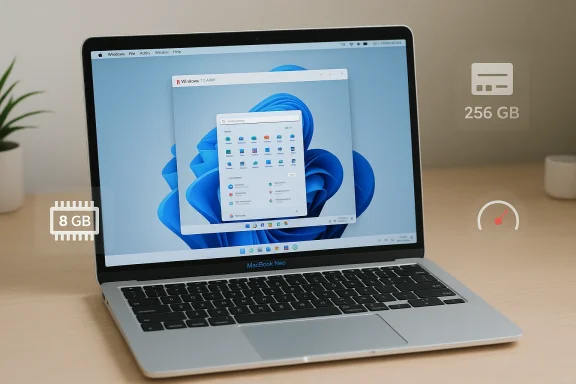
Parallels’ engineers have quietly confirmed what many Mac shoppers have been wondering this week: the $599 MacBook Neo can run Windows inside Parallels Desktop. The caveat is immediate and practical — Parallels’ initial tests show that virtual machines install and operate stably on the Neo, but real-world performance will hinge on what you plan to run inside Windows. With an A18 Pro chip, only 8 GB of unified memory, and a fanless, passively cooled chassis, the Neo is optimized for lightweight macOS tasks and on-device AI features — not sustained, heavyweight Windows workloads or modern gaming. This is good news for users who need occasional Windows-only utilities; a cautionary note for anyone considering the Neo as a daily workstation replacement for Windows-native software.
Apple’s new MacBook Neo arrives as a low-cost, highly energy-efficient entry in the Mac lineup. The Neo ships with an Apple A18 Pro system-on-chip (6‑core CPU, 5‑core GPU, hardware-accelerated media engine and a 16‑core Neural Engine), choices of 256 GB or 512 GB SSD, and 8 GB of unified memory as standard — and crucially, no memory upgrade option at purchase. Apple’s positioning emphasizes everyday tasks, battery life, and on-device AI capabilities rather than raw sustained compute.
Parallels Desktop — the market-leading virtualization product for macOS — updated its knowledge‑base after running initial compatibility tests on Neo hardware. The company reports that Parallels installs and VMs operate stably in basic usability testing, and that the Neo’s A18 Pro exposes the virtualization features Parallels needs through macOS’ hypervisor framework. At the same time Parallels warns that the experience varies by workload: light, occasional Windows use is reasonable, while CPU- or GPU‑intensive Windows applications are not what the Neo is designed for.
At stake for users are three interlocking constraints: the Neo’s limited memory footprint (8 GB total), its passive thermal design (no fan), and the limits of virtualization-based GPU acceleration on Apple silicon. Those constraints translate into very different experiences depending on whether you need a Windows app for a single task, or you expect to run modern Windows desktop workloads regularly.
Source: MacRumors Parallels Confirms MacBook Neo Can Run Windows in a Virtual Machine
 Background / Overview
Apple’s new MacBook Neo arrives as a low-cost, highly energy-efficient entry in the Mac lineup. The Neo ships with an Apple A18 Pro system-on-chip (6‑core CPU, 5‑core GPU, hardware-accelerated media engine and a 16‑core Neural Engine), choices of 256 GB or 512 GB SSD, and 8 GB of unified memory as standard — and crucially, no memory upgrade option at purchase. Apple’s positioning emphasizes everyday tasks, battery life, and on-device AI capabilities rather than raw sustained compute.Parallels Desktop — the market-leading virtualization product for macOS — updated its knowledge‑base after running initial compatibility tests on Neo hardware. The company reports that Parallels installs and VMs operate stably in basic usability testing, and that the Neo’s A18 Pro exposes the virtualization features Parallels needs through macOS’ hypervisor framework. At the same time Parallels warns that the experience varies by workload: light, occasional Windows use is reasonable, while CPU- or GPU‑intensive Windows applications are not what the Neo is designed for.
At stake for users are three interlocking constraints: the Neo’s limited memory footprint (8 GB total), its passive thermal design (no fan), and the limits of virtualization-based GPU acceleration on Apple silicon. Those constraints translate into very different experiences depending on whether you need a Windows app for a single task, or you expect to run modern Windows desktop workloads regularly.
Why architecture matters: A18 Pro, ARM, and virtualization
ARM architecture and Apple silicon
The MacBook Neo’s A18 Pro is an ARM-based Apple silicon design derived from Apple’s mobile SoC work. That matters because Apple silicon Macs run Windows differently than the old Intel Macs did. On Intel Macs there was the option to run Windows natively (Boot Camp) or virtualized. On ARM-based Macs, Windows runs inside a virtual machine as an Arm-native Windows build — Windows 11 on Arm — and that guest OS in turn provides emulation for many legacy x86 apps.The hypervisor and Parallels’ approach
Parallels Desktop is a local hypervisor that leverages macOS virtualization APIs to run guest operating systems directly on the host hardware. For Apple silicon devices, Parallels runs the ARM build of Windows 11 in a VM, and the guest OS then handles binary translation for many legacy x86/x64 Windows applications. Parallels’ initial tests confirm that the Neo’s A18 Pro exposes the low-level virtualization support Parallels needs, so the VM can boot and run Windows.What that delivers — and what it doesn’t
This architecture delivers a couple of practical benefits: VM startup and basic app compatibility are possible, and many legacy Windows utilities will run fine. But there are important limitations:- The guest Windows is the ARM edition; some Windows programs and device drivers expect x86/x64 native hardware and will depend on the guest’s emulation layer, which can increase CPU overhead or introduce incompatibilities.
- GPU acceleration inside a VM is not the same as native GPU access. Parallels uses a translation layer (mapping DirectX/OpenGL calls to Metal) rather than true GPU passthrough, so graphics-heavy Windows workloads may be constrained.
- Memory and thermal ceilings are host-level constraints that virtualization cannot overcome.
Memory: the single most important limiter on MacBook Neo
8 GB unified memory is the reality
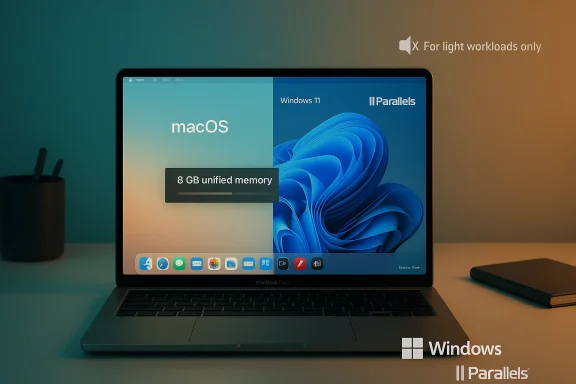
The Neo ships with 8 GB of unified memory shared across macOS and any running virtual machines. Microsoft’s minimum requirement for Windows 11 is 4 GB of RAM; that means a Windows 11 VM typically needs at least half of the Neo’s total memory to run at all. That leaves roughly 4 GB (or less) for macOS, background services, and the host applications you also want to run.What that feels like in practice
Allocating 4 GB to a Windows VM is the bare minimum to get Windows 11 operational. In this configuration you may be able to run:- Lightweight business utilities
- Legacy single-purpose apps (for example, some accounting packages, point-of-sale tools, or internal utilities)
- Microsoft Office light usage (Word, Excel — but not huge spreadsheets or complex macros)
- Web-based Windows apps through Edge/Chrome inside the VM
- Developer IDEs (large Visual Studio solutions)
- Desktop virtualization of large databases or analysis tools
- Heavy Office workloads with big datasets
- Modern Windows games or GPU-accelerated creative apps
Swap, SSD, and longevity considerations
When RAM is insufficient, both macOS and Windows will use swap (disk-backed memory). The Neo’s base SSD is 256 GB (optionally 512 GB), and while Apple builds fast flash storage into its Macs, swapping is still orders of magnitude slower than RAM and will dramatically raise latency for interactive tasks. Heavy swapping also increases write cycles to the SSD; while modern SSDs are durable, sustained swap-heavy workflows can accelerate wear over many years.Thermals and sustained performance: passive cooling matters
Fanless design means thermal throttling
The MacBook Neo is designed around passive thermal management: the aluminum chassis dissipates heat without an internal fan. That’s excellent for silence and battery life under light use, but under sustained CPU or GPU load the SoC will lower its clock speeds to stay within thermal limits. Parallels’ engineers explicitly note this behavior: the A18 Pro was designed for a mobile device thermal profile, and Neo’s passive design reduces performance during extended workloads.What throttling does to VMs
A virtual machine that briefly needs bursts of CPU power will likely behave acceptably. However, a VM running prolonged builds, large compilations, video exports, or GPU-accelerated workloads will see performance decline as the SoC throttles. Because the host and guest share the same physical cores, throttling impacts both macOS responsiveness and the Windows guest in lockstep.Graphics: virtualized, translated — and limited
How Parallels handles graphics on Apple silicon
Parallels provides 3D acceleration inside Windows VMs by translating DirectX and OpenGL calls into Metal API calls that macOS understands. This approach enables many 3D applications and older DirectX games to run, but it is not equivalent to direct hardware GPU passthrough and has functional limits.Current practical limits
- Parallels’ virtualization graphics support is robust for DirectX 11 / OpenGL‑level workloads, but modern DirectX 12+ features and higher-end gaming scenarios may not be available or may run poorly.
- Shader translation or driver differences can break specific games or workloads; some Unity or shader-heavy scenes, for instance, are known to encounter artifacts or compilation failures.
- GPU-accelerated Windows apps that expect dedicated Windows drivers and low-level GPU access will often underperform relative to native Windows machines with discrete GPUs.
Result for MacBook Neo
With the Neo’s modest 5‑core GPU and the translation layer overhead, expect acceptable performance for casual gaming or GPU-accelerated Windows utilities at low settings, but not parity with a Windows notebook built around a discrete GPU.Real-world use cases: where MacBook Neo with Parallels makes sense (and where it doesn’t)
Good fits (recommended)
- Single-purpose legacy business apps that are Windows-only (POS tools, certain industry-specific utilities)
- Occasional use of a Windows-only configuration or admin tool
- Light Office work inside Windows for compatibility testing or file behavior checks
- Educational or lab tasks where sessions are short and resource demands are low
Borderline / risky fits (use with caution)
- Software development where you occasionally build small projects and test in Windows — possible, but expect slow builds and long compile times.
- Older 3D games or indie titles that run at modest settings — may work but expect quality/performance compromises.
- Running a Windows-only web development toolchain or local server stack — doable for lightweight dev but not for large containerized environments.
Not a fit (avoid)
- Heavy video editing, 3D rendering, or GPU‑accelerated creative workflows in Windows
- Modern AAA gaming or competitive eSports play
- Large-scale virtualization, database servers, or running multiple heavyweight VMs
Alternatives and recommendations for buyers
If you need a Mac that will also serve as a capable Windows virtualization host, consider these options:- MacBook Air with M5: The newer MacBook Air models with the M5 chip start with 16 GB of unified memory as standard and offer a more powerful, actively cooled platform for heavier VMs and graphics workloads. This is the recommended step-up for users who expect regular Windows virtualization.
- Refurbished M4 or higher MacBook Air: Refurbished or certified pre-owned M4 MacBook Air units often already include 16 GB of memory and can be a cost-effective middle ground.
- A dedicated Windows laptop or desktop: For gaming, GPU-accelerated creative work, or professional Windows-only toolchains, a Windows PC with discrete GPU and expandable RAM will beat any VM on Neo.
- Cloud-based Windows instances: Services that stream Windows desktops or cloud PCs can offload CPU/GPU work to remote hardware and are attractive if you have a reliable high-speed connection and need occasional heavy workloads.
- Compatibility layers (CrossOver/Wine): If you only need a handful of Windows apps, a compatibility layer such as CrossOver can sometimes run those apps directly on macOS without a full VM or Windows license, reducing memory and thermal overhead.
A practical setup guide: trying Parallels on a MacBook Neo (short numbered steps)
- Plan expectations — treat the Neo as a light-use Windows host: for one-off tools and occasional sessions, not full-time heavy workflows.
- Install Parallels Desktop — get the latest version of Parallels Desktop for Mac, ideally the build updated after Parallels’ Neo compatibility testing.
- Obtain Windows 11 on Arm — use the ARM64 Windows 11 build that Parallels supports; ensure you have proper licensing (an authorized Windows license or a valid retail/enterprise key where appropriate).
- Create the VM and set memory — allocate 4 GB to the VM to meet Windows 11’s minimum; avoid allocating more than half of total memory on an 8 GB system.
- Adjust CPU core assignment — allocate fewer cores (1–2) to leave capacity for macOS; experiments show conservative CPU assignment reduces contention and thermal spikes.
- Optimize Parallels settings — enable “Optimize for battery” or “Better battery life” when not testing performance; toggle graphics settings to “Best for battery” if responsiveness is more important than raw frame rates.
- Keep session lengths short — for sustained heavy tasks, move to a more capable Mac or cloud host to avoid thermal throttling and excessive SSD swapping.
- Monitor activity — use Activity Monitor and Parallels’ performance widgets to watch memory pressure, swap usage, and CPU thermal behavior. Back up important data before testing.
Security, licensing, and long-term support considerations
- Windows licensing: Running Windows in a VM typically requires a valid Windows license. The ARM edition licensing can differ from x86 consumer SKUs, and organizations should confirm license terms for Windows 11 on Arm in virtual environments.
- Driver and device support: Some third‑party Windows hardware drivers and device integrations are not available or may behave differently on Windows 11 on Arm. Expect potential device compatibility issues with niche peripherals.
- Vendor validation is ongoing: Parallels’ statement is based on initial testing. They are continuing validation and performance testing; future updates to Parallels Desktop and macOS could change compatibility or behavior.
- Security updates: Running Windows inside a VM still requires diligent patching of the guest OS and awareness that vulnerabilities can exist at the virtualization layer and guest tooling.
Critical analysis: strengths, risks, and an evidence-based verdict
Strengths
- Affordability and portability: At $599, the Neo dramatically lowers the entry point for macOS hardware while delivering modern SoC performance for everyday tasks and on-device AI features.
- Basic Windows compatibility: Parallels’ confirmation opens a door for users who need occasional Windows productivity or legacy apps without buying a second machine.
- Power efficiency and silence: Passive cooling and efficient Apple silicon deliver long battery life and a quiet user experience for typical macOS workloads.
Risks and limitations
- Memory ceiling (8 GB) is the primary bottleneck: The mathematics are unforgiving — Windows 11’s 4 GB minimum consumes half the machine’s RAM, leaving little for the host and modern macOS apps.
- Thermal throttling under sustained load: Fanless designs mean the Neo cannot sustain high CPU/GPU clocks for extended periods, directly impacting VM workloads that require sustained compute.
- Graphics translation imposes compatibility and performance constraints: Parallels’ DirectX/OpenGL-to-Metal translation allows many workloads to function, but it is not a substitute for native GPU support; DirectX 12+ workloads are particularly vulnerable to poor performance or incompatibility.
- Unfinished validation: Parallels explicitly states validation is ongoing; initial stability in basic testing does not guarantee perfect behavior across every app or scenario.
Verdict
For users who need occasional Windows-only utilities, remote access to Windows-only systems, or very light testing inside Windows, the MacBook Neo with Parallels is a practical and economical choice. If your day-to-day workflow depends on Windows — especially for development, media production, modern gaming, or other CPU/GPU-intensive tasks — the Neo is not the right primary machine. In those cases, spending more for a Mac with 16 GB or more of unified memory (for example, the MacBook Air with M5) or using a dedicated Windows system will deliver a consistently better experience.The bottom line for buyers and admins
- If you’re buying a Mac primarily for macOS tasks and want the option to run a Windows utility occasionally, the MacBook Neo now works with Parallels Desktop in initial testing — but with important practical limits.
- If you foresee frequent or demanding Windows usage, budget for a machine with 16 GB of unified memory or more. The MacBook Air with M5 represents the most straightforward Apple-side upgrade for reliable virtualization.
- For organizations and professionals, weigh the cost of a Neo plus the time spent managing performance workarounds against the predictable productivity delivered by higher-memory machines or dedicated Windows hardware.
- Finally, if you decide to experiment with Parallels on a Neo, treat it as a trial: keep critical projects on devices with more headroom, monitor performance closely, and be ready to move heavier workloads to more capable hardware or to cloud-based Windows instances.
Source: MacRumors Parallels Confirms MacBook Neo Can Run Windows in a Virtual Machine