

Mageia 9 arrives as a serious, polished desktop Linux that’s worth a hard look from anyone tired of Windows 11’s friction — and it arrives with modern kernels, refreshed tooling, and an installation/upgrade story that aims to remove the usual pain points for newcomers and upgraders alike.
Mageia is a veteran community distribution that traces its lineage to Mandriva, and Mageia 9 is the project’s latest stable milestone. The release ships with the Linux 6.4 kernel and a suite of updated desktop environments, developer tools, and system services intended to make a transition from Windows 11 both straightforward and practical for everyday use. The official release notes list the headline technical choices — kernel 6.4, Mesa 3D 23.1, X.Org 21.1.8, and updates across the stack — and the project has published ISOs and documentation aimed at a broad audience. This article summarizes the release, verifies the most important technical claims against primary sources, and then analyzes the advantages, trade-offs, and migration considerations Windows 11 users should weigh before switching.
For Windows 11 users seeking an alternative that offers variety (multiple desktops), conservative stability, and sensible post-install guidance, Mageia 9 is a compelling option. The recommended path is simple: test with Live media, confirm drivers and peripherals, back up everything, and proceed with either a dual‑boot or a fresh install after verifying the hardware compatibility. If you need bleeding-edge GPU support or run critical Windows-only apps, plan for compatibility layers or staged migration.
Mageia 9 does not reinvent the wheel — it polishes it, and for a lot of users that matters more than flashy new features. For anyone curious about leaving Windows 11’s constraints behind while keeping a productive, tested desktop environment, Mageia 9 is worth downloading and trying from the Live ISO.
Source: BetaNews Mageia 9 offers a fresh Linux alternative for Microsoft Windows 11 users
 Background / Overview
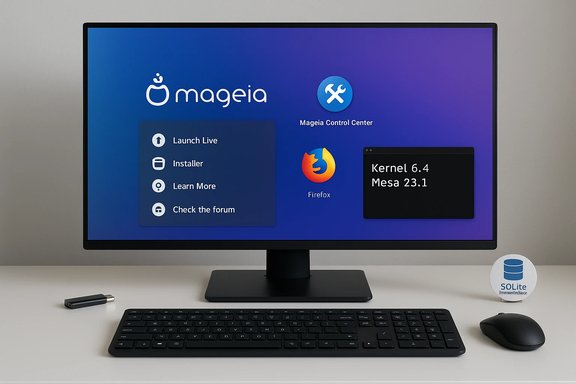
Mageia is a veteran community distribution that traces its lineage to Mandriva, and Mageia 9 is the project’s latest stable milestone. The release ships with the Linux 6.4 kernel and a suite of updated desktop environments, developer tools, and system services intended to make a transition from Windows 11 both straightforward and practical for everyday use. The official release notes list the headline technical choices — kernel 6.4, Mesa 3D 23.1, X.Org 21.1.8, and updates across the stack — and the project has published ISOs and documentation aimed at a broad audience. This article summarizes the release, verifies the most important technical claims against primary sources, and then analyzes the advantages, trade-offs, and migration considerations Windows 11 users should weigh before switching.What’s new in Mageia 9 — verified highlights
Mageia’s release notes and developer posts provide a clear list of what changed; the following items are the most load-bearing technical facts, each cross-checked against the project’s official documentation and independent coverage.- Linux kernel 6.4 — Mageia 9 is built on the Linux 6.4 series, which is the foundation for improved hardware support and newer driver stacks. This is confirmed in Mageia’s release notes.
- RPM DB migration: Berkeley DB → SQLite — The distribution migrated the RPM database backend from the older, unmaintained Berkeley DB to SQLite, and conversion is performed during upgrades from Mageia 8. This reduces the maintenance burden and improves database reliability. The change is documented in the release notes and noted in independent summaries.
- Desktop stacks — Mageia 9 ships with a wide set of desktop environments to suit different user tastes and hardware:
- KDE Plasma 5.27.5
- GNOME 44.2
- Xfce 4.18.x
- LXQt 1.3.0
- MATE 1.26.0
- Cinnamon 5.6
- Enlightenment E25.4
These version numbers were listed in Mageia’s release communications and release-candidate postings. - Graphics and display stack — Mesa 3D 23.1 and X.Org 21.1.8 (with XWayland split out as XWayland 22.1.9) are the defaults; the kernel/Mesa combination is the key improvement enabling broader GPU support and better 3D performance compared with older Mageia releases.
- Audio and sound server flexibility — Mageia’s Control Center includes tools (draksound) to switch between PulseAudio and PipeWire, and the release notes explain that both can be installed while PulseAudio remains the default. The redesigned post-install Welcome application is intended to guide new users through basic configuration steps.
- Packaging and applications — LibreOffice 7.5, Vim 9.0 and NeoVim 0.9.1 are included or available in the repositories; compilers and developer toolchains (GCC 12.3, glibc 2.36, LLVM 15) are updated as part of the release.
- Chromium relegated to “tainted” repository — Due to packaging/patent considerations, Chromium was moved to Mageia’s non-default (tainted) repo; Firefox is the primary browser available on the official media. BetaNews and the release notes both reference this shift, although users can enable the tainted repository to install Chromium if they need it. This specific move is worth noticing because it affects the out-of-the-box browsing options.
Installation and upgrade: smoother, but read the caveats
Mageia has invested in cleaning up the installer and the upgrade path for Mageia 8 → 9 upgrades. The practical pieces every installer or upgrader should know:- The release notes recommend reading the official errata and release notes before upgrading, backing up user data, and ensuring you have 2+ GB free for the online upgrade process. Conversion of the RPM DB to SQLite occurs as part of an upgrade.
- Live ISOs are provided for Plasma, GNOME and Xfce; the Classical (DrakX) installer ISO contains more package choices and both free and non-free driver options. The project strongly recommends testing from a Live USB before committing to an install.
- If you rely on Docker, note that Mageia 9 changes Docker’s default storage driver and migration can be time-consuming; the release notes include migration guidance and warnings about large Docker image sets during upgrades. This can be critical for developers running production-like workloads on a desktop.
Desktop experience and user-facing changes
Mageia 9’s strength is choice: it deliberately packs multiple polished desktops so users can choose the environment that best mirrors their workflow.KDE Plasma and GNOME: modern, stable defaults
KDE Plasma 5.27.5 ships as a polished, configurable desktop that will feel familiar to power users and Windows switchers who prefer a taskbar-centric workflow. GNOME 44.2 offers the more opinionated, workspace-first approach for users who prefer GNOME’s style. Both are mature, and Mageia’s packaging ties them to a Qt/GTK stack that was explicitly updated and tested during the release candidate cycle.Lighter alternatives
For older hardware or users who want a lean footprint, Mageia 9 includes Xfce 4.18 and LXQt 1.3.0, and lighter window managers are available in the repositories. The minimal install size has been reduced compared with past releases, which is useful if you’re resurrecting legacy hardware.Out-of-the-box guidance
The completely reworked Welcome application is meant to lower the initial friction for newcomers — it runs after a fresh install and walks through post-install essentials (updates, non-free driver options, and basic settings). This is a pragmatic nod to first-time Linux users and Windows migrants who value a guided first run.Hardware, graphics, and driver realities
Kernel version, Mesa, and X.Org choices matter most for hardware support. Mageia 9’s stack gives solid out-of-the-box compatibility for common devices, but there are real-world caveats.- The 6.4 kernel + Mesa 23.1 pairing improves support for many GPUs and modern hardware compared with older Mageia releases, and X.Org updates are included for legacy X11 needs.
- For AMD GPUs, Mageia uses the open-source AMDGPU driver for newer cards and Radeon for older hardware. Mageia’s release notes note improvements in AMD support but also clarify that AMDGPU‑PRO (the proprietary stack) isn’t compatible with Mageia 9’s X.Org version. If you rely on proprietary GPU stacks or vendor-specific features, test before committing.
- NVIDIA users should be prepared: while the open-source nouveau driver is included and improved, many users will prefer the proprietary NVIDIA driver for best performance. Mageia provides proprietary drivers via its non‑free repos, but these must be enabled and tested; in some cases new GPUs need newer kernels than stock Mageia 9 provides out of the box, so users may need to install a newer kernel flavor or a backport.
Audio, multimedia, and apps
Mageia 9 gives users audio flexibility and sensible multimedia defaults.- PulseAudio remains the default but Mageia ships the tooling to let you switch to PipeWire via the Mageia Control Center; both backends are supported and switching is intended to be straightforward. This is useful because PipeWire is increasingly treated as the modern standard for complex desktop audio routing and Bluetooth audio.
- LibreOffice 7.5 is included for office workflows, and developer tools — NeoVim 0.9.1, updated compilers and runtimes — make Mageia 9 a capable workstation for coders. The edition also adds some creative and media applications and a new gaming category to be more friendly to casual gamers.
- Web browsers: Mageia’s official media leans on Firefox as the foreground browser; Chromium was moved to the tainted/non-free area for packaging reasons. The community and third-party repos still let you install Chromium if you need it. BetaNews also reported the emergence of Gemini protocol clients in the repos, though that particular point is mentioned in some coverage but not emphasized in the core release notes — treat that as interesting but secondary until upstream package lists are confirmed. (Flag: the Gemini-browser references appear in third-party coverage and may not be part of the official ISO images by default.
Migration checklist: practical steps from Windows 11 to Mageia 9
If you’re coming from Windows 11 and considering a switch, this numbered checklist summarizes the low-friction approach favored by the community:- Back up everything — user files and a full disk image if you plan to replace Windows entirely.
- Create a Live USB and boot Mageia 9 in live mode; test Wi‑Fi, GPU, audio, and peripherals. Mageia’s Live ISOs let you validate hardware without risking your Windows installation.
- If you need any proprietary drivers (NVIDIA, special Wi‑Fi firmware), identify them and enable the non‑free/tainted repositories after install — do this in the Mageia Control Center.
- If you require specific Windows-only applications, plan for compatibility: Wine/Proton, virtual machines, or keeping Windows in a dual-boot/VM are valid options. Community advice often recommends trying WSL or a VM if you still depend on Windows tooling.
- Perform the install using the Classical ISO for fuller package choices unless you prefer the smaller, targeted Live ISOs. Follow the Welcome app after the first boot to configure updates, codecs, and localizations.
Strengths: why Mageia 9 is a compelling Windows 11 alternative
- Choice and familiarity — Mageia’s broad desktop selection makes it easy to pick an environment that matches how you work; KDE Plasma in particular can be tuned to look and behave similarly to a Windows desktop for faster user comfort.
- Conservative, but modern stack — the distribution updates core toolchains and the kernel while keeping a stable, tested package set; it’s a good balance for users who want freshness without daily breakage.
- Installer and post‑install guidance — the reworked Welcome app and Mageia Control Center reduce the amount of hand-holding needed after install, which lowers the barrier for Windows migrants.
- Repository discipline and transparency — moving questionable/complex packages like Chromium to tainted repositories is a conservative, transparent choice that avoids shipping contentious builds on the main ISO. Users can still opt in if they need those packages.
Risks, trade-offs, and things that can go wrong
No migration is risk-free; Mageia 9 is well-crafted but has practical limitations new users must accept.- Very new hardware compatibility — Mageia 9’s kernel (6.4) and Mesa versions are modern for a stable release, but brand-new GPUs and peripherals released after the ISO snapshot may require newer kernels or proprietary drivers not packaged by default. Users with bleeding-edge hardware should test live media first and be prepared to use backported kernels or wait for the distribution’s updates. Community reports of GPU boot problems with very recent cards illustrate this need for caution.
- Proprietary driver friction — proprietary drivers (NVIDIA, AMDGPU‑PRO) are available but often live in non‑free repos and may require manual enabling. This is a technical but frequent stumbling block for users who expect vendor drivers to “just work.”
- App compatibility — Some Windows-native apps, commercial suites, and certain anti-cheat systems remain awkward or unsupported on Linux. Gamers and business users who depend on specific Windows-only applications must plan a compatibility strategy (Proton/Wine, VM, cloud-hosted apps). Community guides and forums are helpful, but this remains a practical limitation.
- Upgrade edge cases — upgrading complex setups, notably systems with large Docker image sets, can require manual migration steps and time; the official notes call this out because it has led to long migrations if ignored. Read the errata before upgrading.
- Smaller community than mainstream distros — Mageia is community-driven and has fewer resources than major corporate-backed distros. That’s not a problem for many users, but it can affect the speed of niche hardware support and the availability of certain proprietary packages in official repos. Community assistance and documentation are good, but expect to search forums for certain edge cases.
Final analysis: who should try Mageia 9
Mageia 9 is a strong candidate for a wide range of users:- Users who want a stable, fully featured desktop environment while retaining the ability to customize heavily will appreciate Plasma 5.27.5 and the KDE tooling.
- People replacing older Windows 11 PCs or rescuing legacy hardware will find the reduced minimal install footprint and light desktops useful.
- Developers and power users who value updated compilers, glibc, and tooling — but still prefer a stable distribution release cycle — will like Mageia’s balance of modern packages and conservative integration.
Quick reference: verified technical points (at a glance)
- Kernel: Linux 6.4.
- Mesa: Mesa 3D 23.1; X.Org 21.1.8.
- Desktop highlights: KDE Plasma 5.27.5, GNOME 44.2, Xfce 4.18, LXQt 1.3.0, MATE 1.26.0, Cinnamon 5.6.
- RPM DB backend: Berkeley DB → SQLite (conversion during upgrades).
- LibreOffice: 7.5. Vim/NeoVim updated (NeoVim 0.9.1).
- Chromium: moved to tainted / non-default repo; Firefox is the main browser on official media. Third‑party coverage mentions Gemini clients appearing in repos; treat that as secondary until confirmed in package lists.
Conclusion
Mageia 9 is an unusually well-rounded community release: modern enough under the hood to support contemporary hardware and workflows, but conservative where stability matters. The RPM DB migration to SQLite, updated kernel and graphics stacks, the flexible audio tooling, and the reworked Welcome/applicant tooling all show a release focused on real-world usability.For Windows 11 users seeking an alternative that offers variety (multiple desktops), conservative stability, and sensible post-install guidance, Mageia 9 is a compelling option. The recommended path is simple: test with Live media, confirm drivers and peripherals, back up everything, and proceed with either a dual‑boot or a fresh install after verifying the hardware compatibility. If you need bleeding-edge GPU support or run critical Windows-only apps, plan for compatibility layers or staged migration.
Mageia 9 does not reinvent the wheel — it polishes it, and for a lot of users that matters more than flashy new features. For anyone curious about leaving Windows 11’s constraints behind while keeping a productive, tested desktop environment, Mageia 9 is worth downloading and trying from the Live ISO.
Source: BetaNews Mageia 9 offers a fresh Linux alternative for Microsoft Windows 11 users
