

Microsoft’s long-running tug‑of‑war over the Print Screen key just tilted toward admins: a new Group Policy in recent Insider builds gives IT pros the power to decide whether the PrtScn key can be yielded to third‑party apps — or must stubbornly keep its legacy behavior. That policy, observed in Dev‑channel builds in the 26300 series, puts a machine‑level switch in front of what has for decades been a tiny but important piece of user input plumbing. For power users, enterprise admins, and anyone whose workflows depend on consistent screenshot behavior, the change is meaningful — and not entirely straightforward.
For years the Print Screen (PrtScn) key has had one dominant purpose: capture the screen to the clipboard (with variations like Alt+Prtsc for active window or Win+PrtSc to auto‑save to Pictures\Screenshots). Microsoft began nudging that behavior away from the clipboard in 2023 by defaulting the key to launch the Snipping Tool overlay on newer Windows 11 builds. That change — while intended to unify capture and editing workflows — caused friction for users and third‑party screenshot utilities that traditionally captured or remapped the PrtScn scan code.
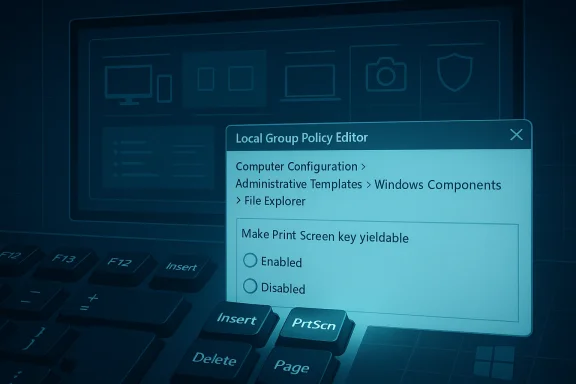
Windows 11’s settings and registry exposed ways to revert the Snipping Tool mapping per user, and third‑party apps already had multiple technical routes to intercept the key. What changed in early 2026 previews is a machine‑level Group Policy titled “Make Print Screen key yieldable” (appearing under Computer Configuration > Administrative Templates > Windows Components > File Explorer in recent Dev builds). The policy explicitly determines whether the Print Screen key can be intercepted — i.e., yielded — to another application, giving administrators a single place to enforce behavior across a device.
This article explains what that policy does, why Microsoft added it, how it affects users and administrators, practical steps to manage it, the technical mechanisms third‑party apps use to take over PrtScn, and the security, privacy, and compatibility implications you should consider before flipping the switch.
Important practical notes from hands‑on testing in previews:
Third‑party apps use a few common techniques to capture or hijack the Print Screen key:
Strengths of the change:
When something as small as a single physical key can affect productivity and privacy across thousands of endpoints, control matters. Microsoft’s new “yieldable” policy doesn’t dictate which ecosystem wins — Windows or third‑party — but it does give organizations and admins the decisive voice they’ve been asking for. Apply it deliberately, test thoroughly, and use it as part of a broader endpoint management strategy rather than a standalone silver bullet.
Source: Windows Latest Microsoft finally gives you greater control over Print screen key in Windows 11, including access to third-party apps
 Background / Overview
For years the Print Screen (PrtScn) key has had one dominant purpose: capture the screen to the clipboard (with variations like Alt+Prtsc for active window or Win+PrtSc to auto‑save to Pictures\Screenshots). Microsoft began nudging that behavior away from the clipboard in 2023 by defaulting the key to launch the Snipping Tool overlay on newer Windows 11 builds. That change — while intended to unify capture and editing workflows — caused friction for users and third‑party screenshot utilities that traditionally captured or remapped the PrtScn scan code.Windows 11’s settings and registry exposed ways to revert the Snipping Tool mapping per user, and third‑party apps already had multiple technical routes to intercept the key. What changed in early 2026 previews is a machine‑level Group Policy titled “Make Print Screen key yieldable” (appearing under Computer Configuration > Administrative Templates > Windows Components > File Explorer in recent Dev builds). The policy explicitly determines whether the Print Screen key can be intercepted — i.e., yielded — to another application, giving administrators a single place to enforce behavior across a device.
This article explains what that policy does, why Microsoft added it, how it affects users and administrators, practical steps to manage it, the technical mechanisms third‑party apps use to take over PrtScn, and the security, privacy, and compatibility implications you should consider before flipping the switch.
What the new Group Policy actually does
- Policy name (observed in preview builds): Make Print Screen key yieldable
- Where it appears (Local Group Policy Editor): Computer Configuration > Administrative Templates > Windows Components > File Explorer
- Default state in observed preview: Not configured (which permits third‑party interception)
- Behavior when Enabled: The Print Screen key can be intercepted by applications; third‑party apps are allowed to override default screenshot functionality.
- Behavior when Disabled: The Print Screen key retains its legacy behavior for taking screenshots and cannot be intercepted by applications.
Important practical notes from hands‑on testing in previews:
- The policy is surfaced in the Local Group Policy Editor on Professional/Enterprise SKU machines (gpedit.msc is required).
- Changing the policy often requires a sign‑out or full reboot for system‑level hooks and hotkey registrations to update.
- This policy appears to be device‑level (Computer Configuration), meaning administrators can enforce it across machines regardless of which user is logged in.
Why Microsoft would add a policy like this
There are several signals that explain the why:- Restore predictability. When the operating system or an OEM service changes what a fundamental key does, user muscle memory and scripted workflows break. Providing a machine‑level override helps enterprises standardize behavior.
- Balance ecosystem flexibility and control. Third‑party screenshot tools are widely used and sometimes essential for workflows (capture automation, OCR, server screenshots, etc.). Microsoft’s new policy gives admins a way to allow those tools where they’re required, or to block them where the enterprise prefers the OS default.
- Security and privacy concerns. Screenshot hooks can be abused. A central control makes it easier for security teams to deny any process from secretly capturing sensitive screens.
- Operational troubleshooting. In mixed environments, differing handlers (OneDrive, OEM utilities, Logitech/Logi apps, ShareX, Snagit, etc.) can compete for the PrtScn key and produce flaky behavior. A single policy simplifies root cause analysis and remediation.
Technical primer: how apps intercept Print Screen
Understanding the mechanics helps you reason about what the policy does and why disabling interception is important.Third‑party apps use a few common techniques to capture or hijack the Print Screen key:
- RegisterHotKey (user API): Applications can call the RegisterHotKey Windows API to tell the OS “when this key combination is pressed, send my app a WM_HOTKEY message.” This is a documented, sanctioned mechanism for global hotkeys.
- Low‑level keyboard hooks (SetWindowsHookEx with WH_KEYBOARD_LL): Apps (or helper processes and utilities) can install a low‑level keyboard hook to observe or swallow keys globally, including PrtScn, before other apps see them.
- Keyboard filter drivers or device drivers: OEM keyboard utilities or system‑level drivers can intercept the scan code in kernel space and reassign behavior (this is how some OEM software or KVM utilities alter Fn/Fn‑Lock behavior).
- Userland keyboard utilities and remappers: Tools like AutoHotkey, PowerToys Keyboard Manager, or vendors’ personalization suites can remap keys or send alternate keystrokes when PrtScn is pressed.
- Integration with cloud sync tools (e.g., OneDrive): Some cloud backup or sync clients register handlers so that screenshots can be auto‑saved to the cloud.
Practical guide: how to check and change the behavior
If you need consistency, here’s how to approach it — both for individual PCs and for managed fleets.For individual users (quick checks)
- Open Settings > Accessibility > Keyboard and look for the “Use the Print screen key to open Snipping Tool” toggle. If present, you can turn it off to restore legacy PrtScn behavior.
- If Settings doesn’t show that toggle (some builds and editions vary), check the registry key:
- HKCU\Control Panel\Keyboard
- DWORD: PrintScreenKeyForSnippingEnabled
- Value 0 = disabled; 1 = enabled
Sign out and back in (or restart) after changing the key. - Look for common third‑party tools that frequently hijack PrtScn: Logitech/Logi software, OneDrive, ShareX, Snagit, or OEM keyboard utilities. Temporarily quit them to see if behavior returns to normal.
For local administrators (gpedit.msc)
- Run gpedit.msc (Windows 11 Pro, Enterprise, or equivalent).
- Navigate to: Computer Configuration > Administrative Templates > Windows Components > File Explorer.
- Look for the policy Make Print Screen key yieldable (in recent Dev builds).
- Set to Disabled to block third‑party interception (preserve legacy behavior).
- Set to Enabled to allow apps to intercept the key.
- When Not configured, the system’s default (often permitting interception in the preview) applies.
- After applying the policy, restart the machine to make sure global hotkey registrations are reset and the policy takes effect.
For enterprise fleets (best practices)
- If you use a Central Store for ADMX/ADML templates, ensure you update it with the ADMX files from the target Windows build that includes this policy; otherwise the setting won’t be visible in Group Policy Management.
- Because some existing settings are per‑user (HKCU), consider Group Policy Preferences (Registry) with item‑level targeting or logon scripts to set PrintScreenKeyForSnippingEnabled for users as needed.
- Use Group Policy to restrict installation of third‑party keyboard drivers or OEM software when security requires it.
- Deploy and test in a pilot OU before broadly enforcing a change, because remapping may break mission‑critical capture automation used by support desks or documentation teams.
What this means for third‑party screenshot tools and OEM utilities
- If the policy is set to Disabled, many third‑party tools that rely on global hotkeys or hooks will be unable to respond to a raw PrtScn press. Vendors will need to offer alternate hotkeys or explicit installation instructions (e.g., use Win+Shift+S, custom shortcuts, or remap via PowerToys).
- If the policy is left Not configured or Enabled, apps will continue to be able to intercept the key — which is the current de facto behavior on many desktops that run capture utilities.
- Hardware or vendor utilities that operate at the driver level (keyboard filter drivers or OEM control centers) may still change the scan code before Windows sees it; blocking interception at the OS level is less effective against kernel‑level modifications. That’s rare but possible with certain vendor packages.
Risks and downsides — why you should think before enforcing
The new policy is a useful tool, but it’s not an instant unalloyed win. Consider these risks:- Operational impact on workflows. Many corporate workflows, help‑desk scripts, and documentation processes depend on consistent keys. Forcing legacy behavior or preventing interception can break tools that expect to respond to PrtScn.
- False sense of security. Disallowing app interception at the OS level reduces the surface area but does not replace proper endpoint controls. Kernel drivers, compromised OEM tools, or malicious device firmware can still capture screen content.
- User frustration and support calls. End users accustomed to a favorite screenshot app that used PrtScn may experience confusion, leading to increased support tickets unless admins communicate the change and provide alternative key combinations or configuration steps.
- Compatibility fragmentation across channels. Insider builds and production releases may differ in where settings appear (Settings toggle present in some builds, missing in others). Admins should test the final shipped build before mass enforcement.
- Policy rollout complexity. Per‑user registry settings (HKCU) complicate broad rollouts — you may need Group Policy Preferences or logon scripts to set the registry for every user profile, and that introduces timing/targeting considerations.
Troubleshooting checklist and detection tips
If PrtScn behaves unpredictably, use this checklist:- Quit likely interceptors. Close OneDrive, Logitech/Logi apps, ShareX, Snagit, PowerToys, and any keyboard personalization utilities. Test PrtScn after each closure.
- Check accessibility toggle and registry. If the OS toggle is available, confirm its state, and verify PrintScreenKeyForSnippingEnabled under HKCU\Control Panel\Keyboard.
- Reboot after policy changes. Many hotkeys are registered at session start. A reboot ensures kernel/user hooks are reinitialised and Group Policy is applied.
- Check for keyboard driver/OEM utilities. If vendor control panels exist (Logi Options+, Dell Peripheral Manager, etc.), inspect their Print Screen/Screen Capture settings.
- Use a different key mapping or alternative hotkey. Recommend Win+Shift+S or Win+PrtScn for users who need a reliable built‑in alternative.
- Audit installed drivers. In environments where device drivers may be a culprit, examine installed keyboard drivers for unexpected or unsigned components.
Recommendations: how to adopt this safely
- Inventory first. Before applying a device‑level policy, inventory which teams and applications depend on PrtScn mapping. Support and documentation teams commonly do.
- Pilot and monitor. Apply the setting to a pilot group to measure help‑desk impact, and use endpoint telemetry to detect failed hotkey registrations or user complaints.
- Communicate changes. If you block interception, inform users of alternate hotkeys and provide simple instructions to remap favorite applications to other combinations.
- Pair with app allowlisting. If you permit interception, combine that tolerance with app allowlisting so only trusted apps can run and register global hotkeys.
- Keep ADMX up to date. The new policy appears in newer preview builds; ensure your PolicyDefinitions central store includes the matching ADMX before trying to configure the setting via GPO in production.
The broader picture and final assessment
This Group Policy is an incremental but practical example of how Microsoft is listening to both enterprise needs and power‑user feedback: the OS can be opinionated about common tasks, but administrators still need control. The Print Screen key is a tiny surface, but it touches a lot of workflows — from developers and technical writers to compliance teams and help desks — so providing a centralized toggle at the machine level is long overdue.Strengths of the change:
- Provides admins immediate, machine‑level control over a frequently contested input.
- Reduces ambiguity when multiple apps fight for a global hotkey.
- Gives enterprises a mitigant against unauthorized screen capture by userland apps.
- Not a panacea for driver‑level or firmware intercepts — those require different controls.
- Per‑user preferences and registry keys create rollout complexity for large fleets.
- Limited visibility into which process currently owns the hotkey — Windows doesn’t provide a simple built‑in audit tool for “which app registered this hotkey,” making troubleshooting more art than science in some cases.
When something as small as a single physical key can affect productivity and privacy across thousands of endpoints, control matters. Microsoft’s new “yieldable” policy doesn’t dictate which ecosystem wins — Windows or third‑party — but it does give organizations and admins the decisive voice they’ve been asking for. Apply it deliberately, test thoroughly, and use it as part of a broader endpoint management strategy rather than a standalone silver bullet.
Source: Windows Latest Microsoft finally gives you greater control over Print screen key in Windows 11, including access to third-party apps
