

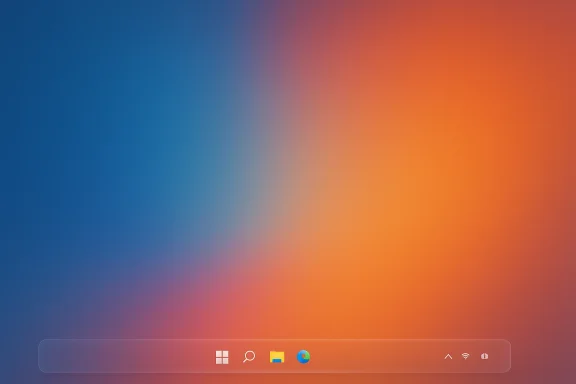
If you like a clean desktop and want your wallpaper to shine without the taskbar getting in the way, TranslucentTB is a small, free utility that does exactly what PCWorld described: it makes the Windows taskbar transparent, or blurry, acrylic, or opaque — and it does so with just a click from the system tray. The app is open-source, lightweight by design, and available from the Microsoft Store or GitHub releases; it supports both Windows 10 and Windows 11, offers per‑state and dynamic modes, and includes a portable build for newer Windows installs.
TranslucentTB began as a focused desktop-tidying utility: its primary job is to change the appearance of the Windows taskbar so your wallpaper, widgets, or panoramic backgrounds aren’t obstructed by a solid color strip. The application has been actively developed on GitHub, is distributed under the GPLv3 license, and ships in several forms — installer, MSIX/AppInstaller, and a portable ZIP for Windows 11. The project README explicitly states the app is small (“uses a few MB of RAM and almost no CPU”) and lists the supported taskbar states and dynamic modes that let you tailor behavior by desktop state (for example, when a window is maximized or the Start menu is open). TranslucentTB sits in the system tray and exposes its actions via a context menu. The most popular single action is “Desktop → Clear,” which renders the taskbar effectively transparent so the underlying wallpaper shows through unobstructed. That simple workflow is the reason many users install the app: it’s an aesthetic tweak, lightweight, and reversible. Several how‑to guides and mainstream how‑to sites recommend exactly this process.
However, it’s not a zero‑risk operation: the app depends on Windows internals that Microsoft can and does change. Expect occasional breakages after major updates, and be ready to troubleshoot conflicts with other customization utilities. Use the Microsoft Store or the official GitHub releases, keep regular backups, and treat larger claims (download counts, global install numbers) as developer‑provided unless you locate an independent audit.
If your goal is purely cosmetic — a transparent taskbar so a favorite wallpaper is unobstructed — TranslucentTB is one of the cleanest, lightest answers available. For power users who need permanent, deep changes to the taskbar’s structure or Start menu, pair TranslucentTB with more comprehensive tools only after testing compatibility on your particular Windows build.
Conclusion: TranslucentTB remains a practical, minimal‑friction tool to get a transparent or stylish taskbar on Windows. It’s free, open‑source, and small — but keep in mind that Windows updates and third‑party mods can cause short‑term instability. If you decide to use it, install from official channels, try the Desktop → Clear option for instant transparency, and keep the app updated.
Source: PCWorld Make your Windows PC's taskbar transparent with this helpful app
 Background / Overview
TranslucentTB began as a focused desktop-tidying utility: its primary job is to change the appearance of the Windows taskbar so your wallpaper, widgets, or panoramic backgrounds aren’t obstructed by a solid color strip. The application has been actively developed on GitHub, is distributed under the GPLv3 license, and ships in several forms — installer, MSIX/AppInstaller, and a portable ZIP for Windows 11. The project README explicitly states the app is small (“uses a few MB of RAM and almost no CPU”) and lists the supported taskbar states and dynamic modes that let you tailor behavior by desktop state (for example, when a window is maximized or the Start menu is open). TranslucentTB sits in the system tray and exposes its actions via a context menu. The most popular single action is “Desktop → Clear,” which renders the taskbar effectively transparent so the underlying wallpaper shows through unobstructed. That simple workflow is the reason many users install the app: it’s an aesthetic tweak, lightweight, and reversible. Several how‑to guides and mainstream how‑to sites recommend exactly this process. What TranslucentTB actually does
Taskbar states (what you can pick)
- Normal — Leave Windows’ default style in place.
- Opaque — A tinted but non‑transparent taskbar.
- Clear — The fully transparent option most users want to make the taskbar transparent.
- Blur — Adds a blurred composition behind the taskbar (availability depends on Windows build).
- Acrylic — A Fluent‑style acrylic effect that mimics Microsoft’s design language.
Dynamic modes (when it changes)
- Visible window — Different appearance if a window is present on the desktop.
- Maximized window — Switches the taskbar’s look when an app is maximized.
- Start opened / Search opened / Task View opened — Changes the taskbar when these UI surfaces are active.
How to install and use TranslucentTB (step‑by‑step)
- Download TranslucentTB from the Microsoft Store or get the latest release from GitHub (choose the installer or AppInstaller file for standard installs). If you prefer no install, download the portable ZIP (note: the portable ZIP is intended for Windows 11 builds).
- Run the installer or unzip the portable package and launch TranslucentTB. The app will place an icon in the system tray (taskbar notification area).
- Right‑click the TranslucentTB tray icon and navigate to the Desktop menu. Choose Clear to make the taskbar transparent. The change is instant.
- If you want different behavior on other states (Start opened, Maximized window, etc., right‑click the tray icon and configure the corresponding dynamic modes and colors.
- To have the app start with Windows, either enable Open at boot from the tray menu or create a shortcut in your Startup folder. For some setups the README provides registry tweaks to enable UWP/full‑trust startup tasks if the option is grayed out. Use those registry edits with caution and back up the registry first.
Technical compatibility and limitations
Windows builds and the blur effect
The availability of Blur and Acrylic depends heavily on Windows internals and the specific build you’re running. The project README and release notes make this explicit: blur was reintroduced for XAML-based taskbars on Windows 11 22H2 and later builds in a recent release, and historically the blur behavior has been tied to particular Windows 10/11 builds. Put simply: some visual composition features are OS‑level and can be added, removed, or changed by Microsoft across updates — TranslucentTB adapts when possible but cannot restore functionality removed by the OS. If blur is critical to you, check which Windows build you run and test that mode.Conflicts with other taskbar mods
TranslucentTB is compatible with many customization tools (for example, RoundedTB and ExplorerPatcher are listed as compatible), but conflicts can occur when multiple tools attempt to alter the same taskbar APIs. If multiple utilities fight over the taskbar, behavior can be inconsistent — a restart of Explorer or disabling other mods is often needed to diagnose. The README and community threads warn users about this.Support for Windows 10 and Windows 11
The app declares support for both Windows 10 and Windows 11, but the exact visual result and available options will differ depending on your Windows version and cumulative updates. Portable mode is explicitly limited to Windows 11 in the project documentation. If you're using older Windows 10 builds or bleeding-edge Insider builds, experiences will vary.Performance and security: what the facts say
- Performance: The TranslucentTB README states the app “uses a few MB of RAM and almost no CPU.” Independent download sites and user reports echo that it is lightweight in normal use. However, the exact memory footprint depends on the build and whether you use blur or multiple dynamic rules; measuring on your machine is the only precise approach.
- Security & trust: TranslucentTB is open‑source on GitHub under GPLv3. The project encourages users to compile from source if suspicious, and the README notes that some antivirus scanners can produce false positives. The repository also claims "over 10M users have downloaded this program safely" — that figure comes from the project maintainers and should be treated as a developer claim rather than a verified third‑party audit. The Microsoft Store distribution adds a layer of trust because of Microsoft’s Store validation, but any third-party modification of system UI should be handled carefully.
Real‑world issues and troubleshooting
Broken features after Windows updates
Users in community forums have reported occasional breakages after major Windows updates. Historically, Windows 11 updates have changed taskbar internals and required the TranslucentTB team to fix compatibility in subsequent releases. The project’s release notes and issue threads document this history: sometimes Microsoft removes or changes the composition APIs TranslucentTB relies on, which can temporarily prevent certain modes (notably blur or the removal of the taskbar border) from working until the app is updated or an OS hotfix appears. Practical troubleshooting steps:- Restart Windows Explorer (Task Manager → Restart) to reset the taskbar.
- Exit and relaunch TranslucentTB, or reinstall the MSIX/AppInstaller if you installed via Microsoft Store.
- Try the portable build if the store version misbehaves on Windows 11.
- Temporarily disable other taskbar customization tools to check for conflicts.
- If a specific Windows update breaks behavior, monitor the project’s GitHub for patches and release notes.
Visual artifacts (lines, temporary color changes)
Some users report thin lines at the top of the taskbar, momentary switching to accent color, or white bars when certain Windows features are active. Those artifacts are typically caused by OS changes to the taskbar composition or by conflicts with other tweaks. If you see persistent visual glitches, disable TranslucentTB and check if the artifact persists; if it disappears, file an issue with logs on GitHub or seek community support. Community threads and the project README advise this process.Advanced configuration and tips
- Add TranslucentTB to startup: Use the Open at boot option in the tray menu. If that option is grayed out, the official README lists registry keys that can allow full‑trust startup tasks; only apply registry edits if you are comfortable backing up and restoring the Windows registry.
- Portable mode: Use the portable ZIP on Windows 11 if you prefer not to install. The portable version is handy for troubleshooting or multi‑user environments. Note: portable mode has limitations compared to the MSIX/AppInstaller delivery and may not auto‑update.
- Per‑state color picks: TranslucentTB offers an advanced color picker with alpha/transparency and live preview so you can fine‑tune tints for different states. This is useful for keeping icon legibility when you prefer semi‑transparent bars instead of full clear.
- Rules and JSON config: Power users can edit the JSON configuration and use rules to change behavior on a per‑app or per‑window basis; check the GitHub docs for the format and examples. This unlocks granular control but requires comfort with hand‑editing configuration files.
Alternatives and when to choose them
TranslucentTB is simple and narrowly focused. If it doesn't meet your needs or breaks on your particular Windows build, consider alternatives:- RoundedTB — Focuses on shape and spacing of the taskbar, sometimes used in combination with TranslucentTB. Compatibility notes are available from both projects.
- ExplorerPatcher / StartIsBack / StartAllBack — Heavier customization suites that change core taskbar behavior and Start menu, useful if you need deeper changes. These tools interact with the taskbar at a lower level and can sometimes replace the need for TranslucentTB.
- TaskbarX / Windhawk — Other third‑party tools that aim to modify taskbar behavior or appearance; results and compatibility vary by Windows build and update cadence. Community forums often recommend different tools depending on the exact visual effect wanted.
Security and privacy checklist before installing
- Prefer the Microsoft Store or the official GitHub releases to avoid tampered builds. The project is open-source, so you can inspect or compile the code if you need higher assurance.
- If an antivirus flags the binary, check the GitHub issues and community posts before removing the app — many reports are false positives; however, treat each warning with care and scan the binary with multiple engines if unsure.
- Backup your registry and create a system restore point if you intend to apply any registry changes to enable startup tasks. The README includes optional registry keys for advanced startup behavior; those should be applied only with proper backups.
Critical analysis — strengths, weaknesses, and risk assessment
Strengths
- Simplicity: One of the app’s strongest points is that it performs its core job quickly: right‑click → Desktop → Clear. The workflow is accessible for non‑technical users and reversible.
- Open source and actively maintained: The GitHub repository has an active issues list and release cadence, meaning problems and compatibility issues are addressed publicly. The transparency of code helps trust and community contributions.
- Low resource footprint: The README and independent download descriptions emphasize the app’s small memory and CPU footprint, which matters on lower‑end machines. Empirical usage reports corroborate that impact is minimal under normal conditions.
Weaknesses / Risks
- OS‑level fragility: Because TranslucentTB relies on Windows composition APIs, major Windows updates can break features or change behavior (particularly blur and taskbar border removal). That means occasional downtime between a Windows update and a TranslucentTB fix.
- Compatibility noise: If you run several taskbar or Start menu mods simultaneously, conflicts can occur. Troubleshooting these requires disabling or removing other tools and possibly restarting Explorer.
- Developer‑reported metrics: Statements such as “over 10M users” come from the project maintainers and are not independently audited in the repository; treat such large numbers as developer claims unless cross‑checked with store analytics.
Risk mitigation
- Keep TranslucentTB updated from the official GitHub or Microsoft Store; read release notes after a major Windows update.
- Maintain a system restore point before changing registry entries or installing multiple taskbar mods.
- If critical work depends on a stable desktop, avoid applying new Windows feature updates immediately; wait for reports of tool compatibility from the community.
Final verdict
TranslucentTB delivers a focused, effective, and low‑cost (zero cost) way to make your Windows taskbar transparent and keep your desktop aesthetic intact. For users who want a clean wallpaper or are trying to avoid burn‑in on OLED panels, the Clear mode is an elegant solution. The app’s open-source nature, small footprint, and straightforward UI make it a sensible choice for the vast majority of users who only want a visual change.However, it’s not a zero‑risk operation: the app depends on Windows internals that Microsoft can and does change. Expect occasional breakages after major updates, and be ready to troubleshoot conflicts with other customization utilities. Use the Microsoft Store or the official GitHub releases, keep regular backups, and treat larger claims (download counts, global install numbers) as developer‑provided unless you locate an independent audit.
If your goal is purely cosmetic — a transparent taskbar so a favorite wallpaper is unobstructed — TranslucentTB is one of the cleanest, lightest answers available. For power users who need permanent, deep changes to the taskbar’s structure or Start menu, pair TranslucentTB with more comprehensive tools only after testing compatibility on your particular Windows build.
Conclusion: TranslucentTB remains a practical, minimal‑friction tool to get a transparent or stylish taskbar on Windows. It’s free, open‑source, and small — but keep in mind that Windows updates and third‑party mods can cause short‑term instability. If you decide to use it, install from official channels, try the Desktop → Clear option for instant transparency, and keep the app updated.
Source: PCWorld Make your Windows PC's taskbar transparent with this helpful app
