

ExifTool is the tiny, open‑source command‑line utility that turns hours of repetitive photo metadata work into minutes — and once you learn a handful of commands you can automate date fixes, copyright tagging, bulk sanitization and more across thousands of files without touching pixel data.
ExifTool is a Perl library and command‑line application written and maintained by Phil Harvey that reads, writes, and edits EXIF, IPTC, XMP and a wide range of other metadata formats embedded in image, audio and document files. It purposely works at the metadata level — not the image pixels — which makes it extremely fast and safe for bulk operations like setting creation dates, adding copyright fields, or stripping GPS coordinates. The official install and usage documentation outlines how the tool runs on Windows, macOS and Linux and explains why the portable Windows executable is the easiest option for most Windows users. Metadata may sound dry, but it’s the data that governs how photos are sorted, searched, licensed and shared. Incorrect timestamps break albums and galleries, missing or inconsistent copyright and creator fields create legal headaches for licensing, and absent keywords make large collections impossible to manage. The repetitive nature of writing metadata by hand is exactly where ExifTool saves time — one command can change dozens, hundreds, or thousands of files at once.
This writes the same timestamp to the three most common EXIF date fields in one pass.
ExifTool can write many IPTC/XMP fields at once, saving you from the manual edit cycle in image managers.
This command is often used to remove corrupt EXIF structures and rebuild necessary parts; community sources and examples show it as a recovery or sanitization pattern, but it’s advanced and should be tested on copies first.
Verified documentation and community examples demonstrate the installation steps, common commands and safe usage patterns, and pairing ExifTool with a pixel tool like ImageMagick gives you a full command‑line pipeline for large‑scale image processing. Test carefully, back up your originals, and build a short script that fits your naming and tagging conventions — the first time you run it and watch hundreds of images update at once, you’ll see why many photographers never go back to manual metadata edits.
Source: MakeUseOf This tiny utility saves me hours when batch-editing photos
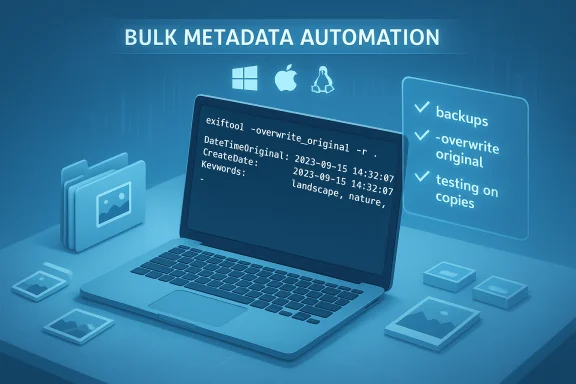 Background / Overview
ExifTool is a Perl library and command‑line application written and maintained by Phil Harvey that reads, writes, and edits EXIF, IPTC, XMP and a wide range of other metadata formats embedded in image, audio and document files. It purposely works at the metadata level — not the image pixels — which makes it extremely fast and safe for bulk operations like setting creation dates, adding copyright fields, or stripping GPS coordinates. The official install and usage documentation outlines how the tool runs on Windows, macOS and Linux and explains why the portable Windows executable is the easiest option for most Windows users. Metadata may sound dry, but it’s the data that governs how photos are sorted, searched, licensed and shared. Incorrect timestamps break albums and galleries, missing or inconsistent copyright and creator fields create legal headaches for licensing, and absent keywords make large collections impossible to manage. The repetitive nature of writing metadata by hand is exactly where ExifTool saves time — one command can change dozens, hundreds, or thousands of files at once.Why ExifTool stands out
Speed, accuracy and non‑destructive scope
- Works without re‑compressing images: ExifTool modifies metadata containers rather than re‑encoding image data, so there’s no quality loss from JPEG rewrites when you only need to change tags. This is a crucial distinction from pixel‑level batch editors.
- Extreme batch power: The command line makes it trivial to apply the same metadata edits across an entire folder tree or filter by extension. That replaces hours of clicking in a GUI.
- Cross‑platform and libre: It’s free, open source and maintained as a Perl distribution with a standalone Windows executable for convenience.
What ExifTool edits (a short list)
- EXIF date/time fields: DateTimeOriginal, CreateDate, ModifyDate (often grouped as AllDates).
- IPTC/XMP fields: Keywords, Caption, Creator, Copyright.
- GPS coordinates and location tags.
- Camera model, exposure, lens and other technical metadata.
- Non‑image file metadata (PDFs, TIFFs, RAWs, audio files) where supported.
Installing ExifTool on Windows (practical steps)
There are two mainstream ways to get ExifTool on Windows: the official Windows executable or a packaged installer available via the Windows Package Manager (winget). The official documentation shows the simple manual approach: download the Windows EXE zip, extract, rename theexiftool(-k).exe to exiftool.exe and move that executable along with the exiftool_files folder into a folder on your PATH so you can run exiftool from any prompt. If you prefer package management, community packages exist in WinGet catalogs — for example, several maintainers (Oliver Betz and others) publish ExifTool installers that you can deploy with a single winget command. This is convenient for scripted workstation setup or repeatable installs. Microsoft’s winget docs explain the tool and usage; third‑party winget packages for ExifTool mirror the official EXE but wrap it in an installer. As always, confirm the package publisher and review checksums if you have security constraints. Practical install checklist:- Download the official Windows EXE from the ExifTool page or use a trusted winget package.
- Rename
exiftool(-k).exetoexiftool.exe. - Move
exiftool.exeandexiftool_filesinto a folder on your PATH (or call it with a full path). - Test with:
exiftool -verto display the installed version.
The basics: common commands that replace hours of clicking
Below are the small number of commands you’ll use daily. Each example assumes you’ve opened a terminal in the folder containing your images (or you supply the path).1) Set dates from filenames (fix a camera with wrong date)
If your camera wrote the wrong creation date but your filenames contain the correct date (a common export scheme like YYYY_MM_DD_photo.jpg), you can populate the main EXIF date fields with-AllDates:- Example: Extract a full timestamp from the filename and write it into all common date tags:
exiftool "-AllDates<FileName" *.jpg
This tells ExifTool to copy a parsed date/time from each filename into the DateTimeOriginal, CreateDate and ModifyDate tags. Community examples and documentation note that filenames must contain a recognizable numeric time signature for this to work; otherwise you’ll need to provide a format or fallback time.
2) Force all photos to a specific timestamp
If you want to stamp a whole folder with a single known time (for example setting exact shoot time for scanned prints):exiftool -DateTimeOriginal="2025:12:04 15:30:00" -CreateDate="2025:12:04 15:30:00" -ModifyDate="2025:12:04 15:30:00" *.jpgThis writes the same timestamp to the three most common EXIF date fields in one pass.
3) Add copyright and creator metadata
A one‑line update to add licensing or creator info:exiftool "-Copyright=© 2025 Your Name. All Rights Reserved." "-Artist=Your Name" *.jpgExifTool can write many IPTC/XMP fields at once, saving you from the manual edit cycle in image managers.
4) Strip all metadata (sanitize files before sharing)
When you need to remove all metadata, for privacy or a clean export, ExifTool can clear tags and then repopulate required profiles if desired:exiftool -all= -tagsfromfile @ -all:all -unsafe -icc_profile -F .This command is often used to remove corrupt EXIF structures and rebuild necessary parts; community sources and examples show it as a recovery or sanitization pattern, but it’s advanced and should be tested on copies first.
Notes on behavior and backups
- By default ExifTool writes a backup of the original file (it appends
_originalto the filename). Use-overwrite_originalto skip backups once you’re confident. Always keep backups until your workflow is validated. - Use
-Pto preserve file modification times, or-rto recurse through subfolders. - Test commands on a small sample before running on entire archives.
Chaining ExifTool with ImageMagick for mixed jobs
ExifTool is metadata-focused. When you also need pixel operations (resize, convert formats, make thumbnails), pair it with ImageMagick’smogrify and magick tools rather than a GUI. ImageMagick’s mogrify is designed for batch transformations and will overwrite originals by default (or you can change output format). For example:- Resize TIFFs to 1920 px wide and convert to JPEG:
magick mogrify -resize 1920 -format jpg *.tif - Add copyright to all generated JPGs:
exiftool "-Copyright=© 2025 Your Studio" *.jpg
mogrify resizes and optionally converts formats in a single pass; using it first to reshape files and then ExifTool to write metadata is an efficient pipeline. Practical workflows and automation for Windows users
Quick PowerShell wrapper (example)
If you prefer double‑clickable automation, use PowerShell to call ExifTool across a folder. A common pattern posted by Windows community members demonstrates invokingexiftool.exe from PowerShell to strip metadata or apply updates in bulk — the script enumerates files and calls ExifTool with the desired arguments. That pairing is powerful for scheduled or repeatable tasks. As with any automation, test on a copy first.Safe sequence for changing dates across an archive
- Make a file system copy or snapshot of the target folder.
- Run ExifTool with
-P -r -ext jpgto process recursively and preserve file system timestamps. - Validate results using
exiftool -ext jpg -r -DateTimeOriginal -CreateDate -FileName path\to\sample. - Once satisfied, re-run with
-overwrite_originalto avoid duplicate_originalfiles.
Advanced tips and gotchas
- Date parsing from filenames is flexible but strict: ExifTool expects a recognizable pattern. When filenames contain extraneous numbers (like sequence numbers or version tags), you may need to use ExifTool’s tag value formatting expressions to extract the date portion. Community examples on StackOverflow and forums show regex‑style extraction within the assignment string to handle tricky filenames.
- Use
-extto restrict processing by extension and-rto recurse directories. - The
-alldatesshortcut updates DateTimeOriginal, CreateDate and ModifyDate together — convenient, but be explicit if you need to change only one of those fields. - ExifTool can read and write hundreds of tags; consult the tag name list in the documentation to avoid typos and to learn tag synonyms.
- Beware of mixing IPTC/XMP and EXIF expectations: some DAMs prioritize XMP over EXIF, so you may need to write both
-XMP:Copyrightand traditional-Copyrightto be safe.
Safety, risk and verification
ExifTool is powerful — which means careless use can cause data loss or inconsistent archives. Consider these risks and mitigations:- Unintended metadata loss: Commands like
-all=will remove everything. Always test and keep backups. The-overwrite_originalflag removes ExifTool’s default backups; don’t use it until you’re confident. Community scripts strongly recommend sample runs and backups. - Format and compatibility issues: Some RAW or proprietary formats store metadata differently; ensure your chosen tags exist for the file format you’re updating.
- Legal/copyright mistakes: Adding or overwriting copyright or creator metadata across portfolios can have legal implications if done incorrectly. Double‑check exact wording and rights before mass updates.
- Parsing edge cases: Filenames with ambiguous numeric strings can mislead date parsing. Use pattern extraction techniques or manual review for edge cases. Examples from community Q&A show common failure modes and how to fix them.
Alternatives and GUI helpers
ExifTool is command‑line first, but many GUI tools wrap its features or provide easier visual controls for smaller jobs. Common options Windows users pair with ExifTool include:- IrfanView for fast previews, light edits and basic batch conversion; it also exposes EXIF strip options and is often paired with ExifTool for deep metadata work. Community documentation on IrfanView’s batch features and metadata options confirms this common pairing.
- digiKam and lightweight DAMs for tagging, face detection and cataloging, where ExifTool remains useful for scripted mass changes or repair operations. Community guides show hybrid workflows: use a DAM for curation, ExifTool for mass technical fixes.
- Windows built‑ins (File Explorer’s Remove Properties and Personal Information) provide basic metadata removal for casual users, but are impractical for serious batch automation. Community posts outline when to prefer ExifTool or PowerShell wrappers for large jobs.
Verifying and cross‑checking important claims (brief audit)
- ExifTool’s status as a Perl library plus a Windows command‑line executable and the recommended Windows installation steps are documented on the official ExifTool site.
- Practical examples for using
-AllDatesand for clearing and rebuilding EXIF structures (the-all=+-tagsfromfileidiom) are shown in community Q&A and StackOverflow answers and form the basis for many demonstrated workflows. These community examples reinforce the documented behavior and demonstrate common fixes for corrupted metadata. - ImageMagick’s
mogrifytool and example usage for resizing and format conversion are documented on ImageMagick.org; pairingmogrifyfor pixel work and ExifTool for metadata is a tested pattern. - Winget packaging options and the convenience of a winget installer for ExifTool are available through WinGet listings and the Windows Package Manager documentation; use verified package IDs and prefer trusted publishers for managed installs.
Sample cheat‑sheet (copy this into a text file)
- Install/verify:
- Download ExifTool (or
winget install --id=OliverBetz.ExifTool -efor a packaged installer). - Run
exiftool -ver. - Quick commands:
- Set dates from filename (test first):
exiftool "-AllDates<FileName" *.jpg - Set fixed time:
exiftool -DateTimeOriginal="2025:12:04 15:30:00" -CreateDate="2025:12:04 15:30:00" *.jpg - Add copyright:
exiftool "-Copyright=© 2025 Your Name" *.jpg - Remove all metadata (advanced; test):
exiftool -all= -tagsfromfile @ -all:all -unsafe -icc_profile -F . - Batch resize then tag:
magick mogrify -resize 1920 -format jpg [I].tifthenexiftool "-Copyright=© 2025 Your Studio" [/I].jpg - Safety tips:
- Test on copies.
- Use ExifTool’s default
_originalbackups until confident. - Use
-overwrite_originalonly after verification. - For recursive jobs use
-rand restrict with-ext jpg.
Conclusion
For anyone who regularly edits photos in bulk, ExifTool is the practical Swiss Army knife that belongs in the toolkit. It’s not a pixel editor — that’s a feature, not a bug — because its power comes from manipulating the metadata that drives organization, licensing and privacy. A small investment of time to learn a few commands pays back quickly: you’ll stop clicking hour after hour and start automating repeatable, auditable metadata fixes instead.Verified documentation and community examples demonstrate the installation steps, common commands and safe usage patterns, and pairing ExifTool with a pixel tool like ImageMagick gives you a full command‑line pipeline for large‑scale image processing. Test carefully, back up your originals, and build a short script that fits your naming and tagging conventions — the first time you run it and watch hundreds of images update at once, you’ll see why many photographers never go back to manual metadata edits.
Source: MakeUseOf This tiny utility saves me hours when batch-editing photos
