

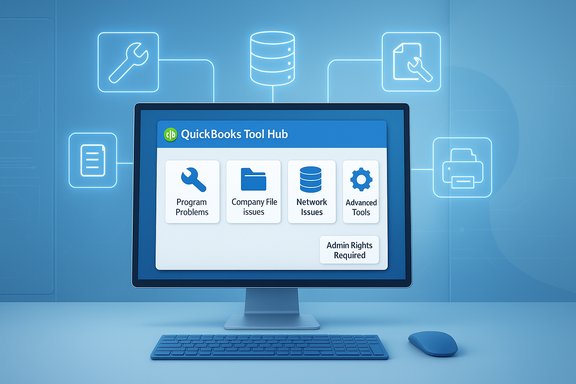
If QuickBooks Desktop on Windows 11 has ever stopped opening, refused to access your company file, or thrown a cryptic installation error, QuickBooks Tool Hub can save hours of frustration by bundling Intuit’s diagnostic utilities into a single, easy-to-use app — but only if you download and install the correct version and use the right tool for the symptom.
Background / Overview
QuickBooks Tool Hub is Intuit’s official troubleshooting container for QuickBooks Desktop on Windows. It does not replace QuickBooks Desktop; rather, it provides access to a set of repair utilities — like Quick Fix My Program, QuickBooks File Doctor, the Database Server Manager, and the Install Diagnostic Tool — all from a single interface. These tools address common categories of problems: program crashes and startup failures, company file corruption and network access errors, installation issues, printing/PDF errors, and advanced server/host configuration tasks.Tool Hub is intended for QuickBooks Desktop versions from 2017 onward and is explicitly targeted at Windows environments (Windows 11, Windows 10, and supported Windows Server SKUs). If you are running very old QuickBooks editions (pre‑2017), Tool Hub will have limited or no effectiveness and Intuit recommends upgrading to a supported release.
System requirements and Windows 11 considerations
Before downloading, confirm your environment matches these practical minimums:- Supported operating systems: Windows 11 (Home, Pro, Enterprise) and Windows 10; also works on modern Windows Server releases for server-hosted company files.
- Supported QuickBooks Desktop versions: QuickBooks Desktop 2017 and later (Pro, Premier, Enterprise, Accountant editions).
- Disk space: at least 2.5 GB free system space; the Tool Hub installer itself is small (around 50–60 MB), but repairs and temporary files need extra room.
- Memory: minimum 4 GB RAM, 8 GB recommended for smoother performance with large company files.
- Network: reliable Internet connection to download the installer and for some diagnostics.
- Privileges: Administrator rights on the Windows 11 machine where you install Tool Hub. The tool needs elevated access to repair system components.
Caution: Tool Hub is Windows‑only. It does not help QuickBooks Online users nor does it operate on macOS. If your QuickBooks is older than the supported releases or running on macOS, Tool Hub will not be applicable.
How to download QuickBooks Tool Hub on Windows 11 (step‑by‑step)
The single most important rule: always download Tool Hub from Intuit’s official website. Third‑party download sites can host outdated or modified installers.- Open a modern browser in Windows 11 (Edge, Chrome, Firefox).
- Search for QuickBooks Tool Hub and confirm the URL contains intuit.com before downloading. If the page explicitly lists Tool Hub and shows an official Intuit download button, that’s the correct source.
- Click the download link — the file will be small (roughly 50–60 MB) and save to your default Downloads folder as QuickBooksToolHub.exe.
- If Windows Defender SmartScreen flags the installer with “Windows protected your PC,” click More info → Run anyway only if the file came from Intuit’s site. SmartScreen’s warning is common for less‑frequently downloaded executables and does not mean the file is malicious by default.
- Intuit does not publish Tool Hub through the Microsoft Store; the download is distributed as a direct executable from Intuit.
How to install Tool Hub on Windows 11 (safe, recommended steps)
Installations often fail because QuickBooks or related services are running, or because the installer didn’t run with full admin rights. Follow these steps to avoid common pitfalls:- Close QuickBooks Desktop on all computers. Save work and close background QuickBooks processes via Task Manager if necessary.
- Open File Explorer → Downloads and locate QuickBooksToolHub.exe. Right‑click and select Run as administrator. Explicit elevation avoids permission errors.
- Accept UAC prompts and follow the installer wizard: click Next, accept the license agreement, choose the default installation path (recommended), and click Install. Typical install time is 1–2 minutes.
- When installation completes, click Finish. You can launch Tool Hub immediately or open it later from the Start menu.
- Open Task Manager (Ctrl+Shift+Esc) and stop any running QuickBooks processes (e.g., QBW32.exe, QuickBooksDBXX services). Then re-run the installer.
- Temporarily disable third‑party antivirus real‑time protection if the installer is blocked. Re‑enable immediately after installation. Many users report installers blocked by Norton, McAfee, or similar AV engines.
Tour: what’s inside QuickBooks Tool Hub and when to use each utility
Tool Hub is laid out by problem category. Know which section to use before you run repairs — that saves time and prevents unnecessary actions.- Program Problems
- Quick Fix My Program — first stop for QuickBooks that won’t open, freezes, or crashes. It resets temporary state, closes background processes, and repairs simple program-level issues. Runtime: ~30 seconds.
- QuickBooks Component Repair Tool — addresses .NET Framework, MSXML, and C++ runtime issues QuickBooks depends on. Use if Quick Fix My Program doesn’t succeed.
- Company File Issues
- QuickBooks File Doctor — scans and repairs company file corruption and network file access problems (Error 6000 series, H-series variants linked to file access). File Doctor can take minutes to tens of minutes depending on file size.
- Automated Password Reset Tool — limited to older file formats; does not work for modern files with enhanced security. Use cautiously and verify your QuickBooks year/version.
- Network Issues
- QuickBooks Database Server Manager — required for multi‑user setups. Scan the folder containing the company file on the host and open firewall ports if prompted. Run this on the server or host machine.
- Installation Issues
- QuickBooks Install Diagnostic Tool — repairs installer-related Microsoft components (e.g., .NET, MSXML) that commonly cause Error 1603, Error 1935, and similar. Runtime: 10–20 minutes is typical.
- QuickBooks Clean Install Tool — last‑resort option to remove QuickBooks and reinstall; make full backups before using.
- Advanced Tools
- Shortcuts to common Windows features and advanced helpers (useful for IT pros and administrators). Some entries mirror Windows troubleshooters and work correctly on Windows 11.
Troubleshooting common Windows 11 scenarios using Tool Hub
Below are field‑tested, step‑by‑step responses for the most frequent failure modes Windows 11 users encounter with QuickBooks.Scenario: QuickBooks won’t open after Windows 11 upgrade
- Open QuickBooks Tool Hub → Program Problems.
- Run Quick Fix My Program and allow it to complete without interruption.
- If that fails, run QuickBooks Component Repair Tool to repair .NET/MSXML runtime components. Reboot and retry QuickBooks.
Scenario: H202 / H303 / H505 multi‑user or company file network errors
- Close QuickBooks on all workstations.
- On the server/host, open Tool Hub → Network Issues → QuickBooks Database Server Manager and run a folder scan to register the company file location.
- If the DB Server Manager prompts to install QuickBooks components, follow the prompts and then re-scan. Adjust firewall rules if the tool asks.
Scenario: Installation errors (1603, 1935, “installation could not be completed”)
- If QuickBooks partially installed, uninstall via Settings → Apps first.
- Run Tool Hub → Installation Issues → QuickBooks Install Diagnostic Tool and be patient (10–20 minutes).
- Reboot and reinstall QuickBooks Desktop.
Scenario: PDF export or printing failures
Open Tool Hub → Program Problems → QuickBooks PDF & Print Repair Tool to reinstall PDF drivers and re-register printer drivers. If using a third‑party PDF tool (Acrobat, Foxit), consider temporarily switching the default to Microsoft Print to PDF while testing.Practical decision tree: which tool to try first
- If QuickBooks won’t open at all — run Quick Fix My Program → Component Repair → Clean Install (last).
- If a company file won’t open — run QuickBooks File Doctor → check host machine Database Server Manager for network/share issues.
- If installation or update fails — run QuickBooks Install Diagnostic Tool → verify Windows updates/drivers → reinstall.
- If printing/PDF fails — run PDF & Print Repair Tool → test default printer change.
Limitations — what Tool Hub will not fix (and when to escalate)
Tool Hub is powerful, but not omnipotent. It cannot:- Recover permanently deleted company files — for those you need file recovery software or backups.
- Repair severely corrupted company files beyond the automated scope — serious corruption may require professional QuickBooks data recovery services.
- Troubleshoot problems originating in third‑party add‑ons or integrations — contact the add‑on vendor.
- Fix hardware faults (failing hard drives, defective RAM) — hardware replacement or diagnostics are required.
- Resolve account/subscription and licensing disputes — these require Intuit account support channels.
When to call Intuit support: if the same Tool Hub utility fails multiple times, if file doctor reports unrecoverable corruption, or if remote diagnostic access is required — escalate early to avoid extended downtime.
Updating and version checks
QuickBooks Tool Hub does not auto‑update. Check for the latest Tool Hub release occasionally by opening Tool Hub and using any Check for Updates link or by downloading the latest installer from Intuit’s site and reinstalling over the existing copy. Many community reports show version numbers (for example, some threads reference version 1.6.0.5) but these numbers change as Intuit releases updates — treat version numbers as time‑sensitive and verify directly on Intuit’s pages.Flag: any specific version number you read on the web or in forum threads may be outdated; always confirm with Intuit’s official download page before relying on a particular build ID.
Best practices and safety checklist before running repairs
- Back up your company file(s) and any local QuickBooks data BEFORE using the clean install or major repair tools. Tool Hub’s tools are destructive in some cases (clean install removes program files).
- Close QuickBooks and save user work on all workstations when performing multi‑user network repairs.
- Run the least intrusive tool first (Quick Fix My Program → File Doctor → Component repair → Install diagnostic → Clean install).
- Keep antivirus and Windows updates current; temporarily disable third‑party AV only while installing or troubleshooting, and re‑enable when done.
- If on a corporate network, coordinate with your IT group for firewall, Group Policy, and server‑side actions.
Final recommendations and realistic expectations
QuickBooks Tool Hub resolves a large portion of everyday QuickBooks Desktop issues — in practice, Quick Fix My Program and QuickBooks File Doctor address the majority of common startup and company file errors. However, Tool Hub is not a guaranteed fix for every situation; severe file corruption, hardware failure, third‑party integration conflicts, and account/licensing problems can require professional intervention or vendor escalation.Treat Tool Hub as your first‑line defense: keep it installed, run the appropriate tool for the symptom, and escalate with Intuit or a certified QuickBooks professional when automated repairs cannot fully resolve the issue. Regular backups and maintaining current QuickBooks and Windows updates will dramatically reduce the chance you’ll need the “nuclear” clean install option.
QuickBooks Tool Hub is a small download with outsized troubleshooting value for Windows 11 users — simple to install when you follow the admin‑rights and SmartScreen guidance, effective for most program, file, network, and install issues, and safe to keep on your machine as a standby repair kit. If a utility in the Hub fails to solve your problem, document the error messages and steps taken, make a current backup, and contact Intuit or a certified QuickBooks consultant to avoid data loss and reduce downtime.
Source: How2shout How to Download QuickBooks Tool Hub for Windows 11 and Install it
