

Windows 10 ships with a powerful—and sometimes opaque—set of privacy controls that let you limit what Microsoft and third‑party apps can learn about you, but those settings change over time and updates can silently reintroduce permissive defaults; this feature walks through the controls you should check today, explains what each setting actually does, and gives practical, risk‑aware hardening steps you can apply in minutes.
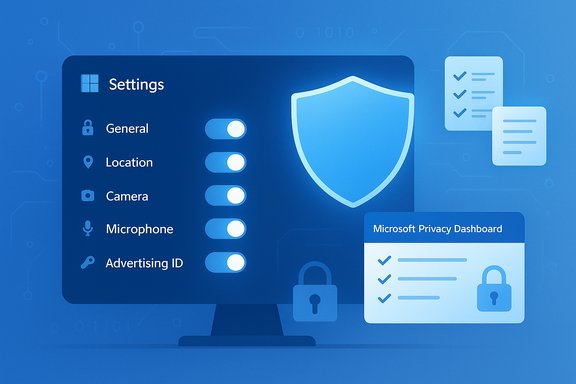
Windows 10 balances convenience against data collection: features like cloud sync, personalized recommendations, Cortana, and telemetry are designed to make your PC more useful, but they also increase your device’s data footprint. Microsoft surfaces most consumer privacy toggles in Settings > Privacy (or Settings > Privacy & security on newer builds), and the company also provides an online Privacy Dashboard for account‑level data management. The paths and behavior are documented in Microsoft’s support pages. A few practical facts to keep in mind up front:
Source: 9meters Windows 10 Privacy Settings: A Complete Guide - 9meters
 Background / Overview
Windows 10 balances convenience against data collection: features like cloud sync, personalized recommendations, Cortana, and telemetry are designed to make your PC more useful, but they also increase your device’s data footprint. Microsoft surfaces most consumer privacy toggles in Settings > Privacy (or Settings > Privacy & security on newer builds), and the company also provides an online Privacy Dashboard for account‑level data management. The paths and behavior are documented in Microsoft’s support pages. A few practical facts to keep in mind up front:- Settings may be reset or changed after major Windows updates or when Microsoft revamps the Settings UI; periodic re‑audits are necessary.
- Some telemetry (diagnostic) collection is required on consumer editions and cannot be fully disabled; you can only minimize it.
- Local toggles affect on‑device behavior, but account‑level features (Edge sync, cloud activity, voice history) must be managed via the Microsoft Privacy Dashboard.
How to find the privacy controls
Microsoft consolidates per‑capability controls inside Settings:- Windows 10: Start > Settings > Privacy.
- Windows 11 (comparable): Start > Settings > Privacy & security.
Core privacy controls — what they do and what to change
1) General: Advertising ID and suggestions
- What it is: Windows assigns a per‑profile Advertising ID used by apps to serve interest‑based ads.
- Recommended action: Turn off the Advertising ID to stop in‑app targeted ads (you’ll still see generic ads). Path: Settings > Privacy (or Privacy & security) > General / Recommendations & offers.
2) Location services
- What it does: Provides precise device location to apps and to certain system services like Find My Device.
- Recommended action: Turn location off globally if you don’t need it, or restrict by app via Settings > Privacy > Location. Use the Clear button to wipe local location history.
3) Camera & Microphone
- What it does: Controls which apps can access your camera and mic.
- Recommended action: Use the global toggles to block access by default, then enable access only for apps you trust (video chat, voice assistants). Settings > Privacy > Camera / Microphone.
4) Speech, Inking & Typing (Cortana and voice data)
- What it does: Online speech recognition sends audio to Microsoft to improve recognition; Cortana and voice features may store voice clips in your Microsoft account.
- Recommended action: Turn off Online speech recognition and disable inking/typing personalization if you want to avoid cloud‑stored input. To remove existing voice clips, sign into the Microsoft Privacy Dashboard and clear your voice activity.
5) Diagnostics & feedback (telemetry)
- What it does: Windows collects telemetry data to help Microsoft troubleshoot and improve Windows.
- What you can change: You can choose the minimum/required level (sometimes called Basic or Required) and turn off optional diagnostics, Tailored experiences, and inking/typing personalization. You can also delete collected diagnostic data from Settings > Privacy > Diagnostics & feedback.
6) Activity History / Timeline
- What it does: Stores a record of the apps, files, and web activity to provide cross‑device Resume and Timeline features.
- Recommended action: Uncheck Store my activity history and Send my activity history to Microsoft; click Clear to remove local history. Settings > Privacy > Activity history.
7) Background apps and app permissions
- What it does: Apps running in the background can access sensors, network, and local files and increase telemetry.
- Recommended action: Turn off background apps globally or toggle specific apps to prevent unnecessary background access. Also audit Contacts, Calendar, Call history, Email, Messaging, File system and other app permissions under Settings > Privacy.
Advanced measures and enterprise options
Group Policy, MDM, and registry (Pro/Enterprise)
For managed or power users, Group Policy and Intune (MDM) expose precise controls:- Telemetry: AllowTelemetry policy sets telemetry at the OS level.
- Copilot/AI features: Group Policy can disable Copilot system‑wide in Pro/Enterprise.
Third‑party privacy tools
Utilities like O&O ShutUp10, WPD, and W10Privacy can automate many of the toggles, but they require elevated privileges and may disable useful features. Use these with caution: test on a noncritical machine and keep a rollback plan. Independent security guides and forum testing recommend conservative presets first.Practical step‑by‑step checklist (do this first — 10–20 minutes)
- Open Settings > Privacy (or Privacy & security).
- General / Recommendations & offers: Turn off Advertising ID and suggestions.
- Diagnostics & feedback: Set telemetry to Required/Basic, disable Send optional diagnostic data, turn off Tailored experiences, optionally click Delete diagnostic data.
- Activity history: Uncheck Store my activity history and Send my activity history to Microsoft; click Clear.
- Location / Camera / Microphone: Disable globally if you don’t use them, otherwise restrict per app.
- Background apps: Turn off Let apps run in the background or set per‑app.
- OneDrive: Right‑click the system tray icon → Settings → Account → Unlink this PC if you don’t want cloud sync.
Special topics: AI features, Copilot, Recall, and Wi‑Fi Sense
Copilot and AI integrations
- Copilot surfaces across Taskbar, Edge, and system UI; hiding the taskbar button is a quick way to reduce visibility, while Group Policy provides enterprise‑grade disabling. UI hiding is reversible and low risk; Group Policy / AppLocker or firewall blocks are more disruptive but effective. Community testing shows that deep integration (Edge fallbacks, ms‑copilot URIs) can reintroduce UI elements unless blocked at policy or network level.
Recall (snapshots / local indexing)
- Recall saves periodic screen snapshots for indexing and search; while often gated by Windows Hello, it can capture sensitive screen content and should be disabled by privacy‑first users. Path: Settings > Privacy & security > Recall & snapshots. Delete existing snapshots after disabling.
Wi‑Fi Sense — historical context (important caveat)
- Claims that Wi‑Fi Sense shares your network password date back to early Windows 10 releases. Microsoft removed the password‑sharing portion of Wi‑Fi Sense years ago and subsequently deprecated that feature set; while remnants of the UI sometimes remain in older builds, the password sharing behavior is no longer active in modern builds. Treat any documentation referencing Wi‑Fi Sense password sharing as historical and verify your build.
Microsoft account vs. local account — trade‑offs
Using a Microsoft account unlocks sync, Edge/browsing history sync, and cross‑device features; it also stores activity in Microsoft’s cloud, which you must manage via the Privacy Dashboard. Switching to a local account cuts many cloud‑linked footprints but removes conveniences like OneDrive integration and seamless Store sign‑in.- To manage account data centrally: visit the Microsoft Privacy Dashboard and clear browsing, voice, location, and search data as needed.
- To create a local account: Settings > Accounts > Your info > Sign in with a local account instead. Test features you rely on before committing.
The security trade‑off: privacy vs. protection
Some telemetry and cloud features contribute to security (driver and firmware updates, SmartScreen URL checking, optional diagnostic data that helps with troubleshooting). Turning off these options improves privacy but can reduce Microsoft’s ability to diagnose failures or block malicious downloads.- SmartScreen: blocks malicious downloads and URLs; disabling reduces protection. Keep SmartScreen on unless you have an alternate protection stack.
- Delivery Optimization: peer‑to‑peer update sharing can expose IP addresses; you can limit it to local network only without breaking updates. Settings > Windows Update > Advanced options > Delivery Optimization.
Verifying claims and what’s hard to verify
This guide verified major claims against Microsoft documentation and independent reporting:- Paths for privacy settings and Advertising ID control are confirmed by Microsoft Support pages.
- Telemetry levels and the required/optional distinction are defined by Microsoft’s diagnostic documentation.
- Practical advice about disabling Cortana, managing voice data, and using the Privacy Dashboard is corroborated by independent outlets (Windows Central, Computerworld, Wired) and Microsoft guidance.
- Persistent claims that a single registry change will “permanently” disable all telemetry across every Windows 10 edition are unreliable; Microsoft’s servicing model and edition differences (Home vs Pro vs Enterprise) make such claims brittle. Treat them with skepticism and test in a controlled environment.
- Advice about Wi‑Fi Sense password sharing is historical; the password‑sharing portion has been removed, so older instructions may no longer apply. Verify behavior on your build.
Recommended baseline (safe, reversible)
Apply these low‑risk changes first; they yield the largest privacy improvement with minimal feature breakage:- Turn off Advertising ID and personalized suggestions.
- Set Diagnostic & feedback to Required/Basic; turn off optional diagnostic data and Tailored experiences.
- Disable Activity History and clear stored history.
- Audit Camera/Microphone/Location permissions and revoke unnecessary accesses.
- Unlink OneDrive if you don’t want automatic cloud sync.
Final analysis — strengths, risks, and ongoing vigilance
Strengths- Granular controls: Windows exposes per‑app and per‑capability permissions that let you limit access to the most sensitive sensors (camera, mic, location).
- Account dashboard: Microsoft’s Privacy Dashboard allows clearing of cloud‑stored browsing, search, and voice data.
- Defaults and updates: Major updates can reset or reintroduce permissive defaults; regular audits are necessary.
- Required telemetry: Consumer editions retain a minimum diagnostic level; complete opt‑out is not supported on Home.
- Brittle hacks: Registry edits and aggressive third‑party automation tools can break features and be undone by updates. Always backup before you change the registry.
Conclusion
Windows 10 gives users the tools to substantially reduce the amount of personal data that flows to Microsoft and apps, but the landscape is dynamic: features evolve, Microsoft’s servicing model can alter default behavior, and enterprise vs consumer editions behave differently. Start with the low‑risk, high‑impact changes—Advertising ID, diagnostics, activity history, and sensor permissions—then evaluate whether you need stronger measures like policy enforcement or third‑party privacy utilities. Keep a backup and test plan, and use the Microsoft Privacy Dashboard to clear account‑level data when you want a fresh start. Frequent re‑checks after feature updates are the single best habit for retaining control over your Windows privacy posture.Source: 9meters Windows 10 Privacy Settings: A Complete Guide - 9meters
