

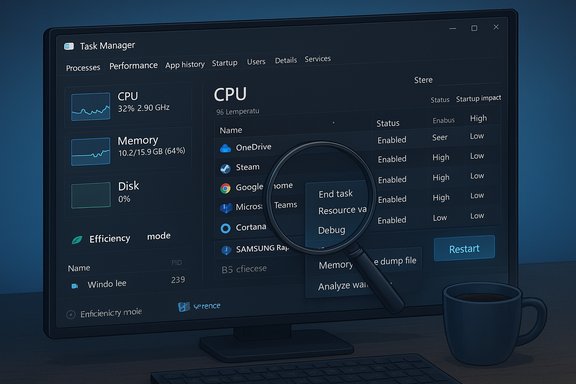
Task Manager is not just an emergency exit for frozen programs — it’s a compact control room that can reveal what Windows is doing, where bottlenecks live, and how to nudge resources toward the apps you care about most. The modern Task Manager in Windows 11 (and recent Windows 10 builds) packs advanced monitoring, process control, and diagnostic tools that every user should know how to use — from adding data-rich columns and reading GPU temperature, to restarting Windows Explorer without a reboot and generating memory dumps for deep debugging.
Task Manager has steadily evolved from a simple process killer into a multi-tab system monitor with features aimed at both casual users and power users. The contemporary interface presents resource graphs and process lists by default, but the real power lies behind context menus, customizable columns, and the deeper tabs — Details, Performance, Startup, and Services — which expose CPU cores, I/O statistics, GPU telemetry, and boot timing numbers. These capabilities let you diagnose slow boots, locate misbehaving apps, and monitor hardware health without third‑party tools.
This article explains the most useful Task Manager tricks, shows when and how to apply them, verifies key technical claims with community-documented behavior, and calls out potential pitfalls so you can act confidently and safely. The guidance below synthesizes practical tips and documented behavior from Windows-focused editorial and community archives.
Task Manager may look deceptively simple, but mastering its hidden features turns it into an effective troubleshooting console and lightweight performance monitor. The next time performance lags, a process misbehaves, or the shell acts up, open Task Manager — not just to end tasks, but to understand them. Armed with the tricks above, you can diagnose issues faster, make more informed decisions about what to change, and avoid unnecessary reboots or risky interventions.
Source: MakeUseOf Everyone needs to know these essential Windows Task Manager tricks
 Background
Task Manager has steadily evolved from a simple process killer into a multi-tab system monitor with features aimed at both casual users and power users. The contemporary interface presents resource graphs and process lists by default, but the real power lies behind context menus, customizable columns, and the deeper tabs — Details, Performance, Startup, and Services — which expose CPU cores, I/O statistics, GPU telemetry, and boot timing numbers. These capabilities let you diagnose slow boots, locate misbehaving apps, and monitor hardware health without third‑party tools.This article explains the most useful Task Manager tricks, shows when and how to apply them, verifies key technical claims with community-documented behavior, and calls out potential pitfalls so you can act confidently and safely. The guidance below synthesizes practical tips and documented behavior from Windows-focused editorial and community archives.
Add more columns for deeper insights
Why extra columns matter
The default process list shows CPU, Memory, Disk, and Network — enough for quick triage. But adding columns lets you slice the data in ways that reveal the real cause of problems. Columns like GPU, Power usage, Publisher, PID, and I/O counters (I/O Read Bytes, I/O Write Bytes, I/O Other) give you a fuller picture of which component a process stresses and where to look next.How to do it (quick steps)
- Open Task Manager (Ctrl + Shift + Esc).
- In Processes or Details, right-click any column header.
- Select the columns you want (e.g., Command line, PID, GPU, I/O reads/writes).
- Click the new column header to sort by that metric.
Best practices
- Add Command line in troubleshooting sessions to see how a process was launched.
- Use PID when you need to correlate Task Manager views with command-line tools (tasklist, taskkill) or logs.
- When disk spikes occur, enable I/O Read Bytes and I/O Write Bytes to identify the culprit.
Identify suspicious processes and locate install folders
Spotting malware or bloat
Not every unnamed process is malicious, but some legitimate system processes use non-intuitive names. Task Manager’s context menu offers two immediate actions for verification: Search online and Open file location. Use Search online to get quick context about a process and Open file location to reveal the executable path and any local uninstallers or additional files. These steps are the first line of inquiry before you escalate to antivirus scans or deeper forensic tools.What to look for
- An unusual process with a publisher field that’s blank or suspicious.
- An executable running from a non-standard directory (e.g., Temp folders or a user profile).
- Duplication: multiple instances of the same program when you expect one.
Safety checklist before killing processes
- Confirm the process name and publisher.
- Check the command line to see parameters or quiet-mode flags.
- If in doubt, take a screenshot or note the PID and research before ending the task. Abruptly terminating system services can destabilize your session.
Restart Windows Explorer to fix temporary UI issues
When to restart Explorer
If the desktop freezes, the taskbar disappears, or File Explorer stops responding, you rarely need a full OS reboot. Restarting explorer.exe restores the Windows shell (desktop, taskbar, Start menu) immediately.How to restart Explorer
- Open Task Manager (Ctrl + Shift + Esc).
- In the Processes tab, find Windows Explorer.
- Right-click it and choose Restart.
Caveat
Restarting Explorer affects only the shell — background services and kernel-level problems won’t be fixed by this action. If the shell repeatedly crashes, investigate display drivers, recent shell extensions, or malware.Set priorities for apps — nudge Windows to favor what matters
What changing priority does
Task Manager lets you change a process’s scheduling priority from Low up to Realtime. Increasing priority tells the Windows scheduler to favor that process when CPU contention occurs; lowering it deprioritizes it relative to other processes. This is useful when you need maximum performance for a single task on constrained hardware.How to change priority (steps)
- Open Task Manager and go to Details.
- Right-click the process you want to adjust.
- Choose Set priority, then select Low / Below normal / Normal / Above normal / High / Realtime.
Practical guidance and warnings
- Use Above normal or High for CPU-bound tasks like video encoding if background tasks are unduly interfering.
- Avoid Realtime for most user applications. Realtime can starve essential system processes and cause responsiveness issues.
- Changing priority affects only CPU scheduling — it doesn’t increase available RAM or GPU resources.
Check GPU temperature and boot (Last BIOS) time
GPU temperature inside Task Manager
For systems with modern GPU driver support, the Performance → GPU page displays the current GPU temperature. This is handy for gamers and creatives who need to confirm thermal behavior without installing third‑party telemetry utilities. It’s a quick health check when you suspect thermal throttling.Last BIOS Time explained
Under Startup Task Manager shows Last BIOS time, a single-number metric representing how long firmware initialization took before Windows started loading. A sudden increase in this number often points to added boot-time hardware checks, slow devices, or firmware quirks and can be a useful diagnostic when troubleshooting slow boots. It is not the total boot time from power-on to desktop; it isolates firmware initialization.Verification and caution
- GPU temperature availability depends on GPU driver support; older cards or drivers may not populate the value.
- Last BIOS time should be interpreted as firmware initialization time only — do not conflate it with overall Windows startup time. If you need a full breakdown of boot phases, use Windows’ Boot Performance Recorder or Event Viewer for detailed timestamps.
Switch to the classic layout or pin Task Manager always on top
Classic layout (retro mode)
If you prefer the older tabbed Task Manager UI, run Task Manager with the -d flag:- Press Win + R → type taskmgr -d → Enter.
Always on top
If you want Task Manager visible while you work (for monitoring), enable Always on top in Task Manager Settings → General → Window management. This keeps the window floating above other apps, which is handy during real-time troubleshooting or benchmarking.Freeze updates and Efficiency Mode — control the cadence and drain
Freeze Task Manager (CTRL) for a snapshot
Hold the CTRL key while Task Manager is in focus to temporarily freeze live updates. This lets you examine a captured state without the list jumping as values change. It’s invaluable when you need to examine a transient spike.Efficiency Mode
Windows 11 introduced Efficiency Mode, which throttles background processes to reduce resource contention. Right-click a process and choose Efficiency Mode to deprioritize it, indicated with a small leaf icon in the process list. Use this to preserve battery life or prioritize foreground tasks. However, applying Efficiency Mode to system processes or installers can cause unexpected behavior, so use it selectively.Analyze wait chains and create memory dumps — advanced diagnostics
Analyze Wait Chain
When an application is hung, Task Manager’s Analyze wait chain (Details tab → right-click a process) shows if the process is waiting on another process or a system resource. This can prevent unnecessary termination of a blocked app by identifying the true blocker. It’s a targeted troubleshooting step that can save work.Create memory dumps
Task Manager allows creating a memory dump for a process (right-click → Create memory dump file) and can generate live kernel dumps for deep debugging. Dumps are essential for developers and support engineers who need the process state to diagnose crashes or driver problems. These files can be analyzed with debuggers like WinDbg. Be mindful: dump files can be large and may contain sensitive memory contents, so handle them securely.Manage Startup apps and improve boot times
Why startup matters
Too many startup programs lengthen the time from power-on to usable desktop and increase resource contention. Task Manager’s Startup tab lists boot-time applications and shows Startup impact (Low / Medium / High). Disable non-essential items to speed boot and free resources.Steps to optimize boot
- Open Task Manager → Startup.
- Sort by Startup impact.
- Right-click non-essential apps and choose Disable.
- Reboot and measure improvement (Last BIOS time and overall boot time).
Caveat
Disabling some startup entries (e.g., security software or device management agents) may change system behavior. For managed corporate devices, consult IT before disabling items.Run new task, elevated command prompt, and recovery options
Fast access to command-line tools
Task Manager’s Run new task is more than a quick launcher. Check Create this task with administrative privileges to open elevated shells. Holding Ctrl while clicking the Run new task button can open a UAC-elevated Command Prompt in some documented behaviors — a time-saver during urgent remediation. Use these features to run sfc /scannow, chkdsk, or other recovery commands quickly.Emergency flow when the UI is unresponsive
If the desktop is hung but Task Manager opens, restart explorer.exe or use Run new task → explorer.exe to restore shell components. When Task Manager itself won’t open, Ctrl + Alt + Delete provides a secure screen that often allows Task Manager access. If all else fails, the documented last-resort command is shutdown /r /f /t 0 to force an immediate restart — but this will close unsaved work.Advanced: Use Details, Process Explorer alternatives, and the registry trick
The Details tab
Details shows per-process information in granular form: memory figures in kilobytes, 32-bit vs 64-bit indicators, process status, and PID. It’s the right place for precise control or when you need to use command-line process management in parallel.When to prefer external tools
Task Manager is excellent for most tasks, but third-party utilities provide deeper insights:- Process Explorer (Microsoft Sysinternals) — for handles, DLLs, and tree views.
- Process Hacker — for deep process control and network/session inspection.
- HWMonitor / MSI Afterburner — for more nuanced thermal and fan telemetry.
Replacing Task Manager (advanced)
Power users can replace the default Task Manager with third-party tools by setting a Debugger registry value under Image File Execution Options. This is powerful but risky and should only be done by experienced users. Always back up the registry first.Risks, caveats, and safe troubleshooting practices
Common pitfalls
- Killing system processes can cause crashes or data loss.
- Setting Realtime priority for an app may freeze the system by starving essential threads.
- Creating and sharing memory dumps can leak sensitive data.
- Disabling startup apps without understanding dependencies may disable services you need.
Safe troubleshooting checklist
- Document PIDs and process names before terminating anything.
- Use Search online and Open file location to verify unknown processes.
- Prefer Restart (Explorer) over a full reboot for UI glitches.
- Backup data before heavy-handed actions like forced restarts or registry edits.
When to escalate
- Repeated unexplained crashes or BSODs — collect dumps and contact support.
- System-level instability after changes — roll back recent changes and run SFC /scannow.
- Signs of persistent malware — use reputable antivirus and, if necessary, perform an offline scan.
Practical workflows: three real-world scenarios
1. The sluggish laptop during video calls
- Open Task Manager, sort by CPU and Network to spot spikes. Add GPU and Power usage columns if needed.
- If a background app hogs CPU, enable Efficiency Mode or lower its priority.
- If battery life is poor, check Startup and disable non-essential autostart apps.
2. The game that stutters intermittently
- Use Performance → GPU temperature and utilization to check thermal throttling.
- Set the game’s process to Above normal priority (Details tab) if CPU contention is occurring. Avoid Realtime.
- Close background capture or overlay apps that use GPU or I/O.
3. The desktop shell that won’t paint
- Open Task Manager (Ctrl + Shift + Esc).
- Restart Windows Explorer. If the problem returns after a reboot, analyze recently installed shell extensions or display drivers.
Final appraisal — strengths, weaknesses, and recommendations
Task Manager is a compact, capable utility that bridges casual troubleshooting and intermediate system administration. Its strengths include:- Rapid triage: quick access to resource usage and process control.
- Built-in diagnostics: wait-chain analysis, memory dump generation, and GPU telemetry.
- Customizability: add columns, choose default tabs, and use the classic view if preferred.
- It’s not a forensic suite: third-party tools matter for deep analysis.
- Misuse of priority or killing processes can harm system stability.
- Some telemetry (like GPU temp) depends on drivers and hardware compatibility, so absence of a metric doesn’t indicate a problem by itself.
- Make Task Manager your first port of call for slow systems or odd behavior.
- Learn to add columns and use the Details tab for precise control.
- Pair Task Manager with Process Explorer and hardware monitoring tools when diagnosing complex performance issues.
- Be cautious: document, research, and prefer non-destructive actions first (restart Explorer, disable startup items) before killing system processes or changing kernel-level settings.
Task Manager may look deceptively simple, but mastering its hidden features turns it into an effective troubleshooting console and lightweight performance monitor. The next time performance lags, a process misbehaves, or the shell acts up, open Task Manager — not just to end tasks, but to understand them. Armed with the tricks above, you can diagnose issues faster, make more informed decisions about what to change, and avoid unnecessary reboots or risky interventions.
Source: MakeUseOf Everyone needs to know these essential Windows Task Manager tricks
