

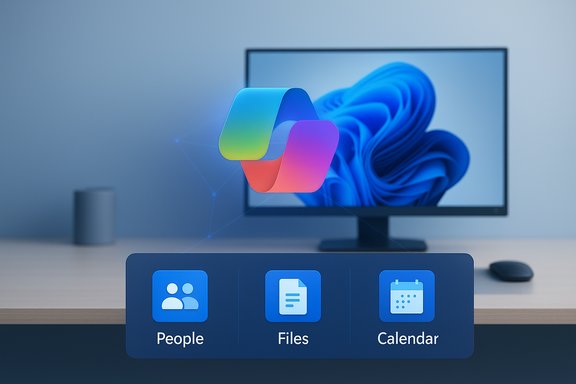
Microsoft has begun silently deploying three new Microsoft 365 “companion” apps — People, Files, and Calendar — to Windows 11 business devices that run Microsoft 365, and the apps are being installed and pinned to the taskbar by default unless administrators opt out through the Microsoft 365 Apps admin center.
Microsoft announced a taskbar‑centric productivity set aimed at reducing context switching for knowledge workers: lightweight apps that surface people details, organization files, and calendar items directly from the Windows 11 taskbar experience. The rollout is targeted at commercial customers only: Windows 11 devices that have Microsoft 365 desktop apps installed and are managed in an organization. The deployment began in late October 2025 and is scheduled to complete in late December 2025, with Microsoft enabling automatic installation and startup by default for eligible devices.
These companion apps are integrated with Microsoft Graph and Microsoft 365 services (Exchange Online, OneDrive, SharePoint, and Teams where available). They are intended to be low-friction access points — small, fast apps that open from the taskbar to display contact cards, recent or relevant files, and a compact calendar view. For enterprises, Microsoft provides an opt‑out control in the Microsoft 365 Apps admin center (Customization > Device Configuration > Modern Apps Settings > Microsoft 365 companion apps (preview) and deployment options via the Microsoft 365 apps update process, Intune, or other distribution tooling.
Key delivery behaviors to understand:
try {
if (Test-Path -LiteralPath $SubKey) {
$AppName = (Split-Path -Leaf $SubKey) -replace 'StartupId$',''
Write-Host ("Turning off startup for {0}" -f $AppName) -ForegroundColor Cyan
Set-ItemProperty -Path $SubKey -Name 'State' -Value 1 -Type DWord -ErrorAction Stop
} else {
$MissingName = (Split-Path -Leaf $SubKey) -replace 'StartupId$',''
Write-Host ("Startup registry key not found for {0}" -f $MissingName) -ForegroundColor Yellow
}
} catch {
Write-Error ("Failed to update 'State' at {0}: {1}" -f $SubKey, $_)
}
}
Get-AppxPackage Microsoft.M365Companions | Remove-AppxPackage
Get-AppxPackage -AllUsers Microsoft.M365Companions | Remove-AppxPackage -AllUsers
rmdir /s /q "%LOCALAPPDATA%\Packages\Microsoft.M365Companions_8wekyb3d8bbwe\LocalState"
 Background
Microsoft announced a taskbar‑centric productivity set aimed at reducing context switching for knowledge workers: lightweight apps that surface people details, organization files, and calendar items directly from the Windows 11 taskbar experience. The rollout is targeted at commercial customers only: Windows 11 devices that have Microsoft 365 desktop apps installed and are managed in an organization. The deployment began in late October 2025 and is scheduled to complete in late December 2025, with Microsoft enabling automatic installation and startup by default for eligible devices.These companion apps are integrated with Microsoft Graph and Microsoft 365 services (Exchange Online, OneDrive, SharePoint, and Teams where available). They are intended to be low-friction access points — small, fast apps that open from the taskbar to display contact cards, recent or relevant files, and a compact calendar view. For enterprises, Microsoft provides an opt‑out control in the Microsoft 365 Apps admin center (Customization > Device Configuration > Modern Apps Settings > Microsoft 365 companion apps (preview) and deployment options via the Microsoft 365 apps update process, Intune, or other distribution tooling.
What exactly are People, Files, and Calendar?
People
The People companion provides a quick reference for colleagues. When invoked from the taskbar, it opens a flyout that shows contact information, job title, department, location, and other directory attributes aggregated from Microsoft 365 identity sources. The app also surfaces communication actions (call, chat via Teams, email) if the organization’s licensing and Teams presence are available.- Purpose: Rapidly identify meeting participants or co‑workers without opening Outlook, Teams, or the full People app.
- Data sources: Microsoft Graph / Azure AD profile properties, Exchange/Outlook contact details, and any organization-managed directory attributes.
- Limits: Accuracy and usefulness depend entirely on how consistently profile attributes are maintained by HR/IT systems and end users. Missing or misassigned attributes will produce incomplete or misleading cards.
Files (File Search)
The Files companion is a fast, taskbar‑accessible file lookup tool that indexes documents and files from OneDrive for Business, SharePoint document libraries, and other Microsoft 365 storage surfaces. It leverages Microsoft Graph search semantics and Copilot‑powered relevance to return likely documents even when exact filenames aren’t entered.- Purpose: Reduce the need to open OneDrive, SharePoint, Teams, or File Explorer to find frequently used or recently edited documents.
- Data sources: OneDrive for Business, SharePoint, Teams files surfaced via Microsoft Graph; results respect the calling user’s permissions.
- Notable: Powered by Copilot / Graph relevance layers that attempt to surface contextually relevant files; this improves recall but raises questions about indexing, telemetry, and prompt grounding.
Calendar
The Calendar companion displays a compact view of the user’s Outlook calendar and upcoming meetings. It provides meeting details and links to join Teams meetings where applicable and is intended to be a lightweight alternative to launching Outlook just to check the next appointment.- Purpose: Fast access to meeting times, links, and details without leaving the desktop context.
- Data sources: Exchange Online / Outlook calendar data via Microsoft Graph.
How these companions are being delivered and managed
Microsoft has integrated these companions into the Microsoft 365 apps update and delivery process for business customers. Eligible Windows 11 devices that run Microsoft 365 desktop apps will receive the companion apps automatically unless administrators disable the automatic installation toggle in the Microsoft 365 Apps admin center.Key delivery behaviors to understand:
- Automatic installation: Default behavior on eligible devices is silent installation — no user prompt.
- Taskbar pinning: Microsoft provides a setting that can pin Copilot and companion apps to the taskbar for a consistent experience; admins can control pinning via the same admin controls or Windows taskbar configuration policies.
- Auto‑launch: To ensure immediate relevance (e.g., showing recent files as soon as the user clicks), the apps are configured to auto‑launch at device startup. Users can disable auto‑start via the app or system startup controls, but admins can manage startup behavior centrally.
- Opt‑out vs. removal: Unchecking the admin center toggle prevents future automatic installs, but it does not automatically uninstall apps that were already pushed. Administrators need to remove installed instances via Intune, device management tooling, or PowerShell if apps were installed prior to opting out.
Administrative controls: opt‑out, deployment, and cleanup
Enterprises have several levers to manage companion apps. The important controls and recommended actions are:- Microsoft 365 Apps admin center:
- Path: Customization > Device Configuration > Modern Apps Settings.
- Action: Select Microsoft 365 companion apps (preview) and clear Enable automatic installation of Microsoft 365 companion apps (preview) to stop new automatic installs.
- Note: This toggle prevents future automatic installs but does not retroactively remove already installed companions.
- Intune / Endpoint management:
- Use Intune (or equivalent) to uninstall the companion packages from enrolled devices if removal is required across an estate.
- Create configuration profiles or Win32 uninstall packages if necessary to target affected devices.
- PowerShell (device-level cleanup):
- Per‑user uninstall:
powershell -NoProfile -Command "Get-AppxPackage Microsoft.M365Companions | Remove-AppxPackage" - Remove for all users on a device:
powershell -NoProfile -Command "Get-AppxPackage -AllUsers Microsoft.M365Companions | Remove-AppxPackage -AllUsers" - Clean leftover local data:
rmdir /s /q "%LOCALAPPDATA%\Packages\Microsoft.M365Companions_8wekyb3d8bbwe\LocalState" - Caveat: Microsoft’s admin toggle must be disabled to prevent reinstallation. If the toggle remains enabled, companions can be reinstalled during subsequent Microsoft 365 app updates.
- Blocking auto‑start without uninstalling (PowerShell registry approach):
- Companion apps register per‑user startup state under:
HKCU:\Software\Classes\Local Settings\Software\Microsoft\Windows\CurrentVersion\AppModel\SystemAppData\Microsoft.M365Companions_8wekyb3d8bbwe - Subkeys like CalendarStartupId, FilesStartupId, and PeopleStartupId contain a DWORD named State where 0 = enabled, 1 = disabled. Administrators may deploy a script that sets State = 1 for the relevant keys to block auto‑launch while leaving the app installed for users who may want to try it later.
- Imaging and application baselines:
- Add uninstall steps to corporate images or post‑deployment configuration tasks if companions must be absent from department or role‑specific images.
Practical impact on IT operations and endpoint management
The silent nature of the rollout affects multiple operational facets:- Patch/update pipelines: Because companion installation is tied to Microsoft 365 app updates, imaging and patch workflows must account for potential reintroduction during regular application updates.
- Asset inventory and compliance: Companion apps are MSIX/Appx scoped apps and may not appear in traditional MSI or Add/Remove Programs inventories. Inventory tools that query modern app lists (Get‑AppxPackage or store‑aware asset tools) should be used to detect presence and track compliance.
- User support and helpdesk: Helpdesk teams must be prepared to explain the new icons and functionality, and have scripts ready to disable auto‑start or uninstall on demand.
- Telemetry and security scanning: Modern apps installed quietly can trigger organizational security or compliance scans. Administrators should ensure endpoint protection and application allow lists include the companion package signatures and consider scanning for unexpected network behavior if Copilot or Graph calls change patterns of API use.
- Group Policy and policy drift: Organizations that rely heavily on Group Policy may need to augment policies with Microsoft 365 Apps admin center settings or Intune app removal policies to maintain consistent behavior across hybrid device fleets.
Security, privacy, and compliance considerations
Introducing components that surface user data directly on the taskbar has privacy and compliance implications that require attention.- Data access scope: Companion apps pull information from Microsoft Graph, which aggregates directory, mailbox, and file data. Data surfaced respects existing permission models — users will only see files and contact details they are permitted to access. However, organizations that have lax directory hygiene may reveal inaccurate or stale personal information.
- Telemetry and Copilot: Files search uses Copilot/powered relevance layers. This raises questions about what telemetry is sent to Microsoft services for ranking and prompt grounding. Enterprises that are sensitive to data residency or telemetry transmission should evaluate Copilot governance and Microsoft licensing for Copilot capabilities.
- Auditability: Admins should verify how companion app access is logged. Does Graph access from companions generate distinct audit events? Can SIEM solutions correlate companion usage to user activity for forensic or compliance monitoring?
- Egress and network policy: Auto‑launching companions will generate background Graph calls. Network teams must plan for the additional API traffic when many devices start companions shortly after boot. Conditional Access and network filter policies should be tested to ensure the companion experience degrades gracefully when offline or blocked.
- Regulatory impact: In regulated environments (healthcare, finance, government), surfacing and caching of calendar or file metadata on endpoints may require review by compliance officers, especially if data is stored locally or if apps maintain local state directories that could be subject to eDiscovery.
Usability and value proposition: strengths and shortcomings
Strengths
- Instant context: For users who need quick access to people, a project’s most recent files, or the next meeting, these companions reduce friction and context switching by avoiding full client launches.
- Integration with Microsoft 365: Because the apps query Microsoft Graph, they can provide a consolidated view across OneDrive, SharePoint, Exchange, and Teams where permissions allow.
- Admin control: Microsoft exposes central toggles and deployment paths through the Microsoft 365 Apps admin center and Intune, which enables enterprise management despite the default‑on behavior.
- Lightweight footprint: The companions are designed to be small and task‑focused, not full replacements for Outlook, Teams, or File Explorer.
Shortcomings and operational pain points
- Surprise installations: Default silent installation on enterprise machines may be perceived as invasive, especially when changes are pushed without clear change-management notices or admin opt‑out awareness.
- Reinstallation issues: Clearing the admin toggle does not remove previously installed apps; admins must explicitly uninstall or remove them via Intune or PowerShell, which can be tedious across large estates.
- Inventory visibility: Modern app packaging means many traditional enterprise asset tools will miss these installs unless they query Appx/MSIX inventories.
- Reliance on directory hygiene: The People app’s value is directly proportional to how well the organization maintains employee profile data. Poor data results in poor UX.
- Autostart behavior: Auto‑launch at startup can increase boot activity and API calls, and if not controlled, can contribute to resource contention or network load spikes.
Recommended action plan for IT teams
- Triage and policy decision
- Review business impact and decide whether the companions are tolerable, desirable, or unacceptable for the organization.
- Coordinate with security, compliance, and change management teams.
- Opt‑out to stop future installs
- If the decision is negative, an administrator must uncheck Enable automatic installation of Microsoft 365 companion apps (preview) in Microsoft 365 Apps admin center under Customization > Device Configuration > Modern Apps Settings.
- Remove existing installs
- Use Intune or device management tooling to uninstall the companion package across affected devices.
- If a rapid ad hoc cleanup is needed, deploy the Get‑AppxPackage/Remove‑AppxPackage PowerShell sequence with appropriate scoping.
- Prevent auto‑start where immediate uninstall is not possible
- Deploy the registry modification that sets the companion startup State DWORD to 1 for CalendarStartupId, FilesStartupId, and PeopleStartupId. This blocks the apps from automatically launching at sign‑in while preserving the app install so users can enable it later if needed.
- Update images, baselines, and inventories
- Add companion checks to asset inventories and include removal or blocking steps in OS image builds and post‑deployment scripts.
- Communication and user education
- Announce the change to staff via standard internal communications, explaining what the companions do, why the organization is enabling or disabling them, and how users can manage startup behavior on personal devices.
- Monitor telemetry and network load
- Monitor Graph API usage and endpoint telemetry following deployment or rollback to detect unexpected behavior or spikes in network calls.
Technical playbook: scripts and registry changes
Below are concise examples for administrators to adapt into automation workflows or Intune scripts.- Disable automatic startup for each installed companion (per‑user, via registry):
Code:$CompanionRegRoot = "HKCU:\Software\Classes\Local Settings\Software\Microsoft\Windows\CurrentVersion\AppModel\SystemAppData\Microsoft.M365Companions_8wekyb3d8bbwe" $StartupSubKeys = @('CalendarStartupId','FilesStartupId','PeopleStartupId') | ForEach-Object { Join-Path $CompanionRegRoot $_ }
try {
if (Test-Path -LiteralPath $SubKey) {
$AppName = (Split-Path -Leaf $SubKey) -replace 'StartupId$',''
Write-Host ("Turning off startup for {0}" -f $AppName) -ForegroundColor Cyan
Set-ItemProperty -Path $SubKey -Name 'State' -Value 1 -Type DWord -ErrorAction Stop
} else {
$MissingName = (Split-Path -Leaf $SubKey) -replace 'StartupId$',''
Write-Host ("Startup registry key not found for {0}" -f $MissingName) -ForegroundColor Yellow
}
} catch {
Write-Error ("Failed to update 'State' at {0}: {1}" -f $SubKey, $_)
}
}
Code:
- Per‑user uninstall:
Code:
- Remove for all users:
Code:
- Clean leftover local state:
Code:
 Note: Test scripts on a small set of devices before wide deployment. PowerShell commands must be executed in the correct context and with appropriate privileges. Removing Appx/MSIX packages for all users can have side effects and should be validated in staging. --- ## Strategic implications: what this signals about Microsoft’s direction The companions reflect Microsoft’s broader strategy to weave Microsoft 365 services — Graph, Copilot relevance, and lightweight taskbar experiences — more tightly into Windows. The approach reduces friction for everyday tasks and pushes more surface area for Microsoft 365 features directly into the OS chrome. For IT leaders, the companion rollout underscores two trends that matter: - Platform convergence: Microsoft is accelerating the integration of cloud productivity features directly into Windows UI elements. Expect more small, service‑backed utilities that blur the lines between OS and cloud service.
- Control and governance pressure: Default‑on experiences emphasize the need for robust administrative telemetry, clearer control points, and well‑communicated change management. Organizations that lack cloud governance maturity may find it harder to maintain predictable endpoint behavior without investing in automation and policy controls. --- ## Risks and open questions - Reinstallation behavior: If admin toggles are misconfigured or Microsoft changes the install logic, companions may reappear during routine app updates. Ongoing vigilance in update windows is required.
- Telemetry and Copilot governance: The degree and nature of telemetry, prompt grounding, and whether Copilot relevance calls expose additional sensitive context must be clarified for privacy‑sensitive deployments.
- Visibility in management tooling: Some endpoint management tools must be updated to detect and remediate modern app installs consistently — organizations should validate their management stack for coverage.
- User experience fragmentation: Parallel access points to the same data (Teams, Outlook, File Explorer, Files companion) could create confusion without clear internal guidance on preferred workflows. Where claims or product behaviors are controlled by cloud rollout timing or preview flags, organizations should assume variability and prepare rollback or mitigation plans that do not depend on a single UI toggle. --- ## Conclusion The Microsoft 365 companion apps — People, Files, and Calendar — deliver immediate, taskbar‑accessible shortcuts to directory, documents, and schedules designed to make workers more productive by reducing context switches. For enterprises, the technical benefits are tempered by operational and governance costs: surprise installations, inventory gaps, startup behavior, and privacy questions around Copilot‑powered file search. Administrators have tools to opt out of future installations and to remove or disable auto‑start on already affected machines, but cleanup requires action: toggling a setting alone does not remove already deployed companions. A pragmatic approach is to combine the Microsoft 365 Apps admin center opt‑out, scripted uninstalls or Intune removals, and short‑term registry blocks for startup to manage user impact while security, compliance, and change‑management teams evaluate the apps for longer‑term allowed use. Preparing an inventory of affected devices, updating endpoint management playbooks, and issuing clear internal communications will minimize disruption and help IT teams convert a surprise rollout into a controlled, policy‑driven outcome. The companions are small on surface but significant in enterprise governance implications; managing them quickly and predictably will be a test of cloud governance discipline. [hr][/hr]**Source:** Windows Latest [Windows 11 is auto-installing People, Files, and Calendar Microsoft 365 apps on business PCs](https://www.windowslatest.com/2025/11/07/windows-11-is-auto-installing-people-files-and-calendar-microsoft-365-apps-on-business-pcs/)