

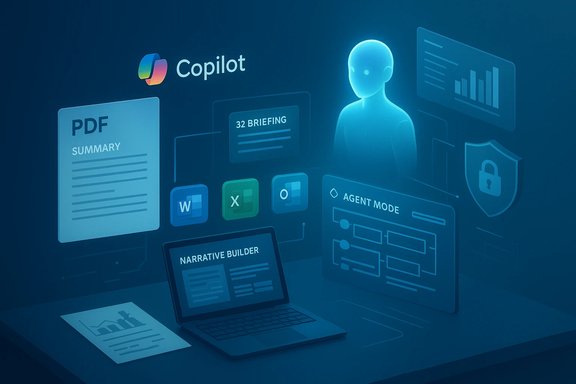
Microsoft Copilot’s 2026 evolution turns what used to be tedious, repeatable work—summarizing long PDFs, triaging inboxes, building slide decks and wrestling spreadsheets—into conversational workflows you can start from a sentence or an uploaded file. What felt like futuristic promise in 2024–2025 is now practical: Copilot is a native assistant across Microsoft 365 apps, and the combination of file grounding, agentic workflows, and expanded context windows means the AI can handle far larger documents, multi‑step Excel tasks, and more tailored Outlook replies than before. This walkthrough explains the most impactful features demonstrated in David Fortin’s Copilot walkthrough, verifies the platform claims against Microsoft’s published notes and community reporting, and evaluates the strengths, pitfalls, and governance questions enterprises must confront when deploying Copilot today.
Microsoft has repositioned Copilot from a standalone chatbot to an embedded productivity layer inside Word, Excel, PowerPoint, Outlook, Teams and the Copilot app. That integration is deliberate: Copilot is built to produce editable work artifacts—draft emails, slide decks, formulas, and data visualizations—that users can iterate on rather than treating AI output as final. The platform mixes conversational prompts with file grounding (reading attachments and tenant data via Microsoft Graph), multimodal input (text, files, and voice), and agent-like automation that can execute multi‑step tasks inside an app’s native UI. Community writeups and product notes show these capabilities are now shipping and expanding across platforms.
Key design choices to remember:
Source: Geeky Gadgets MS Copilot AI Guide 2026 : Smarter PDFs, Outlook Replies & Excel Tricks
 Background / Overview
Microsoft has repositioned Copilot from a standalone chatbot to an embedded productivity layer inside Word, Excel, PowerPoint, Outlook, Teams and the Copilot app. That integration is deliberate: Copilot is built to produce editable work artifacts—draft emails, slide decks, formulas, and data visualizations—that users can iterate on rather than treating AI output as final. The platform mixes conversational prompts with file grounding (reading attachments and tenant data via Microsoft Graph), multimodal input (text, files, and voice), and agent-like automation that can execute multi‑step tasks inside an app’s native UI. Community writeups and product notes show these capabilities are now shipping and expanding across platforms.Key design choices to remember:
- Copilot is context-first: responses are grounded in the file or app you’re working in when possible.
- Agentic features (Agent Mode, Copilot Studio agents) perform multi‑step sequences with visible steps and outputs.
- Microsoft exposes controls for enterprise governance—encryption, tenant-level settings and agent management—while warning users to validate outputs for high‑stakes tasks.
What’s New and Why It Matters
The practical headlines
- Larger document grounding: Narrative Builder in PowerPoint and Copilot’s summarization modes now accept far larger inputs—Microsoft and community notes reference support for roughly 40,000 words or about 150 slides for decks and longer summaries. This changes how you convert long reports into presentations.
- Agent Mode in Excel is GA on the web: Excel’s Agent Mode—an agentic workflow that plans, creates and validates multi‑step spreadsheet tasks—is generally available on Excel for Web and rolling to desktop platforms; licensing gates apply. This turns multi‑step spreadsheet work into a single prompt-driven conversation that produces editable workbook artifacts.
- Stronger PDF handling—but with caveats: Copilot can ingest PDFs as grounding files (used for summarization, pulling tables into slides or Excel), and Microsoft has expanded support for file types, but extraction quality varies by PDF structure and whether the file is scanned images or digitally created text. Community testing shows both successes and limitations.
- Business licensing and bundles: Microsoft offers commercial Copilot tiers—the flagship Microsoft 365 Copilot add‑on is priced at around $30 per user/month (paid yearly) for commercial seats, with separate Microsoft 365 Premium and consumer propositions that bundle Copilot functionality at different price points. Pricing and bundle options have been updated across 2025; administrators should confirm exact entitlements for their tenant.
Deep Dive: Smarter PDFs
What Copilot does with PDFs today
Copilot’s file grounding enables these principal workflows:- Summarize a long PDF into a concise brief or an executive summary.
- Extract tables and numeric data, and import them into Excel or convert them into charts.
- Use a PDF as grounding material for Narrative Builder to create slide decks that reference the PDF’s key points.
Limitations and verification you must plan for
- PDFs vary enormously: text-based PDFs (exported from Word/Excel) are far easier to parse than scanned, image-based PDFs. For scanned files, OCR preprocessing is still necessary in many cases. Community threads and Microsoft guidance confirm scanned PDFs are an area where extra steps are required.
- Complex layouts, multi-column pages, and non‑tabular numbers are error sources—Copilot may misalign columns or miss context. Treat extracted tables as first drafts, not audited data.
- Availability can be incremental: some PDF features were first offered to Beta or Frontier program users before broader rollout; check your tenant’s rollout status.
Practical PDF workflow (recommended)
- Convert scanned PDFs to searchable text with OCR (Azure Document Intelligence or an equivalent) before grounding them in Copilot.
- Attach the exact files as your grounding source (don’t paste long text blocks into the chat).
- Run a validation pass in Excel: import the extracted table and check totals/formats with quick reconciliation formulas.
- Keep a human in the loop for any financial or legal numbers.
Outlook: Faster Replies, Smarter Triage
What Copilot brings to email
- Inbox triage: Generate prioritized summaries of unread messages, highlight threads with action items and surface the most important threads for your day.
- Drafts and tone control: Produce draft replies with selectable tones—concise, professional, friendly—or transform a thread into a meeting agenda or follow-up list.
- Calendar-aware suggestions: Propose meeting times by checking free/busy availability (with appropriate permissions) and draft agendas based on related emails and attached files.
Strengths
- Dramatic time savings for high-volume users: triage and drafting tasks that previously took hours can be compressed into minutes with consistent tone and structure.
- Built-in prompts and prompt galleries help teams standardize messaging and response templates.
Caveats and best practices
- Always proofread AI-generated replies for accuracy, tone and compliance—Copilot accelerates drafting but is not an editorial or legal substitute.
- Use pinned prompts for recurring meeting agendas or stakeholder responses to ensure consistency and reduce variance.
- Be conservative with any automatic “send” or scheduled reply features until workflows and permissions are fully validated.
Excel: From Natural Language to Agent‑Level Automation
The Copilot promise in Excel
Excel’s Copilot feature set now runs from formula suggestions and inline fixes to Agent Mode, which can:- Plan a multi‑step workflow,
- Create sheets, PivotTables, charts and formulas,
- Validate and iterate on results, exposing the steps it takes so users can inspect and correct them.
Excel + PDF: a new data bridge
Recent updates allow Copilot to reference external files—Word, PowerPoint and PDFs—so you can ask Excel to “pull the financial table from the attached PDF and create a monthly pivot.” That pipeline is powerful but not foolproof; Microsoft support pages and community reports show import from Excel files is mature, while PDF extraction is improving but remains dependent on file structure.Practical Excel checklist
- Start with a clean workbook and well-labeled headers to reduce ambiguity.
- Use Agent Mode for repeatable, higher-complexity tasks and keep the agent’s plan visible.
- Run independent reconciliation checks on all financial totals and assumptions.
- For forecasting or regulatory reporting, enforce a human sign-off and versioning policy.
Copilot Agents and Copilot Studio: Automating Repetition
What are Copilot Agents?
- Pre-built or custom agents automate repeated, multi‑step workflows: Researcher agents for meeting prep, Custom Agents that summarize PDFs on a schedule, or agents that assemble weekly dashboards by pulling from multiple sources. Microsoft exposes Copilot Studio and metered agent usage for enterprises.
Enterprise usage patterns
- Agents are useful for repetitive tasks—regular reports, meeting briefs, and data consolidation.
- Metered agent usage and agent creation capacity packs exist; administrators must plan for costs and RBAC.
Risks and governance
- Agents with write privileges can modify content or send messages; rigorous least‑privilege policies and monitoring are essential.
- Data connectors (to third‑party services) must be audited and staged with strict access controls to avoid data leakage.
- Schedule automatic runs conservatively—start read-only digests before enabling any write or send actions.
Security, Compliance and Data Residency
Microsoft positions Copilot as enterprise-ready with controls like Enterprise Data Protection, tenant-level governance and encryption. For regulated industries, Microsoft has added in‑country processing options in some regions and continues to document compliance features. However, governance is a shared responsibility: admins must set connector permissions, apply tenant policies and maintain audit trails for agent actions. When high‑sensitivity data is involved, prefer in‑country processing options and limit agent write permissions.Pricing and Licensing — What to Budget For
- The commercial Microsoft 365 Copilot add‑on is listed at approximately $30 per user/month (paid yearly) for enterprise seats; Microsoft also publishes business bundles and promotional pricing that can change over time. Smaller business bundles and Microsoft 365 Premium (consumer) offerings provide alternate price points and blended features. Always confirm current prices with your Microsoft representative or the official pricing page before procurement.
- For agentic workloads and heavy API/agent usage, expect additional metered charges for Copilot Studio and agent consumption; plan capacity accordingly.
Practical Workflows and Prompt Examples
Below are tested prompt patterns that translate well into action across apps.- PDF → Executive Summary (PowerPoint)
- Upload the PDF to OneDrive or SharePoint and attach it to a Copilot prompt.
- Prompt: “Summarize this 50‑page report into a 10‑slide executive summary for a marketing audience; include 3 charts: monthly revenue trend, ARR by product, and top 5 churn drivers.”
- Iterate: “Shorten the second slide to a single bullet and add speaker notes.”
- Inbox Triage (Outlook)
- Prompt: “Summarize unread items from the past 48 hours and list three action items with owners and suggested due dates.”
- Multi‑step Excel Workflow (Agent Mode)
- Prompt: “Create a monthly pivot showing revenue by region, highlight the top 5 customers, and produce a forecast for next quarter using a linear growth assumption of 3%.”
- Review the agent plan, inspect formulas and finalize.
- Repeatable Agent (Copilot Studio)
- Create a Researcher Agent: “Weekly, pull last week’s sales reports (PDFs) from SharePoint, extract the top 10 KPIs into an Excel workbook, and email a short brief to the sales leads.”
Strengths: Why Copilot Is a Step Change
- Productivity multiplier: Real-world trials and Microsoft’s own analytics repeatedly show Copilot reduces first‑draft work, meeting follow-ups and repetitive spreadsheet chores dramatically.
- Lower barrier to expertise: Natural language prompts plus Agent Mode democratize capabilities that historically required advanced Excel or design skills.
- Seamless app grounding: Being embedded in the apps you already use reduces friction compared to switching between a separate chatbot and your files.
Risks and Failure Modes
- Hallucination and accuracy: Generative outputs can be factually incorrect or misinterpret source data; for any high‑stakes task (legal, financial, regulatory), require human verification.
- Data leakage and misconfigured connectors: Agents or connectors with overbroad permissions can expose sensitive data; enforce least-privilege and staged rollouts.
- Overreliance on automation: Turning over end‑to‑end processes to agents without audit or human checkpoints increases operational risk; apply role-based reviews and traceability.
- Feature availability and rollout timing: Some capabilities are rolled out via Frontier/Beta programs first; assume staged availability and validate tenant entitlements before building critical workflows.
How to Start Safely: A Practical Adoption Roadmap
- Pilot small and measure impact
- Choose two pilot teams (one finance/operations, one marketing/design).
- Define success metrics: time saved on drafting, number of drafts produced, error rate on extracted tables.
- Create guardrails
- Enforce least-privilege for connectors and agents.
- Implement mandatory review steps for financial or external communications.
- Train users
- Provide prompt templates, show examples of file grounding, and create a short checklist for validating outputs.
- Monitor and iterate
- Use Copilot Analytics and tenant logs to track usage, errors, and unexpected agent actions.
- Expand with governance
- Once pilots prove ROI, roll out departmental agents with audited change logs, RBAC and capacity planning for metered agent costs.
Final Assessment — Where Copilot Excels and Where to Be Cautious
Microsoft Copilot in 2026 is a pragmatic, productivity-first platform: it shortens drafting, automates repetitive analysis, and offers a conversation-first UX that maps well to modern knowledge work. Features like Narrative Builder, Agent Mode in Excel, and file grounding turn previously manual workflows into single-prompt sequences that deliver editable outputs. These are transformational for teams that depend on synthesis of long documents, frequent slide creation, and heavy Excel modeling. But the platform is not a magic bullet:- Expect imperfect PDF extraction for complex layouts or scanned documents and plan an OCR/preparation step.
- Treat Copilot outputs as working drafts—always verify critical numbers and legal language.
- Establish governance around agents, connectors and metered costs before widerelease in an enterprise.
Closing: Practical Next Steps for Windows Forum Readers
- Verify your tenant’s Copilot entitlements and rollout schedule in the Microsoft 365 admin center; Agent Mode and advanced grounding features have staged availability that depends on license and channel.
- Run a constrained pilot focused on a high‑ROI, repeatable task—PDF-to-deck conversion or weekly KPI briefs—for two business units.
- Build a short verification checklist for every Copilot output you accept into reports or external communications.
- Track usage and incidents, and iterate your governance model before enabling agent write permissions widely.
Source: Geeky Gadgets MS Copilot AI Guide 2026 : Smarter PDFs, Outlook Replies & Excel Tricks
