

Microsoft’s Copilot is getting smarter and more visually capable: recent reports show the assistant will soon be able to draw on external, third‑party data sources through Microsoft Graph (now branded Copilot) connectors to produce more context‑aware answers, and PowerPoint is being upgraded with a built‑in, Copilot‑powered image editor so you can fix, enhance and generatively edit photos without leaving your slides. These are not incremental tweaks — they reflect Microsoft’s strategy to ground generative AI in your actual data and to fold creative image tooling directly into Office workflows, bringing both new productivity gains and new privacy, security and governance questions for IT teams and end users.
Microsoft’s Copilot has graduated from a novelty chat companion to a platform-level capability that spans Windows, Edge, Office apps and cloud services. That growth has two practical implications: first, Copilot’s value increases sharply when it can "ground" responses in enterprise or personal data (calendars, CRM records, internal docs). Second, as Microsoft integrates generative editing and image generation across apps, workflows that once required multiple tools are collapsing into one — writing, data analysis and visual storytelling can now be orchestrated by a single assistant. Both shifts are central to Microsoft’s vision of AI as an everyday work partner rather than a separate add‑on.
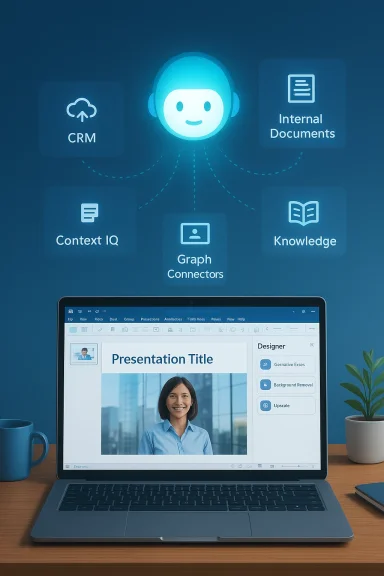
These developments were previewed and tracked across Microsoft’s message center, Copilot blog updates, and independent reporting. In particular, the Business Chat (BizChat) and Copilot Chat experiences are being extended to let end users select content from Microsoft Graph Connectors (now often called Copilot connectors) when composing prompts — a feature Microsoft refers to through the Context IQ framework. At the same time, PowerPoint will house a built‑in “Designer editor” image toolset powered by Copilot/Designer capabilities so that generative erase, background removal, upscaling and other intelligent edits can be performed directly on slides.
Microsoft’s Copilot blog and Copilot Studio updates also describe a rebrand of Graph connectors to “Copilot connectors” and highlight new out‑of‑the‑box connectors (e.g., GitHub, Salesforce Knowledge, Stack Overflow). The intent is to let Copilot Studio–built agents use these connectors as knowledge sources so that generated answers are grounded in verified, organization‑specific content rather than purely public knowledge. That grounding capability matters for accuracy, auditability and usefulness in business workflows.
For Windows and Microsoft 365 users, the prudent path is to pilot these features with well‑scoped scenarios, build governance into connector and Copilot usage from day one, and demand clear provenance and auditing tools before using Copilot outputs in high‑risk decisions. If you manage Microsoft 365 at any scale, plan now: inventory connectors, map sensitive content, and prepare to balance the productivity gains of contextual Copilot with the accountability your organization must maintain.
Source: Windows Report https://windowsreport.com/microsoft...ntegration-for-smarter-more-personal-answers/
Source: Windows Report https://windowsreport.com/microsoft-powerpoint-is-getting-copilot-ai-photo-editing/
Microsoft’s Copilot has graduated from a novelty chat companion to a platform-level capability that spans Windows, Edge, Office apps and cloud services. That growth has two practical implications: first, Copilot’s value increases sharply when it can "ground" responses in enterprise or personal data (calendars, CRM records, internal docs). Second, as Microsoft integrates generative editing and image generation across apps, workflows that once required multiple tools are collapsing into one — writing, data analysis and visual storytelling can now be orchestrated by a single assistant. Both shifts are central to Microsoft’s vision of AI as an everyday work partner rather than a separate add‑on.
These developments were previewed and tracked across Microsoft’s message center, Copilot blog updates, and independent reporting. In particular, the Business Chat (BizChat) and Copilot Chat experiences are being extended to let end users select content from Microsoft Graph Connectors (now often called Copilot connectors) when composing prompts — a feature Microsoft refers to through the Context IQ framework. At the same time, PowerPoint will house a built‑in “Designer editor” image toolset powered by Copilot/Designer capabilities so that generative erase, background removal, upscaling and other intelligent edits can be performed directly on slides.
 What Microsoft announced (and what Windows Report covered)
Graph / Copilot connectors: grounding Copilot answers in your data
Recent coverage — including the pieces you provided — summarizes Microsoft’s plan to let Copilot prompt authors pull in results from Graph Connectors directly inside BizChat and Copilot Chat, making responses more relevant to users’ actual content and externals systems like Salesforce or Confluence. This functionality is tied to Microsoft’s Context IQ features and was scheduled for staged rollout beginning in lay March 2025 under Roadmap ID 413111. The reporting emphasizes that this rollout requires no tenant admin action and that the user interface will present an “Other” tab to surface third‑party connector content for selection.Microsoft’s Copilot blog and Copilot Studio updates also describe a rebrand of Graph connectors to “Copilot connectors” and highlight new out‑of‑the‑box connectors (e.g., GitHub, Salesforce Knowledge, Stack Overflow). The intent is to let Copilot Studio–built agents use these connectors as knowledge sources so that generated answers are grounded in verified, organization‑specific content rather than purely public knowledge. That grounding capability matters for accuracy, auditability and usefulness in business workflows.
PowerPoint: Copilot-powered image editing inside slides
Windows Report’s coverage of PowerPoint’s Copilot photo editing echoes Microsoft’s roadmap messages that a “Designer editor” image editing experience will be embedded directly into PowerPoint, enabling features such as Generative Erase, Generative Move, Background Removal, Auto Enhance, Text Recognition and Edit, and Upscale. Microsoft’s Message Center item connected to Roadmap ID 508530 lays out that the editor will appear under Picture Format → Edit Picture (or via right‑click) and will roll out in stages across commercial and education tenants. Early reporting suggests this feature cannot be toggled off individually and will be available broadly to Microsoft 365 users according to their subscription/credit limits.Technical specifics and verification
Below I validate the main technical claims and timelines reported in the articles, cross‑checking Microsoft’s documentation and independent changelogs.- Roadmap and rollout windows: Microsoft’s message center and multiple third‑party changelog trackers list Roadmap ID 413111 for the Copilot + Graph Connectors context feature (Context IQ integration into BizChat) with a rollout beginning late February to early March 2025. Independent summaries (Petri, M365Admin and others) confirm the date and describe the UI change (Other tab in Context IQ).
- Copilot Studio / Copilot connectors: Microsoft’s Copilot Studio blog explicitly states that Microsoft Graph Connectors are now surfaced as Copilot connectors, enabling agents to query and reason over external enterprise content (Stack Overflow, Salesforce Knowledge, GitHub, Unily, etc.). This is an official product update and not merely speculation.
- PowerPoint Designer editor (image editing): The Microsoft 365 message (MC1187787) and roadmap ID 508530 describe the Designer editor with the enumerated editing capabilities. Multiple message center aggregators and admin advisories corroborate the timelines and the feature list; the rollout phases were updated through late 2025, with availability extending into early 2026 in some notices. The feature scope and the in‑app placement (Picture Format → Edit Picture) are consistent across Microsoft’s messages and third‑party change logs.
- Prompt length claim (128,000 characters): some early summaries (and at least one of the uploaded article snippets) mention 128,000 characters per prompt as a Copilot limit. That statement conflates characters and tokens. Public Microsoft and OpenAI documentation reference context windows measured in tokens, and modern model variants (GPT‑4 Turbo/GPT‑4o and related) commonly advertise 128,000 tokens context windows for certain high‑capacity models — not characters. A Microsoft Q&A post and various AI model references show token limits like 128K tokens (which approximates far fewer characters than 128K characters, depending on tokenization). Treat the “128,000 characters” phrasing with caution — the correct technical unit is probably tokens, and token limits govern model context windows, not raw character counts. I could not find an official Microsoft doc that uses the term “128,000 characters” for Copilot prompts; instead, token‑based context windows are documented. Flag this as likely a unit‑mixup.
What this delivers for users and IT teams
For end users and content creators
- Faster, more accurate answers: When Copilot can reference relevant connectors (CRM notes, support case text, internal wikis), it can produce answers grounded in proprietary data that are far more actionable than generic web‑sourced replies. This reduces time spent switching apps and copying context into prompts.
- Visual editing without app bounces: PowerPoint’s built‑in Designer editor means that routine photo fixes (erase a photobomber, remove a background, upscale low‑res photos) can be done inline. Designers and non‑designers alike will benefit from quicker iteration and shorter slide production cycles.
- Single place, more power: Copilot connectors + in‑app visual tools mean workflows that previously required separate knowledge retrieval, analysis and design tools become achievable inside Microsoft 365 applications.
For IT, security and compliance teams
- New governance surface: Copilot accessing Graph connectors equates to AI reading and reasoning over sensitive corporate data. Admins need clear controls for which connectors are allowed, how data is indexed, what retention/search policies apply, and how AI-generated artifacts are logged for audit. Microsoft’s messaging suggests the feature is opt‑in for connectors and that tenant admins are not required to take action for rollout, but that does not remove the need for governance.
- Auditability and traceability demands: Organizations will want logs showing which connector content contributed to a Copilot response for compliance and for verifying correctness. Expect IT to ask for features such as provenance tagging, access logs, and options to block certain knowledge sources from being surfaced to specific apps or users.
- Licensing and cost implications: Inline generative features often consume AI credits or fall under Copilot/Copilot Pro entitlements. The availability and limits of image editing features vary by consumer vs. commercial SKUs, and Microsoft’s message center notes per‑user credits and usage policies for generative operations. IT must plan for potential increases in AI usage and adjust budgets or policies accordingly.
Strengths and practical benefits
- Contextual accuracy: Grounding Copilot in organization‑specific data is the single biggest improvement for business users. Answers become verifiable and immediately actionable rather than speculative.
- Streamlined creatives: In‑app image editing reduces tool switching and can significantly speed up slide creation for small teams and solo knowledge workers.
- Developer friendly connectors: Copilot connectors (formerly Graph connectors) are framed as first‑class building blocks in Copilot Studio, enabling developers to create customized agents that can answer complex, domain‑specific queries using the company’s knowledge base. This lowers integration friction.
Risks, limitations and unanswered questions
- Privacy and accidental disclosure: Even when connectors are technically opt‑in, misconfiguration could expose sensitive content to Copilot queries or to users who should not see it. Administrators must audit connector access and default search behaviors. This is a real risk when dealing with HR, legal, or customer data.
- Provenance and hallucination: Grounding reduces hallucinations but does not eliminate them. Copilot may still synthesize plausible‑sounding statements that misrepresent connector content. Organizations need verification steps and human‑in‑the‑loop checks for high‑stakes outputs.
- Licensing surprises and throttles: Microsoft ties some generative functions to subscription tiers or monthly credit budgets. Heavy usage of image edits or large context queries may hit quotas; IT should plan for monitoring, alerts and potential Copilot Pro upgrades.
- Complex governance UX: The "Other" tab and in‑chat selection mechanics simplify user access to connectors, but they also complicate consent and data classification workflows. Who can connect what — and who must sign off — are policy decisions that may not map neatly to existing admin models.
- Feature rollout fragmentation: Microsoft rolls features in waves (Insider -> US -> wider markets), and availability often differs by tenancy type, subscription and region. Expect some teams to see features before others; communication is essential.
Practical guidance: how to prepare (IT and power users)
- Inventory connectors and sensitive sources now.
- Identify Graph connectors already in use and classify them by sensitivity and business impact.
- Define connector governance.
- Create policies for which connectors are allowed in Copilot, who can enable them, and how connector indexing is controlled.
- Pilot a group of business scenarios.
- Start with low‑risk use cases (internal FAQs, product docs) to validate grounding quality before exposing sensitive sources (legal, HR).
- Educate end users.
- Teach users to check Copilot’s source suggestions, to verify critical outputs, and to handle AI credits responsibly.
- Monitor and audit.
- Ensure logs and telemetry capture which connectors and documents were used to generate answers; link this to your compliance processes.
- Budget for AI usage.
- Track generative feature consumption (image edits, large context operations) and plan licensing/budget adjustments as necessary.
Use cases that become possible (realistic examples)
- Sales: Ask BizChat “Draft an email summarizing the open opportunities for Acme Corp this quarter and quote the top three support cases” — Copilot pulls CRM records and support tickets via connectors to produce a tailored, accurate summary.
- Support knowledge base authoring: Use Copilot Studio with GitHub and Stack Overflow connectors to assemble a troubleshooting guide that combines internal tickets and external community fixes.
- Marketing and presentations: Import product photography into PowerPoint, use Designer editor to remove backgrounds, generatively erase distractions and upscale images, then have Copilot compose a concise slide narrative from your product spec sheet.
What to watch next: verification and follow‑ups
- Confirm tenant settings: Watch your Microsoft 365 admin center and Copilot settings for new connector controls and preview options. Microsoft’s support pages and Copilot Studio posts will be updated as rollouts proceed.
- Monitor message center changes: Roadmap IDs (413111 for BizChat connectors, 508530 for PowerPoint Designer editor) are the practical anchors for tracking staged rollouts and feature availability in your tenant. Use those IDs to filter admin changelogs.
- Ask Microsoft for provenance tools: If you’re an IT decision‑maker, request clarity on how Copilot will record and surface provenance (which connector and which document produced which facts) so you can audit outputs without blocking productivity.
- Test edge cases: Try grounding Copilot prompts with partially overlapping or conflicting internal sources to see how it resolves contradictions; this will reveal where policies or custom agent logic are needed.
Conclusion
Microsoft’s move to let Copilot draw directly from Graph/Copilot connectors and to embed Designer editing into PowerPoint marks a clear step toward making generative AI both more useful and more pervasive in day‑to‑day workflows. The practical upside is large: more accurate, context‑aware answers and faster visual content creation can save real time. The tradeoffs are also real — surface area for governance, compliance and cost control grows alongside capability.For Windows and Microsoft 365 users, the prudent path is to pilot these features with well‑scoped scenarios, build governance into connector and Copilot usage from day one, and demand clear provenance and auditing tools before using Copilot outputs in high‑risk decisions. If you manage Microsoft 365 at any scale, plan now: inventory connectors, map sensitive content, and prepare to balance the productivity gains of contextual Copilot with the accountability your organization must maintain.
Source: Windows Report https://windowsreport.com/microsoft...ntegration-for-smarter-more-personal-answers/
Source: Windows Report https://windowsreport.com/microsoft-powerpoint-is-getting-copilot-ai-photo-editing/
