Copilot Wave 3: Agentic AI for Enterprise Productivity and Governance

  • Thread Author
Microsoft’s Copilot is moving from helpful assistant to active digital coworker, and Wave 3 of Microsoft 365 Copilot lays out a clear roadmap: long‑running, agent‑style AI that plans, executes, and reports on work across Outlook, Teams, Word, Excel, PowerPoint, and third‑party business apps.

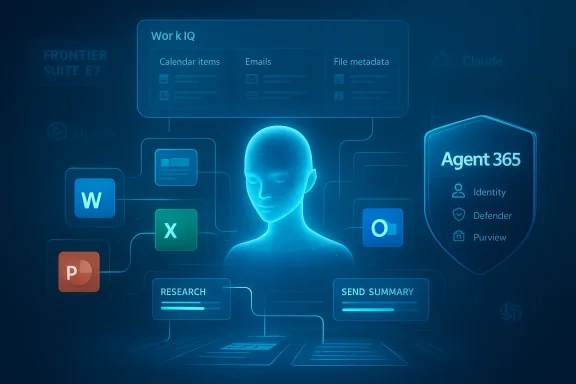
Blue holographic UI featuring a central human silhouette with Office icons and an Agent 365 shield.Background and overview​

Microsoft’s Wave 3 release reframes Copilot from a prompt‑and‑response tool into an execution platform embedded inside the apps people already use every day. Rather than producing a single draft or answer, the new Copilot builds step‑by‑step workflows, runs them in the background, and surfaces progress and outputs directly inside documents, spreadsheets, presentations, and email threads. This is the central idea behind Copilot Cowork: delegate multi‑step work, stay in the loop, and let Copilot carry out the hands‑on tasks that used to require manual clicks across multiple services.
The Wave 3 announcements also introduce two enterprise features that matter for IT and security teams: Agent 365, a management and governance plane for agents, and Microsoft 365 E7 (the “Frontier Suite”), a new enterprise bundle that packages Copilot, Agent 365, and expanded security and identity tooling into a single SKU. Together, these moves surface Microsoft’s strategy for scaling AI in the enterprise: combine multi‑model intelligence with an enterprise control plane and monetize the result as a premium productivity stack.

What Copilot Cowork actually does​

From single prompts to multi‑step execution​

Copilot Cowork is designed to take an instruction like “prepare a vendor update for next Thursday” and transform it into a structured, measurable plan that the AI executes across apps. Instead of returning one draft email or a list of suggestions, Cowork:
  • Breaks the request into discrete steps (research, draft, schedule meeting, send summary).
  • Uses context gleaned from calendars, emails, files, and chat history to populate those steps.
  • Checks in with the user for approvals at configurable points.
  • Executes actions across Outlook, Teams, Excel, PowerPoint, and other connected apps.
  • Runs for minutes or hours and reports visible progress back to the user.
This shift to background, observable execution is the defining characteristic that separates agentic Copilot from prior Copilot iterations.

Work IQ: the intelligence layer​

A critical enabler is Microsoft’s Work IQ layer. Work IQ aggregates contextual signals — calendar items, meeting transcripts, email threads, file metadata, and organization relationships — and presents that context to Copilot so the AI can reason across the same data humans use to make decisions. The practical effect is that Cowork isn’t pulling text snippets blindly; it attempts to align its output with a user’s prior interactions, organizational templates, and sensitivity labels.
Work IQ also ties into Microsoft 365 permissions and sensitivity labels so the system can honor tenant policies about what data may be processed or surfaced by AI. In practice, that means Copilot’s edits are applied directly to files stored in OneDrive or SharePoint under tenant governance rather than creating detached outputs sitting on a user’s desktop.

Agents inside apps and chat​

Wave 3 embeds agents in two complementary places:
  • App‑native agents (Word, Excel, PowerPoint, Outlook): Copilot edits and refines in place — generating formulas in Excel, polishing prose in Word, or refining slides in PowerPoint while preserving styles and layout rules.
  • Chat agents: Conversation remains a primary entry point. From Copilot chat you can spawn documents, ask Copilot to schedule meetings, or have it send emails. Chat becomes an orchestration layer from which agent workflows are launched and monitored.
This design reduces context switching: the AI both suggests and performs, with every action traceable in the apps themselves.

The multi‑model strategy and Anthropic collaboration​

A strategic and technical pivot in Wave 3 is Microsoft’s explicit embrace of a multi‑model approach. Copilot will host models from multiple providers and choose the best model for a given task rather than locking customers into a single stack. Practically, this means:
  • Anthropic’s Claude Cowork model family is integrated for agentic, multi‑step reasoning scenarios.
  • OpenAI’s latest models remain available for creative drafting, code generation, and other tasks.
  • Microsoft routes work to the model best suited for the job while exposing a unified Copilot experience to users.
There are immediate advantages to this approach: organizations can benefit from model specialization, reduce dependence on a single vendor, and pick up the most advanced capabilities as different vendors innovate. But it also increases architectural complexity for IT, which must now consider varied model behaviors, SLAs, and policy interactions when managing enterprise data flows.

Agent 365: governance at scale​

Copilot’s agentic future raises obvious management and security questions. Microsoft answers this with Agent 365, a control plane designed to manage agents like users and devices. Agent 365 provides:
  • Centralized inventory and lifecycle management for agents across an organization.
  • Integration with existing Microsoft security tooling (identity, device management, Defender, Purview) so agents inherit enterprise‑grade governance.
  • Policy enforcement, observability, and audit trails to support compliance and forensic needs.
  • Tenant‑level controls so organizations can permit or block agents from accessing specific data or performing high‑risk actions.
Agent 365 is Microsoft’s attempt to make agent deployment auditable and governable at enterprise scale. For large organizations contemplating hundreds or thousands of agents, these controls are not optional — they are the mechanism that makes agentic AI plausibly enterprise‑safe.

Microsoft 365 E7: the Frontier Suite and pricing​

To commercialize the new stack, Microsoft is packaging Copilot, Agent 365, and an expanded security/identity set into a single enterprise bundle called Microsoft 365 E7 — the Frontier Suite. Key points of the offering:
  • E7 includes Microsoft 365 Copilot, Agent 365, Microsoft Entra suite, Defender, Intune, Purview, and the capabilities of Microsoft 365 E5.
  • Agent 365 will be generally available with the suite and uses Microsoft’s existing admin and security frameworks for governance.
  • Microsoft positions E7 as a premium enterprise SKU for organizations ready to operationalize agentic AI across large teams.
From a commercial perspective, the price positioning is premium: E7 is priced significantly higher than legacy enterprise SKUs and is intended to capture customers that place a dollar value on managed, agentic AI at scale.

Why this matters for IT, compliance, and procurement​

The combination of Cowork, Agent 365, and E7 creates a new procurement and operational vector for enterprises.
  • IT operations must plan for agent lifecycle management as a first‑class operational domain. Agents are not ephemeral scripts; they will run across user contexts, invoke downstream services, and require patching, policy updates, and role‑based access controls.
  • Security teams must extend their threat models to include agent behavior, potential data exfiltration via model endpoints, and supply‑chain concerns introduced by multi‑model routing.
  • Procurement and finance will need to account for new recurring line items and variable costs tied to model usage, agent scale, and storage/compute consumption. The promise of productivity gains must be weighed against higher subscription costs and the real operational cost of governance.

Benefits: where agentic Copilot helps most​

Copilot Cowork and agentic Copilot can deliver clear productivity and operational advantages when deployed thoughtfully:
  • Time savings on repetitive, multi‑step tasks. Tasks such as monthly reporting, triaging meeting follow‑ups, or preparing repeated status updates can be partially or fully automated.
  • Consistency and compliance in outputs. Because Copilot edits in place and follows organization‑level templates and style rules, generated artifacts better reflect brand and compliance requirements.
  • Fewer context switches. Users can delegate orchestration across Outlook, Teams, and documents from a single conversational interface.
  • Faster scaling of automation. Agent Builder and Copilot Studio let business users and IT teams create specialized agents without rebuilding governance from scratch.
These concrete benefits are why many enterprises will view agentic Copilot as a strategic productivity investment rather than a feature upgrade.

Risks and unresolved challenges​

Agentic AI opens new attack surfaces and operational complexities. Key risks to watch:
  • Model‑level opacity and errors. Multi‑model orchestration increases the chance of inconsistent outputs, model hallucinations, or subtle reasoning errors. When agents act autonomously across apps, the cost of an erroneous change can be high.
  • Data exposure and governance gaps. Even with tenant controls and sensitivity label enforcement, organizations must verify where data travels, which model endpoints see it, and whether third‑party models retain or cache data in ways that conflict with policies or regulations.
  • Operational complexity. Managing agents at scale will require new runbooks, monitoring dashboards, and incident response playbooks. Not every IT organization is ready for that shift.
  • Cost blowouts. Agent usage patterns can be unpredictable. Long‑running or frequent agent tasks routed to high‑capacity models can drive substantial incremental compute costs.
  • Vendor and legal risk. Using multiple third‑party models increases contractual complexity: different providers have different data handling, indemnity, and audit capabilities.
  • Human factors and trust. Employees may resist handing over control for tasks that affect reputation, compliance, or customer relationships. Clear human‑in‑the‑loop checkpoints are essential.
These risks are manageable, but they require deliberate policy design and operational investment before organizations deploy agents widely.

Practical guidance — how enterprises should approach Copilot Cowork​

For CIOs, security leaders, and business owners, a phased, risk‑aware approach will reduce surprises. Recommended steps:
  • Start with low‑risk pilots. Choose repeatable tasks that have a clear rollback path and limited exposure to sensitive data.
  • Instrument everything. Turn on detailed logging, establish audit trails, and collect telemetry on agent actions and model choices.
  • Enforce least privilege. Use sensitivity labels and tenant controls to limit an agent’s data access and action scope.
  • Define human‑in‑the‑loop gates. Require approvals at critical decision points so agents cannot act autonomously for high‑impact changes.
  • Monitor cost and model usage. Track which models agents call and how long workflows take to identify runaway compute consumption.
  • Align procurement and legal teams early. Review model provider contracts for data handling, retention, and audit rights.
  • Educate and onboard employees. Clear communications about what agents can and cannot do will reduce misuse and increase adoption.
A clear governance playbook and change management plan will determine whether agentic Copilot becomes a productivity multiplier or an expensive experiment.

Third‑party integration and partner opportunities​

Wave 3’s integration model is deliberately extensible: Copilot now supports app SDKs and MCP Apps, enabling third‑party services to surface inside chat and agent workflows. That’s consequential for ISVs and systems integrators:
  • Partners can embed live, interactive experiences in Copilot chat so users can kick off domain‑specific workflows without leaving Microsoft 365.
  • Agencies and consulting firms that help customers migrate business processes to agentic automation will be in demand.
  • Independent software vendors can build Copilot‑driven extensions (e.g., CRM triggers, design reviews, approval workflows) that increase the stickiness of both the application and Microsoft 365.
This creates a fertile new market for enterprise automation, but it also raises questions about certification, security posture of partner apps, and the verification of partner behavior in regulated environments.

Financial and strategic context​

Microsoft’s push toward agentic AI comes amid an industry‑wide infrastructure build‑out and higher operating costs tied to AI compute. The company has reported strong top‑line growth driven by cloud and AI services, while simultaneously ramping capital expenditures to support model hosting and Azure capacity.
Analysts have warned that hyperscalers’ AI investments will depress free cash flow in the near term as billions of dollars flow into chips, data centers, and custom builds. For enterprises that plan to adopt agentic AI, that macro dynamic matters because it shapes vendor pricing, models’ availability, and the pace at which new capabilities become broadly accessible.
From Microsoft’s perspective, packaging Copilot and governance tools into a premium enterprise SKU is a straightforward monetization play: customers that value administrable, enterprise‑grade agents will pay to avoid building their own control planes.

What to ask vendors and internal teams before enabling agents​

When evaluating Copilot Cowork pilots and E7 adoption, IT leaders should request clear answers to these operational questions:
  • Which models will see tenant data, and what are the retention and deletion guarantees for each model provider?
  • How does Work IQ populate context, and which data sources are excluded by default?
  • What audit logs are produced for agent actions, approvals, and data accessed?
  • How are third‑party app connectors vetted and secured?
  • What SLAs exist for agent availability and model performance?
  • How does Agent 365 integrate with existing SIEM/SOAR tooling and identity providers?
  • What controls exist for revoking an agent’s access or pausing an agent across the tenant?
If vendors cannot provide concrete, auditable answers to these questions, enterprises should postpone wide deployment.

Final analysis: promise vs. prudence​

Copilot Cowork and Wave 3 mark a major inflection point in workplace AI. Microsoft has combined agentic models, contextual intelligence (Work IQ), and a governance plane (Agent 365) into a coherent product story that targets large enterprises. That combination addresses a set of real pain points: repetitive multi‑step work, document version sprawl, and the friction of moving data between apps.
However, the move from assistant to coworker raises significant governance, security, and operational questions that enterprises must treat as first‑class problems. The payoff for successful adoption is real: time savings, consistent outputs, and automation at scale. The downside of rushing into broad deployment without guardrails is equally real: data exposure, runaway costs, and compliance failures.
For CIOs and security leaders, the prudent path is a staged rollout: validate the productivity thesis with low‑risk pilots, build robust telemetry and approval workflows, and extend agent use cases only after governance, auditing, and human‑in‑the‑loop controls prove reliable. For vendors and partners, Wave 3 opens new revenue streams but also requires investment in certification, secure connectors, and integration patterns that respect enterprise security models.
Agentic AI is not a silver bullet, but when delivered with transparency, control, and careful change management it can become a durable productivity platform. Microsoft’s Wave 3 is a bold step toward that future — it gives enterprises powerful new tools, but it also hands them new responsibilities. The task now is to accept the promise of agents without surrendering prudence in governance.

Source: Channel Insider Microsoft’s Copilot is Becoming an AI Coworker
 

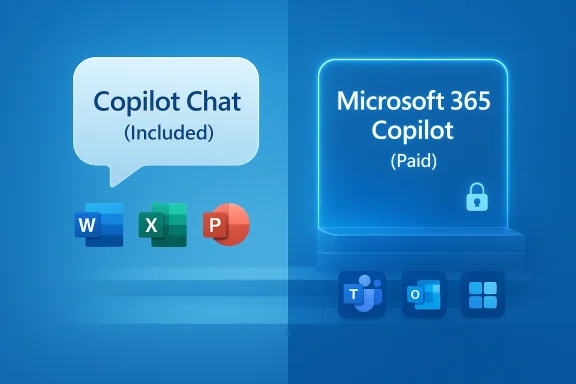
Microsoft’s Copilot strategy inside the Microsoft 365 ecosystem is shifting again, but the headline claim that “Copilot in Office apps” is simply being put behind a paywall needs careful unpacking. In practice, Microsoft has been splitting its AI features into different tiers, with some Copilot Chat capabilities now included at no additional cost for eligible Microsoft 365 subscribers, while the fuller, deeply integrated Microsoft 365 Copilot experience remains the paid option. That distinction matters, because the product branding has become confusing enough that many users will understandably read “Copilot in Office apps” as a single feature when Microsoft itself now treats it as a bundle of different experiences. Microsoft’s own current messaging says Copilot Chat is included at no additional cost for eligible Microsoft 365 users, while Microsoft 365 Copilot is the paid tier that adds richer access across Word, Excel, PowerPoint, Outlook, Teams, and other apps.

Split graphic showing Copilot Chat (included) and Microsoft 365 Copilot (paid) with app icons.Background: why this feels like a paywall story​

The confusion comes from the way Microsoft has renamed and repositioned its productivity apps over the last year. What used to be the Microsoft 365 app has now been rebranded as the Microsoft 365 Copilot app, and Microsoft’s support documentation says that rollout began on January 15, 2025. That same support page also states that Copilot Chat is available at no additional cost to users with eligible Microsoft 365 subscriptions, including work and school accounts, while the full Microsoft 365 Copilot license is still a separate paid product.
For consumers, Microsoft’s January 2025 blog post made the move look more generous: Microsoft said most Microsoft 365 Personal and Family subscribers would get access to Copilot in Word, Excel, PowerPoint, Outlook, OneNote, and the newly renamed Microsoft 365 Copilot app. It also said Family subscribers would only get Copilot for the subscription owner, not for everyone on the plan. In other words, the company was not removing Copilot from Office apps entirely; it was repositioning which Copilot features are bundled, and for whom.
That is why articles framed as “Copilot is behind a paywall” can be both directionally true and misleading at the same time. There is still a premium Copilot tier, but Microsoft has also made selected Copilot Chat features available at no extra charge in many Microsoft 365 plans. The real story is less about a single paywall and more about Microsoft’s ongoing effort to segment AI into free, included, and premium layers.

What is actually free, and what still costs extra?​

The included tier: Copilot Chat​

Microsoft now describes Copilot Chat as an AI chat experience available at no additional cost with eligible Microsoft 365 subscriptions. The official Copilot page says users can access secure, web-grounded AI chat, get Copilot Chat in select Microsoft 365 apps, and use agents that are priced separately on a metered basis. Microsoft Support similarly says Copilot Chat is included at no additional cost with the Microsoft 365 business subscription used at work or school.
That means the “free” experience is not the same as the full paid assistant. It is a lighter Copilot layer that Microsoft is pushing broadly into the apps people already use every day. For many users, that will feel like a major upgrade. For others, especially those who expected the richer, data-connected features of Microsoft 365 Copilot, it will feel more like a teaser.

The premium tier: Microsoft 365 Copilot​

The paid Microsoft 365 Copilot tier remains Microsoft’s flagship AI subscription. Microsoft’s pricing page says it includes Copilot Chat plus deeper integration with business data and access to Copilot in apps such as Teams, Outlook, Word, PowerPoint, and Excel. Microsoft’s business pricing currently lists Microsoft 365 Copilot at $30 per user per month on an annual commitment, with other billing options depending on the plan.
The distinction is not cosmetic. The premium tier is the one Microsoft positions as connected to your work data, enterprise security, compliance, and more advanced reasoning capabilities. That is what businesses are paying for when they sign up for a Copilot add-on license. The free/included Chat layer, by contrast, is Microsoft’s way of widening adoption without giving away the whole premium story.

Consumers get a different deal​

For personal subscribers, Microsoft said in January 2025 that Copilot would be included in Microsoft 365 Personal and Family, but with a key restriction: in Family plans, only the subscription owner gets access. That update also came with a privacy pledge stating Microsoft does not use prompts, responses, or file content from Copilot in Microsoft 365 apps to train its foundation models.
That matters because consumer-facing AI often sparks concern about whether the company is monetizing not just software, but user behavior and content itself. Microsoft’s public privacy language is clearly intended to reduce that anxiety. Still, the more Microsoft ties Copilot to subscription ownership, the more the product begins to resemble a gated utility rather than a universal feature.

Why Microsoft is doing this now​

AI adoption is the real prize​

Microsoft is not only selling Copilot; it is trying to normalize Copilot. By putting Copilot Chat into Microsoft 365 apps at no extra cost for eligible subscribers, Microsoft can spread AI habits across its user base without asking every customer to buy a separate premium add-on immediately. That likely helps adoption, familiarity, and eventual upsell.
This is a classic platform strategy. Give users enough AI to make the feature feel useful and inevitable, then reserve the most powerful capabilities for the higher-priced license. It is the same logic that has long driven software editions, but with a much more visible AI branding layer attached.

Microsoft also wants to clean up the branding mess​

Microsoft’s Copilot naming has become a headache. The company has used the Copilot label across Windows, Edge, the Microsoft 365 app, business subscriptions, and multiple add-on tiers. The support page for the Microsoft 365 app transition explicitly says the web URL was updated to m365.cloud.microsoft and that office.com and microsoft365.com redirect accordingly. That sort of consolidation suggests Microsoft is trying to pull the story into one ecosystem, even if the user experience still feels fragmented.
Windows users have already seen this pattern play out in adjacent products. Windows Report has documented Microsoft pushing Copilot branding into the Microsoft 365 app, moving editing behavior around on iOS, and reworking how the app handles previews and file access. The overall direction is clear: Copilot is no longer an add-on bolted to Office. It is becoming the interface Microsoft wants users to associate with Microsoft productivity itself.

What this means for Office apps in practice​

Word, Excel, and PowerPoint are becoming AI-first surfaces​

Microsoft’s own current Copilot pages say the assistant is available across Microsoft 365 apps such as Word, PowerPoint, Excel, and Outlook. The company is also explicit that Copilot Chat appears in select Microsoft 365 apps, while the premium tier provides broader in-app access and data-grounded capabilities.
That shift has practical implications. Instead of treating Word as a document editor that happens to have AI features, Microsoft is increasingly treating it as an AI-aware workspace where the assistant is part of the workflow. For some users, that will save time and reduce context switching. For others, it will make familiar tools feel heavier, noisier, and more dependent on Microsoft’s cloud-driven product design.

The user experience is not always straightforward​

A recurring criticism is that Microsoft is making simple things harder to find while adding AI front and center. Microsoft Support now has instructions for users who cannot find the Copilot button in Microsoft 365 apps, which is itself a clue that the rollout and entitlement model are not always intuitive. Depending on the account type, subscription level, and admin settings, the button may or may not appear.
That complexity is especially painful in organizations. Enterprise admins may have tenant-level settings, blocked features, or market limitations to contend with. Microsoft’s own support materials say that if Copilot Chat does not appear, an admin may have turned off some features or Copilot may not be available in the user’s market. That is the kind of caveat that undermines the “it’s included” message.

The business case: upsell, control, and lock-in​

Microsoft’s strategy is easy to read from a business perspective. By giving away a useful Copilot Chat layer, the company increases adoption while preserving a premium path for serious users and organizations. It also keeps the AI conversation anchored inside Microsoft 365, where customers are already subscribed and where switching costs are high.
That has two obvious benefits for Microsoft:
  • It broadens AI usage without needing a separate consumer funnel.
  • It creates a natural upgrade path to the paid Copilot license.
But there is a downside: customers may feel they are being nudged into paying for what looks like a basic feature, especially if branding makes free and premium Copilot experiences feel almost identical. Microsoft is walking a fine line between clever packaging and user frustration.

Strengths of Microsoft’s approach​

Better access for mainstream users​

The biggest upside is that more people will get at least some Copilot functionality without paying a separate subscription fee. For everyday tasks like drafting, summarizing, or asking questions about content, that lowers the barrier to entry. It also means businesses can trial AI productivity benefits before committing to a full enterprise rollout.

A more coherent cloud ecosystem​

Microsoft’s move to the Microsoft 365 Copilot app and the cloud.microsoft family of URLs is part of a larger effort to unify the productivity experience. If users can move more fluidly between chat, file previews, and the core Office apps, the ecosystem becomes more coherent. In theory, that can reduce friction and make Microsoft 365 feel more like a connected platform than a bundle of separate apps.

Clearer premium positioning for power users​

For users who truly need data-grounded Copilot across business content, the premium tier remains well defined. Microsoft is not pretending the paid license disappeared. Instead, it is narrowing the premium value proposition to the workflows that justify the price. That is a sensible business move, even if it is unpopular with some users.

Risks and drawbacks​

The branding is still confusing​

The most obvious risk is user confusion. Microsoft 365, Microsoft 365 Copilot, Copilot Chat, Copilot Pro, and Microsoft 365 Copilot licenses are all part of the same story, but not all are interchangeable. The average user is unlikely to keep that taxonomy straight, which makes every pricing or entitlement change feel more dramatic than it may actually be.

AI fatigue is real​

Another risk is backlash from users who do not want AI pushed into every workflow. Some people want Word to be Word, Excel to be Excel, and Outlook to be Outlook without a constant Copilot prompt in the middle of the experience. Microsoft’s effort to make AI ubiquitous may speed adoption, but it can also deepen resistance among long-time Office users who value predictability over novelty.

Privacy and governance concerns will linger​

Even with Microsoft’s public assurance that it does not train foundation models on prompts, responses, or file content in Microsoft 365 apps, businesses will continue to worry about governance, policy enforcement, and accidental exposure. Microsoft’s support and pricing materials emphasize enterprise controls, but the more deeply Copilot is embedded into apps, the more sensitive those controls become.

The bigger picture for Windows and Microsoft 365 users​

For WindowsForum readers, the practical takeaway is simple: Microsoft is not pulling Copilot out of Office apps so much as redefining which Copilot you get by default. The company is trying to make AI feel commonplace inside Microsoft 365 while keeping the most powerful capabilities behind a paid tier. That is a very Microsoft move, and it is likely to continue.
If you use Microsoft 365 at work, the first thing to check is whether your subscription and admin settings entitle you to Copilot Chat or the full Microsoft 365 Copilot feature set. If you are a consumer subscriber, the key question is whether you are the plan owner, because that determines whether Copilot is included on Family plans. And if you simply want a classic Office experience without AI framing, you should expect Microsoft to keep pushing in the opposite direction.
The most accurate interpretation of the “paywall” story is not that Microsoft has suddenly locked all Copilot functionality away. It is that Microsoft has turned Copilot into a tiered platform, where some AI help is bundled into Microsoft 365, and the deeper, more valuable capabilities remain reserved for the premium plan. That is good news for accessibility, but it is also a reminder that in Microsoft’s world, AI is no longer an experiment bolted onto Office. It is a product line, a subscription lever, and increasingly the front door to the Microsoft 365 ecosystem.

Source: Windows Report https://windowsreport.com/microsoft-365-is-putting-copilot-in-office-apps-behind-a-paywall/
 

Microsoft Copilot has evolved from a simple writing helper into a far more capable productivity layer inside Microsoft 365, and in 2026 the beginner experience is no longer just about “asking questions.” It is now about learning how to shape prompts, save reusable patterns, collaborate through prompt sharing, and use Copilot as a practical planning tool across Word, Excel, PowerPoint, Teams, and Outlook. Microsoft’s own training materials now frame prompt crafting as a beginner skill, while recent documentation also shows how prompts can be saved, shared, and managed through Prompt Gallery inside Copilot Chat and Microsoft 365 apps

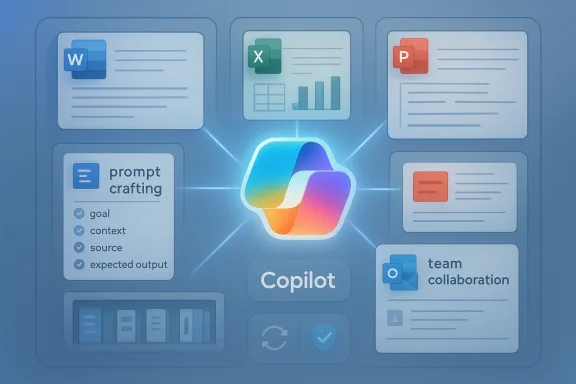
A digital visualization related to the article topic.Overview​

Microsoft’s Copilot story has changed quickly over the past two years. What began as a conversational assistant tucked into Microsoft 365 has become a platform for drafting, summarizing, brainstorming, and increasingly orchestrating multi-step work inside the tools people already use every day. Microsoft Learn now describes Copilot as working in context across Word, Excel, PowerPoint, Outlook, Teams, and Loop, with app-specific features that range from drafting text to generating insights from spreadsheets
That shift matters because beginners are no longer learning a gimmick; they are learning a workflow. The strongest Copilot users are not the ones who write the fanciest prompt, but the ones who know how to define a goal, add context, specify the source material, and state the expected output. Microsoft’s training materials explicitly teach that pattern, and its prompt guidance encourages users to think in terms of outcome, not just input
The Geeky Gadgets beginner guide reflects a very common entry point: people start with email drafts, event agendas, and brainstorming, then quickly realize that Copilot can also help them structure recurring work. That practical framing is important because it mirrors how most organizations will adopt AI— then as a collaboration layer, and eventually as a standard part of document, meeting, and planning workflows. The real story in 2026 is not just that Copilot can write faster; it is that it can reduce the friction of starting, organizing, and refining work
Microsoft’s recent changes also show that the platform is becoming more structured. Prompt Gallery now centralizes Microsoft-curated prompts, user prompts, and team prompts, and Microsoft says those prompts can be saved and shared to promote consistency and collaboration. That is a significant shift from one-off prompting toward organizational knowledge capture, which makes the tool more useful for teams and easier to govern at scale

Getting Started With Copilot​

The first thing beginners need to understand is that Copilot is not a separate island. It is part of the Microsoft 365 experience, and Microsoft’s current guidance points users toward Microsoft 365 Copilot Chat and in-app integrations rather than a standalone “bot” mentality. In Word, Excel, PowerPoint, Outlook, and Teams, Copilot is designed to work inside the flow of the document, spreadsheet, or conversation you are already using
That integration changes the learning curve. Instead of learning a new app, users learn how to ask better questions and how to feed Copilot enough context to produce useful drafts. Microsoft’s prompt training path specifically teaches users to summarize, simplify, visualize, create, draft, and brainstorm across Microsoft 365 apps, which means the platform is now being positioned as a core productivity habit rather than an optional add-on

Where beginners should begin​

A practical onboarding sequence is simple. Start with Copilot Chat, move into Word for drafting, use Excel for analysis, and use Teams for meeting recap and action-item extraction. That progression lets beginners see Copilot in both creative and analytical settings, which is exactly where the assistant is strongest today
The latest Microsoft support and Learn documentation also shows that prompts are not meant to be ephemeral. Users can save prompts, reuse them, and share them through Prompt Gallery, which is especially valuable for teams that want a consistent voice, process, or format. In other words, the beginner stage should include building a small library of reliable prompts, not just experimenting randomly
  • Begin in Copilot Chat for general-purpose drafting and ideation.
  • Use Word for reports, letters, outlines, and rewrites.
  • Use Excel for formula suggestions, chart ideas, and data insights.
  • Use Teams for meeting summaries, decisions, and follow-up actions.
  • Save prompts that work so you can reuse them later.
A second practical lesson is that Copilot’s value depends heavily on permissioned data and context. Microsoft says Copilot uses the user’s prompt, activity history, and the data the user is authorized to access in Microsoft 365, while grounding respects identity-based access boundaries. For beginners, that means Copilot should feel helpful without becoming a free-for-all access tool

Prompting Basics That Actually Work​

Prompting is where beginners either unlock Copilot or frustrate themselves. Microsoft’s guidance is clear: effective prompts need a goal, source, context, and expectation. That structure matters because it turns vague requests into usable outputs, especially when the task is business writing, analysis, or planning
A weak prompt sounds like “write an email.” A stronger one sounds like “draft a polite follow-up email to a client after yesterday’s review meeting, mention the agreed timeline, and keep the tone confident but warm.” That extra detail narrows the output and makes the first draft far more likely to be usable. Specificity is the difference between inspiration and administration

The anatomy of a better prompt​

The best beginner prompts usually include four pieces: what you want, why you want it, what the source is, and what the result should look like. That structure is not just academic; it reflects how Copilot grounds responses in Microsoft 365 content and how users can refine outputs inside the app. Microsoft’s own examples across Word, Teams, and Outlook reinforce that pattern
A simple pattern to remember is: task, audience, tone, length, and source. If you ask Copilot to “summarize the attached client proposal for executive review in three bullets,” it has a much clearer target than if you merely say “summarize this.” That clarity also reduces the amount of editing you need afterward, which is where most of the time savings come from.
  • State the deliverable clearly.
  • Name the audience or reader.
  • Add tone or style requirements.
  • Provide source material when possible.
  • Specify length, format, or structure.
Microsoft’s training and support pages also show that prompts work best when they are reusable rather than improvised every time. That is why saving successful prompts in Prompt Gallery matters: it captures your best wording, keeps teams aligned, and reduces dependence on memory or trial-and-error. Good prompting becomes a team habit, not a personal trick

Writing Prompts and Templates​

For beginners, writing is the easiest place to feel an immediate Copilot win. Microsoft 365 Copilot can draft text in Word, create content in PowerPoint, and help generate professional replies in Outlook, all while keeping the user in control of the final edit. Microsoft Learn explicitly lists drafting as a core feature in Word and notes that Copilot can create text with or without formatting in new or existing documents
This is where templates become especially useful. Instead of asking Copilot to invent a format from scratch, you can provide a house style or a recurring structure and ask it to fill in the content. That approach is much better for business users because it aligns AI-generated output with organizational standards rather than forcing people to retrofit the result afterward. Templates are a force multiplier because they constrain creativity in useful ways

Practical writing use cases​

The most obvious use case is email. A follow-up note, a meeting recap, a client introduction, or a project update can all be drafted much faster when you provide the core facts and let Copilot shape the message. Microsoft’s own guidance includes examples of rewriting text and generating meeting-related summaries and responses, which confirms that email and document drafting remain foundational use cases
The second major use case is document structure. Beginners can ask Copilot to create outlines, executive summaries, project proposals, or briefing notes, then refine those drafts directly in Word. Microsoft’s newer documentation also points to file-creation agents that can generate Word, Excel, and PowerPoint files from prompts, which is a sign that the document creation workflow is becoming even more automated
  • Draft follow-up emails after meetings.
  • Rewrite awkward or too-verbose text.
  • Create report outlines and executive summaries.
  • Turn rough notes into polished internal documents.
  • Generate first-pass proposals or project briefs.
A useful beginner technique is to ask Copilot for two versions of the same message: one concise and one more detailed. That lets you compare tone and emphasis before choosing the better fit. It also trains users to think critically about AI output, which is essential because the first draft is not automatically the best draft.

Brainstorming Ideas Without Getting Lost​

Copilot is often most impressive when users need a starting point but don’t yet know the destination. Microsoft’s training materials explicitly include brainstorming as a key skill, and Copilot Chat examples show it being used to generate ideas, mitigations, summaries, and strategic alternatives in a conversational workflow
That said, beginners should not use Copilot as a replacement for judgment. The value comes from generating options quickly, not from accepting every suggestion. In practice, Copilot is best used as a sparring partner that gives you a spread of possibilities, after which you filter for feasibility, risk, and alignment with your goals.

From idea generation to action​

A strong brainstorming session with Copilot should end in decisions or next steps. If you ask for ideas to improve remote team engagement, for example, Copilot can return concepts like recurring social touchpoints, recognition rituals, or better meeting formats. Your job is to turn those ideas into something testable, measurable, and time-bound. The point is not more ideas; the point is better execution
This is why beginners should ask follow-up questions. Once Copilot generates a list, you can request a ranking, a pros-and-cons breakdown, or a version tailored to budget, team size, or company culture. That makes the assistant useful not just for creativity but also for prioritization, which is where many knowledge workers actually spend their time.
  • Generate a broad list first.
  • Ask Copilot to group ideas by theme.
  • Request pros, cons, and risk factors.
  • Rank ideas by impact and effort.
  • Convert the best ideas into an action plan.
The broader business implication is that brainstorming is becoming more operational. With saved prompts, team-shared templates, and in-app collaboration, Copilot can support repeatable ideation cycles rather than one-off creative bursts. That is a subtle but important change for organizations trying to standardize how teams plan, pitch, and decide.

Event Planning and Agenda Creation​

Planning meetings, workshops, or internal events is one of the clearest ways to show a beginner Copilot’s practical value. Microsoft’s ecosystem now supports turning a prompt into an agenda, a deck, or a document structure, and its file-creation agents can build Word, Excel, and PowerPoint files directly from simple descriptions
That matters because event planning is usually a coordination problem, not a creativity problem. You need a schedule, session objectives, assigned owners, time blocks, and maybe a follow-up list. Copilot can provide the skeleton quickly, leaving the human planner to add nuance, logistics, and organizational context.

Agenda prompts that save time​

A beginner can ask for a half-day workshop agenda, a leadership offsite outline, or a weekly project meeting plan. The result is often a surprisingly good first draft, especially if you specify the audience, time window, and intended outcomes. Microsoft’s support examples around Teams also show that Copilot can summarize meeting content and extract follow-up needs, which makes it doubly useful before and after the event
For recurring planning, prompts should be reusable. A well-crafted event template can be saved in Prompt Gallery and shared with colleagues, making sure that future agendas follow the same logic and tone. That consistency is especially useful for managers, project leads, and executive assistants who need dependable output rather than novelty
  • Create a draft agenda from a single sentence.
  • Add session goals and expected outcomes.
  • Ask for a version with time blocks.
  • Request speaker or owner placeholders.
  • Generate follow-up actions after the event.
A smart beginner workflow is to start with the agenda, then use Copilot to draft the invitation, participant notes, and post-meeting recap. That way the event lives as a connected workflow instead of a collection of disconnected tasks. It is a good example of how AI can reduce administrative overhead without replacing human judgment.

Excel, Analysis, and Practical Decision Support​

Copilot’s value becomes more concrete when it meets data. Microsoft says Copilot in Excel can suggest formulas, chart types, and insights from spreadsheet data, which is exactly the kind of help beginners need when they know the outcome they want but not the right formula or method. That makes Excel one of the most strategically important Copilot surfaces for everyday users
This is also where the assistant can feel intimidating, because data work carries more risk than drafting a paragraph. A spreadsheet mistake can lead to misleading conclusions, so beginners should treat Copilot’s output as a recommendation, not a verdict. Copilot can accelerate analysis, but it does not absolve you from checking the numbers

What beginners should do in Excel first​

The easiest entry point is asking for help with summaries, formulas, or chart suggestions. If you have a clean dataset, Copilot can propose a structure or highlight trends without requiring you to know every function by heart. Microsoft’s guidance and recent support notes also show that Copilot can now be used alongside increasingly advanced spreadsheet workflows, including the COPILOT function itself in Excel
That opens a broader opportunity for business users. Instead of waiting for analysts to answer every question, managers can use Copilot to understand data at a conversational level before escalating deeper questions. That shortens feedback loops and often leads to better meetings, because participants arrive with a shared baseline of information.
  • Ask for formula suggestions.
  • Request a chart recommendation.
  • Summarize visible trends in plain language.
  • Compare categories or time periods.
  • Validate your assumptions before presenting results.
The long-term implication is that Excel becomes less of a specialist’s fortress and more of a collaborative analysis environment. That does not eliminate the need for skilled analysts, but it does lower the barrier for everyone else to participate meaningfully in data-backed decision-making.

Teams, Collaboration, and Meeting Workflow​

Microsoft Teams is where Copilot becomes most obviously collaborative. Microsoft’s support guidance shows users asking Copilot to catch up on what happened in meetings, summarize chat and documents, and identify questions or mitigations relevant to ongoing work. That makes Teams one of the strongest places for beginners to experience immediate time savings
The value here is not only speed. It is continuity. Meetings generate decisions, action items, and context that often disappear into notes or memory. Copilot can help carry that context forward, reducing the chance that work gets lost between conversations.

Making collaboration less chaotic​

A good beginner pattern is to use Copilot after the meeting, not during it. Ask for a summary, then request action items, follow-up questions, and unresolved risks. That transforms the meeting from a conversational event into a structured work artifact that can be shared and acted upon immediately
Microsoft’s newer prompt and release notes also point toward a more collaborative future, including prompt sharing across teams and better reuse inside Copilot experiences. That means the “best prompt” is becoming part of team infrastructure rather than a personal shortcut kept in someone’s head
  • Summarize meetings into readable notes.
  • Extract action items and owners.
  • Catch up on missed discussions.
  • Surface risks or open questions.
  • Share reusable prompts with the team.
For enterprise users, this is where governance matters most. Team collaboration is useful only if permissions, data boundaries, and prompt sharing are managed carefully. Microsoft says Copilot respects tenant permissions and enterprise data protection rules, which is crucial if teams want collaboration without accidental exposure of sensitive material

Customization, Prompt Gallery, and Reuse​

Customization is where beginner usage matures into real productivity. Microsoft has made a point of enabling users to save prompts, share them with teams, and reuse them through Prompt Gallery in Copilot Chat and Microsoft 365 apps. That means the best prompts do not disappear after one use; they become part of a durable workflow system
This is important because AI productivity is rarely about the first answer. It is about the repeatable process that produces good answers over and over again. Once a user has a prompt that consistently delivers the right draft, the right summary, or the right agenda, they have effectively turned Copilot into a custom work tool.

Why reuse beats improvisation​

Prompt reuse lowers cognitive load. Instead of starting from scratch every time, you refine a proven formula, which means less inconsistency and fewer missed details. Microsoft’s Prompt Gallery also supports team-level sharing, making it easier for organizations to standardize language, tone, and process across departments
There is also a governance benefit. Prompt Gallery is designed with compliance and security in mind, with prompts stored within tenant boundaries and accessible through secure Substrate APIs. That makes reuse more enterprise-friendly than ad hoc sharing in random chats or copied notes
  • Save prompts that produce reliable output.
  • Share the best ones with teammates.
  • Personalize prompts with your organization’s tone.
  • Reuse formats for recurring tasks.
  • Keep high-value prompts in a central library.
Microsoft’s decision to streamline Prompt Gallery and move more usage into Copilot Chat also suggests a simpler future for beginners. The platform is becoming less fragmented, which should make discovery easier and reduce the number of places users need to learn. That simplification may be just as important as any flashy AI capability.

Cloud Integration, Security, and Trust​

Copilot’s cloud integration is one of its biggest strengths, but it is also where trust is won or lost. Microsoft says Copilot is built on Microsoft 365 data permissions and enterprise data protection principles, with encrypted data in transit and at rest, tenant-level isolation, and grounding constrained by identity-based access rights
That architecture is critical for business adoption. If users cannot trust that Copilot respects their access boundaries, they will either avoid using it or use it in unsafe ways. Microsoft’s documentation makes a point of saying that its AI models do not train on tenant data by default in the same way public consumer tools might, which is a major selling point for enterprise customers

Why security is part of the beginner guide​

Beginners often focus on output quality and ignore data handling, but that would be a mistake. As soon as Copilot is used with internal documents, meeting notes, or customer material, security becomes part of the workflow. Understanding what Copilot can access, what it can summarize, and what it cannot reveal is fundamental to safe adoption
The practical takeaway is that organizations should teach Copilot alongside basic information governance. Users need to know what is allowed, what is sensitive, and how to verify outputs before sharing them externally. That is especially true in regulated environments where privacy, compliance, and auditability matter just as much as speed.
  • Confirm who can access the source data.
  • Treat Copilot output as a draft until reviewed.
  • Avoid pasting sensitive information unnecessarily.
  • Use enterprise controls where available.
  • Train staff on safe prompting habits.
This is where the AI hype cycle gets real. Copilot can absolutely make work faster, but if organizations ignore access controls and prompt discipline, the efficiency gains can be offset by risk. Trust is the true productivity feature because without it, the rest of the value stack collapses.

Strengths and Opportunities​

The biggest strength of Microsoft Copilot in 2026 is that it is becoming embedded in the places where people already work. Rather than forcing users into a new interface, Microsoft has pushed Copilot into Word, Excel, Teams, Outlook, and the broader Microsoft 365 experience, which gives it a natural advantage in adoption and stickiness
It also benefits from a strong enterprise story. Prompt sharing, tenant-aware access controls, and secure cloud integration make Copilot more believable for business use than many consumer-first AI tools. That combination of convenience and governance is one of Microsoft’s strongest competitive positions
  • Deep integration with Microsoft 365 apps.
  • Strong beginner-friendly prompt guidance.
  • Reusable prompts and shared team workflows.
  • Useful drafting and summarization capabilities.
  • Better support for event planning and planning artifacts.
  • Enterprise security and permission-aware grounding.
  • Growing support for file creation and structured output.
The opportunity is broader than just productivity. Copilot is becoming a platform for organizational memory, repeatable workflows, and lightweight automation. If Microsoft continues improving discovery, prompt reuse, and app-specific agents, it could make AI feel less like a novelty and more like a standard operating layer for knowledge work

Risks and Concerns​

The biggest concern is overtrust. Copilot can produce polished drafts and plausible summaries very quickly, but that speed can hide mistakes, omissions, or subtle misunderstandings. In business environments, a confident wrong answer is often more dangerous than no answer at all, especially in writing, finance, or data analysis
There is also a workflow risk. If organizations adopt Copilot casually, they may end up with inconsistent prompts, duplicated effort, and scattered outputs that are harder to govern than the manual processes they replaced. Prompt reuse helps, but only if teams actually standardize it and maintain it over time
  • Hallucinated or incomplete output.
  • Users trusting drafts without review.
  • Inconsistent prompting across teams.
  • Weak data hygiene and accidental disclosure.
  • Confusion over where prompts are stored.
  • Overdependence on a single vendor ecosystem.
  • Uneven value depending on the quality of source content.
A third concern is change management. Copilot works best when users are trained, but many organizations still treat AI like an optional add-on rather than a governed skill set. That leaves value on the table and increases the odds that employees will use the tool inconsistently or unsafely. The hardest part is rarely the software; it is the behavior change.

Looking Ahead​

The direction of travel is clear: Microsoft is turning Copilot from a chat assistant into a work system. The rise of Prompt Gallery, app-specific features, file-creation agents, and more structured prompt guidance all point toward a future where users will not just ask Copilot questions but orchestrate work with it
For beginners, that means the skill to learn is not “AI magic.” It is prompt discipline, review habits, and workflow thinking. Users who master those basics will get more value from Copilot than people who merely ask it to generate random drafts. Microsoft’s own training and support materials are increasingly built around that reality

What to watch next​

  • Wider adoption of app-specific agents in Microsoft 365.
  • More prompt-sharing and team-level governance features.
  • Better Excel analysis and formula assistance.
  • Deeper meeting and collaboration workflows in Teams.
  • Stronger consumer-to-enterprise consistency in Copilot experiences.
The key question for 2026 is not whether Copilot can help. It clearly can. The real question is whether organizations will treat it as a casual assistant or as a repeatable productivity system with standards, prompts, and controls. The winners will be the users and teams that learn to combine speed with judgment, because that is where AI becomes genuinely useful rather than merely impressive.
Microsoft Copilot is no longer just a beginner-friendly AI demo; it is becoming an everyday productivity framework. The people who get the most from it will not be the ones chasing novelty, but the ones who build good prompts, reuse what works, and keep human review in the loop. In that sense, the best Copilot strategy for 2026 is also the oldest one in computing: use tools to reduce friction, but keep control of the work itself.

Source: Geeky Gadgets Microsoft Copilot Beginner Guide for Prompts, Ideas & Planning in 2026
 

Back
Top